C. How to update a product list or sub-list

Supply User Manual ENG -> Products -> 3.3 LU-SU2102: Product List -> B. How to create a new product list or sub list

C. How to update a product list or sub-list

Go to: Products / Products / Products List

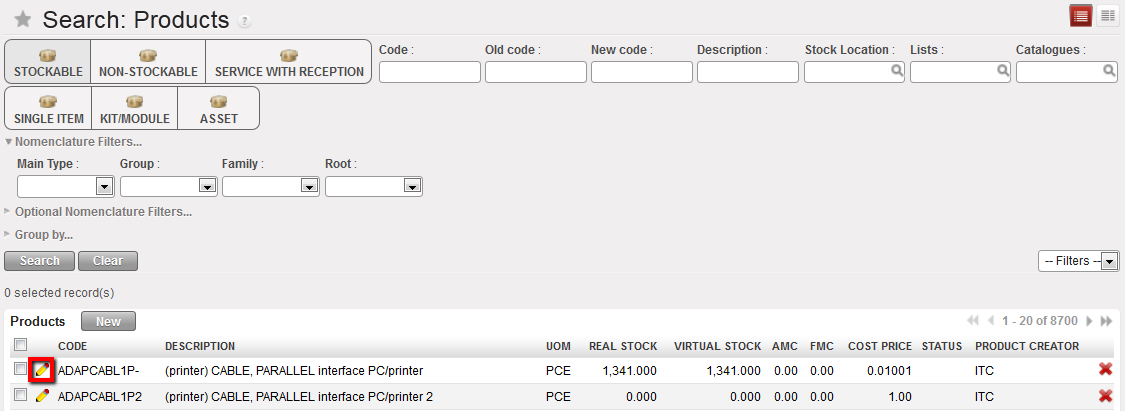
  1. Use the search tools to filter values to find the list or sub-list you want to edit
  2. Click on the pencil icon next to the list to open it in edit mode
  3. Make the necessary changes
  4. Click on the “save” button

B. How to create a new product list or sub list

Supply User Manual ENG -> Products -> 3.3 LU-SU2102: Product List -> B. How to create a new product list or sub list

B. How to create a new product list or sub list

To view product lists or sub-lists in the system, Go to: Products / Products / Products List

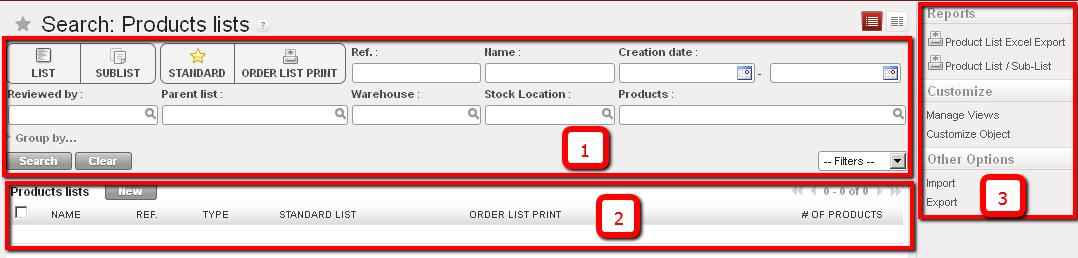
The product list dashboard displays.

It contains three different areas:

  1. Searching and grouping options
  2. Existing Lists or sub lists in the system
  3. Printing, import and export options once a list has been selected

List and sub-list dashboard

To create a new product lists or sub-list:

  1. Click on the “New” button to begin the creation process.
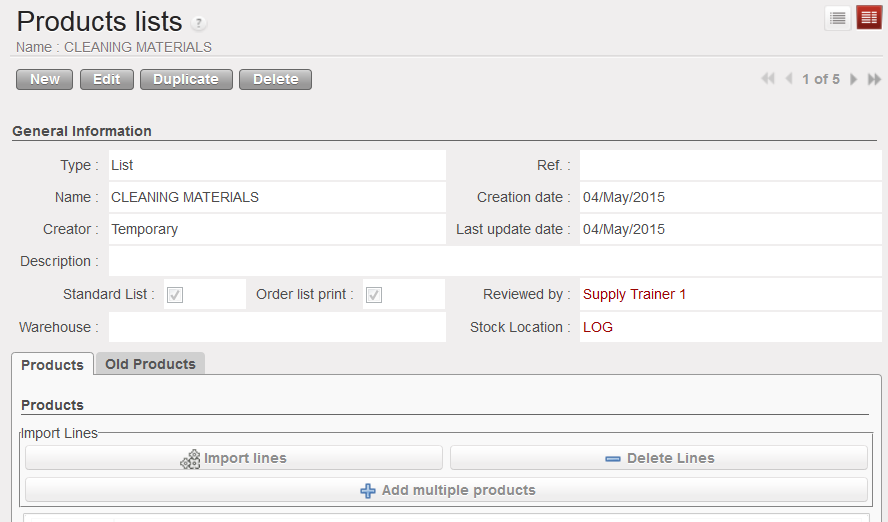
  2. Select the type of list you want to create (list or sub list), enter name, reference, description, Creator will be Temporary by default. Here you should select the level at which you are creating the list (HQ, Coordo, Project), for future modification of this list, this will be limited only to the level where the list was created. Select if the list is a standard or an order list. If we are creating a sub list, select the parent list; in this case only products on the parent list will appear; select warehouse and location related to the list.
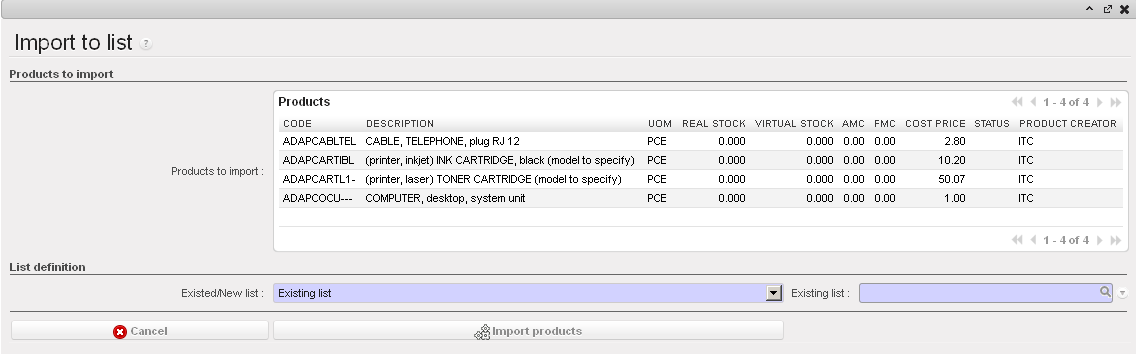
  3. You can import a list of products by selecting Add attachment or, add multiple products using the button “Add multiple products” otherwise use the “new button” to individually add new products to the list.
  4. Click on Save.

Product list creation

A. LU Introduction (LU-SU2102)

Supply User Manual ENG -> Products -> 3.3 LU-SU2102: Product List -> A. LU Introduction (LU-SU2102)

A. LU Introduction (LU-SU2102)

Products lists and sub lists are very useful to automate tasks. They are useful when the same products are regularly ordered in different quantities. A product list (and sublist) means that we already have an outline of the products needed as a template, which will speed up the process for creating the order.

A product list can be used to define the products required by a mission, project or a particular activity; they can also be used to list products that a supplier may be able to provide.  Lists are always related to a warehouse and a location optionally can be linked to a supplier or customer.

Lists which are marked as Standard will be synchronised to all instance levels below. Any products added or removed from existing listed will also update the relevant lists below via synch, and will appear in the Old Codes tab of the Product List.

A sub-list has to be linked to a list, therefore at the time of choosing products for a sub-list, only those products appearing in the parent list will be available. For example: let’s imagine that an MSF project (project 01) contains 3 activities (OPD, Vaccination and Nutrition). By creating a list for project 01 and 3 sub-lists for each of the activities, the user will be able to benefit from using UniField tools such replenishment, forecasting, re-ordering and more.

L. How to merge a UniField local product with a UniData product (Coordination only)

Supply User Manual ENG -> Products -> 3.2 LU-SU2101: General Product Management -> L. How to merge a UniField local product with a UniData product (Coordination only)

L. How to merge a UniField local product with a UniData product (COOrdination only)

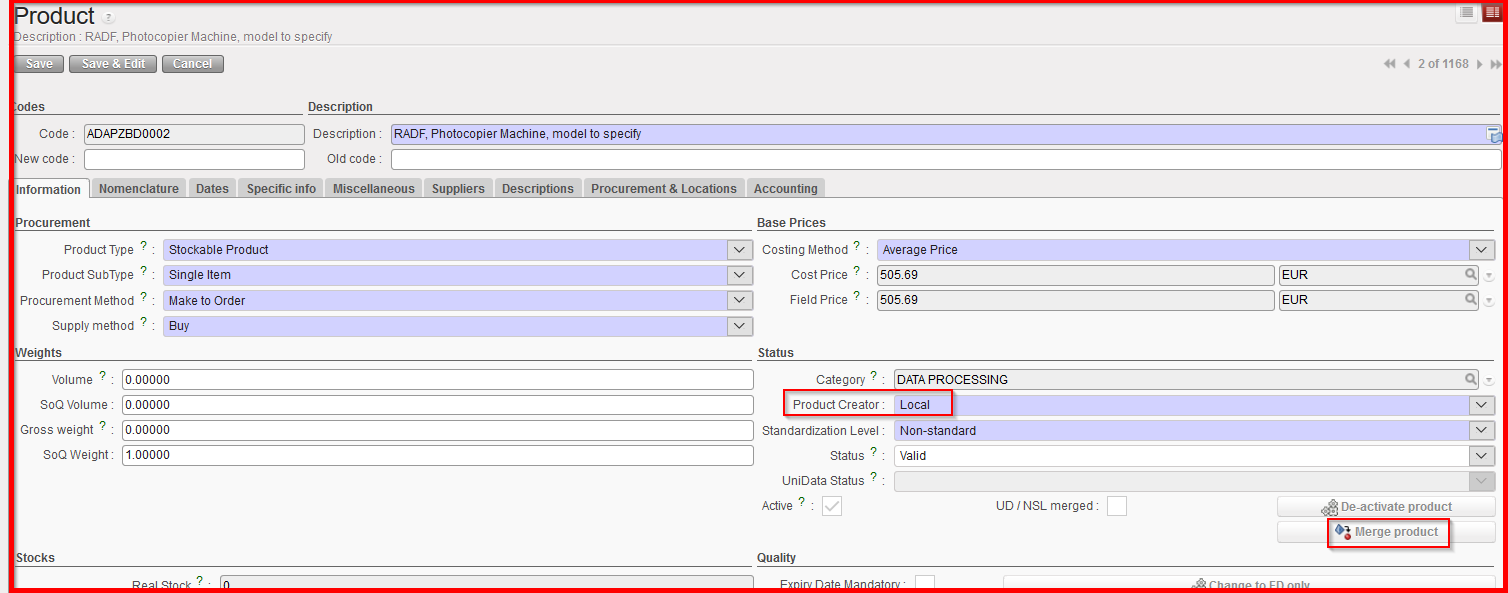
Creation of local product is moving from a UF scope to a UD management scope. In order to smooth this transition, the “Merge” feature has been developed. The main goal is to eventually replace all the UF products with “Product Creator” = “Local” to UD product (“Product Creator” = “UniData“).

The process of migration of Local products is outlined by UniData/Spinco documents, and is to be managed, and overseen by each OC’s HQ level in consultation with UniData. The merging of products is a tool in this larger process and therefore its scope is to be used in line with agreed protocols, and only following a clear decision, with full recognition of the outcome.

The merge is intended to be done on a one to one basis and only from Coordination instance. Therefore, the button “Merge product” will be found on the local UF product only and can only be merged to one UD product. It will be a one shot action meaning that once merged the local product cannot be un-merged and will be deactivated for good (its only reference will remain in the “old code” field from the related UD merged product and obviously in the “Track changes”) while the new merged UD product will be active.

The new merged UD product can also be merged only once and should have no history.

Any merge done at Coordo level will automatically be pushed to project level after next synchronization, and products in lower instance level should be merged in the same way.

To merge a UF local product, go to: Products/ Products

  1. Use the search tools to filter values to find the product you want to edit (it has to be a product with “Product Creator” = “Local”)
  2. Click on the product line to open it
  3. Click on the “Merge product” button

       4. From the wizard, select the UD product to be merged by clicking the magnifier from the                 “UD product” field

a) By default, only NSL products can be selected to be merged

b) To be able to select a Standard or Non-Standard UniData product to merge, the checkbox “Use Standard/ Non-Standard UD product” must be ticked (only products which are Active).
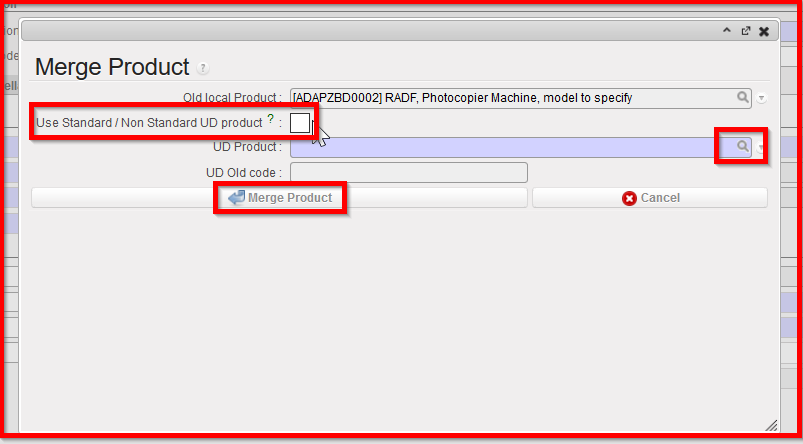
5. Click on “Merge Product” on the wizard
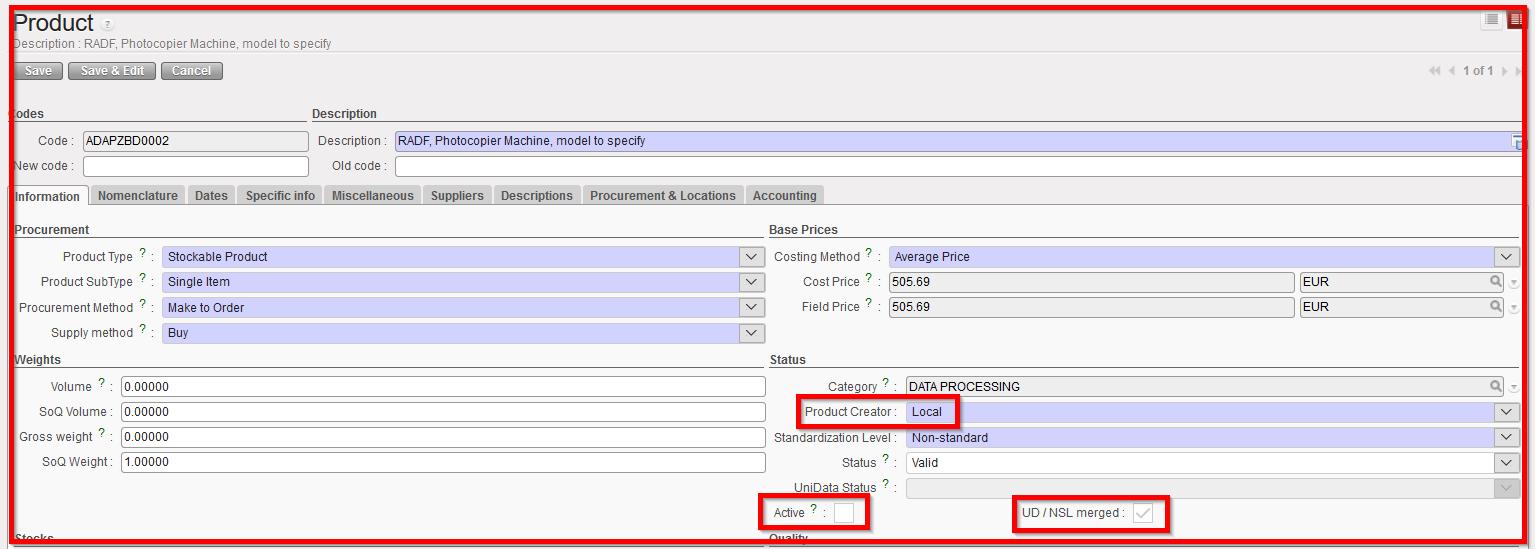
The UF local product is now Inactive and cannot be reactivated. It is also now ticked as “UD/NSL merged”.

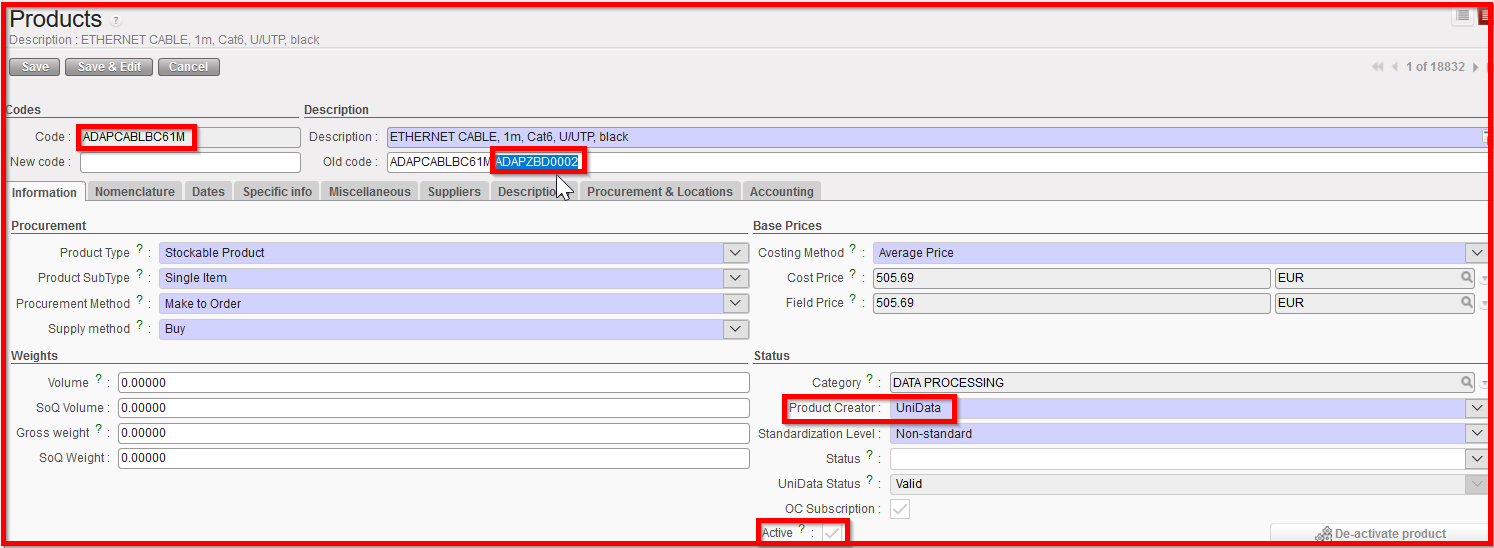
The new UD merged product has now replaced this UF local product an all existing open or closed document and has the UF local product referenced in the “Old code” field:
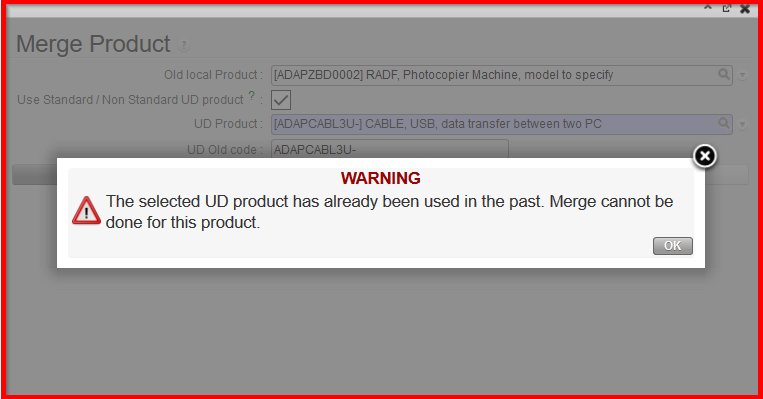
Please note that after clicking on “Merge Products” from the wizard, some checks are done on the products history, presence in Stock mission report and some attributes (i.e: BN/ED) then a blocking explicit message can prevent the merge when necessary. In case of blocking message related to attributes, user can still update the UF product so that merge can be done.
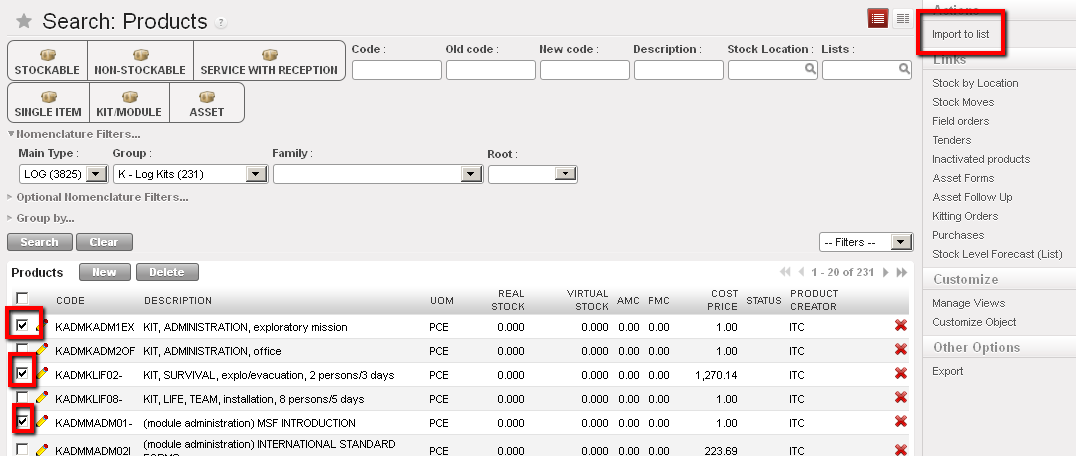
Note that there can also be non-blocking message for attributes and that UD products attributes will prevail in case of discrepancies ( “Nomenclature” or “Temperature sensitive” or “Product type”).

K. How to specify procurement lead time for a product

Supply User Manual ENG -> Products -> 3.2 LU-SU2101: General Product Management -> K. How to specify procurement lead time for a product

K. How to specify procurement lead time for a product

Lead times are a parameter usually associated to a supplier; the system requires this parameter in order to calculate procurement time accurately and also to calculate timing for reordering according to all the possible replenishment rules within the system. Procurement lead time can be also applied to a product although it is usually more accurate when it is applied directly to the supplier. This parameter is also used in the system KPI’s (Key Performance Indicators).

To enter a lead time for a product –> Go to: Products/ Products

  1. Use the search tools to filter values to find the product you want to edit
  2. Click on the pencil icon next to the product line to open it in edit mode

  3. Select “Procurement & Locations” tab
  4. Enter the amount (days) in the “Procurement lead time” field
  5. Click on Save

It is important to always enter a lead time for the product in the system if the replenishment settings have been configured (See Configuration Chapter). If no supplier has been associated with the product, then the system will use the general lead time (either the default of 60 days, or the time which has been entered manually) in order to be able to generate any replenishment POs.

Product procurement lead time

J. How to add supplier details to a product

Supply User Manual ENG -> Products -> 3.2 LU-SU2101: General Product Management -> J. How to add supplier details to a product

J. How to add supplier details to a product

A product can be associated to one or several qualified and approved suppliers for different reasons such as lead time, quality, references etc. This option becomes extremely important if replenishment rules are to be created for this product.

To add supplier details for a product –> Go to: Products/ Products

  1. Use the search tools to filter values to find the product you want to edit
  2. Click on the pencil icon next to the product line to open it in edit mode


  3. Click on the “Suppliers” tab
  4. Click on “New” button to associate a supplier to the product
    • Select the supplier
    • Select Supplier UoM (Unit of Measure)

Associating a supplier to a product

5. When more than one supplier is associated with a product, the system will use the sequence of suppliers to select the default (i.e. preferred or most highly ranked) supplier for any orders it generates, either through the sourcing tool or for POs created automatically due to the replenishment rules configuration for certain products.

The lower the number, the better the rating, so “1” is considered a better supplier than “2“and ”-1” is better than “1”. This field should be entered manually, although it has been agreed that the following conventions will be used:

  • When a suppliers’ information comes from an RfQ which has been identified as the chosen supplier for this product (through a tender process), the system will automatically assign a “-99” rate. This is based on the assumption that a supplier selected from a tender process will be the preferred one.
  • When a supplier’s information comes from a catalogue, then the system will automatically assign a 0 rate.

All ratings can be changed manually if another supplier should be by default selected for automated orders.

Supplier sequence, rating

I. How to declare a new product as a service

Supply User Manual ENG -> Products -> 3.2 LU-SU2101: General Product Management -> I. How to declare a new product as a service

I. How to declare a new product as a service

This option is to create / convert a product into a service in UniField; this is required in order to create Purchase Orders for services like transport, construction, electricity or any other service needed to be contracted.

Each type of service needs to be entered as a product in the database. The price can be edited in the actual purchase order itself.

Service with reception

Please note: The UoM in the purchase order service with reception can be percentage (100%) as this will facilitate payment in installments for a service if this was the payment term agreed with the supplier.

To indicate that a product is a service –> Go to: Products / Products

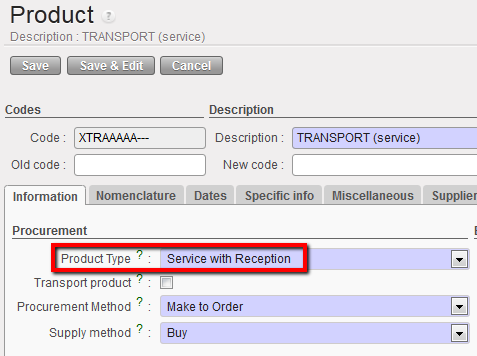
  1. In the “Information” tab, go to “Product Type field” and select the option “Service with Reception”

Service with Reception Product Type

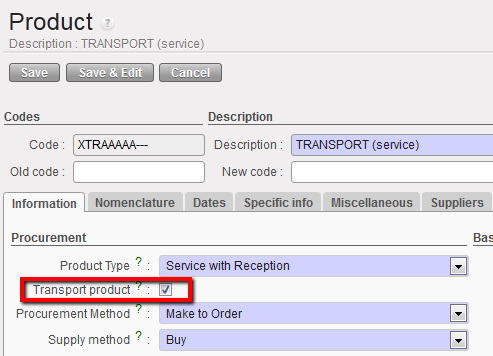
2. Tick the “Transport product” checkbox if the service is transport-related such as car rental or   transport services.

3. Click on Save

H. How to activate a product to be recognized as an asset

Supply User Manual ENG -> Products -> 3.2 LU-SU2101: General Product Management -> H. How to activate a product to be recognized as an asset

H. How to activate a product to be recognized as an asset

All assets must be registered in the system at their time of arrival (Reception). The setting should be set for the product so that the system recognises if it is an asset. As with batch numbers, this attribute should only be activated on a new product and not one which is already in use. To do this, follow these steps:

Go to: Products/Products

  1. Use the search tools to filter values to find the product you want to edit
  2. Click on the pencil icon next to the product line to open it in edit mode

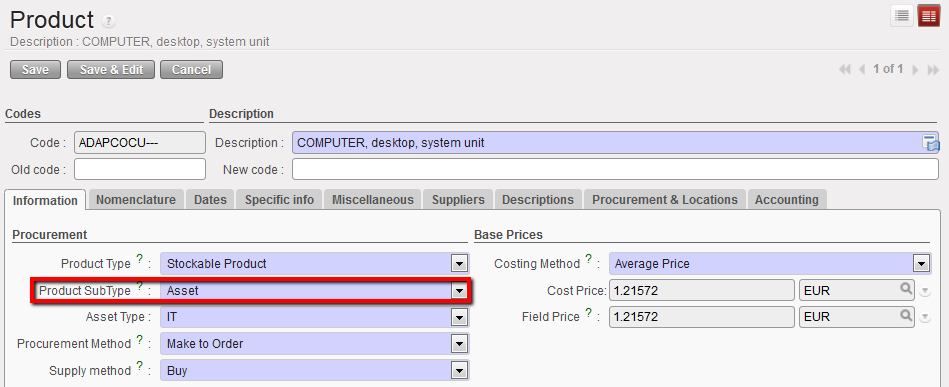
Setting a product to an asset type

3. In the “Product sub type” field, select “Asset”

4. In the “Asset Type” field, select the category from the drop-down menu

5. Click on “Save”

6. The product specificities such as brand, model, etc. will be recorded in the assets database during the asset reception.

Received product as an asset

G. Product BN/ED Mass Update.

Supply User Manual ENG -> Products -> 3.2 LU-SU2101: General Product Management -> G. Product BN/ED Mass Update.

G. Product BN/ED Mass Update.

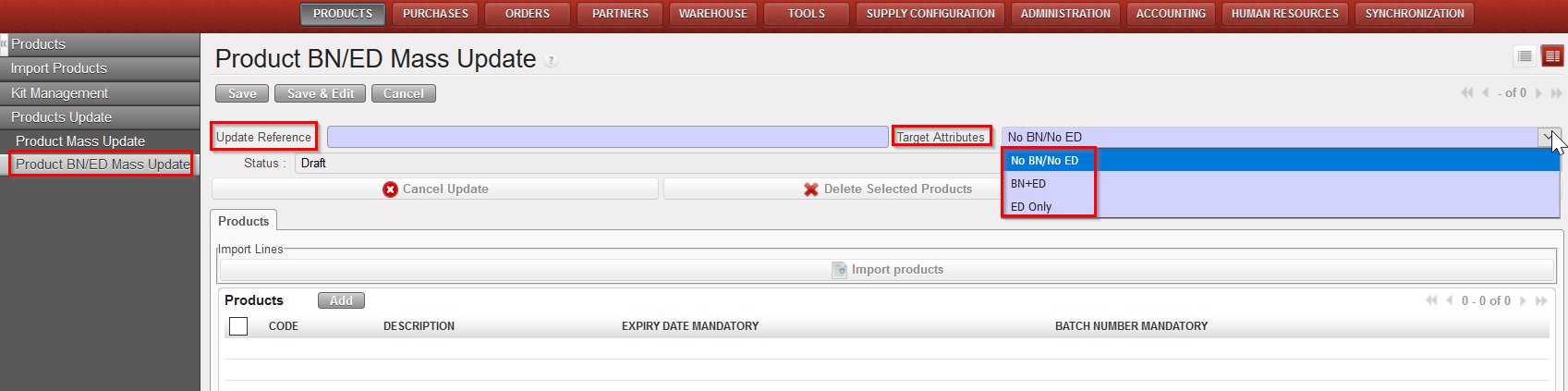
When multiple products need to be updated for BN/ED, the BN/ED mass update function can be used. This functionality can only be used at HQ for non-local product or Coordination for local products (under specific user rights).

Go to: Products/ Products Update/ Product BN/ED Mass update

  1. Click on “New”
  2. Fill the “Update Reference”
  3. Select the type of update among the following “Target attributes”:
    • No BN/No ED: to remove BN/ED attributes
    • BN + ED: to add BN/ED attributes
    • ED only: to add ED attributes

Mass update of BN/ED attributes

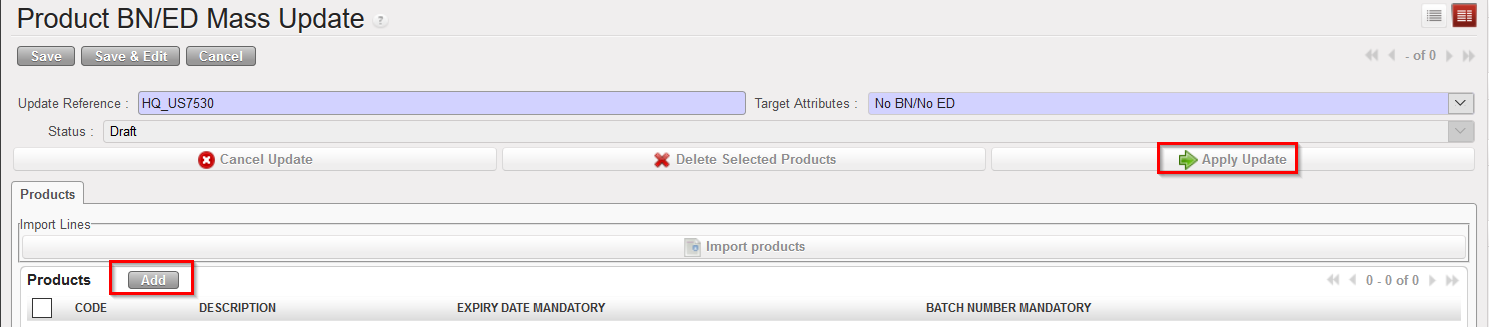
4. Click on “Add” to add product one by one or use the “Import products” to upload a list of product (template can be found by Clicking on “Import products” > “Save as”)

5. Click on “Apply Update” to apply to all lines once finished. (When in “Draft” update can still be Cancelled)

Mass update of BN/ED attributes

6. On the right-hand action menu, an Excel file can be exported to view the list of updated products with their old attribute value.

Mass update of BN/ED attributes

F. How to activate the batch numbers being mandatory for a product

Supply User Manual ENG -> Products -> 3.2 LU-SU2101: General Product Management -> F. How to activate the batch numbers being mandatory for a product

F. How to activate the batch numbers being mandatory for a product

All the batch numbers of a product must be entered in the system database. Most of the UniData/ITC products will have this option enabled. Update of this attribute can only be done at HQ for non local products and only at Coordination for local products (providing some specific user rights) and will be synchronized down to children instances. To activate this option manually follow these steps:

Go to: Products/ Products

Activating a batch number-1

  1. Use the search tools to filter values to find the product you want to edit
  2. Click on the pencil icon next to the product line to open it in edit mode

  3. In the “Information” tab, click on the “Make Mandatory” button aside the “Batch Number mandatory” check box to enable it
  4. Click on Save

The system will now require that the specific batch number(s) for this product are recorded in the system during the product reception.

Activating a batch number 2

Please note: This attribute needs to be changed cautiously especially if product is in Stock or is in transaction document.

If product with BN is changed to product without BN then the BN will be erased for existing product in the system (for any Stock; document…) and products quantity will be aggregated in Stock (in case you had several BN for the same product).

If product without BN is changed to product with BN a “False” BN (TO-BE-REPLACED) will be automatically added to the existing product in Stock/document. This “false” BN will have to be updated by the user later.