H. How to add one or multiple Analytical Distribution (AD) to Purchase orders Line/lines

Supply User Manual ENG -> 4. Procurement -> 4.6 LU-SU3201: Purchase Orders (POs) - Generals -> H. How to add one or multiple Analytical Distribution (AD) to Purchase orders Line/lines

H. How to add one or multiple Analytical Distribution (AD) to Purchase orders Line/lines

This functionality enables users to add or update the Analytical distributions (ADs), (Cost Centers and Destinations) the Draft PO lines, users have 3 options to use for adding or updating the ADs:

1- Adding AD/ADs at the header level:

Go to: PURCHASES > Purchase Orders > Analytical Distribution

This image has an empty alt attribute; its file name is PO-1024x471.png

PO AD at header level

by clicking on the “Analytical distribution”, new screen will be opened, and then by clicking on “New” user can add one AD or more to be applied on all PO lines the same way “Global analytic distribution”

AD at header level

2- Adding AD/ADs at line level manually:

User can add the AD to the line manually by clicking on AD icon on the line level, new screen will be opened, and then by clicking on “New” user can add the AD to the line:

This image has an empty alt attribute; its file name is PO-22.png
AD at line level

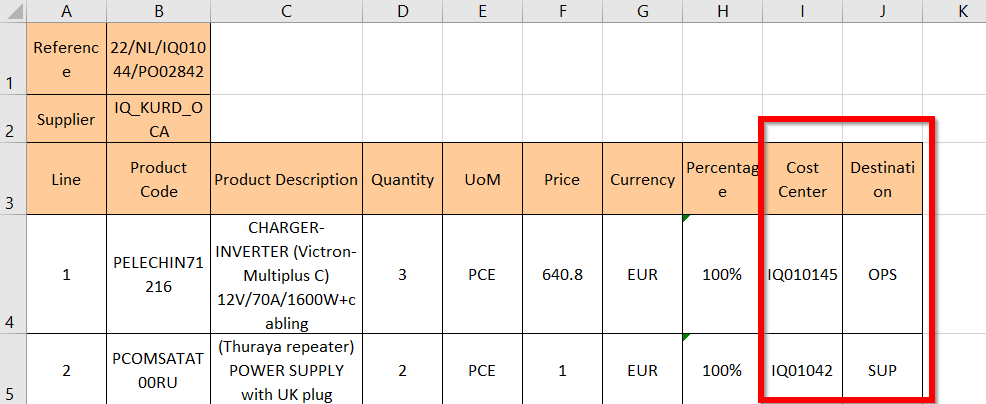
3- Adding AD/ADs by importing, this third option makes it easier for users to add 1 AD or multiple ADs to single line or to add different ADs to multiple lines in the same Draft PO, in case user wants to add different ADs to Different lines, Which means that not all lines have the same ADs, unlike the first option (adding AD at header level), this functionality could be done by using “Import ADs” button, 1 AD or multiple ADs  (Cost Centre/s and Destination/s) can be added onto each line and must be separated by semicolon (;). The action to export / import templates are both via the “Import AD” button.  

In case of splitted lines, when importing one or multiple ADs to the first line, the values entered in the first line will be used to fill all lines split from the same line number.

In the import file, only the AD values will be imported. No other information can be modified or added via the import file. Percentage must add up to “100%” and the total number of semicolons in the Percentage, Cost Center and Destination columns must be the same, and system will check that Line number and Product Code match those of onscreen PO.

If there is already an AD added in onscreen PO, exported template will show this. If at header level there are multiple ADs added, the exported template will show percentage values and ADs data.  In the case that there are already ADs in the onscreen PO, it is possible to remove (delete) them by importing the file with blank AD values. At import, there is a check that AD values exist, but the main/secondary check will remain after import, when line/PO is validated.  
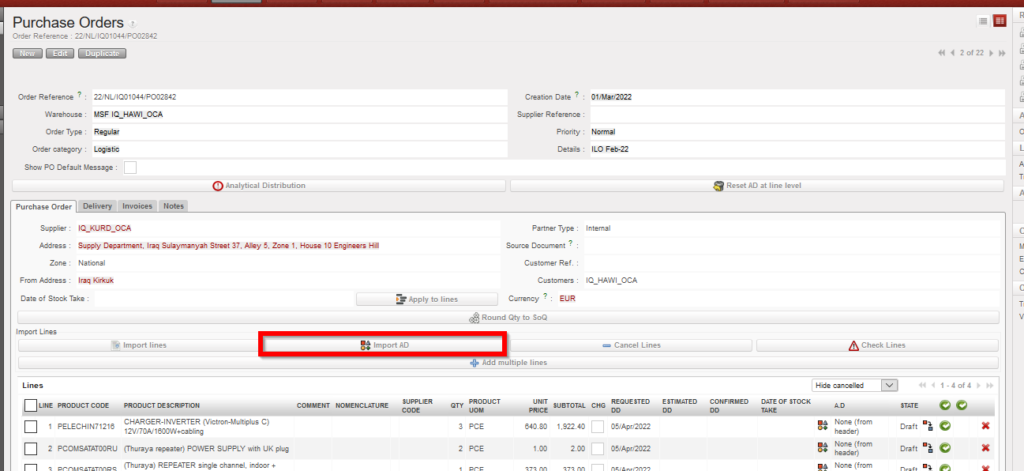
Adding multiple ADs

*** Same options are available for Draft FO.
D. How to add one or multiple Analytical Distribution (AD) to Field Orders Line/lines

Supply User Manual ENG -> 4. Procurement -> 4.4 LU-SU3103: Field Orders (FOs) – General -> D. How to add one or multiple Analytical Distribution (AD) to Field Orders Line/lines

D. How to add one or multiple Analytical Distribution (AD) to Field Orders Line/lines

This functionality enables users to add or update the Analytical distributions (ADs), (Cost Centers and Destinations) the Draft FO lines, users have 3 options to use for adding or updating the ADs:

1- Adding AD/ADs at the header level:

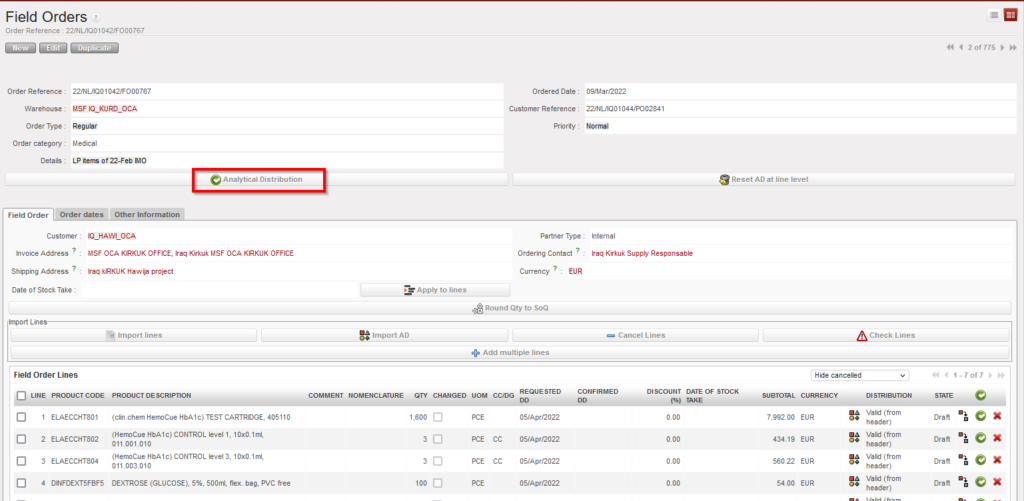
Go to: Orders > Field Order > Analytical Distribution

FO AD at header level

by clicking on the “Analytical distribution”, new screen will be opened, and then by clicking on “New” user can add one AD or more to be applied on all FO lines same way.

2- Adding AD/ADs at line level manually:

User can add the AD to the line manually by clicking on AD icon on the line level, new screen will be opened, and then by clicking on “New” user can add the AD to the line:

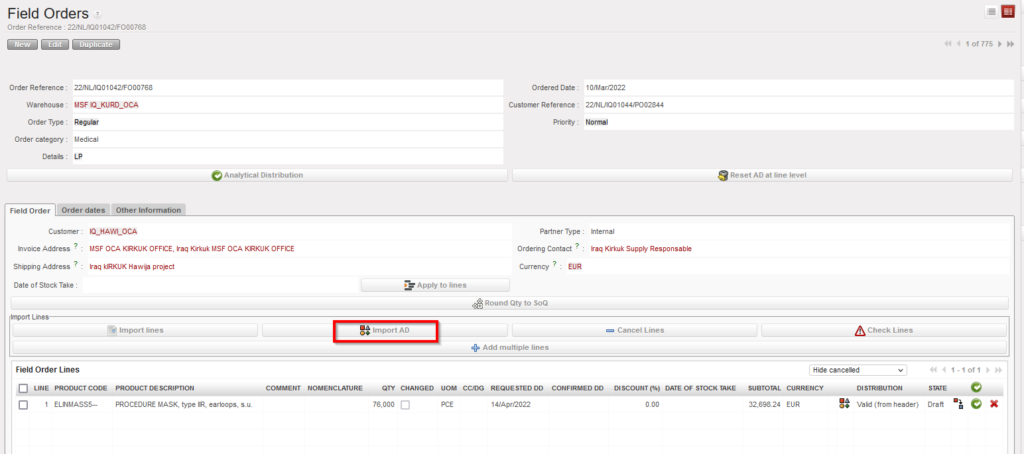
3- Adding AD/ADs by importing

This option makes it easier for users to add one or more ADs to a single line or to add different ADs to multiple lines in the same Draft FO. Unlike with the first option (adding AD at header level), this option can be used to add different ADs to different lines,
This can be done by clicking the “Import AD” button, exporting the template shown from the page that pops up and entering the Cost Centre, Destination and Percentage information for each line in the exported document. If a line has multiple ADs, the values in these three columns must be separated by semicolon (;).

If a line has been split and AD information is entered in the import document, the values entered in the first line will be used to fill all lines split from the same line number.

In the import file, only the AD values will be imported. No other information can be modified or added via the import file. Percentages must add up to “100%” and the total number of semicolons in the Percentage, Cost Center and Destination columns must be the same. The system will check that Line number and Product Code match those of onscreen PO. 

If there is already an AD added in onscreen FO, the exported template will show entered values. It is possible to remove (delete) AD values that were already entered on screen by importing a file where the line’s AD values are blank. At import, there is a check that AD values exist, but the main/secondary check will remain after import, when line/FO is validated.  

Adding AD to FO by import
Adding multiple ADs

*** Same options are available for Draft PO.

R. How to Cancel one specific Purchase Order line or multiple lines.

Supply User Manual ENG -> 4. Procurement -> 4.6 LU-SU3201: Purchase Orders (POs) - Generals -> R. How to Cancel one specific Purchase Order line or multiple lines.

R. How to Cancel one specific Purchase Order line or multiple lines.

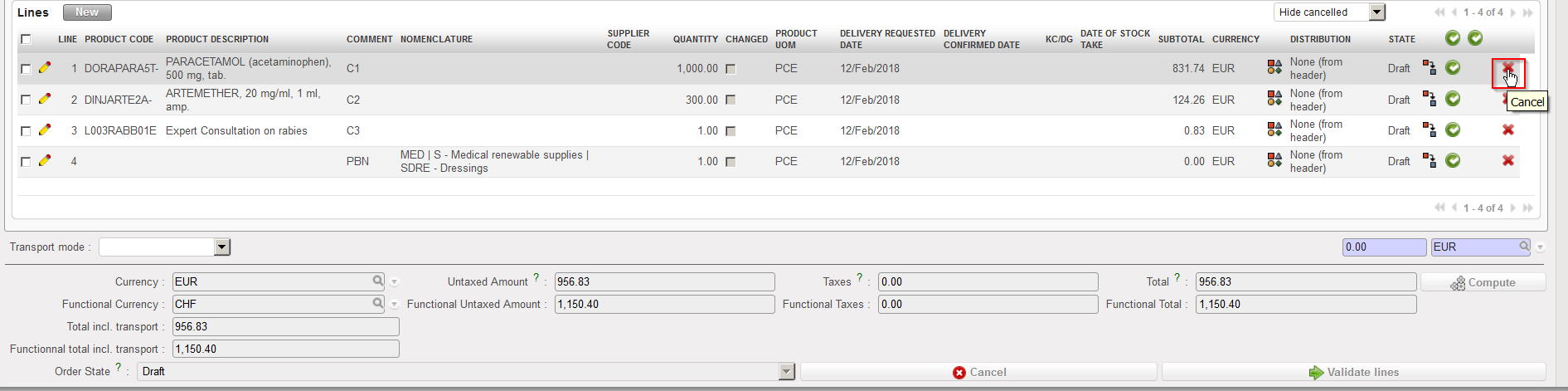
To cancel a specific line of a PO, click on the red cross (cancel) located on the right of the line you want to cancel and confirm the action on the pop-up screen

Cancelling a PO-line
Confirming the cancellation of a PO-line

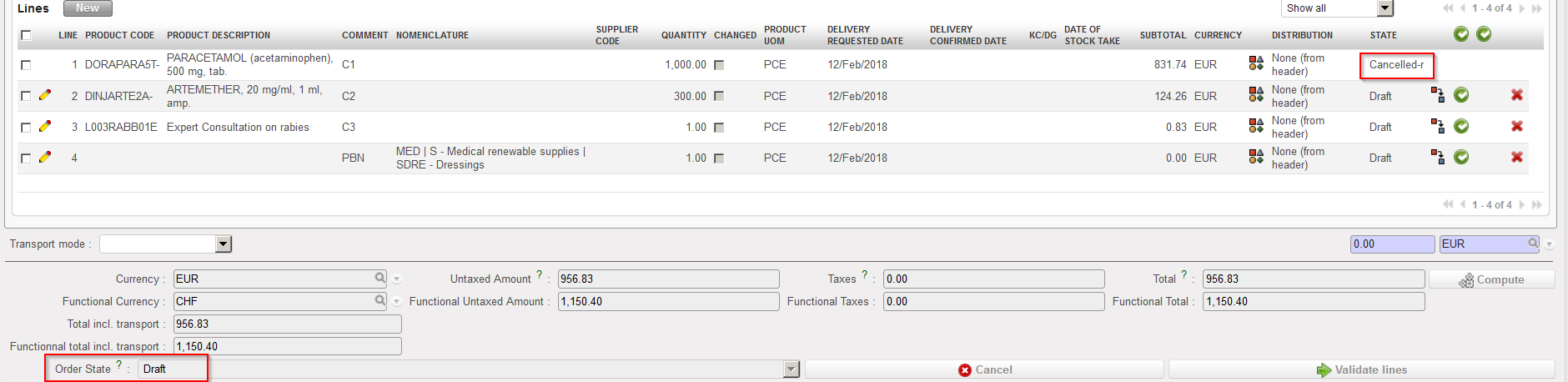
The cancelled PO-line switches to the state “Cancelled“. Note that you have to use the filter located on the top of the “Lines table” to see the cancelled line.

Cancelled PO-line

To cancel multiple lines of the PO, select the lines you want to cancel from the right side of the lines, then click on “Cancel Lines”, and confirm the action on the pop-up screen

Cancelled PO Lines
Confirm the Cancellation of the PO Lines

The cancelled PO-lines switches to the state “Cancelled“. Note that you have to use the filter located on the top of the “Lines table” to see the cancelled lines.

Cancelled PO Lines

A validated PO Lines can also be cancelled one by one or as a whole PO document, except if the PO supplier is an internal partner supplier (another instance). In this case, the cancel button won’t be available at the bottom of the PO screen and the cancellation should be done on the supplier instance.

It is possible to cancel / C&R multiple (Draft/validated) lines, in Draft-p / Validated/ Validated-P POs with supplier type ESC or external, (It is not possible to Cancel / C&R validated lines in PO with Internal/Intermission/Intersection type suppliers if they are beyond “Draft” status Because if PO lines are validated they may have been synced and should not be cancelled or C&R by the requesting instance.

E. How to create a Programmatic Donation

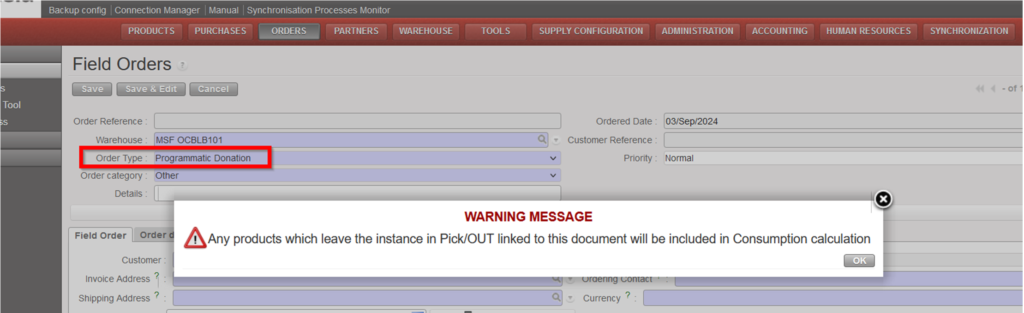
The process of creation of a “Programmatic Donation” is the same as for the “Donation to prevent losses”., the difference is that when you select Programmatic Donation from order type it will pop up with warning message “Any products which leave the instance in Pick/OUT linked to this document will be included in Consumption calculation “then click on “Ok”

This type of Field Order can only have External type partner as customer. It can be sourced to any type of procurement document (PO), and as per warning (above) any movement out of the instance will be included in the consumption calculation. Any stock movement out linked to this FO type will have the corresponding Reason Type “Programmatic Donation”.

Creation FO with OT a Programmatic Donation

N. c) How to cancel & resource an entire PO (created by the sourcing of an FO)

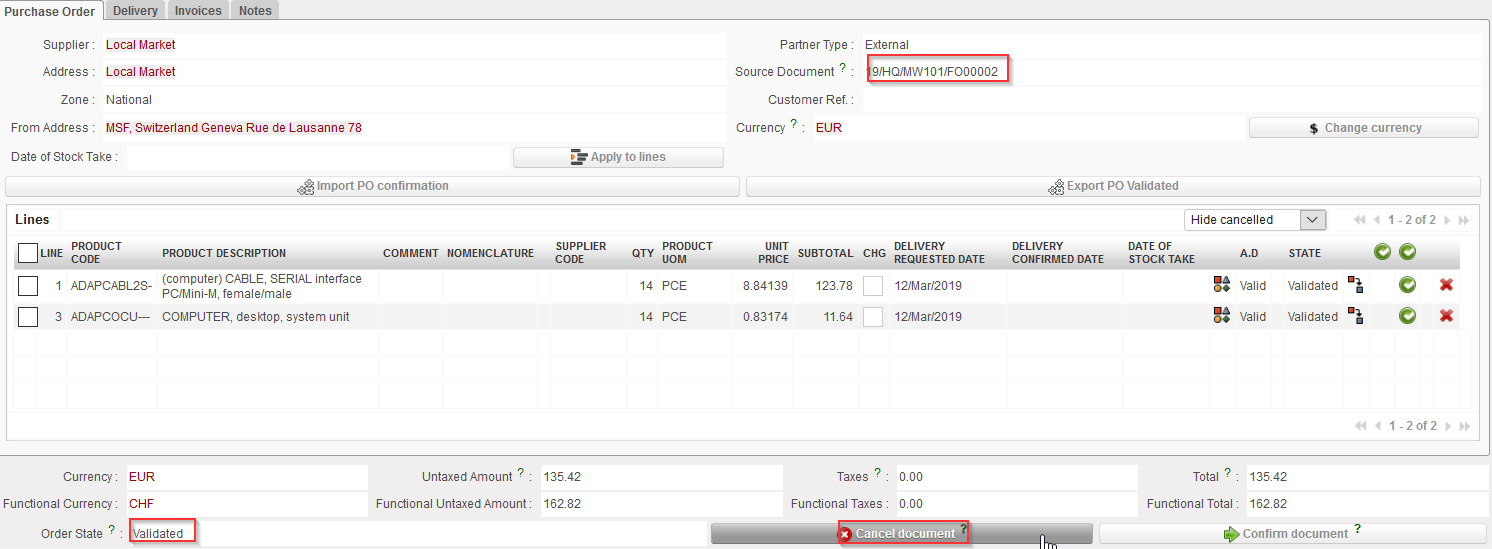
The below steps show how to cancel & resource a validated Purchase Order which has been generated by the OST following the sourcing of an FO on order.

Go to: Purchases / Purchase Management / Purchase Orders

  1. Click on the line of the Purchase Order on which you need to cancel & resource.
  2. Click on the “Cancel document” button at the bottom of the PO screen.
Cancelling an entire PO

3. Select “Cancel & Resource” on the pop-up window.

Cancelling & Resourcing an entire PO

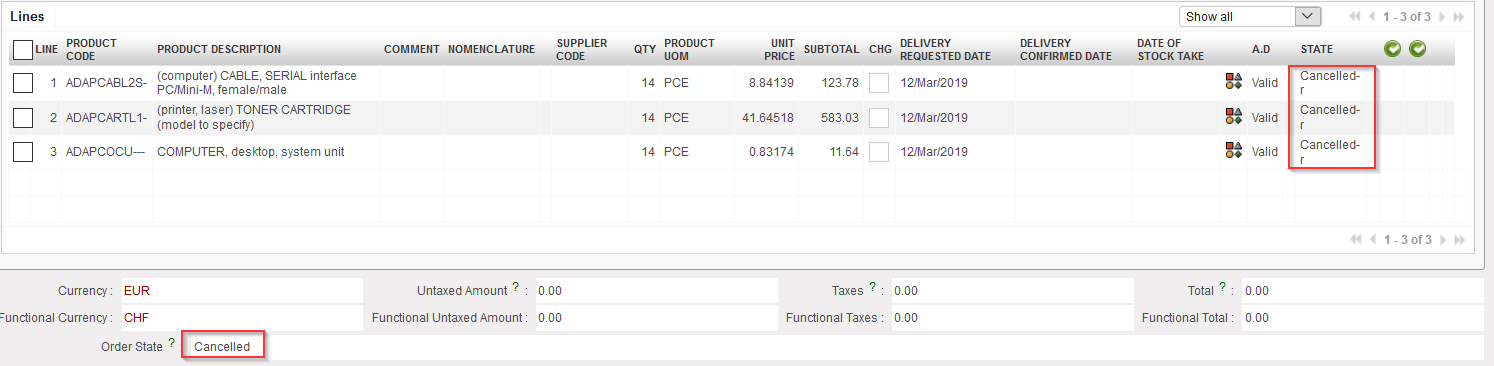
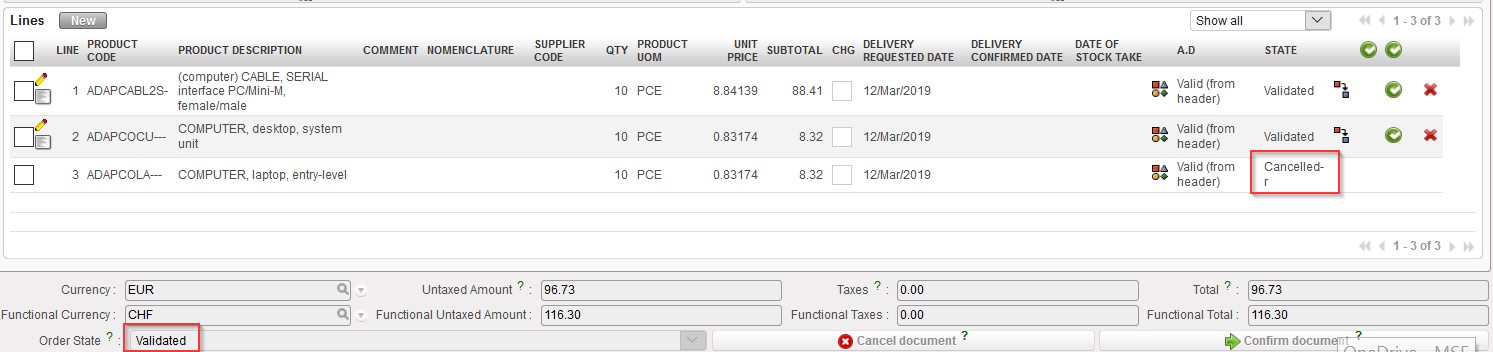
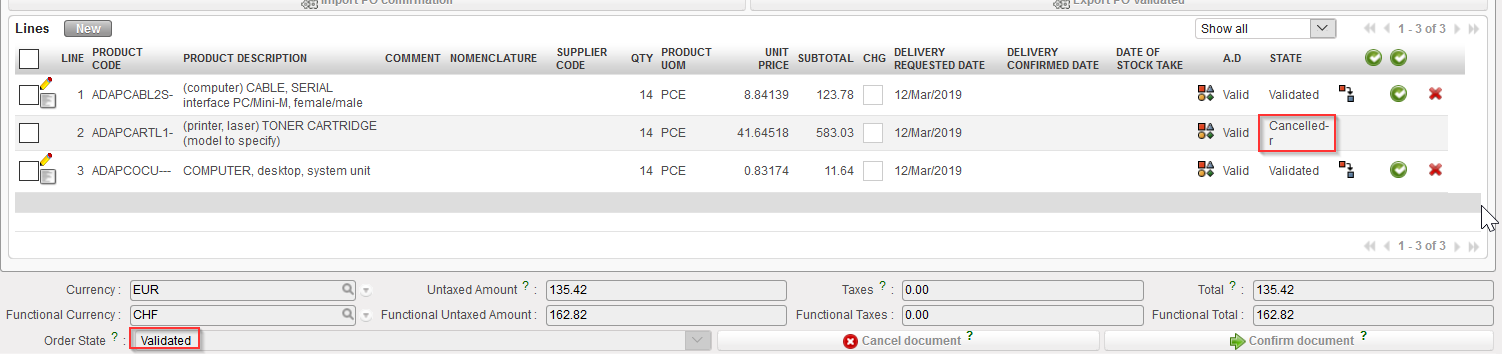
4. The PO switches to state “Cancelled” while the PO-lines switch to state “Cancelled-r” (use the filter at the top of the “Lines” table to see them).

Cancelled & Resourced PO

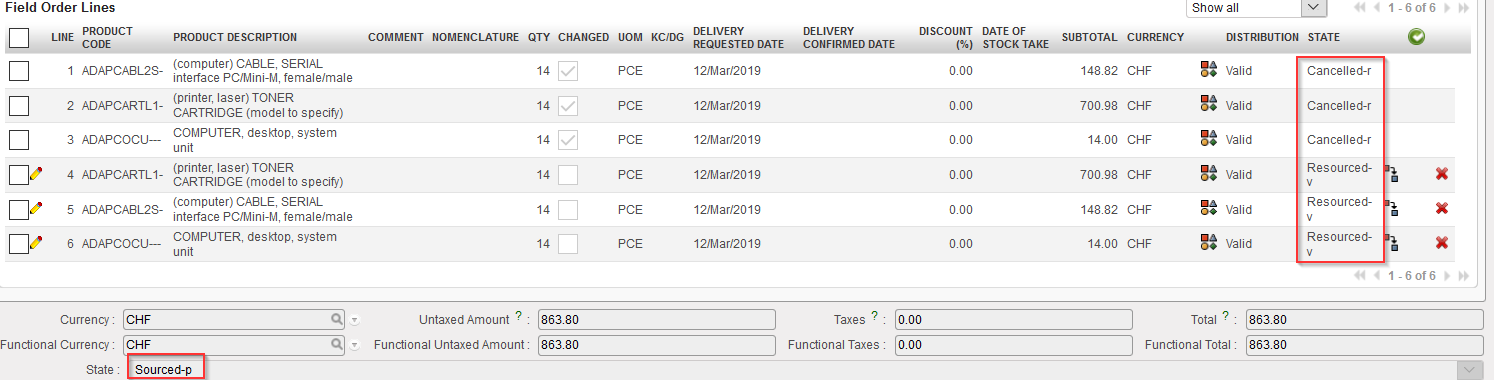
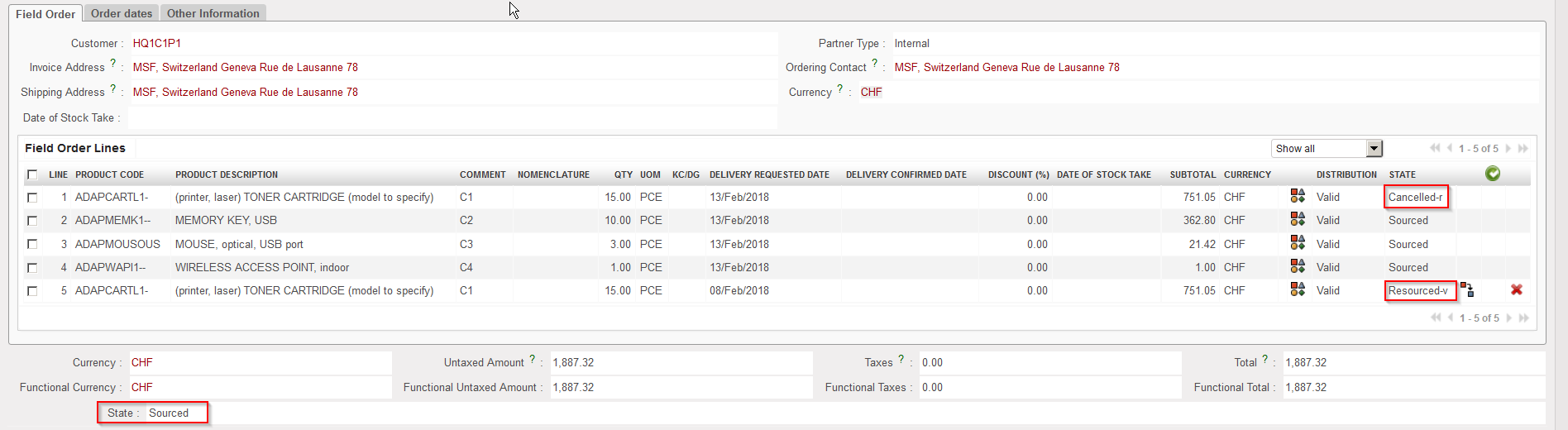
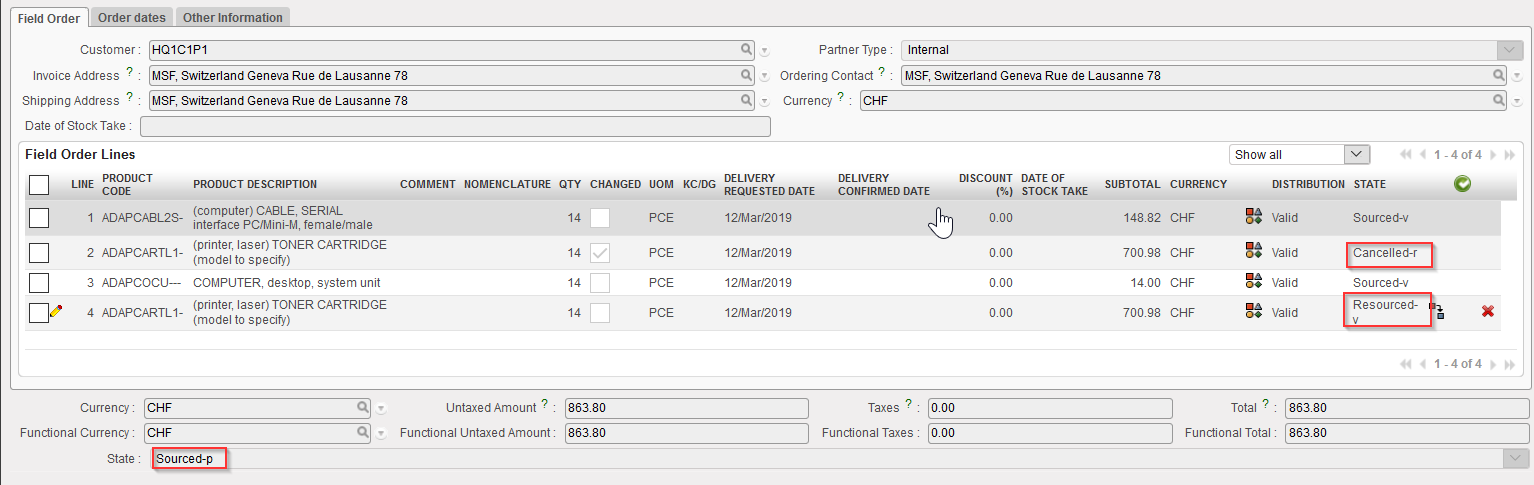
5. On the FO which was sourced on order, the original lines switch to state “Cancelled-r” and new lines (copy of the original ones) are added in state “Resourced-v“. These lines can be resourced in the OST. Note that the FO is in state “Sourced-p“.

FO after cancel & resource

N. b) How to cancel & resource 1 line of a PO (created by the sourcing of an IR)

The below steps show how to cancel & resource 1 line of a draft Purchase Order which has been generated by the OST following the sourcing of an IR on order.

  1. Click on the line of the Purchase Order on which you need to cancel & resource.
  2. Click on the red cross at the right end of the product line.
Cancelling a PO-line

3. Select “Cancel & Resource” on the pop-up window.

Cancelling & Resourcing a PO-line

4. The cancelled & resourced PO-line switches to “Cancelled-r” state (you need to “Show all” lines to  see this line) while the PO stays in state “Draft”.

Cancelled & Resourced line on a draft PO

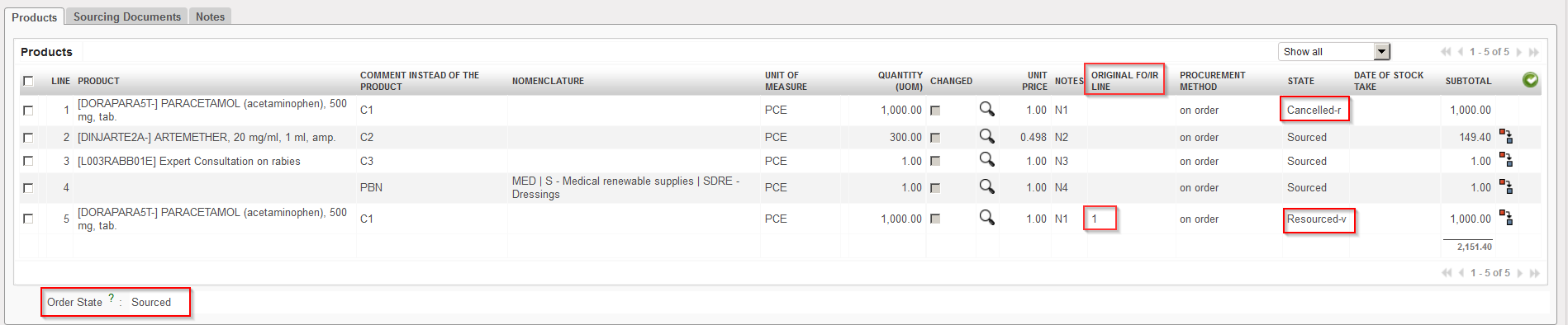
5. On the IR which was sourced on order, the original line switches to state “Cancelled-r” and a new line (copy of the original one) is added in state “Resourced-v“. The reference of the original Cancelled line number is displayed at line level in column “Original IR/FO line”. This line can be resourced in the OST. Note that the IR keeps the status “Sourced“.

Cancelled & Resourced line on the IR

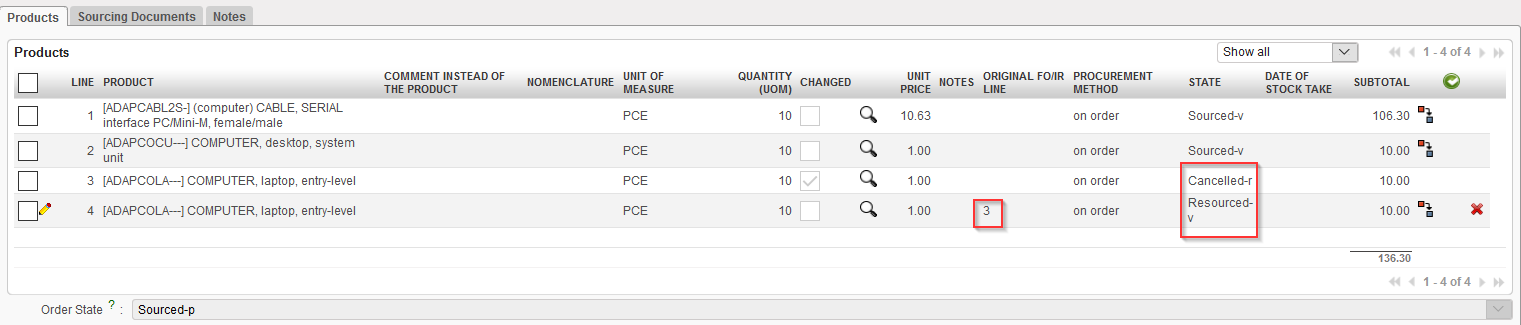
Note that cancelling & resourcing 1 PO line can also be done if the PO is validated. In this case, the scenario is the same but the PO header ends up in state “Validated” while the IR header is in state “Sourced-p“.

Cancelled & Resourced line on validated PO
Cancelled & Resourced line on the IR

N. a) How to cancel & resource 1 line of a PO (created by the sourcing of an FO)

The below steps show how to cancel & resource 1 line of a draft Purchase Order which has been generated by the OST following the sourcing of an FO on order.

Go to: Purchases / Purchase Management / Purchase Orders

  1. Click on the line of the Purchase Order on which you need to cancel & resource.
  2. Click on the red cross at the right end of the product line.
Cancelling a PO-line

3. Select “Cancel & Resource” on the pop-up window.

Cancelling & Resourcing a PO-line

4. The cancelled & resourced PO-line switches to “Cancelledr” state (you need to “Show all” lines               to see this line) while the PO stays in state “Draft“.

Cancelled & Resourced line on a draft PO

5. On the FO which was sourced on order, the original line switches to state “Cancelled-r” and a new  line (copy of the original one) is added in state “Resourced-v“. This line can be resourced in the OST. Note that the FO keeps the status “Sourced“.

Cancelled & Resourced line on the FO

Note that cancelling & resourcing 1 PO line can also be done if the PO is validated. In this case, the scenario is the same but the PO header ends up in state “Validated” while the FO header is in state “Sourced-p“.

Cancelled & Resourced line on validated PO
Cancelled & Resourced line on the FO

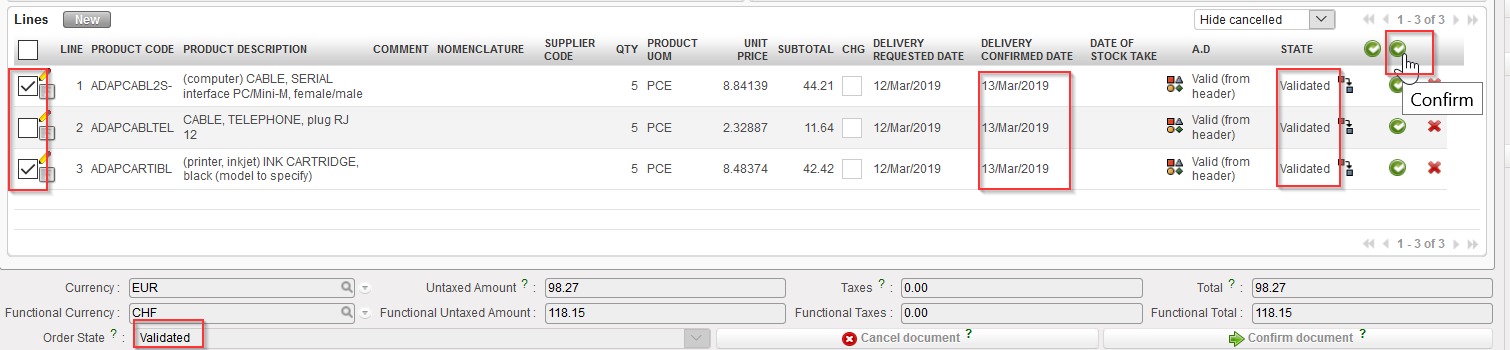
b) ii. How to confirm several lines of a PO

Go to: Purchases / Purchase Management / Purchase Orders

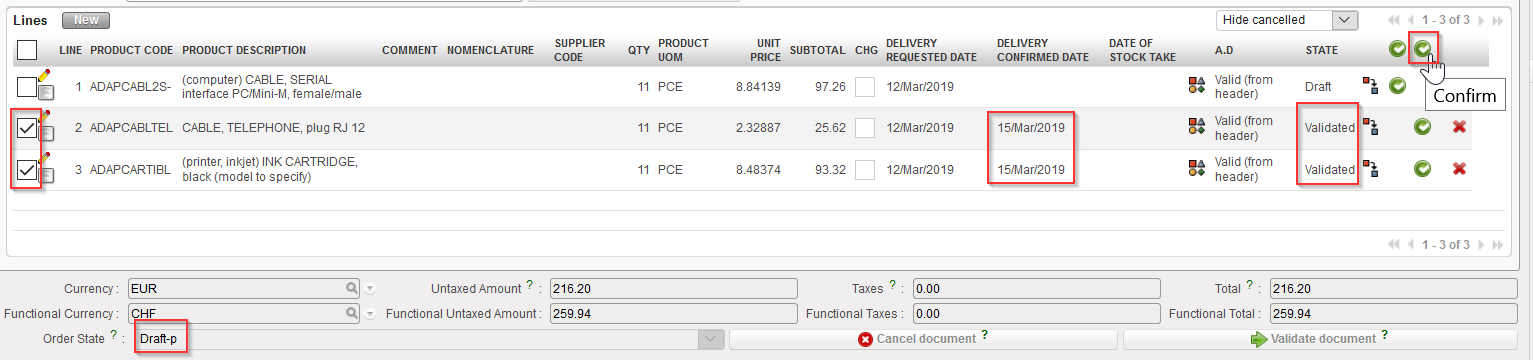
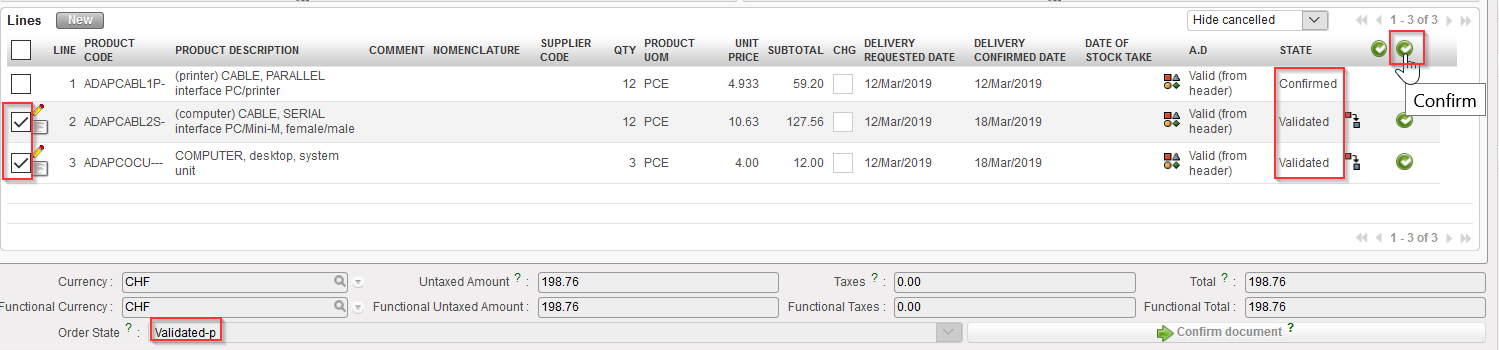
  1. Open the PO that you wish to confirm (in edit mode). This PO should not yet be fully confirmed but could be “Draft-p” (meaning partially validated), “Validated” or “Validated-p” (meaning partially confirmed). The lines that you want to confirm should be in state “Validated” and should have a “Delivery Confirmed Date“.
  2. Select the lines that you wish to confirm via the check boxes on the left of the PO-lines.
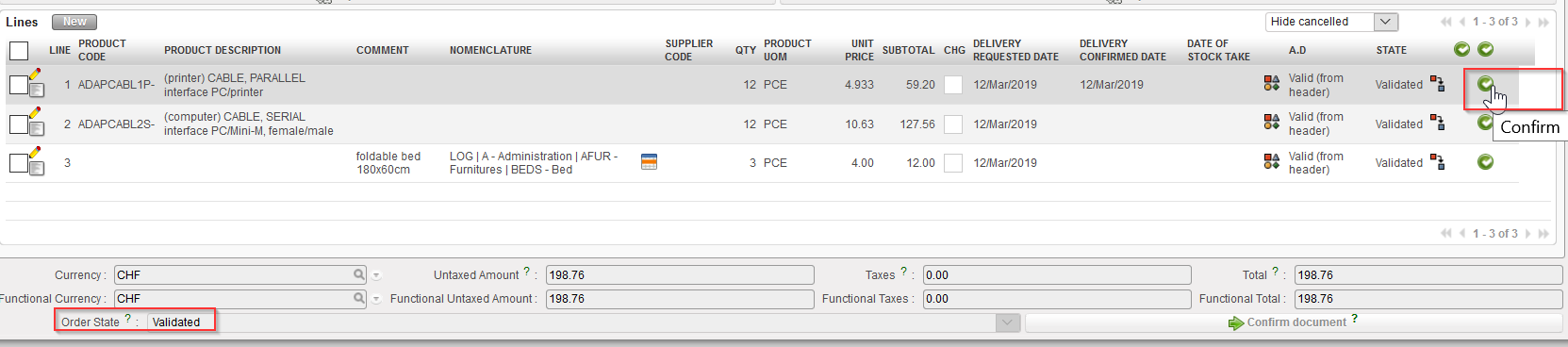
  3. Click on the green button (Confirm) located at the top of the Lines table (next to “STATE“).
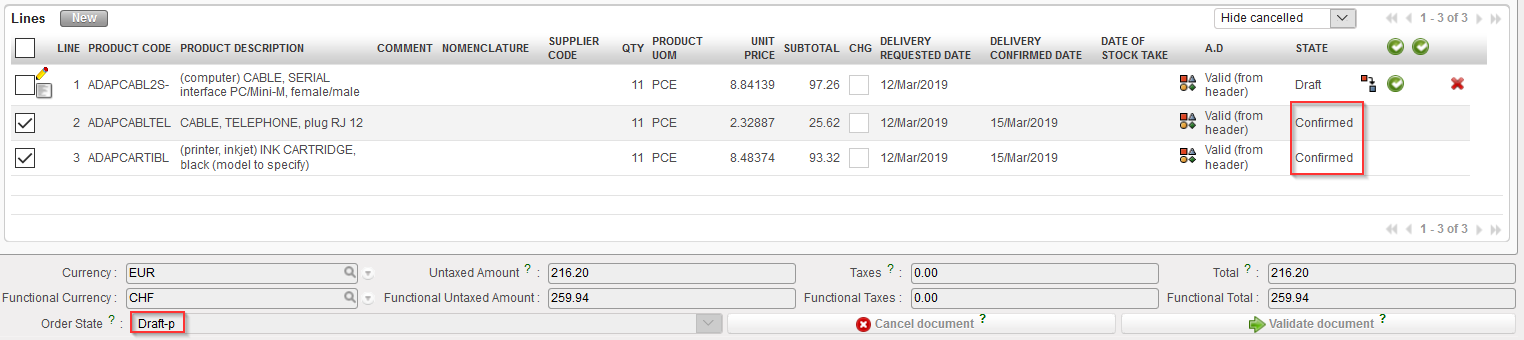
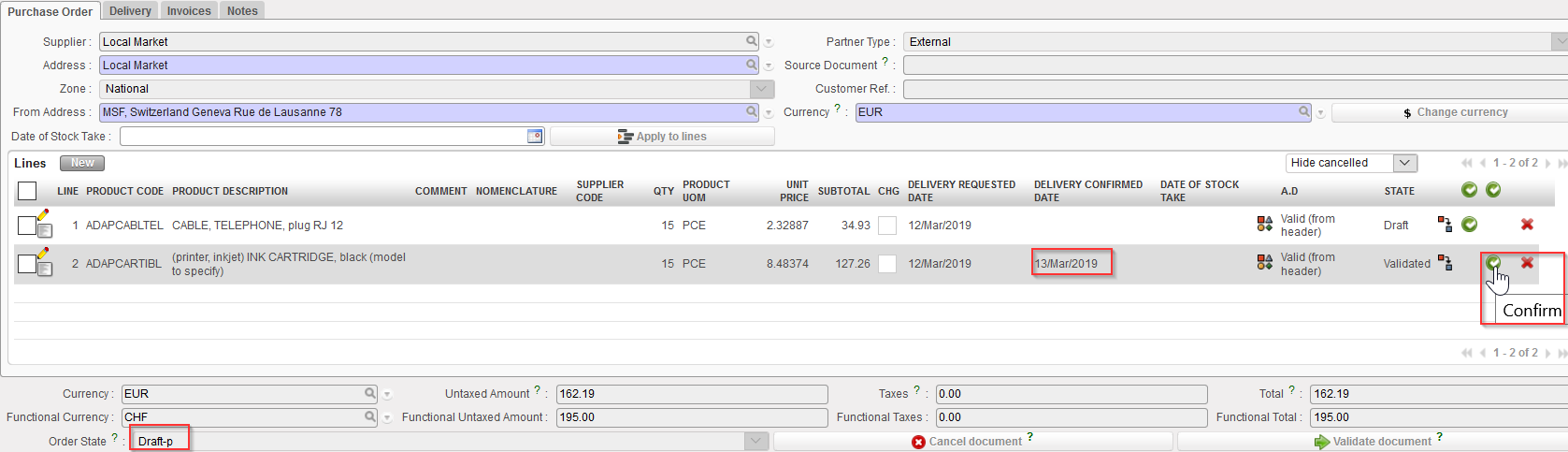
Confirming several lines of a “Draft-p” PO
Confirming several lines of a “Validated” PO
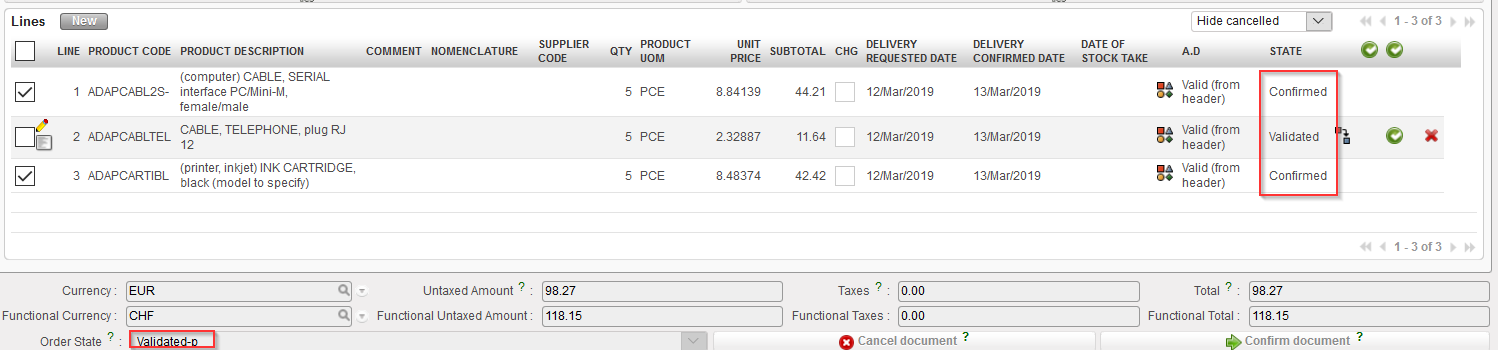
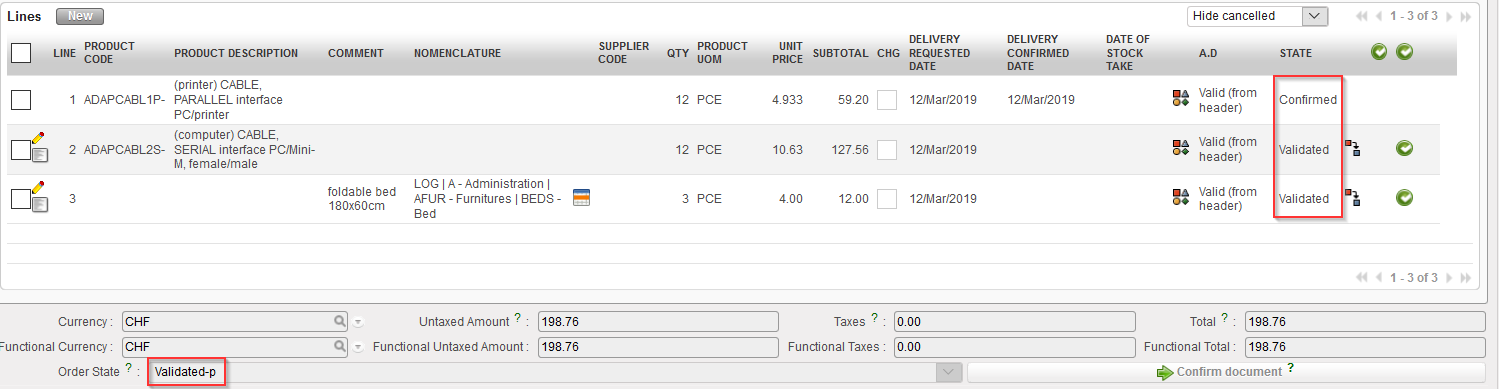
Confirming several lines of a “Validated-p” PO

4. The confirmed PO-lines will switch to the status “Confirmed”. The PO (at header level) will switch status according to circumstances.

Several lines of the “Draft-p” PO have been confirmed
Several lines of the “Validated” PO have been confirmed
Several lines of the “Validated-p” PO have been confirmed

Note that as long as all the lines of a PO have not been confirmed, you still have the possibility to confirm the PO at header level, to confirm 1 (validated) line of the PO or to confirm several (validated) lines of the PO.

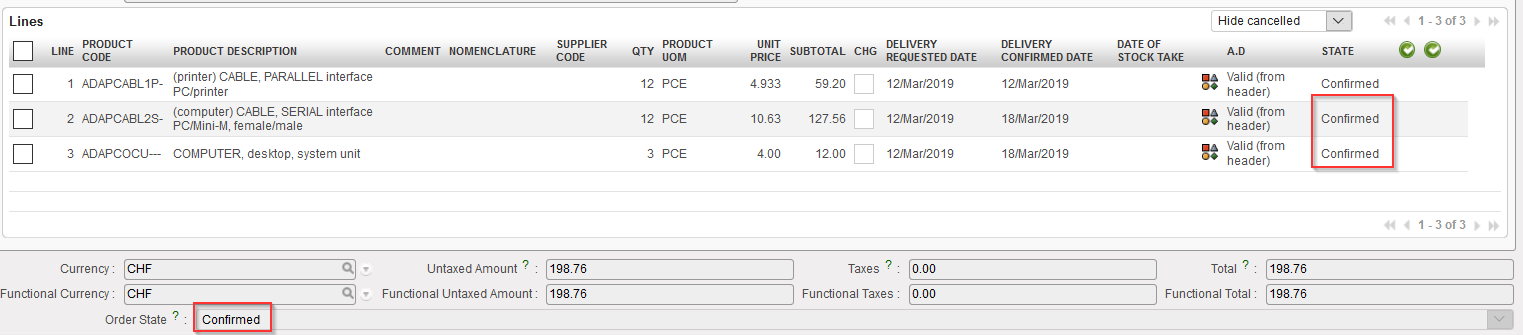
Once all lines are confirmed, the status of the PO (at header level) switches to “Confirmed” and confirmation at header level or line level is not possible anymore (neither Cancellation).

b) i. How to confirm 1 line of a PO

Go to: Purchases / Purchase Management / Purchase Orders

  1. Open the PO that you wish to confirm (in edit or display mode). This PO should be in status “Validated” or “Draft-p(meaning partially validated) and the line you want to confirm should be in status “Validated”.
  2. If not yet done, enter a “Delivery Confirmed Date” on the line you wish to validate and save this line.
  3. Click on the green button (Confirm) located at the right of the line you wish to confirm.
Confirmation of 1 line of a PO in status “Validated”
Confirmation of 1 line of a PO in status “Draft-p”
  1. The confirmed PO-line switches to “confirmed” while the other lines don’t change status. The PO itself (at header level) could change status (or not) according to the situations.
The “Validated” PO on which 1 line was confirmed is now in status “Validated-p”
The “Draft-p” PO on which 1 line was confirmed stays “Draft-p”