L. HOW TO PICK A KIT COMPOSITION LIST (KCL)

Supply User Manual ENG -> 5. Warehouse -> 5.3 LU-SU4102: Picking -> L. HOW TO PICK A KIT COMPOSITION LIST (KCL)

L. HOW TO PICK A KIT COMPOSITION LIST (KCL)

The picking/delivering of a kit doesn’t differ from the picking/delivering of a simple product. however, when processing the KCL, Kitting Orders, PICK, Pack, Ship, Delivery Orders and Real Consumption, there is a “Kit” column in these outgoing documents, when it is filled with “Kit Reference”, the processing kit will be selected, it is not mandatory to specify KCL in “Kit” column, but when you select one, the kit being processed will be linked with the KCL. This information will be displayed on the relevant documents.

When a Kit is processed in an OUT, the KCL will automatically be set to Status “Closed” when it is sent out of the instance. If a KCL has kit as a component, the component KCLs will also automatically be set to Closed status when the top KCL is closed.  

C. HOW TO SCRAP/DESTROY PRODUCTS

The decision and process to destroy any product should be in adherence with your OC procedures. In UniField, the destruction process will usually be done in two steps. The first step will move the goods to quarantine. The second step will move the goods from quarantine to the “Destruction” location.

One of the likely triggers for this will be when a supplier claim has been created, and the decision has been taken to scrap the product. See previous section and LU on claims for details.

If the product being scrapped is not linked to any claim, it will still have to be moved out of the internal warehouse location to quarantine. This will be done through an Internal Move (INT) as explained in the previous section.

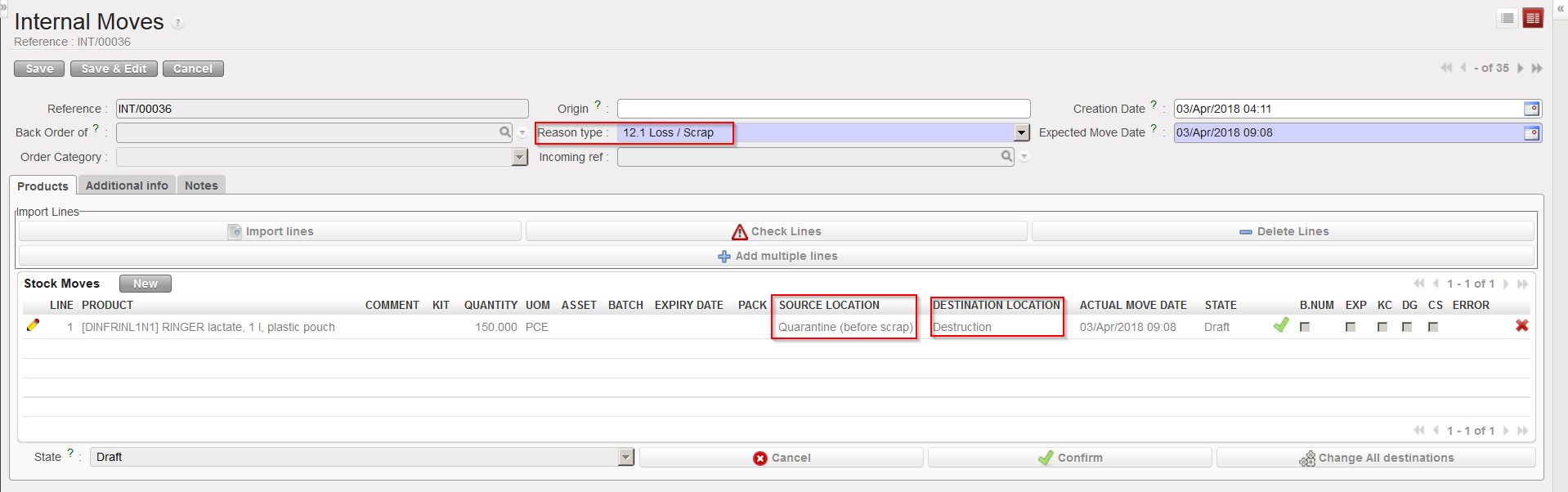
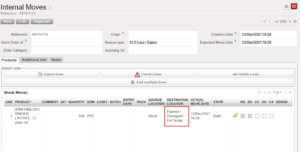
In order to complete the process of scrapping a product (second step), it is necessary to create an Internal Move to move the goods from quarantine to the “Destruction” location. Again, an appropriate “Reason type” should be selected on the INT.

Internal Move to destroy products

Note that it is possible to skip the first step and directly destroy products (i.e. moving them from stock to destruction via an INT) but this is not an advised process.

B. HOW TO ISOLATE/QUARANTINE PRODUCTS

This may happen if you receive/have received products on which you have doubts. In this case you will most probably create a claim (see specific LU on claims above).

Claims with type “Move to Quarantine” will move the goods to the “Quarantine (analyze)” location. Claims with type “Scrap” will move the goods to the “Expired/ Damaged /For Scrap” location. Note that if a claim is created from scratch you will be able to add an event with type “Scrap” on this claim. When this event will be processed, goods will be moved to the “Expired/ Damaged /For Scrap” location.

Another way to move goods to the quarantine location is via Internal Moves. This will be done when the quarantine is not related to a claim. Make sure to use the appropriate “Reason type” when you create the INT. As destination location you may choose between “Quarantine (analyze)” and “Expired/ Damaged /For Scrap)”.

Internal Move to isolate products in quarantine

Note that Internal Moves will also be used to transfer goods from Quarantine back to another location if you realize that these goods can actually be used.

They will also be used to destroy the goods as explained in the next section.

A. LU INTRODUCTION (LU-SU4207)

If you face problems with products, you can isolate them in quarantine or destroy them. Both options are possible in UniField where Quarantine and Destruction are defined as locations.

Quarantine is a (view) location which is part of the instance full view and this is where stock can be moved while awaiting a decision. This means that these products will not be seen as available for dispatch/use. The two types of quarantine are 1) for analysis and 2) before scrap.

In UniField, they are identified by 2 locations which are named “Quarantine (analyze)” and “Expired/ Damaged /For Scrap“. Both of them are located under the “Quarantine / For Scrap”. ” location view. The first is used when some time is needed to analyze and receive results for products before deciding if they are fit for use (commonly this will be used to analyze drugs). The second, “Expired/ Damaged /For Scrap“, is where goods will be moved while awaiting authorization that they can be disposed of or destroyed.

The “Destruction” location is a virtual location where goods will be moved once they are destroyed.

F. HOW TO GENERATE THE “Deliveries Report”

Supply User Manual ENG -> 5. Warehouse -> 5.18 LU-SU4304: Movements Reports -> F. HOW TO GENERATE THE "Deliveries Report"

F. HOW TO GENERATE THE “Deliveries Report”

Following the development of the “Receptions report(see section above), this new report mirrors this latest report by gathering all together all the major information regarding processed deliveries.

The report should only export lines from OUT (and OUT-CONDO) which are in the state Closed or Delivered and from SHIP which are in the state Dispatched or Received.

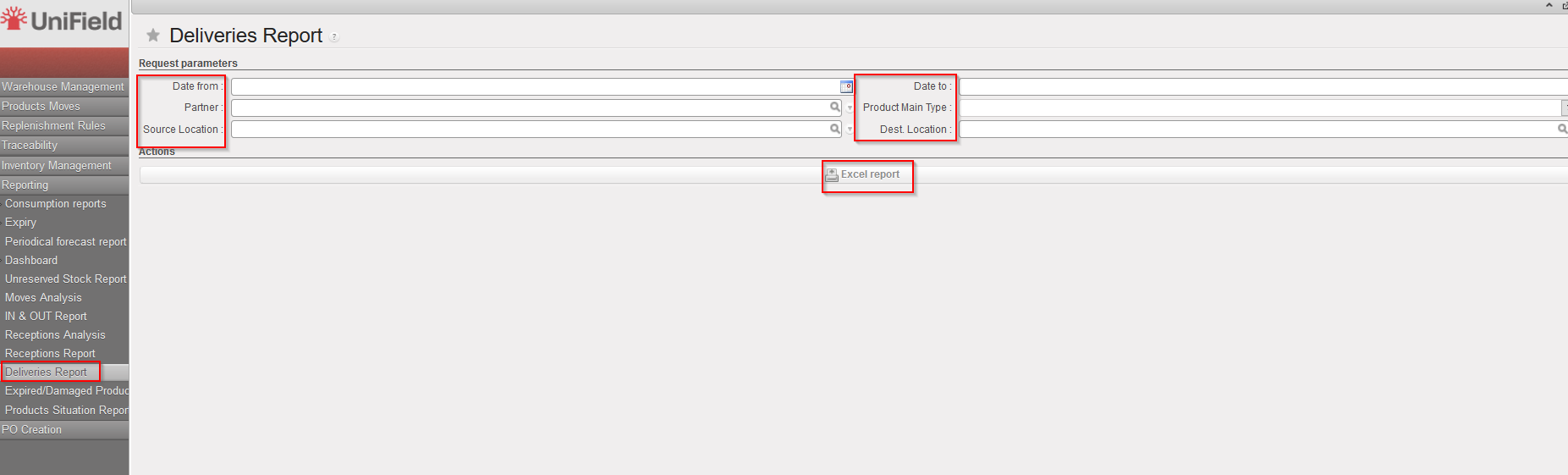
Go to: Warehouse / Reporting / Deliveries Report

  1. Select any filter you need among the following: Date from; Date to; Partner; Source location; Product Main Type and/or Destination Location.
  2. Click on the “Excel report” button.

Deliveries Report

Deliveries Report – Excel Export

E. HOW TO GENERATE THE “Receptions Report”

Supply User Manual ENG -> 5. Warehouse -> 5.18 LU-SU4304: Movements Reports -> E. HOW TO GENERATE THE "Receptions Report"

E. HOW TO GENERATE THE “Receptions Report”

This feature is one of the latest development that enables to get the receptions information more easily thanks to the different filters and direct information.

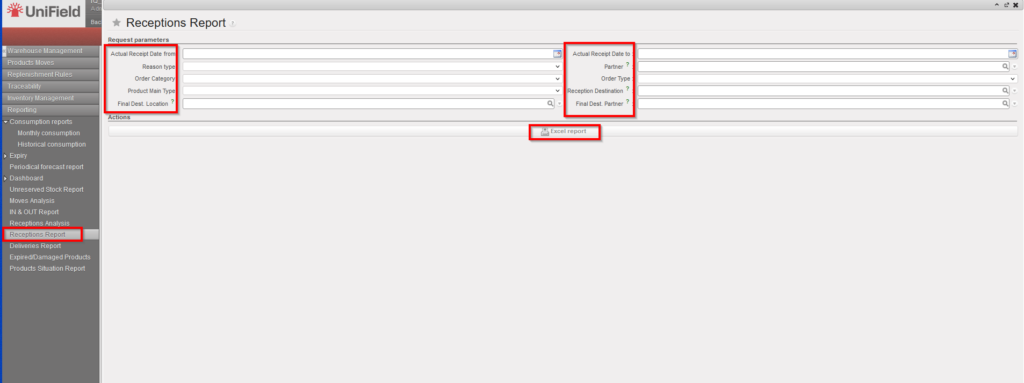
Go to: Warehouse / Reporting / Receptions Report

  1. Select any filter you need among the following: Actual Receipt Date from; Actual Receipt Date to; Reason type; Partner; Order Category; Order Type; Product Main Type, , Final Dest. Location, Final Dest. Partner.
  2. Click on the “Excel report” button.
This image has an empty alt attribute; its file name is reception-report-2.png

Receptions Report

This image has an empty alt attribute; its file name is 2022-03-22-14_49_54-Receptions-Report-Excel.png

Receptions Report – Excel Export

In case the user change the Destination location to “Ext CU” in the “IN” from the original location in the “IR”, this report will not reflect the new destination location.

IR > PO > IN > Ext CU which is changed is not reflected.

In case the user change the Destination location ” INT CU ” in the “IN” from the original location in the “IR”, this report will reflect the new destination location.

IR > PO > In > INT CU which is changed is reflected.

In case the user change the Destination location TO “Stock” in the “IN” from the original location in the “IR”, this report will reflect the new destination location

FO > PO > IN where destination of IN changed to Stock is reflected.

D. RECEPTIONS ANALYSIS

Supply User Manual ENG -> 5. Warehouse -> 5.18 LU-SU4304: Movements Reports -> D. RECEPTIONS ANALYSIS

D. RECEPTIONS ANALYSIS

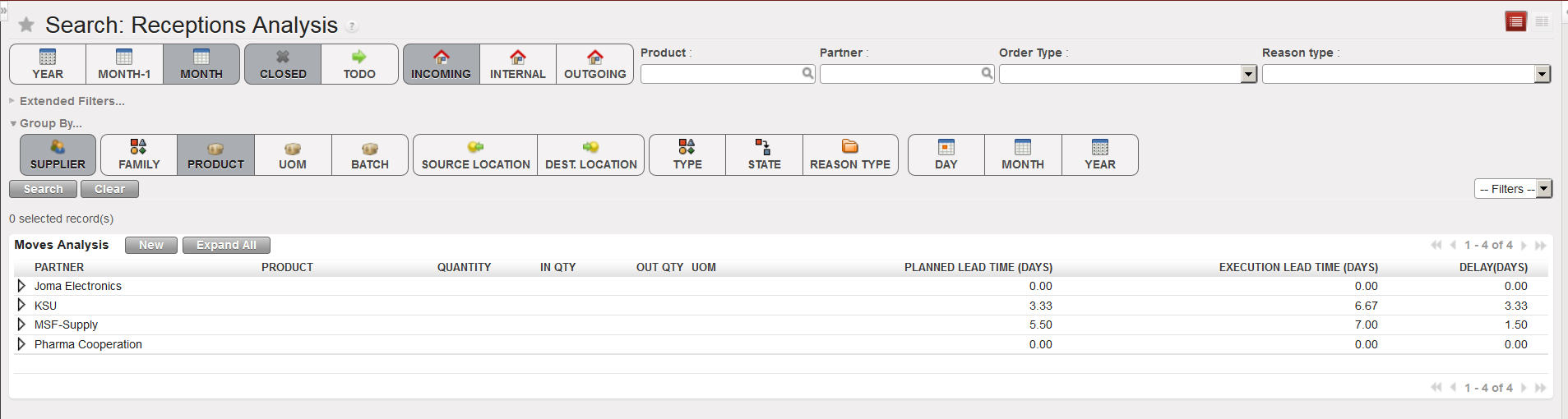
This functionality is similar to the “Moves Analysis” but focuses on Incoming Shipments.

Go to: Warehouse / Reporting / Receptions Analysis

Receptions Analysis

  1. Clear the current filters by clicking on the “Clear” button
  2. Use filters and “Group by” options to select which Incoming Shipments you want to select and define how you want organize them.
  3. Click on the “Search” button.

C. MOVES ANALYSIS/IN & OUT REPORT

Supply User Manual ENG -> 5. Warehouse -> 5.18 LU-SU4304: Movements Reports -> C. MOVES ANALYSIS/IN & OUT REPORT

C. MOVES ANALYSIS/IN & OUT REPORT

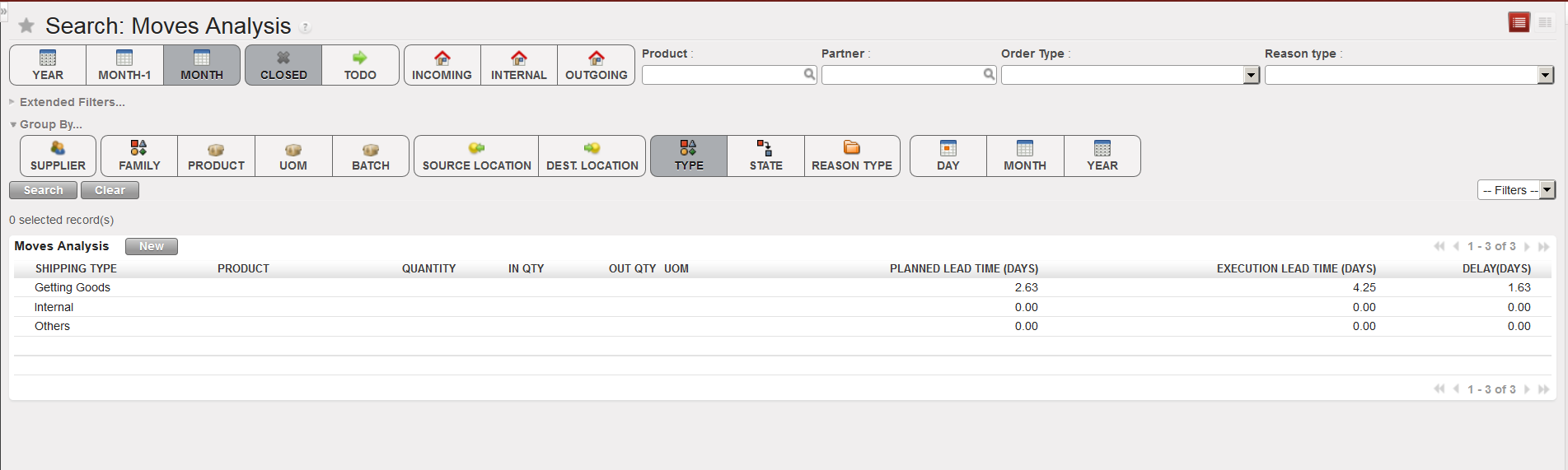
The “Move Analysis” functionality is another tool which allows investigating on all movements.

Go to: Warehouse / Reporting / Moves Analysis

Move Analysis

  1. Clear the current filters by clicking on the “Clear” button.
  2. Use filters and “Group by” options to select which movements you want to see and how you want to see them.
  3. Click on the “Search” button.

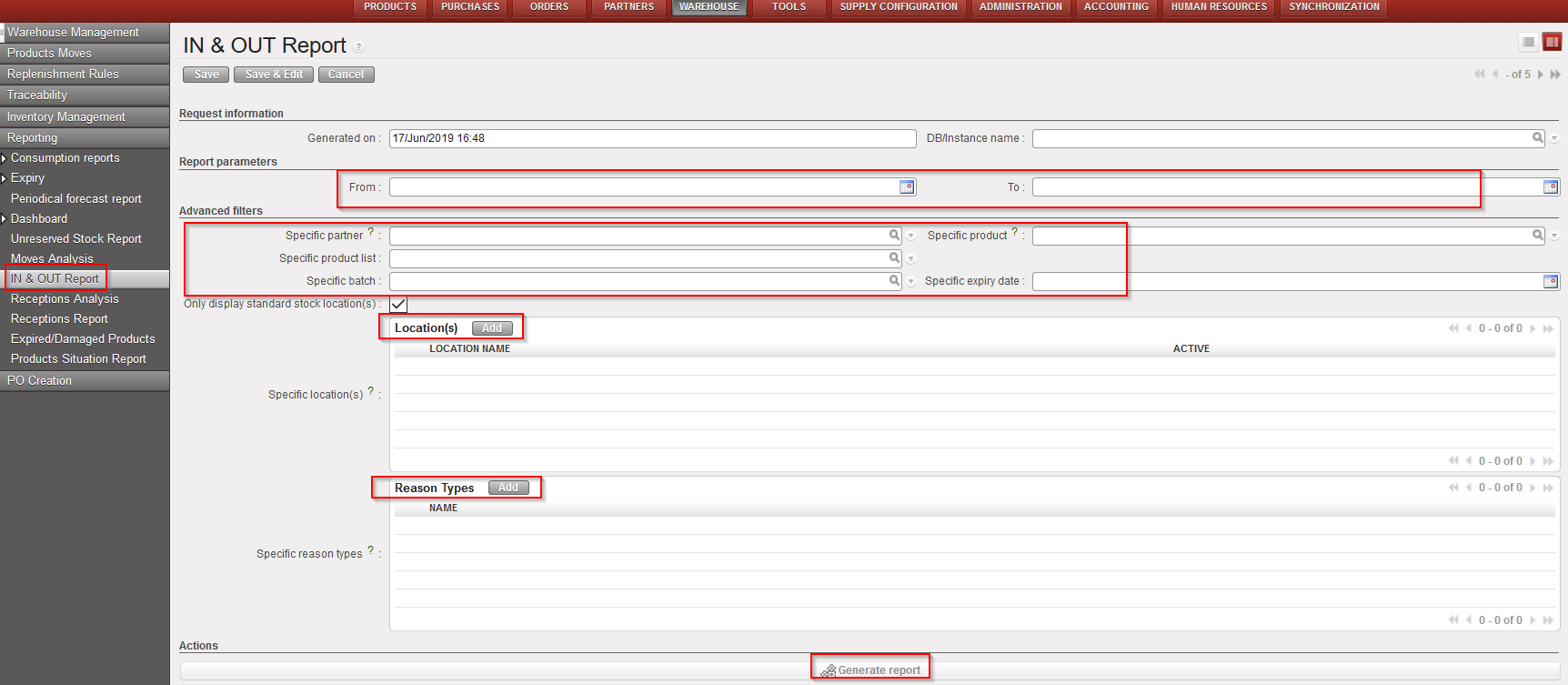
The “IN & OUT Report(previously named “Export Moves analysis”) is producing a similar report based on several selection criteria but the report is generated in Excel.

Go to: Warehouse / Reporting / IN & OUT Report

1.Click on the “New” button.

2. In the selection screen, enter parameters for the movements selection:

a) By date: even though it is not mandatory and performance has been increased, it is still recommended to use this filter set on movement’s date.

b) Advanced filters such as Partner, Product, Product list, BN or ED can also be used

c) Specific location can be selected: you have the option to select one, several or no location.

If no location are selected and the “Only display standard stock location” box is ticked, then movement between non-standard locations such as Input; Cross Docking; Packing, Shipment, Distribution and Quarantine will not be displayed.  Note that even Deactivated location can be selected.

d) Reason type

IN & OUT Report

3. Click on the “Generate report” button.

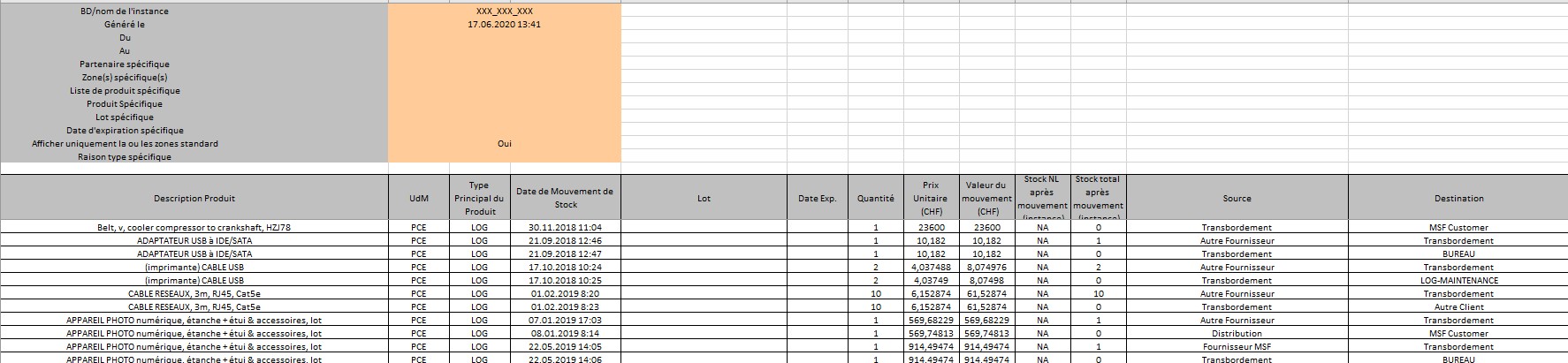
4. Open the Excel file via the action menu.

IN & OUT –Excel report generated

Please note that the “Total stock after movement” is done for all instance in case no location is selected while it will be per location-s selected if a/some location-s are selected (if several locations – quantities will be aggregated). The location will be indicated between brackets under the column header of “Total Stock…”.


B. DELIVER PRODUCTS

Supply User Manual ENG -> 5. Warehouse -> 5.18 LU-SU4304: Movements Reports -> B. DELIVER PRODUCTS

B. DELIVER PRODUCTS

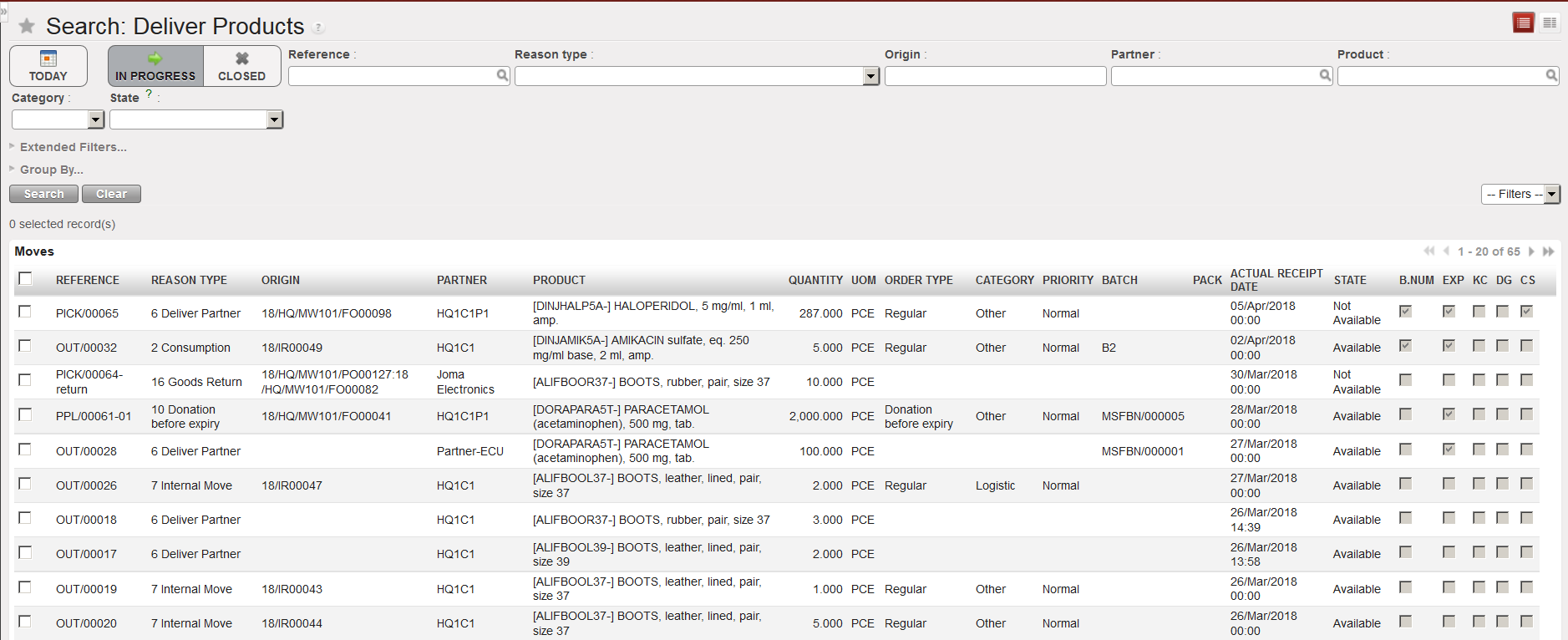
This functionality focuses on Picking, Packing and Delivery Orders (PICK/PACK/OUT). It may be used to see which products have been /are being delivered. According to the filters applied, the user can search by products, but also by partner, which could be useful to see what has been or is due to be delivered to a specific project.

Go to: Warehouse / Product Moves / Deliver Products

Deliver Products

  1. The system will by default show all deliveries which are in progress. Clear this default selection by clicking on the “Clear” button.
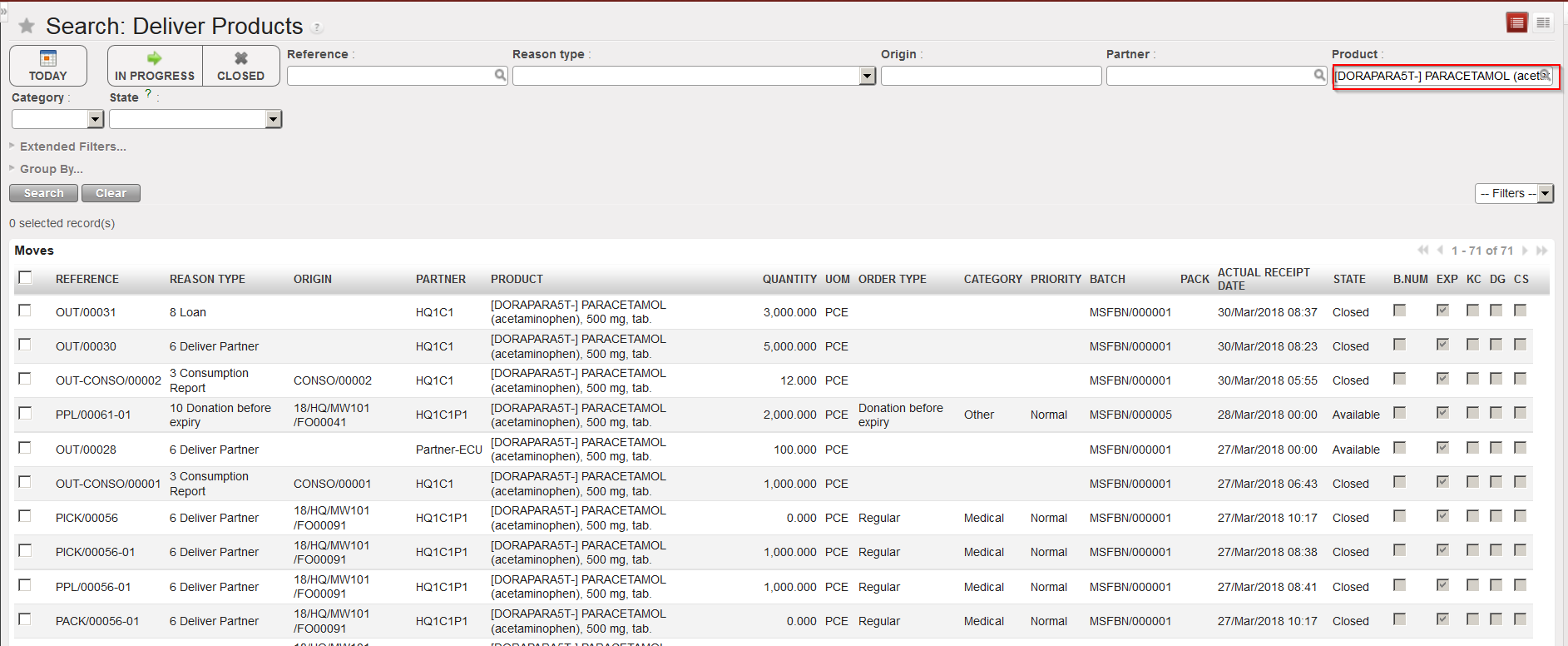
  2. Enter your selection criteria (partner, product,…).
  3. Click on the “Search” button.

Deliver Products

A. RECEIVE PRODUCTS

Supply User Manual ENG -> 5. Warehouse -> 5.18 LU-SU4304: Movements Reports -> A. RECEIVE PRODUCTS

A. RECEIVE PRODUCTS

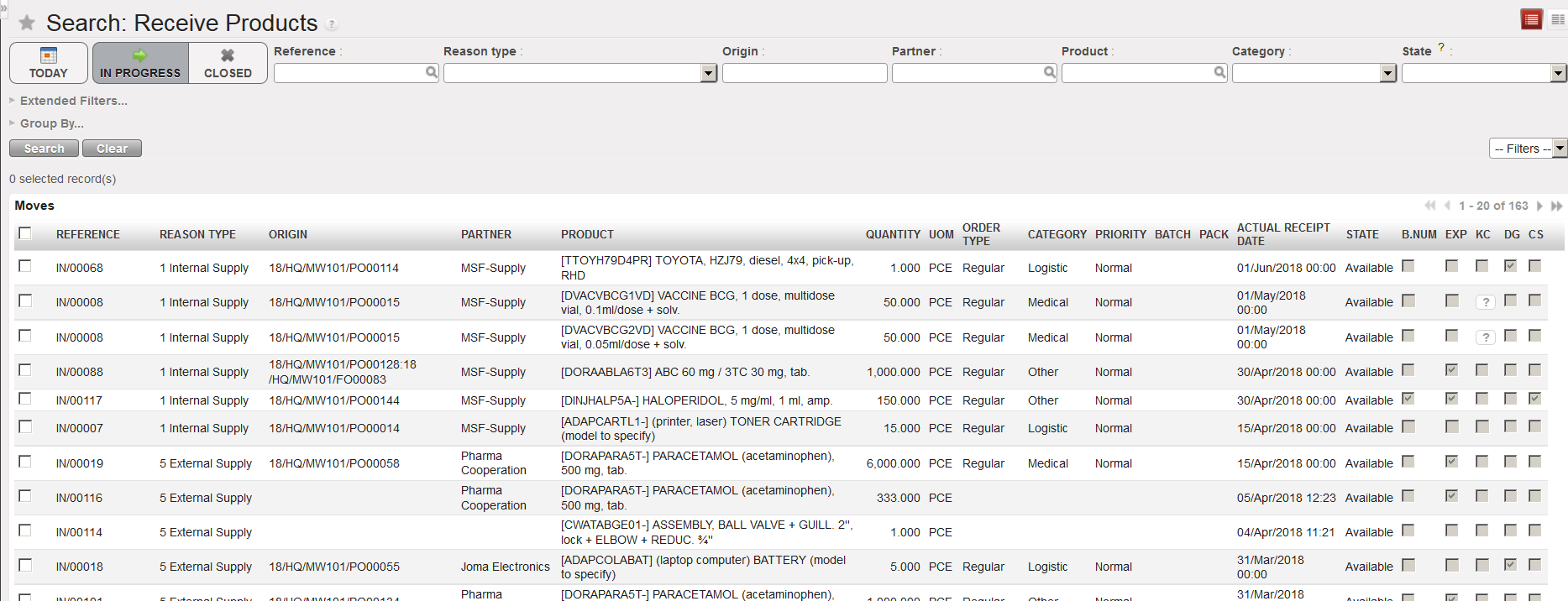
This functionality allows to analyze Incoming Shipments. It can for example be used to see if a particular product has arrived or is expected to arrive.

Go to: Warehouse / Product Moves / Receive Products

Receive Products

  1. The system will by default show all receptions which are expected / in progress. To search for a specific product, clear all applied filters by clicking on the “Clear” button.
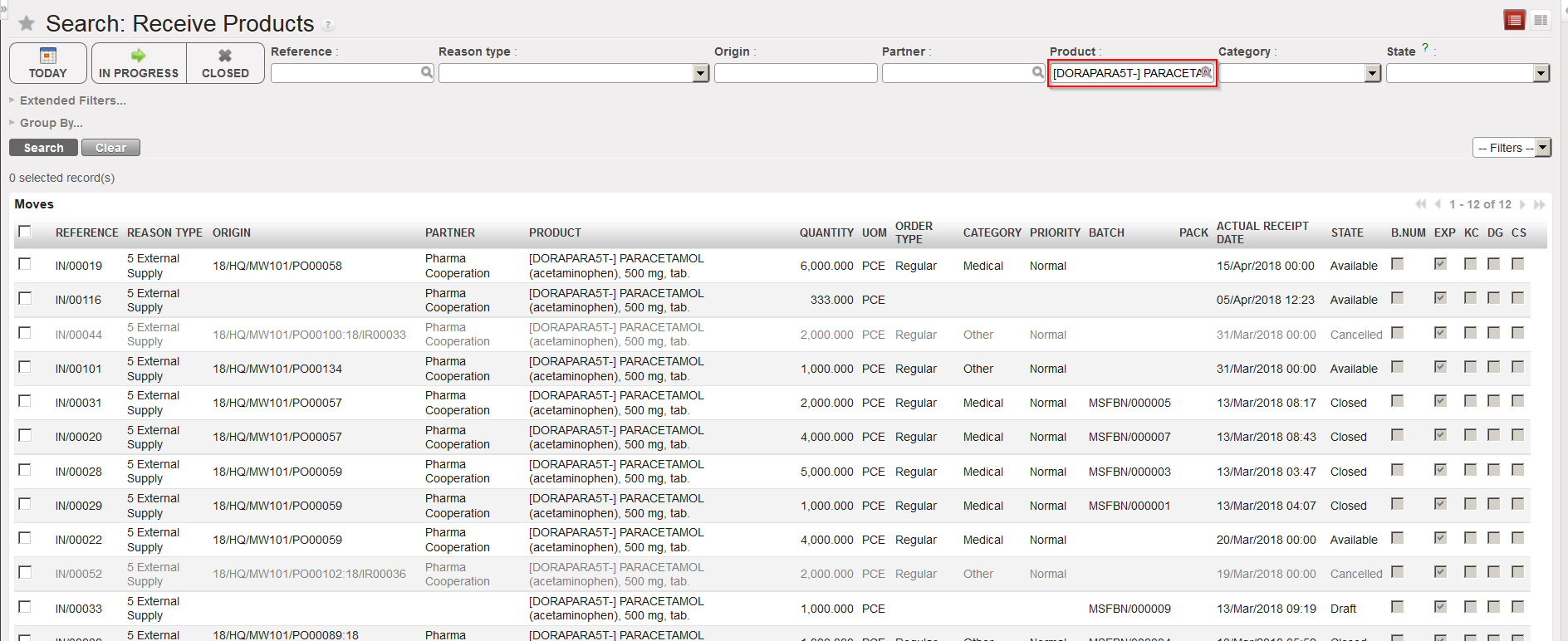
  2. In the “Product” filter, enter the product on which you wish to investigate.
  3. Click on the “Search” button.

Receive Products

The system shows all Incoming Shipments where this product is involved.

This functionality can also be useful for the warehouse officer to see all deliveries which are due to arrive today, thanks to the “Today” filter which will display INs expected today.