A. LU INTRODUCTION (LU-SU4103)

Supply User Manual ENG -> 5. Warehouse -> 5.3 LU-SU4102: Picking -> A. LU INTRODUCTION (LU-SU4103)

A. LU INTRODUCTION (LU-SU4103)

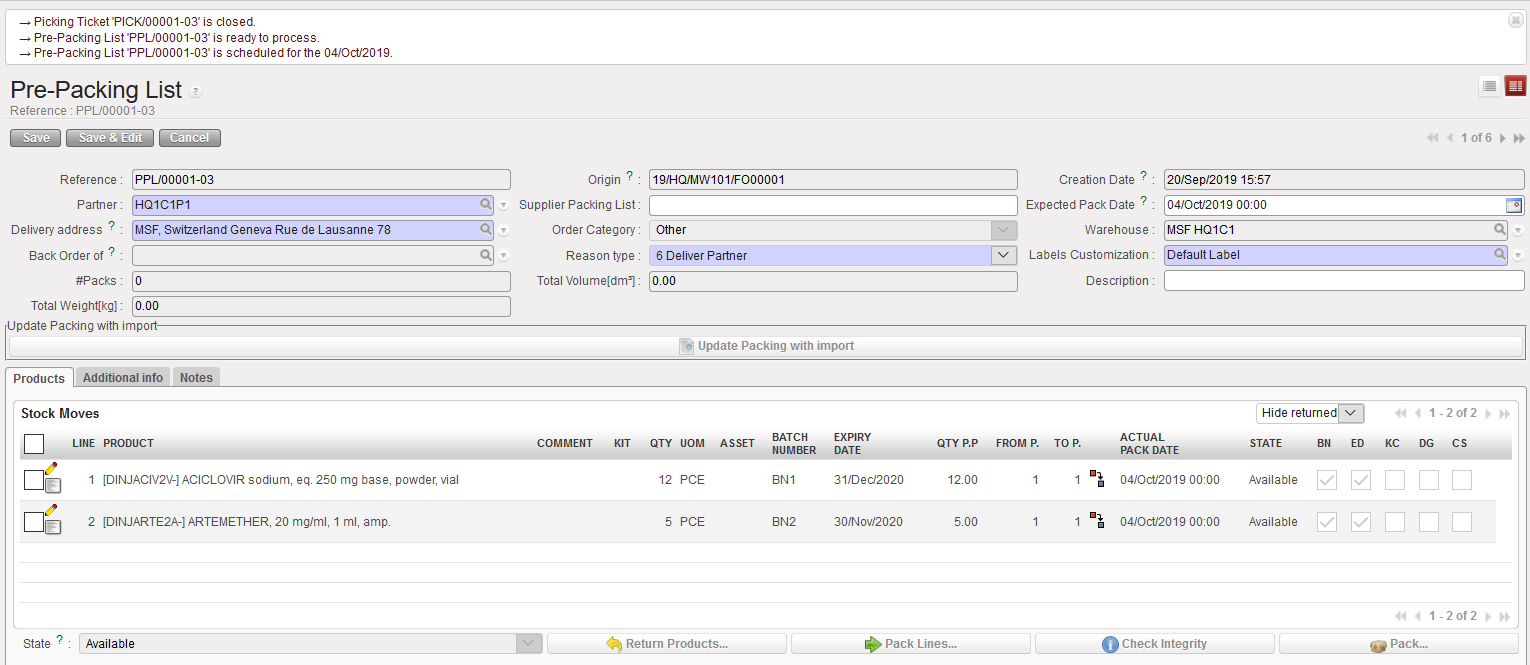
After the picking process, all picked products (and batches) are transferred on Pre-Packing Lists. A Pre-Packing List can be seen as a sub-packing list, from where parcels can be shipped to the requesting projects/customers. This means that pre-packing lists can be shipped partially to the customer if needed (e.g. if there is not sufficient available space on the plane).

The Pre-Packing List process can also be seen as an internal stock move. Indeed, the selected products and quantities are moved from the “Packing” location to the “Dispatch” location when validating the PPL. Similarly, if products are returned to stock from a PPL, the aforementioned stock move will be cancelled and new one, moving the products from the “Packing” location back to the physical “stock” location, will be created.

K. PICKING TICKETS REFERENCES

Supply User Manual ENG -> 5. Warehouse -> 5.3 LU-SU4102: Picking -> K. PICKING TICKETS REFERENCES

K. PICKING TICKETS REFERENCES

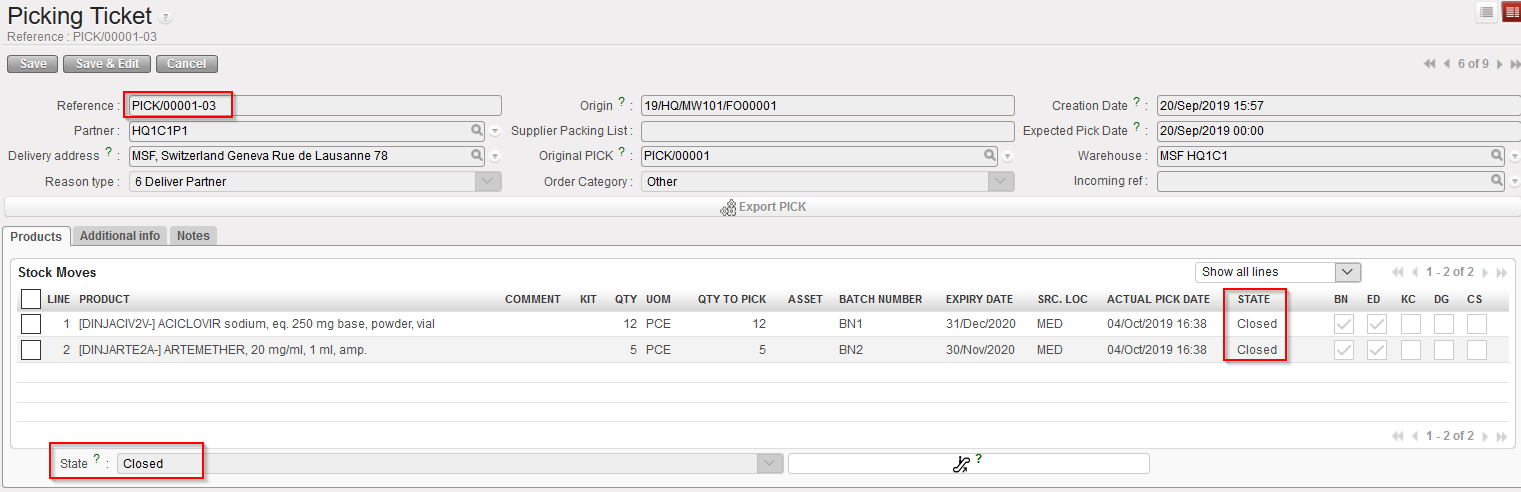
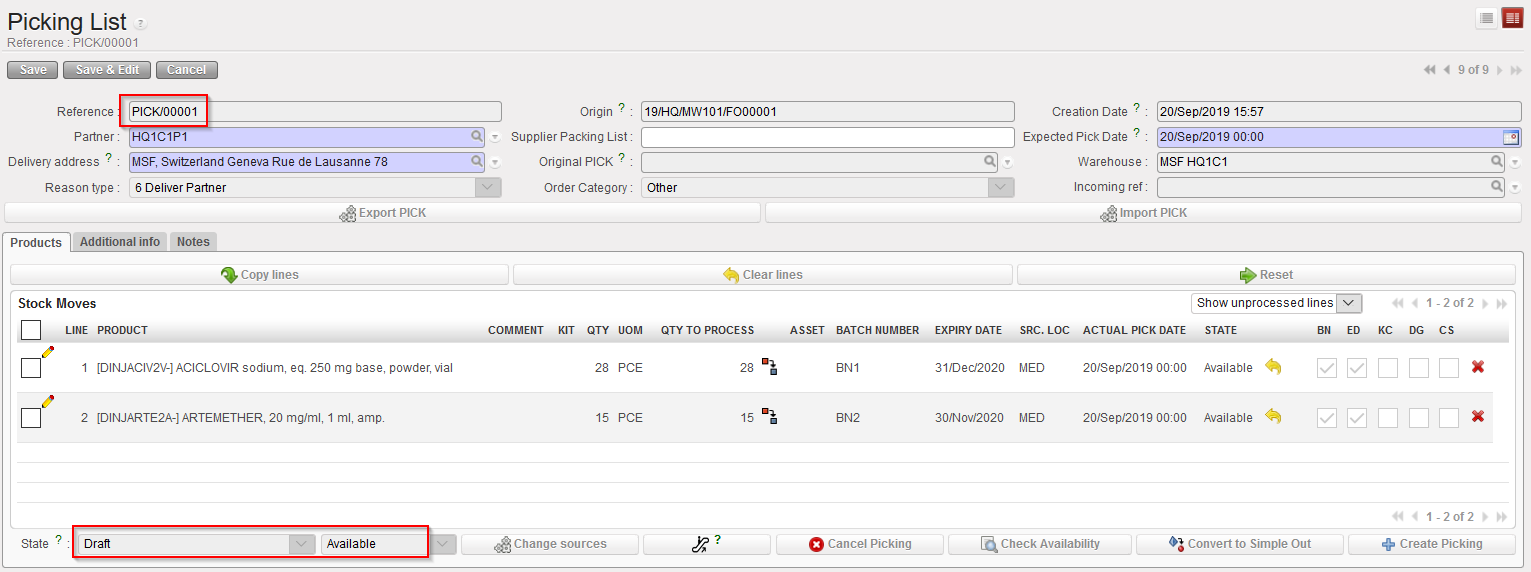
If you look at the PICK references, you will find various types of references (document numbers):

  1. PICK/XXXXX is used for the references of the main PICKS
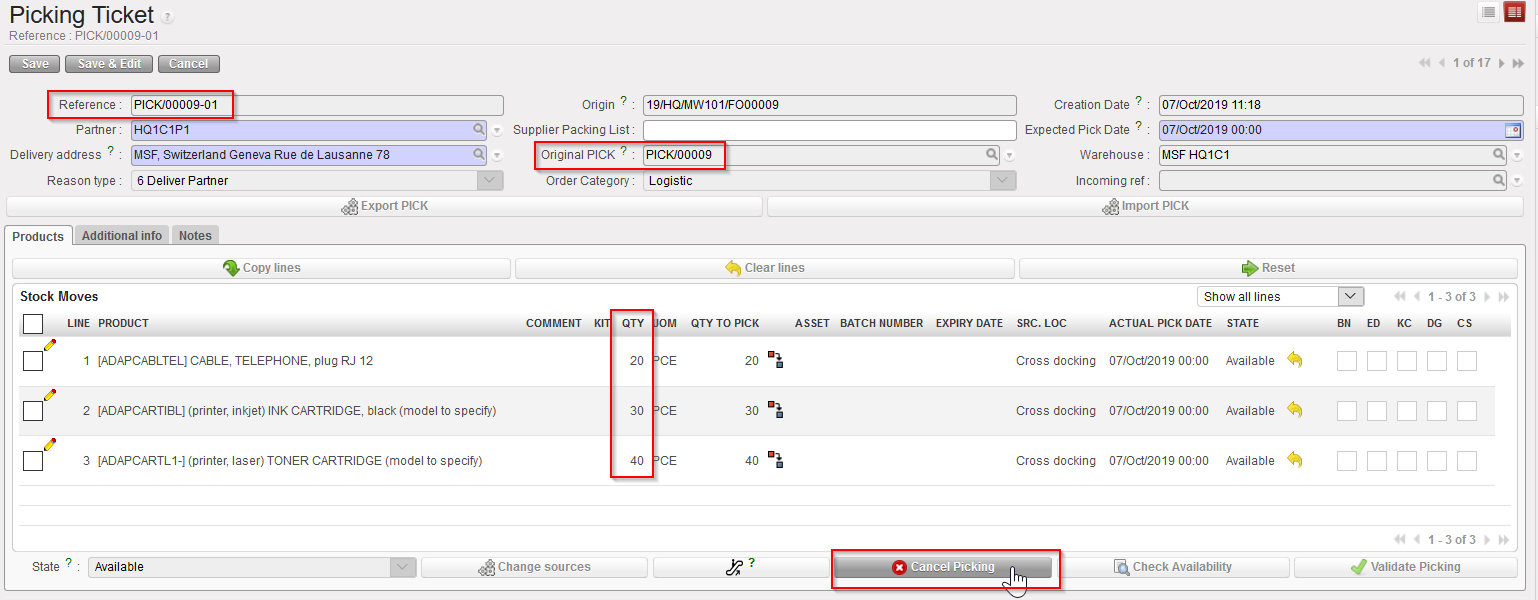
  2. PICK/XXXXX-YY is used for the references of the sub PICKS
  3. You will also find references such as PICK-return, PICK-surplus, which are created by claims (see specific LU on claims for further details)

J. HOW TO CANCEL & RESOURCE ON PICKING TICKETS

Supply User Manual ENG -> 5. Warehouse -> 5.3 LU-SU4102: Picking -> J. HOW TO CANCEL & RESOURCE ON PICKING TICKETS

J. HOW TO CANCEL & RESOURCE ON PICKING TICKETS

Cancel & resource is available on Picking Tickets but only on the main PICKS and only on Picking Tickets which have been created following the sourcing of an FO from stock (i.e. not on order). This may be useful if, for example, after deciding to source from stock you realize that goods are actually not available in the stock. Cancel & resource will allow you to resource the request to a supplier (PO).

1) Cancel & resource a Picking Ticket at header level

Go to: Warehouse / Warehouse Management / Deliveries / Picking

  1. Open the Picking Ticket you wish to cancel & resource.
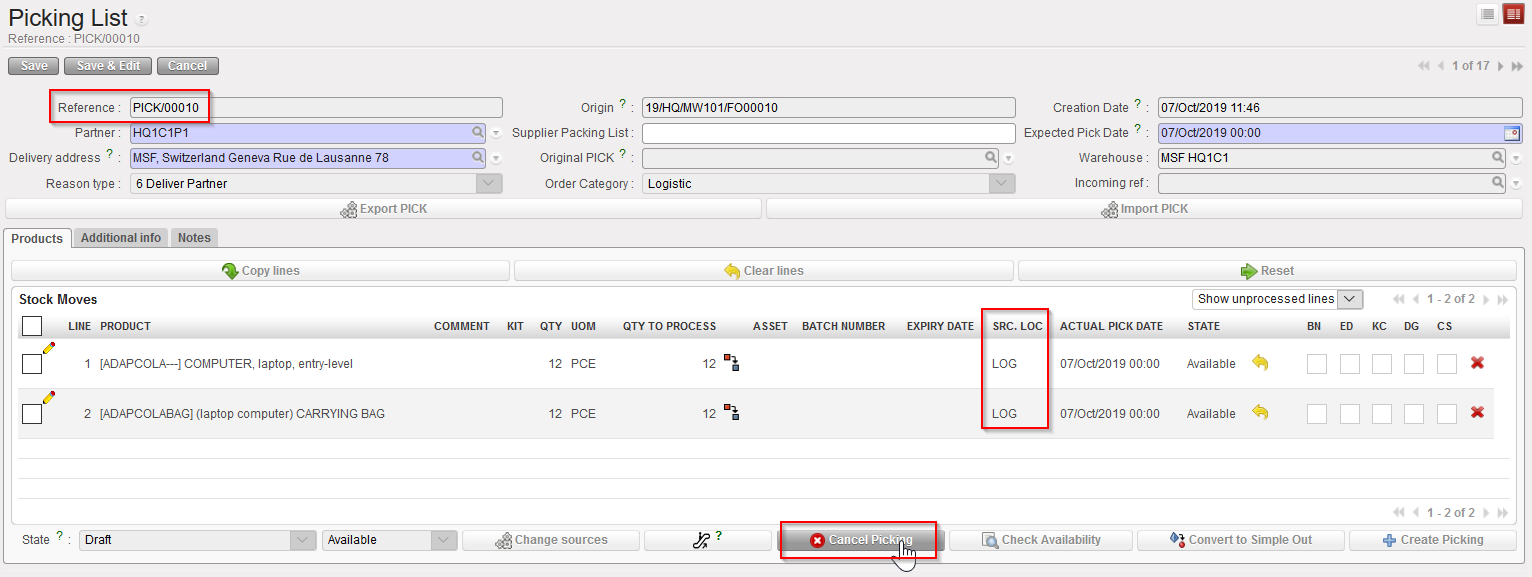
  2. Click on the “Cancel Picking” button located at the bottom of the screen.

Cancelling a main PICK at header level

      3. On the “Cancel Picking” window, click on the “Cancel & Resource” button.

Cancelling & resourcing a main PICK at header level

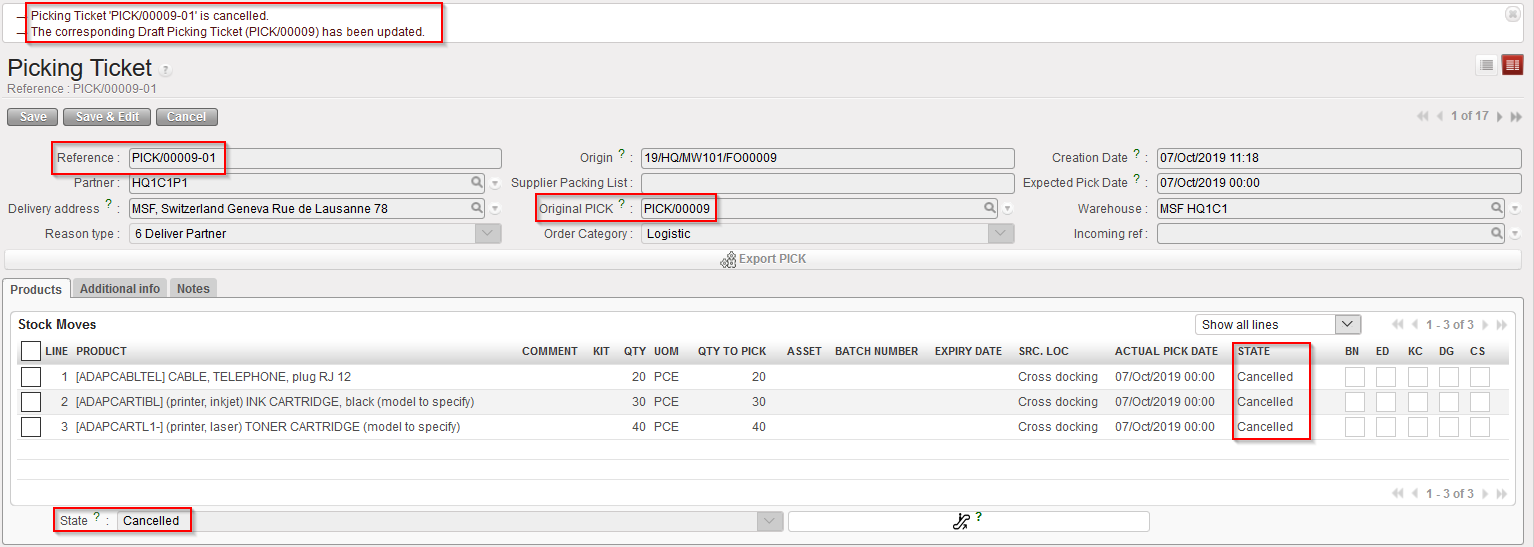
Cancelled and resourced main PICK

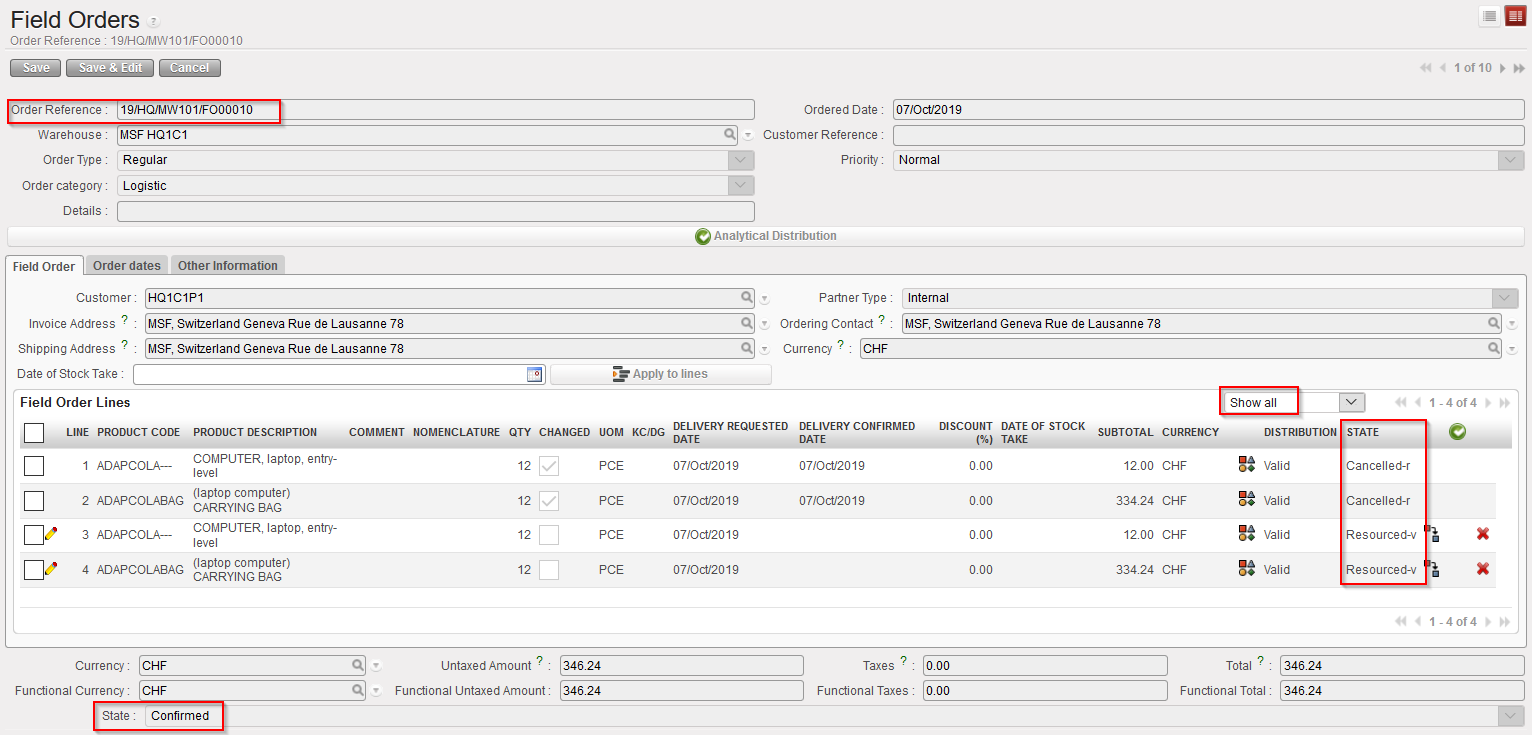
FO related to the cancelled and resourced main PICK

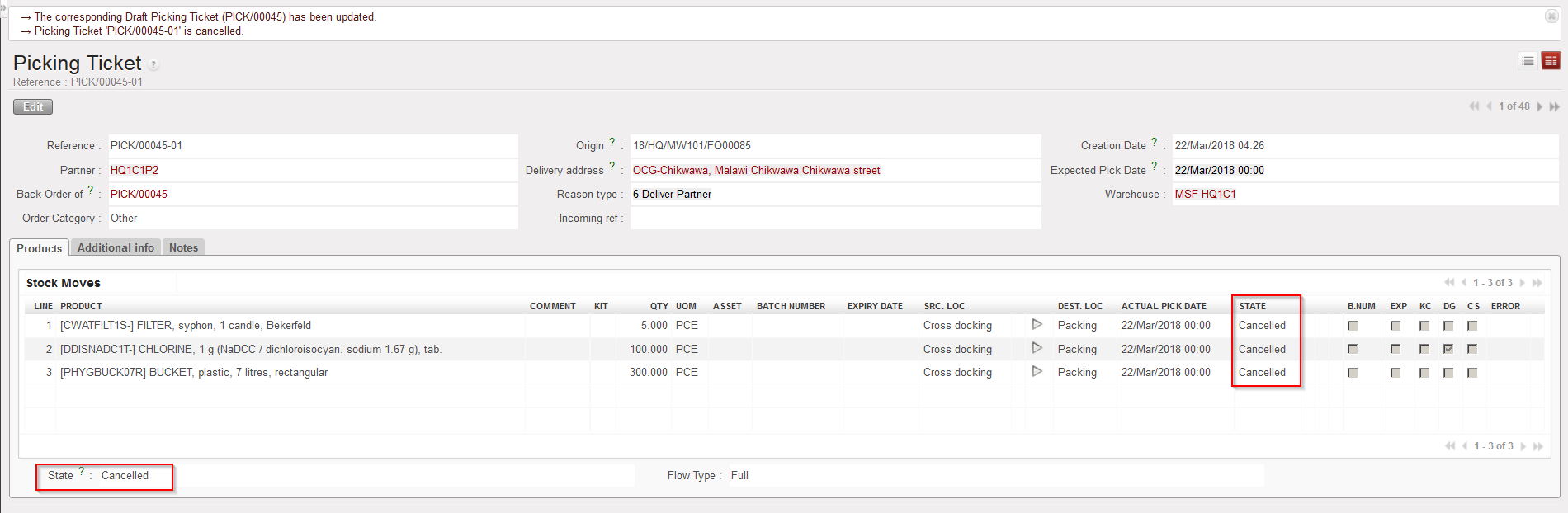
The main PICK (and all its lines) is now cancelled.

The corresponding FO remains in the state “Confirmed“. Lines which have been cancelled & resourced on the PICK are now in the state “Cancelled” (use “Show all lines” filter) while new lines, copy of the “Cancelled” ones, are added on this FO in state “Resourced-v“. In the FO the original Cancelled lines are in state “Cancelled-r” when using filter “Show all”.

2) Cancel & resource a Picking Ticket at line level

Go to: Warehouse / Warehouse Management / Deliveries / Picking

  1. Open the Picking Ticket on which you wish to cancel & resource a line.
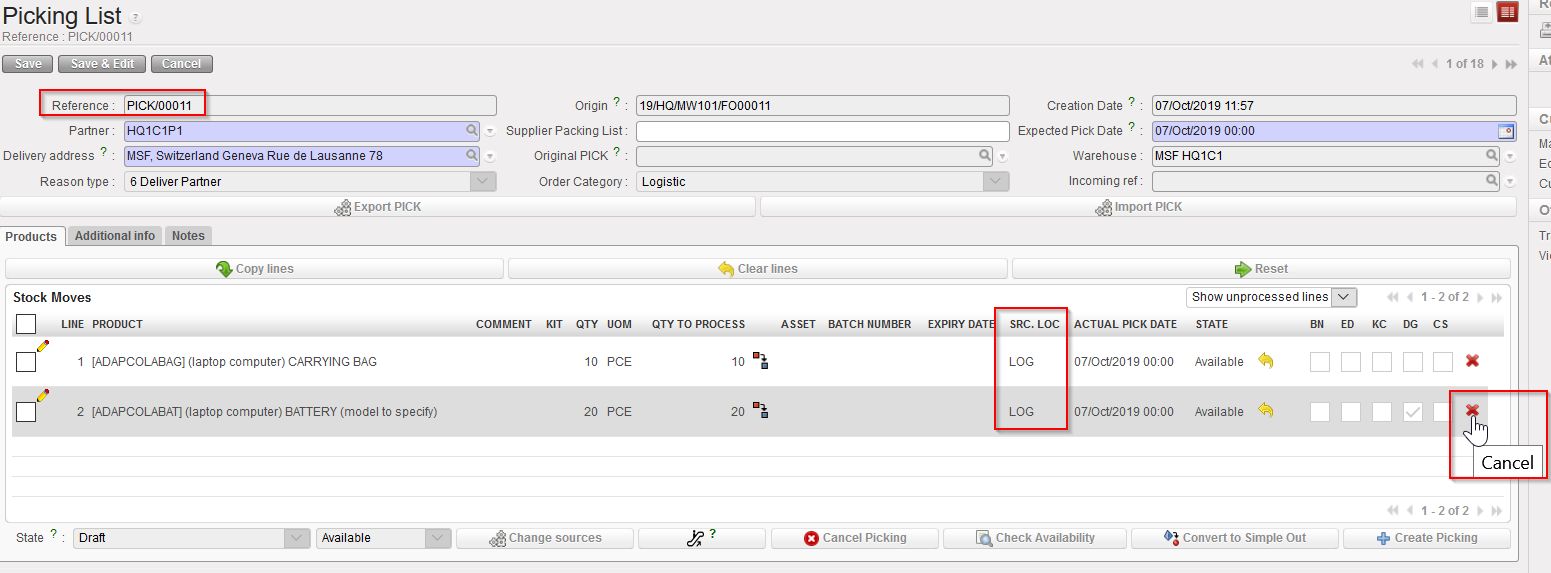
  2. Click on the red cross located at the right of the line you wish to cancel & resource.

Cancelling one line of a main PICK

       3.  On the “Cancel move” window, click on the “Cancel and Resource” button.

Cancelling & resourcing one line of a main PICK

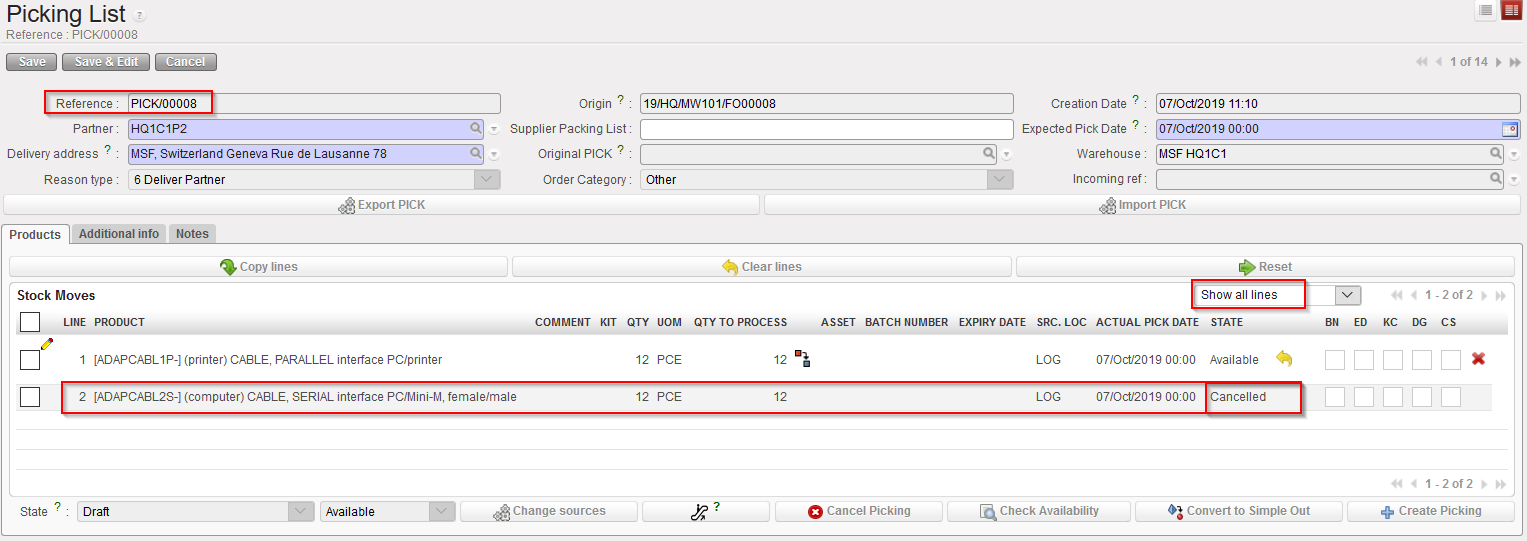
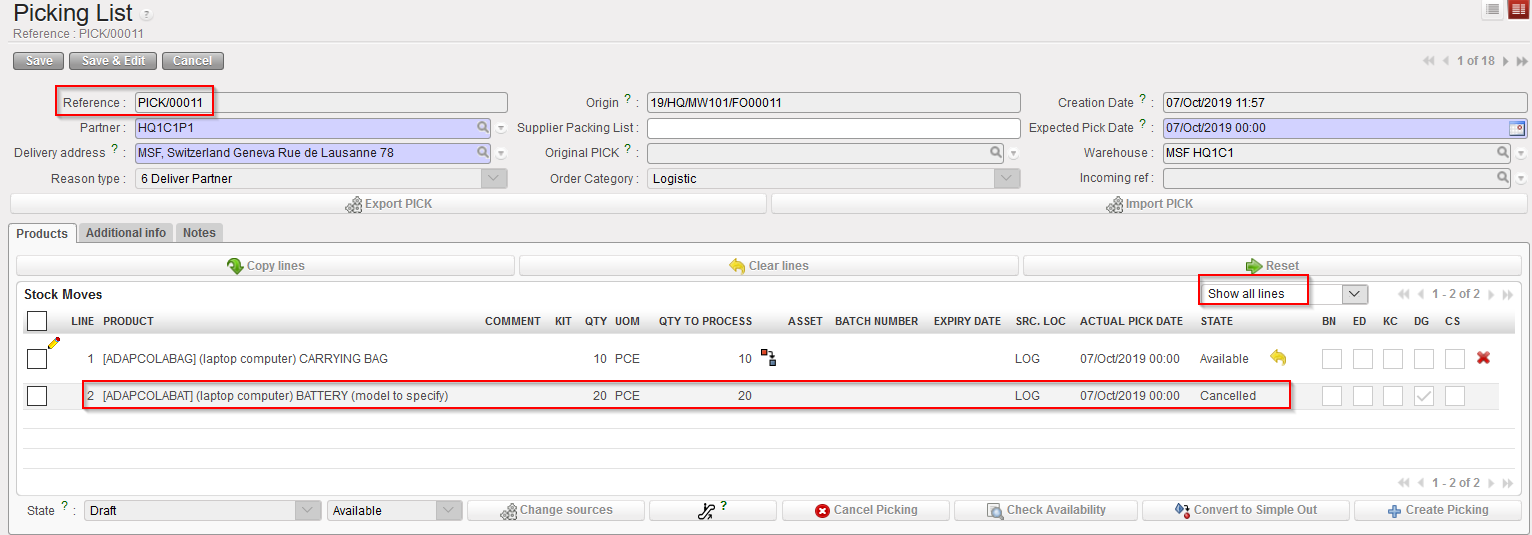
Cancelled and resourced line on a main PICK

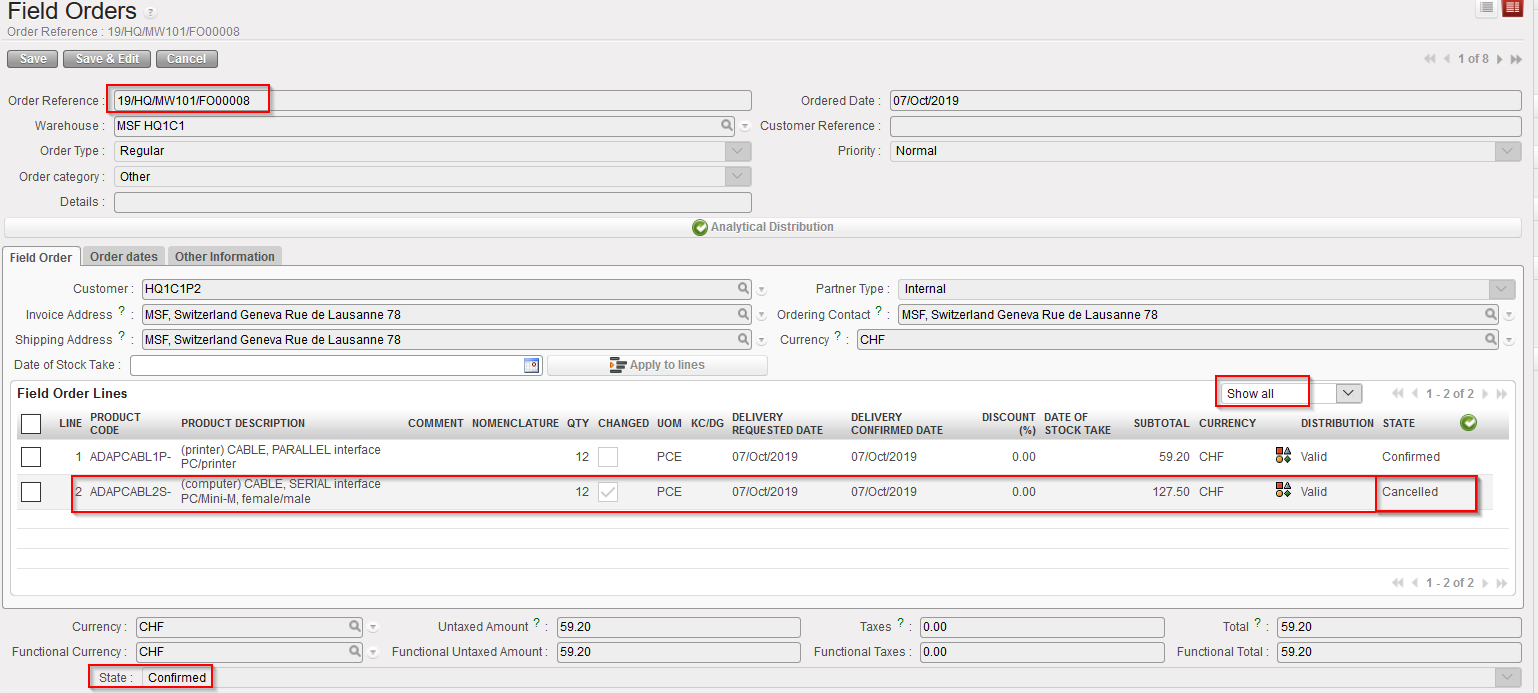
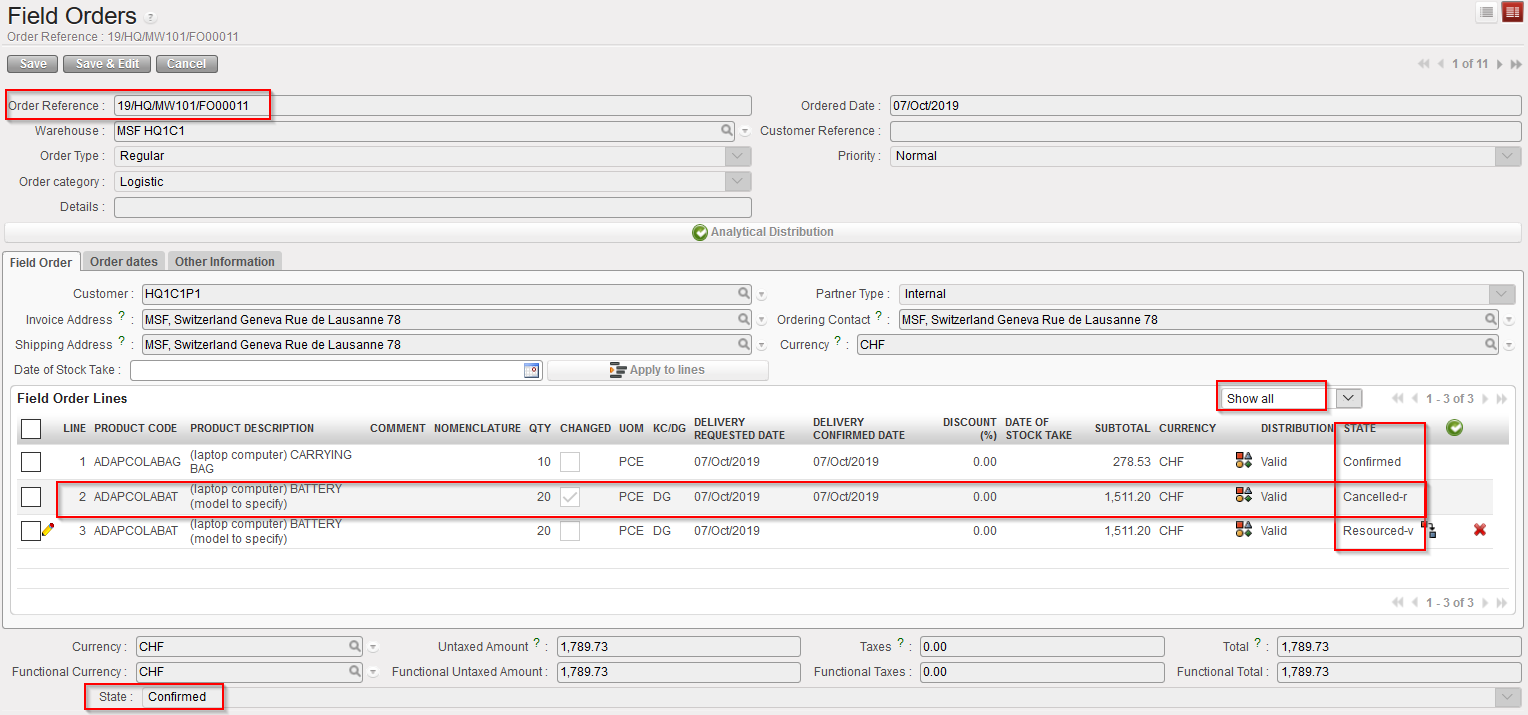
FO related to the main PICK on which a line was cancelled & resourced

The cancelled & resourced line on the main PICK has the state “Cancelled“.

The corresponding FO remains in the state “Confirmed“. The original line which was cancelled & resourced on the PICK is now in the state “Cancelled-r” on the FO while a new line, copy of the “Cancelled-r” one, is added on this FO in state “Resourced-v“.

3) Conclusion of the section

Remember that cancel & resource is only available on main PICKS and can only be done if FO has been sourced from stock. In this section, 2 scenarios were outlined. Again, many alternative scenario exist involving partial sourcing, FO sourced partly from stock and partly on order, cancel & resourced done after partial picking, cancel & resource done on split lines, …

I. HOW TO CANCEL A PICKING

Supply User Manual ENG -> 5. Warehouse -> 5.3 LU-SU4102: Picking -> I. HOW TO CANCEL A PICKING

I. HOW TO CANCEL A PICKING

Sometimes picking documents have to be cancelled. This may happen if you decide to not ship the back-orders or if the requesting project does not need the goods anymore. Cancellation may be done on a main PICK or a sub PICK. Cancellation on main PICK can be done at header or line level while cancellation on sub PICK can only be done at header level.

A cancellation on a main PICK will directly impact the related FO ( and Cancel/Close it/ or its lines) while a cancellation on a sub PICK will simply cancel the sub PICK and resend line items from the sub PICK to the main PICK.

In case of cancellation on a PICK related to a Loan FO, the related counterpart Loan PO document/line will also be Cancelled (see Procurement chapter on FO and PO Loan).

Pick Cancellation often results on products being sent to “Cross Docking” location when products have been sourced to a PO from an FO. In order to avoid this, at Cancellation user now have the option to send the goods either to Cross Docking or to proceed to an INTernal Move (automatically created).

1) Cancellation on main PICK at header level (with FO sourced on order)

Go to: Warehouse / Warehouse Management / Deliveries / Picking

  1. Open the Picking Ticket you wish to cancel (main PICK in this case)
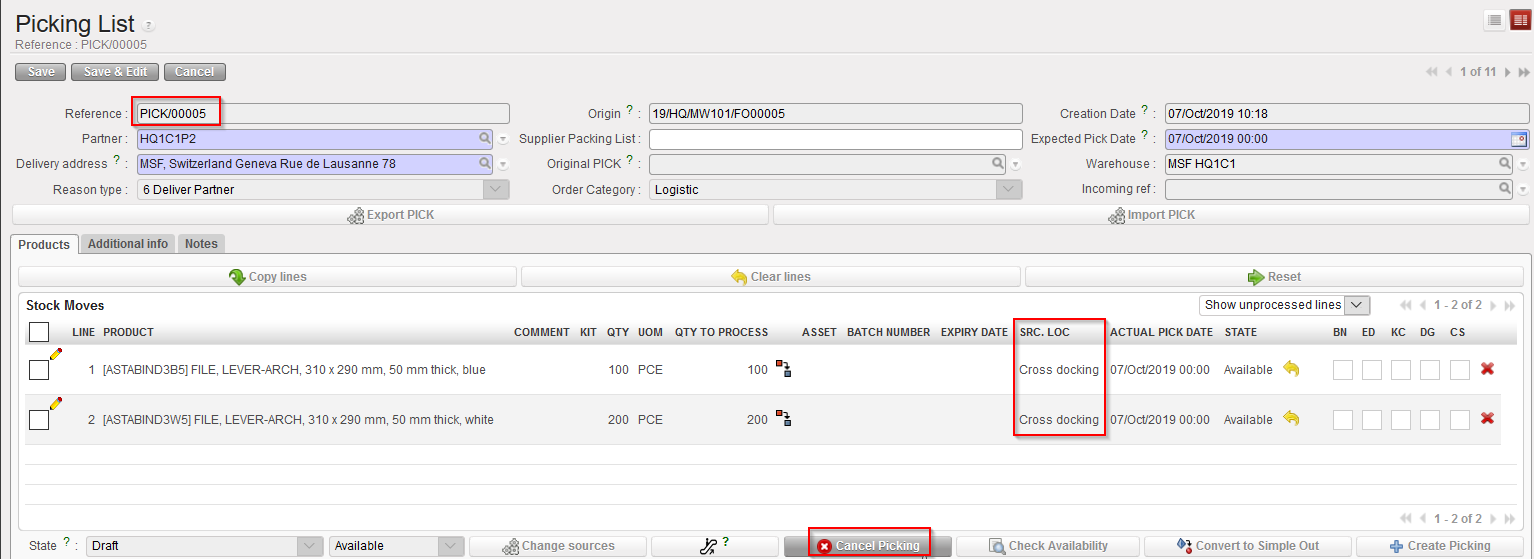
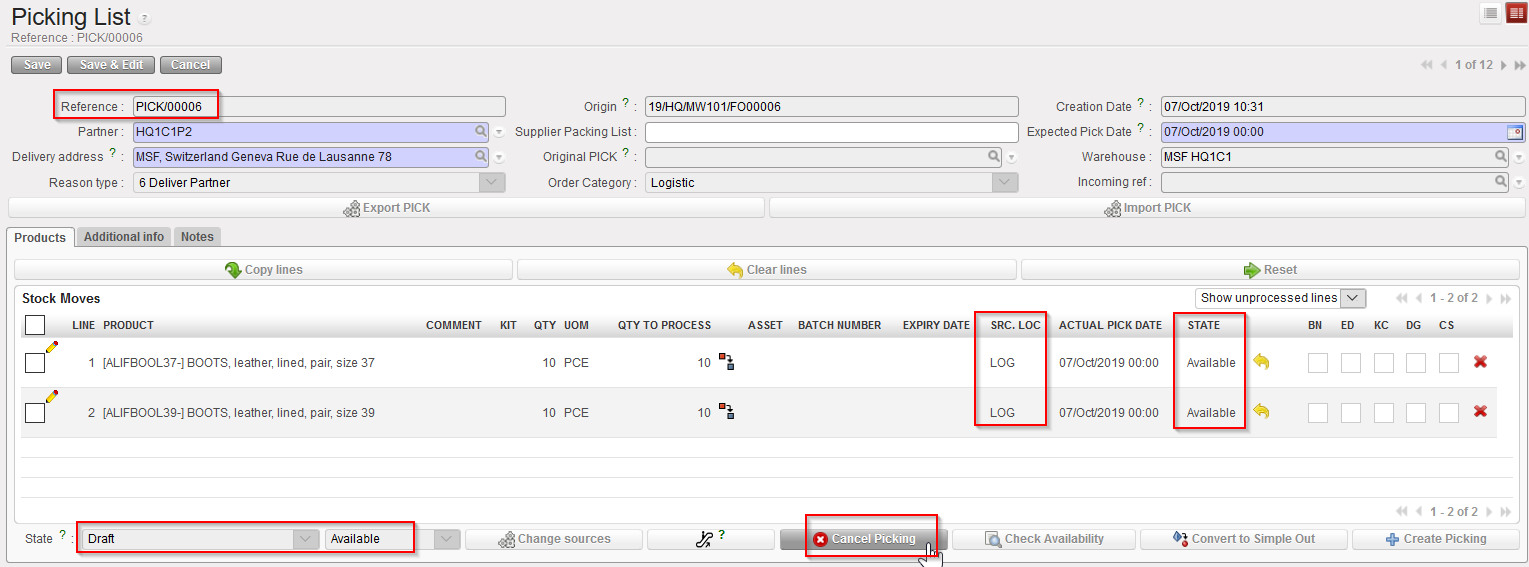
  2. Click on the “Cancel Picking” button located at the bottom of the screen.

Cancelling a main PICK at header level

3.   Confirm the cancellation in the “Cancel Picking” window by clicking on the “Cancel” button.

Confirming cancellation of a main PICK at header level

4. Select what needs to be done with the Cancelled products

             a) Click on “Cancel Only” to send the goods to cross docking anyway (will be unreserved products)

Click on “Cancel only” to proceed anyway to product sent to Cross Docking

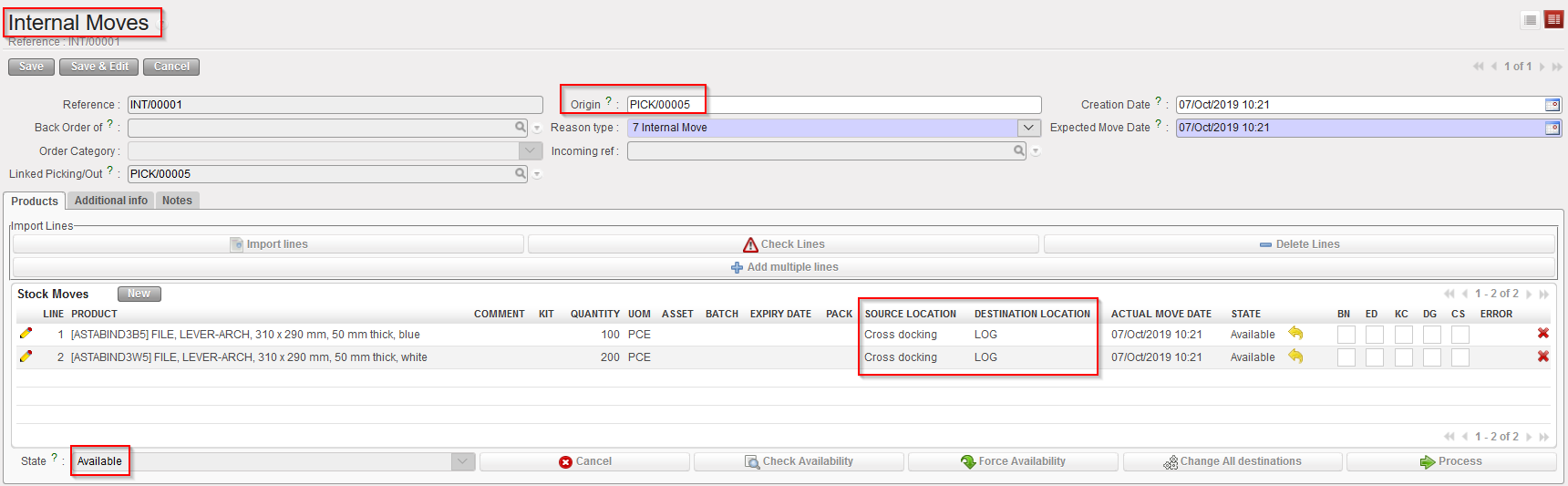
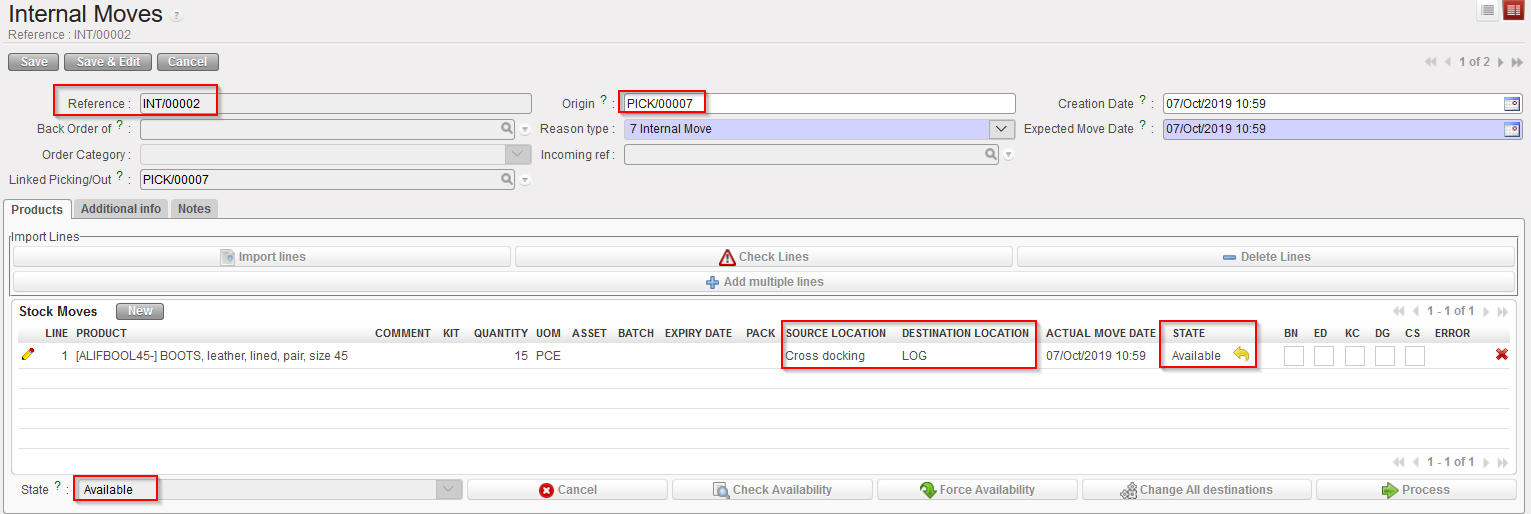
                 b) Click on “Cancel & create Internal Move” to generate the creation of a new “Available INT with “Source location= Cross Docking andDestination location= MED/LOG depending on type of products

New INT created following main PICK Cancellation

Please refer to the chapter “LU-SU4201 INTERNAL MOVES” to proceed forward with this INT.

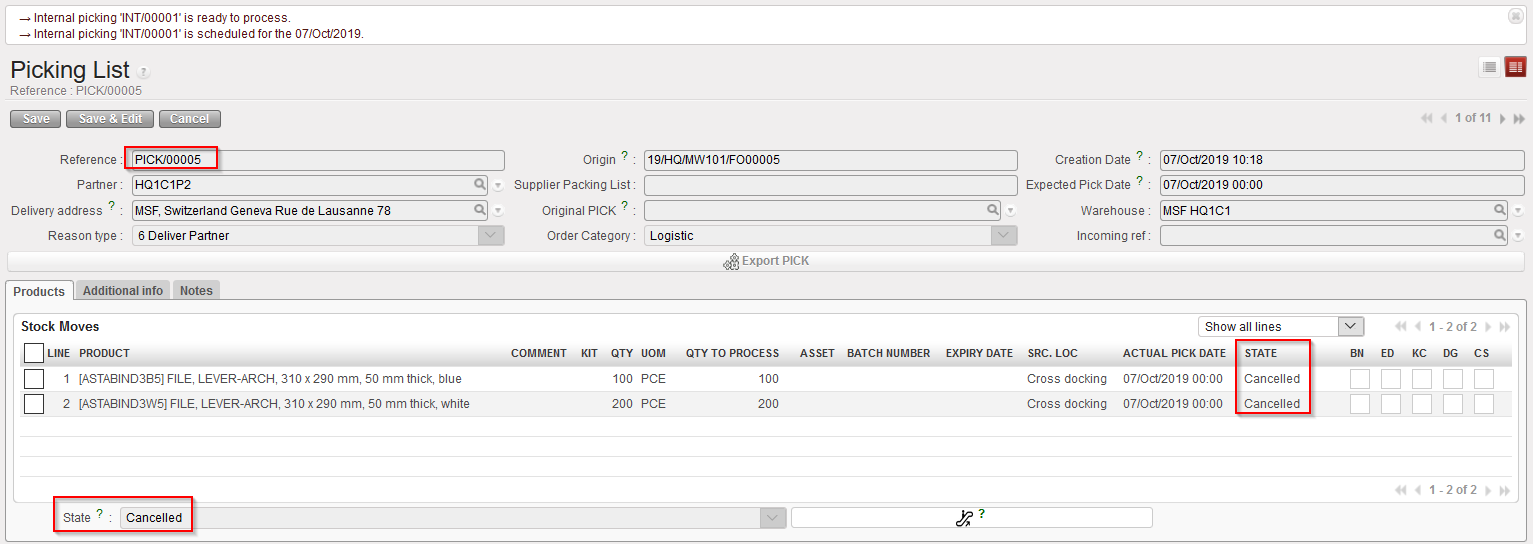
In both cases, the PICK will display the same result: it will be Cancelled

Main PICK cancelled at header level

The state of the Picking Ticket (and of all its lines) switches to “Cancelled“.

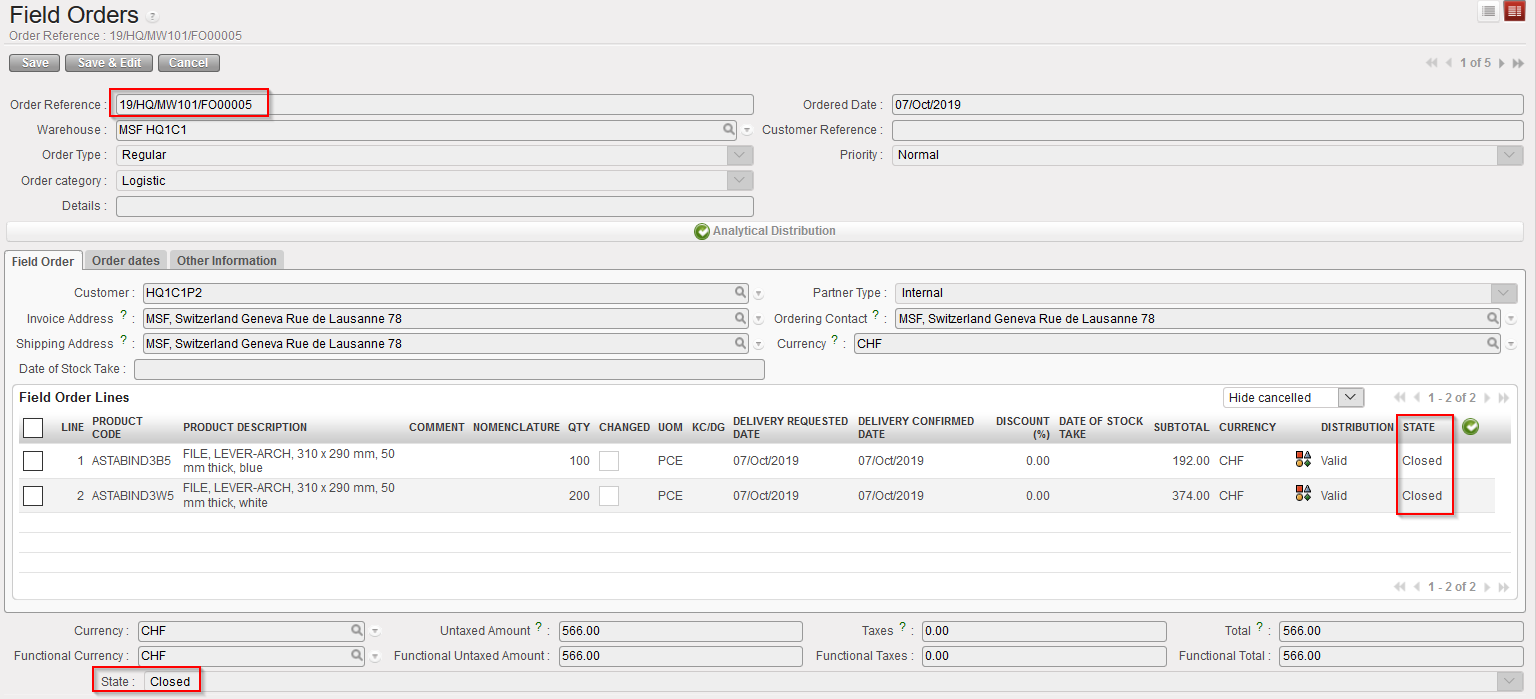
Note that this will also trigger the Closing of the related FO with all FO-lines “Closed(see below – please note that lines are closed because sourcing was done from PO; had it been done from Stock, lines would have been Cancelled).

FO Closed following cancellation of a main PICK at header level

2) Cancellation on main PICK at header level (with FO sourced from stock)

Go to: Warehouse / Warehouse Management / Deliveries / Picking

  1. Open the Picking Ticket you wish to cancel (main PICK in this case)
  2. Click on the “Cancel Picking” button located at the bottom of the screen.

Cancelling a main PICK at header level

       3. Confirm the cancellation in the “Cancel Picking” window by clicking on the “Cancel only” button.

Confirming cancellation of a main PICK at header level

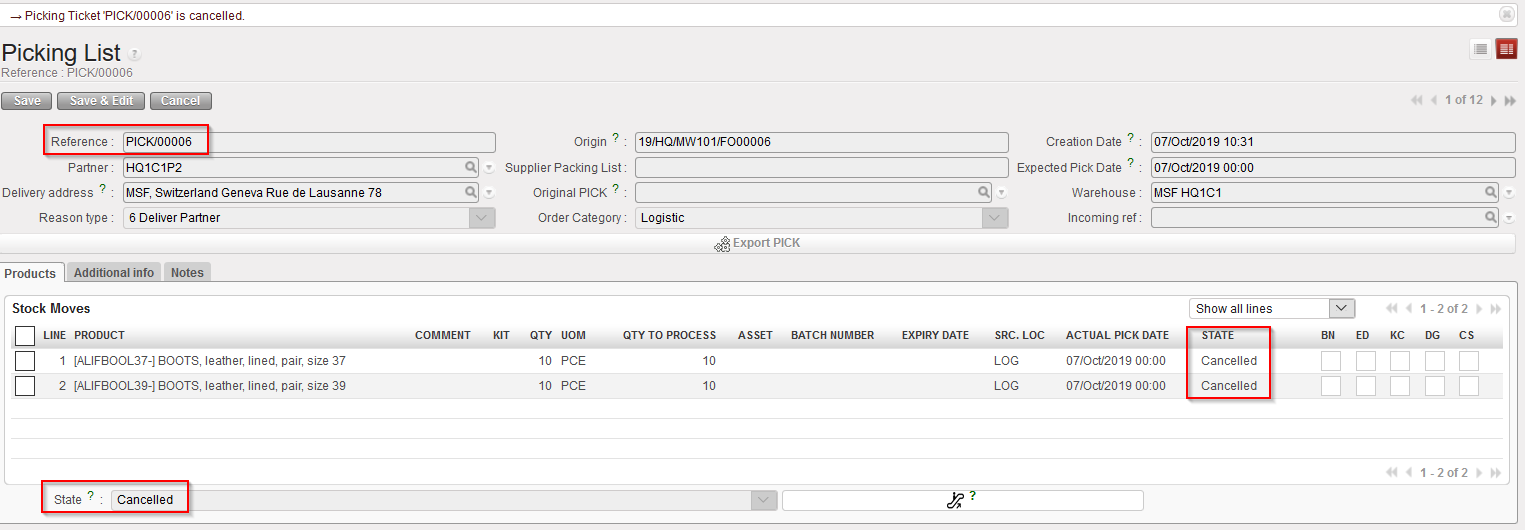
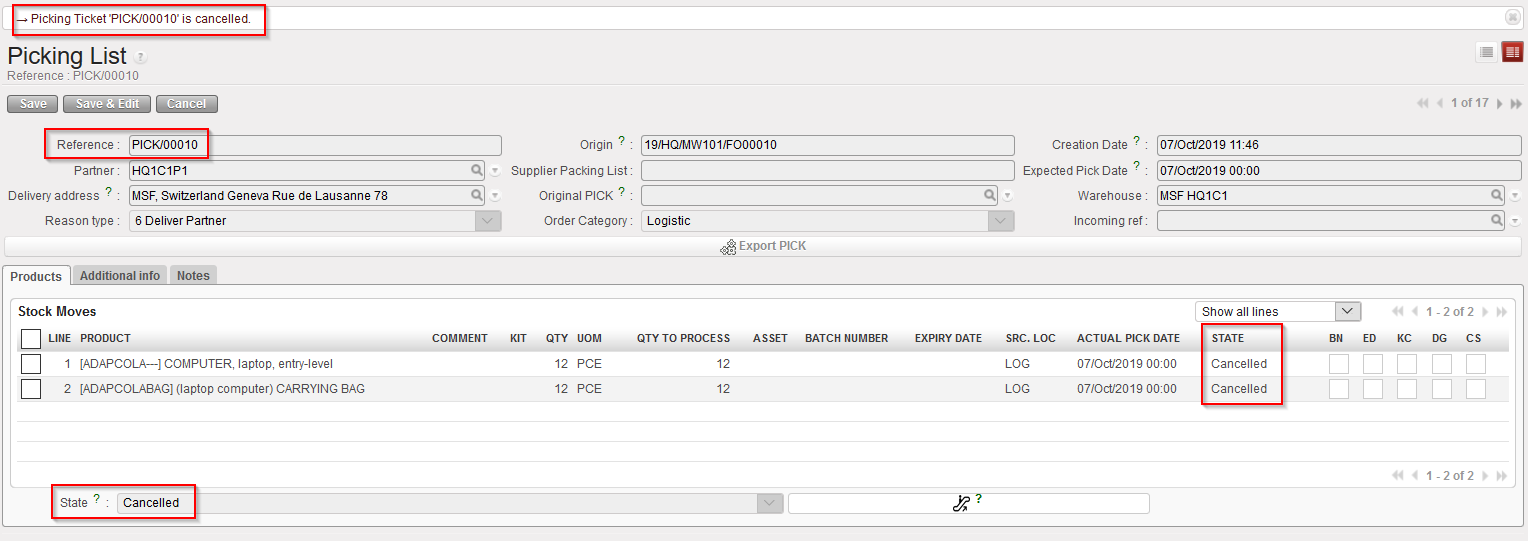
Main PICK cancelled at header level

The state of the Picking Ticket (and of all its lines) switches to “Cancelled“.

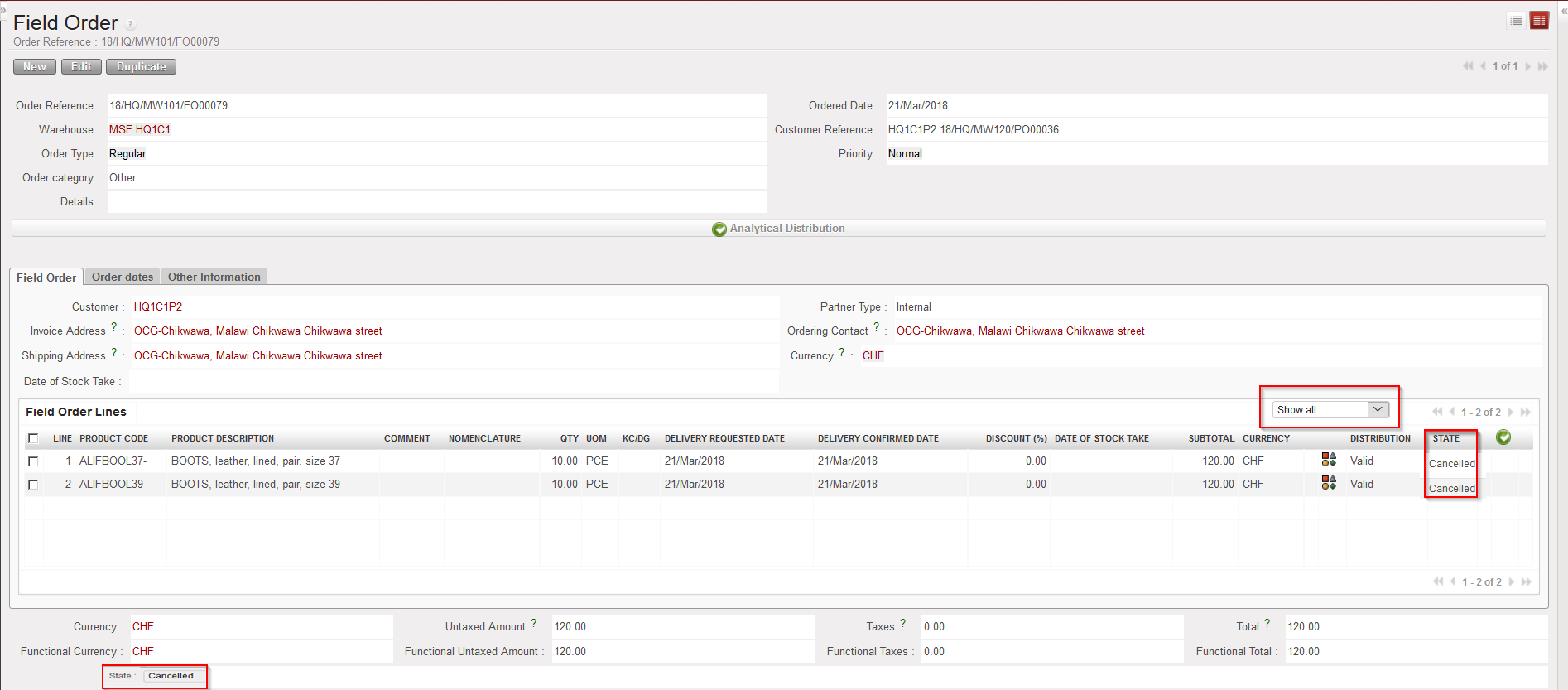
As a consequence, the corresponding FO (and all its lines) switches to the state “Cancelled(see below – please note that lines are Cancelled (not Closed) because sourcing has been done from Stock).

FO Cancelled following cancellation of a main PICK at header level (note that “Show all filter” is on)

3) Cancellation on main PICK at line level (with FO sourced on order)

Go to: Warehouse / Warehouse Management / Deliveries / Picking

  1. Open the Picking Ticket on which you wish to cancel a line (main PICK in this case)
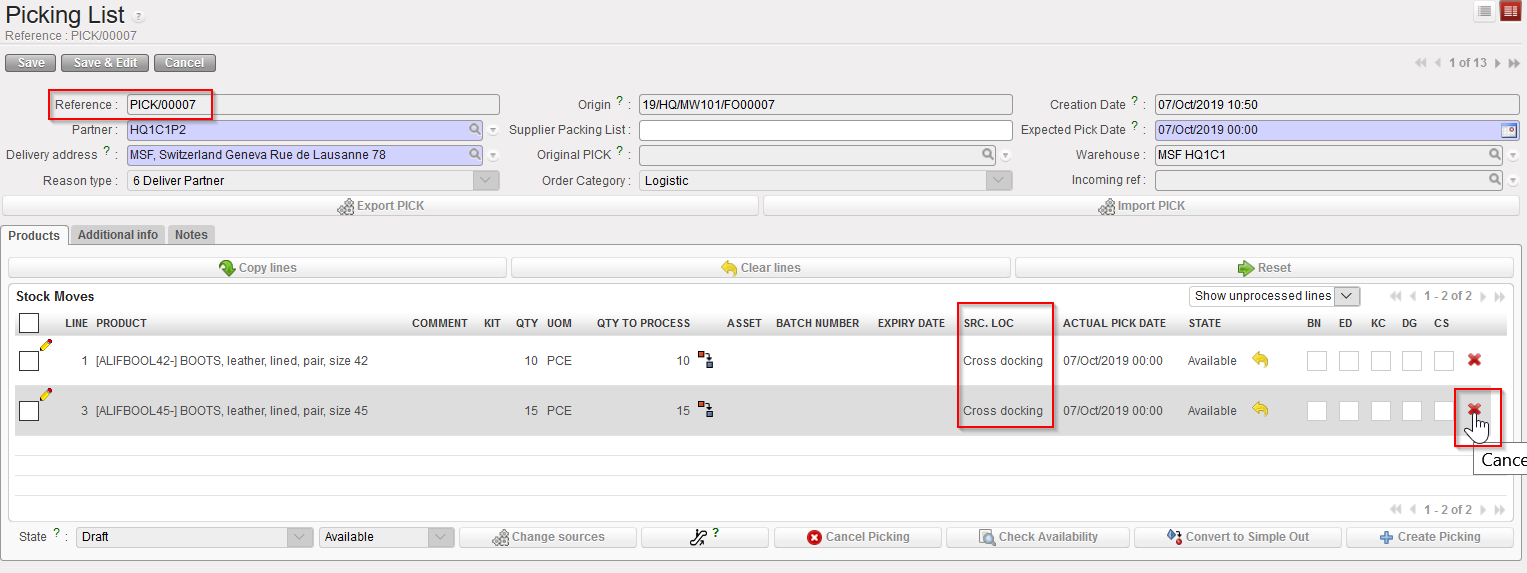
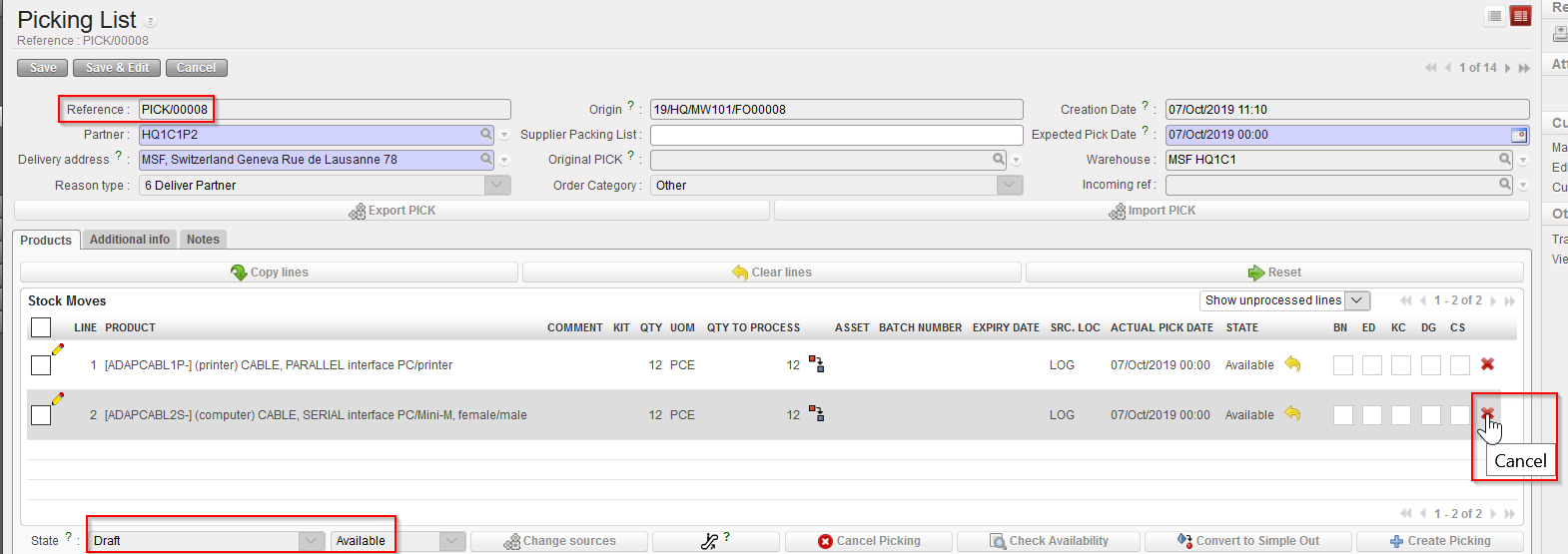
  2. Click on the red cross located at the right of the line you wish to cancel

Cancelling a line of a main PICK

        3. Confirm the cancellation in the “Cancel Picking” window by clicking on the “Cancel” button.

Confirming cancellation of a PICK at line level

          4. Select what needs to be done with the Cancelled products

              a) Click on “Cancel Only” to send the goods to cross docking anyway (will be unreserved products)

Click on “Cancel only” to proceed anyway to product sent to Cross Docking

              b) Click on “Cancel & create Internal Move” to generate the creation of a new “Available” INT with “Source location” = Cross Docking and “Destination location” = MED/LOG depending on type of products

Click on “Cancel & create Internal Move” to move the goods via an INT move

New INT created following PICK line Cancellation

Please refer to the chapter “LU-SU4201 INTERNAL MOVES” to proceed forward with this INT.

Results on the main PICK are the same in both cases.

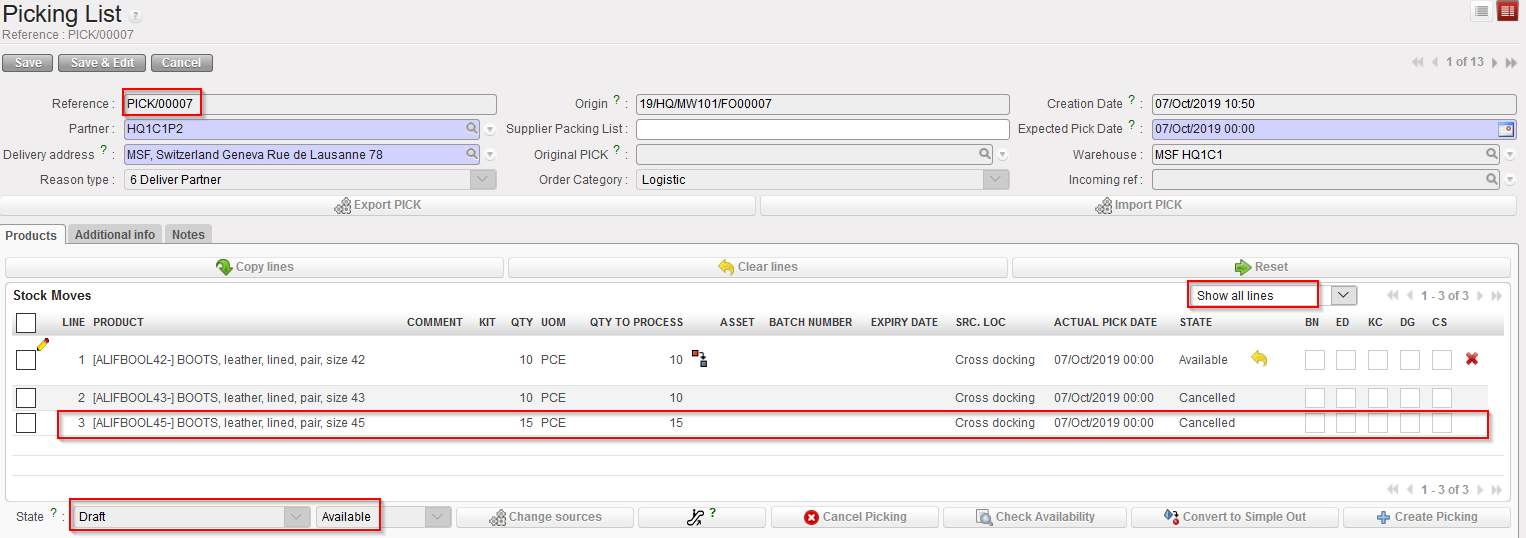
Cancelled line on a main PICK – please note that filter has been set to “Show all lines” in order to see the Cancelled lines

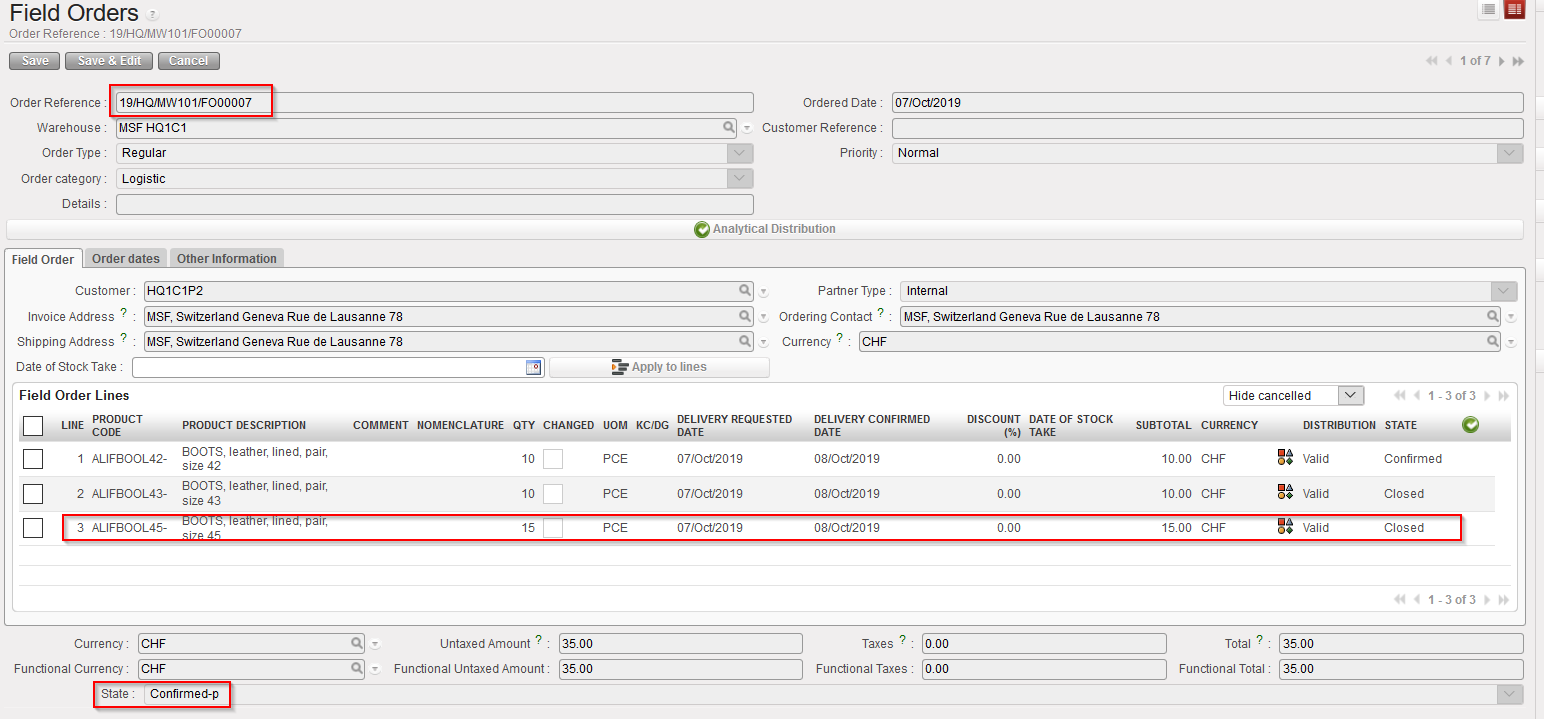
Closed line on the corresponding FO

On the main PICK, the cancelled line is now in state “Cancelled“.

On the corresponding FO, the line is now in state “Closed(since FO since sourcing done from PO).

If the related IN has already been processed, goods are in the “Cross docking” location and the user must handle them manually.

4) Cancellation on main PICK at line level (with FO sourced from stock)

Go to: Warehouse / Warehouse Management / Deliveries / Picking

  1. Open the Picking Ticket on which you want to cancel a line (main PICK in this case)
  2. Click on the red cross located at the right of the line you wish to cancel

Cancelling a line of a main PICK

       3. On the “Cancel move” window, select “Cancel Only“.

Cancelling a line of a main PICK

Cancelled line on a main PICK

Cancelled line on the corresponding FO

On the main PICK, the cancelled line is now in state “Cancelled“.

On the corresponding FO, the line is now in state “Cancelled“.

5) Cancellation on sub PICK

Cancellation on a sub PICK can only be done at header level. This cancellation will simply resend all the cancelled lines to the main PICK

Go to: Warehouse / Warehouse Management / Deliveries / Picking

  1. Open the Picking Ticket you wish to cancel.
  2. Click on the “Cancel Picking” button located at the bottom of the screen.

Main PICK before cancellation on sub PICK – with filter on “Show all lines”

Cancelling a sub PICK

Cancelled sub PICK

Main PICK after cancellation of sub PICK

The system informs you that the SUB pick is cancelled and that the corresponding main PICK has been updated. Lines cancelled on the sub PICK are transferred back to the main PICK (No impact on FO).

6) Conclusion of the section

Different scenarios involving cancellation on Picking Tickets have been outlined above. Many alternative scenarios exist involving partial validation of FOs or POs, partial sourcing of FOs, partial confirmation of POs, partial reception of INs, partial picking,…

These various scenarios will have various consequences.

According to the scenario, cancellation on PICK may require manual action of a user who could also have to manually cancel or close related documents (FOs, INs, POS,…).

Note that you can check the “Unreserved Stock report” to see all the Cancelled products that have been sent to Cross Docking ( LU-SU4302 Stock Inventory Report – G. Unreserved Stock report)

The functionality Tools / DocumentsIn Progress‘ may be useful to help you with this as it will close the selected document and cancel any associated documents.

H. HOW TO VALIDATE A PICKING

Supply User Manual ENG -> 5. Warehouse -> 5.3 LU-SU4102: Picking -> H. HOW TO VALIDATE A PICKING

H. HOW TO VALIDATE A PICKING

The end of the picking process consists in validating the sub PICK, once the goods have actually been picked from the warehouse. This may be done with the help of the printed Picking Ticket on which the storekeeper has noted what was actually picked.

Go to: Warehouse / Warehouse Management / Deliveries / Picking

  1. Locate the sub PICK which has been picked by the storekeeper.
  2. Click on the pencil icon located on the left side of the picked sub PICK (or on the green icon in case you need to Validate directly the sub-pick).
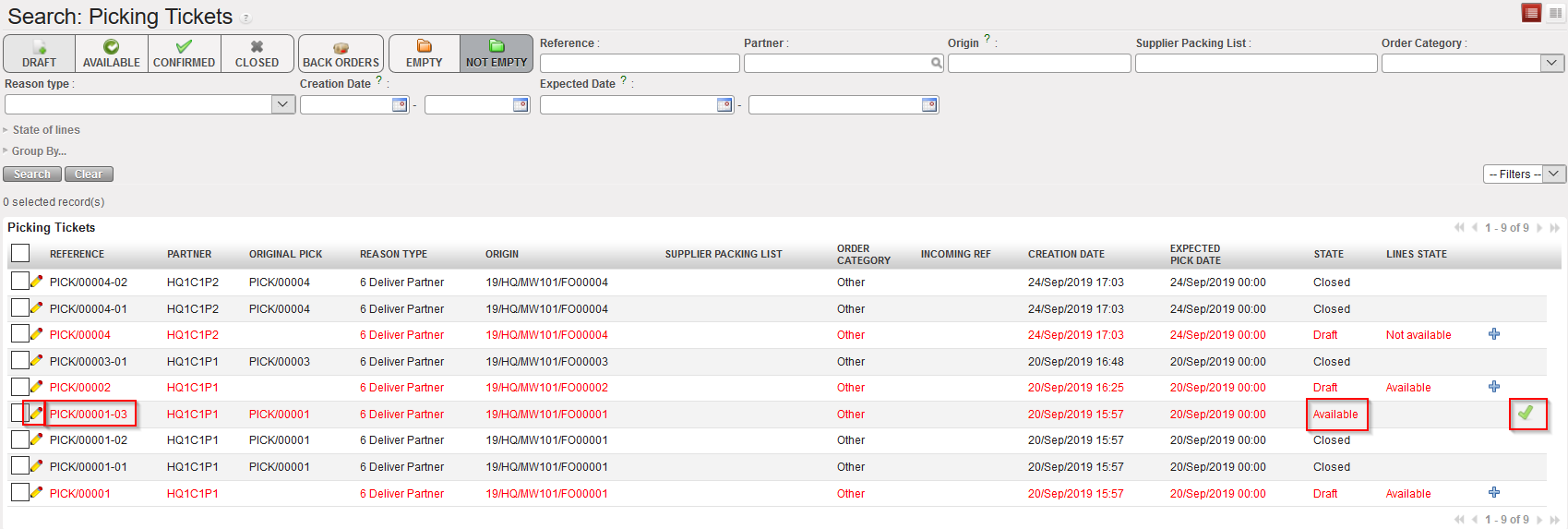
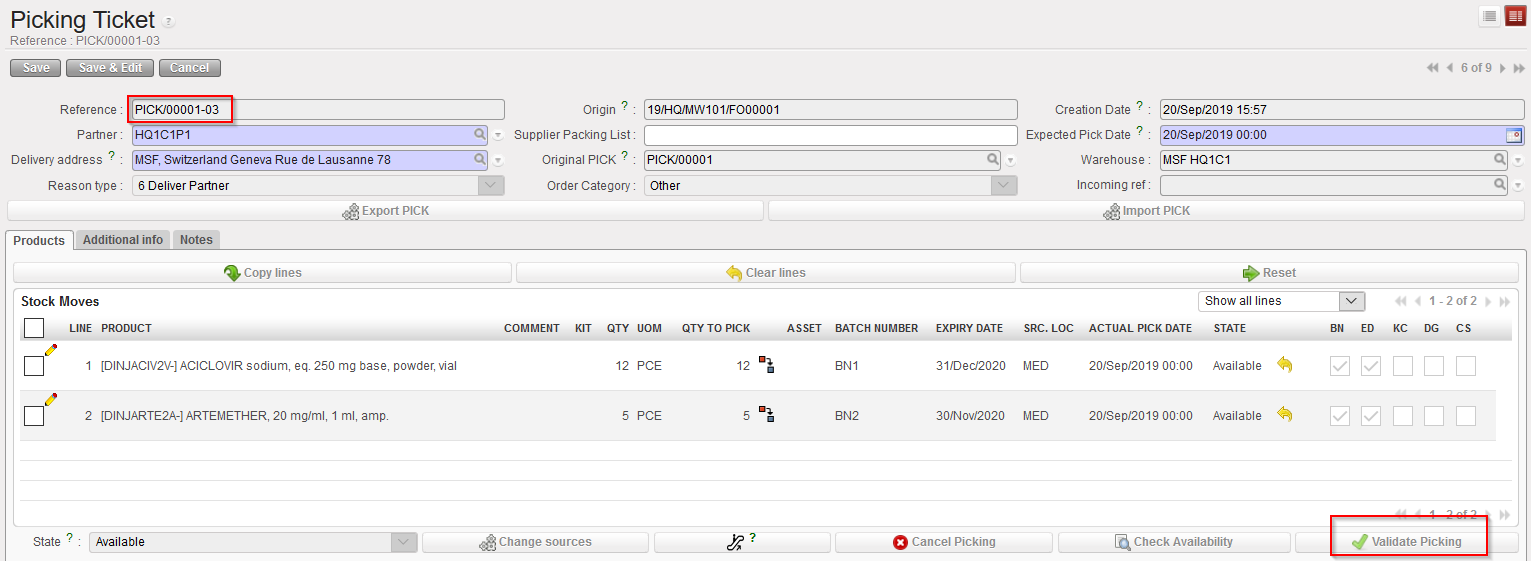
Validating a sub PICK

3.   Click on the “validate Picking” button located at the bottom of the screen if all items have been picked by the storekeeper according to the printed Picking Ticket. Otherwise, use the pencil icon to enter what has actually been picked by the storekeeper (quantities, batches,…).

Validation of Sub Pick

Pre-Packing List

Sub PICK in state “Closed”

Main PICK in state “Draft”

The system creates and opens the Pre-Packing List corresponding to the picked sub PICK.

The picked sub PICK switches to the state “Closed

The main PICK stays in state “Draft” to pick remaining items and can be used in case of returns.

G. HOW TO PRINT A PICKING TICKET

Supply User Manual ENG -> 5. Warehouse -> 5.3 LU-SU4102: Picking -> G. HOW TO PRINT A PICKING TICKET

G. HOW TO PRINT A PICKING TICKET

Picking Tickets can be exported to PDF and printed. As picking is actually done using sub PICKS, most of the time sub PICKS are printed to instruct the storekeeper what he/she should pick, but main PICKS are not often printed.

The storekeeper will need a printed document with all products and quantities (including any product specifics such as batch numbers and/or expiry dates to pick) that s/he has to pick, marking whether or not s/he can pick them as requested or if changes need to be made (more/less quantities and according to the full packaging units, stock shortages,…).

Go to: Warehouse / Warehouse Management / Deliveries / Picking

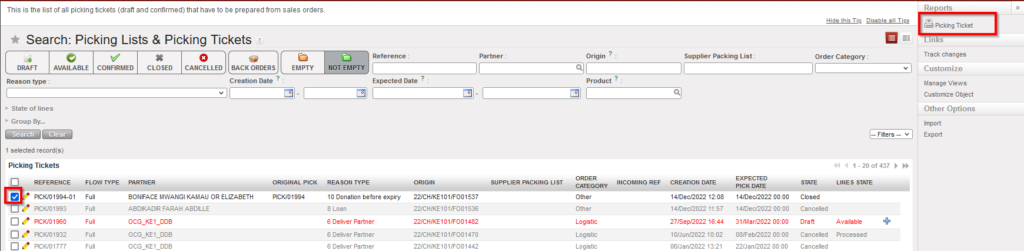
  1. Tick the checkbox located in front of the Picking Ticket that you wish to print
  2. In the action menu, select the option “Picking Ticket”

This image has an empty alt attribute; its file name is pick-1024x251.png

Exporting a Picking Ticket to PDF

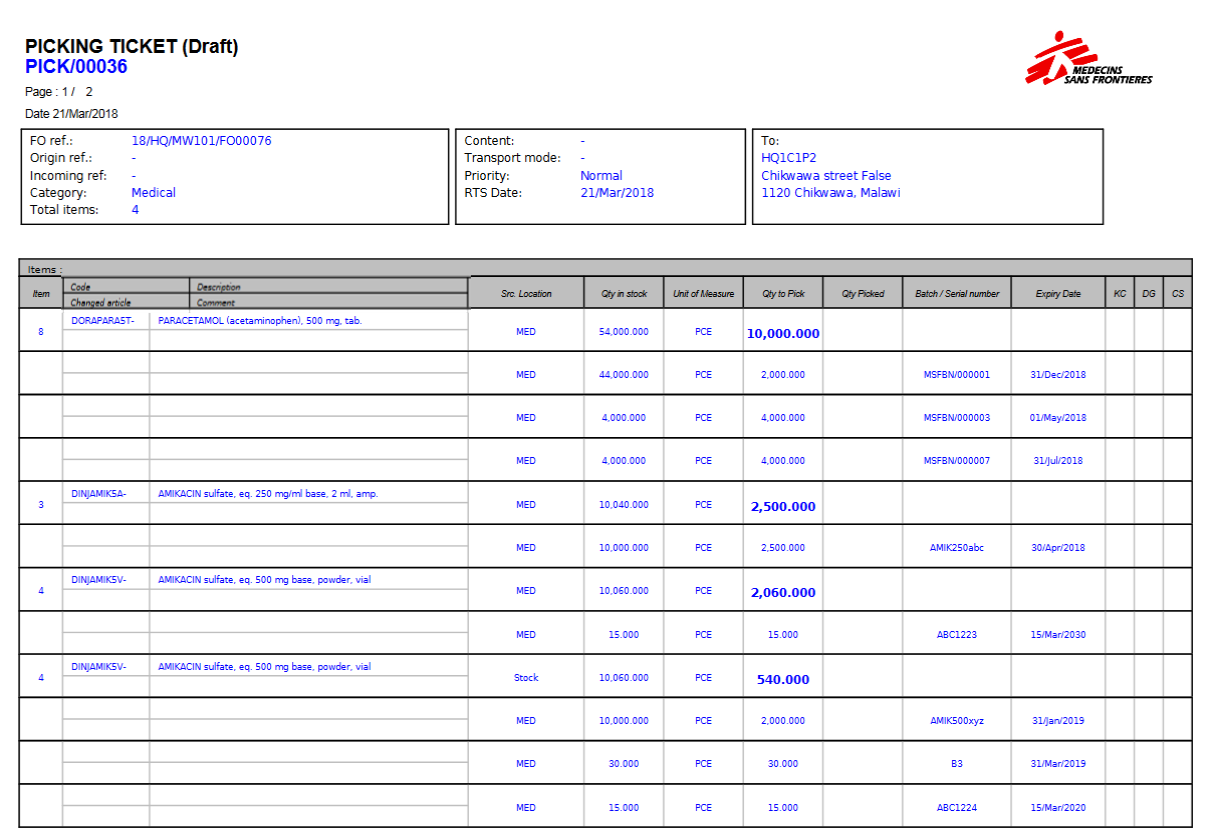
     3.  A PDF version of the Picking Ticket is open. You may save, print or send it as needed.

Picking Ticket exported in PDF

Note that the option “Picking Ticket” is also available from the action menu within the Picking Ticket (if you open it).

F. HOW TO IMPORT AN EXCEL PICKING FILE

Supply User Manual ENG -> 5. Warehouse -> 5.3 LU-SU4102: Picking -> F. HOW TO IMPORT AN EXCEL PICKING FILE

F. HOW TO IMPORT AN EXCEL PICKING FILE

Picking ticket and Sub-Picking ticket can be imported to Excel file.

Go to: Warehouse / Warehouse Management / Deliveries / Picking

  1. Click “Edit” on the Picking Ticket that you wish to import
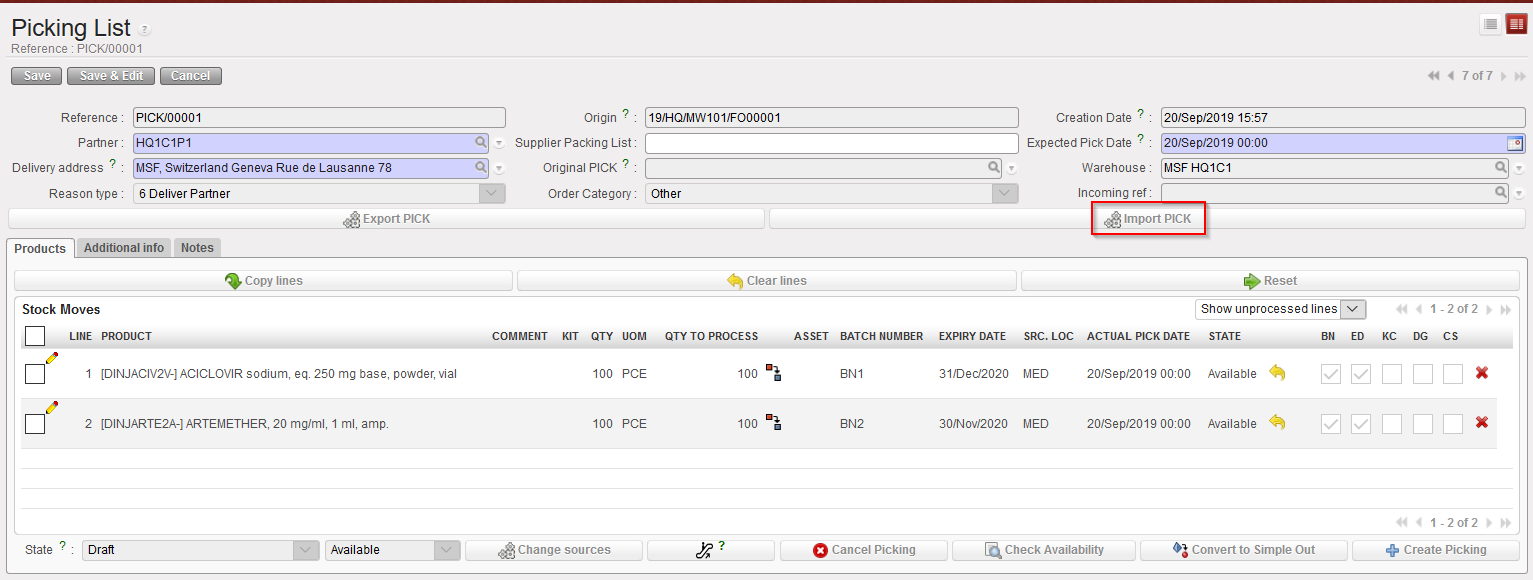
  2. Click on “Import PICK”.

Import Picking Ticket from Excel

Note that there is a check to ensure that “Quantity to process” is lower than “Qty” .

Import Picking Ticket file

Other checks ensure that the import data done in the pop up is consistent with the data from the main PICK screen (BN/ED; line number; Code; Available line only, Document reference, split line quantity…)

    3.  Click on “Import PICK

Picking Ticket Excel Import

The data is imported to the main screen and manual validation is still needed to process the document forward.

E. HOW TO EXPORT AN EXCEL PICKING FILE

Supply User Manual ENG -> 5. Warehouse -> 5.3 LU-SU4102: Picking -> E. HOW TO EXPORT AN EXCEL PICKING FILE

E. HOW TO EXPORT AN EXCEL PICKING FILE

Picking ticket and Sub-Picking ticket can be exported to an Excel file.

Go to: Warehouse / Warehouse Management / Deliveries / Picking

  1. Click “Edit” on the Picking Ticket that you wish to export
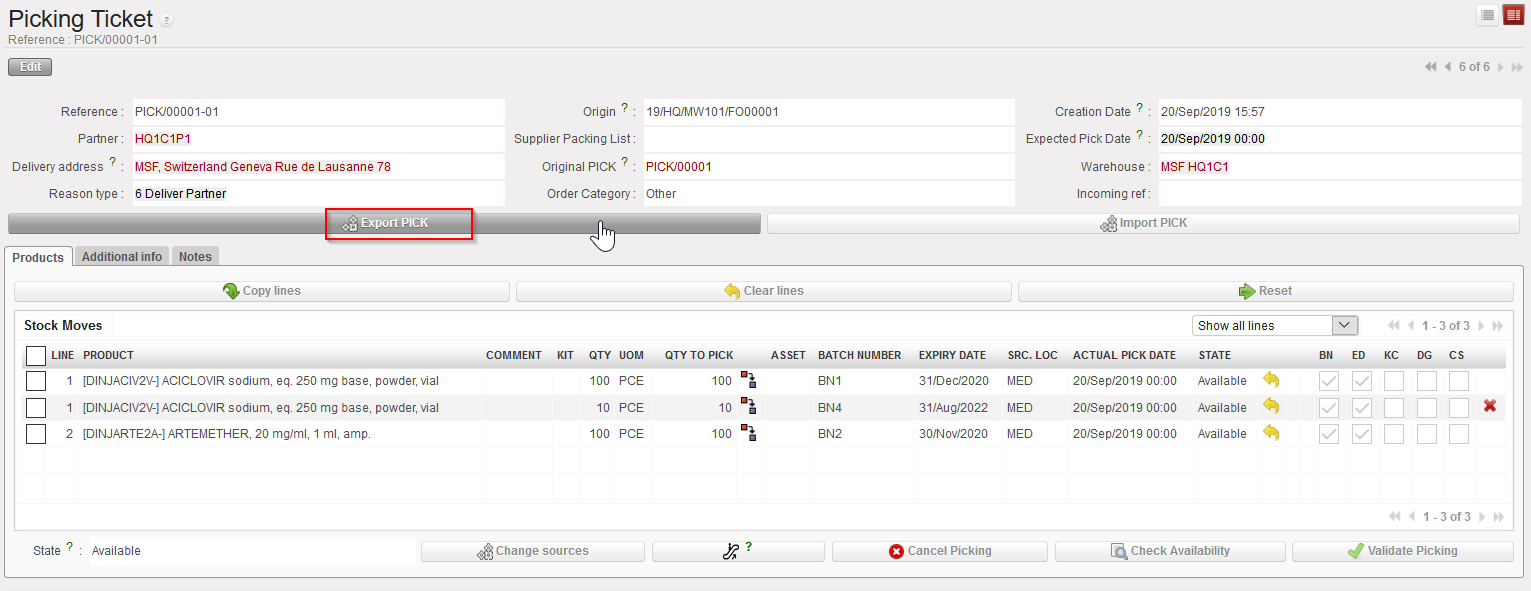
  2. Click on the button “Export Pick” on the form view of your ticket

Exporting a Picking Ticket to Excel

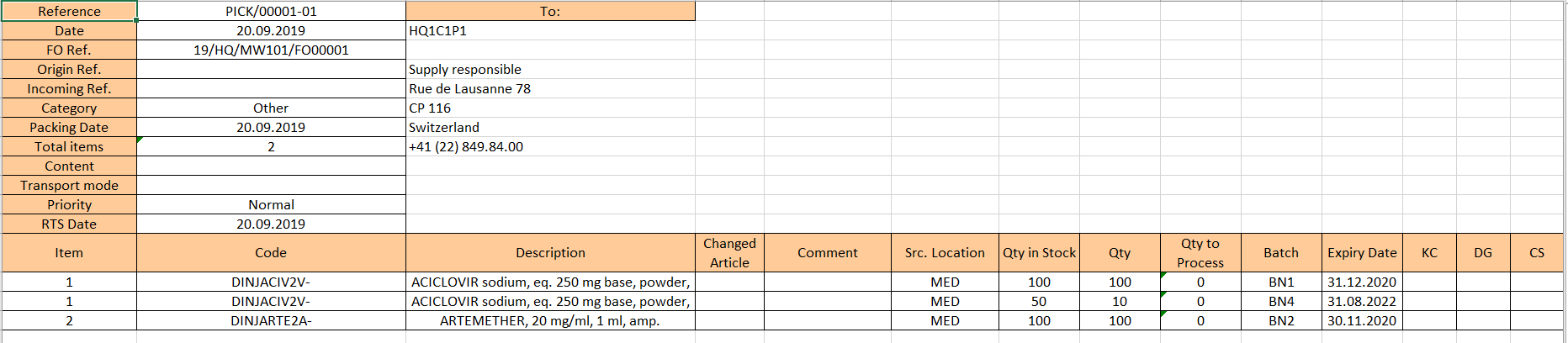
         3. An Excel version of the Picking Ticket is open. You may save or update it as needed.

Picking Ticket Excel Export

D. HOW TO DO A PARTIAL PICKING

Supply User Manual ENG -> 5. Warehouse -> 5.3 LU-SU4102: Picking -> D. HOW TO DO A PARTIAL PICKING

D. HOW TO DO A PARTIAL PICKING

A partial picking can be done if some products or some quantities indicated as “Available” in stock by the system are actually not available or if, for any other reason, you do not wish to pick all the products or all the quantities.

When a sub PICK is created from a main PICK, all available lines will be included on the sub PICK. However, it may happen that you do not want to include all lines or all quantities if, for example, lines and/or quantities said “Available” by the system are actually not available.

Go to: Warehouse / Warehouse Management / Deliveries / Picking

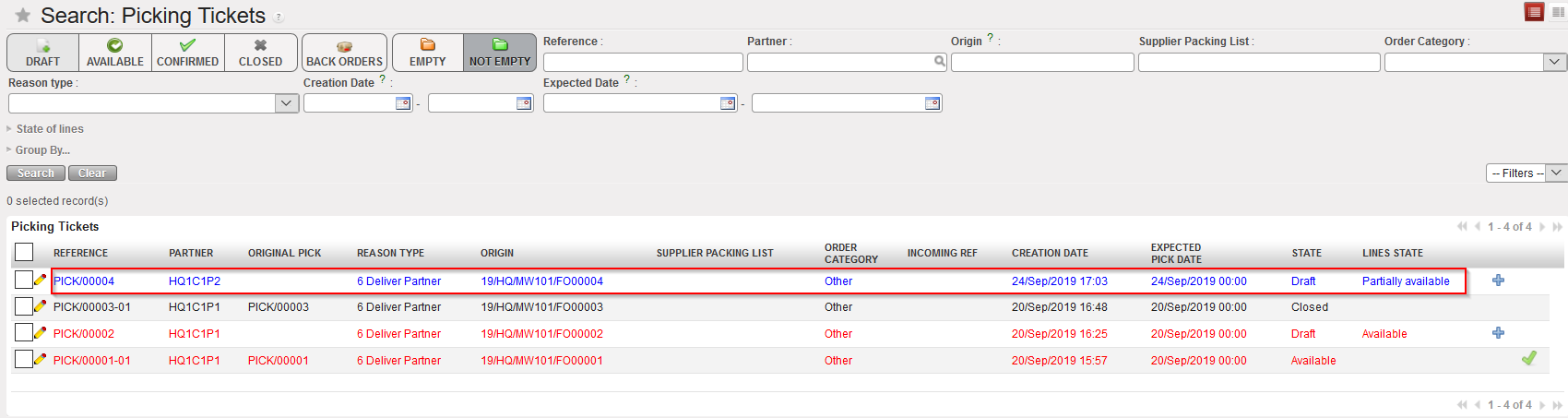
  1. Locate the relevant Picking Ticket for the picking you are about to process.
  2. Click on the line corresponding to the Picking Ticket you want to process.

Main PICK

Detail of the main PICK

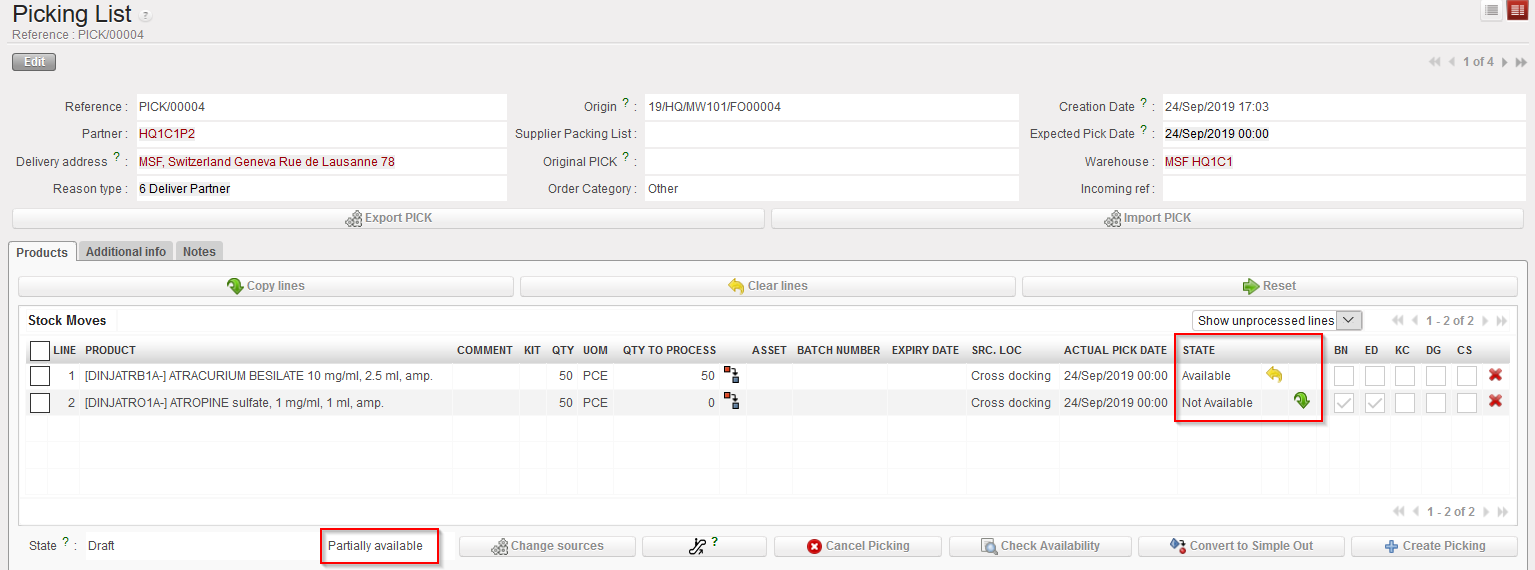
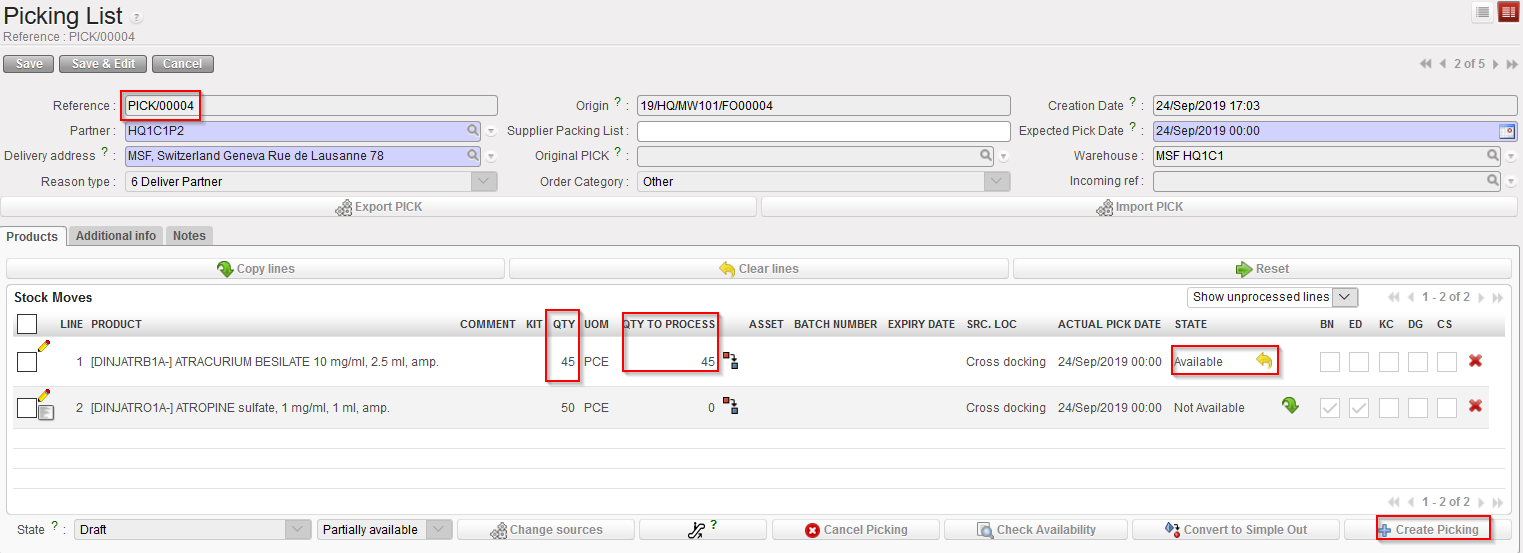
In the above example, the main PICK was created following a PO confirmation. This main PICK is “Partially available“. One of its line is “Available” as products have already been received in Cross docking. The other line is “Not Available” as products have not yet been received.

The system includes in the sub PICK the lines which are “Available” in the main PICK. This means that you have the possibility to include in a sub PICK quantities which are not available if you force the availability on the main PICK. This should only be done with great caution.

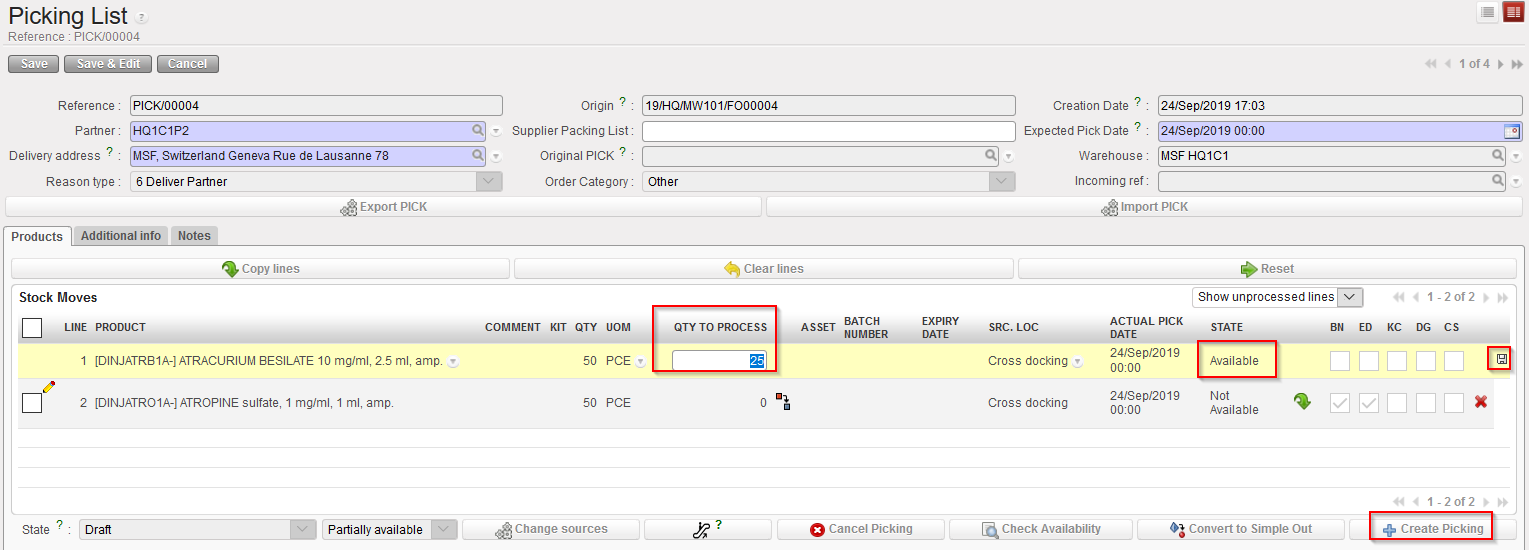
3. Edit the line via the pencil icon and enter the quantity you which to include in the sub PICK. In this scenario, we decide to include only half of the quantity. Save the line and click on “Create Picking” in order to create the sub PICK.

Creation of the sub PICK

Sub PICK created

Main PICK updated

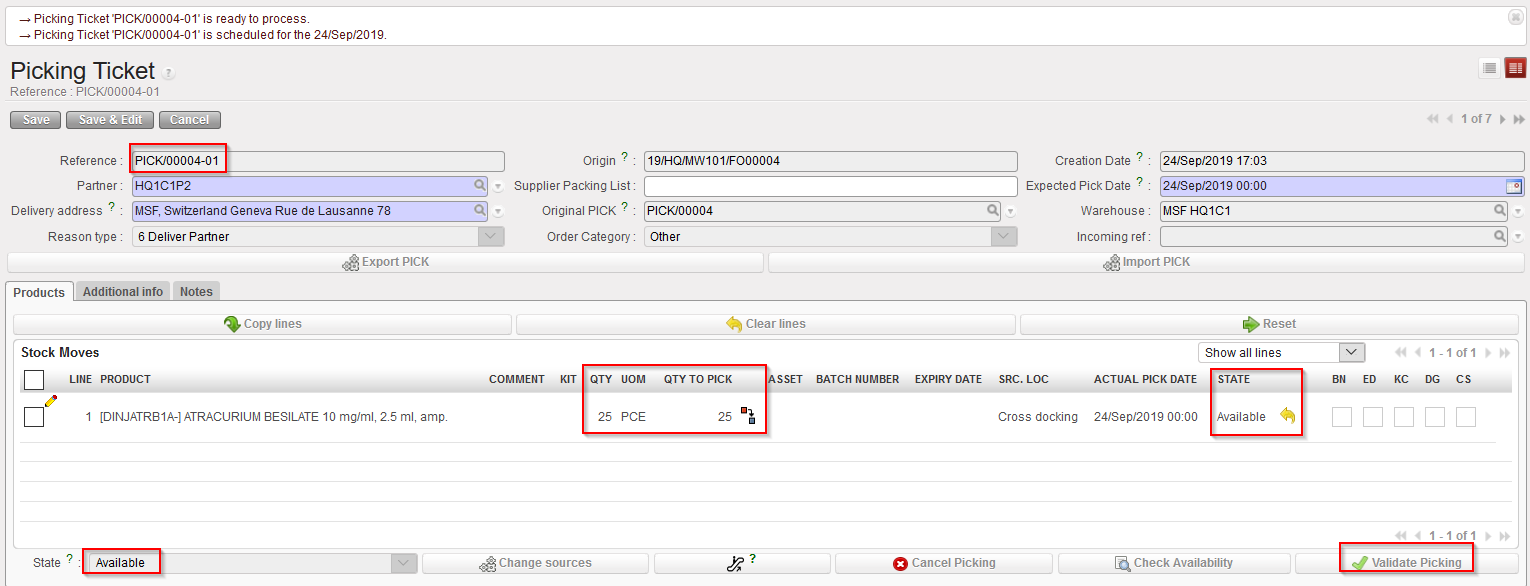
The sub PICK is created and includes the quantity which was entered on the previous step. This quantity is “Available“. Note that the reference of the sub PICK is PICK/00004-01. The sub PICK may be printed in order to instruct the storekeeper to pick the selected items.

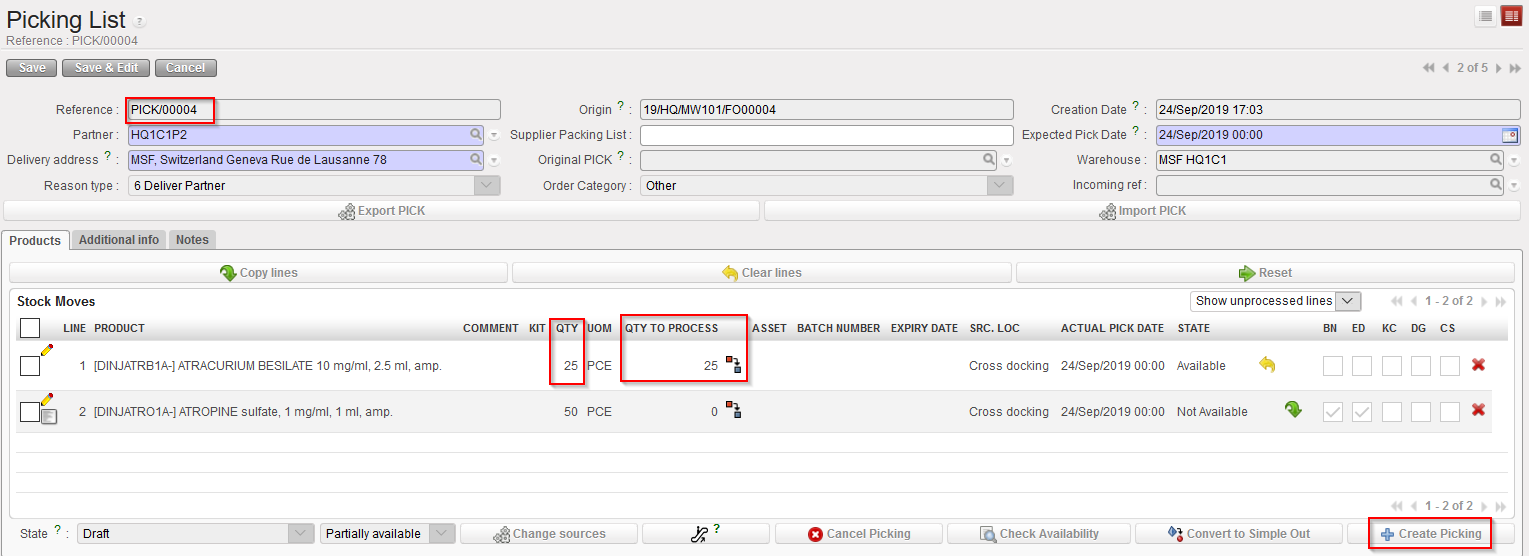
The main PICK is updated. The first line includes the quantity which remains to be picked (still “Available”) while the second line did not change (and is still “Not Available”). This main PICK is actually a back-order (i.e. what remains to be picked).

Again, the system includes in this screen the available quantities from the sub PICK but it may happen that physically, these quantities are actually not fully available.

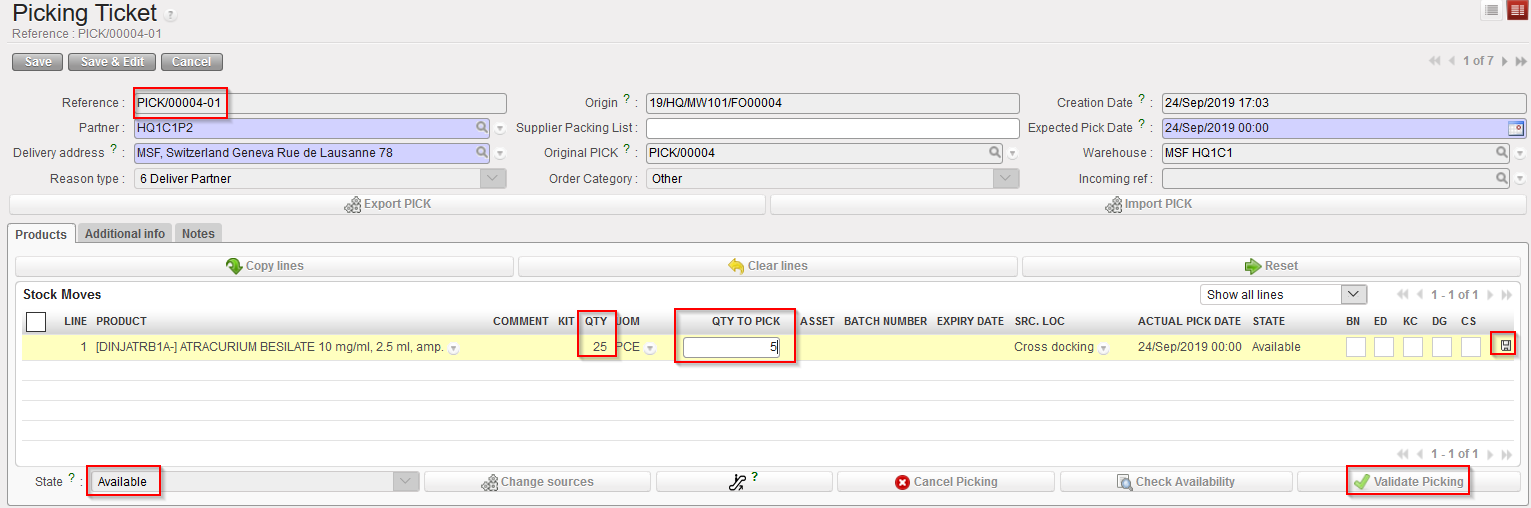
4. Use the pencil icon to enter the quantities which have actually been picked. In this example we assume that the full quantity was not picked (100 out of 25 products are picked). Save the line. Click on the “Validate Picking” button to register the picking done.

Validation of the sub PICK

Pre-Packing list created following partial picking

Sub PICK following partial picking

Main PICK following partial picking

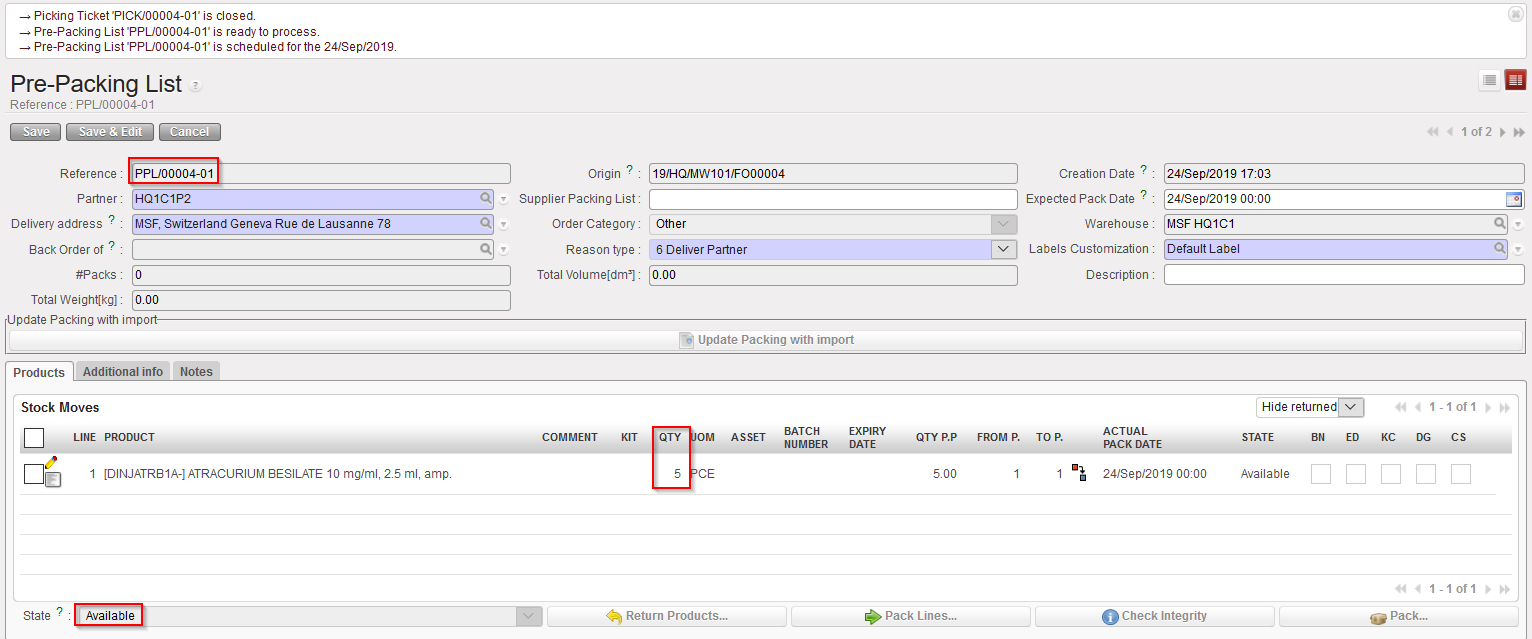
A Pre-Packing list is created by the system in order to prepare the next stage (packing the picked goods in parcels). Note that the reference of the PPL (PPL/00004-01) matches with the reference of the sub PICK (PICK/00004-01). The PPL is in state “Available” and all its lines are “Available”.

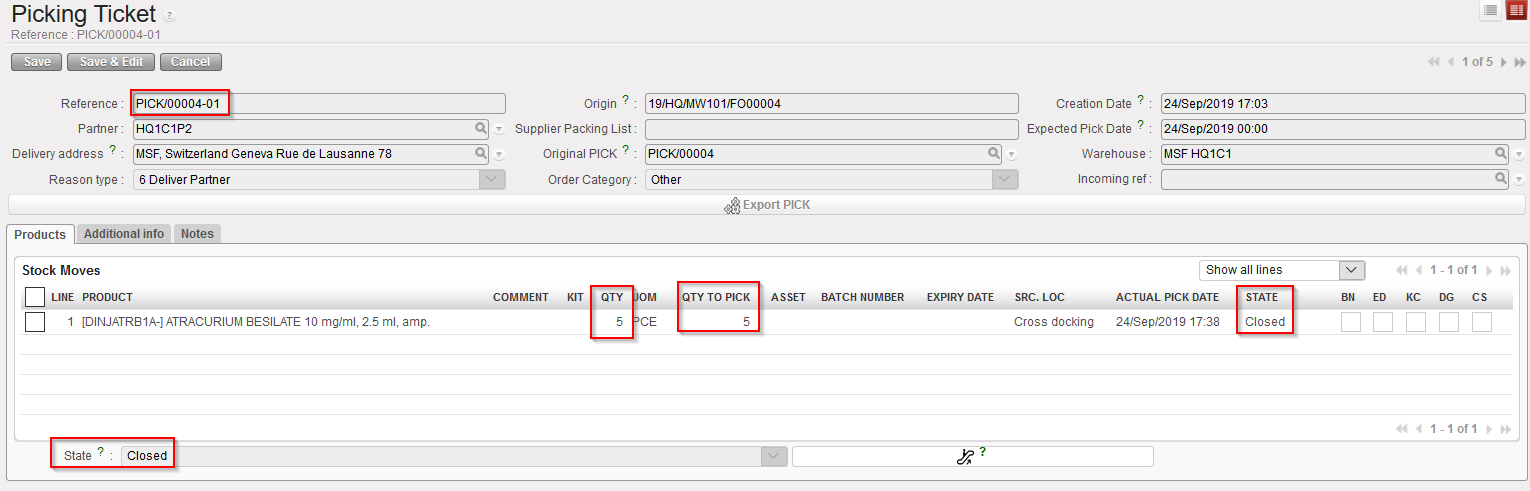
The sub PICK is now “Closed“. Quantities have been updated to what was actually picked.

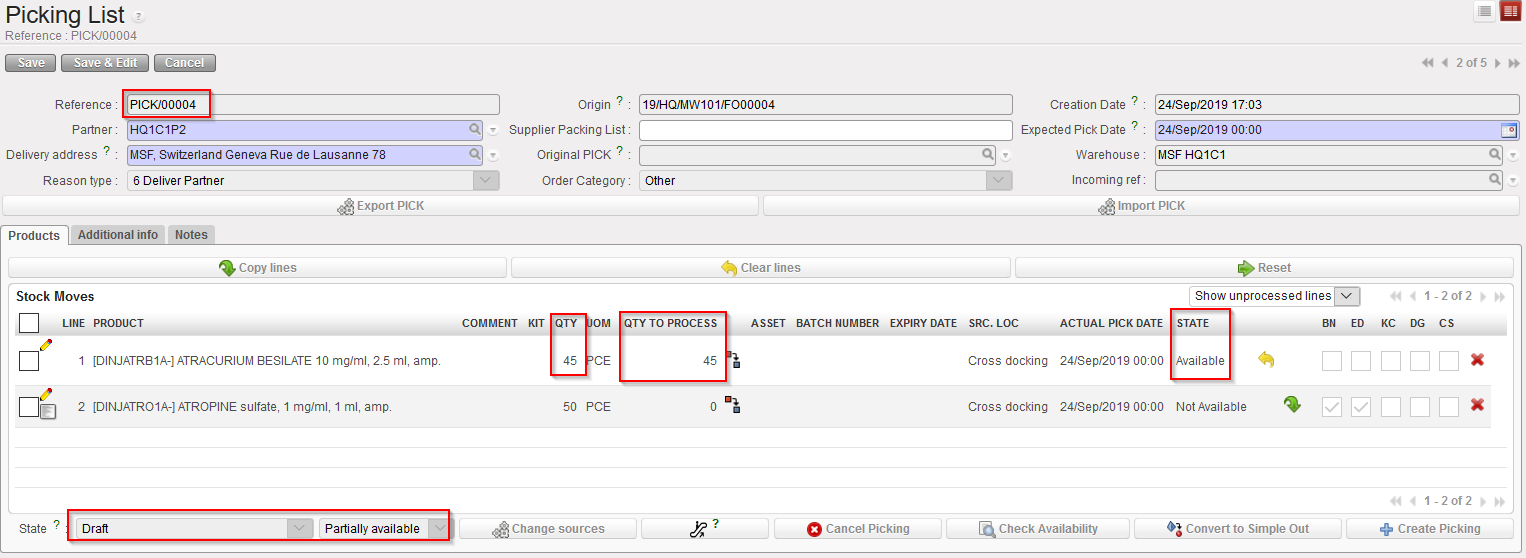
The main PICK has been updated. Quantities which were not picked on the sub PICK return to the main PICK (the first line changes from 25 to 45 pces). This main PICK will be used when subsequent pickings related to the same transaction will be done (i.e. when the back-order will be processed).

5. Open the main PICK and create a new sub PICK via the button “Create Picking”

Creation of a second sub PICK

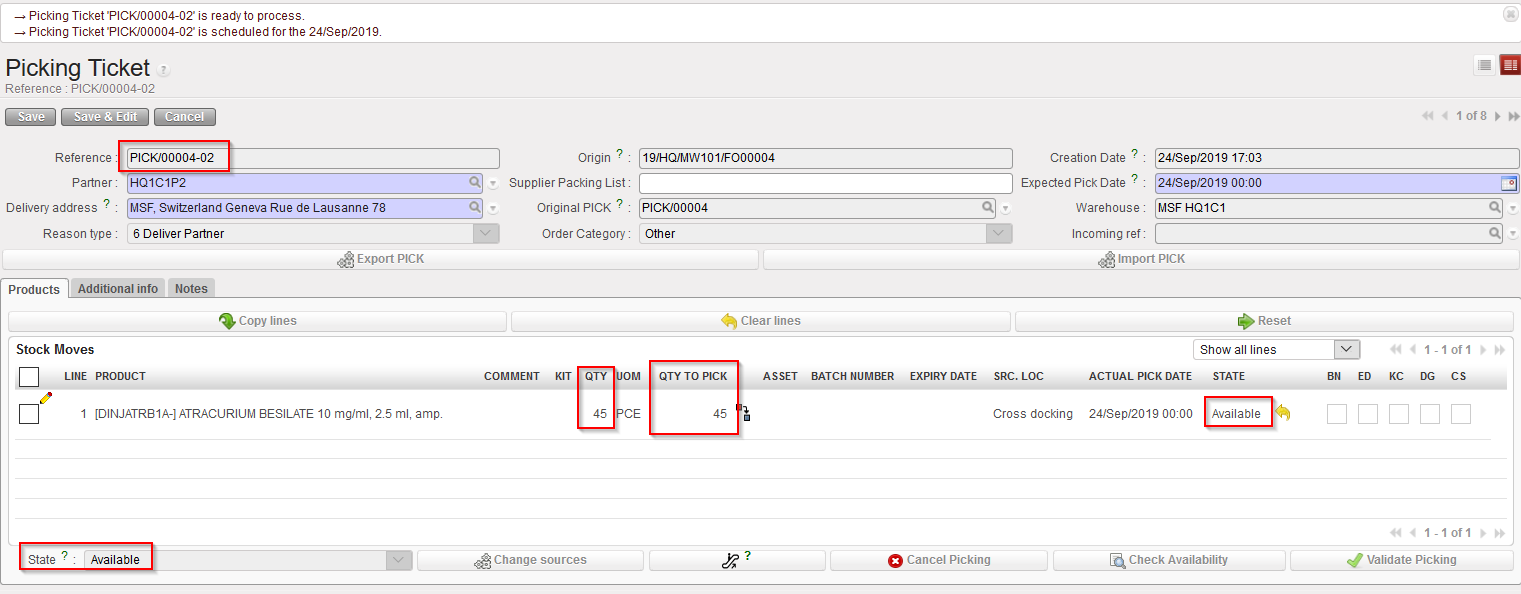
Again, available quantities from the main PICK are transferred to the sub PICK. You may choose to follow this (use the button “Copy all”) or to transfer only a partial quantity (use the pencil icon”).

Sub PICK created

Main PICK updated

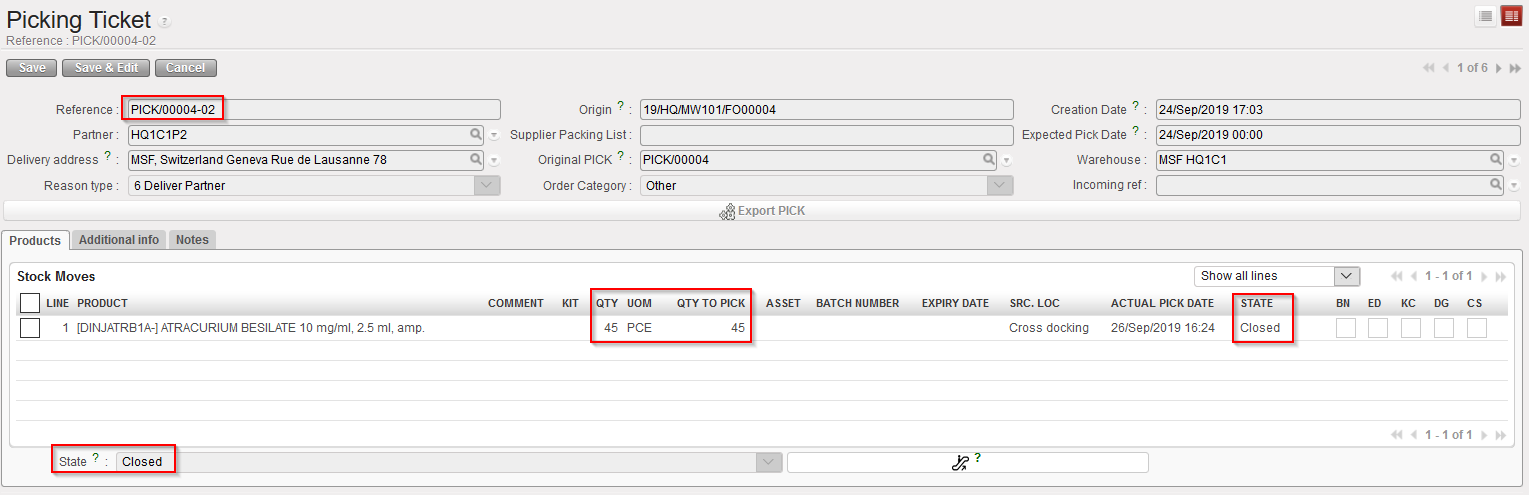
A second sub PICK is created. It includes all lines/quantities selected in the previous step. Note the reference PICK/00004-02. The state of this second sub PICK is “Available”.

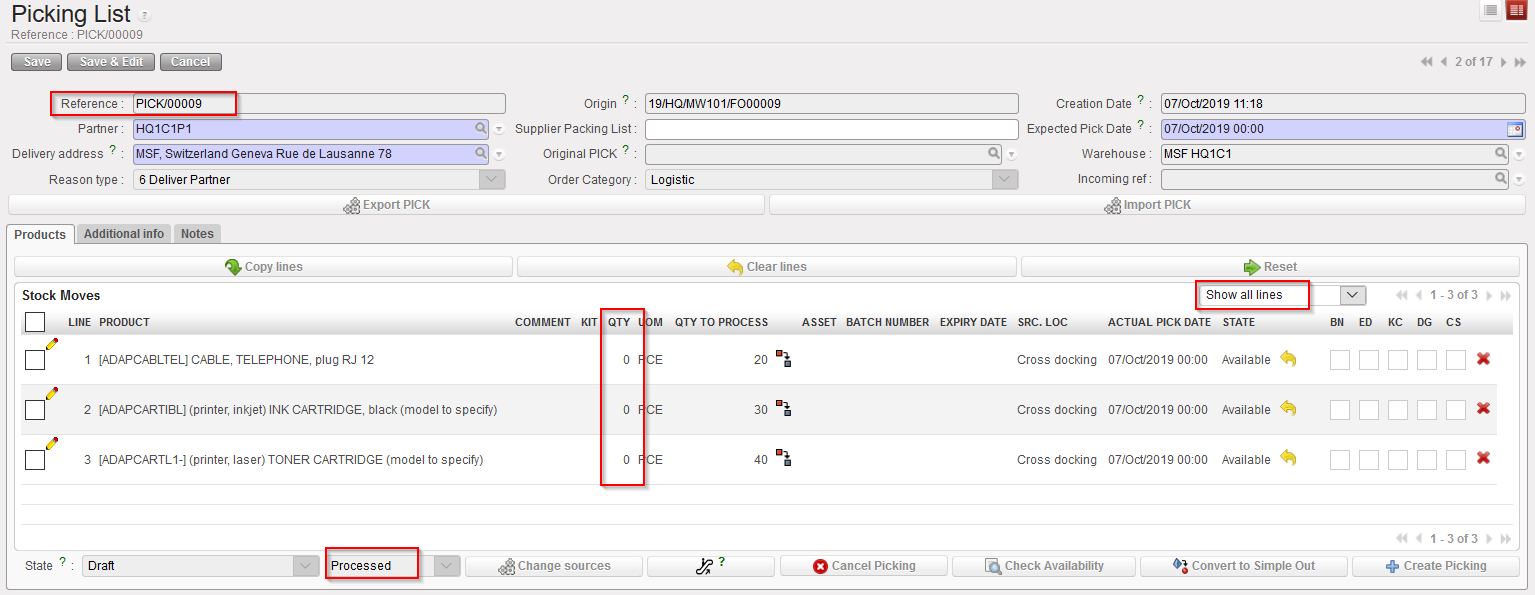
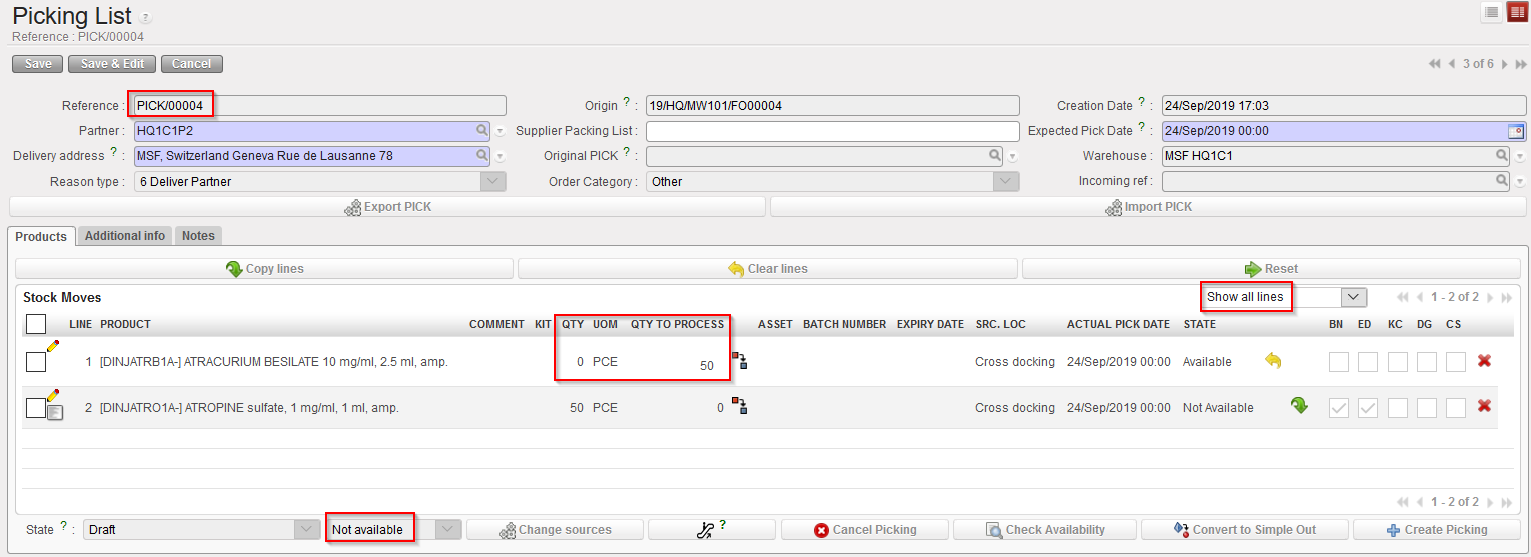
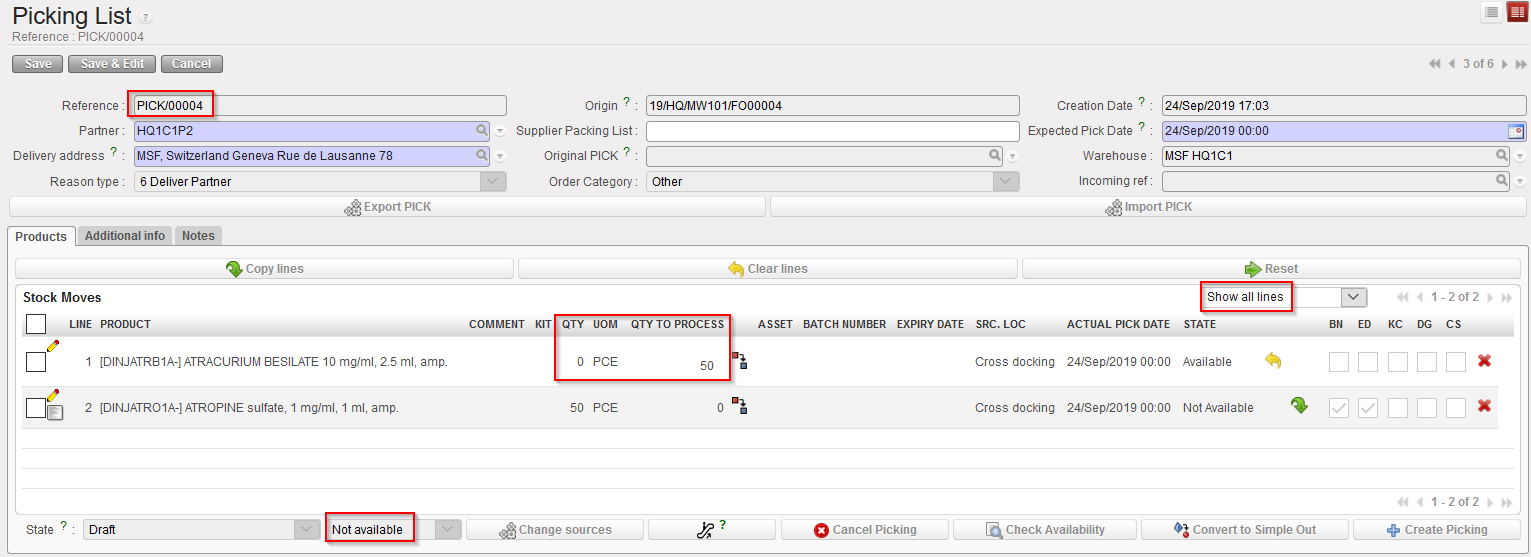
The main PICK is updated. The first line is now at zero “QTY” = 0 as all quantities has the full quantity been selected) while the second line did not change (and is still “Not Available”). Please note that filter has been set to “Show all lines” in order to show this processed line #1 and “QTY” is set to “0” and “QTY TO PROCESS” = “50”.

6. Again, the created sub PICK can be printed to instruct the storekeeper on the picking to be done. Click on “Validate Picking” to actually register the picking done.

Pre-Packing list created

Sub PICK updated

Main PICK

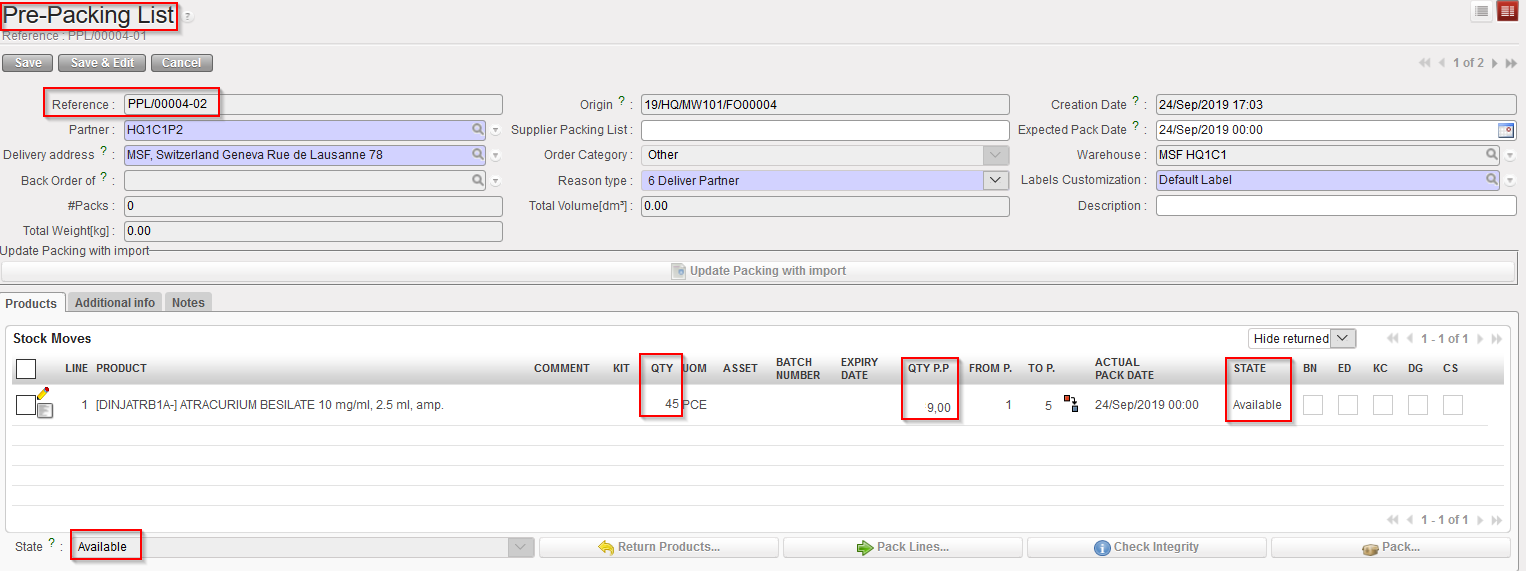
Another Pre-Packing list is created by the system in order to prepare the next stage (packing the picked goods in parcels). Note that the reference of the PPL (PPL/00004-02) matches with the reference of the sub PICK (PICK/00004-02). The PPL is in state “Available” and all its lines are “Available”.

The sub PICK is now “Closed”.

The main did not change as full quantities were actually picked on the sub PICK. However it stays in the state “Draft” as additional products are expected but is “Not available” as these products were not received yet.

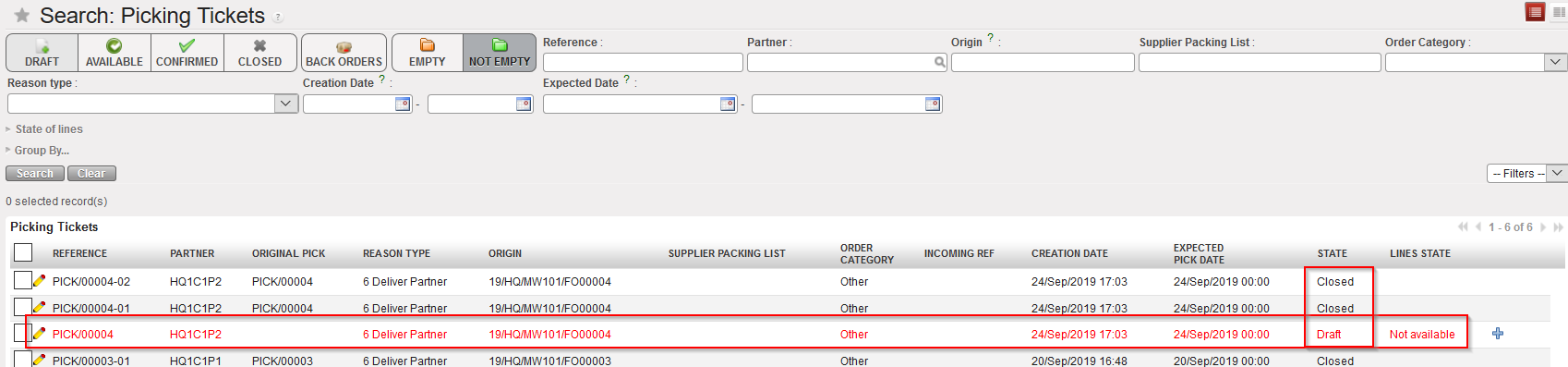
Picking Tickets created in this process

Pre-packing lists created in this process

Sub PICKS created via this process are now closed. However, the main PICK stays in draft as further actions are expected to happen on this Picking Ticket.

Two Pre-Packing Lists have been created in this process and still need to be handled.

Conclusion of the section:

In this section, we explained how the partial picking in UniField is working. However, as many scenario are possible, we could not go into all details but preferred to use an example where partial picking was done. This scenario used a Picking Ticket related to a PO (created following FO sourcing).

Another possible scenario could be to use a Picking Ticket created following the sourcing of an FO to stock.

Remember that partial picking may be registered on main PICKS and sub PICKS.