C. HOW TO PICK PRODUCTS FROM CROSS DOCKING

Supply User Manual ENG -> 5. Warehouse -> 5.3 LU-SU4102: Picking -> C. HOW TO PICK PRODUCTS FROM CROSS DOCKING

C. HOW TO PICK PRODUCTS FROM CROSS DOCKING

If an FO (or FO-line) is sourced on order (and to a PO), a Purchase Order is created. When this PO (or one of its lines) is confirmed, the corresponding FO (or FO-line) is also confirmed and a Picking Ticket is created in order to prepare the delivery to the customer.

The system creates a Picking Ticket as by default the system considers that the full shipment process (and not the simple out) will be used to deliver the goods to the customer. This Picking Ticket has the state “Draft”. As products are not yet available (they still have to be received in cross docking), the state of the Picking Ticket will be “Not Available“.

Note that the confirmation of the PO (or PO-line) triggers

-PO confirmation

-IN creation

-FO confirmation

-PICK creation

As soon as the IN is processed and goods are received in cross docking, the lines of the Picking Ticket corresponding to the received lines will become “Available“.

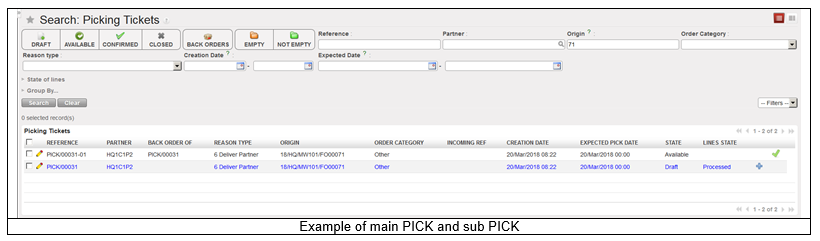
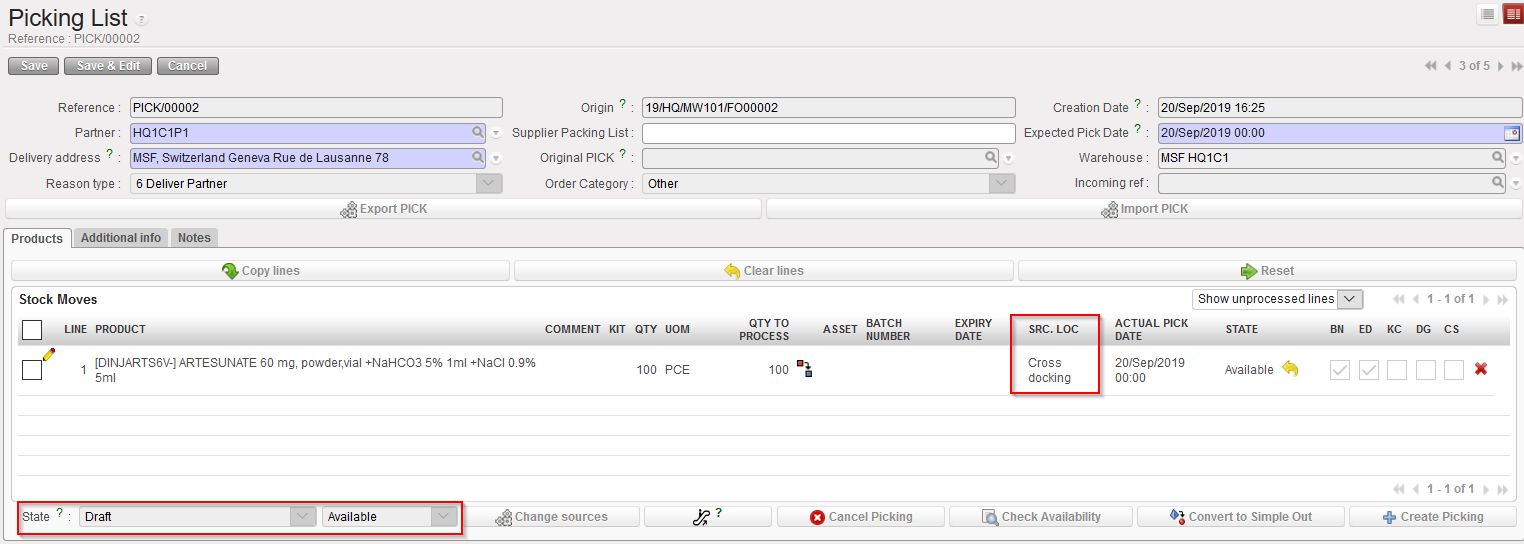
From this point, the process is similar to the one described in the previous section. The main PICK will be used to create sub PICK(s). The main difference is the source location of the PICK which in this case is “Cross docking”.

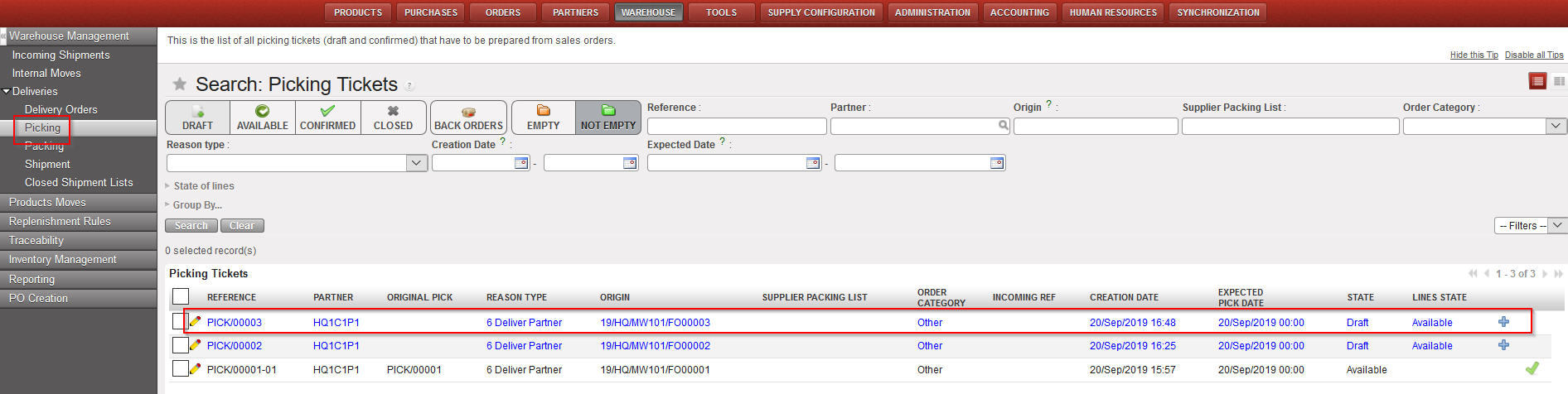
Go to: Warehouse / Warehouse Management / Deliveries / Picking

Main PICK after reception of the Incoming Shipment in Cross docking

B. HOW TO PICK PRODUCTS FROM STOCK.

Supply User Manual ENG -> 5. Warehouse -> 5.3 LU-SU4102: Picking -> B. HOW TO PICK PRODUCTS FROM STOCK.

B. HOW TO PICK PRODUCTS FROM STOCK.

If an FO (or FO-line) is sourced from stock, the system creates a (main) Picking Ticket as by default the system considers that the full shipment process (and not the simple out) will be used to deliver the goods to the customer. This (main) Picking Ticket has the state “Draft“. If all products are available in stock, the (main) Picking Ticket is “Available” and all its lines are in the state “Available“.

If the PICK (or OUT) has been created from a “Regular” type FO, the “Reason type” will be “Deliver Partner”. A PICK (or OUT) will have the Reason type “Donation before Expiry” if it has been created from “Donation before Expiry” FO. A PICK (or OUT) will have Reason type “Standard Donation” if it has been created from “Standard Donation” FO, and a PICK (or OUT) will have the Reason Type “Loan” if it has been created from “Loan” FO.

If the picking has been created from a IR, (See below how to convert OUT to PICK), the “Reason type” will be “Deliver Unit”

Go to: Warehouse / Warehouse Management / Deliveries / Picking

  1. Locate the relevant (main) Picking Ticket for the picking you are about to process. You may use the filters to help you. The “Origin” filter can be useful as it helps finding a Picking Ticket from the FO reference. The state of the (main) Picking Ticket should be “Draft“.
  2. Click on the line corresponding to the (main) Picking Ticket you want to process.

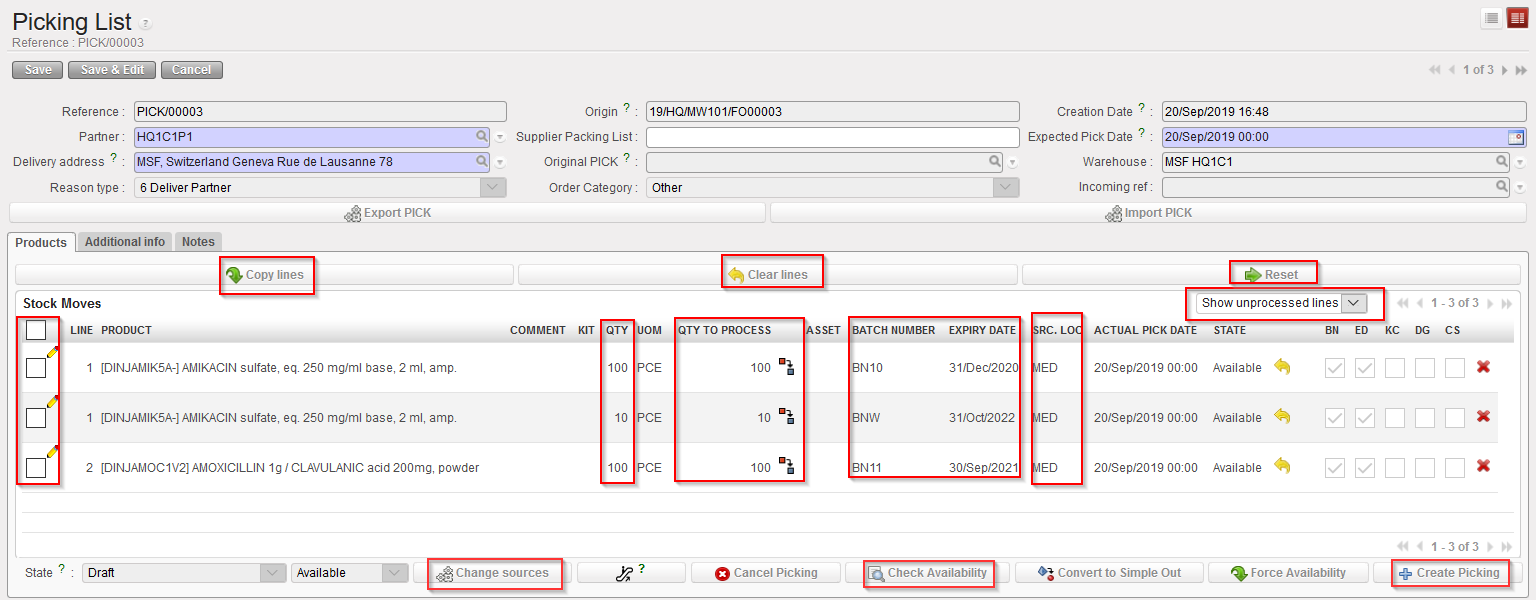
Selecting the main PICK created by the system

Main PICK created by the system

3.  In the above example, note that the system selected a BN/ED to pick. This was done according to a FEFO logic. Note that the source location was set to “MED” according to the sourcing done (detail of the Destination location can be seen by opening the line – this destination is always Packing). Finally, note that the line has the state “Available“.

4.  When lines are “Available” “QTY” = “QTY TO PROCESS” and BN/ED are automatically filled otherwise (i.e: not available) the QTY TO PROCESS = 0 and BN/ED are blank.

Edition of BN/ED can only be done on Not Available lines using the pencil icon or the Notepad icon (note that this latest icon is only displayed for Not Available lines).

The Search Batch Number popup screen will by default display the Real /Available (depending on filter) batches with quantity > 0 for the selected location only.

However, edition of “QTY TO PROCESS” is possible for both states using the pencil icon .

5.  The “split” icon enables to split the lines if necessary (for instance if user wants to select specific batch number per quantity)

6.  “Source location” can be changed by another Internal location by clicking on the “Change sources” button (at the bottom of the screen – after selecting/checking the requested lines). “Source location” can only be edited for Not available lines. Also, changing source location will not recheck the availability of a line.
Please note that Destination location is never editable.

7.  Click on the “Check Availability” button to check that you have sufficient quantities in your stock. The “State” column of each product line should be updated to display if the products are “Available” or “Not Available“. Proceed if all products are listed as “Available“. A sub Picking Ticket will be created with all available products. Remember “Available” means actual quantity in stock (real stock), excluding any in pipeline (virtual stock) or stock already earmarked for a different delivery.
Please note: when checking availability, the system will automatically select the BN/ED using a FEFO logic (First Expired First Out) and will also split the lines accordingly depending on quantity available for each batch. If expired batches are available in the source location, and there are no other unexpired batches available, the system will display the line as “Not Available” (the user will have to select manually the expired product if necessary). This process also works for INT and OUT documents.

Also note that the “Check Availability” button will check the Availability of selected on screen BN/ED (in case you changed the FEFO default selected BN/ED).

8.  The default filter on the main PICK will only display “Unprocessed lines” (i.e.: Displays lines in status Not Available or Available with qty greater than 0).

9.  The “Copy all” button will copy the available “QTY” for all Available lines into “QTY TO PROCESS” (based on BN/ED displayed).

The “Clear all” button will set all “QTY TO PROCESS” to 0.

Finally, the “Reset” button will reset the Picking List as it was originally. All splits are re-merged, BN allocation is rechecked (i.e cancels availability + checks availability + copy all is done)

10.  Click on the “Create Picking” button (with the blue cross) at the bottom of the screen.

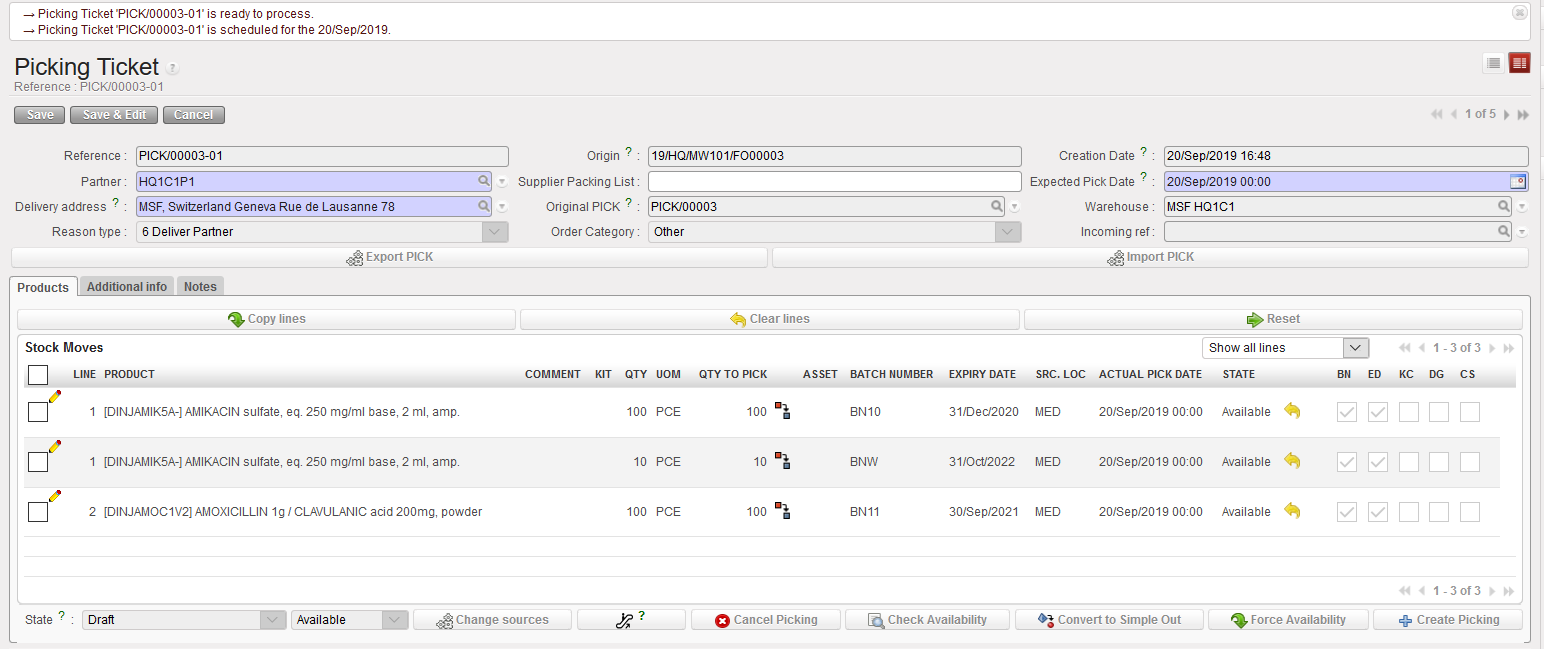
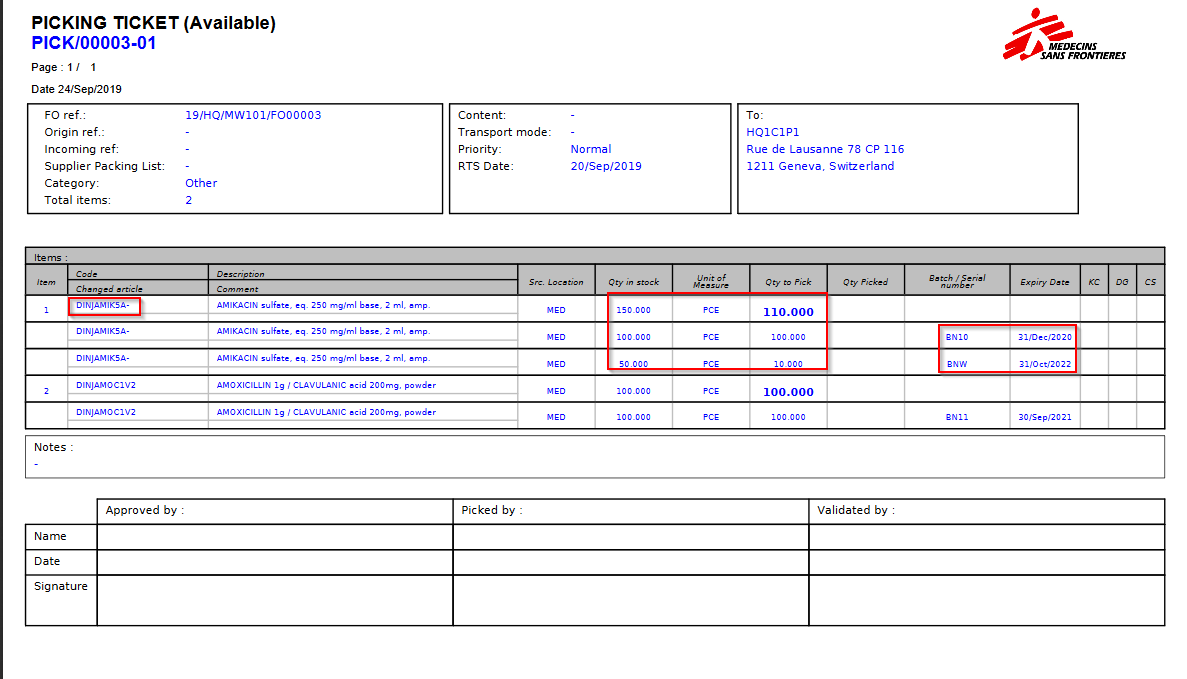
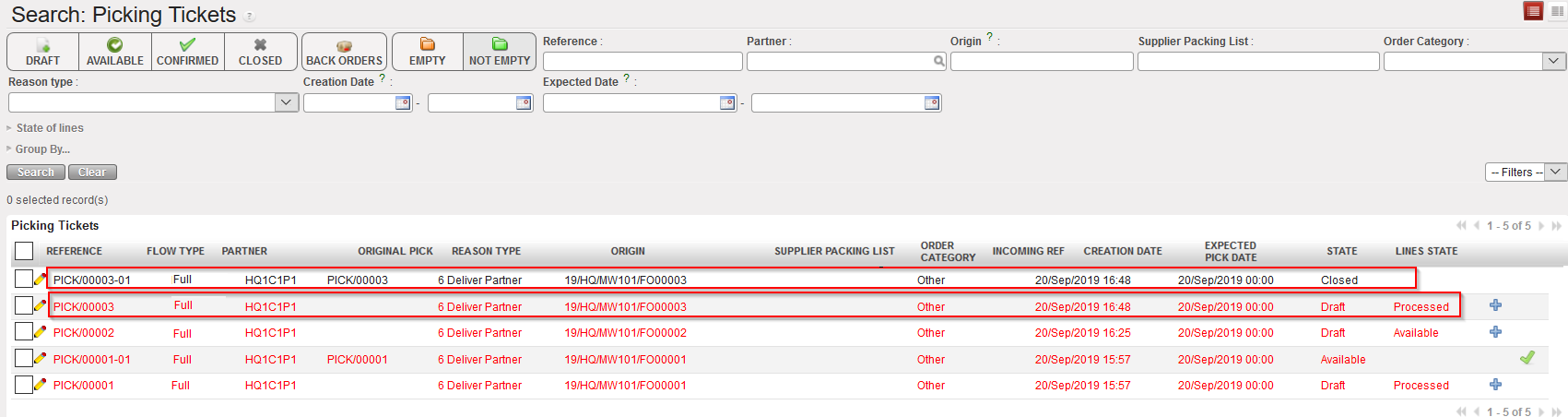
11.  A sub PICK has been created by the system and is ready to be processed/validated. UniField opens the sub PICK created. Note that main PICKs have references which look like PICK/00003 while sub PICKs have references which look like PICK/00003-01.At this stage, you may wish to print the Picking Ticket via the “Picking Ticket” option available in the action menu. This printed document may be given to the storekeeper who will use it to pick the items in the warehouse and note on the printed document that has been actually picked (quantity, BN, ED,…).

Sub PICK has been created

Sub PICK in PDF

In the above example, we can see that DINJAMIK5A- is in stock (stock level = 150 pces in the MED location) and that the system advises us to pick 100 from the batch BN10 expiring on the 21/Dec/2020 for which we have a stock level of 100 pces in the MED location and 10 from BNW for which we have a Stock of 50 expiring in 31/Oct/2022. As a consequence, after picking the quantity of 110 pces from these batches we should remain with a total quantity of 40 pce of BNW (no more stock for BN10).

12.  If the suggested quantities and batches have been picked, you may simply click on “Validate picking“. If different quantities/batches have been picked, click on the pencil located at the left of the lines and update the “QTY TO PICK” or “Batch number“/ “Expiry date” fields accordingly (by making the line Not Available first). This may happen if the storekeeper could not pick the full quantity or if another batch has been chosen. Save the updated lines.

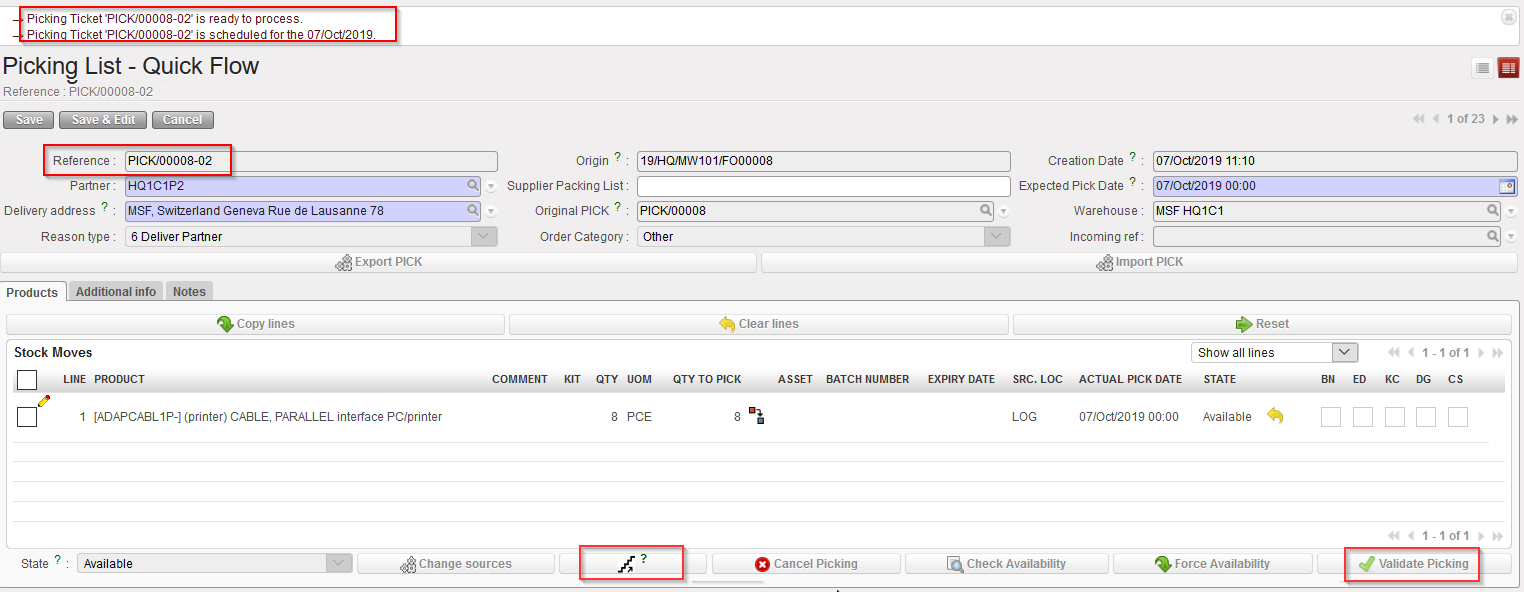
You will notice that this sub-PICK screen is the same as the PICK screen; the 3 main visible differences are the “QTY TO PICK” field (replacing the “QTY TO PROCESS”) ; the default filter is “Show all lines” (instead of “Show unprocessed lines”) and the absence of “Convert to simple Out” button which is only available for Main PICK.

Other than these differences all the above-mentioned functions/button (pencil, copy all, reset all…) used in the main PICK can equally be used for the sub-PICK. Meaning that it is still possible to edit the BN/ED/SRC Location. Please note that as for the PICK you will have to make the product lines Not Available in order to edit the lines.

13.  Click on the “Validate Picking” button (with the green arrow) to actually register the picked quantities/batches.

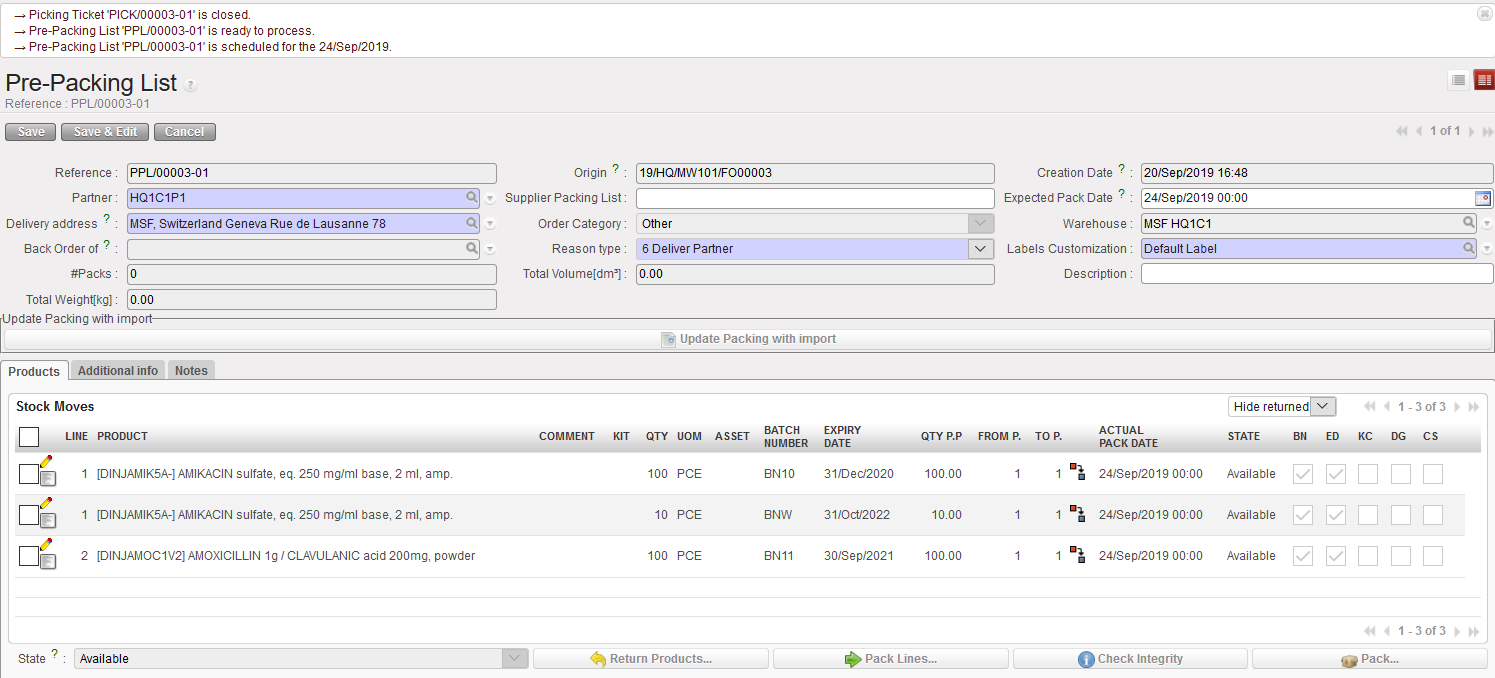
Sub PICK has been saved and Pre-Packing List created – Full Flow

The corresponding Pre-Packing List is created (if the sub PICK which was just validated has reference PICK/000XY-AB, the Pre-Packing List created will have the reference PPL/000XY-AB).

The system brings you to the “Pre-Packing List” screen which is the next step of the process (i.e. after picking the goods from the shelves, you should pack them in a box before to ship them to the customer).


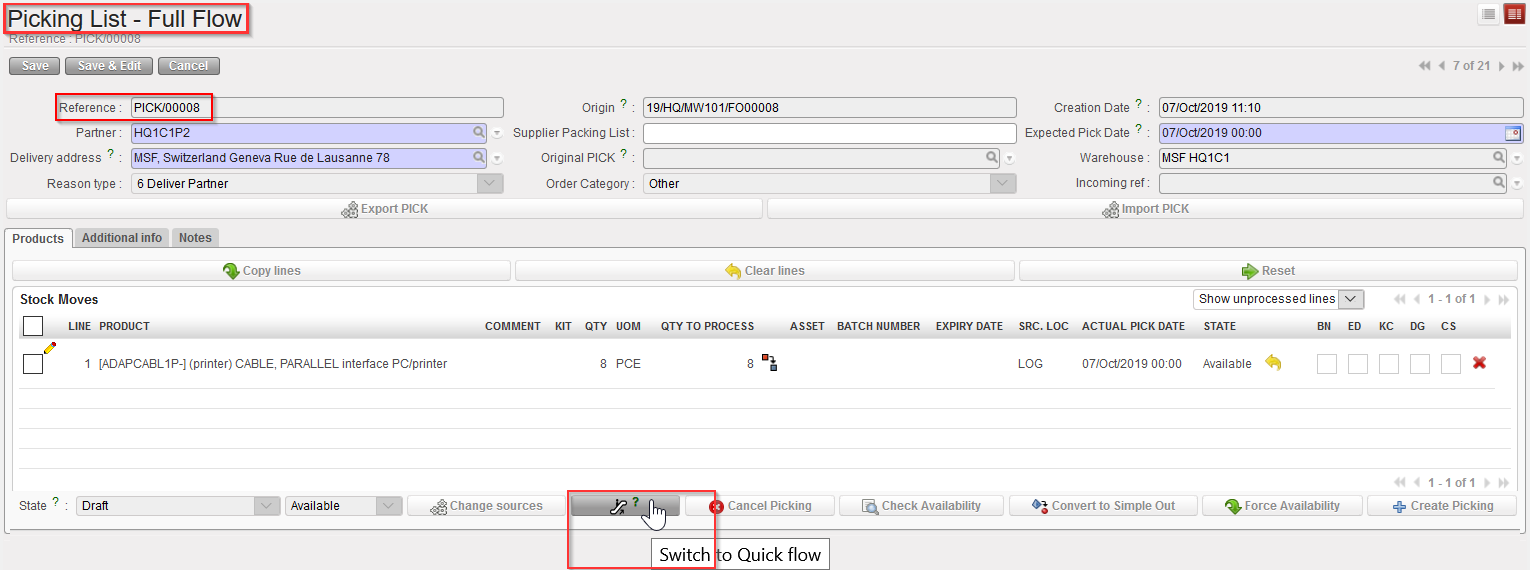
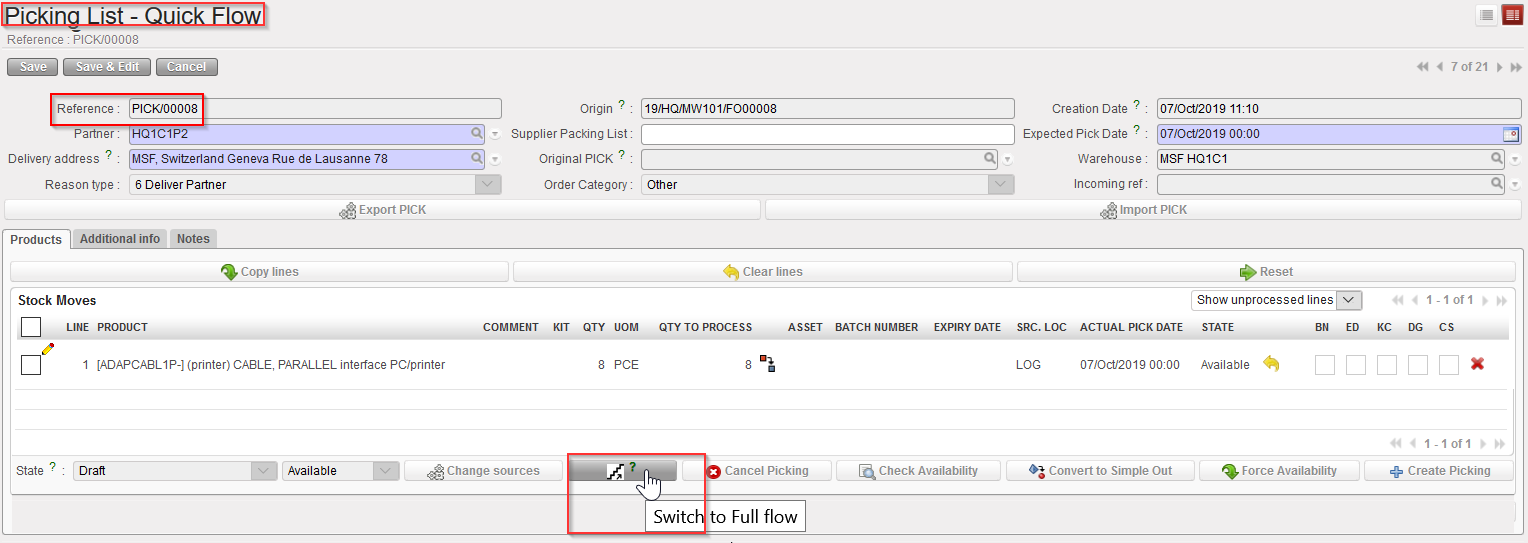
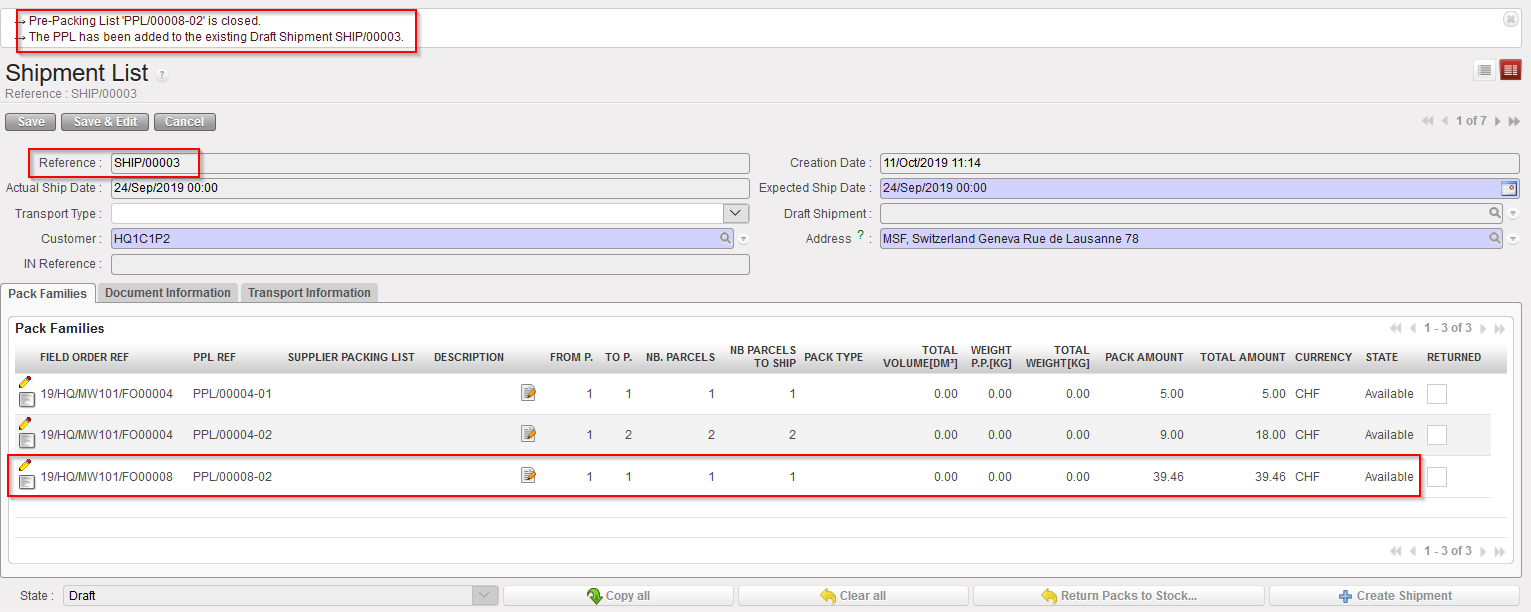
However, if you chose the “Quick flow” by clicking the “Escalator” button at the bottom of the PICK/ sub-PICK screen the next created document after Validating the sub-PICK will be the Shipment list (with a “Packing details” pop up screen in between).

Main PICK – Full Flow

Main PICK –Quick flow

Sub-PICK –Quick flow

Packing details Pop up after clicking on “Validate Picking” – Quick flow

PPL added to an Existing SHIP ( after clicking on “Process”) – Quick flow

In both cases, “Full flow” or “Quick flow”, the sub PICK is “Closed”.

The main PICK stays “Draft” to allow return of goods if needed. Note that the main PICK is now “Processed”.

Main PICK and sub PICK after full picking of the goods

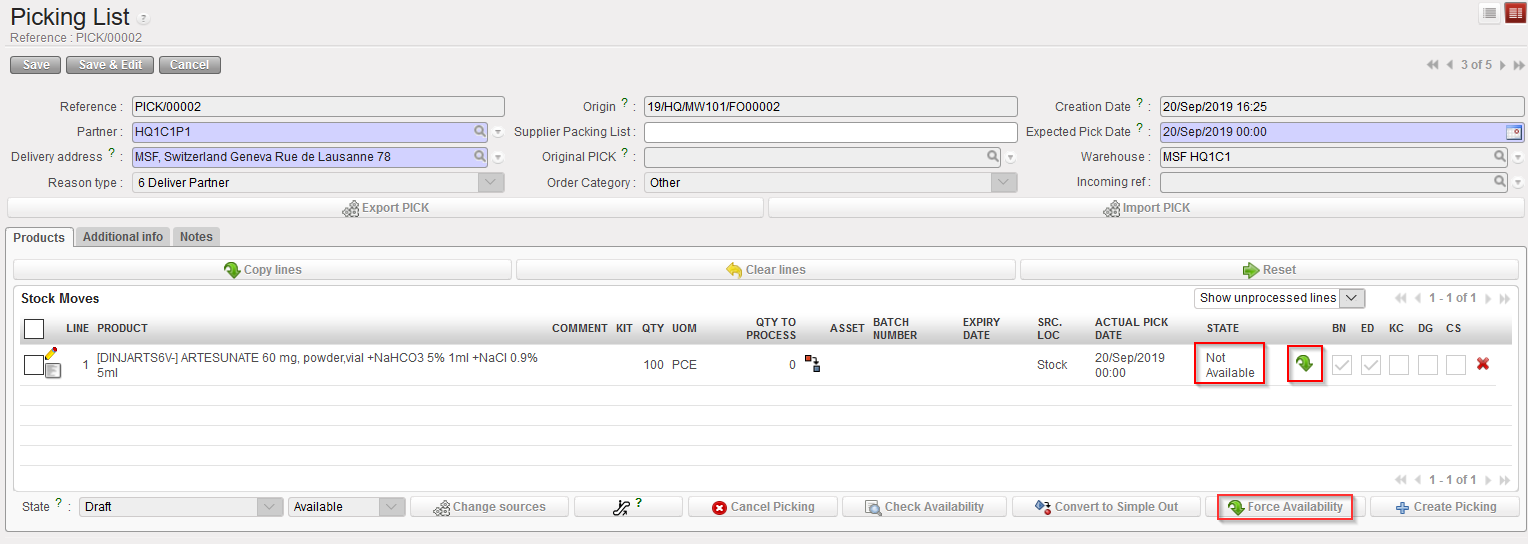
In some cases, for example if there is a physical stock present but the system stock level shows 0, you may choose to force availability. To force the availability of a product, click on the green arrow next to the state of the line or the button at bottom of the PICK. This action will turn the state to “Available”.

This is only a short-term solution which should be used with caution and only according to OC procedures. In the long run, if the physical quantity of a product does not match the quantity displayed in the system, a physical inventory should be performed as soon as possible to correct this.

Forcing the availability on a Picking Ticket

Note that for products which are not BN managed, forcing the availability will allow you to register the picking ticket (but stock level in the system may become negative).

For BN managed products, forcing the availability will not allow you to register the picking as you will be blocked at a further step, when you will have to select the batch.

Forcing the availability on a BN managed product

To summarize the picking process, we may say that main PICKs are actually not processed. Actual picking is always registered on the sub PICKs.

A. LU INTRODUCTION (LU-SU4102)

Supply User Manual ENG -> 5. Warehouse -> 5.3 LU-SU4102: Picking -> A. LU INTRODUCTION (LU-SU4102)

A. LU INTRODUCTION (LU-SU4102)

The outgoing delivery is the final step of the process for delivering Field Orders to customers. UniField offers two main options to send goods to customers:

  • Simple out, also known as Delivery Order or OUT enables simple and rapid shipments (it takes the goods from stock and ships them directly to customers in a one-step transaction) with very basic documentation.
  • Full shipment process offers 2 options:
    1. Full flow” progresses through Picking, Packing and Shipment (three-steps transaction) – more common
    2. Quick flow” progresses through Picking and Shipment (2-steps) – less common

Both these flows enable to reverse the flow at any stage (returns) and allows the generation of all necessary documentation.

By default, the simple out process is used when goods are delivered internally (to External Consumption Units) while the full shipment process is used when goods are delivered to other instances or to external customers.

However, this can be changed at any time as Delivery Order can be converted into Picking Tickets and Picking Tickets can be converted into Delivery Orders.

Note that the configuration of an instance can be changed so that the full shipment process is not used. In this case, all deliveries will be done with the simple out process.

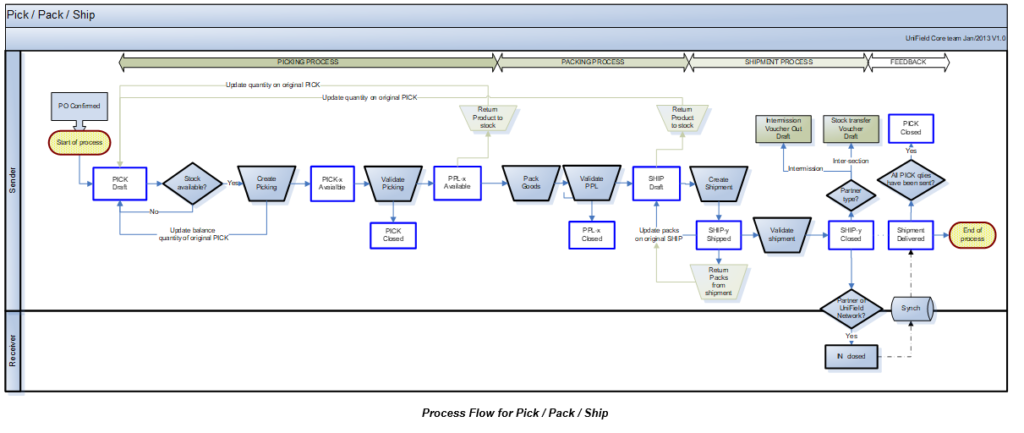
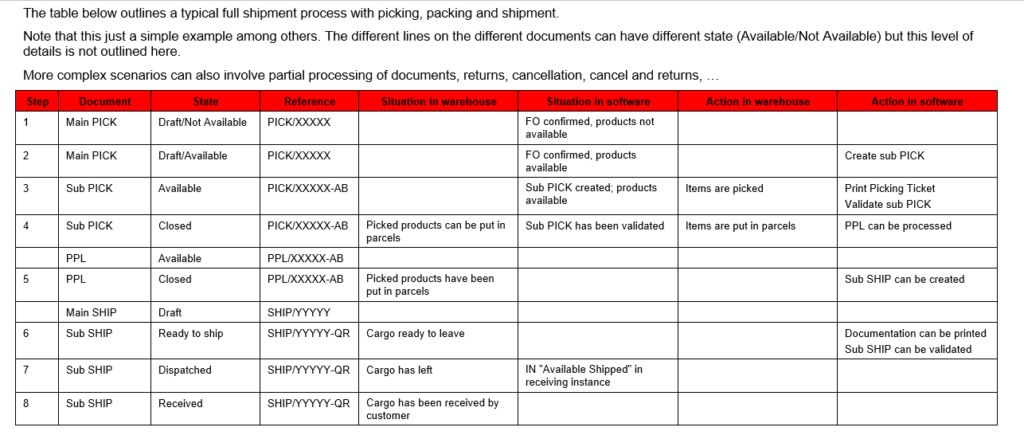
Picking is the process of taking products off the shelves of the warehouse and preparing to pack them. Picking Tickets are created in “Draft” when Field Orders (or Field Order lines) are confirmed. Then they need to be processed manually. In UniField a Picking Ticket cannot be created from scratch, but is created by the system as it is always directly linked to a specific FO.

  • If an FO (or FO-line) is sourced from stock, a Picking Ticket is created in the state “Draft” and is “Available (provided that the products are indeed available in stock).
  • If an FO (or FO-line) is sourced on order and to a PO, a Picking Ticket is created in the state “Draft” and is “Not Available(but only when the related PO (or PO-line) is confirmed as it will also confirm the corresponding FO (or FO-line)).

In both cases, the Picking Ticket created is named main PICK or parent PICK and will have a reference which looks like PICK/000XY. When this main/parent Picking Ticket will be processed, sub PICKs will be created with a reference which looks like PICK/000XY-AB.

The main/parent PICK will always remain open in “Draft” state (until final shipment is done). It will be used to create additional sub PICKs in case of partial pickings, or to manage the return of the products back to stock, in case of an unpacking process.

The picking process is done in several steps:

  1. A main Picking Ticket is created (or updated) by the confirmation of the FO (or FO lines). This allows the warehouse team to see in the system which products/quantities/batches will have to be picked in the coming days or weeks. Virtual stock levels are updated.
  2. A sub Picking Ticket is created from this main Picking Ticket in order to instruct the storekeeper to actually pick products/quantities/batches.
  3. Once the actual picking has been done in the warehouse, the sub Picking Ticket is validated (and possibly updated) with the actual quantities and batches which have been picked. Picked products/quantities/batches are transferred on a Pre-Packing List. Real stock levels are updated accordingly.

The creation of the main PICK updates the virtual stock levels, decreasing the virtual stock level of the source location (from where the goods will be picked) and increasing the virtual stock level of the “Packing” location. The validation of the sub PICK updates the real stock levels of both locations.

Main PICKs are actually never validated. They are just used to initiate the picking process, allow partial picking on main PICKs, allow partial validation on sub PICKs and allow returns from Pre-Packing Lists.

5.3 PICKING.

Supply User Manual ENG -> 5. Warehouse -> 5.3 LU-SU4102: Picking.

LU-SU4102: Picking.

A. LU INTRODUCTION

B. HOW TO PICK PRODUCTS FROM STOCK

C. HOW TO PICK PRODUCTS FROM CROSS DOCKING

D. HOW TO DO A PARTIAL PICKING

E. HOW TO EXPORT AN EXCEL PICKING FILE

F. HOW TO IMPORT AN EXCEL PICKING FILE

G. HOW TO PRINT A PICKING TICKET

H. HOW TO VALIDATE A PICKING

I. HOW TO CANCEL A PICKING

J. HOW TO CANCEL & RESOURCE ON PICKING TICKETS

K. PICKING TICKETS REFERENCES

L. HOW TO PICK A KIT COMPOSITION LIST (KCL)

U. INCOMING SHIPMENTS REFERENCES

Supply User Manual ENG -> 5. Warehouse -> 5.2 LU-SU4101: Incoming Shipments -> U. INCOMING SHIPMENTS REFERENCES

U. INCOMING SHIPMENTS REFERENCES

When an Incoming Shipment is created, a “Reference” (document number) is given to the document by the system. Two types of references are possible:

  1. IN/XXXXX is used when
    1. An Incoming Shipment is created from scratch.
    2. An Incoming Shipment is generated following the confirmation of a PO (or PO-line).
    3. An Incoming Shipment is created following the partial processing of another Incoming Shipment (back order).
  2. IN/XXXXX – replacement is used when an Incoming Shipment is created following a claim, when the replacement of the goods is requested (see LU on claims for further details).

T. HOW TO MOVE RECEIVED PRODUCTS FROM THE INPUT LOCATION TO A STOCK (DESTINATION LOCATION)

Supply User Manual ENG -> 5. Warehouse -> 5.2 LU-SU4101: Incoming Shipments -> T. HOW TO MOVE RECEIVED PRODUCTS FROM THE INPUT LOCATION TO A STOCK (DESTINATION LOCATION)

T. HOW TO MOVE RECEIVED PRODUCTS FROM THE INPUT LOCATION TO A STOCK (DESTINATION LOCATION)

As explained earlier in this LU, goods may be received in a one-step process. In this case they will directly go the requesting location. But goods may also be received in a two-steps process. In this case, they will stop in the “Input” location where a quality check will be performed before to move them to the requesting location with an Internal Move. Note that in both case an INT is actually used but in the first case, this INT is processed automatically by the system.

When receiving products which were ordered for the receiving instance or internally, the system always tries to receive them with the one-step process by default. All Incoming Shipments move the goods to the “Input” location. But an Internal Move is directly automatically created and processed to transfer the products from this temporary “Input” location to the final destination of the goods.

However, you may decide to receive the products in the “Input” location and stop the process at this stage in order to be able to correctly check quality of the goods received. For this, you simply need to uncheck the checkbox “Direct to Requesting Location“. Goods will be received in “Input“. An Internal Move will automatically be created by the system to prepare the move from this “Input” location to the final destination of the goods but will not be processed automatically. This will be done manually by the user once the quality check has been performed.

This two-steps process may also be useful if you want to change the planned destination of the goods as illustrated below.

Go to: Warehouse / Warehouse Management / Incoming Shipments

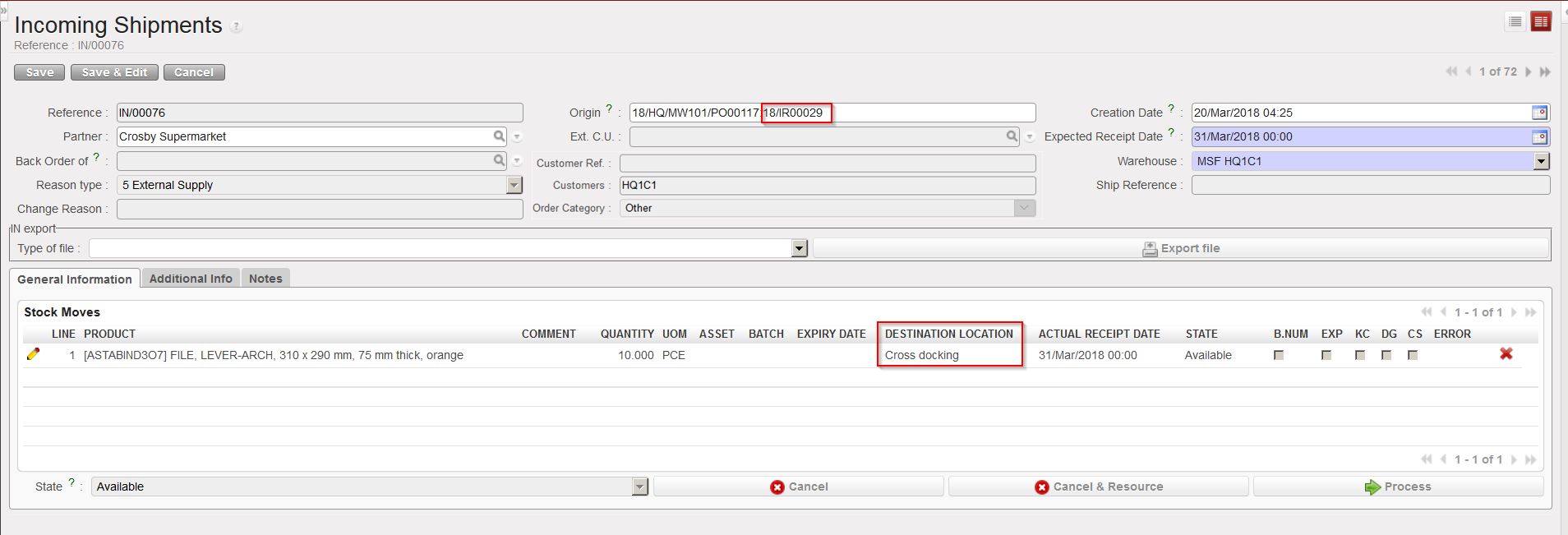
  1. Open the Incoming Shipment you wish to receive. In the below example, the IN is related to a PO which was created by the OST following sourcing of an IR with Location Requestor = ECU. As a consequence, an OUT has been created to prepare the delivery of the goods to the ECU. The Destination location at line level will be pulled from the destination in the IR or FO (Input, Crossdocking, Service, Non stockable)
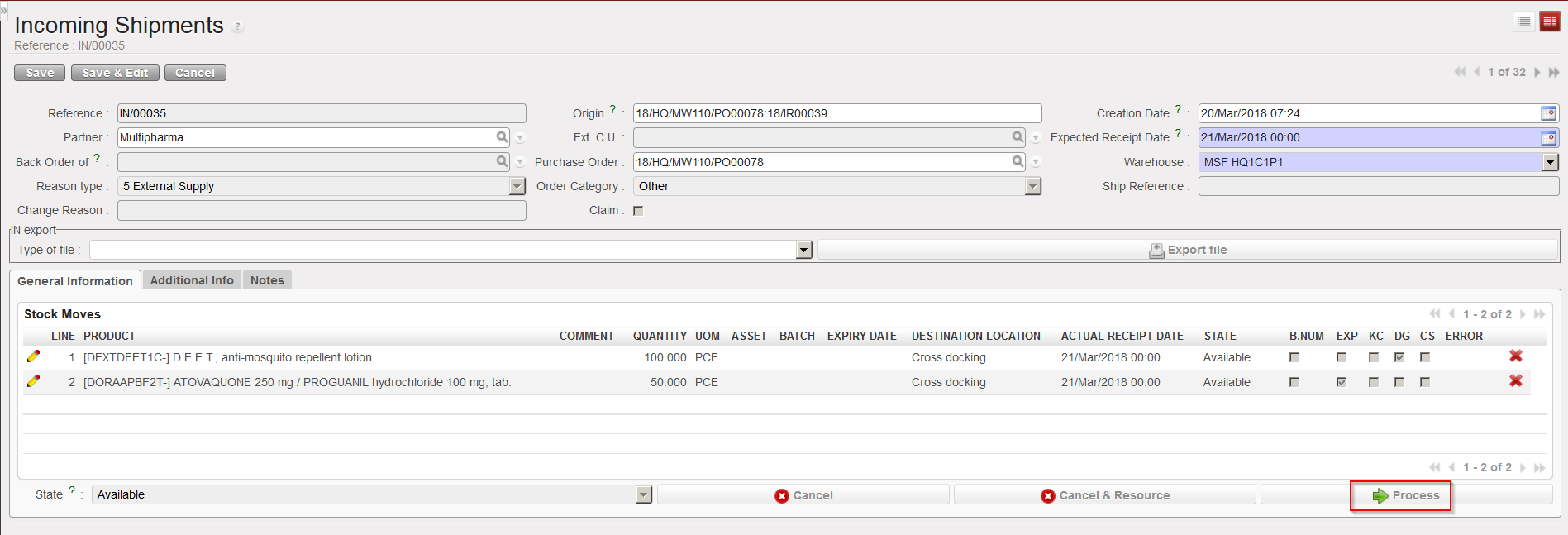
  2. Click on the “Process” button to initiate the reception process.

Processing an Incoming Shipment

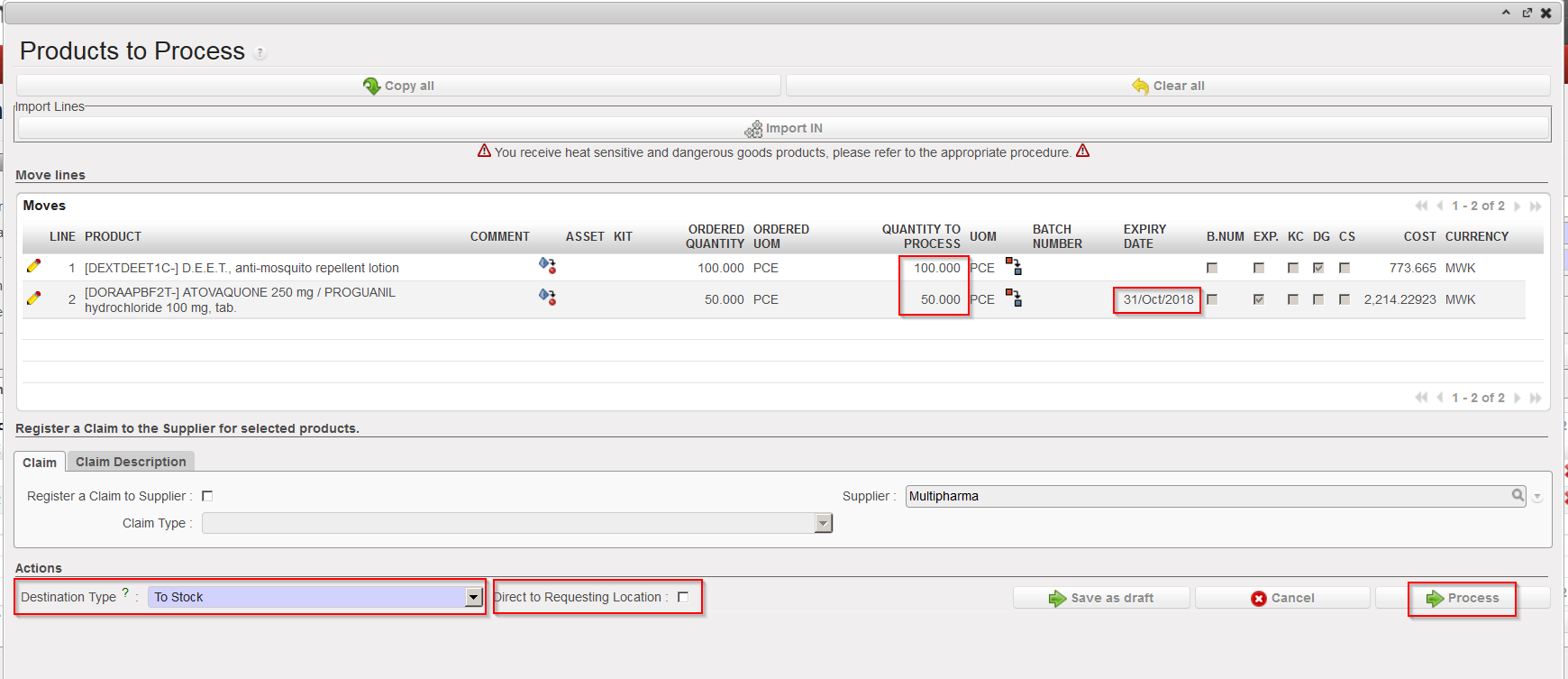
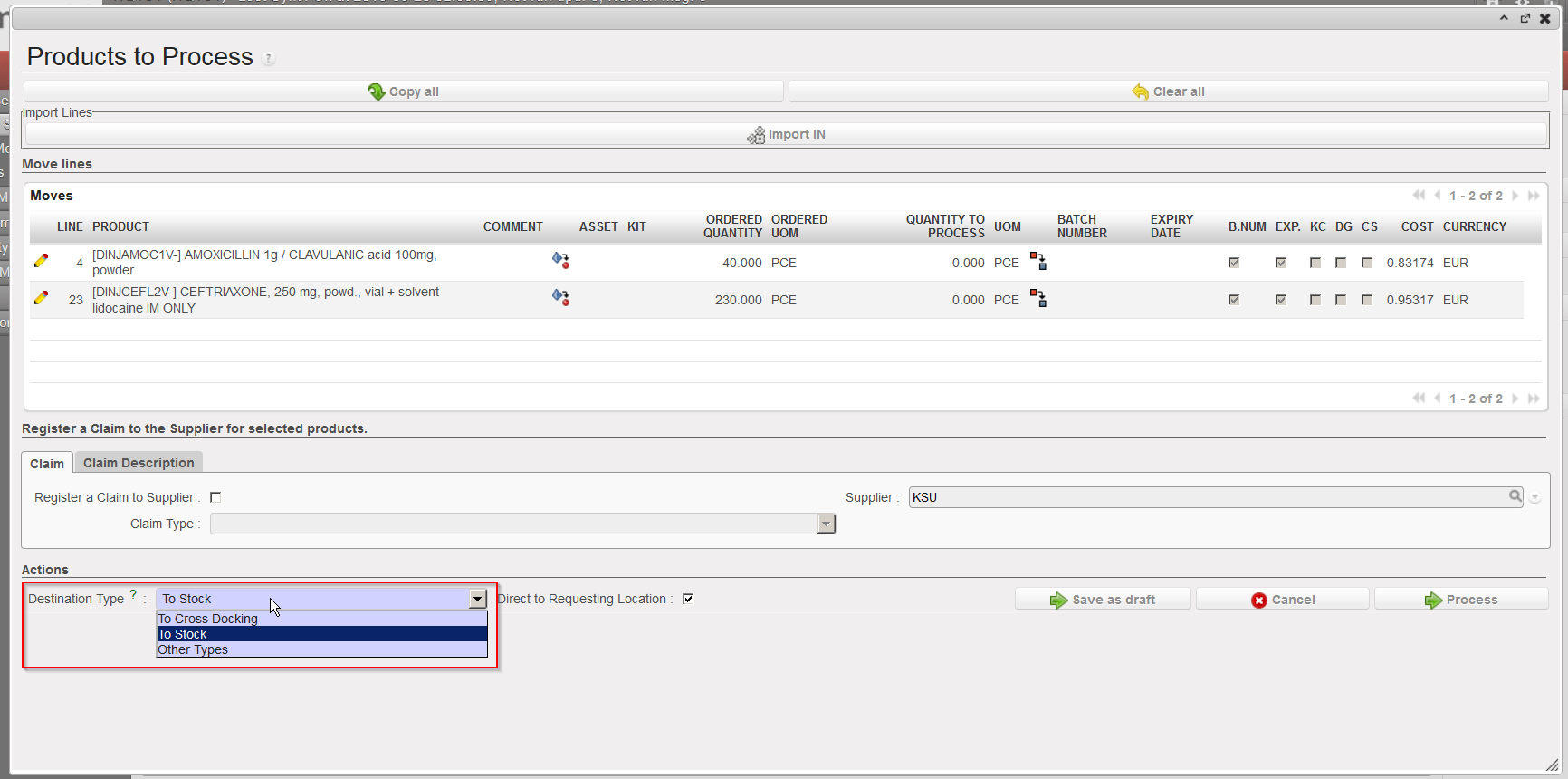
      3. On the “Products to Process” screen, complete the received lines, change the “Destination Type”           from “To Cross Docking” to “To Stock” (you will get a warning message, click “OK“) and untick the           “Direct to Requesting Location” checkbox.

      4. Click on the “Process” button.

Completing the received lines and changing destination type on IN

The goods have now been received in the “Input” location and the Internal Move is ready to be processed.

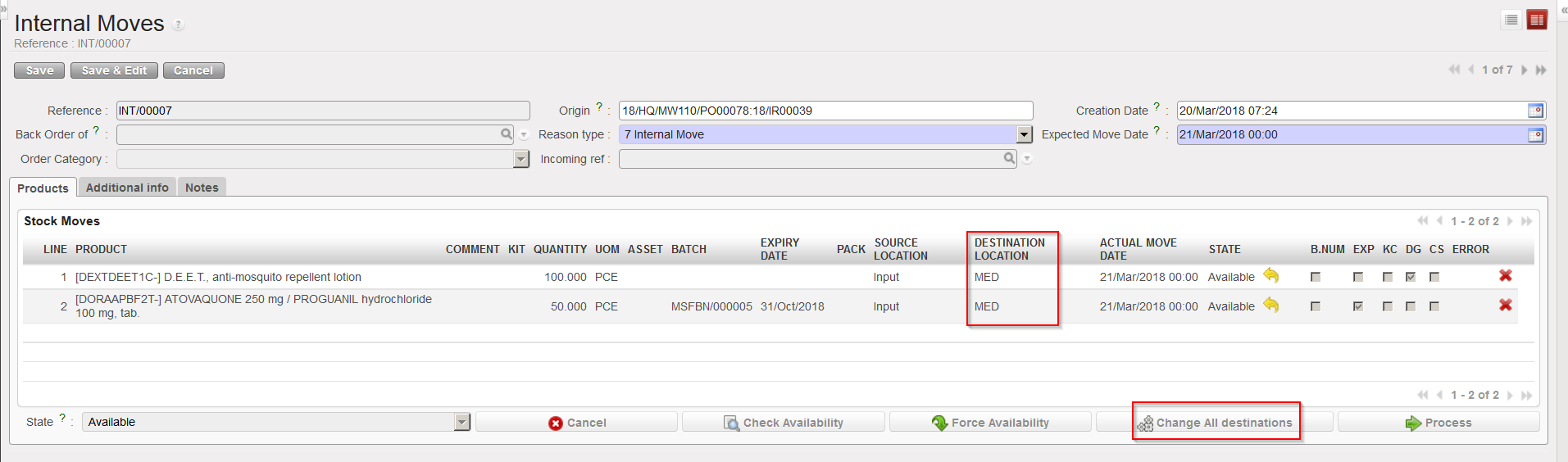
       5. Open the Internal Move. Note that the destination location of the goods is “MED“.

       6. Click on the “Change All destinations” button

Changing the destination location on an Internal Move (step1)

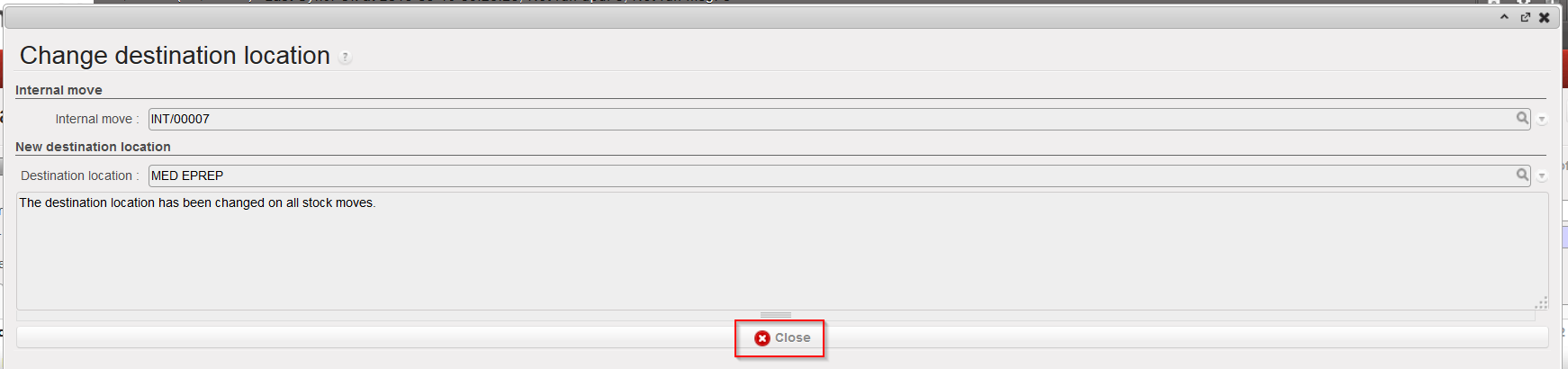
        7. In the “Change destination location” window, enter the location to which you want to direct the            goods in the “Destination location” field and click on the “Change location” button. A window             informs you on the change done, click on the “Close” button.

Changing the destination location on an Internal Move (step2)

Destination location changed on INT

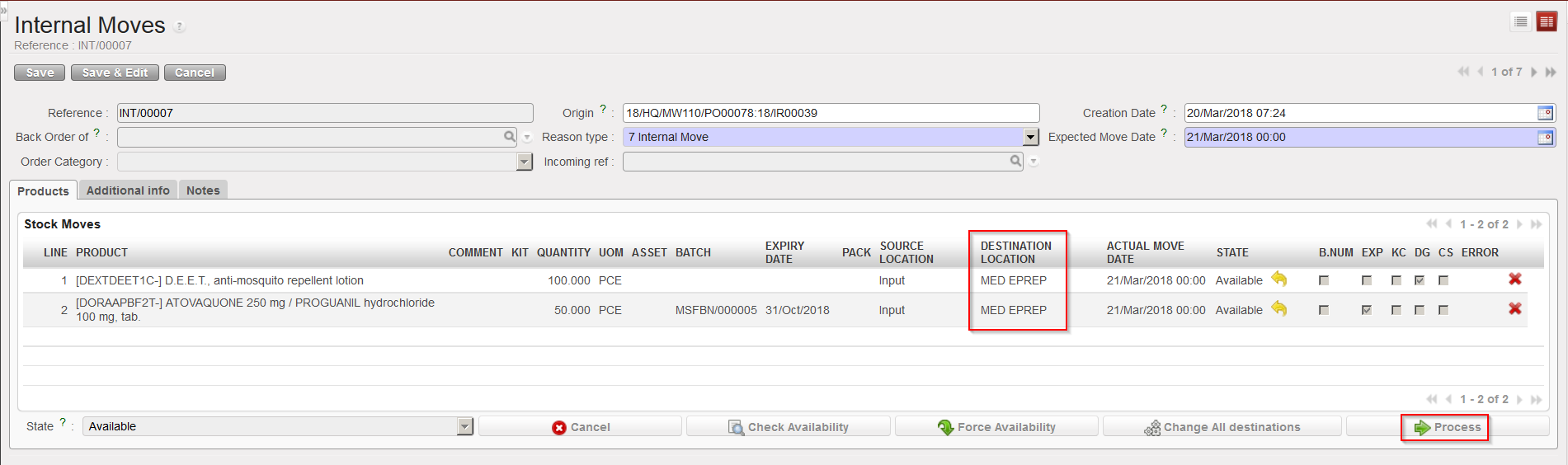
       8. The destination location on the INT is now “MED EPREP“. You may process the Internal Move as            usual via a click on the “Process” button.

Processing the INT with the new destination location

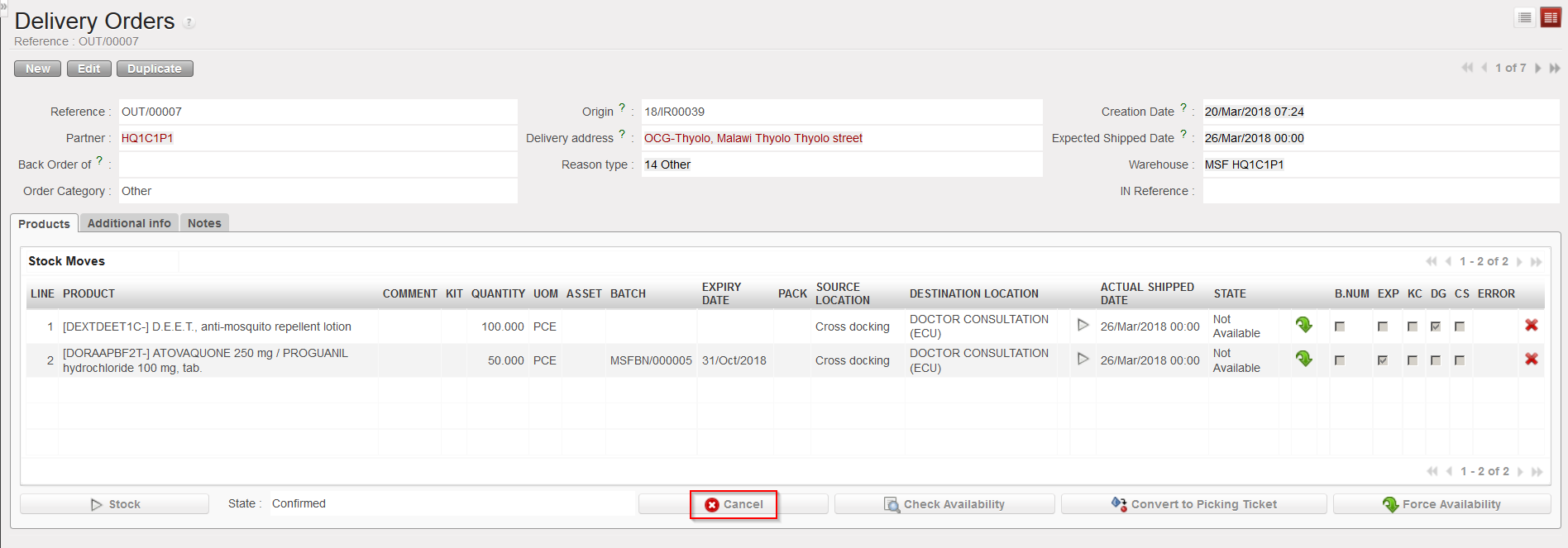
        9. The last step is to cancel the OUT as it has now been replaced with the INT.

Cancelling the OUT

S. HOW TO HANDLE RECEPTION OF SERVICES

Supply User Manual ENG -> 5. Warehouse -> 5.2 LU-SU4101: Incoming Shipments -> Q. HOW TO RECEIVE A PRODUCT IN CROSS DOCKING

S. HOW TO HANDLE RECEPTION OF SERVICES

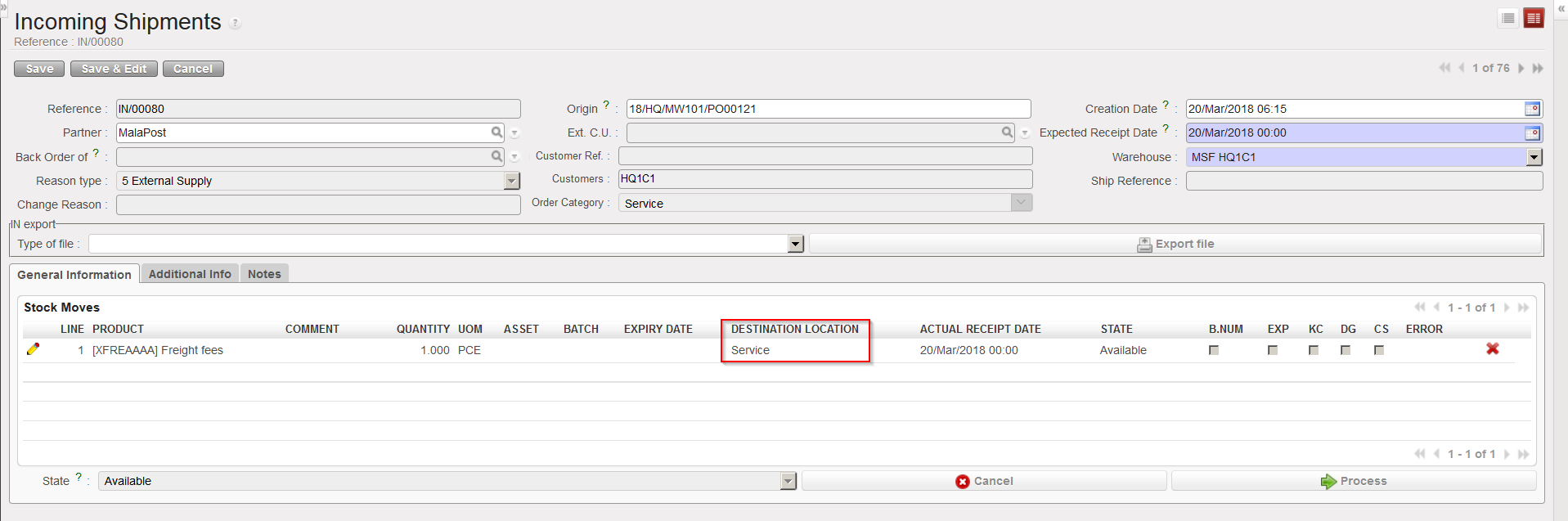
Purchases can be for goods or services. Receiving services is similar to receiving non-stockable products but the destination location will be “Service” which is also a virtual location.

Incoming Shipment involving service products

In cases of services, the Purchase Order category should be “Service“, “Transport” or “Other“.

R. HOW TO RECEIVE A NON-STOCKABLE PRODUCT

Supply User Manual ENG -> 5. Warehouse -> 5.2 LU-SU4101: Incoming Shipments -> R. HOW TO RECEIVE A NON-STOCKABLE PRODUCT

R. HOW TO RECEIVE A NON-STOCKABLE PRODUCT

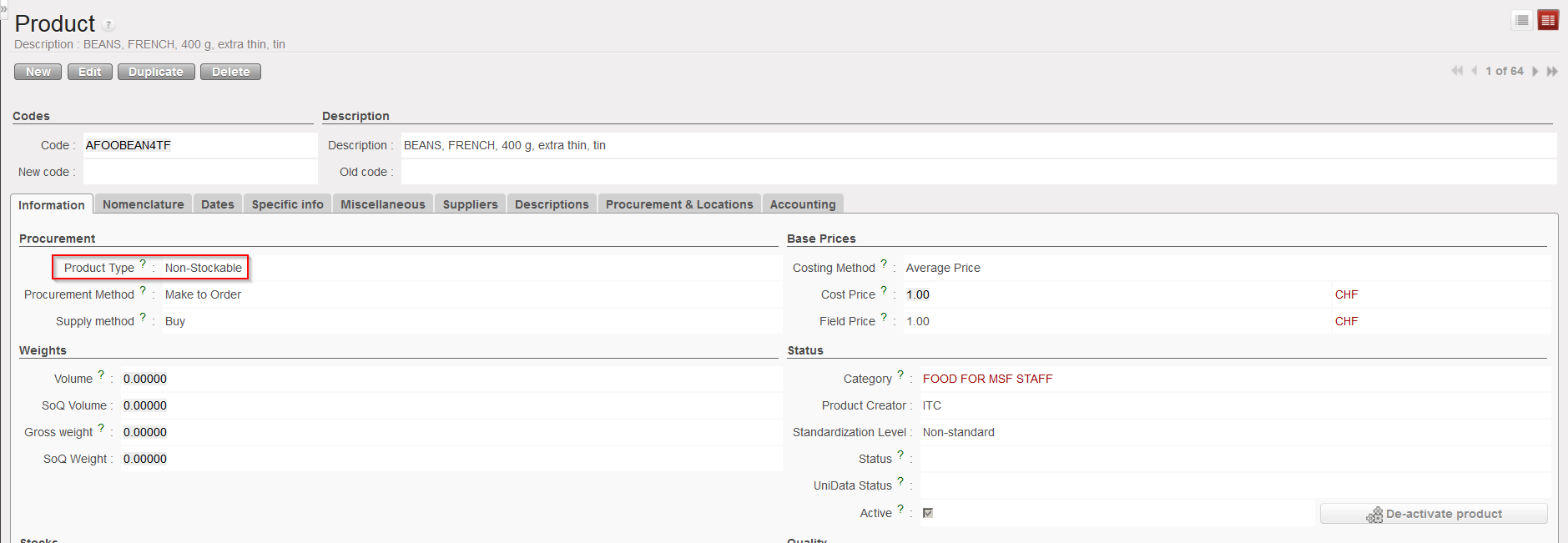
Non-stockable products are products which will not be tracked in stock management. This is defined in the PMD sheet of the products (product type).

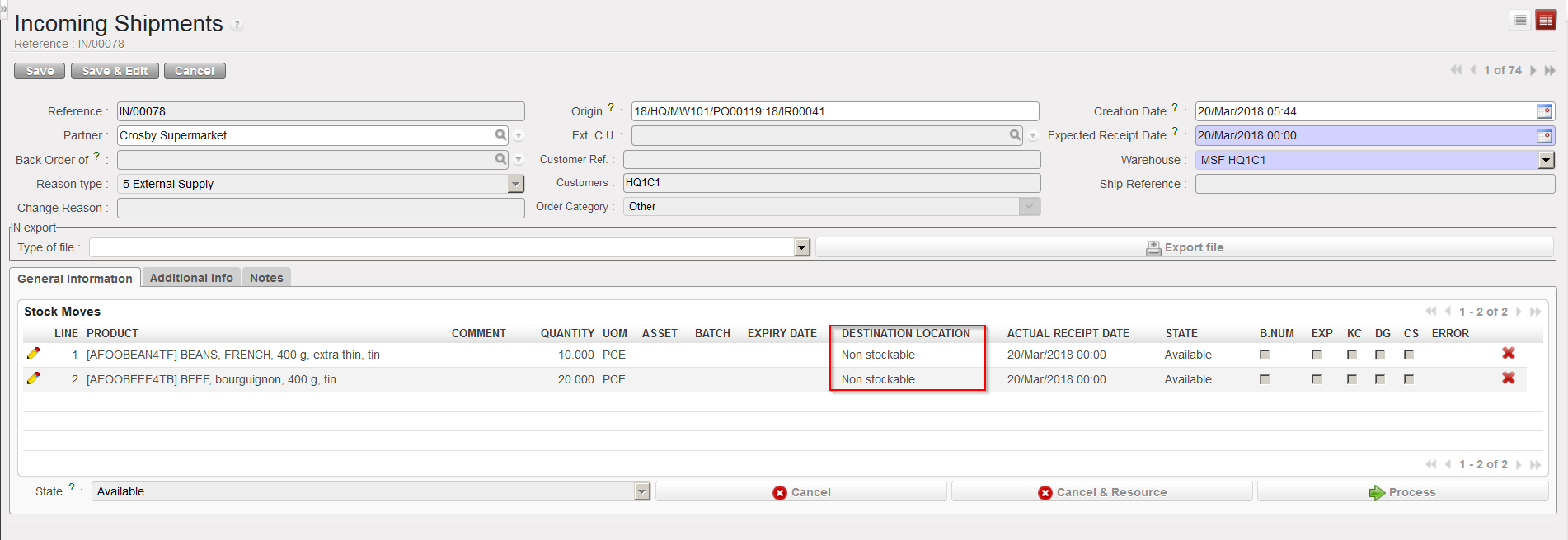
If non-stockable products are included on Incoming Shipments, the destination location for these products will always be “Non stockable“.

PMD sheet of a non-stockable product

Incoming Shipment involving non-stockable products

The “Non stockable” location is a virtual location where these types of products will be transferred.

Non-stockable products will always be stored in the virtual location “Non stockable” once they have arrived at the consignee instance.

Note that non-stockable products included in IRs or FOs cannot be sourced from stock.

If a non-stockable product is ordered via an IR and this IR is sourced on order (PO), when the corresponding IN will be processed, it will (unlike other products) not be sent via an Internal Move or Delivery Order to the Location Requestor specified on the IR but it will be diverted to the “Non stockable” location.

However, if a non-stockable product is included on a FO and if this FO is sourced on order (PO), when the corresponding IN will be processed, the product will be received in cross docking. It is only when the product will be received on the requesting instance that it will be diverted to the “Non stockable” location.

Q. HOW TO RECEIVE A PRODUCT IN CROSS DOCKING

Supply User Manual ENG -> 5. Warehouse -> 5.2 LU-SU4101: Incoming Shipments -> Q. HOW TO RECEIVE A PRODUCT IN CROSS DOCKING

Q. HOW TO RECEIVE A PRODUCT IN CROSS DOCKING

As already explained in the section “How to receive an Incoming Shipment“, if goods are received on an instance but are not intended to stay in this instance but rather sent to another customer instance, they will transit through the “Cross docking” location.

The “Cross docking” location will also be used as a transit zone if goods are received on an instance but need to be sent to an External Consumption Unit. This will be the case if an IR with an ECU as Location Requestor is sourced on order (PO) and later on received with the processing of an IN. Goods will be received in cross docking and shipped to the ECU with a Delivery Order (OUT).

The cross docking process allows the user to proceed with the reception of an Incoming Shipment without putting the received goods in stock. They will remain in a temporary location, called “Cross docking“, from where they will be shipped to the requester.

Goods ordered via a PO originating from an FO or from an IR with an ECU as Location Requestor will automatically be directed to the “Cross docking” location.

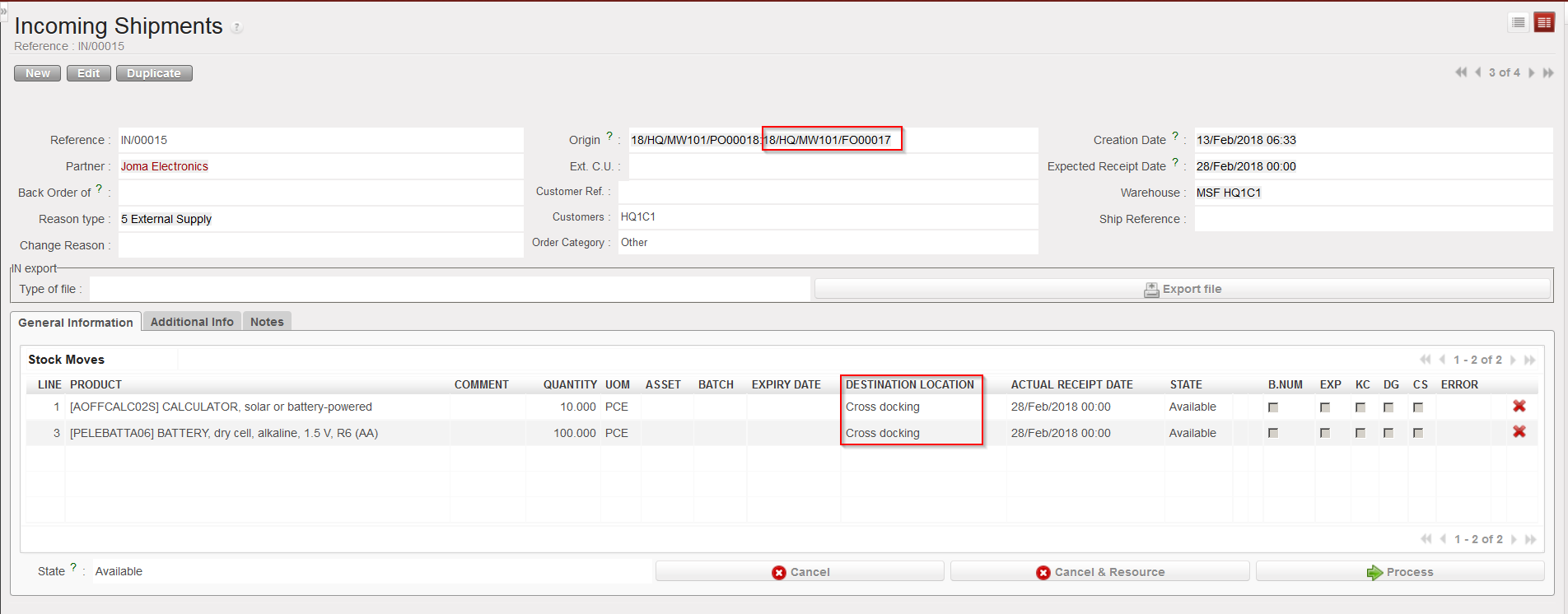
IN related to PO created from FO sourcing

IN related to PO created from IR sourcing with ECU as Location Requestor

Go to: Warehouse / Warehouse Management / Incoming Shipments

  1. Open the Incoming Shipment you wish to receive.
  2. Click on the “Process” button to initiate the reception process.
  3. On the “Products to Process” screen, check that the products and quantities match with the delivery, and add quantities using the “Copy all button” or using the pencil icon located on the left side of the screen on the line(s) to process.
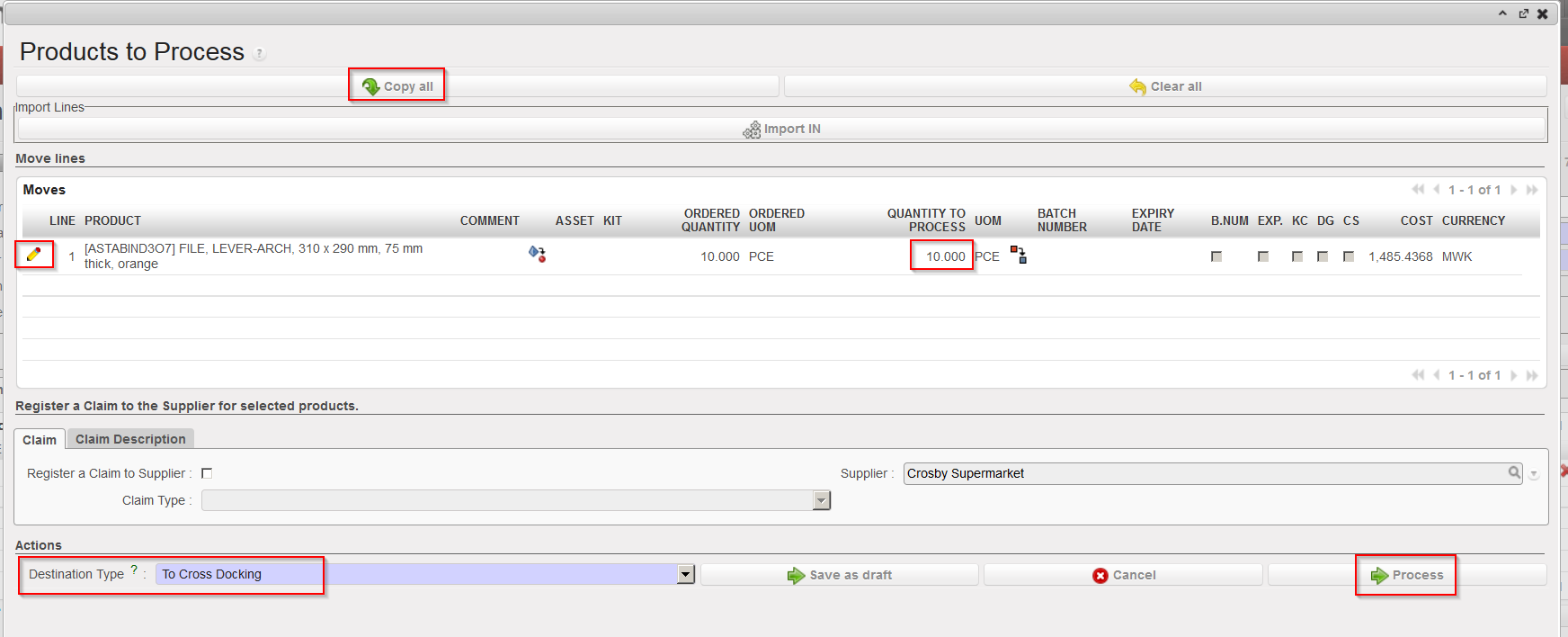
Receiving goods in cross docking

Note that the “Destination Type” is “To Cross Docking” and that the checkbox “Direct to Requesting Location” is not present in this case.

       4. Click on the “Process” button to receive the products in cross docking.

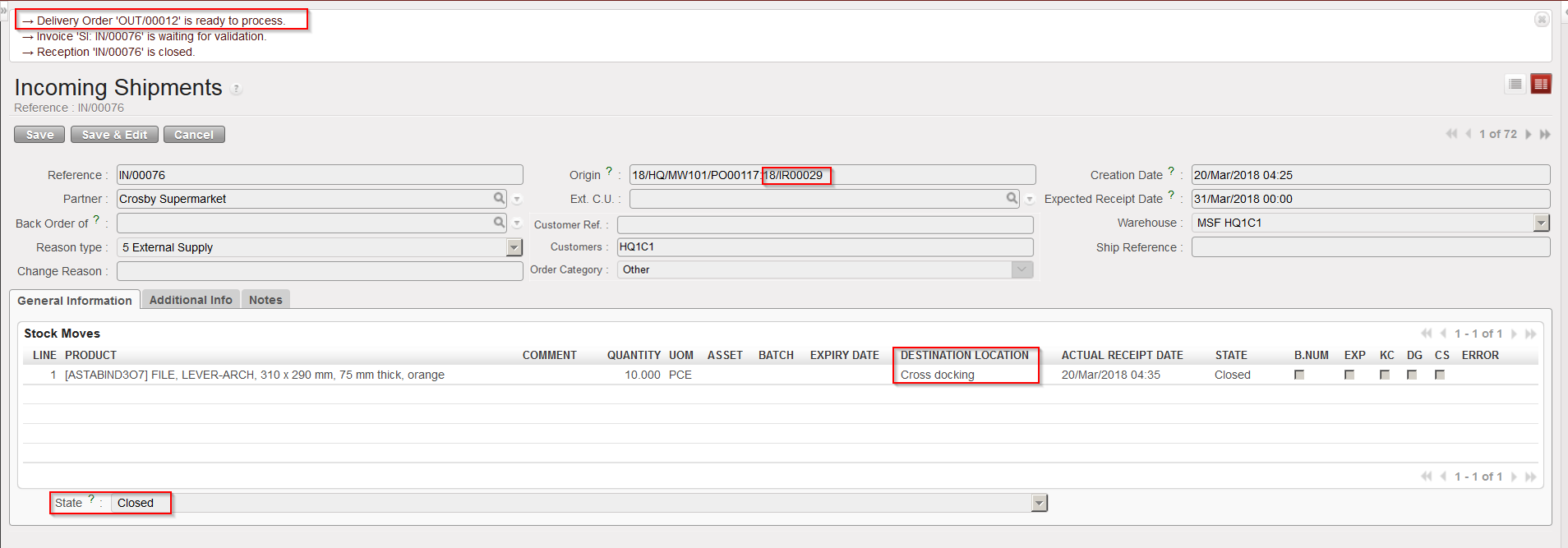
Goods received in cross docking

The Incoming Shipment is now closed and goods have been received in cross docking. If the IN is related to a PO created via OST from an IR with Location Requestor = ECU, an OUT will be ready to process. If the IN is related to a PO created via OST from an FO, a PICK will be ready to process.

Note that on INs related to PO which are created from scratch (or from IR which do not have an ECU as Location Requestor), you have the possibility to change the “Destination Type” when receiving the goods. and set it to “To Cross Docking“. If you do so, a message will pop up to inform you that you are about to change the planned destination of the goods. Click “OK” if you want to proceed.

This is of course not a standard process and risky as these goods could be “forgotten” in cross docking as they are not related to any customer request. That’s one of the reasons why it is important to frequently check what is in the “Cross docking” location.

Changing the “Destination Type” to “To Cross Docking”

Warning message when changing the “Destination Type” to “To Cross Docking”

The opposite could also happen. Goods supposed to be received in cross docking could be diverted to stock. A reason could be that a supplier delivers goods but the client does not need them anymore.

In this case all documents created to prepare the delivery to the customer (OUT/PICK) should be checked manually and cancelled if needed as suggested by the warning message which pops-up in this case.

Warning message when changing the “Destination Type” to “To Stock”

P. HOW TO RECEIVE A KIT AND CREATE A KIT COMPOSITION LIST

Supply User Manual ENG -> 5. Warehouse -> 5.2 LU-SU4101: Incoming Shipments -> P. HOW TO RECEIVE A KIT AND CREATE A KIT COMPOSITION LIST

P. HOW TO RECEIVE A KIT AND CREATE A KIT COMPOSITION LIST

The reception of a kit doesn’t differ from the reception of a simple product. However, after reception of a kit, UniField offers the possibility to create a Kit Composition List from the closed Incoming Shipment by clicking on this icon . This opens a blank Kit Composition List which should be filled with the kit components.
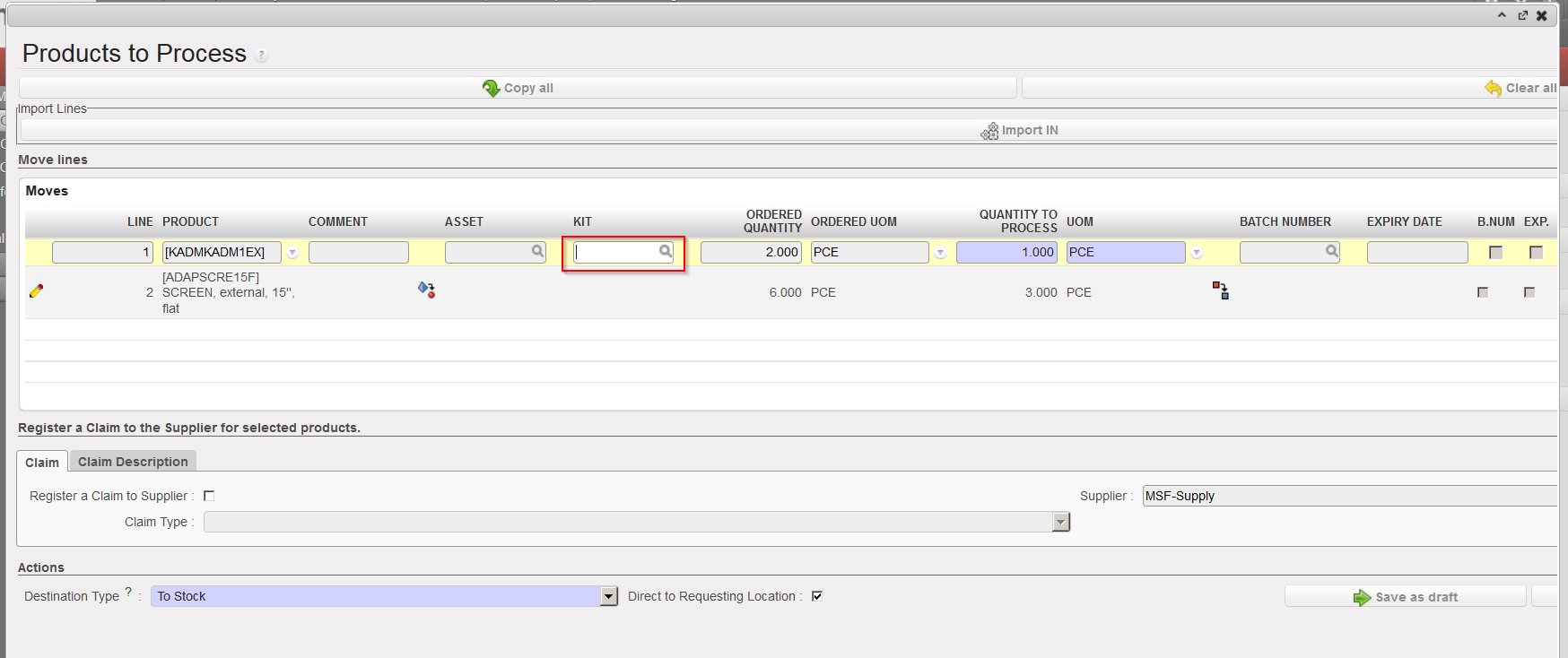
Go to: Warehouse / Warehouse Management / Incoming Shipments

  1. Open the Incoming Shipment you wish to receive (it should a product whose sub type is Kit/Module in its PMD sheet).
  2. Click on the “Process” button.
  3. If appropriate split the lines, change quantities and enter or create any relevant batch number or expiry date for your kit(s).
  4. Click on the “Process” button at the bottom of the screen to validate the reception of the Incoming Shipment.

Kit reception

Note that if a kit needs traceability (i.e. it contains perishable items) then it should be indicated in its PMD sheet that this kit must be followed by BN/ED (see Products chapter). And this will obviously have consequences during reception as BN/ED will be mandatory in this case.

       5. Open the Incoming Shipment which is now in state “Closed“. On the received lines involving kits,            you see the icon . Click on this icon to add a Kit Composition List.
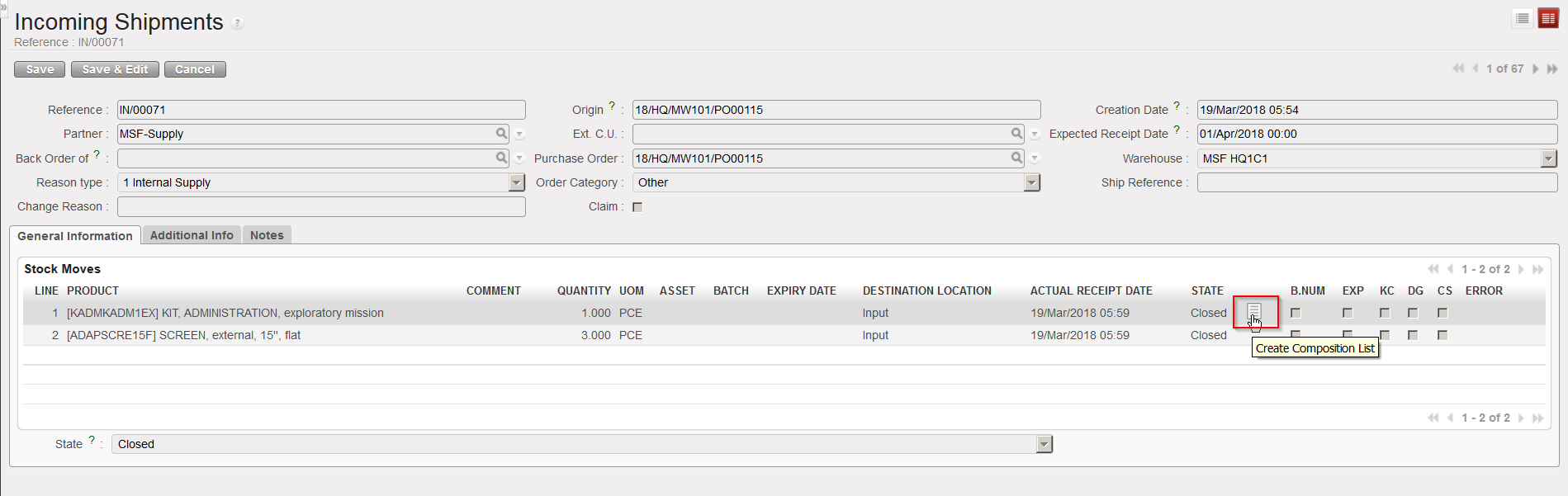
Create a Kit Composition List from a closed IN

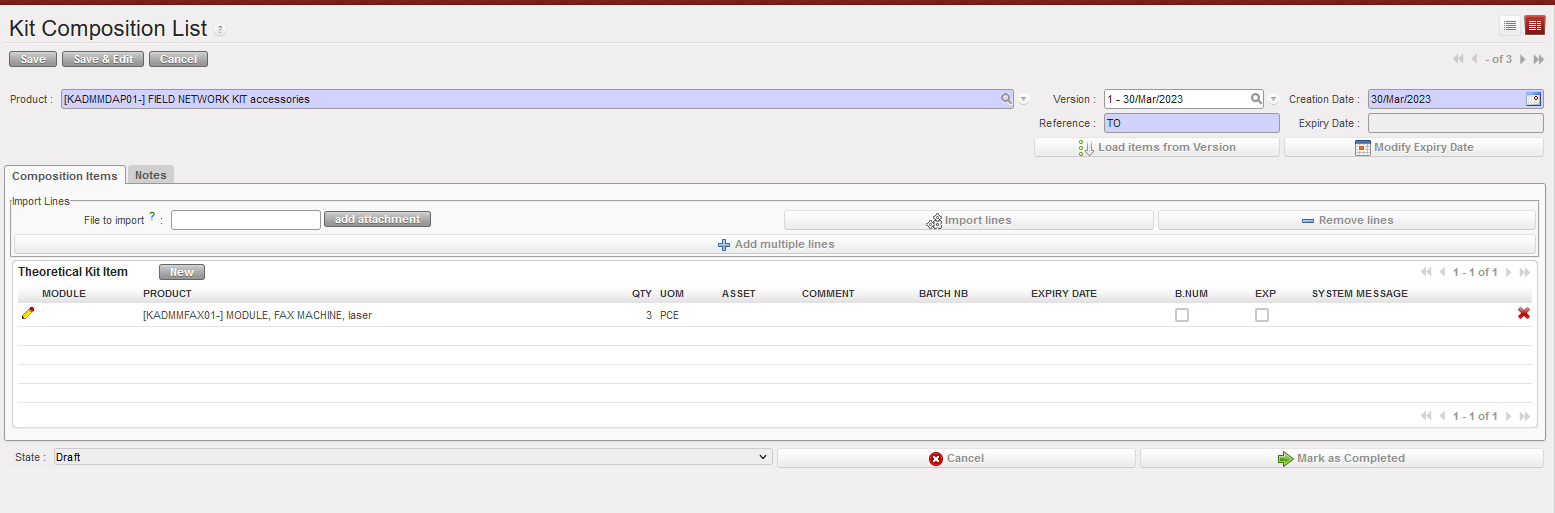
         6. The screen “Kit Composition List” opens on a new tab of your web browser to allow you to create                the Kit Composition List.

“Kit Composition List” Screen

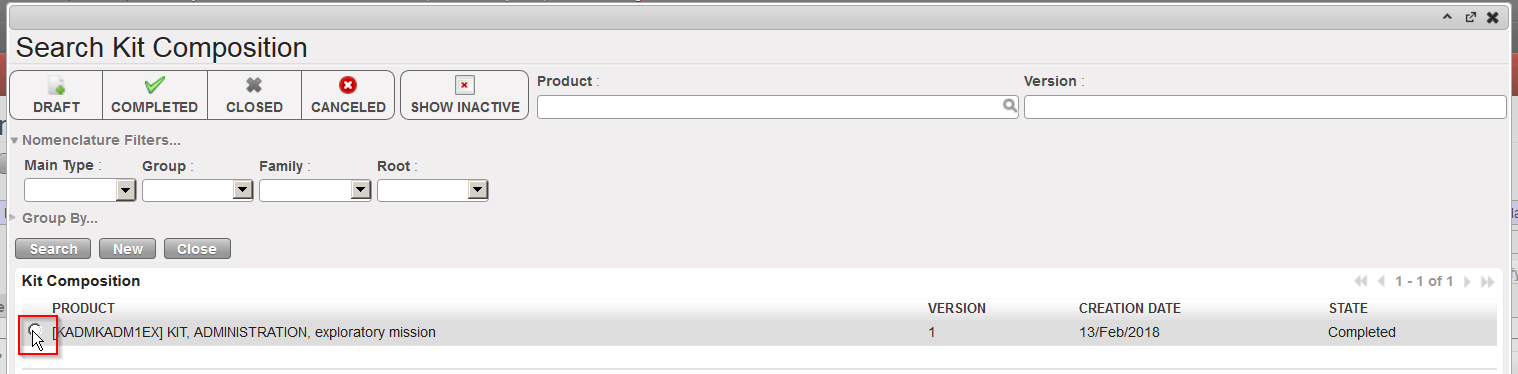
         7. If a Theoretical Kit Composition List already exists for this kit in the system, search for it by clicking on the magnifying glass on the right of the “Version” field and select the appropriate version.

Selecting the Theoretical Kit Composition List (version)

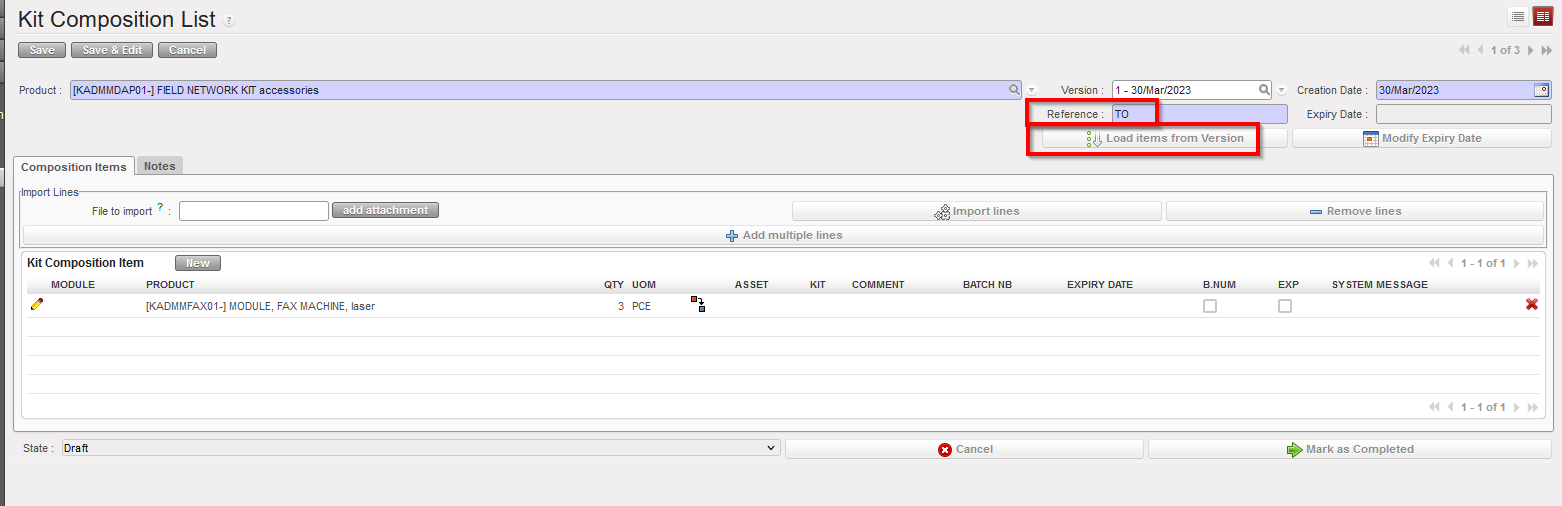
          8. Back on the “Kit Composition List” screen, enter the kit production reference from the supplier in               the “Reference” field and click on the “Load items from Version” button. Confirm the load of this               version with a click on “OK“.

Loading a Theoretical Kit Composition List

Confirm the Loading of the Theoretical Kit Composition List

Note that if a product (kit) is defined as BN&ED mandatory in its PMD sheet, a BN&ED will be required upon reception and will be used to populate the field “Reference” and “Expiry Date” in the above screen when the Kit Composition List will be created from the closed IN.

If any component in a kit needs to be managed by Batch Number/Expiry Date, these fields will be mandatory in the KCL for the kit.

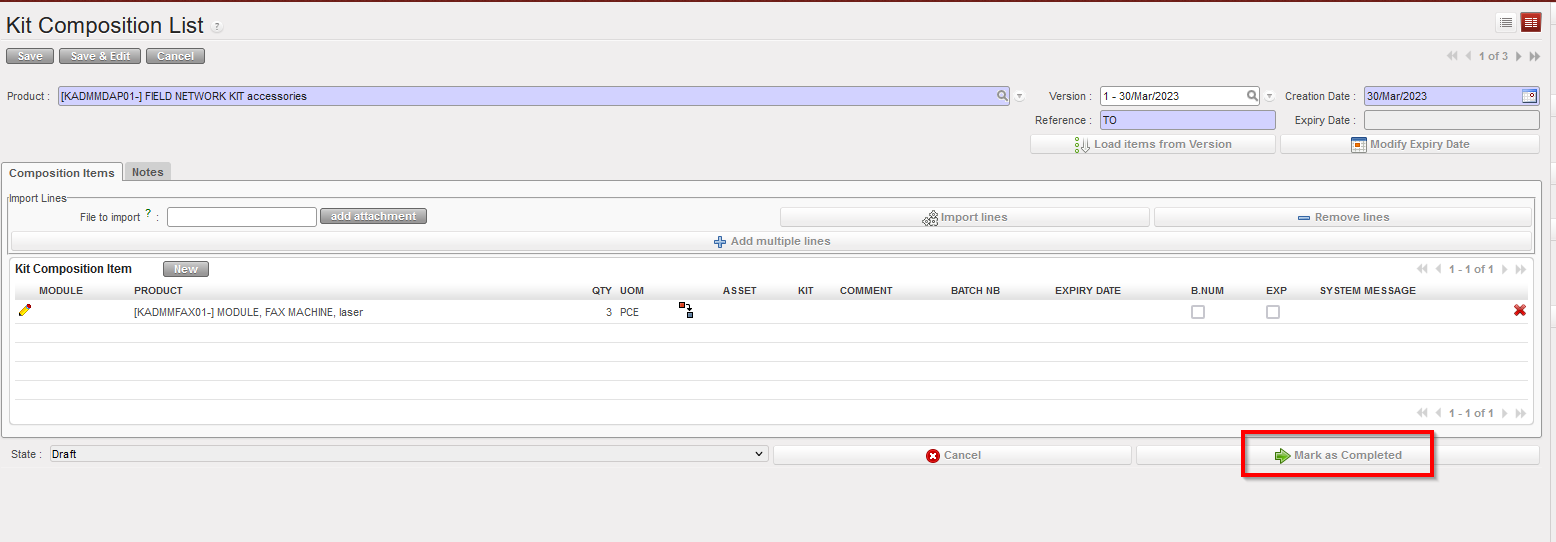
       9 .The Theoretical Kit Composition List has been loaded. You may now complete it with information            such has batch number, expiry date,… or update it according to what you have actually receive.             Once the list matches with what you received, click on the “Mark as Completed” button.

Theoretical Kit Composition List loaded

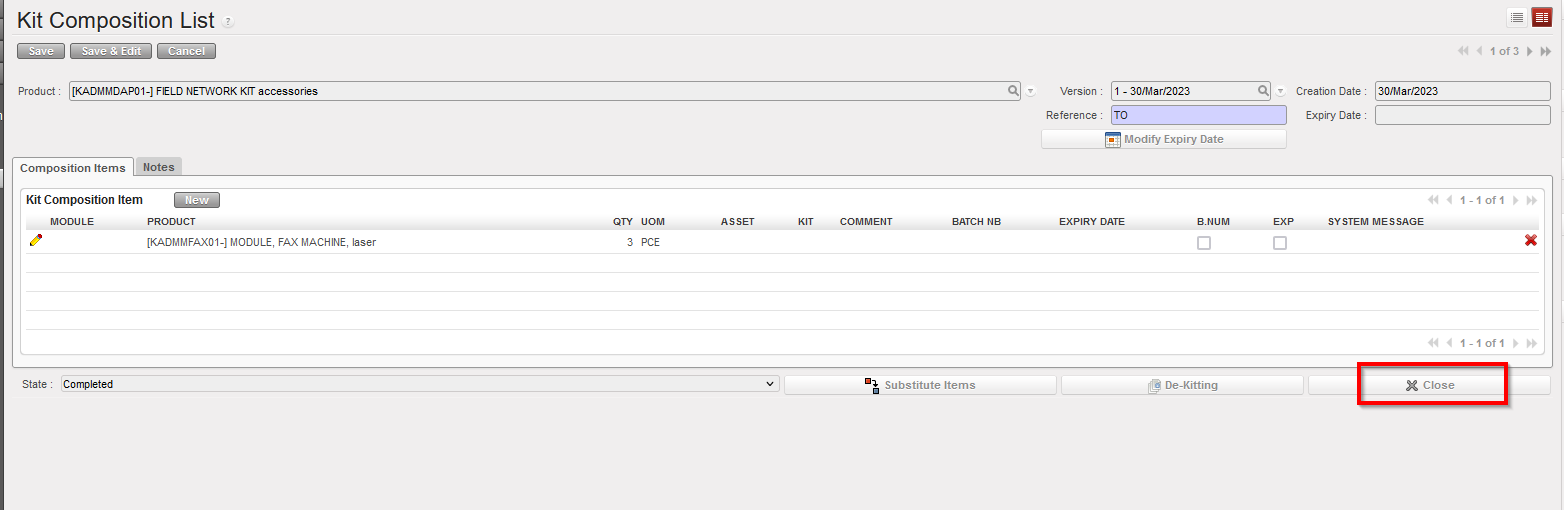
Kit Composition List in state “Completed

The Kit Composition List must be in “Completed” Status in order to de-Kit or Substitute items.

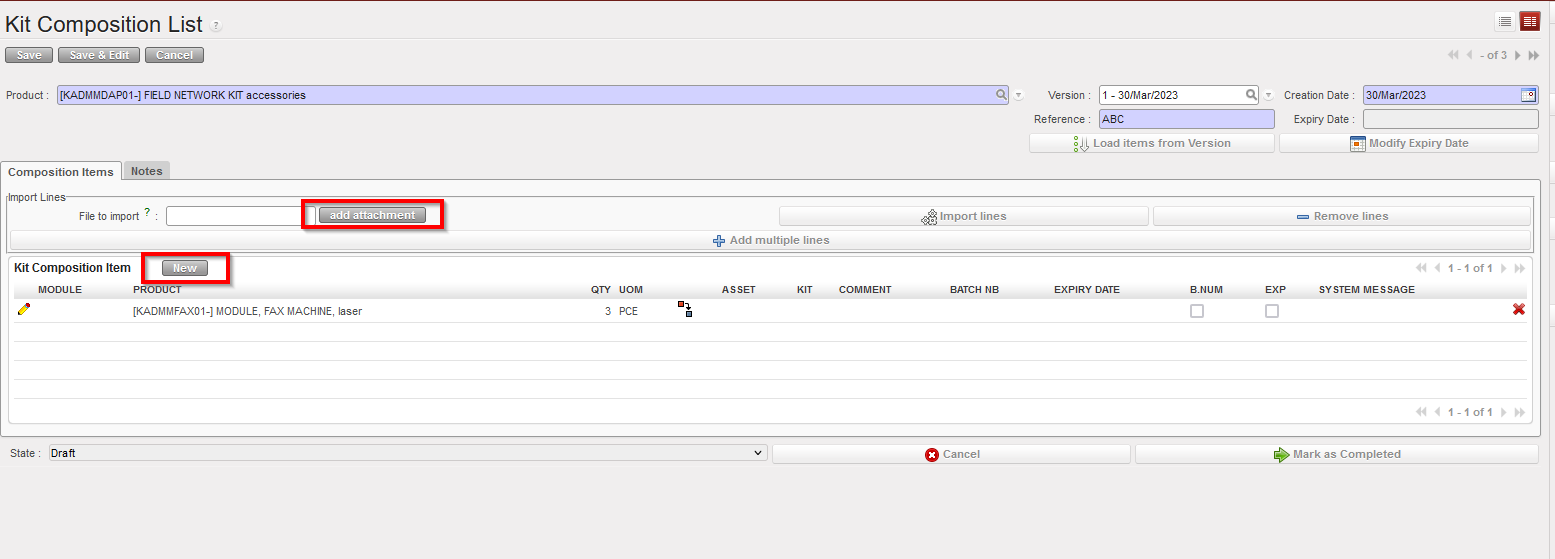
Note that when creating the Kit Composition List, other methods than using a Theoretical Kit Composition can be used.

  • You may add products by file import via a click on the “add attachment” button.
  • You may add products manually via a click on the “New” button.

Alternative ways to enter items in a Kit Composition List

In short, a Kit Composition List displays what is in the kit while a Theoretical Kit Composition List displays what should be in the kit.

It is also possible to create a Kit Composition List from scratch. Please check  LU-SU2105 Kits/Modules in the Products chapter.

During the reception process, the kit product information should be entered in the same way as for non-kit (single item) products (see previous sections for this). However, it may be useful to have a view of the components of a kit, and if appropriate (and deemed necessary according to OC procedures) a record of the expiry dates, batch numbers,… of each product/component contained in the kit. In order to do this, the kit should be received in the appropriate way, and then the Kit Composition List can be created as the final step.

It is advisable when receiving a kit to create an import file for the Kit Composition List especially when the kit has a lot of components. This will facilitate the Kit Composition List creation.

It is also advisable to create as many Kit Composition Lists as the quantity of kits received so that each kit has a unique reference/batch number. For instance, create 10 Kit Composition Lists if 10 First Aid Kits are received.

All Kit Composition Lists will require a “Reference“, which is usually the kit production reference number (batch number of the kit). If the kit is a BN mandatory product, a batch number must already be entered upon reception and will be used as reference when creating the Kit Composition List. If this was not already created at the reception stage (because the kit product is not batch managed), you will need to enter this at the Kit Composition List stage.

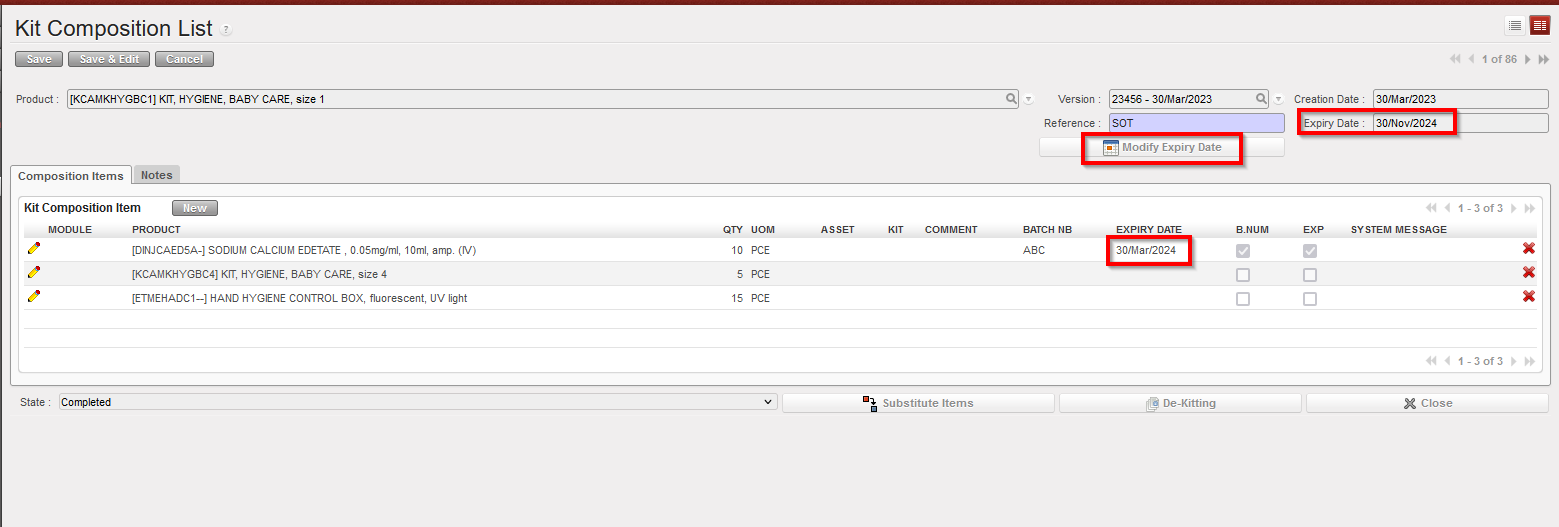
If a kit contains products with expiry dates, you may want to ensure that the overall kit reflects the expiry date of the product which will first expire. To do this:

Go to: Products / Kit Management / Composition List / Kit Composition List

  1. Open the Kit Composition List you wish to modify (in edit mode).
  2. Click on the “Modify Expiry Date” button.
  3. In the “Modify Expiry Date” window, click on the “Compute Date from Kit Components” button. The “New Date” field is auto-populated.
  4. Click on “OK” to actually update the ED of the kit and return to the Kit Composition List screen.
  5. Click on the “Save” button to register the Kit Composition List with the updated ED.

Updating the Expiry Date of a Kit Composition List

Computing the ED date for the kit from the ED of its components

Confirming the ED for the kit

Saving the updated kit

Note that on the “Modify Expiry Date” window, a date can also be entered manually if needed.