Supply User Manual ENG -> 5. Warehouse -> 5.16 LU-SU4302: Stock Inventory Reports.
LU-SU4302: Stock Inventory Reports.
A. HOW TO VIEW LAST PRODUCT INVENTORIES
B. MISSION STOCK REPORT (MSR) AND CONSOLIDATED MSR
Supply User Manual ENG -> 5. Warehouse -> 5.16 LU-SU4302: Stock Inventory Reports.
A. HOW TO VIEW LAST PRODUCT INVENTORIES
B. MISSION STOCK REPORT (MSR) AND CONSOLIDATED MSR
Supply User Manual ENG -> 5. Warehouse -> 5.15 LU-SU4301:Traceability -> H. STOCK CARDS
Stock cards show the real stock level of a specific product/batch in a specific location (or the real stock level of a specific product/batch on the instance). Note that for batch managed products, the specification of the batch number is mandatory (i.e. no stock card is available for a product but only for a combination product/batch).
On top of the real stock level, movements which led the stock to reach this level are also detailed.
Go to: Warehouse / Traceability / Stock card
|
|
|
Stock card |
4. Click on the “Show card” button.
|
|
|
Stock card for a specific location & specific BN |
On the upper part of the stock card you can see the real stock level for the specified location/product/batch. On the lower part of the stock card, you can see the movements which led to this situation with the quantity which came in the location or went out of the location and the source (for in) or destination (for out) location.
The “Partner/ Location” column displays the related Partner according to the movement flow (could be FO customer, IR Requestor location….). The movements are showed according to the selected period and the selected location as only movements which came in or went out of this location will appear.
Note that if you tick “Show all IN/OUT“, the location won’t be requested/won’t be used. The real stock level showed will be the real stock level on the instance (all internal locations).
The movements showed will only be the movements which brought items in the instance and took items out of the instance (i.e. PICK and INT do not appear but IN, OUT, PACK and inventories appear).
|
|
|
Stock card for the instance |
A stock card can be exported to PDF or Excel thanks to the options “Stock card” and “Stock card Excel Export” available in the action menu. From this same action menu it is also possible to print out a “Product label” sticker with BN/ED when existing.
From the business application Products, the stock card can also be displayed if you choose the appropriate option in the action menu of the PMD sheet.
Supply User Manual ENG -> 5. Warehouse -> 5.15 LU-SU4301:Traceability -> G. DESTRUCTION REPORTS
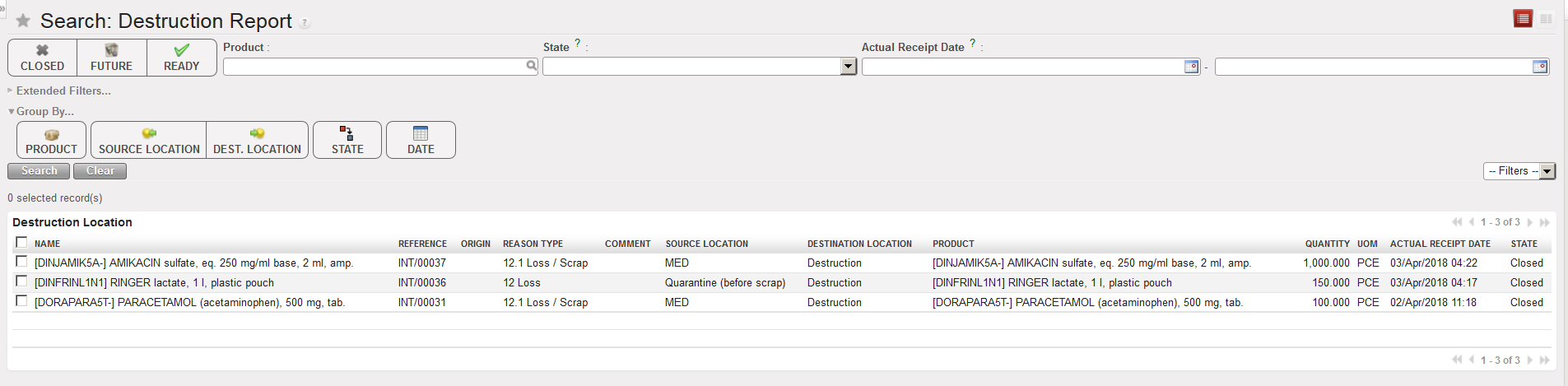
The functionality “Destruction Report” available via Warehouse / Traceability / Destruction Report show all movements which have as destination the (virtual) location “Destruction“.
|
|
|
Destruction Report |
The option “Destruction Report” available in the action menu, allows exporting to PDF a destruction report which can be useful if destruction has to be officially authorized.
Supply User Manual ENG -> 5. Warehouse -> 5.15 LU-SU4301:Traceability -> F. STOCK MOVES
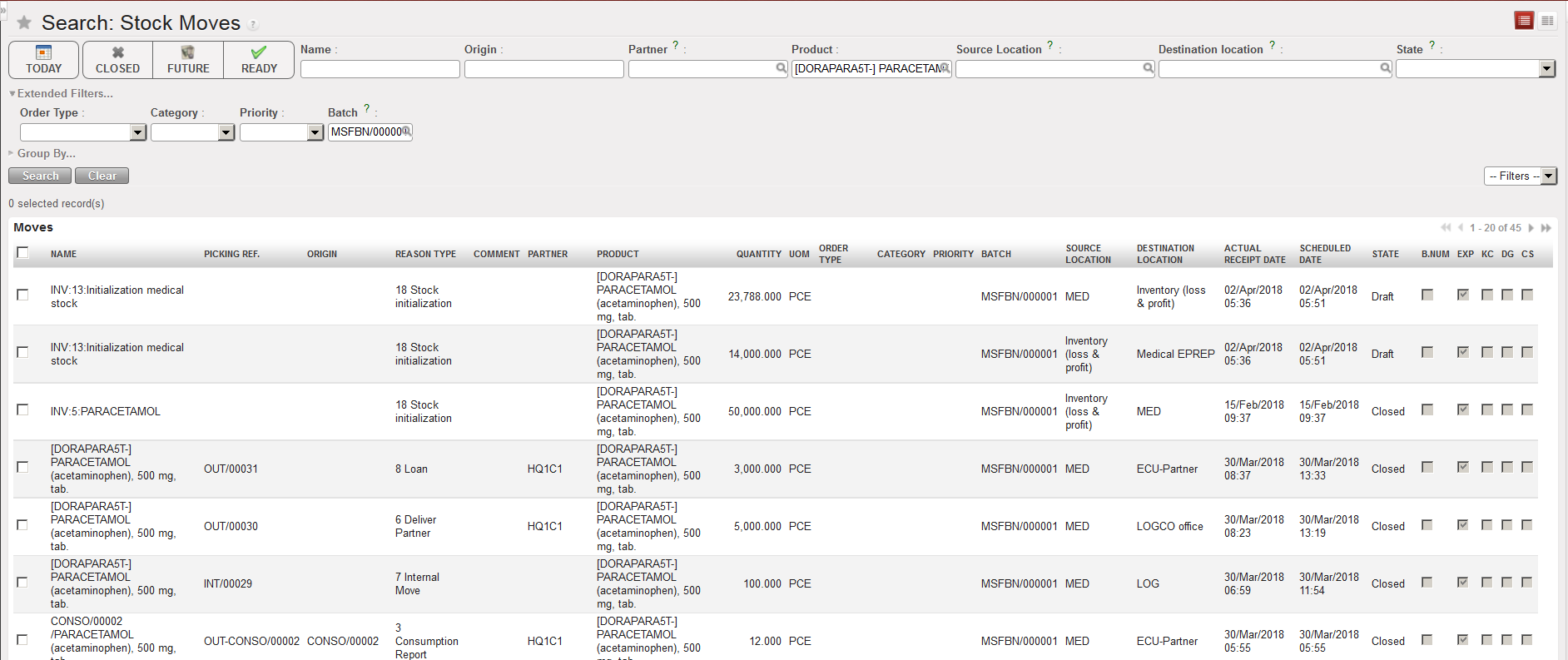
The functionality “Stock Moves” available via Warehouse / Traceability / Stock Moves allows to see all movements in which a product/batch was involved.
|
|
|
Stock Moves |
Other filters are also available. The report shows a bunch of useful information such as the reason type, the quantity, the BN, the source location, the destination location, the state,…
Supply User Manual ENG -> 5. Warehouse -> 5.15 LU-SU4301:Traceability -> E. TRACE ITEM
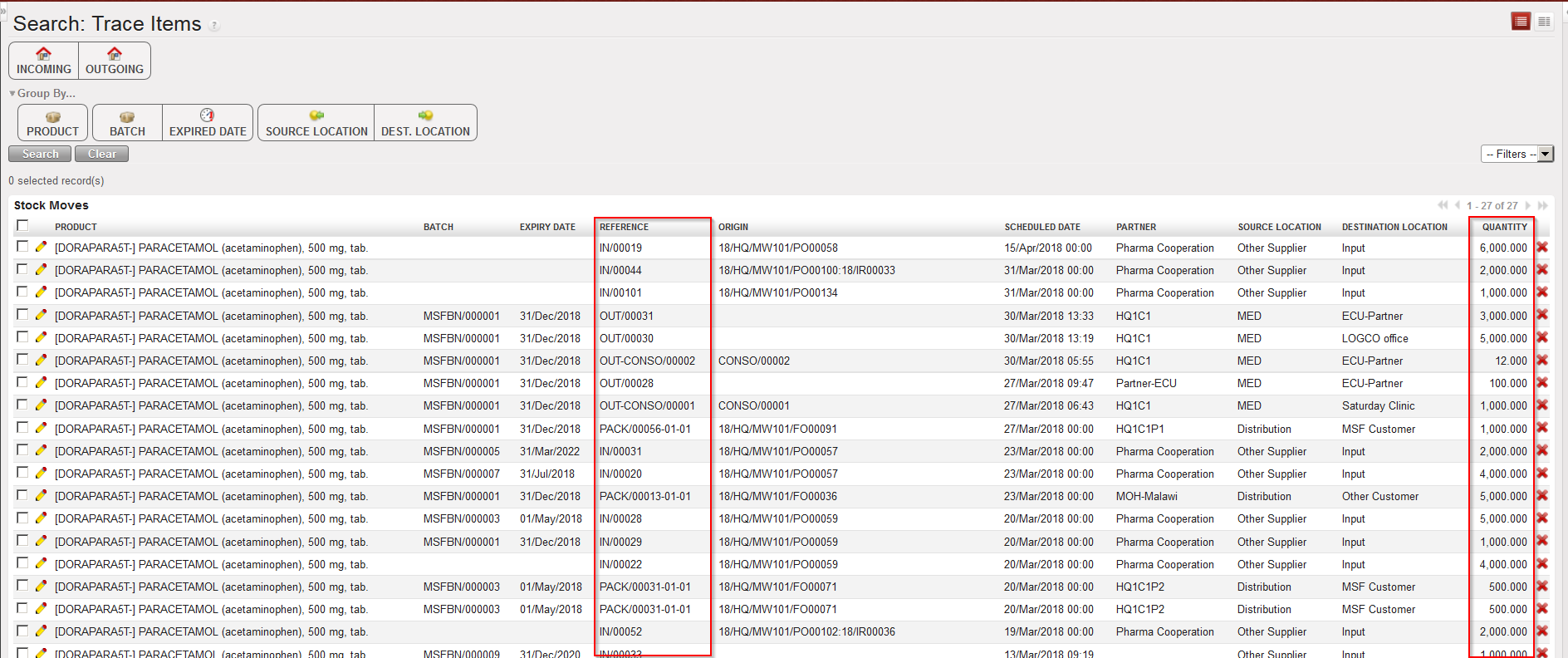
The functionality “Trace Item” available via Warehouse / Traceability / Trace Item provides visibility on a product’s movements as it lists all IN, OUT and PACK (i.e. PPL which is on a sub SHIP with status at least “Shipped“) movements in which the product is involved. In addition to the product, batch and expiry date, it shows the reference of the document, the origin, the scheduled date, the involved partner, the source location, the destination location and the quantity.
|
|
|
Tracing an item |
This functionality can be launched by product, by batch number or by expiry date. This functionality can also be used for non-batch managed products. The print option allows exporting the result to PDF.
Supply User Manual ENG -> 5. Warehouse -> 5.15 LU-SU4301:Traceability -> D. BATCH LOCATION
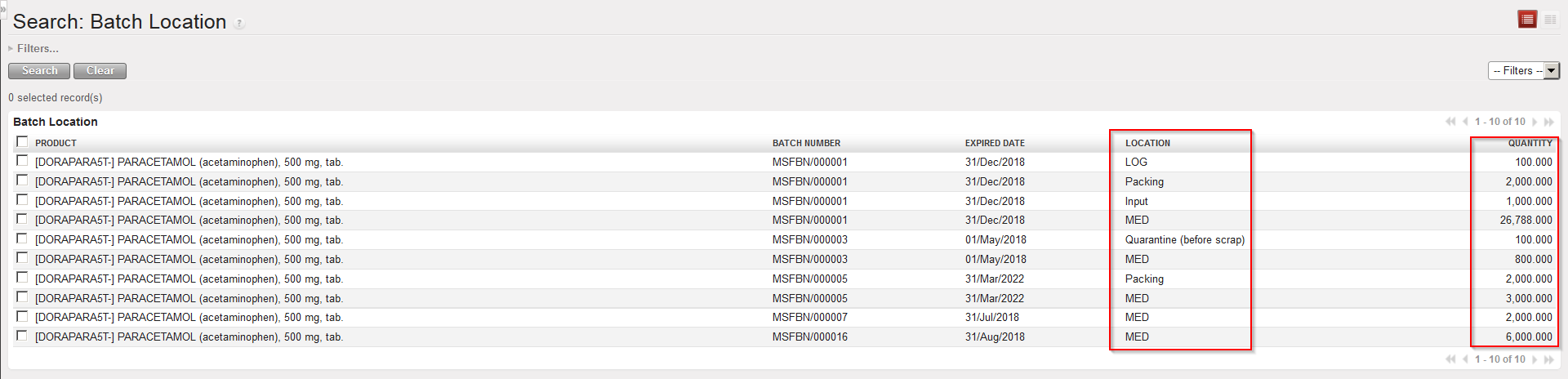
The functionality “Batch Location” available via Warehouse / Traceability / Batch Location gives the real stock per location for each batch (note that batches whose real stock is at zero do not appear).
|
|
|
Real stock per batch in each location |
This functionality can be launched by product, by batch number or by expiry date. This functionality can also be used for non-batch managed products.
Supply User Manual ENG -> 5. Warehouse -> 5.15 LU-SU4301:Traceability -> C. BATCH NUMBERS
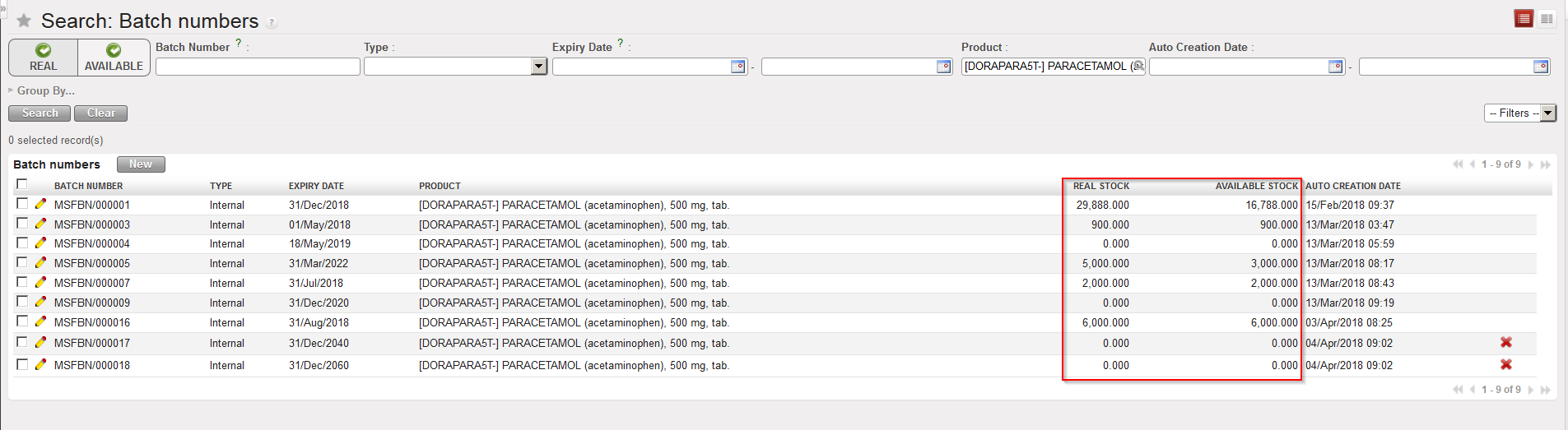
The functionality “Batch numbers” available via Warehouse / Traceability / Batch numbers which has been introduced above can give information on stock level and stock availability of batch managed products. It gives for each batch the real stock and the available stock on the instance.
|
|
|
Real and available stock per batch |
Please note that a “Product label” sticker can be printed out form the right-side action menu.
Supply User Manual ENG -> 5. Warehouse -> 5.15 LU-SU4301:Traceability -> B. HOW TO CREATE BATCH MASTER DATA VIA FILE IMPORT
If many batch master data have to be created manually, it might be easier to prepare an Excel file and import these batches in the system. Note that only “Standard” batches can be created via import.
Go to: Warehouse / Traceability / Batch numbers / Import Batch Numbers
 button.
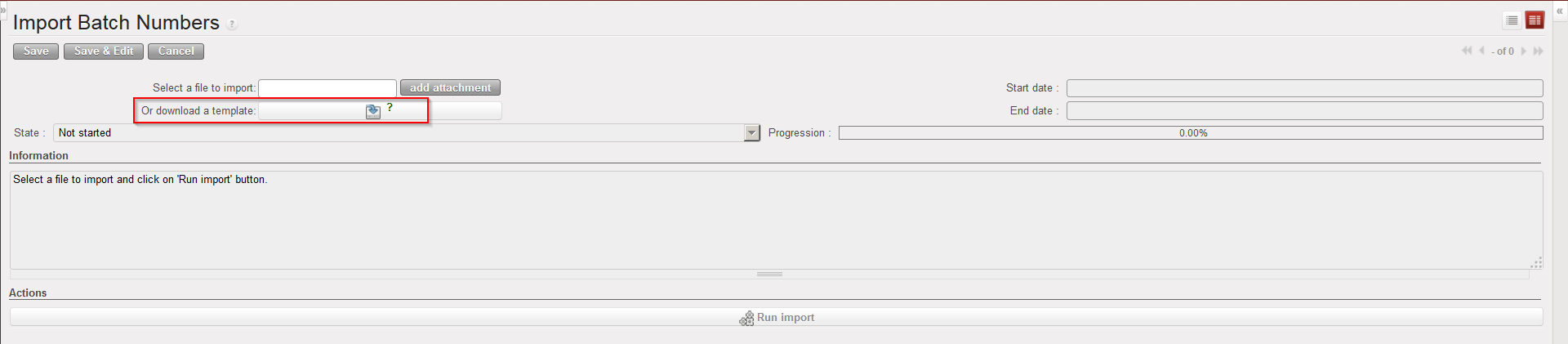 |
| Generating template for batch master data import |
3. Prepare your file. Each line should include batch number, type (Standard), expiry date and product code.
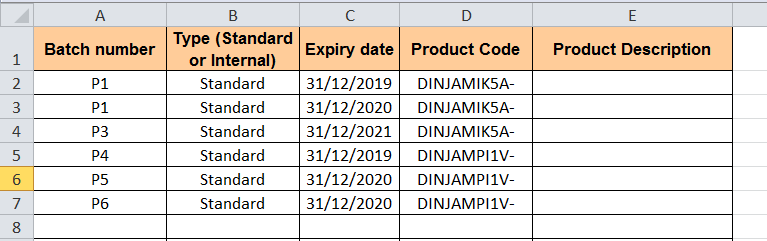 |
| Example of file for import of batches master data |
4. Click on the “add attachment” button and select the file to import on your computer.
5. Click on the “Run import” button.
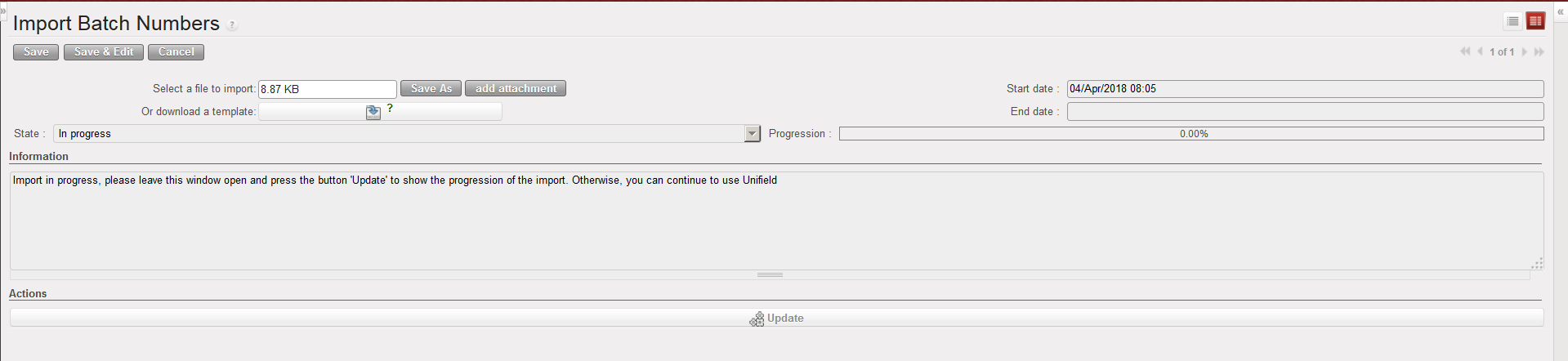 |
| Batches master data being created via import |
6. Once the file has been uploaded, you can see the created batches master data via Warehouse / Traceability / Batch numbers. Note that you need to untick the “Real” Filter as no real stock exists at this point for these new batches.
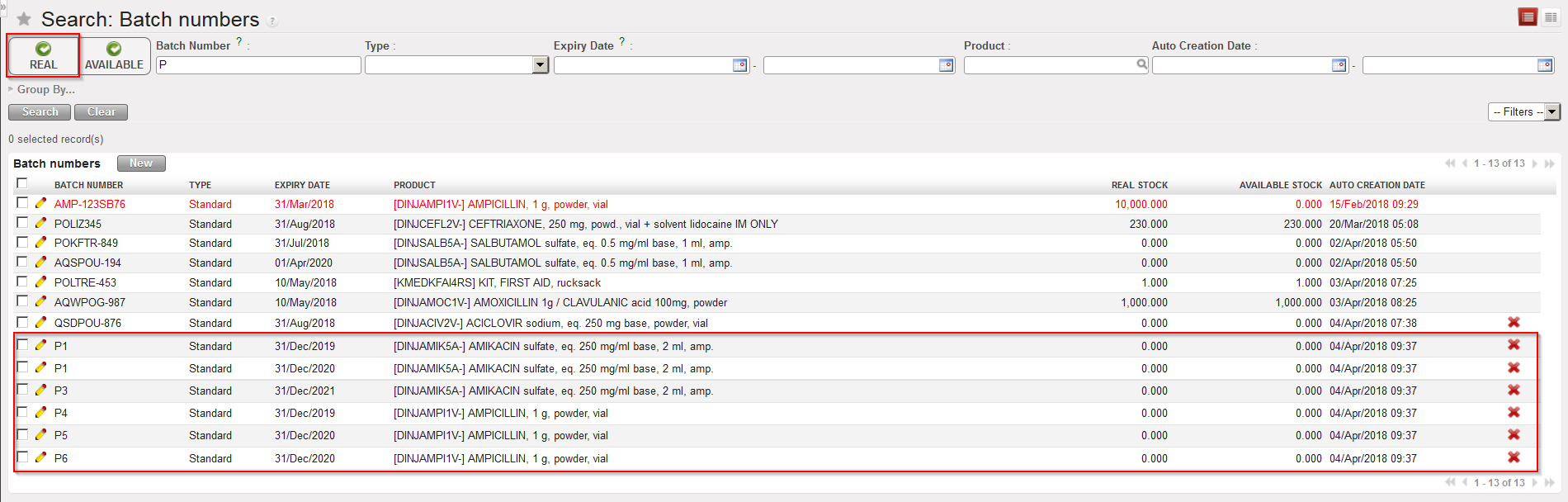 |
| Batches master data created via import |
Supply User Manual ENG -> 5. Warehouse -> 5.15 LU-SU4301:Traceability -> A. HOW TO CREATE A BATCH MASTER DATA MANUALLY
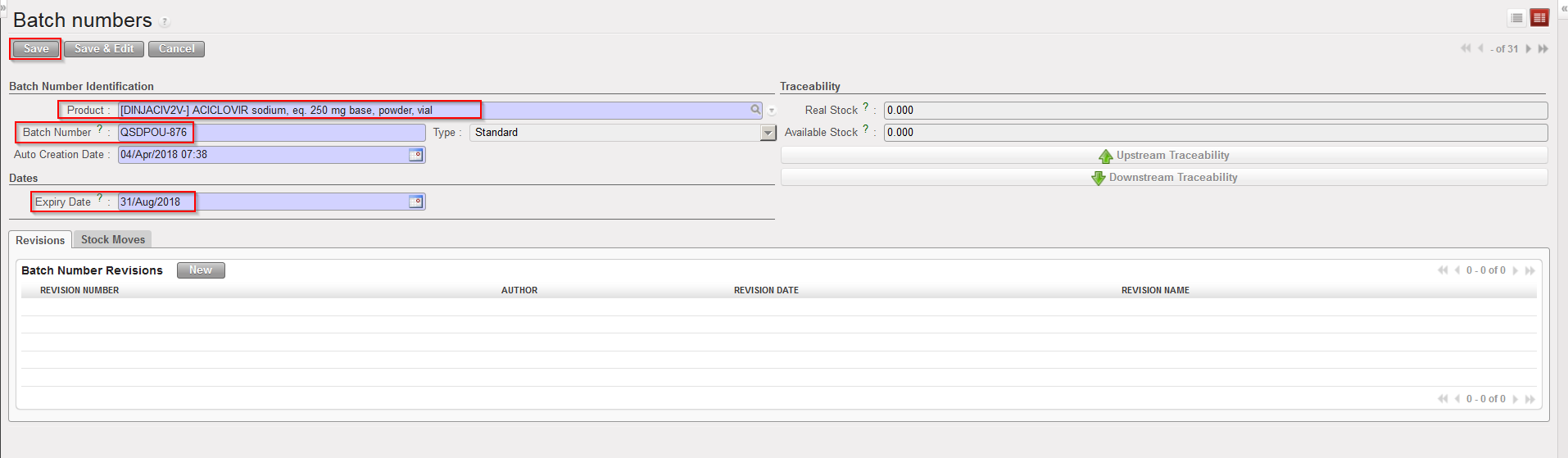
Although batch master data will most of the time be created during reception (IN) or when an Initial Stock Inventory (ISI) will be performed, batches can also be created manually. Note that only “Standard” batches can be created manually, meaning batches for products managed by BN and ED but not for products which are managed by ED only.
Go to: Warehouse / Traceability / Batch numbers
|
|
|
Creating a batch master data |
Note that the combination product code/BN/ED must always be unique (i.e. you cannot have 2 batch master data with same product code, same BN and same ED).
Supply User Manual ENG -> 5. Warehouse -> 5.15 LU-SU4301: Traceability.
A. HOW TO CREATE A BATCH MASTER DATA MANUALLY