J. HOW TO GENERATE AN ORDER CALCULATION

Supply User Manual ENG -> 5. Warehouse -> 5.12 LU-SU4205 Replenishment Rules -> J. HOW TO GENERATE AN ORDER CALCULATION

J. HOW TO GENERATE AN ORDER CALCULATION

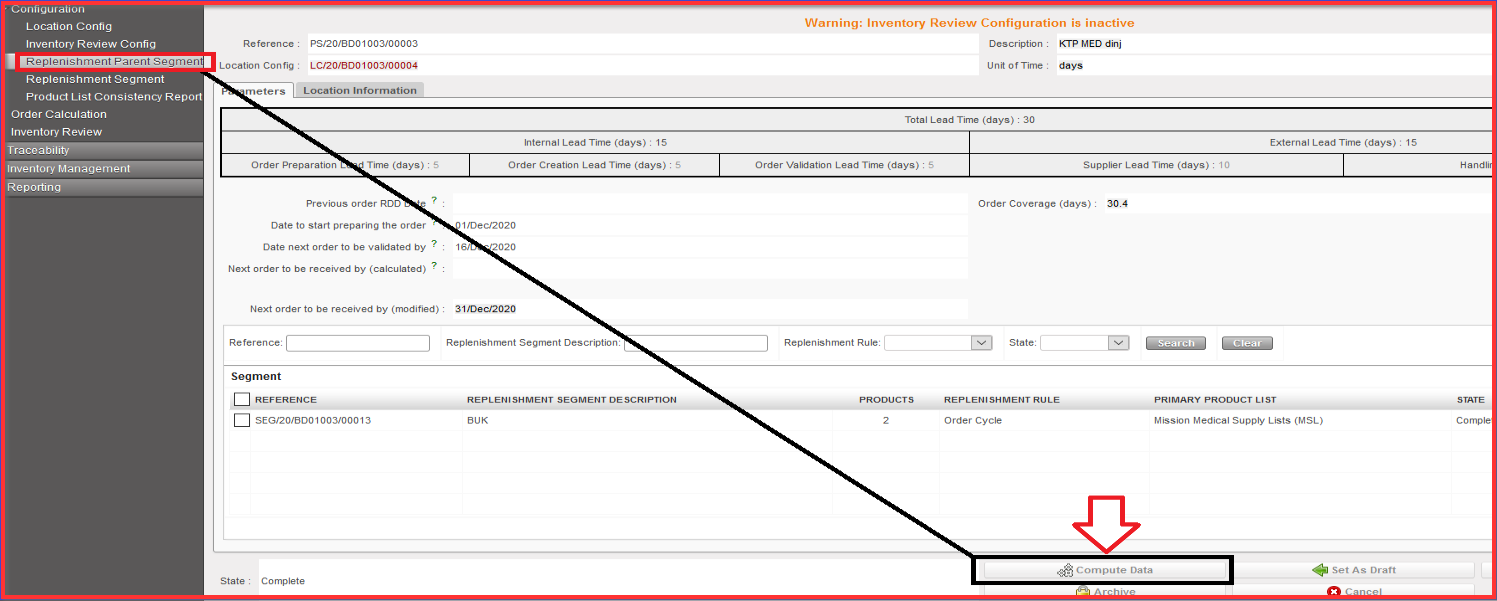
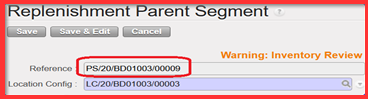
Order Calculation enables to export “IR” and “PO” based on configured “RR” steps before. In order to generate Order Calc go back to “Replenishment Parent Segment” and select Replenishment Parent Segments REFERENCE which exists there and which you need to process.

Go to: Warehouse / Replenishment Rules / Configuration / Replenishment Parent Segment
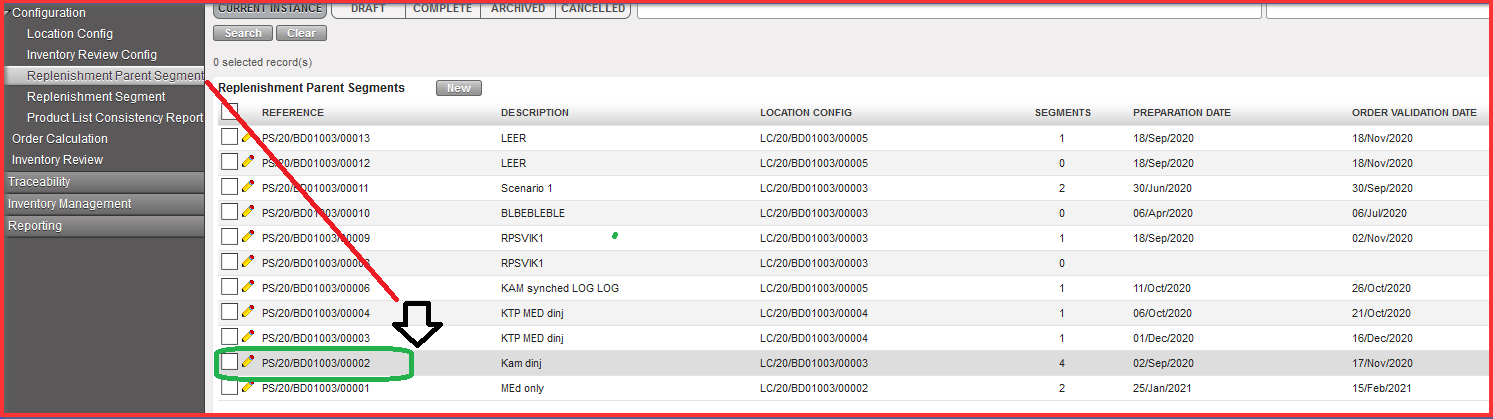
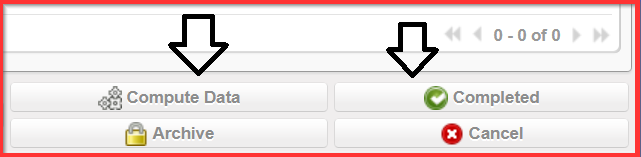
  1. Click on “Compute Data” button.

        2. Synchronize the instances.

In case you cannot wait until the next automated synchronization, proceed to a manual synchronization (see UM Chapter 2 Configuration> LUSU1103 Synchronization> C.How to Synchronize manually).

Please note that manual synchronization is subject to specific User right; liaise with your IT officer if needed.
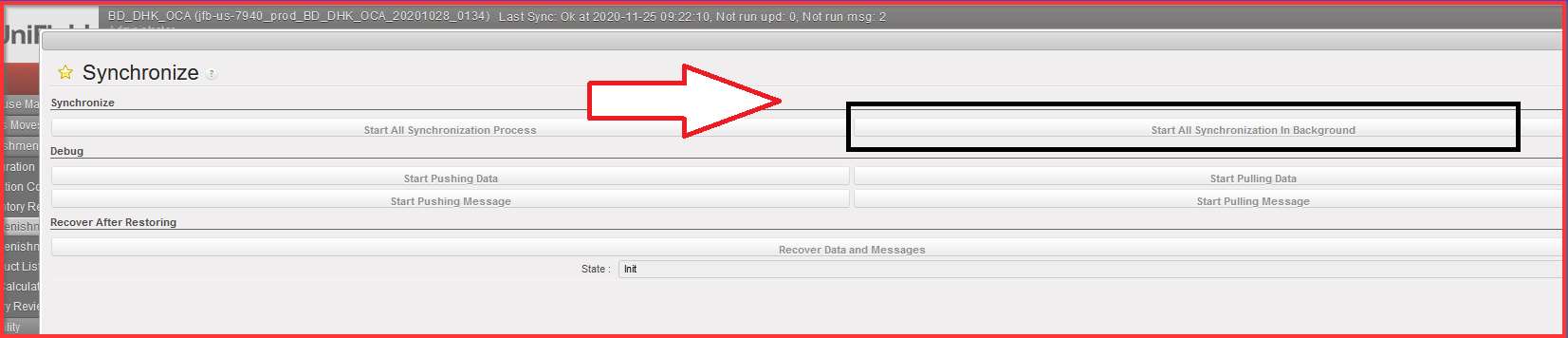
Once synched, go back to Replenishment Parent Segment screen.

     3. Click on “Generate Order Calc” button.

When button is clicked it will generate and Order calculation for all lines included in all “Complete” state (child segments) belonging to the Parent Segment. When Button is clicked there is a message indicating that Order Calc has been generated for XX YY and ZZ (child) Segments.
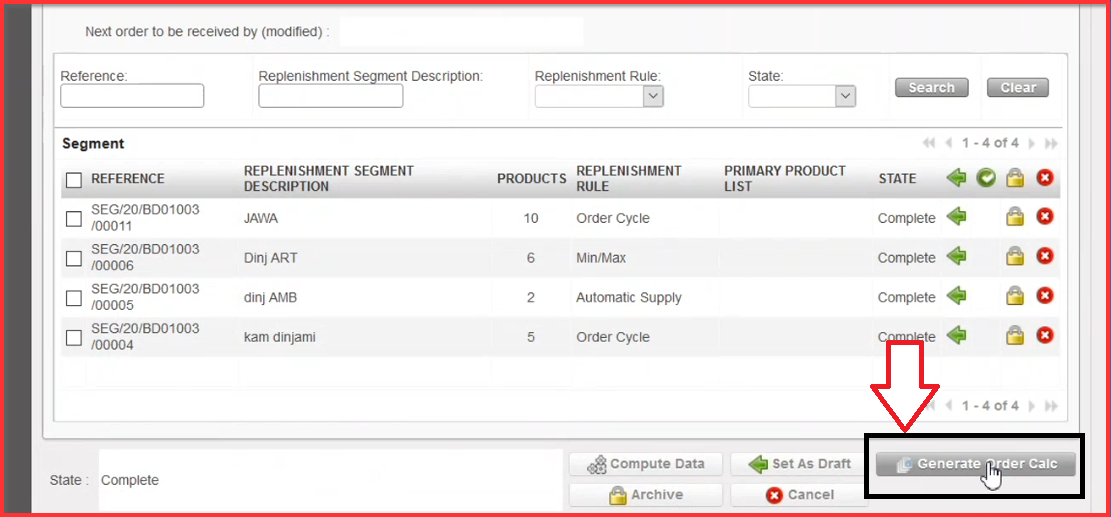
The export from the Order Calc will also contain all lines from segments belonging to the Parent Segment. Once attached to a parent segment a child segment cannot switch its parent. If a Child segment is Archived, it is not considered Active.

After the clicking on “Generate Order Calc” button you get the notification message on the top of the “Replenishment Parent Segment” screen informing about generated Order Calc. It automatically generates for all Replenishment Segment References (all lines).
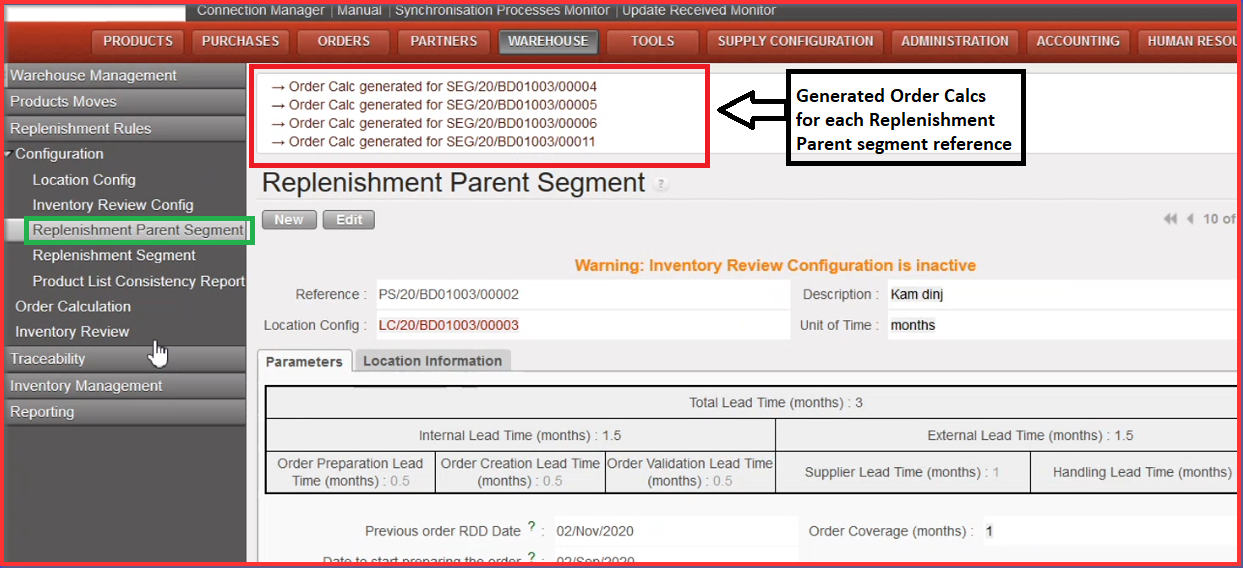
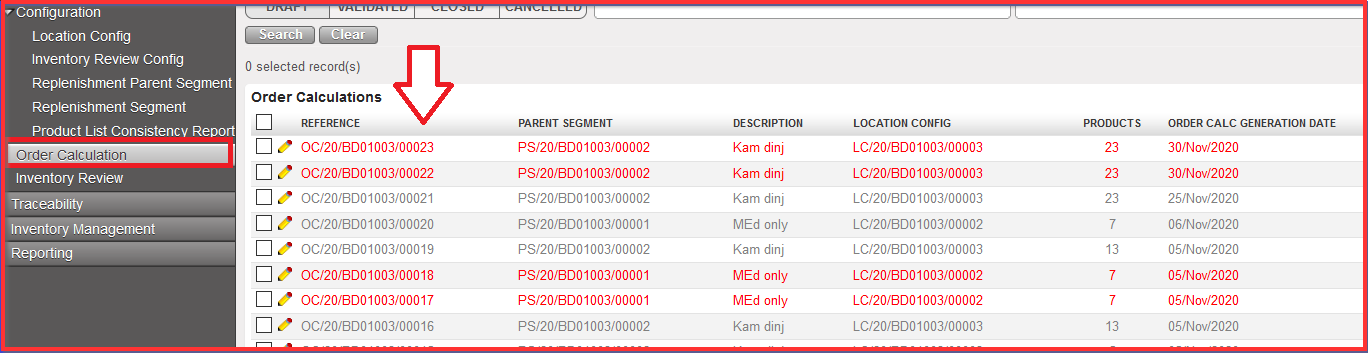
4. Click on “Order Calculation” submenu option. There are created generated Order Calcs on the top of the screen in “draft” status.

5. Click on the “OC” reference which you need to process
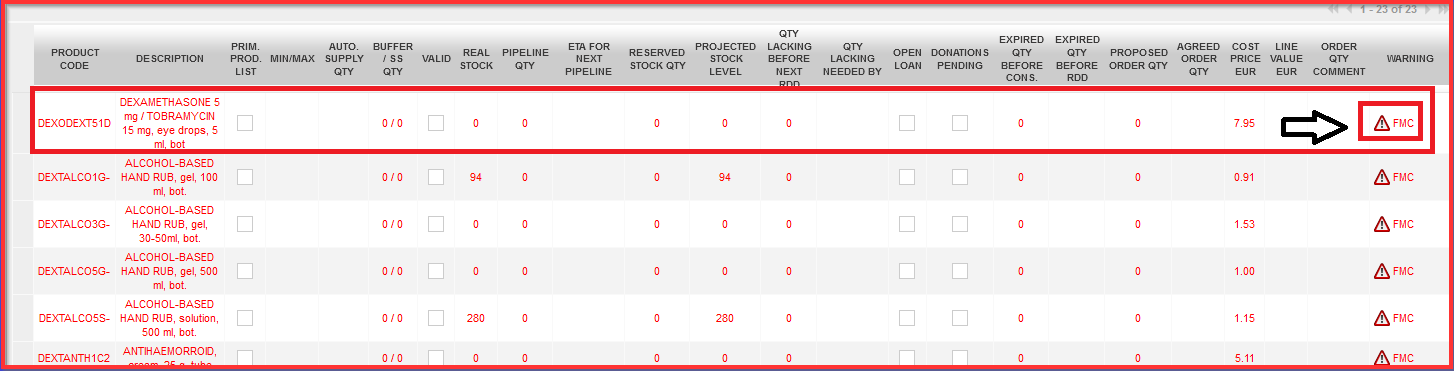
There are multiple product lines visible. If there is invalid “FMC” the product code line is in “red” and there is an exclamation mark depicted in “Warning” column. Invalid FMC goes with wrong data when FMC is not calculated correctly which is a huge blocker in terms of calculating and processing IR to PO. Order Calcs must be processed only with correct FMC.

6. Update the Order Calc (if necessary)

               a) Fix FMC correctly by correcting input values in “Agreed Order Qty” column. Column cells                         for “Agreed Order Qty” must contain at least “zero” value. Blank cells are not allowed.
                b) Click on “Round Qty to SoQ” which will round up the quantities in the “Agreed Order Qty”                     according to any SoQ value found in the Product PMD in main instance.

This “Agreed Order Qty” column is a main pillar for further validation process. The validation process needs to be done at this point which means that cost price is taken from the product PMD (data sheet) e.g. average Cost Price is not computed based on the supplier selection at this stage. Proposed Order Qty. can be changed due to the type of packaging. This is a manual action only. If Product PMD has SoQ of “1” then no rounding to be done. If proposed Qty is “0” then no rounding to be done. “Proposed Qty” value is not impacted by this button and should stay as per original value.
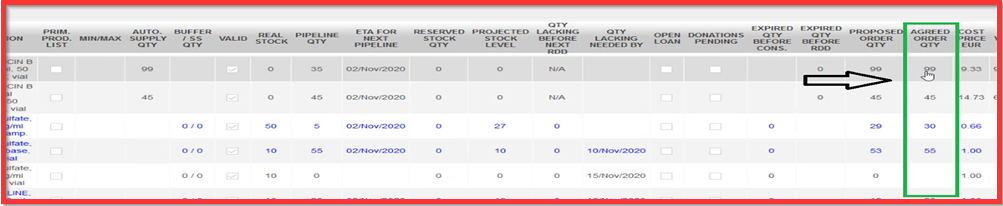
Where this button has been used and the qty has been changed (rounded up), the line should appear in a different color (blue) onscreen and in export report. The Cost price (X) is still based on this “Agreed order Qty” and so will take any rounded up qty into account. Below picture shows the quantity of products in “Proposed Order Qty” column which is rounded up for the quantity set out in “Agreed Order Qty” column.
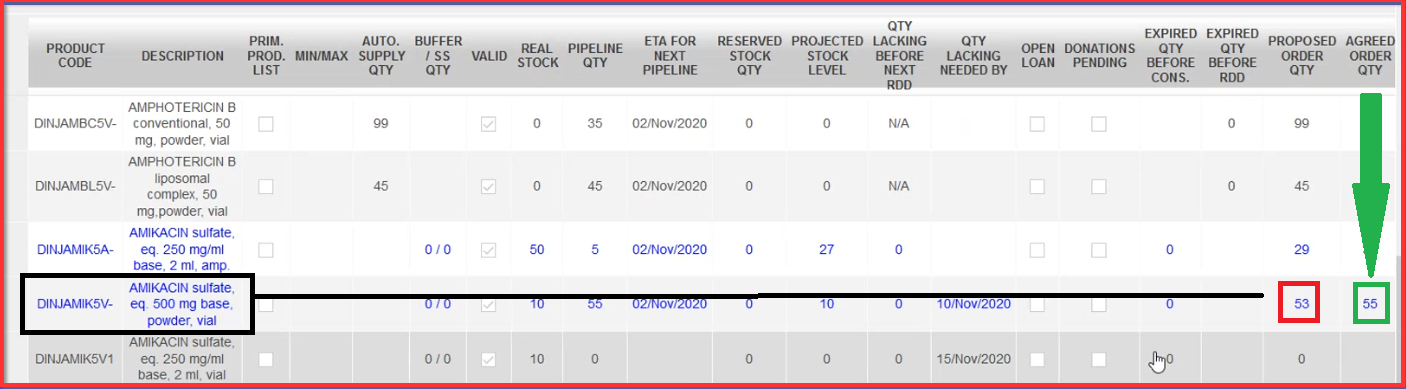
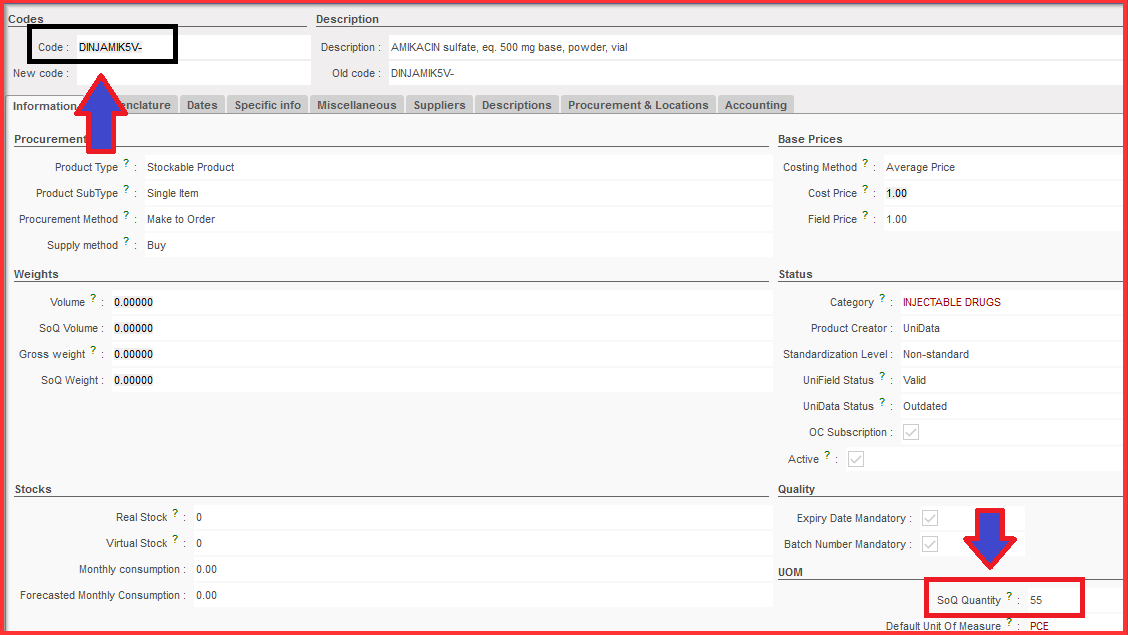
You can go to Products > ProductsSearch: Products” section and check “SoQ Quantity” for the specific product code in related product data sheet under UOM (Unit of measurement) section.
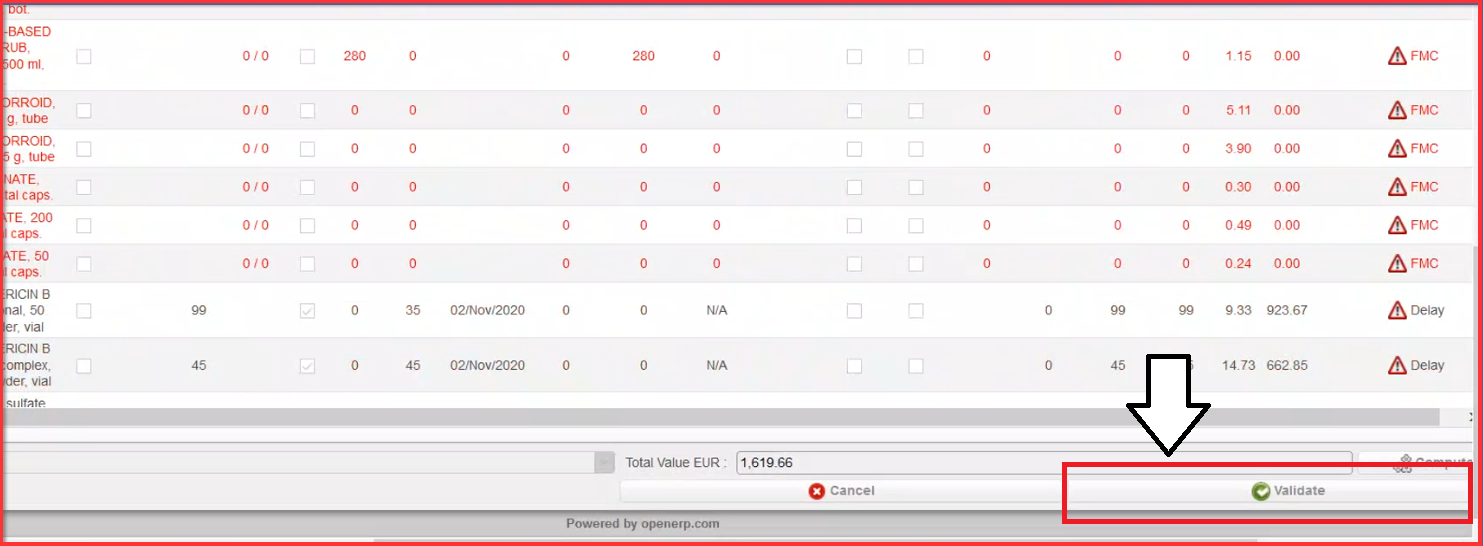
     7. Back to the Order Calc screen, when values are fixed for each product line, click on button “Validate”.
      8. Click on button “Generate Requisition & Close”.

When you click on “Generate Requisition & Close”, the Order Calc is Closed. There is a new message on the top of the screen informing us about newly created IR (e.g. 20/IR xxx) reference from specific Order Calc reference (e.g. OC/20/BDO xxxxx) as depicted below on print screen example.
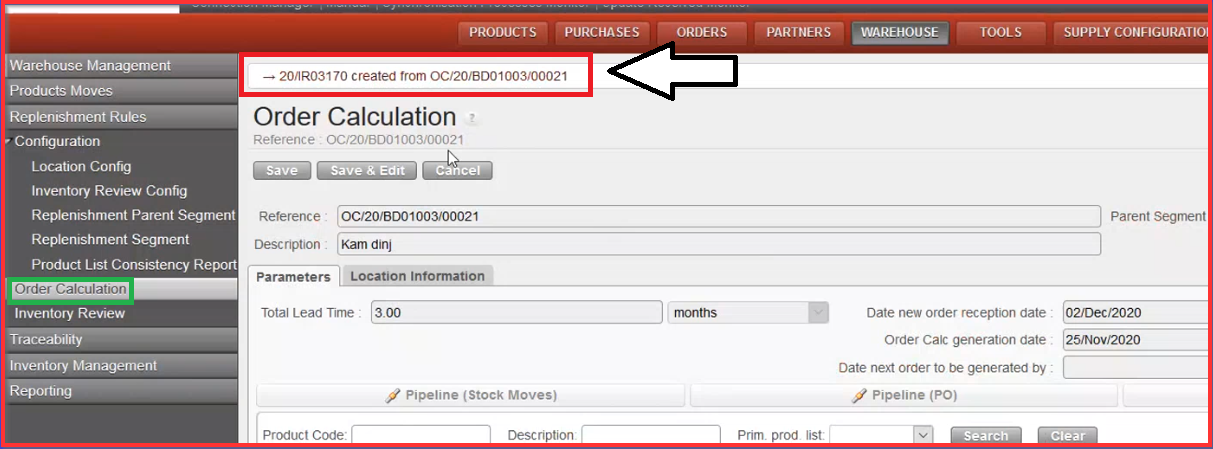
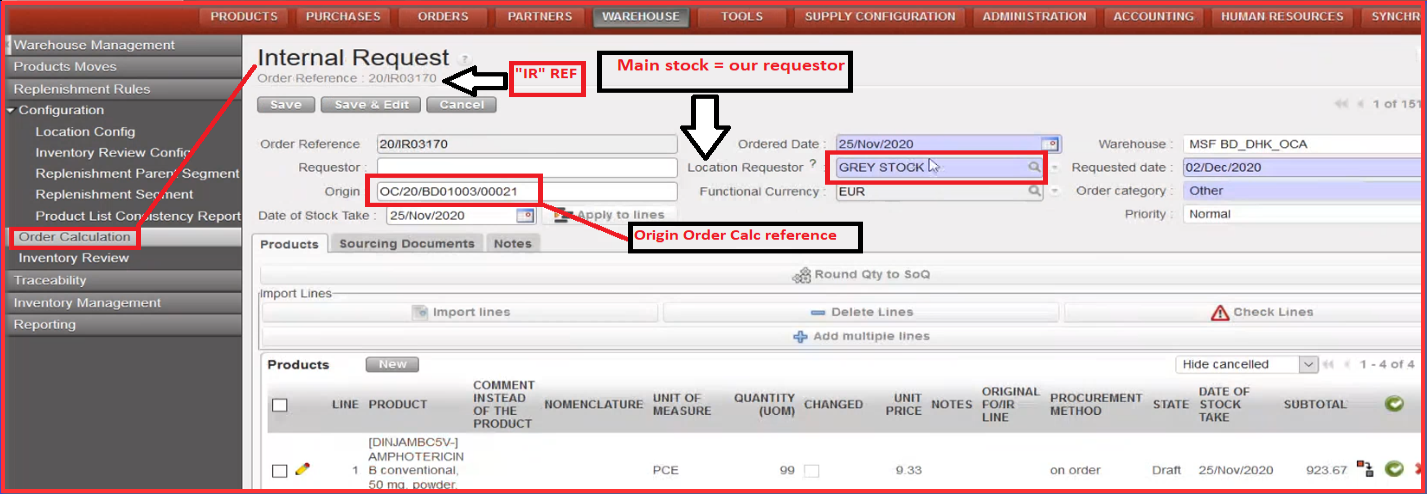
  9. Click on created IR reference on the top of the screen to be redirected to the “Internal Request” screen

The “Replenishment Parent Segment” and “Replenishment Segment” are updated based on created “IR”, next order is due by e.g. “Date new order reception date” section depicted below.
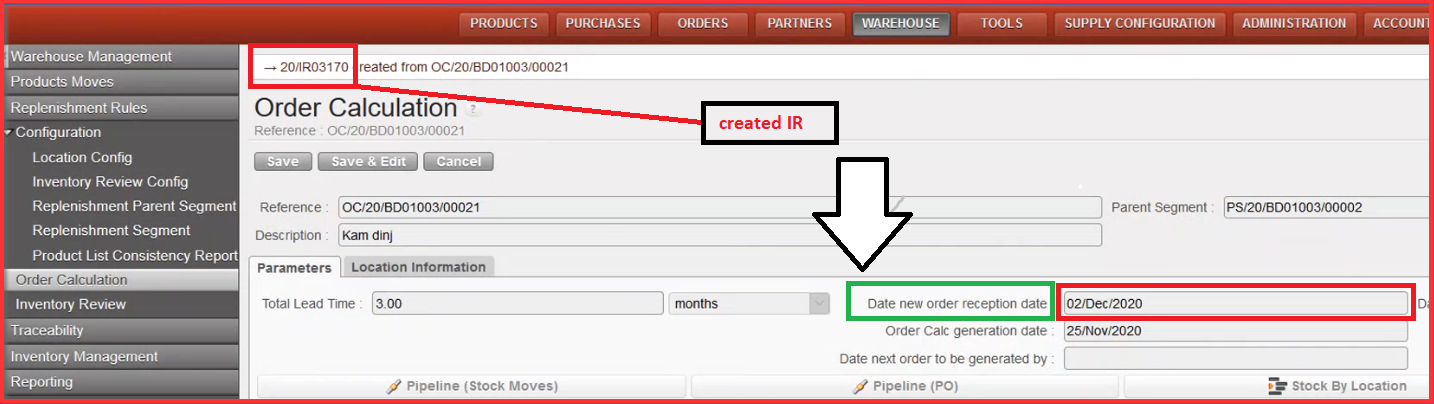
See below the description of the sections in opened new Internal Request window.
10. Click on “Validate document” on the IR screen.
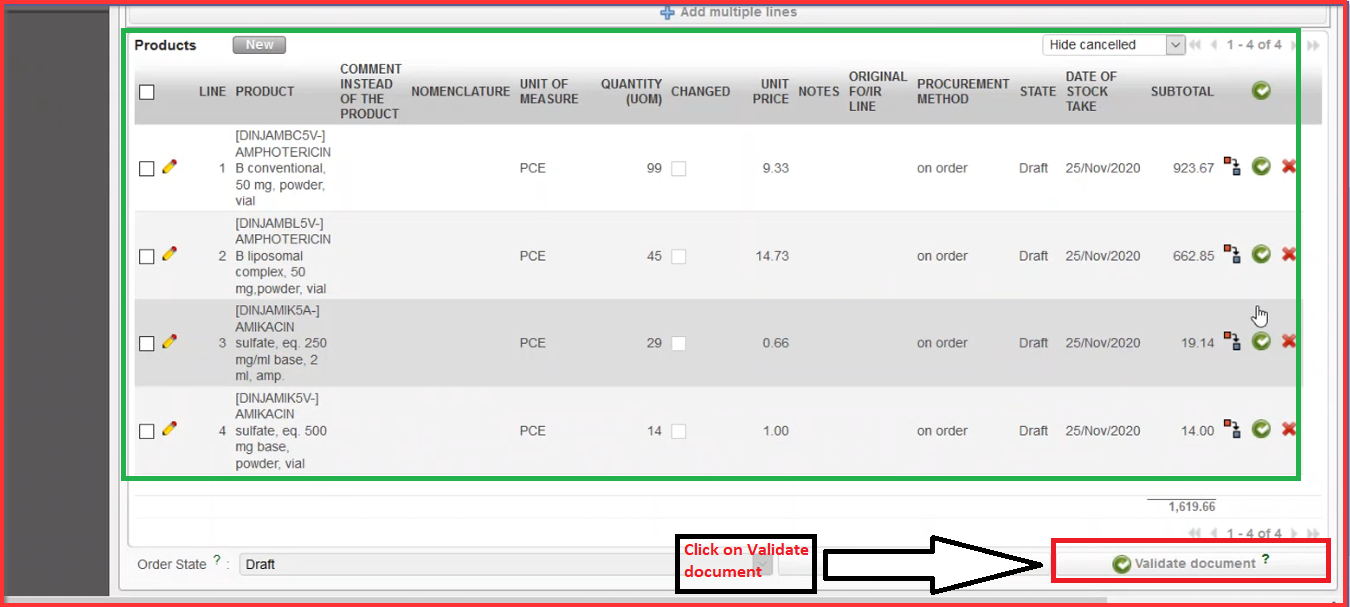
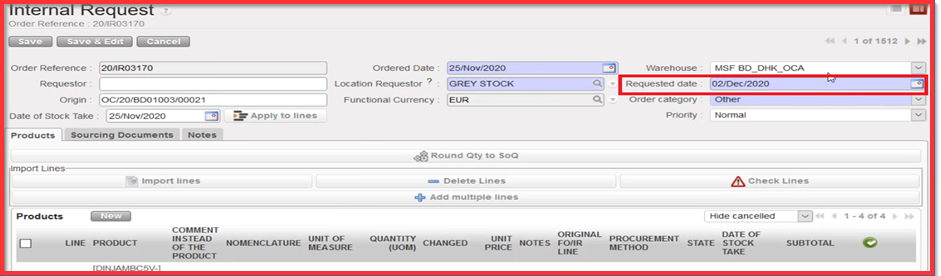
After the validation process, there is still option to change “Requested date”. This date is used in PO phase in order to determine “RDD” date. There is no update backwards but only onwards feasible. When you get to PO stage as soon as you have validated lines, there will be considered as pipeline.
I. HOW TO REVIEW A REPLENISHMENT PARENT SEGMENT

Supply User Manual ENG -> 5. Warehouse -> 5.12 LU-SU4205 Replenishment Rules -> I. HOW TO REVIEW A REPLENISHMENT PARENT SEGMENT

I. HOW TO REVIEW A REPLENISHMENT PARENT SEGMENT

Go to: Warehouse / Replenishment Rules / Configuration / Replenishment Parent Segment

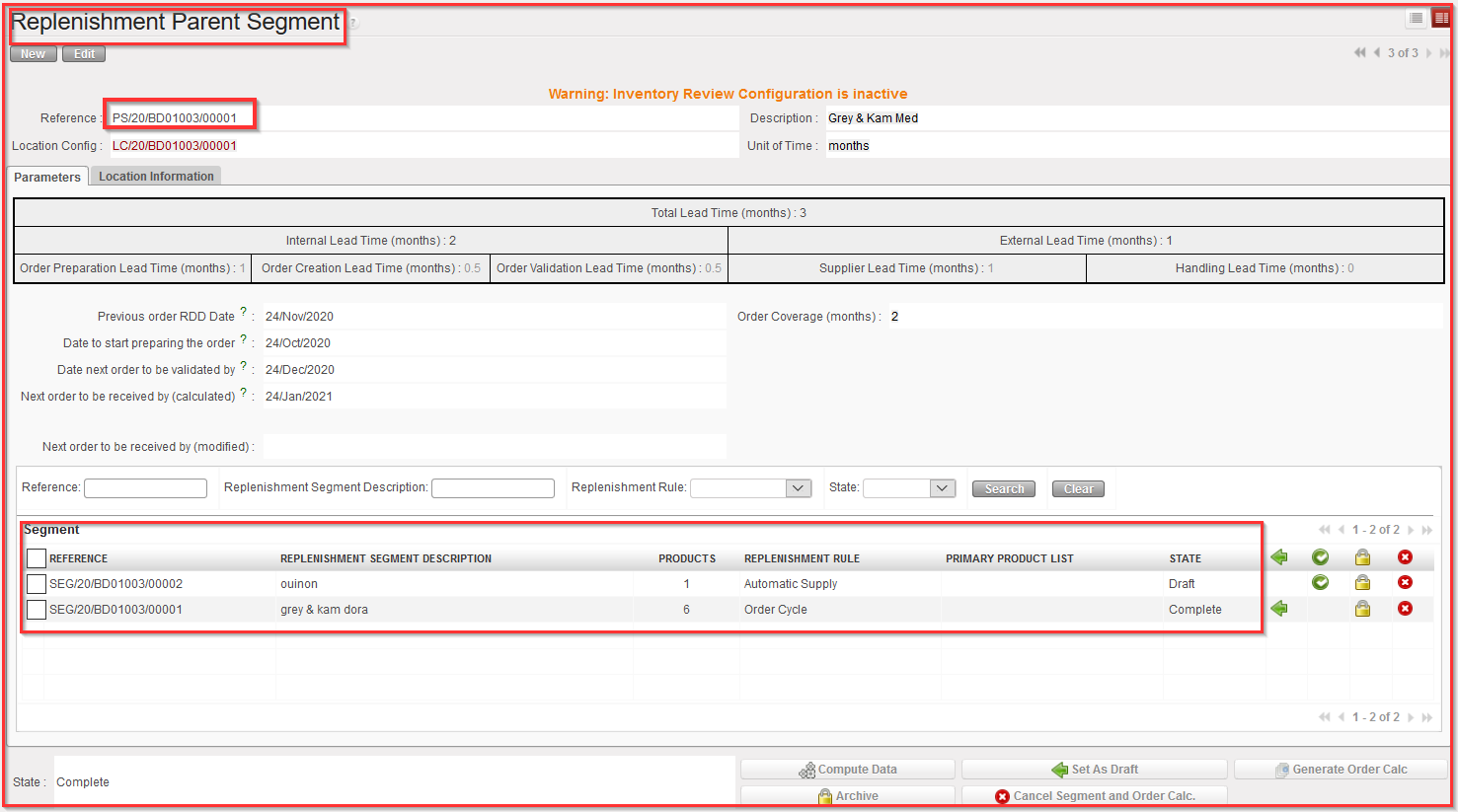
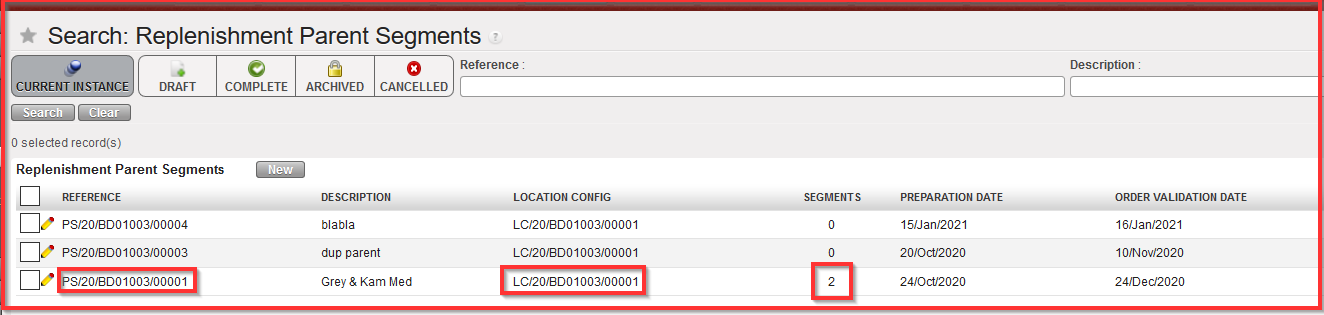
As you can see on the example below, the number “2” in Replenishment Parent Segment column shows how many Segments have been created (i.e.: related to this Parent Replenishment Segment).

Parameters tab

If you click on Parameters tab, you get following screen (see picture below) where in addition to the information set at creation (see chapter D. How to create a Parent Replenishment Segment) you will be able to see the added “Replenishment Segment” created afterwards.

“Location information” tab

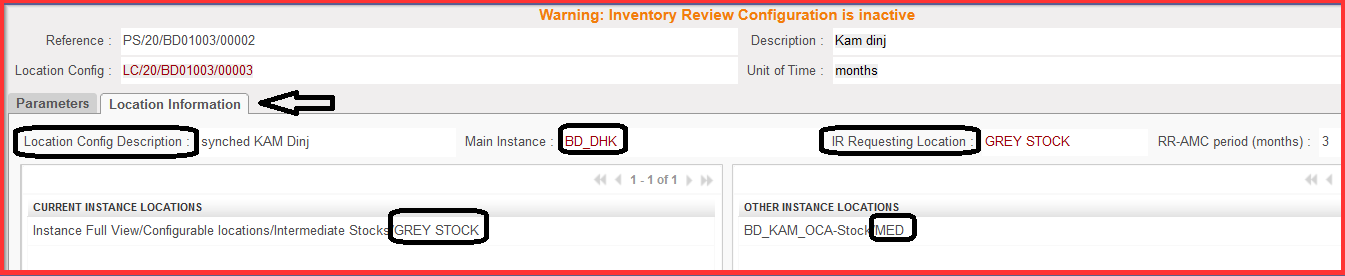
The Replenishment Parent Segment only looks at the same location config. Therefore, all the defined “child” SEGMENTS underneath this Parent Segment will use the same location config.

You can see in the “Location information tab”, as depicted below, that there is GREY STOCK under current instance locations and MED on the project level. We can see also Location Config Description which was setup in Location Config step before. There is also Main Instance BD_DHK and IR Requested Location (Grey Stock), which means that IR will be always generated with the requested location on parent level (i.e.: the goods will be delivered to the “Grey Stock” Location).

H. HOW TO REVIEW AND UPDATE A REPLENISHMENT SEGMENT

Supply User Manual ENG -> 5. Warehouse -> 5.12 LU-SU4205 Replenishment Rules -> H. HOW TO REVIEW AND UPDATE A REPLENISHMENT SEGMENT

H. HOW TO REVIEW AND UPDATE A REPLENISHMENT SEGMENT

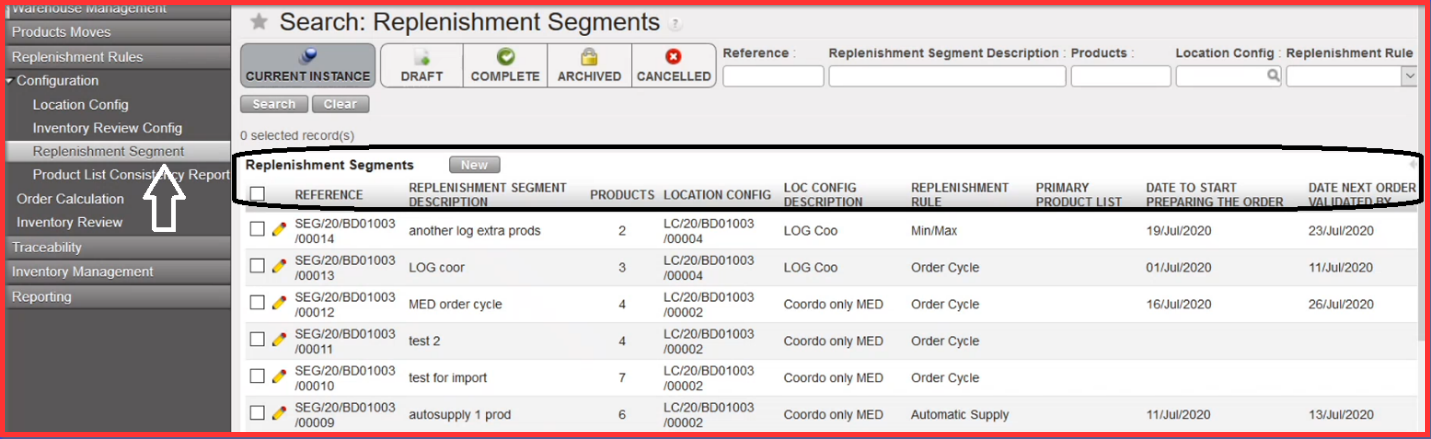
Go to: Warehouse / Replenishment Rules / Configuration / Replenishment Segment

As you can see below, if you click on submenu option “Replenishment Segment” you get the general list of view) where are the created “References” of all replenishment segments, with Replenishment Segment Description, number of Products, Location Config and applied Replenishment Rule (Min/Max, Order Cycle, Automatic Supply).

If you go back to Replenishment Segment main screen you can edit and configure the lines of the products in Replenishment Segment. Not all fields will be editable though but some of them only if Segment is already in status “Complete”. However, please note that the document can still be set back to Draft in case there is a need to edit more information.

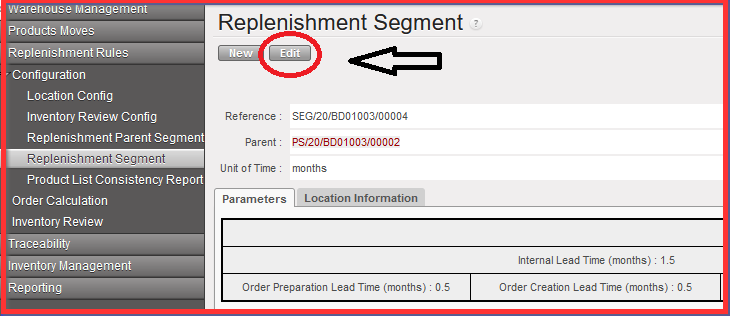
  1. Open the Replenishment Segment Reference and click on “Edit” button on the top

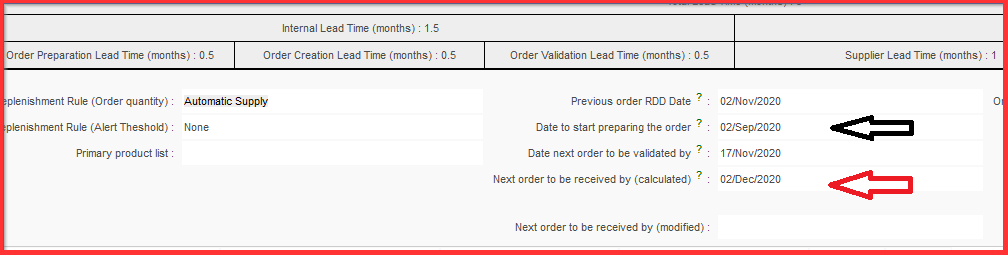
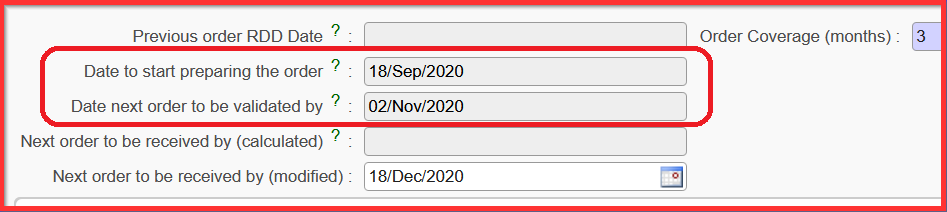
Basically the “Date next order to be validated by” is the date when the “PO” needs to be validated and “Date to start preparing the order” is the specific date when we can generate our order calc. in the system environment.

For the tracking history you can chose the LINKS on the right side action menu with Min/Max, Auto Supply, FMC History and Updates Sent and Updates Received

  2. Select the products and click on MinMax, Auto Supply, FMC History

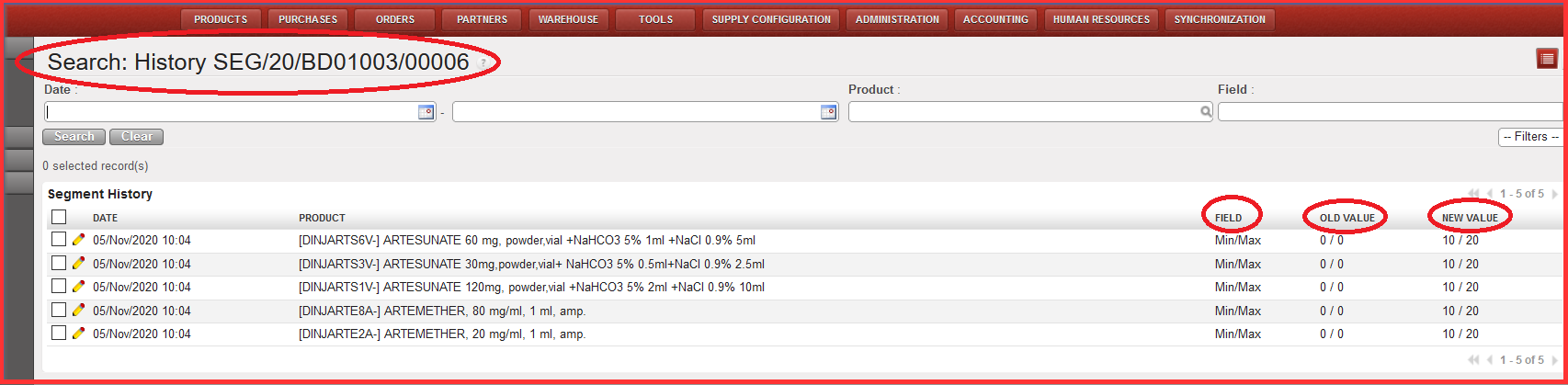
You get screen with “Search: History (Segment reference)” where you can see old and new values. The values per location / product are saved at the end of each month for the latest values present for the month on the last day of the month (if either value has been changed multiple times during the month, only that present on last day (i.e. 30th / 31st ) would be saved). AND/OR: TBC If possible, a Track Changes report would be possible from the Segment

Updating the segment

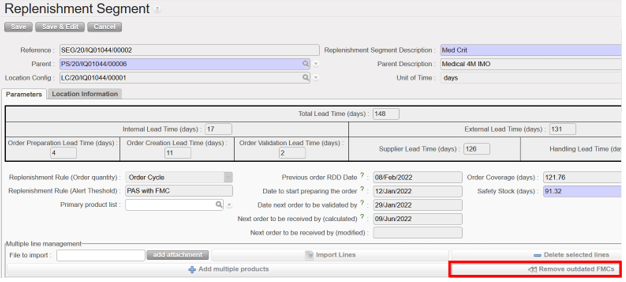
  • To remove any FMC values and their dates which are wholly in the past, click on “Remove Outdated FMCs” and all FMCs which are valid will be moved to the left to fill any removed ones. this button can only be used when the Replenishment Segment is in Draft status, and the type of RR is “Order Cycle”.

And the name of the file which is exportable from the RR Replenishment Segment will display “SEG_ XXDBXXXXDATE”.

G. HOW TO GENERATE THE INVENTORY REVIEW

Supply User Manual ENG -> 5. Warehouse -> 5.12 LU-SU4205 Replenishment Rules -> G. HOW TO GENERATE THE INVENTORY REVIEW

G. HOW TO GENERATE THE INVENTORY REVIEW

Go to: Warehouse / Replenishment Rules / Configuration / Inventory Review Config

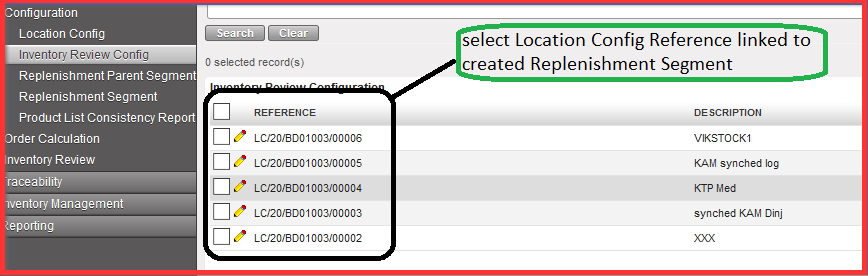
  1. Select Location Config Reference linked to your previously created Replenishment Segment.

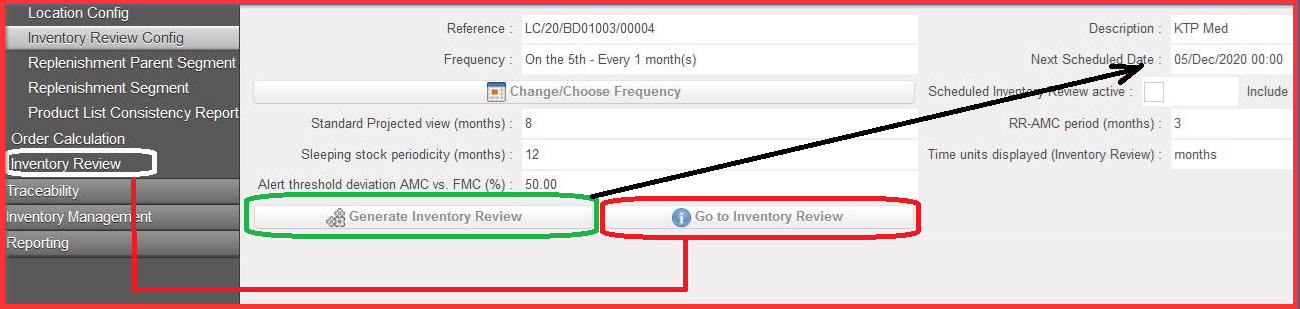
2. Click on “Generate Inventory Review”.

Please note that it is the manual version of generating the report but that you can actually wait for configured/ automated “Next Scheduled Date”.

3. Click on the button “Go to inventory Review” or click on Inventory Review in the sub menu on the left-hand side.

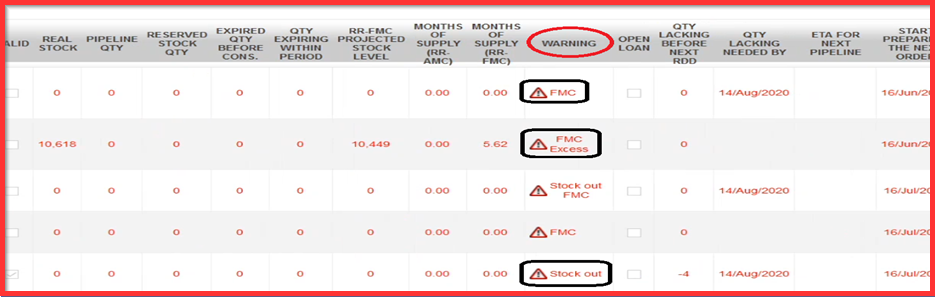
4. Check the value in column “WARNING”:

a) “Product is not in any related segment, only in stock / pipeline of location”

b) “FMC”: linked to Inventory Config review where you set up how many projected months cover the period. FMC alert here means that in the segment does not cover the period.

c) “Excess”: excess stock is linked to the order cycle which is put in. What is calculated beyond that period is considered as extra stock (excess). Excess stock calculation considers “Inventory on hand”, “pipeline arriving” and “expiries arriving before the end of upcoming (next) OC period”, i.e. Projected Available Stock.

d) “Stock Out”: considered before next RDD (Requested Delivery Date) which is the issue. Basically, there are no items available to fill the expected stock need.

e) “Pipeline in the Past“: where a pipeline delivery has its confirmed delivery date in the past

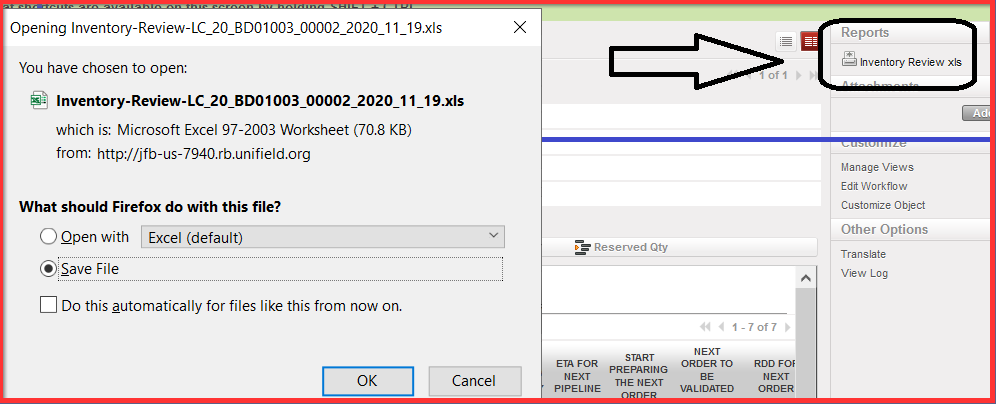
Please note that the Inventory Review can be exported via Excel by clicking on the icon “Inventory Review xls” on the right side of the panel menu.

Note: in this export the values in the months of supply (RR-AMC), months of supply (RR-FMC) & Projected MX (month) are rounded to 2 decimals.

F. HOW TO EXPORT/IMPORT PRODUCT SEGMENT EXCEL SPREADSHEET

Supply User Manual ENG -> 5. Warehouse -> 5.12 LU-SU4205 Replenishment Rules -> F. HOW TO EXPORT/IMPORT PRODUCT SEGMENT EXCEL SPREADSHEET

F. HOW TO EXPORT/IMPORT PRODUCT SEGMENT EXCEL SPREADSHEET

A Product Segment Excel file can be exported also to be re-imported and fill in the data (when Replenishment Segment is in Draft).

Go to: Warehouse / Replenishment Rules / Configuration / Replenishment Parent Segment

  1. Click on “Segment” in right end side panel

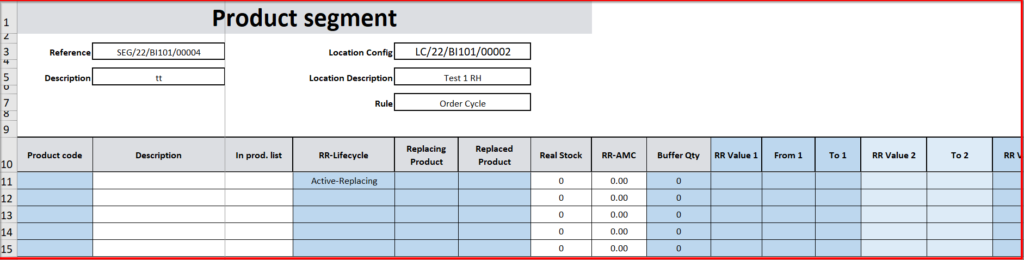
Excel spreadsheet Product segment report.

2. You can adjust the excel spreadsheet file, adding inputs and expected updates and import it back through “File to Import” / “Add attachment” button as depicted below.

E. HOW TO CREATE A REPLENISHMENT SEGMENT

Supply User Manual ENG -> 5. Warehouse -> 5.12 LU-SU4205 Replenishment Rules -> E. HOW TO CREATE A REPLENISHMENT SEGMENT

E. HOW TO CREATE A REPLENISHMENT SEGMENT

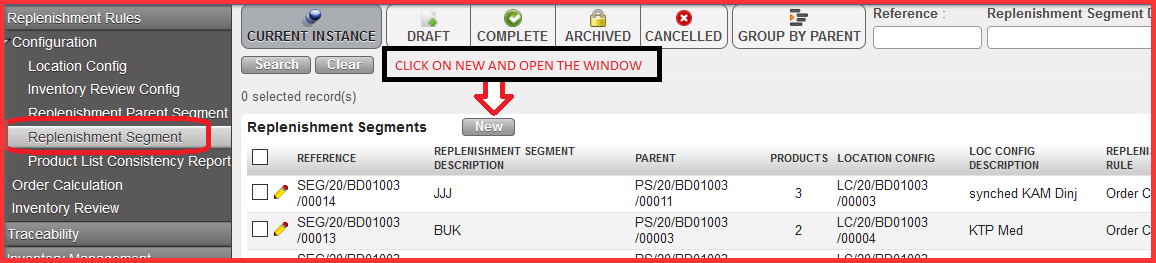
Go to: Warehouse / Replenishment Rules / Configuration / Replenishment Segment

  1. Click on “New” and open the window

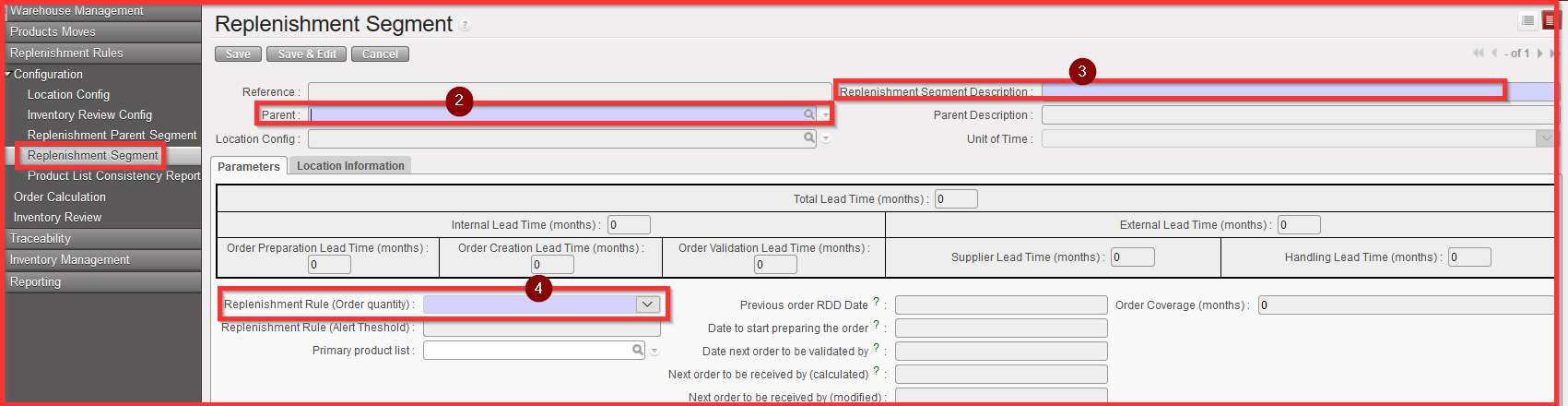
At this level you cannot change Unit of Time section which shows “days” as default value. By choosing the “Parent” system automatically change Unit of Time value based on the Replenishment Parent Segment configuration.

2. Select the “Parent”: from already preconfigured Parent Segment Reference

3. Fill in the “Replenishment Segment Description” field with your own created description / name of Replenishment Segment

4. Select a “Replenishment Rule (Order Quantity)” out of three available options: Order Cycle, Min/Max, Automatic Supply

  • If user chose “Order Cycle” then a “Safety Stock” option appears on UF screen where we must select our value based on Unit of Time configuration. “Safety stock” in months of consumption. For the safety stock as for the other product statuses, the Lead time is not considered in this averaged calculation, only the Order Coverage time.

There is also an option of using either Safety Stock (SS) or buffer (e.g. SS as quantity). Buffer is used more on line level.

Order Cycle including Safety Stock (months) print screen.

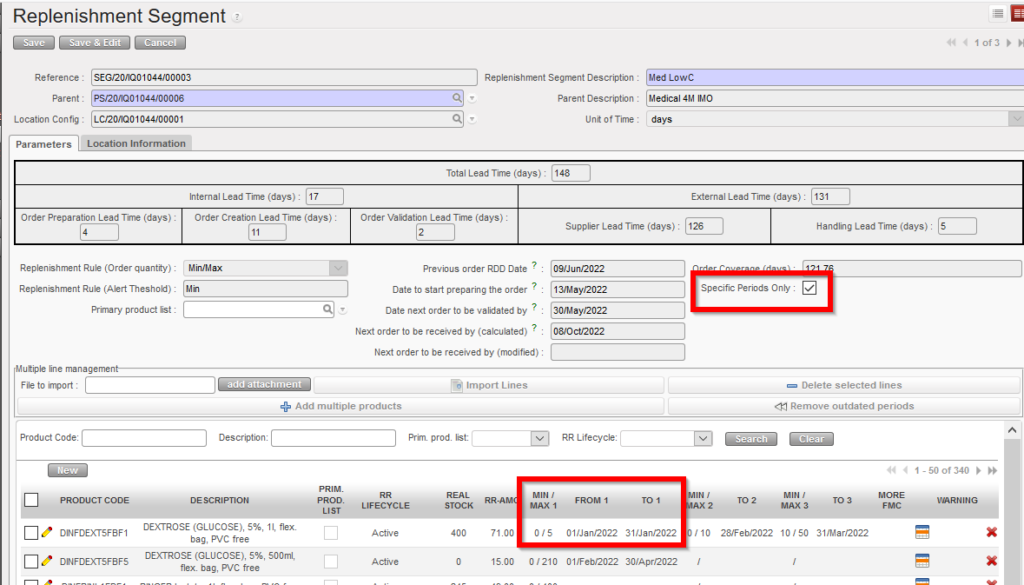
  • If user chose “Min/Max” or “Automatic Supply” as“Replenishment Rule(Order Quantity)”, then a “Specific Periods Only” option will appear on UF screen, if user select it a new button appears under the “Delete selected lines” called “Remove outdated periods”

    The RR types  Min / Max & AutoSupply can be applied with specific validity dates, in the same way as is the case for RR type Order Cycle. 

    The default is that validity periods are not applied for Min/Max & AutoSupply but they can be applied by ticking onscreen checkbox “Specific periods only” or changing value in import/export of Segment. If un-selected, values other than 1st column cannot be filled / are not accepted at import. 

    Import/export of Segment has multiple columns to allow for these values: “Min / Max 1” “From” “To”, Min / Max 2″, “To” etc. 

    This image has an empty alt attribute; its file name is RR-MIN-MAX-1024x585.png

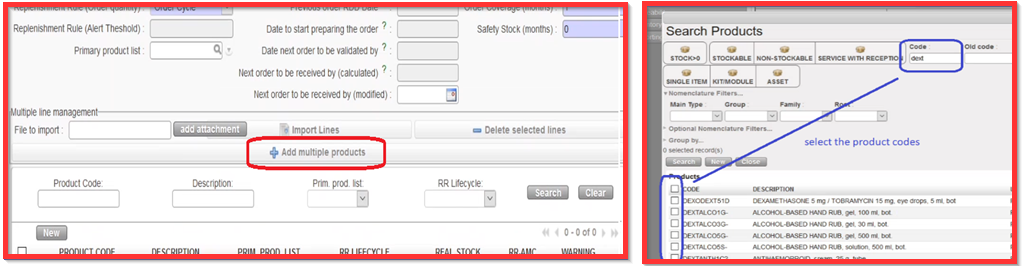
5. Click on “Add multiple products” Then click on “Add” and select multiple products which you want to work with.

You still have the option to add products via Import by clicking on “add attachment” and “Import lines”, you can use the export excel of “Segment” (via Action menu) from an empty Replenishment Segment, the export template has 5 empty lines. you can fill lines the normal way to import lines onto the Segment.

This image has an empty alt attribute; its file name is segment-2-Excel.png
Export excel of “Segment”

OR you can click on “New” and add lines one at a time.

6. Click on the icon pencil icon in order to edit the specific product line.


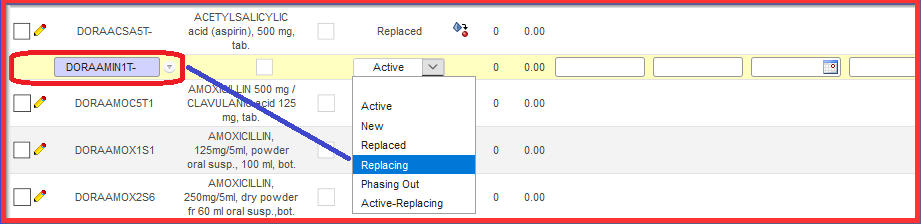
7. Select the filter option for “RR LIFECYCLE “which is specific for Replenishment Rules among the following options:

           a) “Active”: for the active existing product

           b)New”: for the new product for the specific activities (which is part of on-boarding without                 existing pipeline)

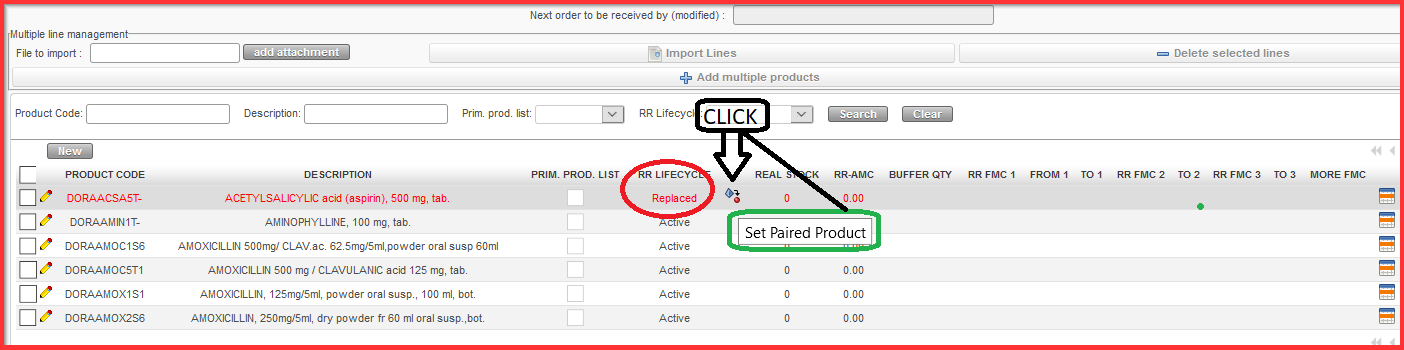
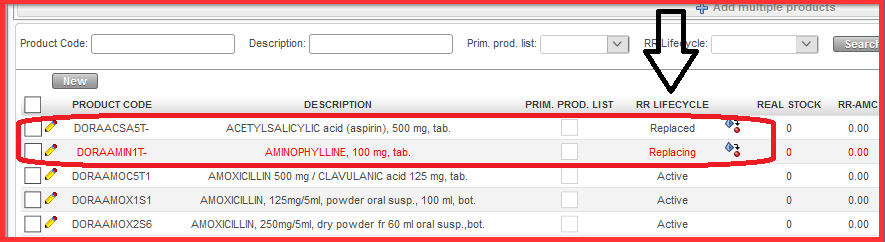
           c)Replaced”/ “Replacing”: we can also replace one product by another one (decision made based  on project strategic decisions, decisions is outside UF system). Within the segment if we have a                “Replaced” product, we must have set out a “Replacing” product which is linked to the replaced                 product. The system cannot guess which the pair of the “Replacing”/”Replaced” product is so the opposite must be added for each. Edit the line with the product which needs to be replaced.

                i.) Select “Replaced” and save the line

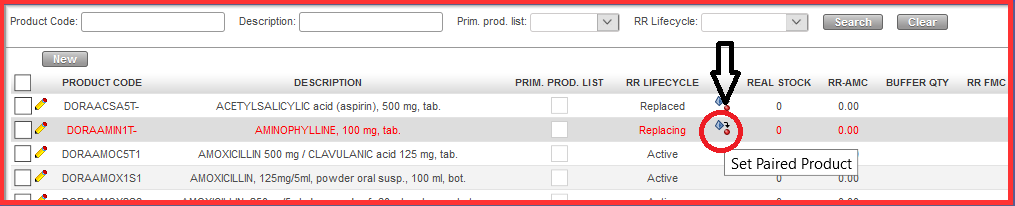
                ii.) Click on the icon below in order to set paired product

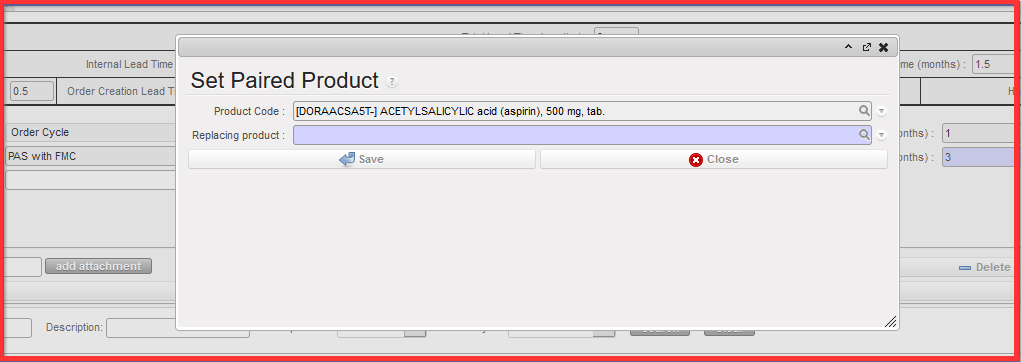
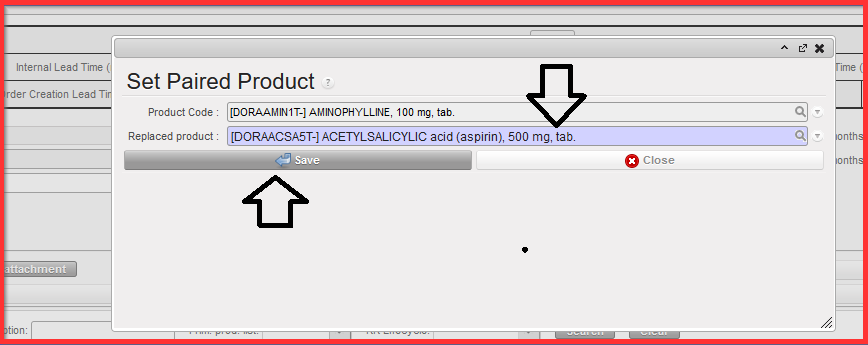
                iii.) Select the “Replacing product” from the “Set Paired Product” pop up screen below

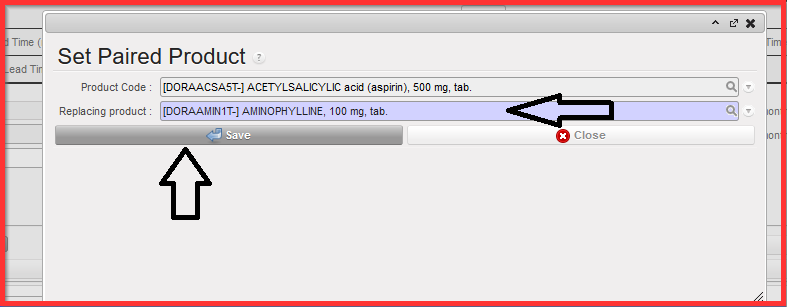
                iv.) Click on “Save”. Window is closed, desired replacing product is selected.

               v.) Then you edit the product line which is replacing the replaced product and select                                          “REPLACING” and save the line

                      vi.) You must go back to Replacing product and click on “Set Paired Product” icon

                   vii.) Click on “Save” button and close the window.

RR Lifecycle “Replaced” and “Replacing” are set up. The second product line is not red highlighted anymore.

d)Phasing out”: it is possible but not mandatory to fill in the field “Replacing product”. However this link to replacing product is informative only and no calculations are linked to this second product. In other ways behaves the same as an “Active” product.

If a Product has “Phasing out” as its RR Lifecycle, no Order proposal quantity is calculated. When Order calculation is generated, product with this status will always have “0” as proposed value.

NB: There should be a warning in Replenishment segment Warning column: one word “Phased out?”, with complete warning “Product has pipeline – check status!””. Warning purely informative.

e) “Active Replacing”: This is to behave in exactly the same way as the current “Active” status. However this must be linked to another product in status “Replaced(i.e.: a product with “Replaced” status must be linked with either a “Replacing” product or an “Active-Replacing” product)

For the Order Calculation, as per before, there is never an order qty proposed for the “Replaced” product.

But the quantities for the “Active-Replacing” product are not changed by the system and are exactly as if the product had a normal “Active” status (it does not take account of any stock of the “Replaced” product. The only difference is that there is a warning for the Active-Replacing product which flags the Stock out date of the linked “Replaced product” “Warning, SO Date of linked product is XXXXX” This should appear in the Inventory Review and Order Calculation.

8. Fill in the “BUFFER QTY” field: can remain blank if you do not want to have any buffer qty.

9. Fill in the “RR FMC1” in PCE (SOQ) which is the unit measure of selected product. “RR FMC” columns/fields are only displayed when RR “Order Cycle” has been previously selected.

10. Select the period “FROM1” (first date of the month) and “TO 1” (last date of the month – You can fill up to 18 “RR-FMC” using the “Edit 18 FMC” icon .

11. Save the link by clicking on the Save icon .

12. Click on “Completed” button once you think you are done with entering the data.

You can click on “Compute Data” button to go back in order to check what is present in “REAL STOCK”. “Compute Data” is very important also for synchronization among the projects / coordination instances (multiple levels).

N.B. It is possible for the same product to be in up to 3 different Replenishment Segments at the same time. A product can be in 3 Replenishment segments belonging to the same Location Configuration, and the RR type of each of the 3 can be different (Order Cycle, Min/Max, Auto Supply) or all 3 can have the same RR type. The only condition is that the product must not have an active value (>0) in the same time period in more than one Replenishment Segment. For example, this means that if Product A has an FMC value of 2,000 in period 01 Jan 2022 > 28 Feb 2022, the same product cannot have a value other than 0 for this period in any other segment belonging to the same Location Configuration.

D. HOW TO CREATE A NEW REPLENISHMENT PARENT SEGMENT

Supply User Manual ENG -> 5. Warehouse -> 5.12 LU-SU4205 Replenishment Rules -> D. HOW TO CREATE A NEW REPLENISHMENT PARENT SEGMENT

D. HOW TO CREATE A NEW REPLENISHMENT PARENT SEGMENT

Replenishment Parent Segment section provides an overview of relevant Replenishment segments and products below it, which have defined parameters columns. It is a prerequisite to be processed before the next step which is Replenishment Segment.

New “Parent” segment permits and allows to have an overview of Segments with similar characteristics / conditions. Replenishment Parent Segment is the third step in UF after Inventory Review Config and must be completed before the next step (Replenishment Segment)

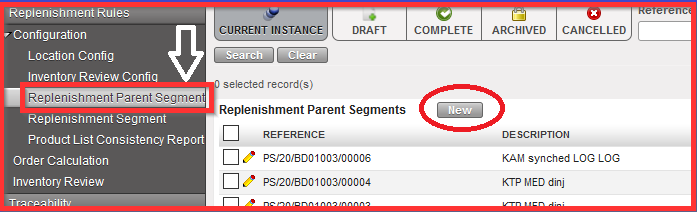
Go to: Warehouse / Replenishment Rules / Configuration / Replenishment Parent Segment

1.Click on “New” and open the window

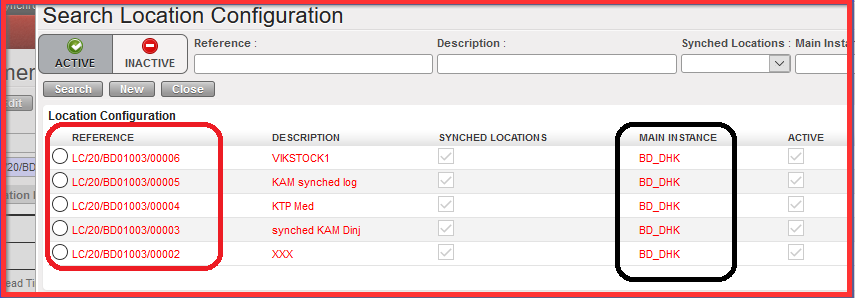
2. Select the “Location Config” reference which was created in the first step (Location Config)

3. Fill in your Description

4. Define Unit of Time in days, weeks or months:

It will be automatically projected to all Parameters listed below, i.e. selected option “months” automatically defines “months” value in all following sub categories Lead Time, Internal Lead Time, External Lead Time) and is visible in the brackets (months) as depicted on the screen below.

5. Add your Lead time values (predefined in months in the example below and decimals are accepted):

           a) Internal Lead Time:

i) Order Preparation Lead Time: covers the time of pre-work to be done by people in charge of: checking the system to have correct values; physical inventory; possible check or adjustment of FMC…

ii) Order Creation Lead Time: It is the time when order calculation has been generated to when the IR has been created. It starts when the user click on that button in a segment and it is the time they need to look what order calculation has proposed in terms of quantities. Basically, the time when IR is created is the same time when it is validated.

iii) Order Validation Lead Time: time from IR creation until PO validation

            b) External Lead Time:

i) Supplier Lead Time: time from validated PO until reception at requested location.

ii ) Handling Lead Time: time for the handling (customs brokerage) e.g. from reception at port/airstrip to reception at Instance Warehouse. Can be zero e.g. for internal suppliers.

After filling these fields, Total Lead Time, Internal Lead Time and External Lead Time will be automatically computed/ populated.

Total Lead Time = Internal Lead Time + External Lead Time

Internal Lead Time = Order Preparation Lead Times + Order Creation Lead Time + Order Validation Lead Time

External Lead Time = Supplier Lead Time + Handling Lead Time

6. Fill out “Order Coverage”: how long we want the ordered products to last for (here preconfigured in months)

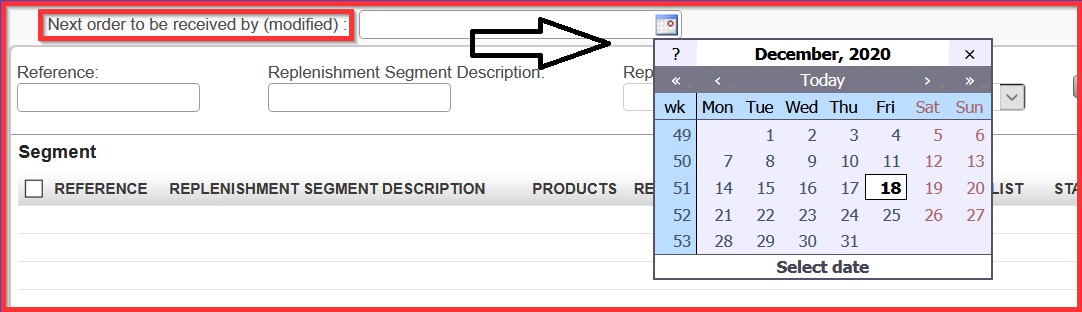
7. Select the date for “Next order to be received by (modified)”. When you select the date, you get automatically computed dates for “Date to start preparing the order” and “Next order to be validated by” e.g. second red highlighted print screen

8. Click on “Completed” and you get created Parent Segment Reference, see print screen below

When Replenishment Segments are created (see next Chapter for Replenishment Segment creation) and are linked to specific Replenishment Parent Segment you can come back to the specific Replenishment Parent Segment reference and click on the button “Generate Order Calc” ( see section J. How to generate an Order Calculation).

C. HOW TO PARAMETER THE INVENTORY REVIEW CONFIGURATION

Supply User Manual ENG -> 5. Warehouse -> 5.12 LU-SU4205 Replenishment Rules -> C. HOW TO PARAMETER THE INVENTORY REVIEW CONFIGURATION

C. HOW TO PARAMETER THE INVENTORY REVIEW CONFIGURATION

Go to: Warehouse / Replenishment Rules / Configuration / Inventory Review Config

It is a configuration of the parameters needed to be shown in a whole inventory review. It is the screen in UF where the parameters are configured which we want to have displayed in the inventory review report after that step.

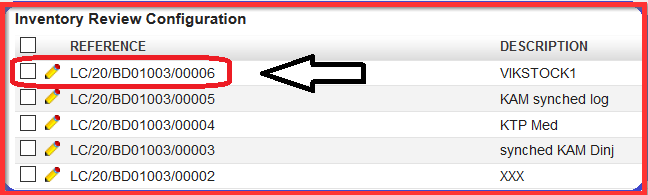
1.Choose the specific Location Configuration reference (created above)) and click on the desired line with relevant reference which is visible in specific format as follows (LC/XXX):

Or you click directly on the pencil (edit the line) of the needed “REFERENCE” number created the step before in order to get Inventory Review Configuration screen. Here we can decide what we can see in our Inventory Review which is the submenu section of Configuration. Basically, we must set up our needs and configuration in order to get desired output for our RR configuration.
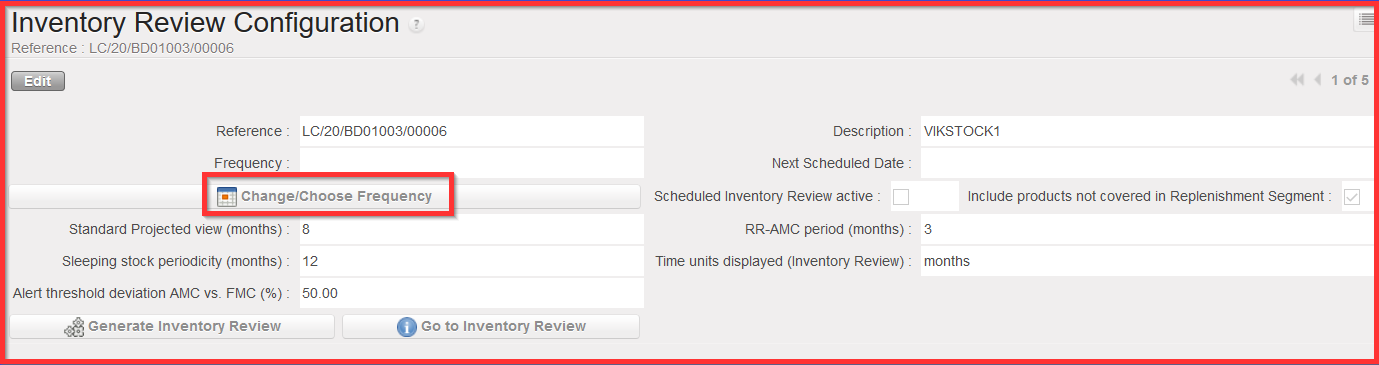
Inventory Review Configuration screen

2. Click on “Change/Choose Frequency configuration” (see print screen above) in order to determine the choice of the frequency; how often the inventory review report is generated.

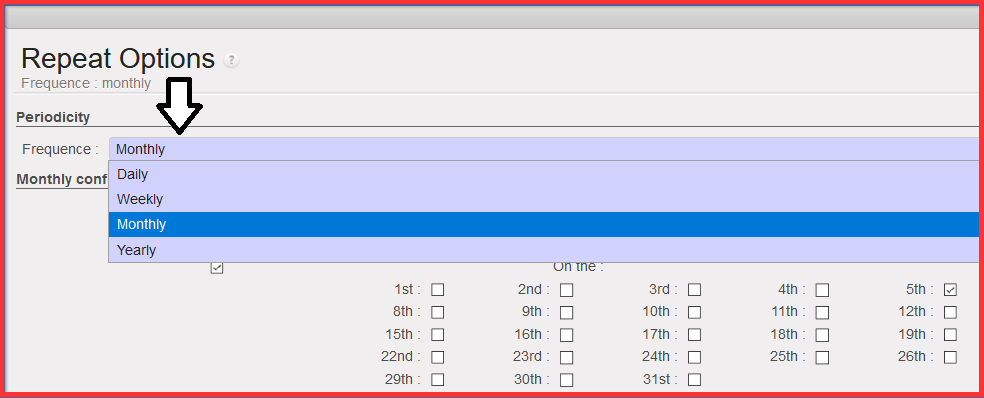
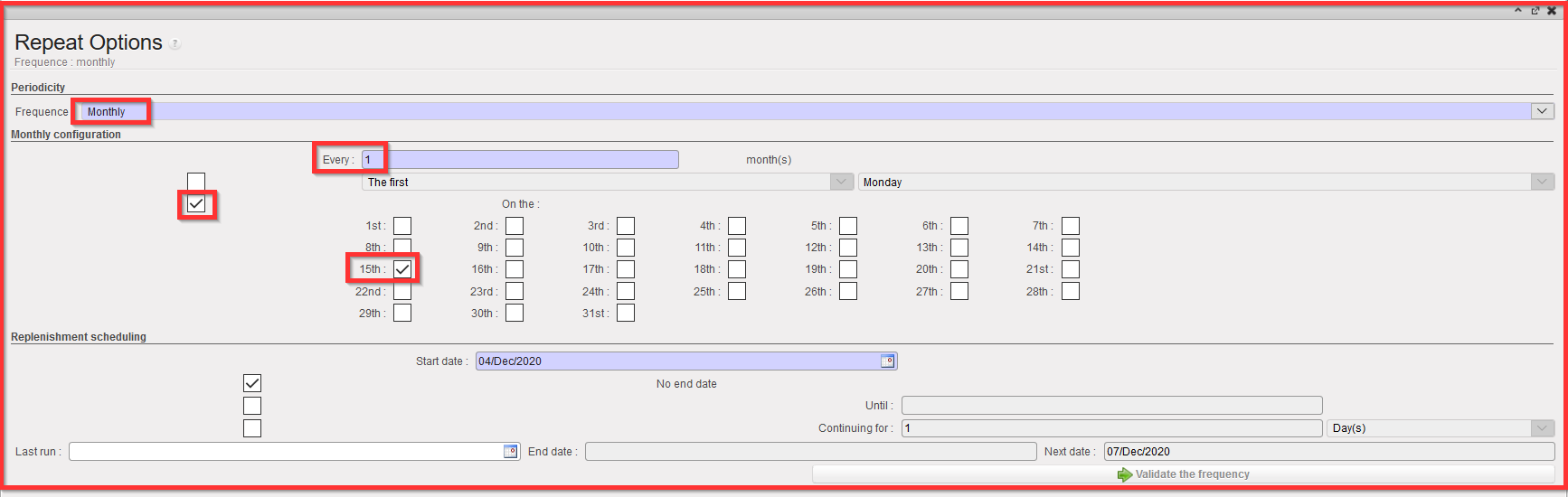
3. Chose “Periodicity” from the drop down list from the popup screen “Repeat Options” (see below): Daily, Weekly, Monthly or Yearly

4. Chose the “Daily/ Weekly/ Monthly or Yearly configuration” (depending on the Frequency you selected above).

a) First select how often you need to generate the report: “Every” 1/2/3…Days/Weeks/ Months or Year.You will have different fine-tuning options depending on the Frequency you chose.

b) You can chose to run the Inventory every Monday/ Tuesday…of a week; or every first/second.. Monday/ Tuesday… of a month; or every 1st, 2d, 3rd…day of a month…

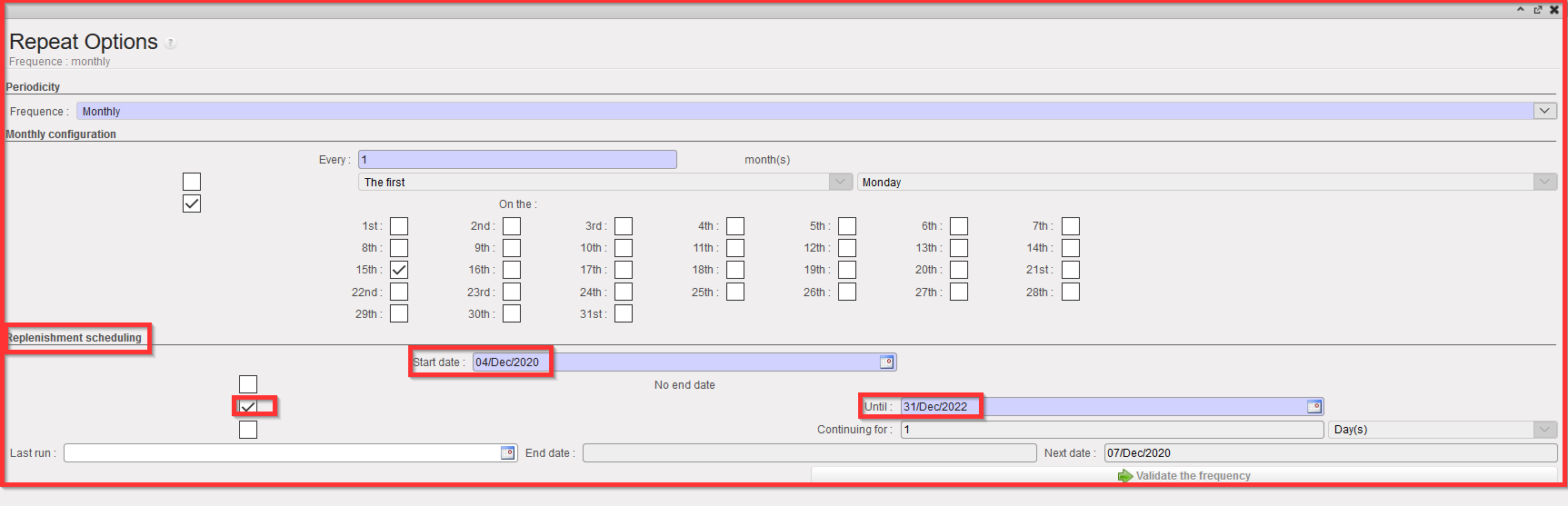
In the example below with the 2d checkbox ticked for a monthly Periodicity and the 15th of each month. The Inventory review will be run every 15th of a month.

Monthly Configuration – every 15th of the month (example)

5. Set the “Replenishment scheduling” dates:

a) “Start date” is by default set to the date of the day but can be edited

b) Defines the date range between which the Inventory Review is generated.

                    i) Set “No end date” (if 1st check box is ticked)

                    ii) Set “Until” a specific date or (if 2d checkbox ticked) (example taken below)

                    iii) Set for a defined period of time (i.e.: for 1/2/3…days/Weeks/ Months or Years) by filling                          the  “Continuing for” fields (if 3rd checkbox is filled)

The next ordering date will be updated at the bottom of the screen when it is validated in the “Next Date” field. Selected date is the start of the repeat options cycle.

Replenishment scheduling – from 04/Dec/2020 till 31/Dec/2022 (example)

6. Click on “Validate the frequency”. You will be directed back to the “Inventory Review Configuration” screen. Note that the “Frequency” and “Next Scheduled Date” have been updated.

NB: if you click again on “Change/ Choose frequency” and go back to the “Repeat option” pop up, you will see that the “End date” and the “Next Date” have been updated as well.

7. Back to the “Inventory Review Configuration” screen, the fields below all have a default value that you can/should review/update to customize your needs (see print screen below):

a) Standard Projected view (months): how far in the future the report will show us

b) Sleeping stock periodicity (months): if the products have no consumption for last (xxx months). Usual default sleeping stock periodicity configuration is 12 months.

c) Alert threshold deviation AMC vs. FMC (%): defines the difference of what we projected in our forecast and what is the actual committed status of the consumption based on the operations of relevant unit. It is configured based on the supply unit needs and alignment among the field stakeholders. Default ratio used for the scenario is value of 50.00.

d) RR-AMC period (months): number of months taken into account for the RR-Average Monthly Consumption calculation (please note that the RR-AMC is different from the AMC in the rest of the system since it is specific to the configured location)

e) Time Units displayed (Inventory Review): filter option to get displayed in months, weeks or days

f) Scheduled Inventory Review active (checkbox): if ticked it means that inventory Review Configuration will be generated according to “Change/Choose Frequency” option chosen.

If you untick it will be generated manually by user.

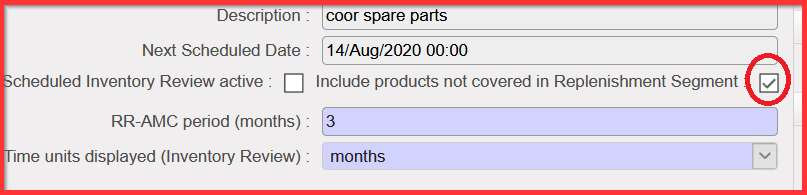
g) “Include products not covered in Replenishment Segment” (checkbox): if ticked (default) it includes every product in Location selected.

If unticked, it only includes the products in Replenishment Segment (to be explained in chapter below).

If the user unticks it means that all products (no matter what the user selects in created Replenishment Segment) in location which the user selected be also in the report. It means e.g. if you select particularly something like category “MED” it means the generation of all linked products to that category and it makes the report much larger. It might be useful to get entire overview of the products within that specific location, which is very good for planning purposes.

B. HOW TO CONFIGURE A LOCATION

Supply User Manual ENG -> 5. Warehouse -> 5.12 LU-SU4205 Replenishment Rules -> B. HOW TO CONFIGURE A LOCATION

B. HOW TO CONFIGURE A LOCATION

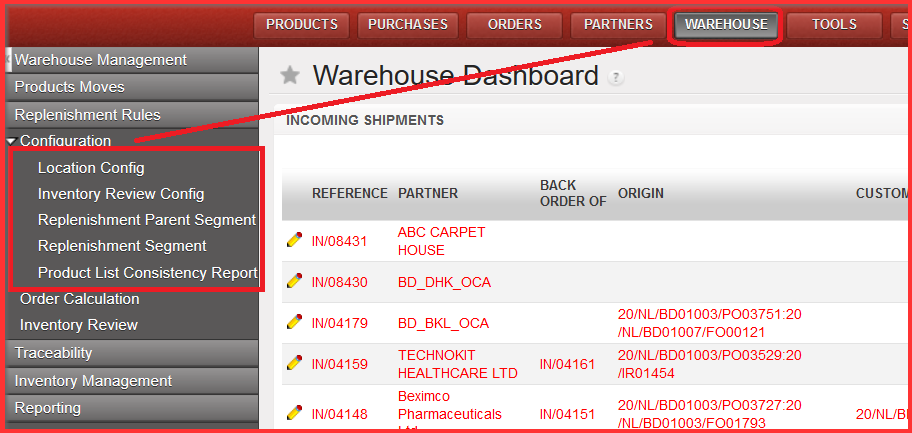
Go to: Warehouse /Replenishment Rules/ Configuration

Configuration sub menu options: Location Config, Inventory Review Config, Replenishment Parent Segment, Replenishment Segment, Product List Consistency Report

Go to: Warehouse / Replenishment Rules / Configuration / Location Config

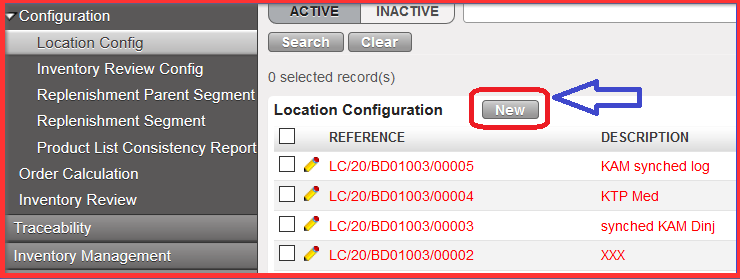
1.Click on button “NEW” to create a new record.

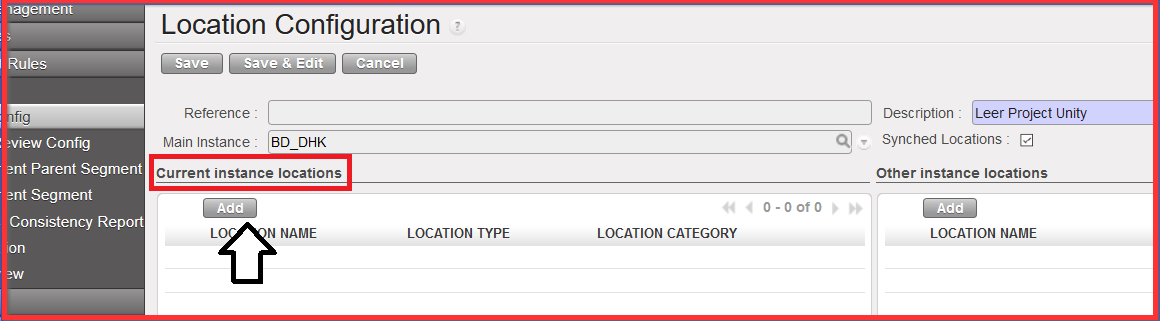
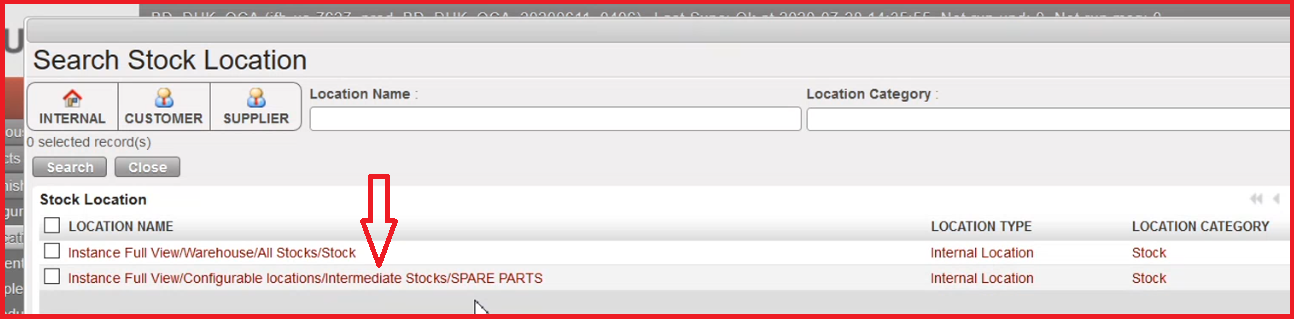
2. Click on “Add” under the “Current Instance location” part to choose a Stock location from your main instance.

This is the location which belongs to “Main Instance(automatically populated at creation of Location Configuration) where the RR is created. This location must exist in the system and be a real instance.

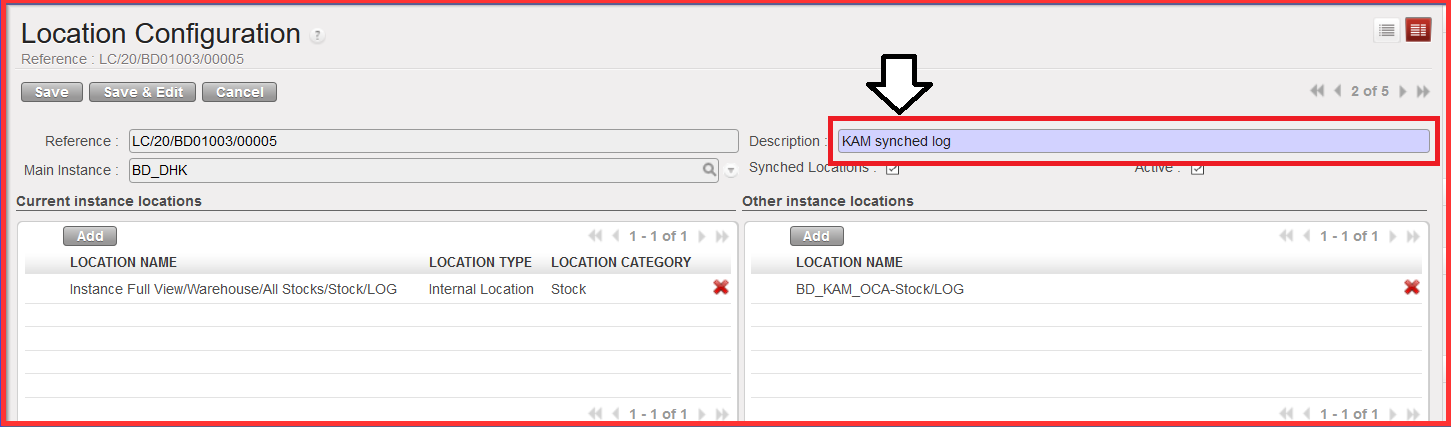
Main Configuration Location – Current instance locations

3. Select the Stock Location

4. Fill the “Description” field with a meaningful name

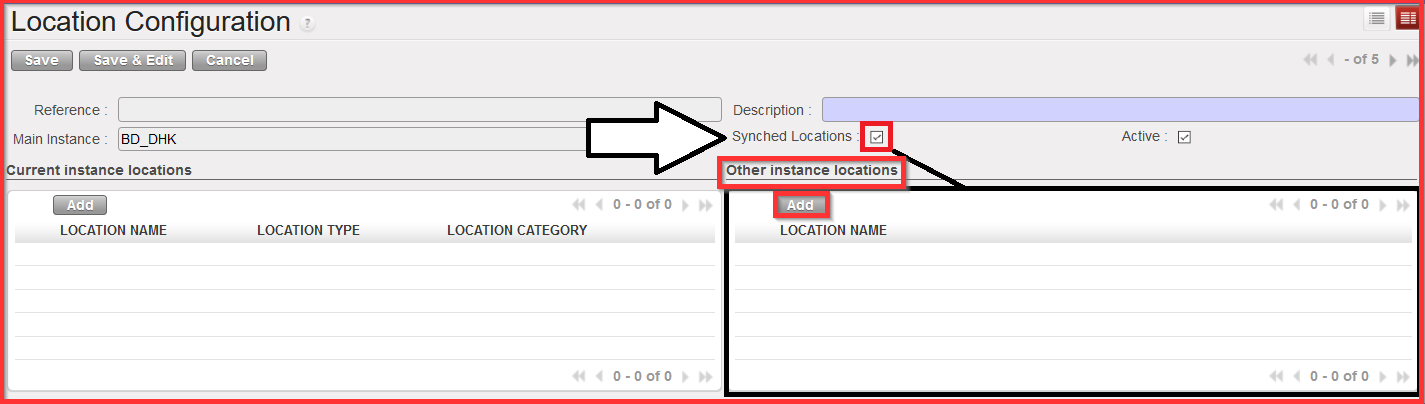
5. Click on “Add” on the “Other instance locations” section in case you need to configure location form another instance as well (OPTIONAL).

Indeed this action will be available only if the “Synched Locations” checkbox is ticked (automatically by default). Synched Locations are linked to “Other Instance locations” which are subordinated to Current Instance Locations (i.e.: project instances linked to COO). This means that this option is only available at COO level.

Main Configuration Location – Other instance locations -Synched locations ticked

NB: If you untick “Synched Locations” checkbox, “Other Instance locations” won’t be available anymore.

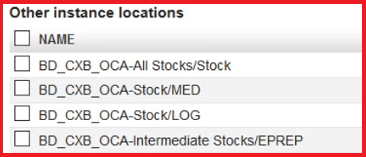
6. Choose the other sub-instance locations (you can choose from the predefined list of locations – see a picture example below) or create new one. (OPTIONAL).


7. Click on “Save” and see the message “Inventory Review Config has now been created” which is the next configuration step

A. LU INTRODUCTION (LU-SU4205)

Supply User Manual ENG -> 5. Warehouse -> 5.12 LU-SU4205 Replenishment Rules -> A. LU INTRODUCTION (LU-SU4205)

A. LU INTRODUCTION (LU-SU4205)

Replenishment Rules are there to avoid stock shortages, and to facilitate supply planning when it is time to reorder products.

RR (Replenishment rules) is a functionality supporting an ordering mechanism. From operational point of view RR enables to oversee forecasting stock levels, calculation of orders, analyzing and ordering of stock in order to prevent ruptures in the strategic planning. Replenishment rules provide a proposal of products and quantities to order considering the defined configuration of inventories specific to the product/mission.

For this, an accurate visibility of the current situation of quantities in stocks, quantities which will expire and quantities in the pipeline is necessary as well as their consumption. For RR any calculation in terms of proposing quantities is always done on the forecasted as the system never propose the quantity based on historical consumption only.

As you may have noticed by the definition, this feature presents a relatively high level of complexity and is therefore dedicated to users with advanced knowledge and subject to user rights (see with your OC processes).

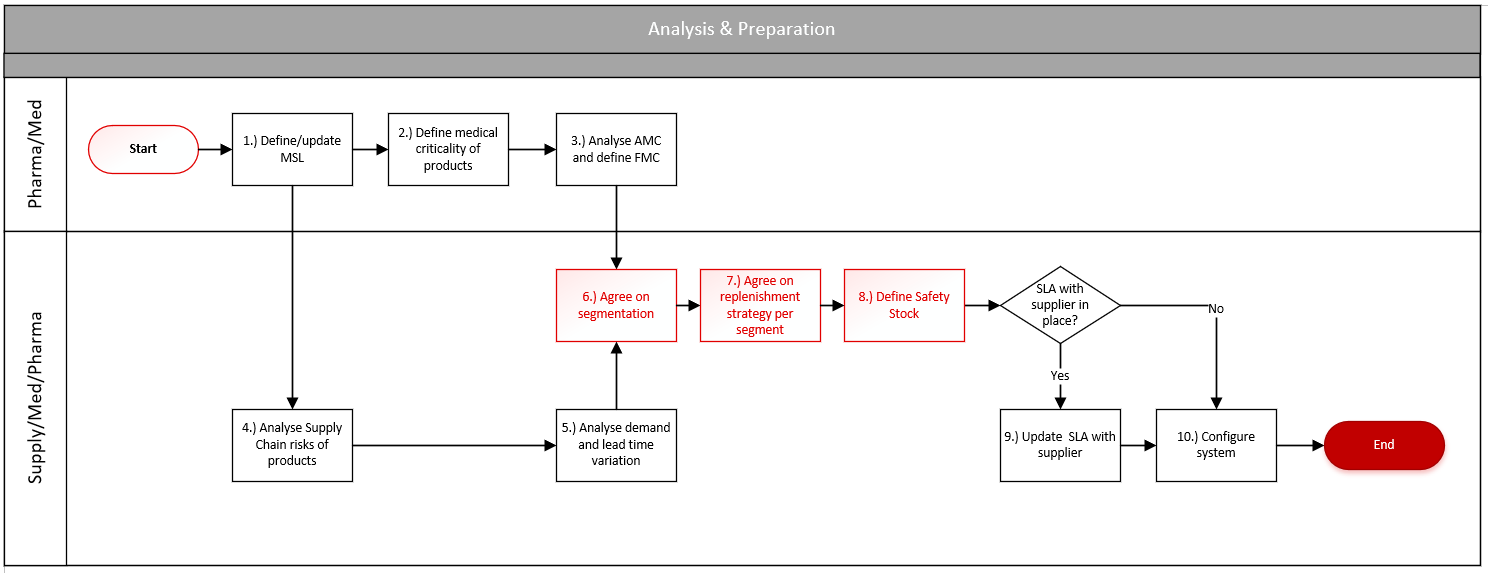
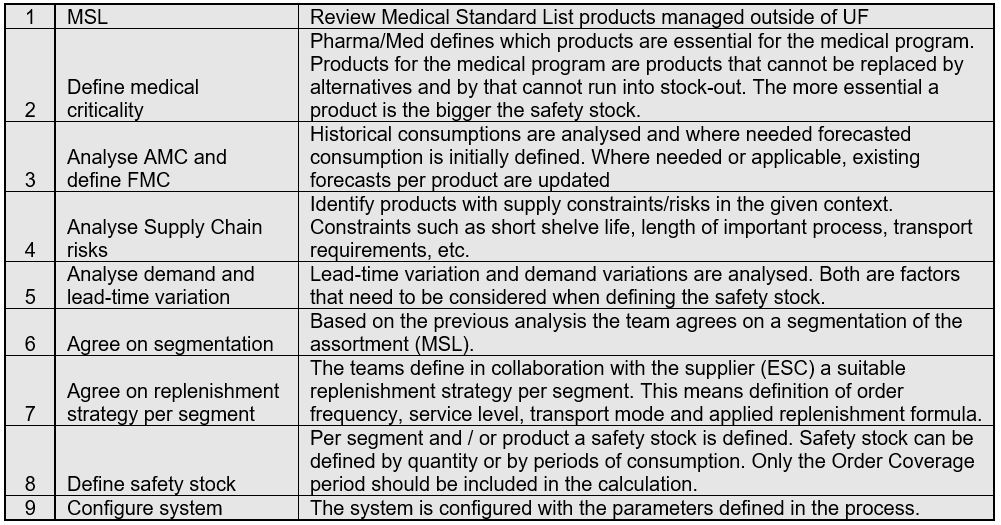
Analysis and Preparation process flow:

Below table represents the operational scope of processes which are considered for per-analyse which stay outside of Unifield system. It does not define the operational steps to be done in Unifield. Table provides more complex entire view about the processes and whole operational cycles. However, there are some parts in the table which are also available in Unifield system, e.g. definition of FMC. The final stage is config in Unifield with some of the elements depicted in the table at the bottom.

Processes to configure RR (detailed steps elaborated below) in the system is to first define and configure your “Location Config” (choosing a location for own instance or across multiple instances) ; second step is the creation of “Parent Segment” and third step is configuration of “Replenishment Segment” with list of products. For report purposes “Inventory Review Config” and “Product List Consistency Report” are used.