
3. Configuration and set up of Supply in Unifield
3.1 Unifield stock locations & stock movements
UniField supports the double entry principle for stock movements. Any product which moves through the system will have a location where it appears (+1), and a location from which it is taken (-1) therefore any movement will have an impact on at least 2 locations. This principal applies to both movements within the instance (from one internal location to another) and also movements where products are entering or leaving the instance.
The set-up of the basic (main warehouse) internal instances is as follows:
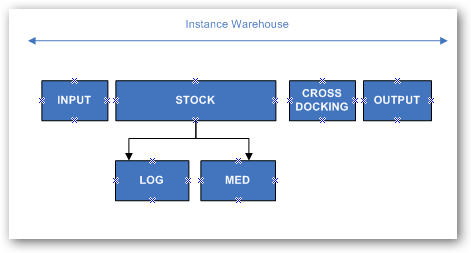
Warehouse set up
Each instance will have a warehouse created by default at the instance creation, and the default locations are: Input, Stock (with children locations Log & Med), Cross-Docking and Output. These in theory represent locations in a physical warehouse where stock may be present. The Output location is further divided for the purposes of outgoing stock movements;
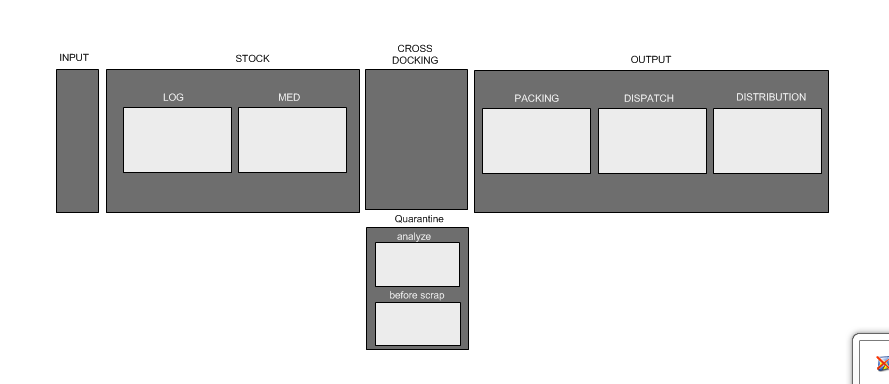
Input represents a transition location which will reflect any stock which the instance receives before being available in the main stock (= destination location of Purchase Order when not cross docking if the checkbox “Direct to Requesting location” has been unticked before the IN is processed).
Stock reflects the physical stock which is available in the instance’s warehouse location. Products can be directly present in this location, but according to agreed processes should only be in one of the child locations – Log or Med, as all products will have a main type of either LOG or MED, and as such should be directed to the relevant child location.( some constraints on some documents updates have been added in order to avoid having any stock in the main “Stock” location)
Output is a transit location reflecting goods which may physically still be in the warehouse, but which have already been allocated for a dispatch and possibly partially processed.
Within Output, there are further divisions to reflect what stage the goods are at in the process of being prepared and dispatched (only full PICK/PACK/SHIP process), this includes sub divisions for Packing, Dispatch and Distribution steps.
Cross Docking represents a location of the Instance’s warehouse which reflects goods that are in transit to another instance (typically destination of PO made to fulfill FO requirements, or needs of IR (external requesting location) (“on order”) to speed up the IN/OUT process).
Quarantine represents a location where goods are placed when under analysis, either before scrapping or for analysis prior to use. Goods are automatically sent here if a Claim is raised and the relevant option is selected, or if there is an Internal movement created and processed with this destination location.
3.2 Configurable Locations
In addition to the standard warehouse set up (Input, Stock (Log & Med), Cross-Docking and Output.)- It is possible for a user to create extra locations.
Configurable locations can be either internal or external.
Internal: In the system there are 2 options for configurable internal locations – Intermediate stocks and Internal Consumption units. There is full visibility of stock (qty, batches, value etc) in any internal location, and this location can be selected also for sourcing purposes (see section on Order Sourcing Tool). In this context, internal consumption units are not considered as “last customers”, as the products are still within the instance. Technically there is no difference between Intermediate stocks and internal Consumption Units, but they are named differently to assist end users in understanding flows and last internal point in instance.
Functionally to help visualise the slight difference; an Intermediate Stock would be more like a physical section in the actual Warehouse where the products are allocated to a specific project for example while the Internal Consumption Unit would be more like a Pharmacy stock in a local clinic for instance (but that we still want/need to track in the system).
External: The possibility to have external consumption units as configurable locations was more recently developed, with the idea of enabling a flow for Internal Requests for which the final destination would be external (this due to OC’s choice). If the destination is external, as soon as the stock has been dispatched, the stock will leave the UniField instance, and in this case, external consumption units are considered as “last customers” (when goods are delivered to an external consumption unit, they are assumed to be consumed). The main use for External Consumption Units is to act as requestor/consignee in Internal Request flows or for Consumption Reports, where IR flow is not used.
There are multiple different set ups possible for configurable locations, please see diagrams for some examples.
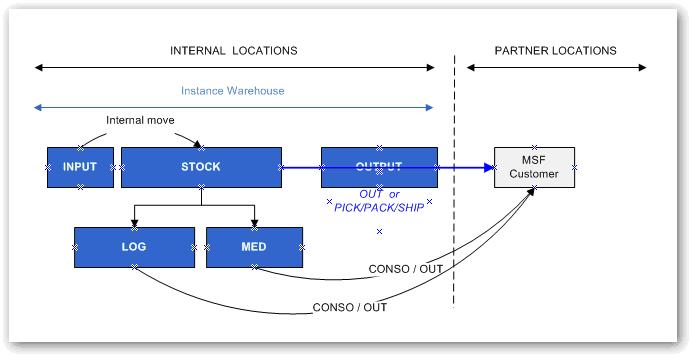
No extra locations configured
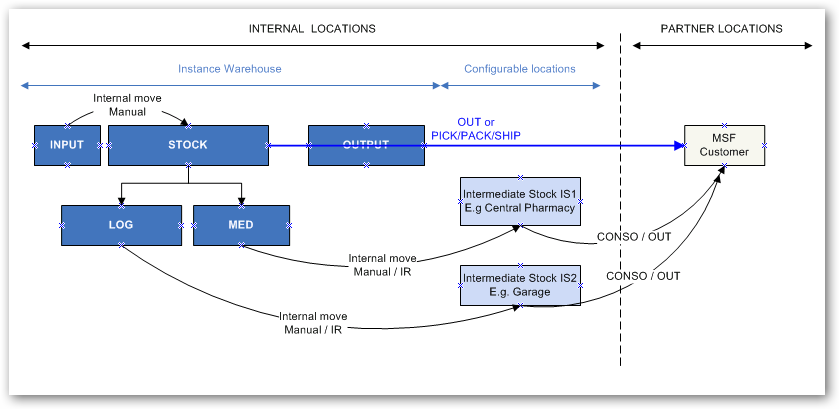
Intermediate stocks
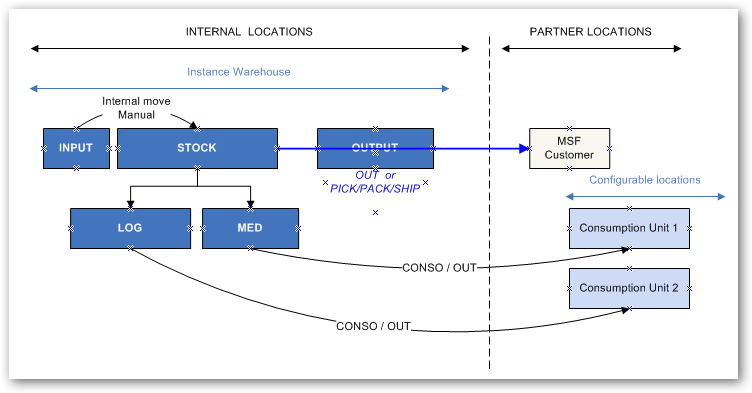
External Consumption Units
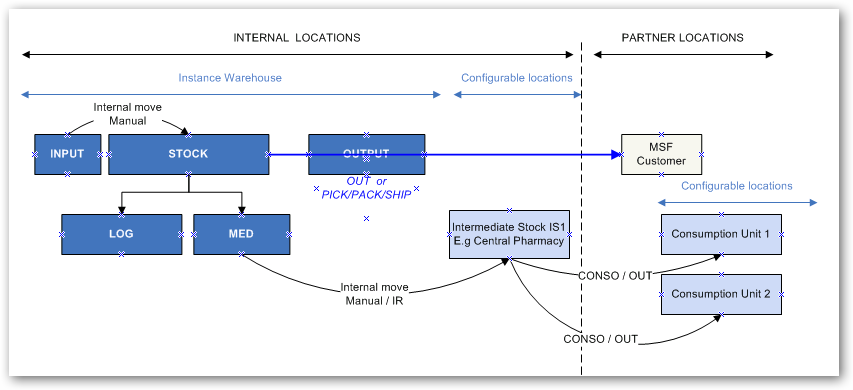
Intermediate stock and external consumption units
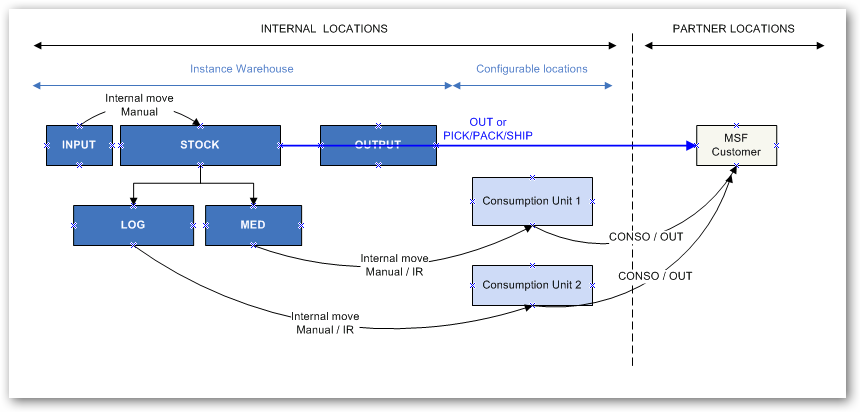
Internal Consumption Units
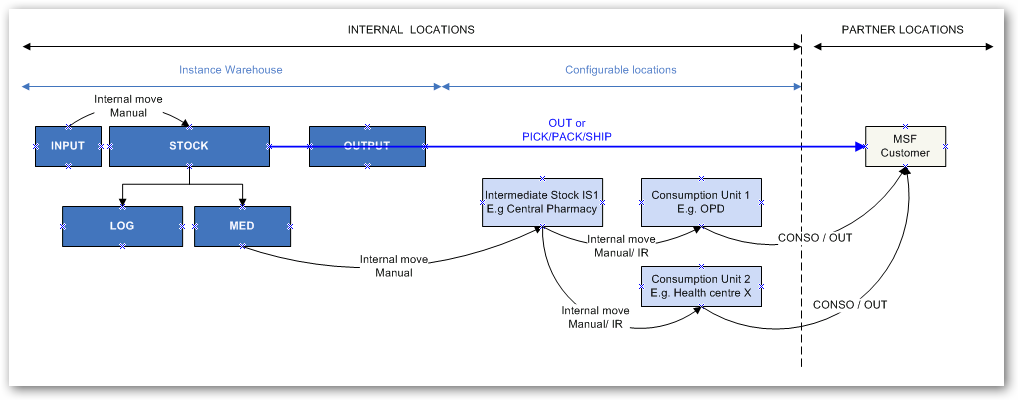
Full set up
3.3 Other Locations (partner locations and virtual locations)
In order for the double entry mechanism to work for goods which are arriving in and leaving the internal locations, there are also several partner locations and virtual locations which may act as the origin or destination of goods. The two main Partner locations are Supplier and Customer, and for these, goods which are entering and leaving the internal instance will have a relevant stock movement in one of these also. The main virtual locations are; Procurement, Kitting, Inventory Loss & Profit, Service and Non-stockable, and the system will use these for movements internal to the instance.
For example for a product on an order, once the Incoming Shipment has been processed, the Qty in stock (Log or Med) will be +1, and the Quantity in the Partner location “Supplier” will be -1. This reflects that the product has been passed from supplier to internal stock.
The same is true for products which leave the instance, in which case the quantity in the internal stock location will be reduced -1, and then quantity +1 will be added to the partner location Customer. The same mechanism exists for virtual locations.
All of these locations can be viewed in the Stock by location screen for each product (“Products” > select a product > “Stock by location” in right action menu), and they are also displayed as origin or destination of product moves in the report Stock moves (Warehouse>Stock moves).
Supplier – MSF Supplier – Partner location reflecting MSF (internal) suppliers
Supplier – Other Supplier – Partner location reflecting suppliers external to MSF
Customer – MSF Customer – Partner location reflecting MSF customers (including any configured locations – external consumption units)
Customer – Other Customer – Partner location reflecting external customers
Procurement – virtual location, but display has been changed in ticket BKLG-22 so qty will always be zero in Stock by location but is still visible as product origin in Stock moves as alternative to Supplier location.
Kitting – Virtual location reflecting where kit products are sent or taken from when a kit is created via a kitting order from components (kit product is -1 in kitting location and +1 in stock location), or when de-kitted into components (+1 in kitting location and -1 from stock location)
Inventory Loss & Profit – Virtual location reflecting origin or destination of goods according to changed inventories (Qty + or Qty -)
Inventory Loss & Profit – Destruction – Virtual location reflecting destroyed products
Service – Virtual location reflecting where Service type products are sent (when they are received in Incoming Shipment)
Non-stockable – Virtual location reflecting where non-stockable type products are sent (when they are received in the Incoming Shipment of the final consignee instance).
Any stockable products received will be part of the internal inventory until they are issued to an external party at which point they will be removed from any internal locations and will exit UniField. Products which are Non Stockable or Services with reception will not figure in internal locations but will be received in specific virtual locations. The exception is where non-stockable products are in transit to another internal partner (e.g project), in which case they will be stocked in the Coordo Cross Docking location until they are dispatched.
3.4 Virtual Stock
UniField offers a view of “virtual stock” as well as real stock, which can help manage supplies more efficiently as this gives visibility of stocks and their likely availability.
Please note, it is not necessary to understand this in order to process day to day transactions, but it may be useful in understanding stock movements and how the system works.
- Products which are in the pipeline with stock moves will appear as additional virtual stock in the stock views (for instance Draft INcoming Shipment).
- Products which have already been reserved or are due to leave a location due to the relevant document being in draft will reduce the quantity of “virtual stock” in the system stock views (for instance Draft PICK; INT; Delivery Order).
The Virtual stock quantities give a “snapshot” of what the quantities of stock are likely to be in the future, based on the transactions in the system.
The table shows the locations and quantities for an example product at a certain point in time::
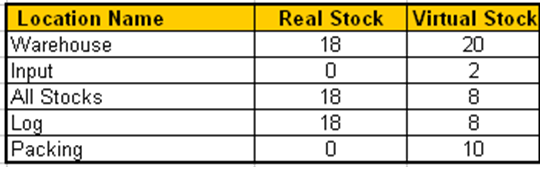
Table showing quantities for real stock and virtual stock for a product (scissors)
Or, to represent this visually, these are the locations of the Real Stock:
Diagram showing Internal Stock Locations – Real Stock
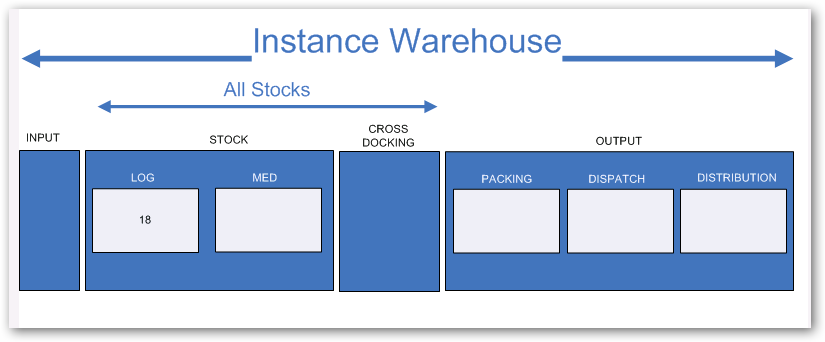
In the overall warehouse (shown as “Instance Warehouse” in the diagram above) there are a total of 18 items, all of which are within the “All Stocks” location, in Stock, and specifically in the “LOG” location.
And these are the locations with quantities of the Virtual Stock (i.e. the system’s forecast of where the stock will be in the future):
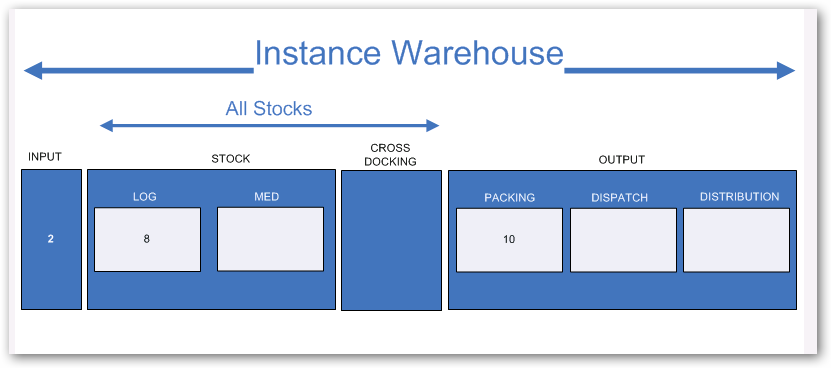
Diagram showing Internal Stock Locations – Virtual Stock
There is a virtual total of 20 items in the (instance) warehouse: 2+8+10 =20
There are 2 items in the input location, in “All stocks” there is a total of 8, all of which are in “stock”, and specifically in the “LOG” location, and there are 10 items in the “Packing” location.
System calculates that there will be 2 items in the input location – because there is an available Incoming Shipment (created due to a PO being confirmed) for these 2 items.
System calculates that there will only be 8 items in LOG, but that 10 will now be in PACKING – because there is a Picking in draft status (created when a validated FO was sourced from stock) for 10 of these items.
3.5 Calculation of product quantity in stock:
The figure for the quantity of products in stock (real, available and virtual) is calculated each time it is displayed. This means system takes baseline qty of zero for a product, then adds all stock movements made since the instance was activated to arrive at the balance of the current stock. As more movements exist for a product, so the time taken to arrive at this figure will increase. This has been raised as an element which in the long term needs to be modified to prevent unreasonable calculation times.
Calculation/display of quantity in stock in transactions
Specific transactions where when product master data shown (e.g. via clicking magnifying glass for Product field) the quantity displayed in window will reflect quantity for specific selected location of that transaction.
Picking Ticket line: source location + child locations
Pre-Packing list (PPL) line: source location + child locations
Internal move line: source location + child locations
Incoming shipment line: source location + child locations
Delivery order line: source location + child locations
Real average consumption report line: consumer location
Wizard to change product on incoming processing: destination location + child locations
Wizard to change product on outgoing delivery processing: source location + child locations
Kit product substitution: Source location + child location
Physical Inventory: Selected location
Initial Stock Inventory: Selected location
