
11.7 Continuous Backup
Since UniField version 14.1 (Jira ticket US-5918) there is an option to enable the “continuous backup” feature. This improves and optimize the way backups are sent to the OC’s specific OneDrive repository. Indeed the amount of data transferred is considerably reduced as only continuous backup are sent (except the first time for the base backup).
Please note that once activated the feature replaces the “Automatic instance backup to the Cloud” procedure. At the end of the process your backup are still sent to the same OC’s specific OneDrive repository.
Please DO NOT CONSIDER this feature as an agreed offsite backup solution. Local backups are still under your responsibility.
Note that Continuous Backup is only for production instances. Sandboxes cannot use this feature.
How does it work ?
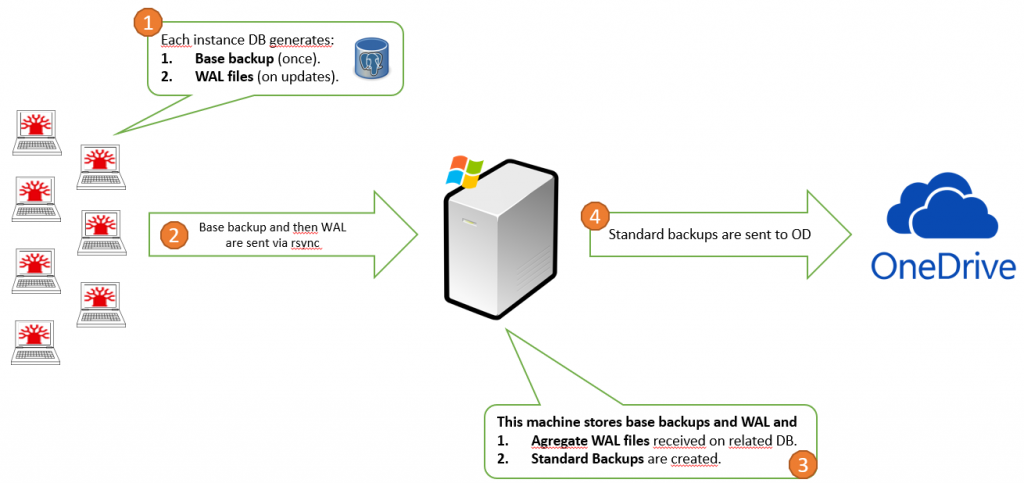
The PostgreSQL native tool is used to generate the backups. In a nutshell, a base backup is first generated and additional WAL files are generated locally on each instances.
Then it is sent to a dedicated Windows machine in which it stores the base backup and aggregates the WAL files. WAL files are basically the incremental back up produced every day.
The Windows machine then dumps the aggregated DB and sends it to OneDrive.
Below a graph showing how it works:
How to Configure.
Note that the configuration can be done by the Support Team but we encourage each OCs IT referent to get the knowledge to be able to do it when restoring a newly created instance or when migrating an instance.
The process for newly restored instances or migrating instances is the same.
| Instance authentication to the Continuous Backup Windows Server is done via SSH key. This key is generated by the APM Support Team (coreteam IT) and there is one key per instance. The IT coreteam generates a zip file containing the private and public keys and send it to the OC IT Referent by email when a new instance is created. 1. Unzip the file ssh_config.zip and place the file SSH_CONFIG in C:\Program Files (x86)\msf | 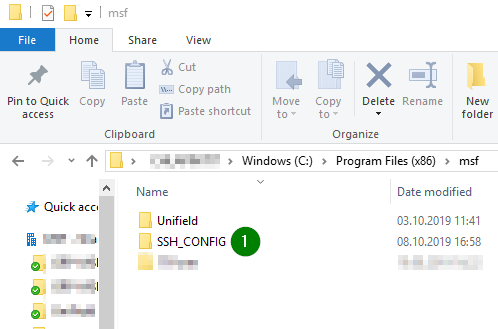 |
| 2. Choose a directory to store the WALs archive. D:\WAL is usually the case but according to the server configuration defined by OC, so it can be placed in the C D:\WAL. In our example, it is in the D drive. Note that the base back up is placed in a sub folder D:/WAL/base. Once sent, this sub folder is empty. All additional WALs are put in D:\WAL | 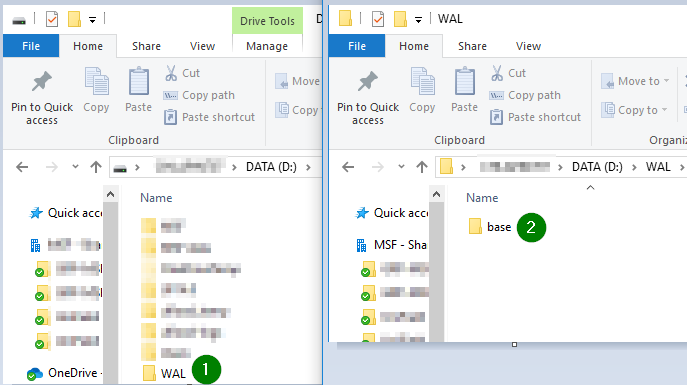 |
| 3. Edit pg_hba.conf in D:\MSF data\Unifield\PostgreSQL (or in the C drive if MSF data is placed in the C drive) Add or un-comment (#) these 2 lines to allow UF to request a base backup host replication openpg 127.0.0.1/32 md5NB: If both lines of host replication are already uncommented, there is no need to touch them. | 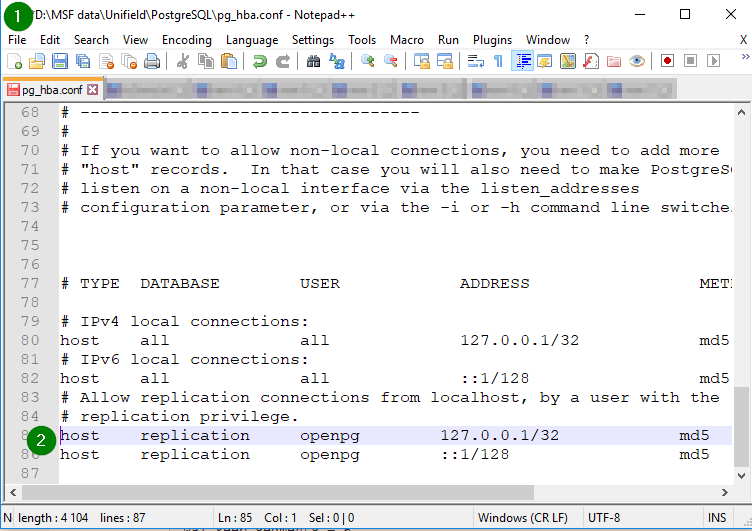 |
| 4. Edit postgresql.conf in D:\MSF data\Unifield\PostgreSQL At the end of the file, add: wal_level = replicaIn case your WAL folder is in your C drive, then add: wal_level = replicaNB: you have to edit the lines to add to the file depending of where is based your MSF data and WAL folder using C or D. | 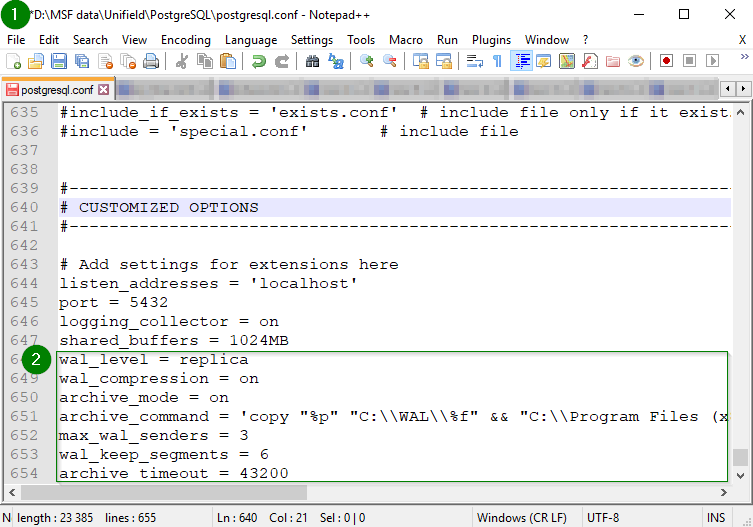 |
| 5. Restart services. Open Services and restart – o penerp-server-py3– Postgres Before, restarting services, ensure no user is using Unifield. You can check with the following method: Go to ADMINISTRATION > Users > Users Click on column “ LAST CONNECTION” to see the active one. | 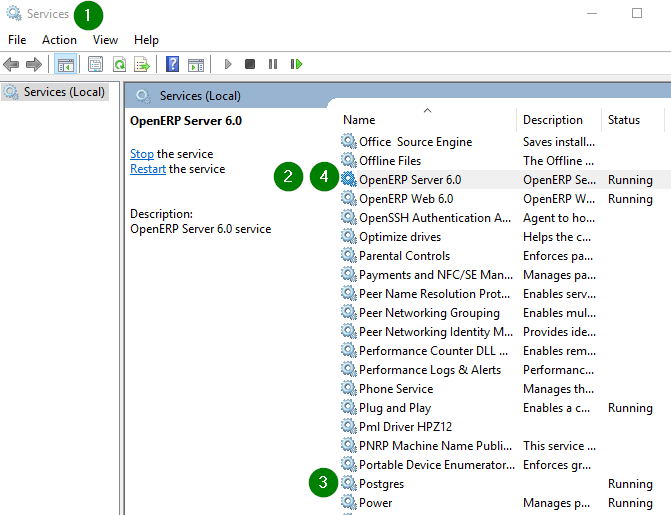 |
| 6. Log in UniField – Click on menu Synchronisation/Backup/Backup config – In “Type of Back up”, select “Continuous backup” – Set “Path to back up to” with D:\WAL (or C:\WAL) to define the local Path to set the WALs. | 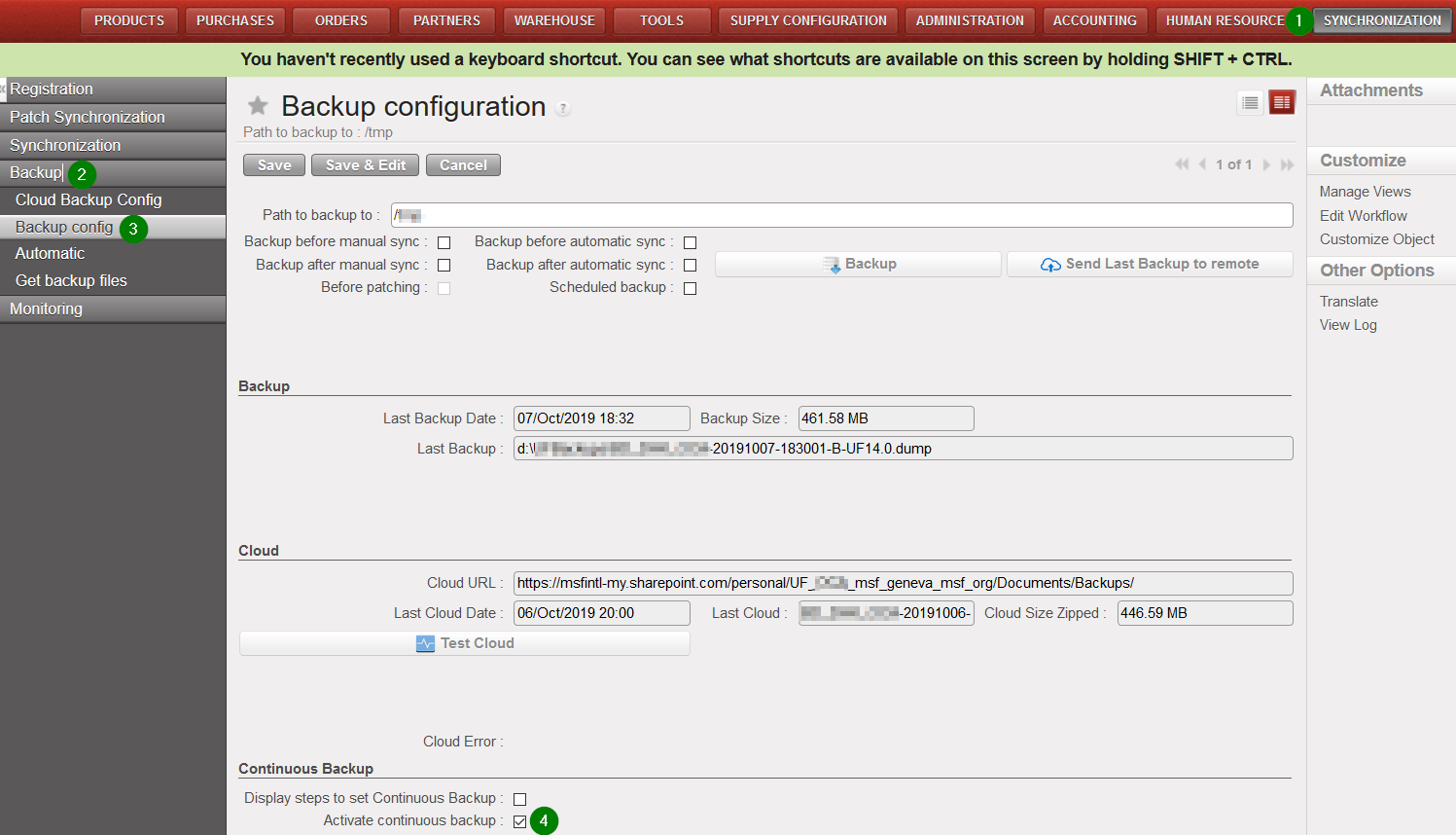 |
| 7.a Click on Generate Base Backup => PostgreSQL will create D:\WAL\base\base.tar (or C:\WAL\base\base.tar) and Unifield will 7z the file. Make sure that WAL files are generated in the WAL folder (D:\WAL or C:\WAL): after the creation of \WAL\base\base.tar a special WAL file XXX.YYY.backup.7z must have been generated, if not check the archive_command directive in the postgresql.conf file and go back to step 4. If successful a new date will fill in ‘Date of base backup’ 7.b Click on Send Wal/Base Backup to remote => rsync will push the content of D:\WAL (or C:\WAL) to the Continuous Backup Server. If successful, a new date will fill in ‘Date of last rsync’ Successfully sent files are removed from D:\WAL (or C:\WAL) Please note that by default the port 8069 would be used to send the backup via rsync | 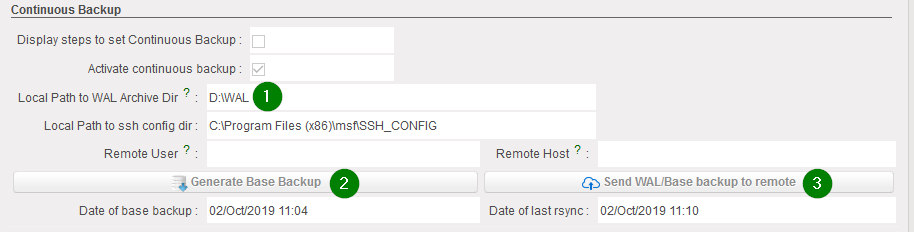 |
| A scheduled task to sent files to remote is added on Administration/Configuration/Scheduler/Scheduled Actions The task is called Send Continuous Backup and nothing is to be touched | 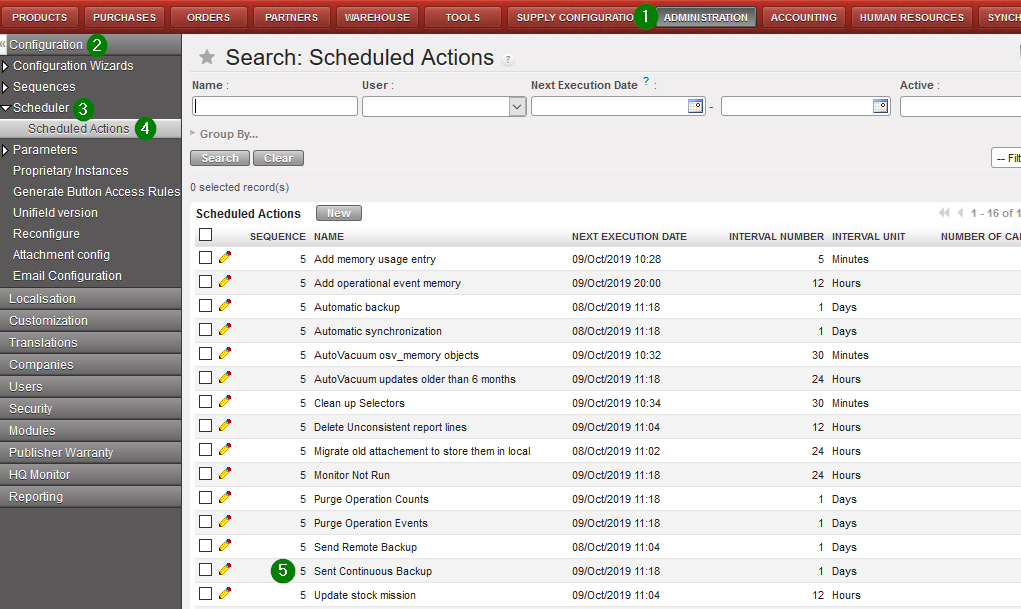 |
FAQ
- Does continuous backup impact instance performances?
No lack of performances because WAL are always generated, even if they are not used. For the continuous backup we only copy and 7zip them. But as file sizes are max 16MB, compression time and cost are low. - What happen if there is more than one instance on the same machine?
In this case, only one instance should be configured for continuous backup. Continuous backup captures all databases on a server. It means, in OD you will have X dumps for the X instances. Other instances should be configured as ‘Direct push to Sharepoint’ without credentials in the Cloud Backup Config. Providing credentials in the Cloud Backup Config for these additional instances would result in multiple overlapping backups, which may overwrite each other. - What happen if PostgreSQL crashes?
No issues. Continuous backup is a PostgreSQL native feature and so well managed in case of crash. - Do we still have to send backups to OneDrive?
No, continuous backups would be send automatically to OneDrive. - Can we switch-off the normal local backup (before/after patch, daily)?
No. Normal backups must be done normally. - Can we consider continuous backup as the offsite backup solution?
No, you are still responsible of your backups. Of course, the ST will help you in case of issue but we are not responsible of your backups. - What happen if the connection is broken during rsync?
It will re-runn rsync next time until the synchronization completes normally. We especially chose rsync as reliability has been proven.
