
Supply User Manual ENG -> 5. Warehouse -> 5.12 LU-SU4205 Replenishment Rules -> D. HOW TO CREATE A NEW REPLENISHMENT PARENT SEGMENT
D. HOW TO CREATE A NEW REPLENISHMENT PARENT SEGMENT
Replenishment Parent Segment section provides an overview of relevant Replenishment segments and products below it, which have defined parameters columns. It is a prerequisite to be processed before the next step which is Replenishment Segment.
New “Parent” segment permits and allows to have an overview of Segments with similar characteristics / conditions. Replenishment Parent Segment is the third step in UF after Inventory Review Config and must be completed before the next step (Replenishment Segment)
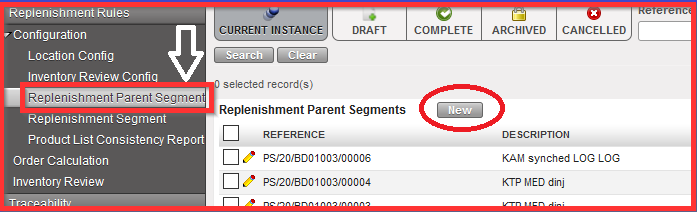
Go to: Warehouse / Replenishment Rules / Configuration / Replenishment Parent Segment
1.Click on “New” and open the window
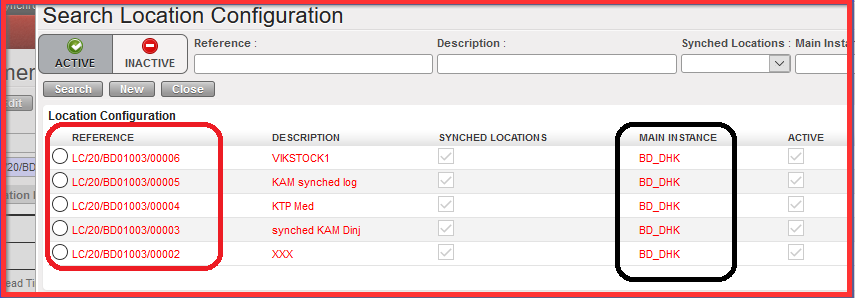
2. Select the “Location Config” reference which was created in the first step (Location Config)

3. Fill in your Description
4. Define Unit of Time in days, weeks or months:
It will be automatically projected to all Parameters listed below, i.e. selected option “months” automatically defines “months” value in all following sub categories Lead Time, Internal Lead Time, External Lead Time) and is visible in the brackets (months) as depicted on the screen below.

5. Add your Lead time values (predefined in months in the example below and decimals are accepted):
a) Internal Lead Time:
i) Order Preparation Lead Time: covers the time of pre-work to be done by people in charge of: checking the system to have correct values; physical inventory; possible check or adjustment of FMC…
ii) Order Creation Lead Time: It is the time when order calculation has been generated to when the IR has been created. It starts when the user click on that button in a segment and it is the time they need to look what order calculation has proposed in terms of quantities. Basically, the time when IR is created is the same time when it is validated.
iii) Order Validation Lead Time: time from IR creation until PO validation
b) External Lead Time:
i) Supplier Lead Time: time from validated PO until reception at requested location.
ii ) Handling Lead Time: time for the handling (customs brokerage) e.g. from reception at port/airstrip to reception at Instance Warehouse. Can be zero e.g. for internal suppliers.
After filling these fields, Total Lead Time, Internal Lead Time and External Lead Time will be automatically computed/ populated.
Total Lead Time = Internal Lead Time + External Lead Time
Internal Lead Time = Order Preparation Lead Times + Order Creation Lead Time + Order Validation Lead Time
External Lead Time = Supplier Lead Time + Handling Lead Time

6. Fill out “Order Coverage”: how long we want the ordered products to last for (here preconfigured in months)

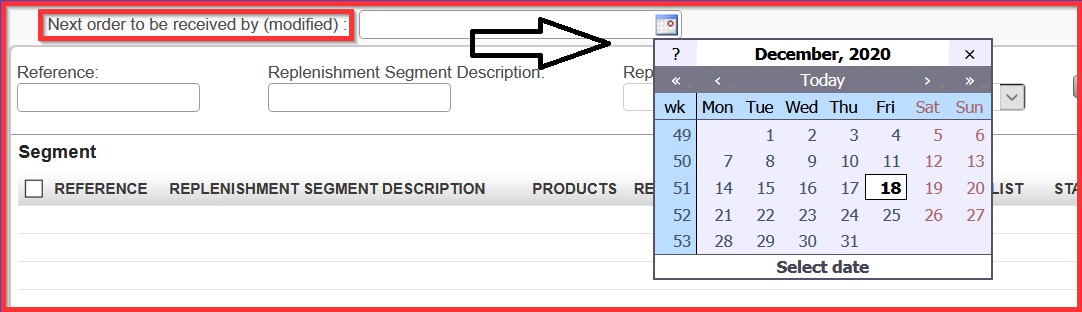
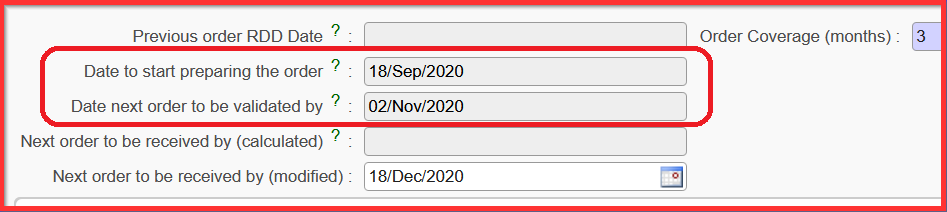
7. Select the date for “Next order to be received by (modified)”. When you select the date, you get automatically computed dates for “Date to start preparing the order” and “Next order to be validated by” e.g. second red highlighted print screen
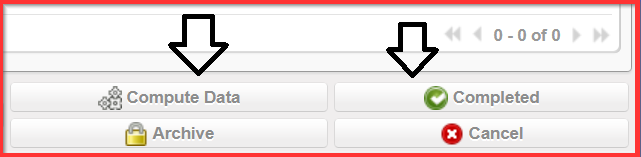
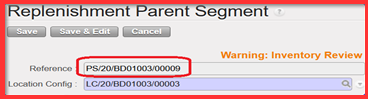
8. Click on “Completed” and you get created Parent Segment Reference, see print screen below
When Replenishment Segments are created (see next Chapter for Replenishment Segment creation) and are linked to specific Replenishment Parent Segment you can come back to the specific Replenishment Parent Segment reference and click on the button “Generate Order Calc” ( see section J. How to generate an Order Calculation).
