
Supply User Manual ENG -> 5. Warehouse -> 5.6 LU-SU4105: Delivery Orders -> D. HOW TO PROCESS A DELIVERY ORDER
D. HOW TO PROCESS A DELIVERY ORDER
A Delivery Order can only be processed if its state is “Available“, meaning that at least one product line of the OUT is “Available“.
If the OUT is created following the sourcing of an IR from stock, its state will be “Available” if at least one of the product lines is “Available” in stock. Otherwise, the OUT will have the state “Not Available”. The source location of the product lines will be the stock.
If the OUT is created following the sourcing of an IR on order (PO), it will only be created when the PO (or a PO-line) will be confirmed and it will have the state “Not Available”. Its lines will have the state “Not available” and their source location will be “Cross docking”. The state of the OUT-lines will switch to “Available” as soon as their corresponding IN-line will be received in cross-docking. As a consequence, the state of the OUT will also switch to “Available“.
If the OUT is created following the conversion from an “Available” PICK, it will be created with the state “Available“.
Other situations are also possible involving mixed sourcing (request partly sourced from stock and partly sourced on order), mixed availability (some lines of the OUT “Available” and some “Not Available”, partial confirmations of POs, partial reception of POs,)
Note that in all cases, you may force the availability. This will have consequences on the states of the OUT-lines and/or on the state of the OUT.
If the Delivery order has been created from an IR, the “Reason type” will be “Deliver unit”, if the Delivery Out has been created from a FO, (See below how to convert Pick to OUT), the “Reason type” will be “Deliver Partner”
Go to: Warehouse / Warehouse Management / Deliveries / Delivery Orders
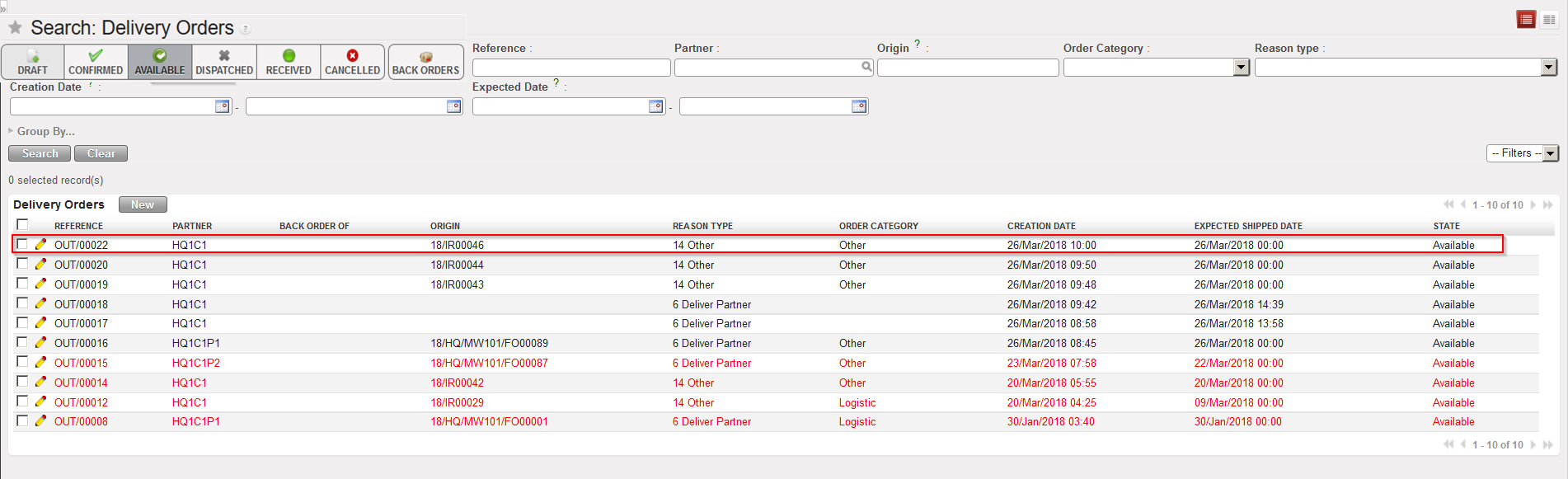
By default, the “Available” filter is activated, and the “Available” Delivery Orders are shown. Note that in the below example, an IR with Location requestor = ECU was sourced on order (PO). This PO was confirmed and the related IN partially processed.
- Open the Delivery Order you wish to process. Its state should be “Available“.
|
|
|
“Available” Delivery Order |
2. Click on the “Process” button.
|
|
|
Processing an “Available” Delivery Order |
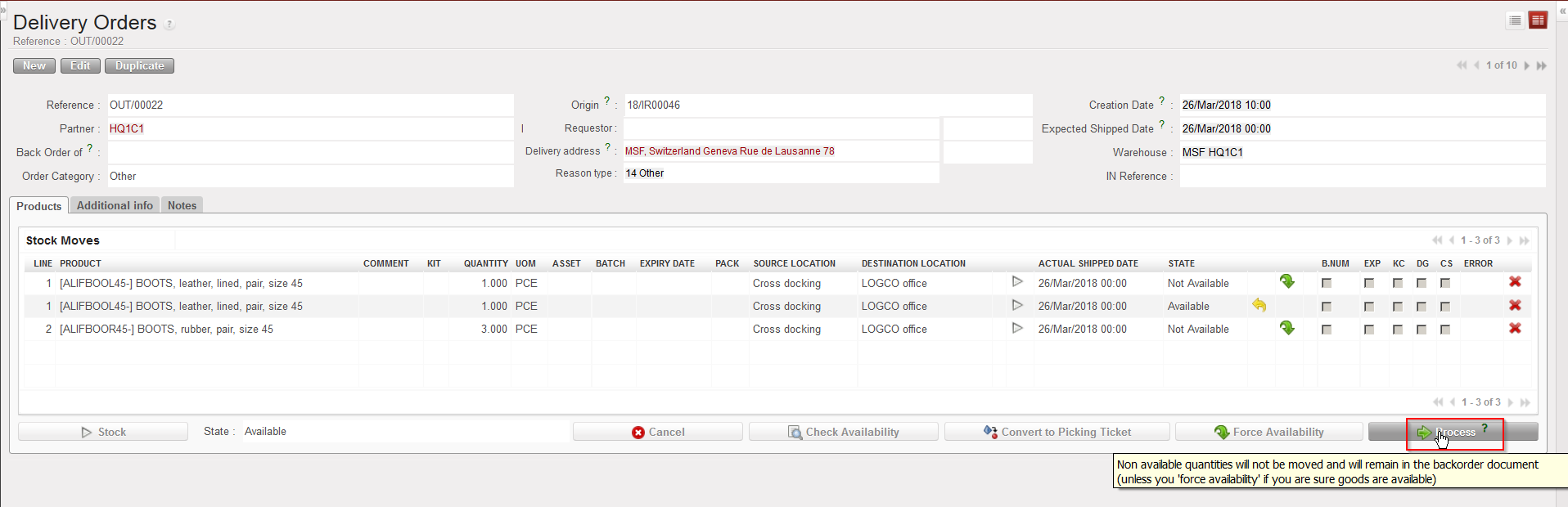
The source location is “Cross docking“. Quantities already received in CD are “Available” (line 2) while quantities not yet received are “Not Available” (lines 1 and 3). Note the yellow message in the above screen.
3. In the “Products to Process” screen, select products and quantities you wish to process by clicking on the “Copy all” button or by using the pencil icons. If necessary, update the asset references, batch numbers and/or expiry dates by editing the lines and clicking on the “floppy disk” icon  .
.
|
|
|
Processing an “Available” Delivery Order |
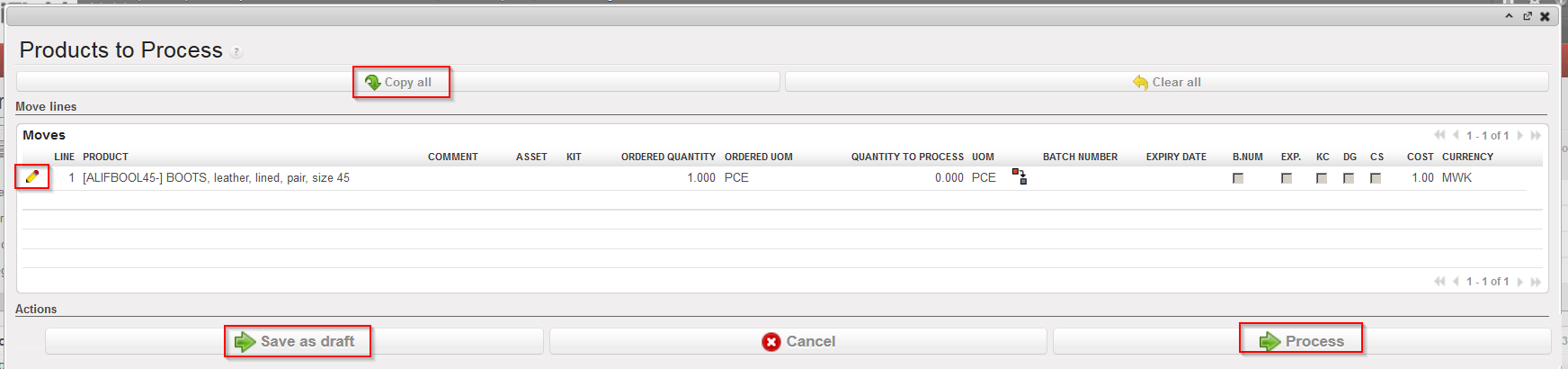
Note that all products and quantities which were available in the “Delivery Order” screen have been transferred to the “Products to Process” screen. This is the meaning of the yellow message on the previous screen.
The “Save as Draft” button can be used to save the information encoded in case you need to process it later.
4. Click on the “Process” button.
|
|
|
Processing an “Available” Delivery Order |
|
|
|
Delivery Order after processing (back order) |
|
|
|
Delivery Order after processing (processed products/quantities) |
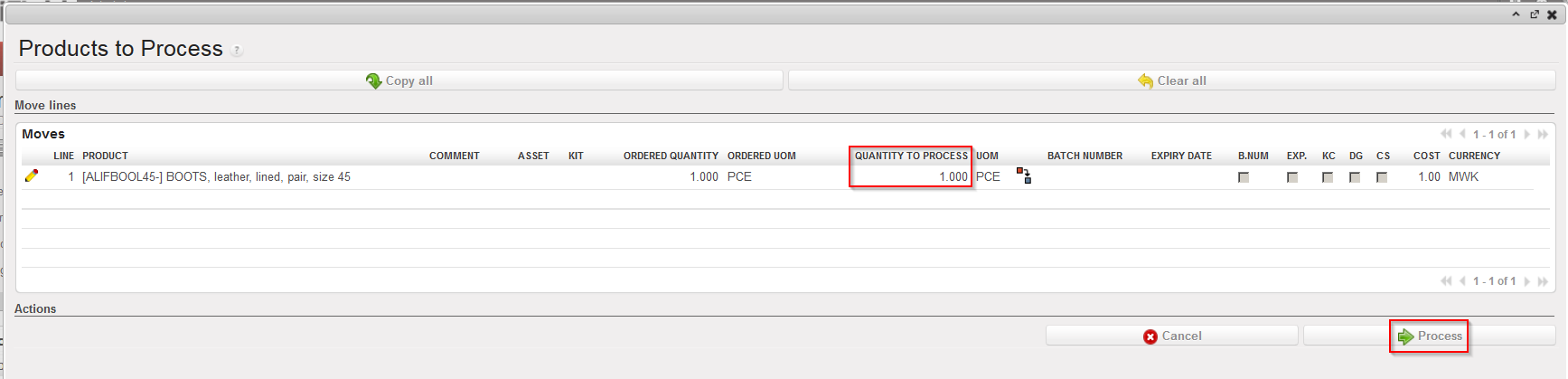
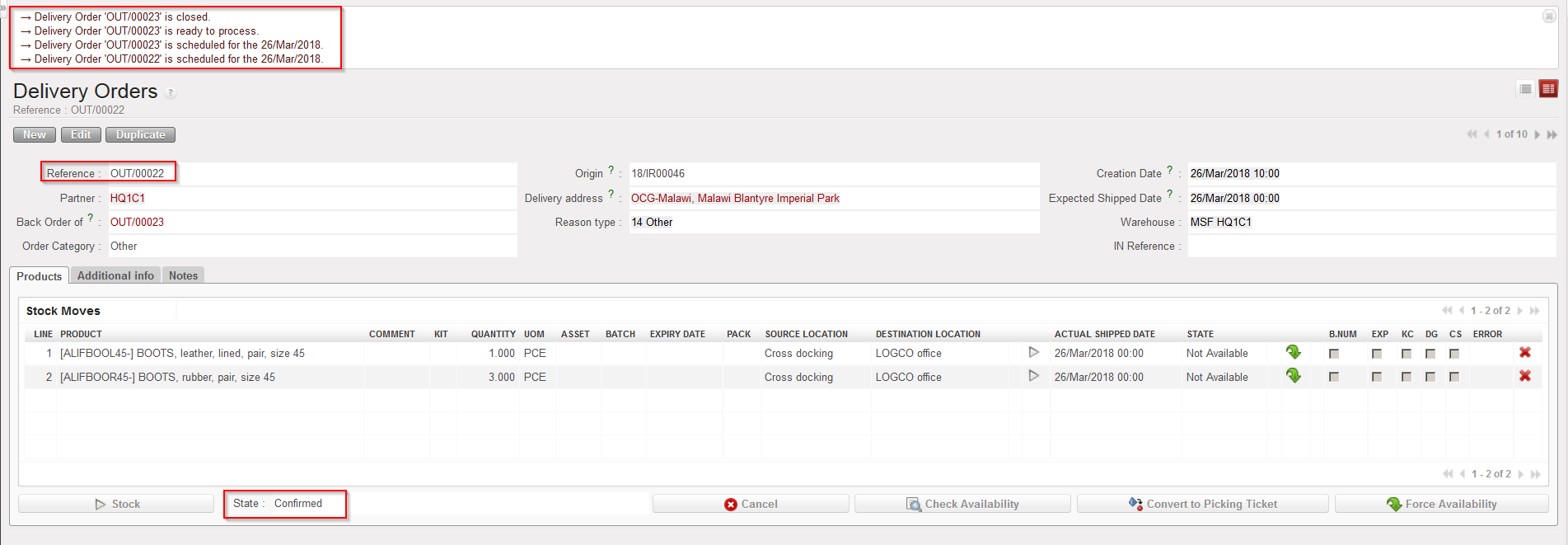
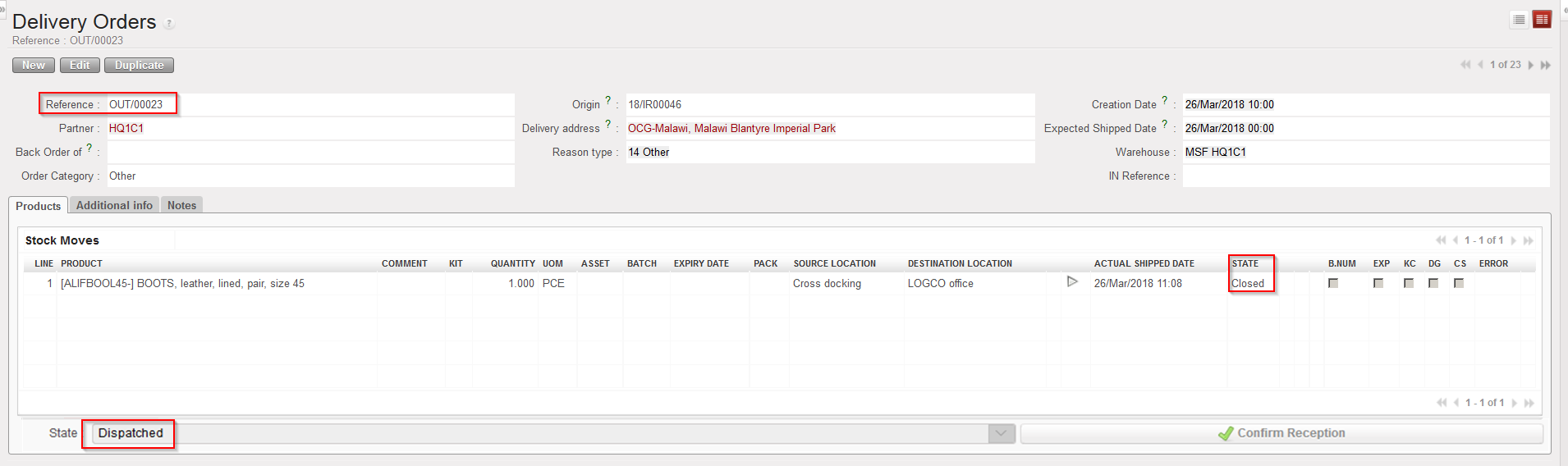
If the OUT was fully processed, it will simply be Dispatched.
If the OUT was only partially processed (as it is the case in the above example), a back-order will be created. The processed products/quantities are registered on a new OUT with the state “Dispatched“, while the old OUT stays open (“Confirmed” in this case) in order to process products and quantities which will be received in CD in the future.
Again, one scenario among many was selected to illustrate the processing of a Delivery Order. Alternatives involve sourcing from stock, conversion from PICK to OUT, situations in which no back-orders are left behind, …
Note that if you need to change the source location before processing an “Available” OUT-line, it is possible to first make the line “Not Available” (by clicking on the yellow arrow to cancel the availability) then click on the pencil icon to edit the OUT-line and change the source location to the required one. After that you should re-check the availability of the OUT by clicking on the “Check Availability” button
