
Supply User Manual ENG -> 4. Procurement -> 4.9 LU-SU3301: Procurement Reporting -> E. How to check Supplier Payment
E. How to check Supplier Payment
It may be useful to be able to check if a supplier has been paid, and it is possible to check this from the supply business applications.
Go to: Partners / Suppliers / Suppliers
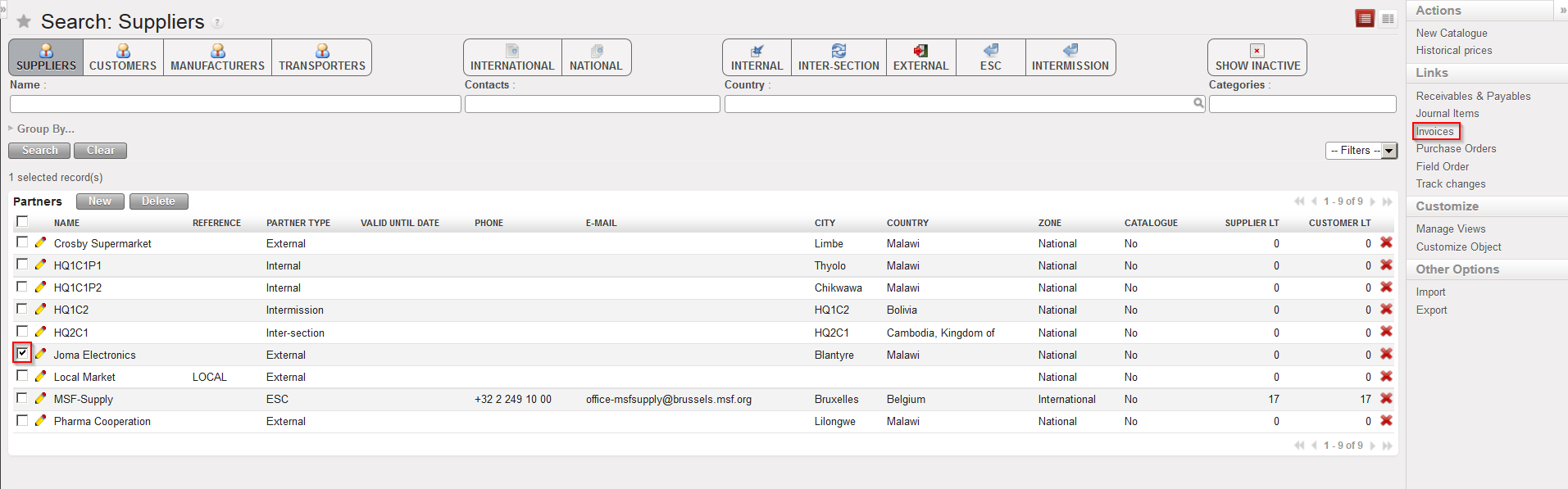 |
| Supplier selection to view related invoices |
- Enter the relevant criteria to find the Supplier you want to check, using the search buttons and fields and then click on “Search“.
- In the search results displayed, tick the check box of the supplier for which you wish to check the payment status. Do not select more than one supplier.
- In the action menu on the right hand side, click on the “Invoices” option in the “Links” section.
 |
| View of invoices linked to supplier |
4. The system will display in the header/search information, the supplier which you selected and in the list section, all invoices related to this supplier, with the date of the document, posting date, purchase invoice number, supplier “customer“, source document, currency, residual amount, total amount and state. Invoices can be either created during the reception process (by the system) either manually by Finance. In this case, the source document field will be empty.
5. Invoices can be “Draft” (validation pending), “Open” (payment pending) or “Paid” (payment done). If a partial payment was done, a residual amount will be displayed.
If you have questions on this functionality, it is best to check with Finance.
