
Supply User Manual ENG -> 5. Warehouse -> 5.12 LU-SU4205 Replenishment Rules -> E. HOW TO CREATE A REPLENISHMENT SEGMENT
E. HOW TO CREATE A REPLENISHMENT SEGMENT
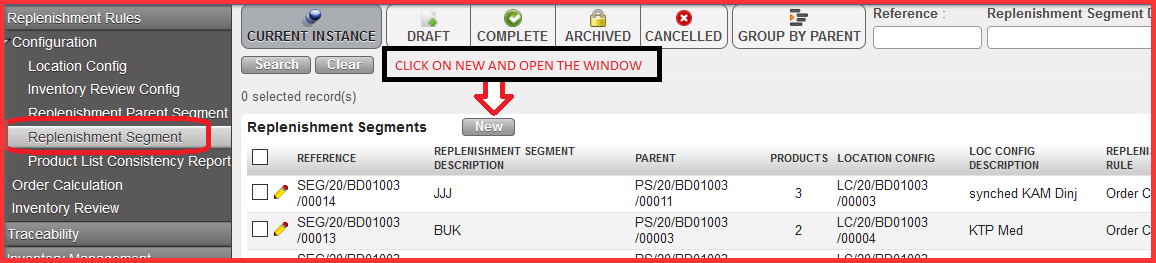
Go to: Warehouse / Replenishment Rules / Configuration / Replenishment Segment
- Click on “New” and open the window
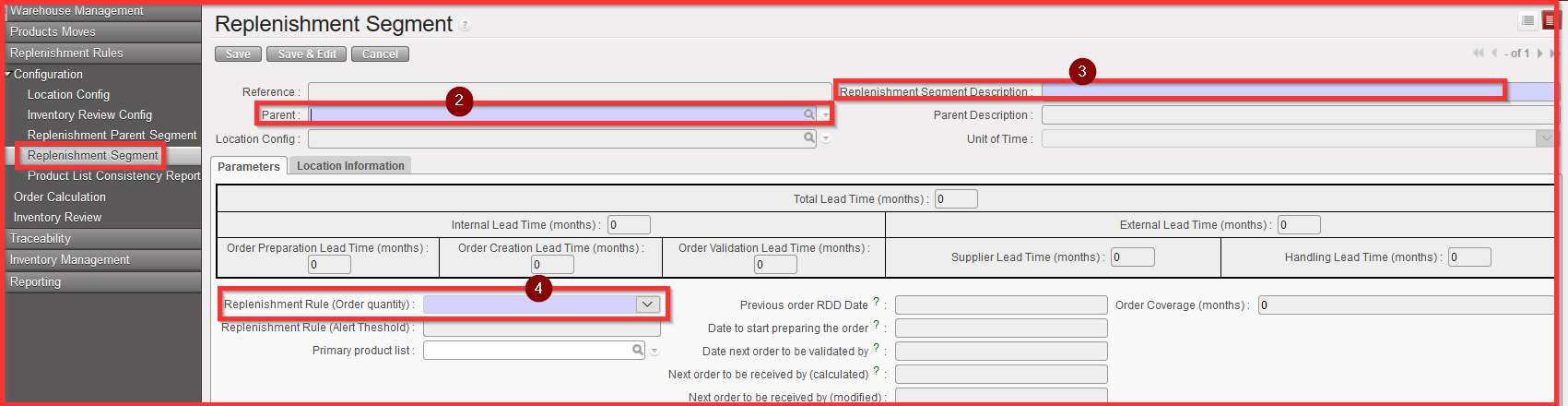
At this level you cannot change Unit of Time section which shows “days” as default value. By choosing the “Parent” system automatically change Unit of Time value based on the Replenishment Parent Segment configuration.
2. Select the “Parent”: from already preconfigured Parent Segment Reference
3. Fill in the “Replenishment Segment Description” field with your own created description / name of Replenishment Segment
4. Select a “Replenishment Rule (Order Quantity)” out of three available options: Order Cycle, Min/Max, Automatic Supply
- If user chose “Order Cycle” then a “Safety Stock” option appears on UF screen where we must select our value based on Unit of Time configuration. “Safety stock” in months of consumption. For the safety stock as for the other product statuses, the Lead time is not considered in this averaged calculation, only the Order Coverage time.
There is also an option of using either Safety Stock (SS) or buffer (e.g. SS as quantity). Buffer is used more on line level.

Order Cycle including Safety Stock (months) print screen.
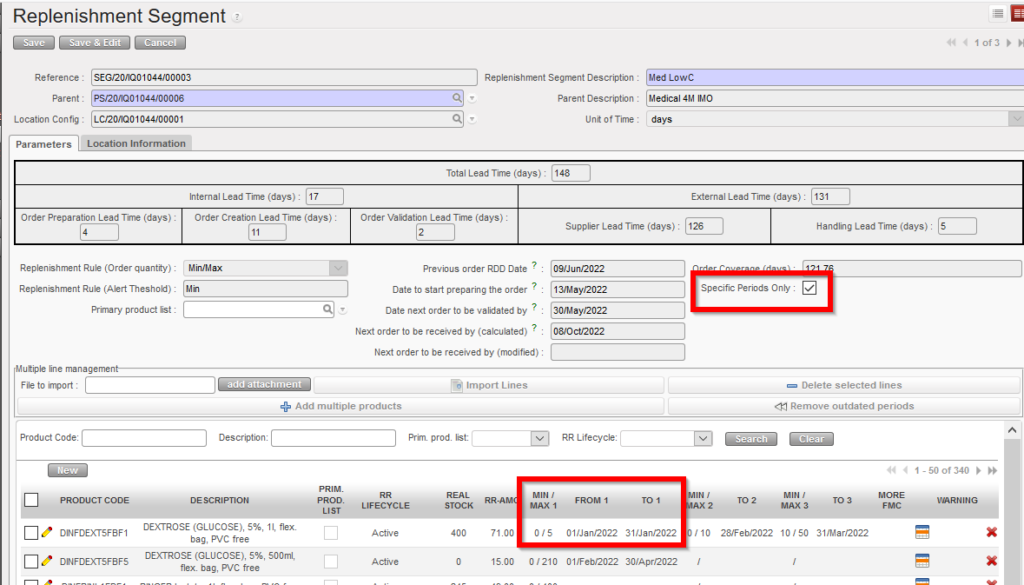
- If user chose “Min/Max” or “Automatic Supply” as“Replenishment Rule(Order Quantity)”, then a “Specific Periods Only” option will appear on UF screen, if user select it a new button appears under the “Delete selected lines” called “Remove outdated periods”
The RR types Min / Max & AutoSupply can be applied with specific validity dates, in the same way as is the case for RR type Order Cycle.
The default is that validity periods are not applied for Min/Max & AutoSupply but they can be applied by ticking onscreen checkbox “Specific periods only” or changing value in import/export of Segment. If un-selected, values other than 1st column cannot be filled / are not accepted at import.
Import/export of Segment has multiple columns to allow for these values: “Min / Max 1” “From” “To”, Min / Max 2″, “To” etc.
5. Click on “Add multiple products” Then click on “Add” and select multiple products which you want to work with.
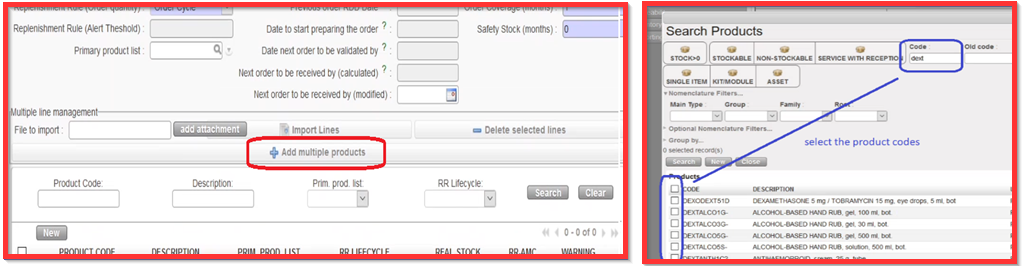
You still have the option to add products via Import by clicking on “add attachment” and “Import lines”, you can use the export excel of “Segment” (via Action menu) from an empty Replenishment Segment, the export template has 5 empty lines. you can fill lines the normal way to import lines onto the Segment.
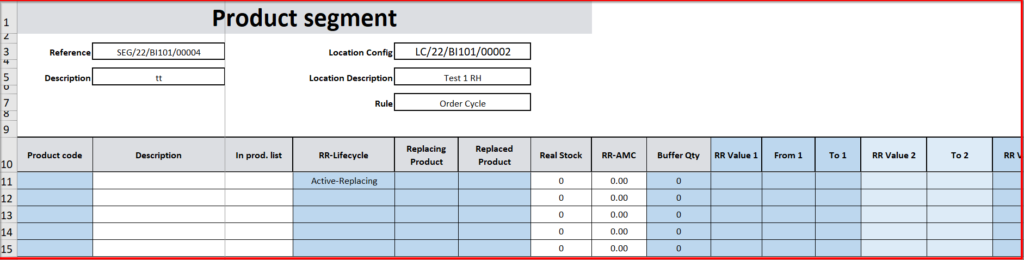
OR you can click on “New” and add lines one at a time.
6. Click on the icon pencil icon  in order to edit the specific product line.
7. Select the filter option for “RR LIFECYCLE “which is specific for Replenishment Rules among the following options:
a) “Active”: for the active existing product
b) “New”: for the new product for the specific activities (which is part of on-boarding without existing pipeline)

c) “Replaced”/ “Replacing”: we can also replace one product by another one (decision made based on project strategic decisions, decisions is outside UF system). Within the segment if we have a “Replaced” product, we must have set out a “Replacing” product which is linked to the replaced product. The system cannot guess which the pair of the “Replacing”/”Replaced” product is so the opposite must be added for each. Edit the line with the product which needs to be replaced.
i.) Select “Replaced” and save the line

ii.) Click on the icon below  in order to set paired product
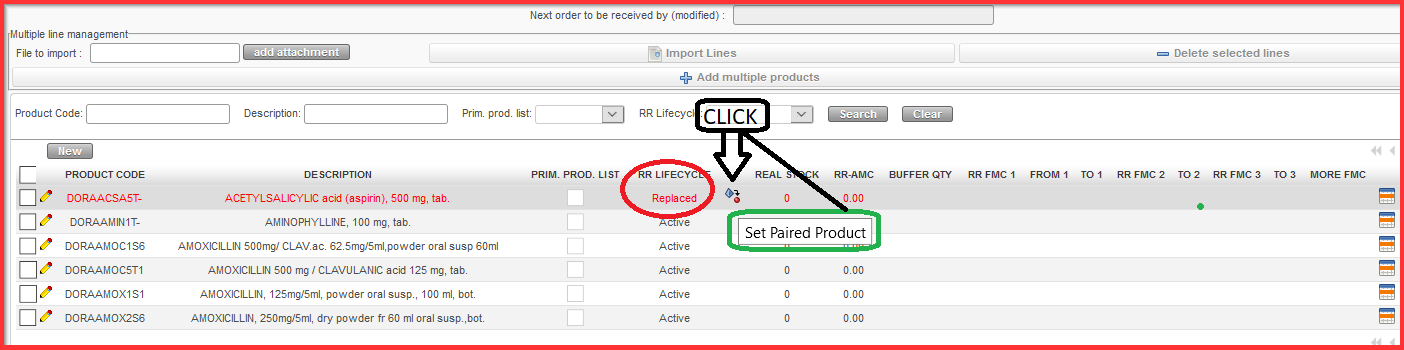
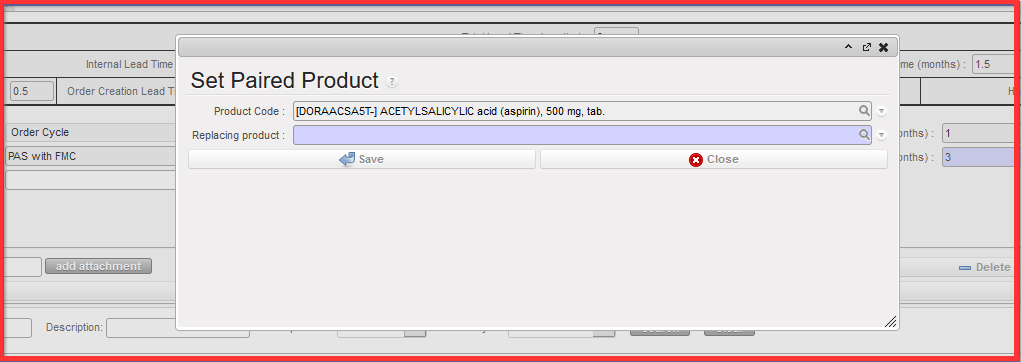
iii.) Select the “Replacing product” from the “Set Paired Product” pop up screen below
iv.) Click on “Save”. Window is closed, desired replacing product is selected.
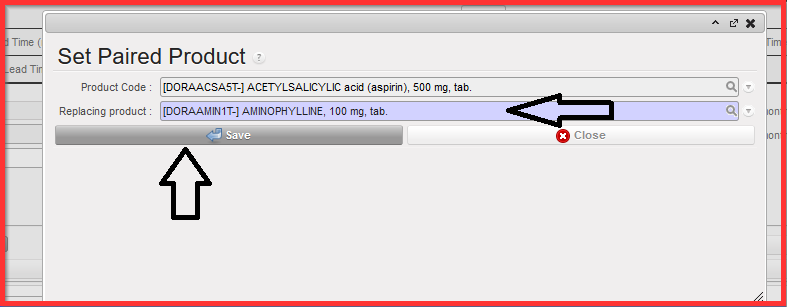
v.) Then you edit the product line which is replacing the replaced product and select “REPLACING” and save the line
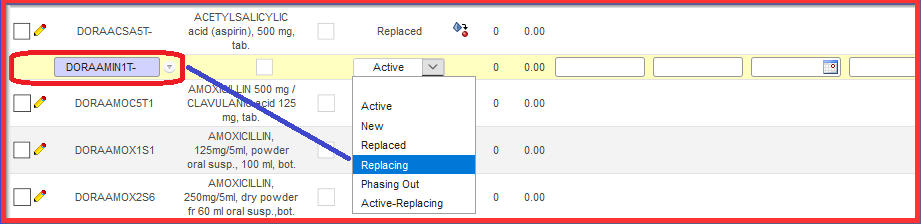
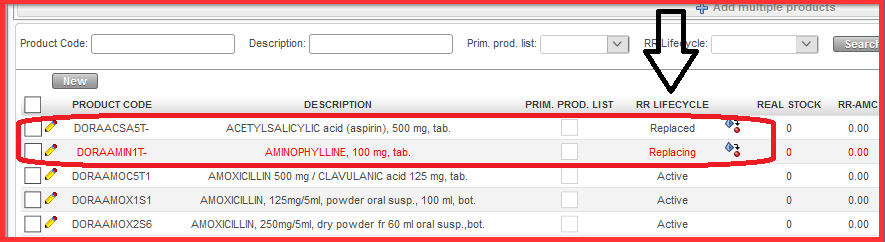
vi.) You must go back to Replacing product and click on “Set Paired Product” icon 
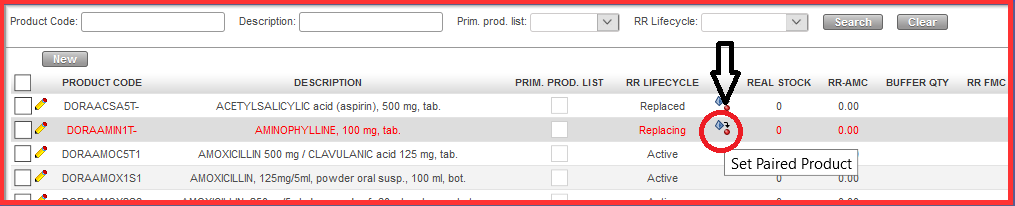
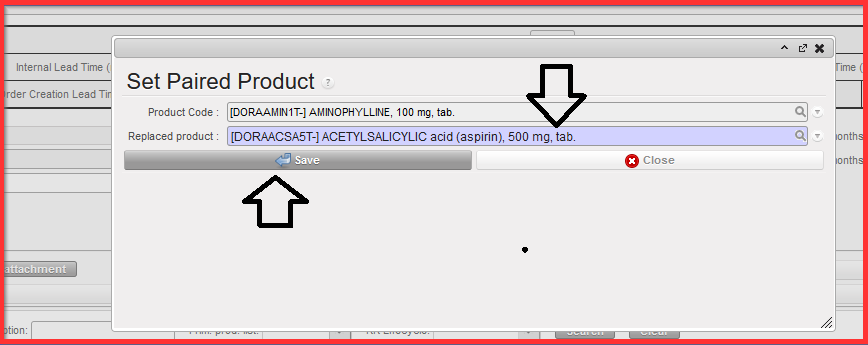
vii.) Click on “Save” button and close the window.
RR Lifecycle “Replaced” and “Replacing” are set up. The second product line is not red highlighted anymore.

d) “Phasing out”: it is possible but not mandatory to fill in the field “Replacing product”. However this link to replacing product is informative only and no calculations are linked to this second product. In other ways behaves the same as an “Active” product.
If a Product has “Phasing out” as its RR Lifecycle, no Order proposal quantity is calculated. When Order calculation is generated, product with this status will always have “0” as proposed value.
NB: There should be a warning in Replenishment segment Warning column: one word “Phased out?”, with complete warning “Product has pipeline – check status!””. Warning purely informative.
e) “Active Replacing”: This is to behave in exactly the same way as the current “Active” status. However this must be linked to another product in status “Replaced” (i.e.: a product with “Replaced” status must be linked with either a “Replacing” product or an “Active-Replacing” product)
For the Order Calculation, as per before, there is never an order qty proposed for the “Replaced” product.
But the quantities for the “Active-Replacing” product are not changed by the system and are exactly as if the product had a normal “Active” status (it does not take account of any stock of the “Replaced” product. The only difference is that there is a warning for the Active-Replacing product which flags the Stock out date of the linked “Replaced product” “Warning, SO Date of linked product is XXXXX” This should appear in the Inventory Review and Order Calculation.
8. Fill in the “BUFFER QTY” field: can remain blank if you do not want to have any buffer qty.
9. Fill in the “RR FMC1” in PCE (SOQ) which is the unit measure of selected product. “RR FMC” columns/fields are only displayed when RR “Order Cycle” has been previously selected.
10. Select the period “FROM1” (first date of the month) and “TO 1” (last date of the month – You can fill up to 18 “RR-FMC” using the “Edit 18 FMC” icon  .
.
11. Save the link by clicking on the Save icon  .
.

12. Click on “Completed” button once you think you are done with entering the data.
You can click on “Compute Data” button to go back in order to check what is present in “REAL STOCK”. “Compute Data” is very important also for synchronization among the projects / coordination instances (multiple levels).

N.B. It is possible for the same product to be in up to 3 different Replenishment Segments at the same time. A product can be in 3 Replenishment segments belonging to the same Location Configuration, and the RR type of each of the 3 can be different (Order Cycle, Min/Max, Auto Supply) or all 3 can have the same RR type. The only condition is that the product must not have an active value (>0) in the same time period in more than one Replenishment Segment. For example, this means that if Product A has an FMC value of 2,000 in period 01 Jan 2022 > 28 Feb 2022, the same product cannot have a value other than 0 for this period in any other segment belonging to the same Location Configuration.
