
Supply User Manual ENG -> 4. Procurement -> 4.6 LU-SU3201: Purchase Orders (POs) - Generals -> E. How to export a Purchase Order
E. How to export a Purchase Order
A PO can be exported to Excel (XML 2003 format) or to PDF
Go to: Purchases / Purchase Management / Purchase Orders
- Click on the check box at the left of the line of the Purchase Order to export.
- The Action Menu is displayed to the right of the screen.
- Click on the “Purchase Order Excel Export” option.
- The PO will be exported to Excel (in a similar format than the one used to import lines).
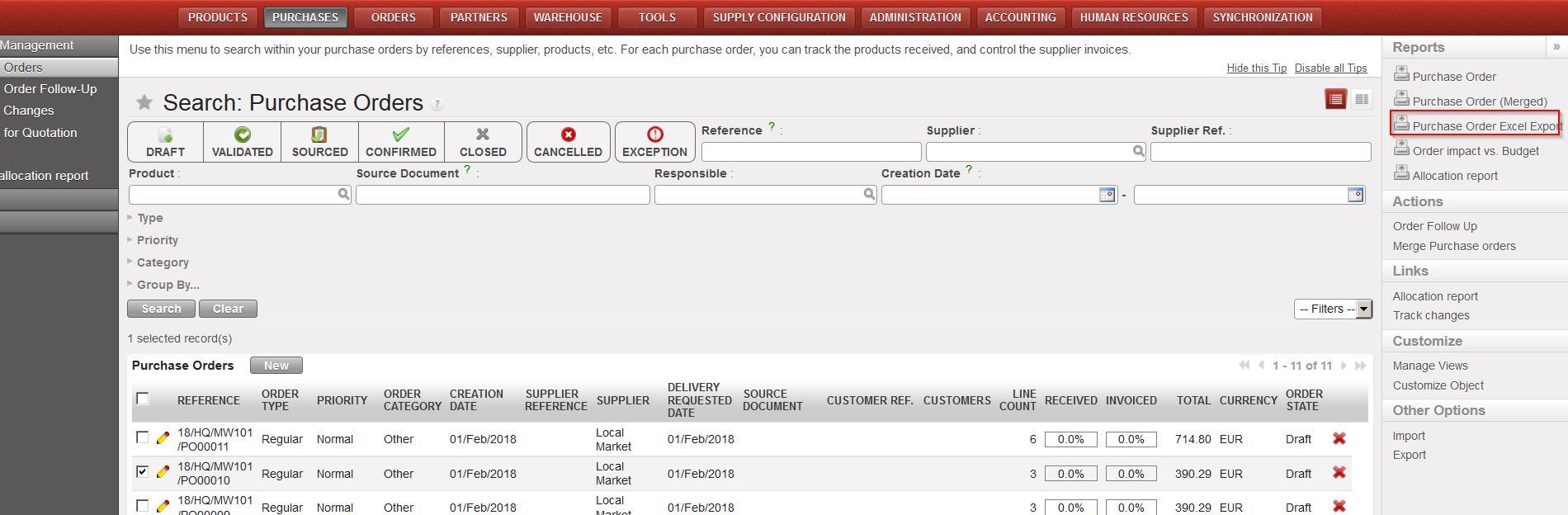 |
| Export a PO to Excel |
 |
| PO Exported to Excel |
If you need to create a PDF version of a PO for validation purpose, select “Purchase Order” in the action menu, under “Reports“.
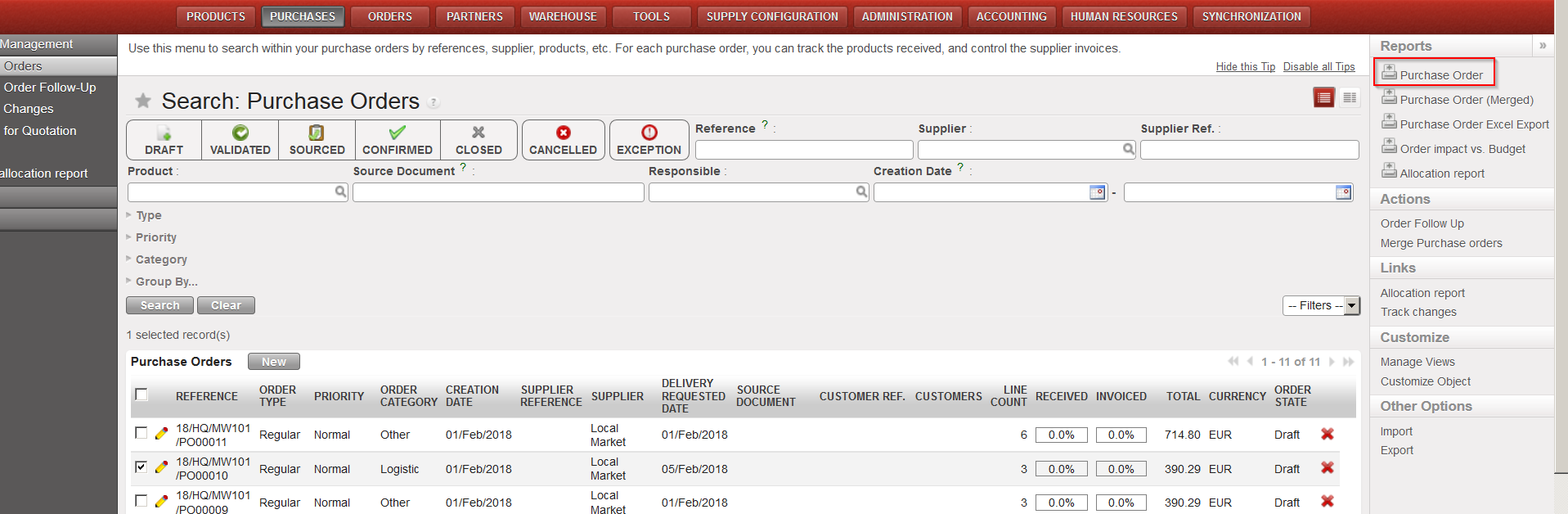 |
| Export a PO to PDF |
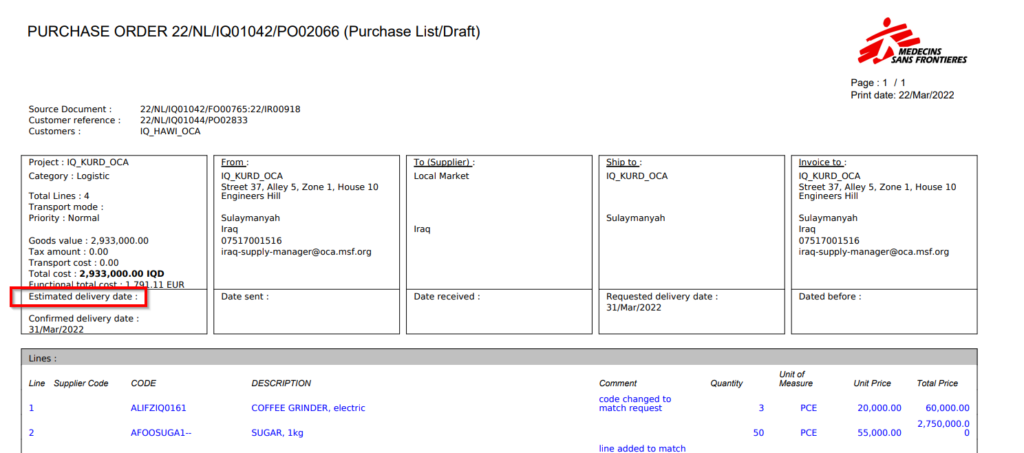 PO in PDF PO in PDF |
Note 1: You have the possibility to export several POs to Excel in one click. You just need to select several POs via the check boxes on the “Search: Purchase Orders” screen and click “Purchase order Excel Export” in the action menu. You will have an Excel file containing several sheets with 1 PO per Excel sheet. Note that the export to PDF of several POs in one click is not possible (not working).
Note 2: The export to Excel and PDF is also possible from within the PO as the options “Purchase order Excel Export” and “Purchase Order” are also available in the action menu. If the export is done from within the PO, only one PO is exported.
Note 3: On the Excel, the comment included on the “Nomenclature Selection” tab of the PO-line will appear in the column “Comment“. Note that the notes included in the “Notes” tab of the PO-line column are not exported to excel.
Note 4: On the PDF, at header level, the notes included on the “Notes” tab of the PO will appear. Note that the “Details” field does not appear. Still on the PDF, at line level, the “Comment” included on each PO- line will appear. This is particularly useful for “products by nomenclature” lines. Note that the notes included on the “Notes” tab of the PO-line do not appear on the PDF.
If a default customized message is configure and “Show PO default message” is ticket, a default message will be displayed at the bottom of the “Notes” frame (seeLUSU3401 Procurement Advanced Features -J.How to configure a PO customized default text)
Note 5: Cancelled lines of the PO are not displayed in the PDF print out
