
Supply User Manual ENG -> 5. Warehouse -> 5.17 LU-SU4303: Management of Expiry Dates -> E. HOW TO MANAGE EXPIRED STOCK
E. HOW TO MANAGE EXPIRED STOCK
In order to ease management of Expired Stock , the “Manage Expired Stock” feature enables the user to automatically create an Internal move, INT, for products which have expired and need to be send to Quarantine or Destroyed or the second option for the products which are not yet expired but will be expiring soon: “Soon to be expired“. The selection of these expired products needs to be done per location.
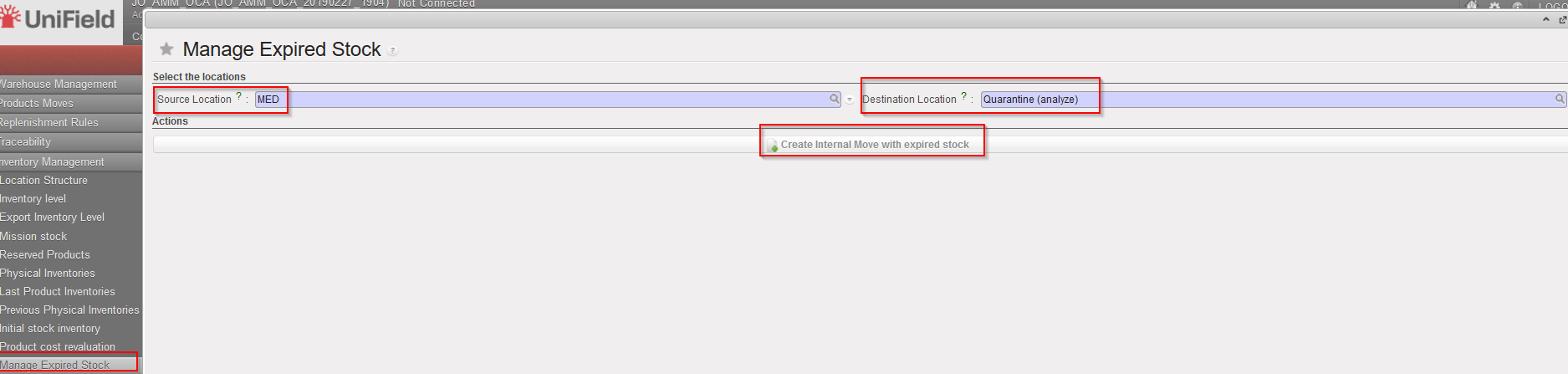
Go to: Warehouse / Inventory Management / Manage Expired Stock
- In the “Source Location” field, select the location from where you want to transfer the Expired products (this is a mandatory filed).
- In the “Destination location” field, the only options are: “Destruction”; “Quarantine (analyze)” and “Expired/ Damaged /For Scrap”.
- Click on “Create Internal move with expired stock”
|
|
|
Manage Expired Stock |
|
|
|
Manage Expired Stock – Generated INTernal move |
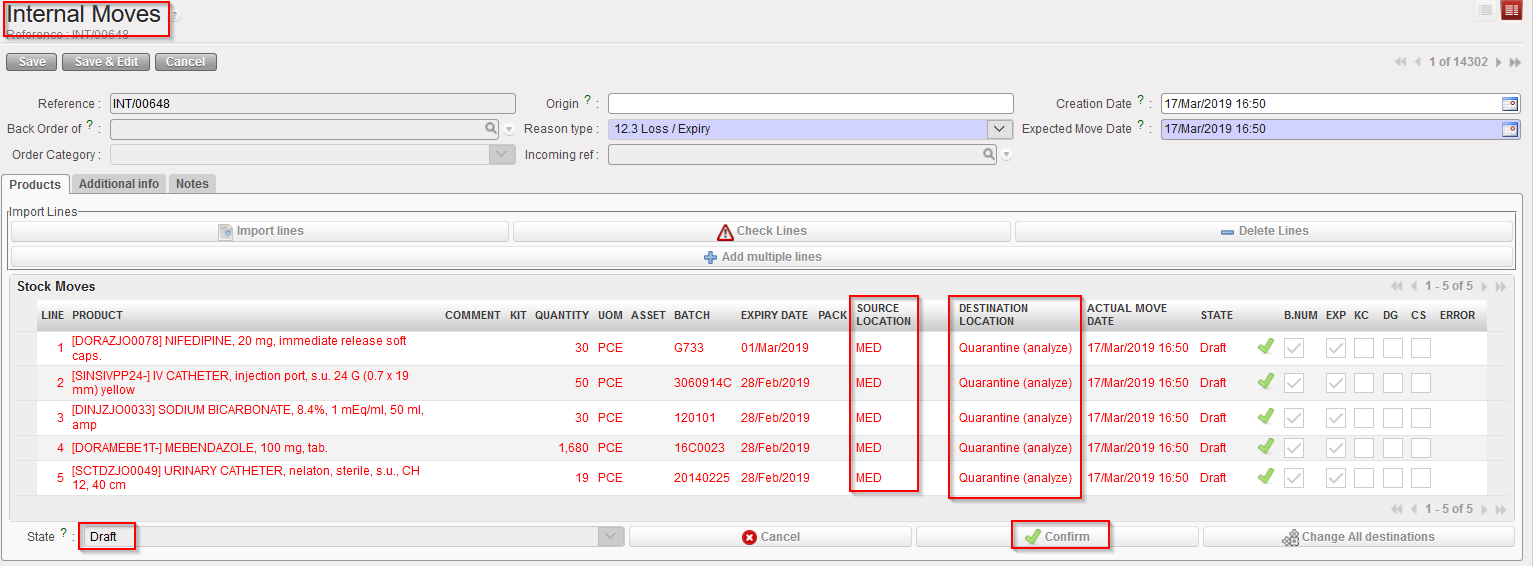
The associated INT is automatically created with the list of Expired products in “Draft”. The “Source Location” and “Destination Location” are automatically populated as per selection.
To proceed forward user will have to Confirm the INT refer to the chapter “LU-SU4201 Internal Moves”.
There is also the second option to see also products which are not yet expired but will be expiring soon.
Function to have possibility to select products “Soon to be expired” (option for the range from 1 to 12 weeks) e.g. you can choose the product which is subject to expired in 5 , 6 weeks etc. and also there is a new possibility before creating an internal move to have option of popped up screen where you have option to move or keep internal move.
Go to: Warehouse>Inventory Management>”Manage Expired stock”
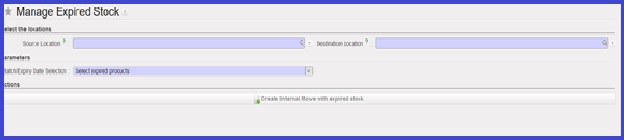
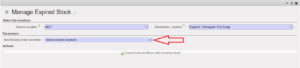
Click on the drop-down menu to get selecting options: “Select expired products” and “Select expired products and soon to be expired”
“Select expired products”
“Select expired products and soon to be expired”
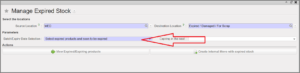
In the field “Expiring in the next” select the number of the weeks in the future, and then their will be 2 buttons, “View Expired/Expiring products” & “Create Internal Move with expired stock”
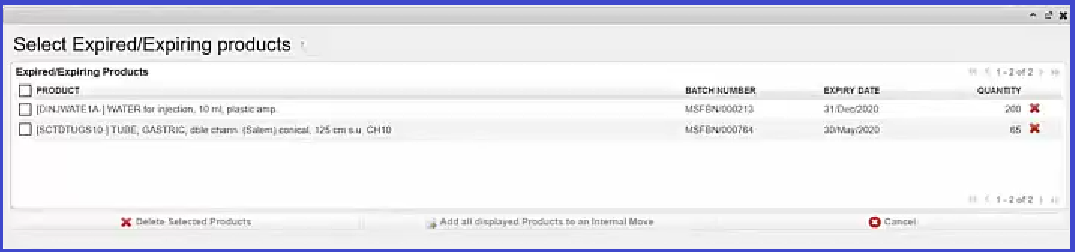
When the button “View Expired/Expiring products” is clicked , there is a pop-up window showing the possibility to review and choose the product to move before the creation of internal move “INT”
When the button “Create Internal Move with expired stock” is clicked , the “INT” will be created containing all products which are expired and soon to expire.
