
Supply User Manual ENG -> 5. Warehouse -> 5.3 LU-SU4102: Picking -> E. HOW TO PRINT THE PRE-PACKING LIST
E. HOW TO PRINT THE PRE-PACKING LIST
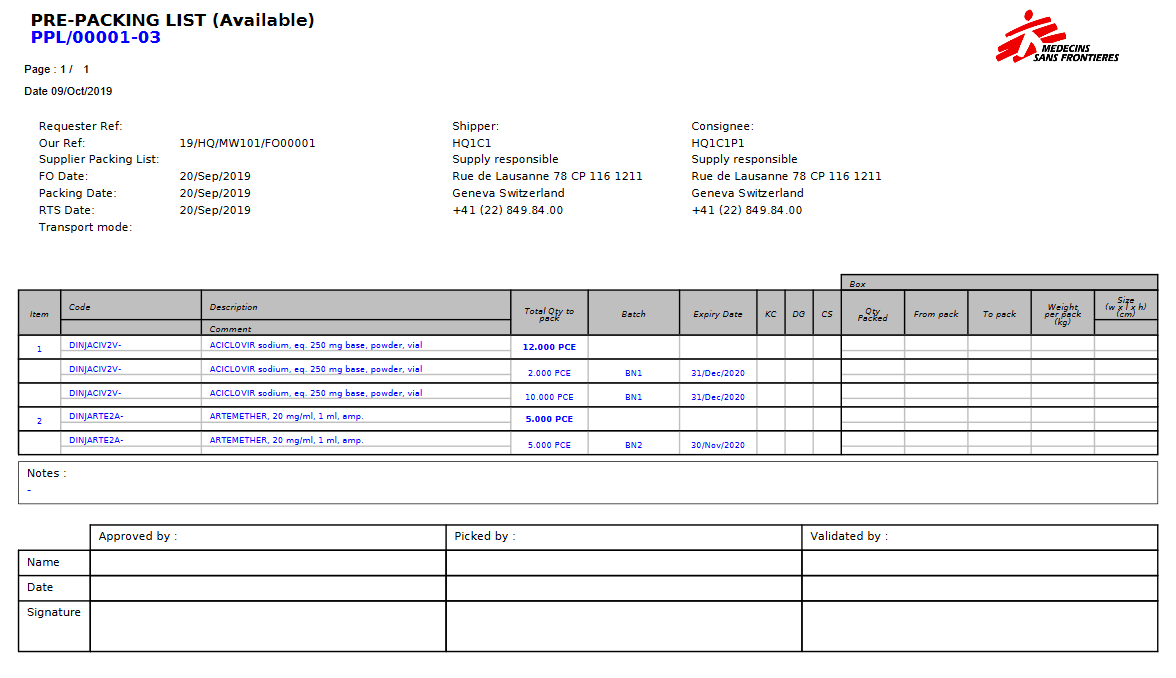
Printing a document from an available PPL can be useful as it allows the storekeeper to write on it how picked items have been packed. Once done, this will be encoded in the system through the steps 1 & 2 described in the previous section.
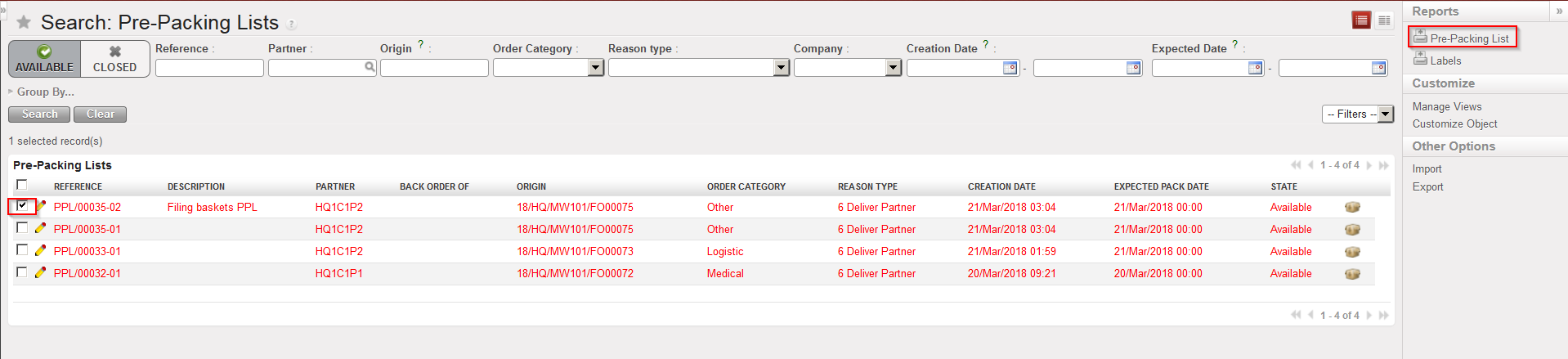
Go to: Warehouse / Warehouse Management / Deliveries / Packing
- Using the check boxes, tick the PPL you wish to print
- Select the “Pre-Packing List” option in the action menu to export the PPL to PDF
|
|
|
Selecting a PPL an exporting it to PDF |
|
|
|
PPL in PDF |
The “Pre-Packing List” option is also available in the action menu from within the PPL.
PPL can be exported to PDF in the state “Available” or “Closed“. However, if a “Closed” PPL is exported to PDF, the parcel information will not appear on the PDF document.
Note that labels may also be printed from a “Closed” PPL. Use the option “Labels” in the action menu to print them. You will get a PDF file with one page per parcel. Labels can be put on parcels in order to allow the shipper and the customer to properly identify them.
