
Supply User Manual ENG -> 5. Warehouse -> 5.6 LU-SU4105: Delivery Orders -> H. HOW TO CANCEL AN "OUT"
H. HOW TO CANCEL AN “OUT”
Just as PICK documents can sometimes be Cancelled, the same can happen with OUT documents. This may happen if you decide to not send the back-orders or if the requestor does not need the goods anymore. This Cancellation will directly impact the related IR and Cancel it if IR sourced from Stock or Cancel it if IR sourced to PO.
Out Cancellation can result on products being sent to “Cross Docking” location when products have been sourced to a PO from an IR. In order to avoid this, at Cancellation stage, user now have the option to send the goods either to Cross Docking or to proceed to an INTernal Move (automatically created).
1) Cancellation of an OUT at header level (with IR sourced on order)
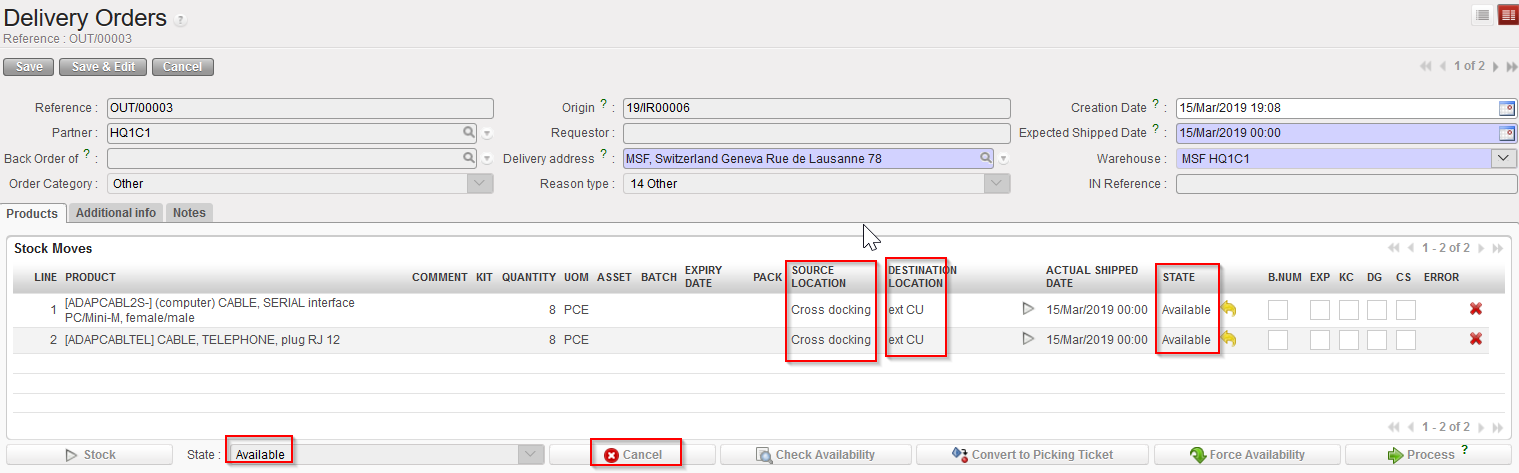
Go to: Warehouse / Warehouse Management / Deliveries / Delivery Order
- Open the OUT you wish to cancel
- Click on the “Cancel” button located at the bottom of the screen.
|
|
|
Cancelling an OUT at header level |
3. Confirm the cancellation in the pop up window by clicking on the “Cancel” button.
|
|
|
Confirming cancellation of a OUT at header level |

4. Select what needs to be done with the Cancelled products
a) Click on “Cancel Only” to send the goods to cross docking anyway (will be unreserved products)
|
|
|
Click on “Cancel only” to proceed anyway to product sent to Cross Docking |

Note that you can check the “Unreserved Stock report” to see all the Cancelled products that have been sent to Cross Docking (LU-SU4302 Stock Inventory Report G. Unreserved Stock report)
b) Click on “Cancel & create Internal Move” to generate the creation of a new “Available” INT with “Source location” = Cross Docking and “Destination location” = MED/LOG depending on type of products
|
||
|
New INT created following OUT Cancellation |

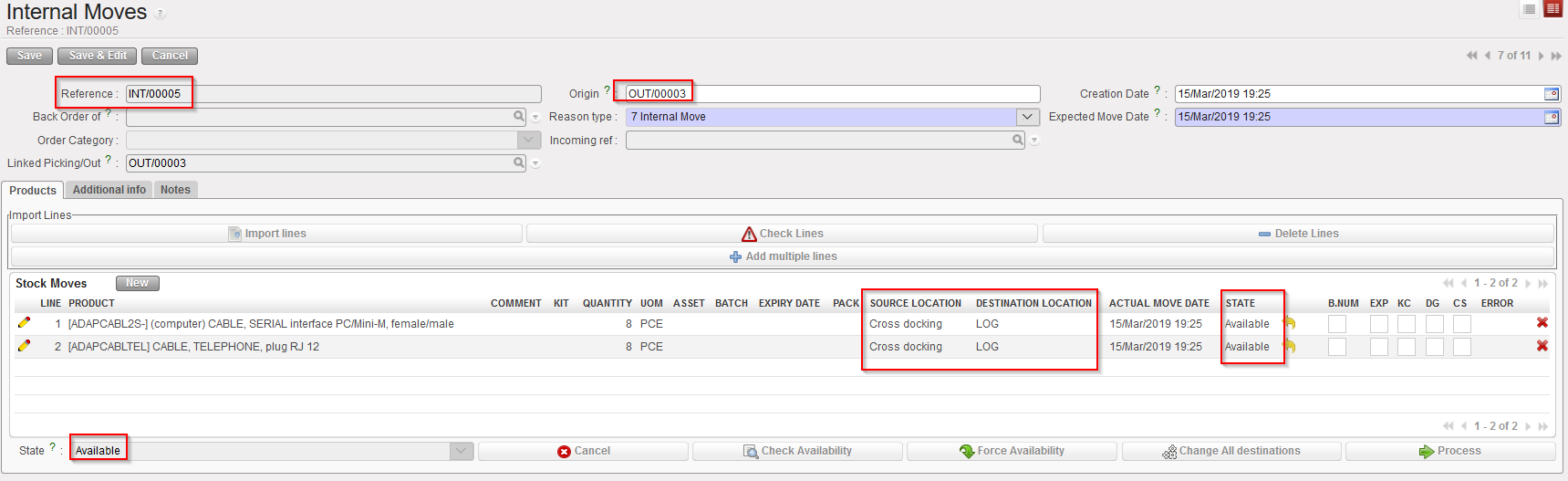
Please refer to the chapter “LU-SU4201 INTERNAL MOVES” to proceed forward with this INT.
In both cases, the OUT will display the same result = it will be Cancelled
|
|
|
OUT cancelled at header level |
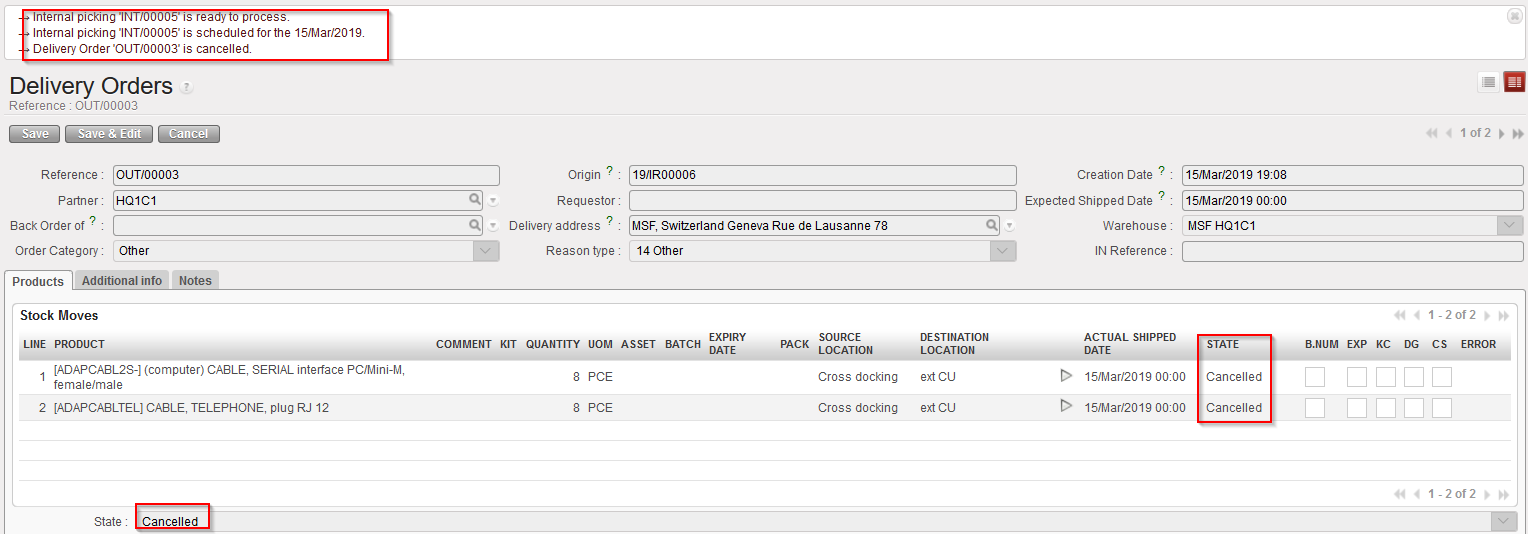
The state of the OUT (and of all its lines) switches to “Cancelled“.
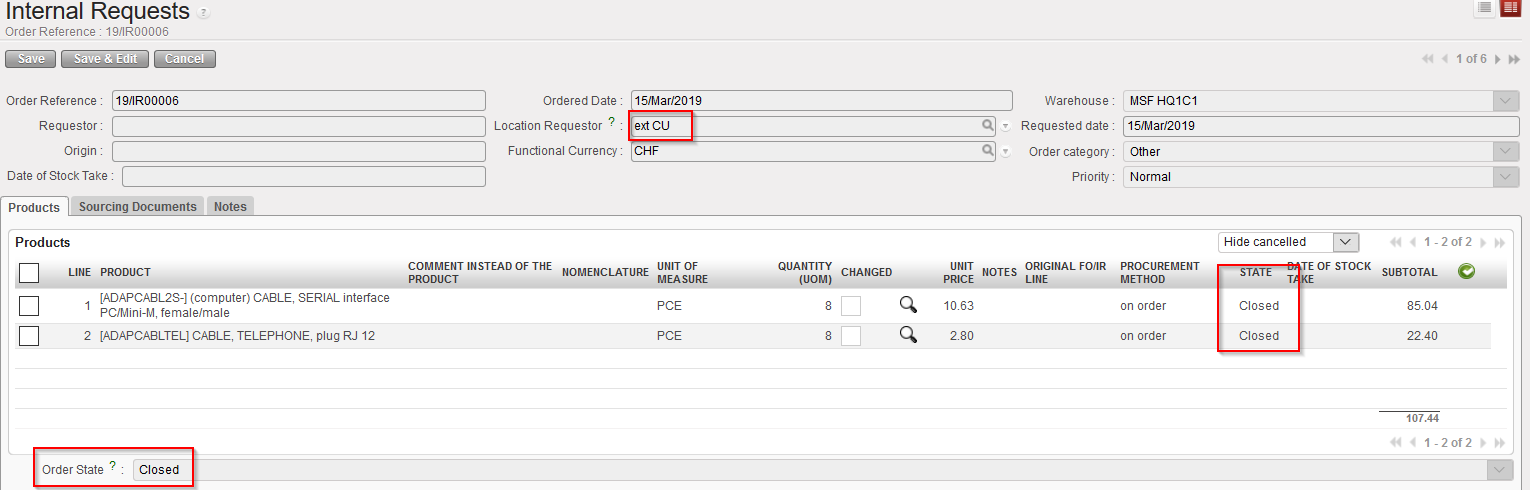
Note that this will also trigger the Closing of the related IR and all IR-lines are “Closed“ (since IR has been sourced from PO)
|
|
|
IR Closed following cancellation of a OUT at header level |
2) Cancellation on OUT at header level (with FO sourced from stock)
Go to: Warehouse / Warehouse Management / Deliveries / Picking
- Open the OUT you wish to cancel
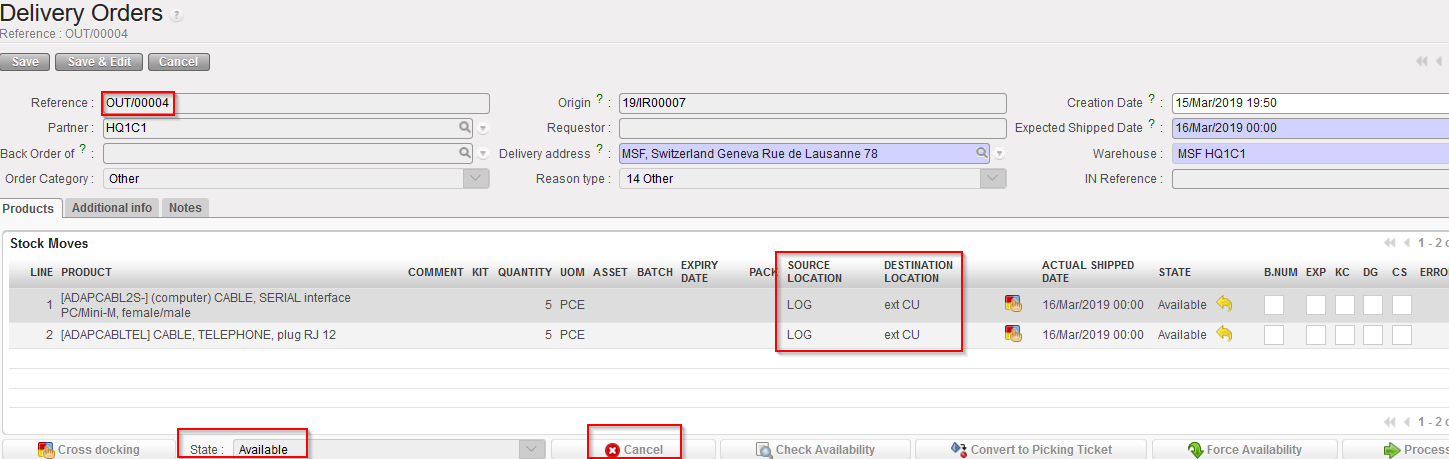
- Click on the “Cancel” button located at the bottom of the screen.
|
|
|
Cancelling OUT at header level |
3. Confirm the cancellation in the pop up window by clicking on the “Cancel only” button.
|
|
|
Confirming cancellation of an OUT at header level |
|
|
|
OUT cancelled at header level |

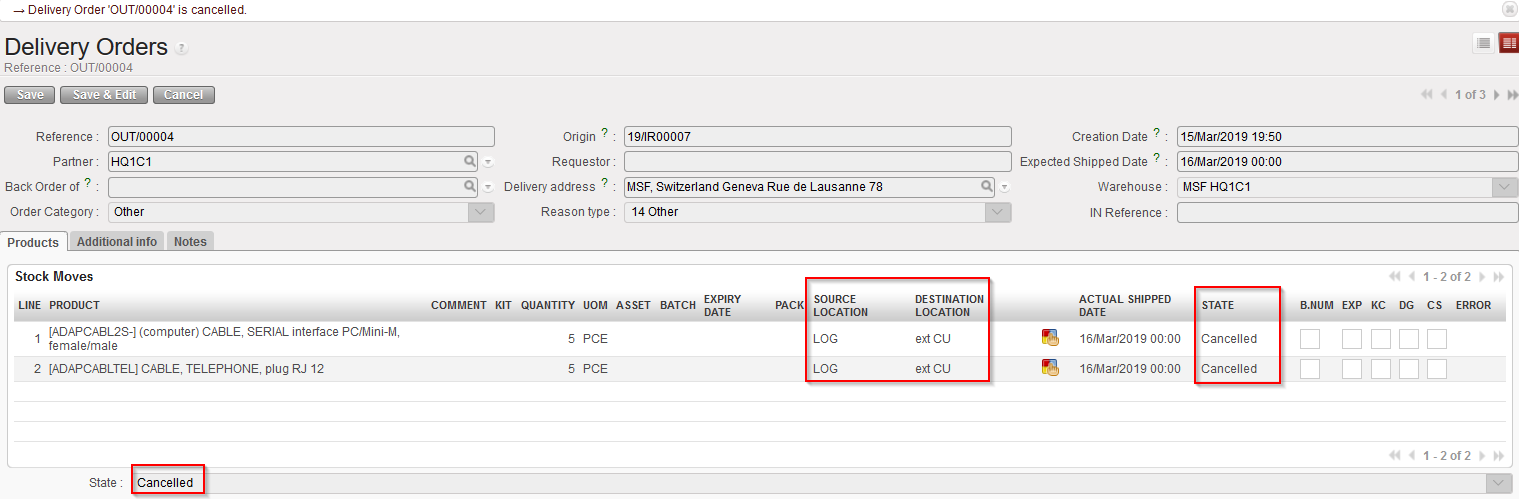
The state of the OUT (and of all its lines) switches to “Cancelled“.
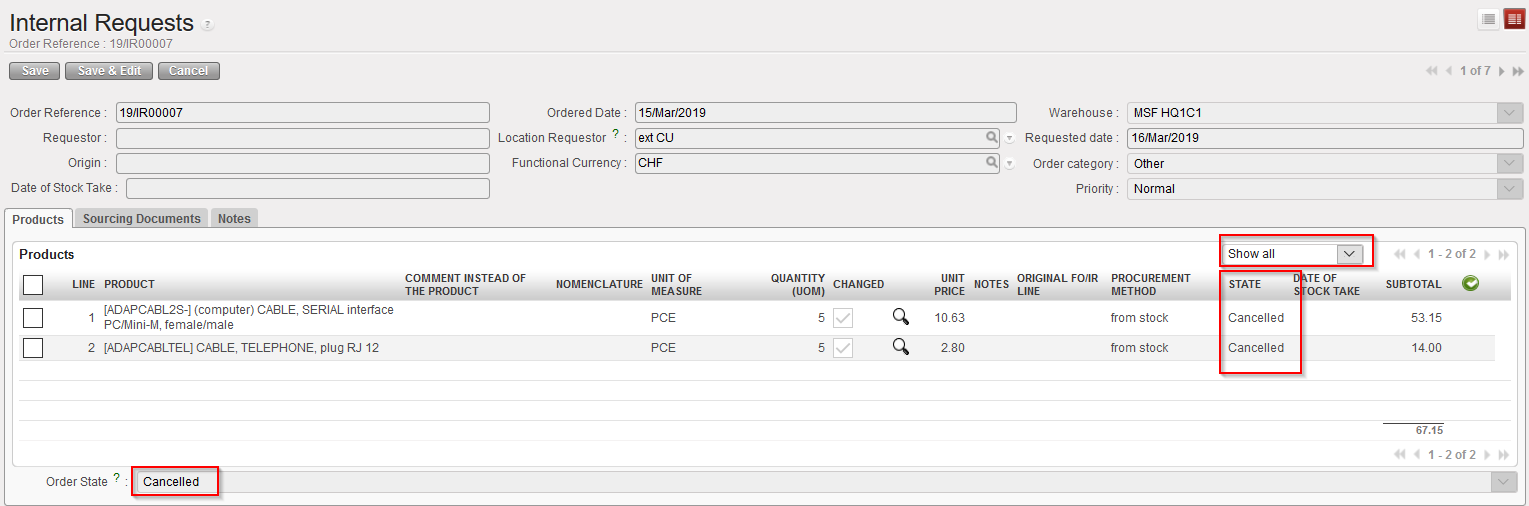
As a consequence, the corresponding IR (and all its lines) switches to the state “Cancelled” (see below).
|
|
|
IR Cancelled following cancellation of OUT at header level (note that “Show all” filter is on) |
Please note that behavior of Cancellation at line level will be the same depending on the sourcing method except that the document status will not be updated (unless the “Cancelled” line is the last “Available” line).
