
Supply User Manual ENG -> Products -> 3.5 Assets -> F. How to export asset records to excel
F. How to export asset records to excel
Go to: Products/ Assets /Asset Forms
- Select one asset or several assets by ticking the check box next to each asset. If no asset is selected the system will export the details of all assets.
- In the actions menu ( on the right), click on “export”
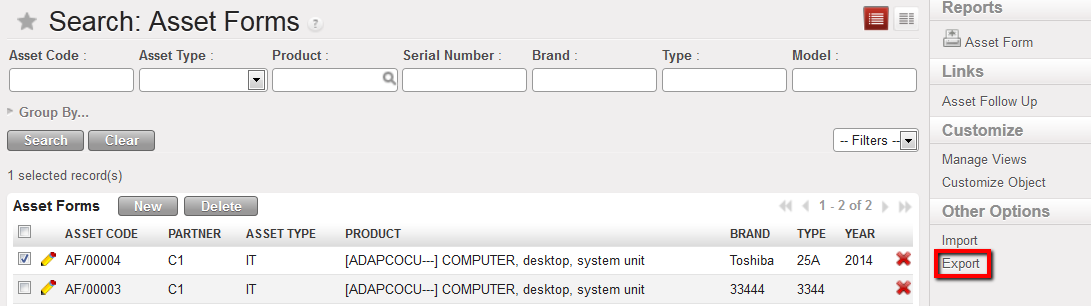
Exporting asset information using the Action Menu
3. The export wizard will appear.
3.1 Check the default fields suggested by the system, that will be exported in the right hand window
3.2 If necessary, select new fields to be exported
3.3 To add or remove any fields according to your export preferences use the “Add” and “Remove” buttons
4. Click on the “Export to File” button
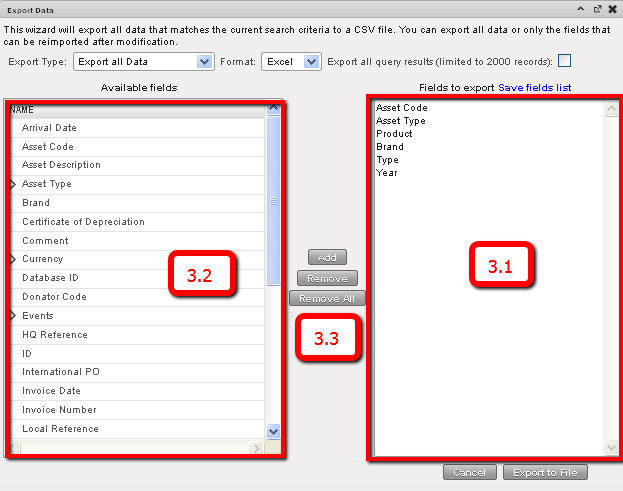
Asset Export Data wizard, with default fields which will be exported
5. Click on “Ok” ;the file options which appear (by default this will be opened with Microsoft Office Excel)
6. The Excel file will be generated.

Example view of excel export file
