
Supply User Manual ENG -> 5. Warehouse -> 5.3 LU-SU4102: Picking -> F. HOW TO IMPORT AN EXCEL PICKING FILE
F. HOW TO IMPORT AN EXCEL PICKING FILE
Picking ticket and Sub-Picking ticket can be imported to Excel file.
Go to: Warehouse / Warehouse Management / Deliveries / Picking
- Click “Edit” on the Picking Ticket that you wish to import
- Click on “Import PICK”.
|
|
|
Import Picking Ticket from Excel |
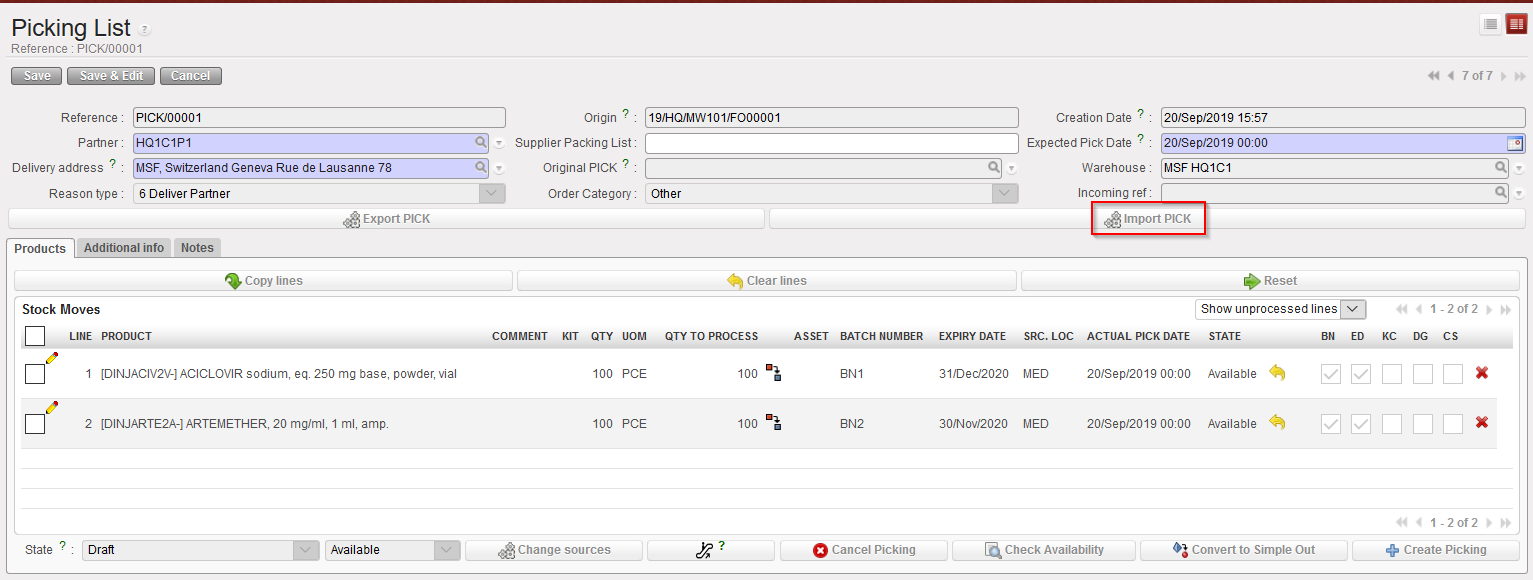
Note that there is a check to ensure that “Quantity to process” is lower than “Qty” .
|
|
|
Import Picking Ticket file |

Other checks ensure that the import data done in the pop up is consistent with the data from the main PICK screen (BN/ED; line number; Code; Available line only, Document reference, split line quantity…)
3. Click on “Import PICK”
|
|
|
Picking Ticket Excel Import |

The data is imported to the main screen and manual validation is still needed to process the document forward.
