
17. Registers
Generic comments
Registers were designed to become the primary encoding interface, meant to be used each time a cash movement needs to be recorded. Creating a register line is the only way to book an entry on a liquidity account. Technically speaking a register line is not an accounting entry: it’s an encoding interface triggering the creation of Journal Entries, Journal Items and eventually Analytic Journal Items in case the line is booked on an expense / income account (which implies linking the line with an analytic distribution).
Main registers’ characteristics are:
- Automated creation when a liquidity journal is created;
- Initial period can be modified (only for the first period) which is useful in case encoding takes place in Excel (Emergencies) and then shifts to Unifield. Users can catch-up without re-encoding all entries but merely by importing them in the adequate period.
- Mono-currency;
- Closed at the end of each month, providing the opportunity to formally reconcile liquidity accounts with physical balances and accounting balances;
- Re-opened at the beginning of each month;
Compared to standard OpenERP, registers are fully replacing payment vouchers, which are not used in UF. MSF specific transactions have been created to handle particular flows from the register interface.
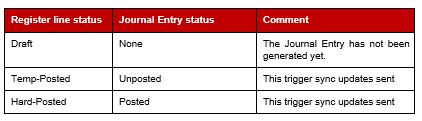
Below is a chart showing the status correspondences between register lines and journal entries:
Specific functionalities handled in registers
- Pending payments – All register types
This button automates the creation of a register line by importing an AP / AR line into the register. The created line is temp-posted; when user hard-posts the line then entries on AP / AR accounts are automatically reconciled. Amounts can be partially paid by manually changing the payment amount, from the pending payment wizard or from the register line generated.
An entry created at project level can be paid from coordination and the reconciliation reference will sync back to project.
Entries that can be imported in registers through the “Pending Payments” button are defined thanks to the following set of conditions:
-
- Entries are booked on receivable / payable accounts;
- Accounts used do not have a “Type for specific treatment” set to “Down Payment”
- Entry not reconciled yet
- Entries not booked a migration journal (journal of type “Migration”)
- REV and COR entries are excluded from the list
- Direct invoices – All register types
Direct invoices are copied from supplier invoices but user can only create direct invoices from a register. The underlying idea is to provide basic users to encode lists of expenses under multiple expense accounts without using the “Supplier” module. It is a simplified interface that will create both the purchase AND the payment entries from an accounting perspective.
Taxes and VAT cannot be handled in direct invoices.
- Internal transfers – All register types
In case of transfers in the same currency, a specific reconciliation condition applies: system not only checks the “receiving” register but also the “sending” register and of course the amount. When encoding a register line on an internal transfer account (same currency) then system will require a journal as a third party.
In case of transfers from currency Y to currency Z, reconciliation will take place on accounting entries booked in different currencies. Prior to hard-posting the register lines encoded on the internal transfer account (with currency exchange), system requires entering the transfer counterpart value.
-
- On the sending side the counterpart value is not mandatory because not necessarily known at time the entry is booked;
- On the receiving side the counterpart value is mandatory and will help user perform the reconciliation.
Once transfer is properly booked on both sides (sending / receiving) then entries must be manually reconciled in the journals.
Internal transfers’ corrections are not easy to manage because of the specific “Cross” reconciliation condition. Once the “sending” entry is hard-posted then the transfer must be encoded with the error in the receiving instance. Then a new pair of entries must be created (one in the sending instance, one in the receiving instance).
- Down payments – All register types
Anticipated payments booked on accounts with the “Type for specific treatment” set to “Down payment” have an impact on the related register line: it cannot be temp-posted until a PO reference with the following characteristics is selected.
-
- Same currency (register and PO)
- PO amount does not exceed register line amount
- PO Status must be “Confirmed” or “Confirmed (waiting)”
- PO type is “Regular” or “Purchase list” or “Direct purchase order”
The down payment amount will automatically be deducted from subsequent payment(s) relating to the original PO. In case there are several down payments tied to the same PO the down payments consolidation is not effective and users could eventually overpay the order. This situation will be resolved once Jira ticket US-234 is integrated.
- Operational advances – Cash registers only
Operational and security advances can be treated in the system by using accounts bearing the “Operational advance” type for specific treatment. Once hard-posted, a cash register line booked on such account displays an icon from which user can open the operational advance return wizard.
User can then indicate a list of expenses or link invoices in the advance return wizard to justify how the advance was spent. User can also indicate how much money was brought back or eventually the overspent amount.
In case user enters an “Advance return amount” (cash brought back) in the wizard, there’s no individual line for this amount in the register so as not to mess the cash count. The mechanism in the cash register is:
-
- Advance granted: Amount Out = amount of cash advanced
- Advance returned:
- Amount In = amount of cash advanced (so as to fully reconcile cash)
- Amount Out = 1 line per expense justified
In the journals the line with the cash return is displayed so as to properly balance the advance return entry.
System does not handle use cases where a single advance is justified both with an expense line and with an invoice.
- Import Cheque entries – Cheque registers only
Cheque entries’ counterpart is booked on a kind of suspense account allowing users to follow-up on cheques emitted but not cashed-in yet. Cheque entries should be imported in the related bank register from the moment they appear on the bank statement as it is the proof that they have been cashed-in.
There’s a one-to-one link between cheque and bank registers, making it impossible to import entries from a cheque register not tied to a specific bank register (which represents a bank account.)
- Register balances freeze – Cash and Bank registers
At each month-end, real registers balances must be entered and frozen in registers. The total of entries must necessarily be reconciled with the amount entered. Freezing balances is reversible with admin user rights
Once the reconciliation is over:
-
- If cash balance does not match the cash count then user must create an additional register line to adjust the balance (it could be a cash gain / loss);
- The bank register balance necessarily matches the real bank account balance as the reconciliation process is precisely carried out to get to the same balance.
- Register closing
Some conditions are mandatory for the register closing to be possible:
-
- All register lines are hard-posted;
- Cash / bank balance is entered and frozen;
- In cash registers the theoretical balance matches the cashbox balance, otherwise the cash register becomes “Partial-Closed” and must be reopened for user to fully reconcile the register by creating additional entries or entering amounts in the “Unrecorded expenses” and / or “Unrecorded advances” fields;
- In bank registers, the Bank statement balance must reconcile with the Calculated balance.
Registers and synchronisation
Project registers sync to coordination while coordination registers do not sync anywhere, not even at HQ: cash management is a field activity that needs to be controlled from HQ, but the controls are achieved through reporting and month-end closing procedure.
It makes registers one of the few objects shared between coordination and projects. On a project register, from coordination it is possible to:
- Create / Delete register lines;
- Edit Draft or Temp-posted register lines;
- Modify the analytic distribution of lines booked on expense / income accounts;
- Temp- / Hard- Post register lines.
After sync, the project registers must display the same information at project and coordination level. If not, there may be a sync issue to investigate.
If modifications / deletions of register lines on project registers are done between 2 syncs both from coordination and from project, the first modification / deletion prevails. There’s no rule defined to state that “Coordo prevails over Project”. This issue is detailed in Jira ticket UFTP-400, it is also good to remember that registers’ ownership belongs locally, mitigating the conflict risk.
18. Invoices
“Invoices” in OpenERP is a standard document functionally used for several purposes: supplier invoices, supplier refunds, customer refunds etc… In the course of Unifield development we adapted the invoice template to fit MSF needs but we are mostly relying on existing functionalities. The basic “invoice” object was duplicated to create different types of invoices like intermission vouchers in / out, direct invoices…
From a generic standpoint all invoices are designed with 2 objects embedded: invoice header and invoice lines. In the header user enters information about the supplier, information about the purchase if not retrieved automatically from a PO etc…
While documents are draft user can modify some fields but some others are blocked when invoices are created either from a supply flow or from synchronization (rebilling invoices). This is for example the source documents that indicates the PO and FO linkage, the quantities that have been received…. US-6132, US-6219, US-6602 for invoices from supply and US-6076 for invoices coming from sync (intermission/intersection rebilling invoices).
An important setting that must be checked in all invoices is the analytic distribution that can be defined either at header level or at line level. If defined at header level it will be valid for all lines where there’s no line distribution; technically speaking a header analytic distribution works as if it was tied to all individual lines. Note that the analytic distribution is a separate object from invoice or invoice lines; the amount split defined in the AD will be used to compute AJIs. Invoice lines can also be booked on B/S accounts, in this case the line does not bear any AD.
At invoice header level a button is available to swap invoice currencies; the default currency is defined in the partner form but remains editable in any invoice. If the default value is manually overridden by changing the currency code, then the amounts already encoded will remain unchanged. If the currency button is used, then amounts will be recomputed using FX rates valid at the invoice’s posting date.
All invoices documents creation can either be automated (as the result of an incoming / outgoing stock move) or manual (encoding by finance user). Only manual draft invoice can be deleted.
Invoices state and status
Invoices have specific state (US-6075) and statuses outside the standard workflows:
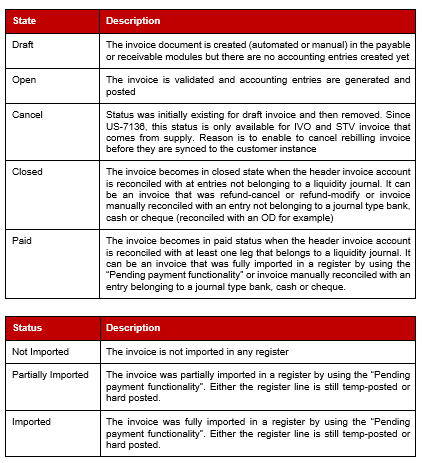
Note that some invoices might always stay in state “open” and status “not imported” if the invoice account header is not a reconcilable account (i.e Regular / Cash account used for Advances or expenses for other missions in case of rebilling IVO and IVI.
Additional features
Not all invoices type have all features below.
- Tax applying to a whole invoice
In standard OpenERP taxes must be tied to products so that tax computation works well on invoices. In Unifield we allow users to manually link a tax with an invoice as a whole; in this case the tax calculation is based on the total untaxed amount from the invoice. This feature is restricted and taxes set-up with the “Tax included in price” checkbox set to “Active” can’t be selected manually and apply to the total invoice. Though it was required by UF finance referents in ticket US-283, this possibility cannot be delivered as the calculation would imply to retro-feed the invoice lines amounts by deducting the tax portion of the line item price. Such feature implies linking taxes with products individually for the tax calculation to run properly.
- Split invoices
Draft invoices can be split, this action will result in the creation of a new, separate invoice keeping only those lines left in the wizard. The original invoice will keep the invoices lines left over. This functionality could be used to match the physical invoices sent by the supplier (use case where 2 invoices are sent for 1 shipment).
- Import lines (US-6766)
It is possible to export all lines of an invoice (IVO, IVI, SI, STV), update the editable fields in the file and then import again the lines in order to update the invoice.
It can be used to update the prices, account codes, descriptions or simply creates invoice lines in a manual created invoice.
Invoice must be in draft state and the line number is the unicity constrain.
Checks at import time:
- The currency, partner and line numbers must exist and be valid, as they are used to determine the doc lines to modify.
- The posting date must be valid if it exists. If it doesn’t, which may happen because the doc is in Draft state, the date used to check account’s validity will be the current date.
- The accounts chosen at line level must be allowed in the document where the import is made.
- Invoice total rounding (to be developed)
Depending on the notes and coins available locally, invoices often need to be rounded. Currently users manually insert a rounding line in the invoice but this process could be automated as specified in Jira ticket UF-1994.
Invoices type
- Supplier Invoices SI (Supplier / Payable module)
Supplier invoices are invoices linked to external partners or intersection partners. It can be created manually, resulting of a supply flow with an external partner or from a push synchronization with an intersection partner (US-6076, a validated Stock transfer voucher at the intersection supplier side creates a Supplier Invoice via synchronization).
It has all features presented above: taxes, split invoice, import lines
When invoices are generated from a Supply flow, prices are quoted from the PO while quantities are retrieved from the reception document (Incoming Shipment).
SI creates entries in the PUR journal and the invoice counterpart account is the one set in the supplier settings.
- Supplier Direct invoices SDI (Supplier / Payable module)
Direct invoices are manually created from registers. It’s a quick way to create at the same time an invoice and its payment which is less time-consuming for users and closer to the previous “treasury-based” flow. It is however not in the sense of the whole change management towards a recognition of the expenses and payable at time of reception but still at time of payment.
Tax management is not possible in direct invoices. Refunds created from direct invoices are similar to the refunds created from standard supplier invoices.
SDI creates entries in the PUR journal and in the liquidity journal it was created and the invoice counterpart account is the one set in the supplier settings.
- Supplier refunds SR (Supplier / Payable module)
There are three possible options when creating a refund from a supplier invoice:
- Refund/Refund – automatically create a refund invoice in draft state
- Refund/Cancel – automatically create a refund invoice that is reconciled with the originating supplier invoice (both initial invoice and refund invoice are set as “closed”)
- Refund/Modify – Automatically create a refund invoice that is reconciled with the originating supplier invoice (both initial invoice and refund invoice are set as “closed”), create a new invoice in draft state so as to make desired changes;
It is always possible to create a manual SR but it is then not automatically linked to the initial SI.
SR creates entries in the PUF journal and the invoice counterpart account is the one set in the supplier settings.
- Stock Transfer Vouchers STV (Customer / Receivable module)
This document is used to record the financial impact of outgoing flows towards intersection partners: it’s a customer invoice, used for intersection rebilling, either based on supply flow or relying on manual creation. Its counterpart is the Supplier Invoice.
When linked to supply flow, the STV is created in draft at time of sending the goods to the customer intersection.
Since US-6076, a push synchronization relying on messages enable to sync the STV (either created via a supply flow or manually) to the intersection customer, creating a draft Supplier Invoice at customer side.
STV can be refund-cancel, refund-modify or refund-refund under the same rules as the SI. The refund document is a Customer refund.
STV creates entries in the SAR journal and the invoice counterpart account is the one set in the supplier settings.
- Intermission Voucher IVI (Supplier / Payable module)
Those documents are used to record the financial impact of outgoing and incoming flows between intermission partners: It can be created manually or from a push synchronization with an intermission partner (US-6076, a validated Intermision Voucher OUT at the intermission supplier side creates an Intermission Voucher IN via synchronization
IVI creates entries in the INT journal and the invoice counterpart account is the one set in the company configuration “Intermission counterpart”.
- Intermission Voucher IVO (Customer / Receivable module)
Those documents are used to record the financial impact of outgoing and incoming flows between intermission partners. It is either based on supply flow or relying on manual creation.
Its counterpart is the IVI.
When linked to supply flow, the IVO is created in draft at time of sending the goods to the customer intermission.
Since US-6076, a push synchronization relying on messages enable to sync the IVO (either created via a supply flow or manually) to the intermission customer, creating a draft IVI at customer side.
IVO creates entries in the INT journal and the invoice counterpart account is the one set in the company configuration “Intermission counterpart”.
- Customer refunds (Customer / Receivable module)
They are the mirror documents of supplier refunds, on the customer side. They should be used only to correct mistakes on stock transfer vouchers and shall be created via a refund from a STV or manually.
- Debit note (Customer / Receivable module)
Debit note intend to aggregate several invoices to be rebilled at once. Those single invoices are not importable in registers and only in debit note if settings below is implemented.
In the company settings, “Re-billing Inter-section account” field: the account set in this field will restrict the import into a register of any entries set to this accounting code and allow those entries to be imported in a debit note only. The objective is to use the {Debit note} function so all entries will be imported into a Debit note for global rebilling on a periodical basis.
Account used for OCB, OCG, and OCP is account 12011 Expense re-invoiced to other sections.
Debit note only enable to import STV when the counterpart account code of the STV (the one from the intersection partner) is the one from the company configuration Re-billing Inter-section account.
Here are the combination 12011 and 12010
- Company is set with 12011 and Intersection supplier set with 12010 : all invoices (STV) created with the Intersection supplier under 12010 will only be importable in registers. This setting prevents any entries creation on account 12011 and so don’t intend to use the debit note
- Company is set with 12011 and Intersection supplier set with 12011 : all invoices (STV) created with the Intersection supplier under 12011 will NOT be importable in registers but only in a debit note. This setting allows entries creation on account 12011 and intend to use the debit note
- Donations (Supplier / Payable module)
The donation document is a simple support designed to be able to record in-kind donations received in extra-accounting expenses of classes 8* (serving as payable account) and 9* (serving as extra-accounting expenses). They are a way to grossly classify donations: medical vs. logistical material. These accounts must be set-up in the partner and product form concerned by the donation transaction; they will not be displayed in standard G/L reports as those entries are outside the B/S.
The primary goal explaining why we are recording donations received in Unifield is to be able to report on in-kind donations at year-end in a systematic way. We make sure that donations are recorded as they are received rather than wait for year-end and base reporting on paper files of staff’s remembrances.
Donation invoice are either created manually or when linked to a PO under the following behaviour (US-2391):
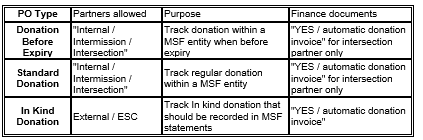
- With Intersection partner, Donation documents are created with a PO type “Donation Before Expiry” and “Standard Donation”
- With Intermission or internal partners, no Donation documents are created
- With External or ESC partners, Donation documents are created with “In-Kind Donation”
- In manual Donations, only Intersection, ESC and External partners are allowed
19. Accounting entries
In Unifield G/L and Analytic accounting are clearly separated: we do not mix statutory reporting (on all account classes) with operational finance analytic reporting (focusing on P&L). From a functional perspective it translates into separate journals for G/L and analytic accounting. Accounting entries can be presented at different levels of granularity:
- Journal Entries: the most aggregated view, contain 2 to N journal items; items tied to the same journal entries must be balanced (sum of De = sum of Cr)
- Journal Items: a detailed view of accounting bookings
- Analytic Journal Items: they are created upon validation of a P&L entry.
- There’s at least 1 Analytic Journal Item per Journal Item booked on a P&L account.
- Any journal item booked on a P&L account can be allocated to N analytic distribution lines triggering the creation of the same number of Analytic Journal Items.
- Within a single instance the sum of all AJIs must equal the balance of all journal items booked on P&L account at any point of time.
Accounting components common to all accounting entries types
Components common to all accounting entries are listed below:
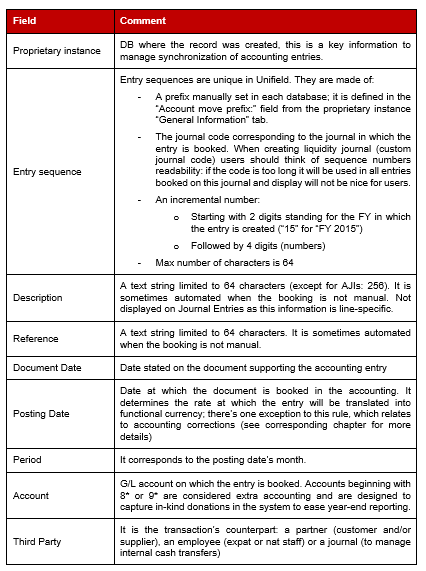
Specific comments:
- Entry sequences may not be continuous: end users need to know the entry sequence number before it is definitively booked in the accounting, as encoders need to report the system sequence number on the paper evidence supporting the booking. For this reason, as soon as the accounting entry is created then it gets a sequence number. But entries not fully validated (like the ones corresponding to temp-posted register lines) can be deleted afterwards. In this case the sequence numbering is not continuous anymore: system will not try to book new entries using “holes” in the sequence numbers but rather use the next available number in the sequence.
- In case there are more than 9999 entries are booked in a given journal within a single financial year then system will automatically add a 5th digit and keep incrementing the sequence number.
- In its native version, OpenERP / Odoo does not manage 2 dates but only a date and a period. The second date was added upon the finance working group request, although it creates a redundancy in the information displayed (posting date’s month is always the entry’s period).
Specific components of Journal Entries

Specific components of Journal Items
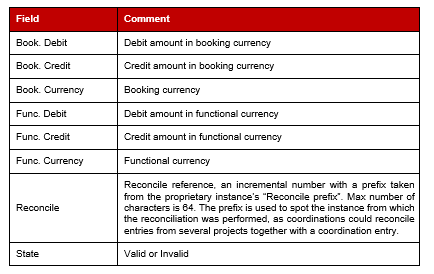
Specific components of Analytic Journal Items
The most commonly used type of Analytic Journal Items are defined as “Funding Pool” AJIs in the system, though they are used both for AJI lists, budget reporting and financing contracts reporting. On this type of AJI we are displaying the result of an analytic allocation on 3 analytic dimensions: Destination, Cost Centre and Funding Pool. Allocation is mandatory on these dimensions while it remains optional for “Free1” and “Free2” dimensions.
The other types of AJIs are “Free1” and “Free2” and can be accessed from the AJI menu. They are mostly used for local cost analysis on custom, pre-defined “Free1” and “Free2” axis.
Other Analytic Journal Items types
As soon as a P&L entry is allocated to optional dimensions “Free1” and “Free2” system will generate specific Analytic Journal Items corresponding to the analytic distribution encoded. OCs plan to let field users determine how to populate these dimensions to better follow-up on costs relating to trainings, houses, vehicles… This is a local financial management decision.
The specific fields displayed on these Analytic Journal Items are shown below.

Accounting entries statuses
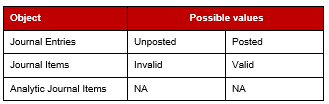
Journal Entries can be either “Posted” or “Unposted”. Posted means they are validated in the accounting and can only be modified by creating an accounting correction (a new corrective entry). Unposted means they are created and can still be modified in the interface.
Journal Entries are made of Journal items (accounting lines). Journal items tied to a single Journal Entry must be balanced together (sum of De = sum of Cr in booking currency) to be “Valid”; if not, they are “Invalid” and the corresponding Journal Entry cannot become “Posted”.
Analytic Journal Items do not have a status. Expenses are fully allocated to a destination, a cost centre and a funding pool (the allocation is mandatory) and the outcome of such allocation is an Analytic Journal Item of the “Funding Pool” type (as presented above). Expenses can optionally be allocated to analytic accounts belonging to the “Free1” and “Free2” dimensions. The outcomes of this allocation are distinct Analytic Journal Items of type “Free1” and “Free2”. Deploying OCs generally use this dimension to allocate expenses by employee, by building or even by car to later perform costs analysis on these dimensions. “Free1” and “Free2” Analytic Journal Items do not sync outside the mission: they get consolidated at coordination level only.
Generally speaking in the interface entries are systematically balanced when they are generated. Unbalanced entries may possibly be manually created (manual creation or journal entries import). But unbalanced journal items (with status “Invalid”) can never be tied to a “Posted” journal entry; if such situation arises in a DB it may be originated from missing sync updates due to “Not Run” messages. In any case an entry that is both “Invalid” and “Posted” must be carefully reviewed by checking “Not Run” messages concerning models like account.move or account.move.line.
Accounting entries statuses recap:
Relationships between JE, JI, AJI
The figure below provides the fields’ mapping between Journal Entries, Journal Items and Analytic Journal Items.
The schemes color code is: Fig Fin-2: color code of JE-JI-AJI relations scheme
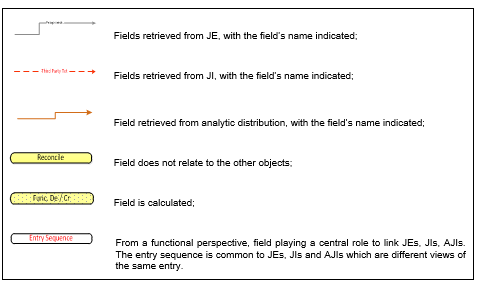
Fig. Fin-3: Fields mapping between Journal Entries, Journal Items and Analytic Journal Items
Import Entries
This function enables to import in mass several lines in HR, OD, INT and SAL journals only. Import in other journals are disabled.
- Dates (US-5756, US-6227): At import time, system groups together the lines having the same currency AND the same period (for December dates) AND the same document date. The 3 criteria are used at the same time, their order has no impact. Then, a check is done that each “group of lines” is balanced and one JE is created for each group. So it is possible to have different document date within the excel file but not within a same entry sequence as entries are gathered per document date.
- Employees AD (US-4118): When several employees with the same name, system retrieve the first active employee (first in term of id database). AD of the excel files is taken into account instead of the default employee AD.
20. Intermission and Intersection flows
Intermission and intersection flows has evolved with US-6076. Till then:
- Intermission and intersection supply flows were semi-independent from one mission to another, relying on shipment from one side creating the “receivable” invoice and reception from the other creating the “payable” invoice. Invoices could be then changed at both sides.
- Intermission and intersection manual rebilling relied on processes, both side creating counterpart entries by imports in journals
With US-6076, synchronization of invoices using “messages” have been introduced, enabling to have an exact matching between the 2 missions, where the mission provider validates the “receivable” invoice, invoice that will then synchronize to the other mission as a “payable” invoice. The “payable” invoice being non editable on the main fields such as products, quantities, amounts… Both supply flow or manual rebilling invoices use the synchronization of invoices.
Principles
- Rebilling is created and pushed only from the Provider/Invoicer to the Requester/Invoicee
- Invoices are created only by the mission that provides/invoice the goods (automatically created via supply flow or manually created by finance when linked to services)
- When linked to supply flows, no rebilling invoices is created at reception of the goods by the requester. The reception of the rebilling invoice is not generated at the same time than the reception of the goods
- Invoices created are then synced from the invoicer to the invoicee (not the other way around = no pushed invoicee invoices)
- This enable to do rebilling in any currencies as long as the same currency is activated in both instance
- Invoice edition / validation / approval (see technical specifications of US-6076)
- Only the Provider/Invoicer can create and edit the rebilling invoices and validate them. When invoices are created via supply flow after shipment, some fields will be restricted for edition such as products, quantities….
- The Requester/Invoicee will only approve the invoice once received via sync. Only few fields will be editable by the Requester/Invoicee before approval (dates, AD… but not products, quantities….)
- In case Requester/Invoicee don’t agree with the invoice, it can validate and then refund-cancel it using the automated function
Rebilling using Supply flows
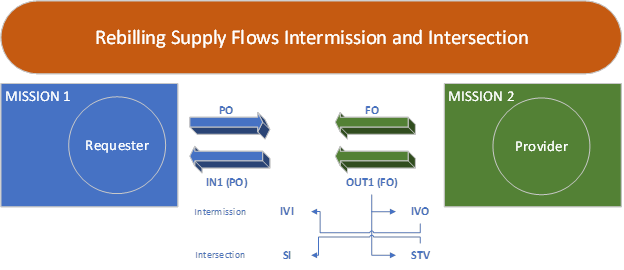
PO and FO flows remain as such- Invoicing documents are created only at the provider instance side at time of Shipment (OUT) of the goods to the Requester
- Once created, Provider/Reinvoicer can edit the invoice except the products and the quantities because they rely on what has been sent
- AD on mission 2 rely on the AD encoded in the FO and AD on mission 1 rely on the AD encoded in the PO.
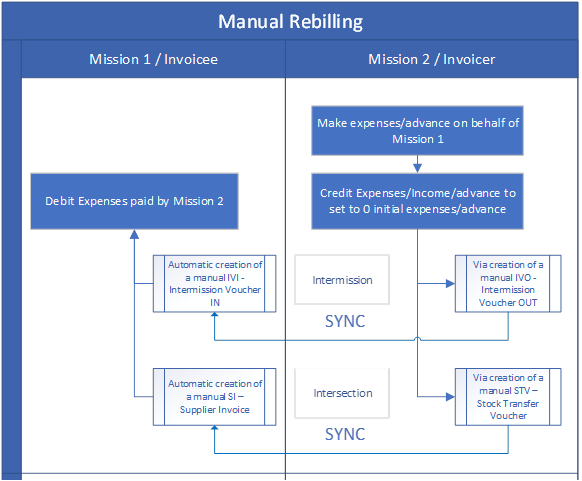
Rebilling using Manual invoices
- Provider/Invoicer create the rebilling invoices manually
- Provider/Invoicer edit and validate the rebilling invoice
- Requester/Invoicee receives the counterpart rebilling invoice automatically created via sync
- AD is empty at Requester/Invoicee side after reception
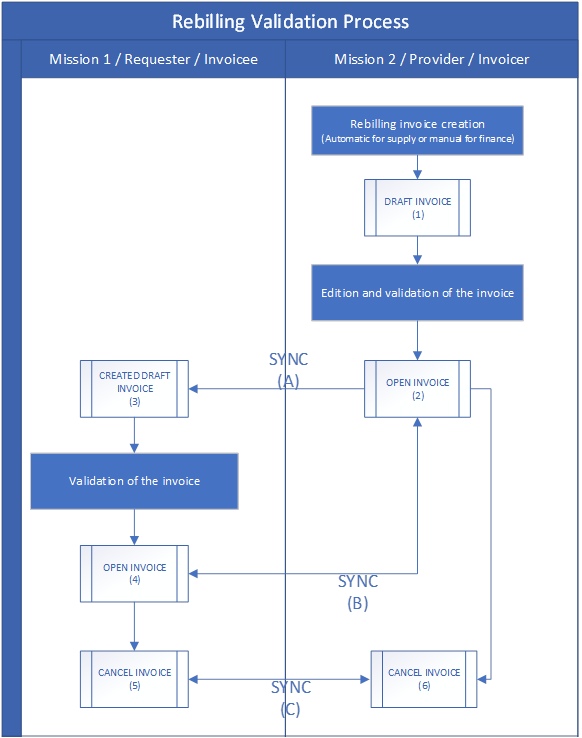
Rebilling Invoice validation process
Intermission flows
Intermission flows are designed to manage exchanges between missions of the same OC. On the supply side, the PO / FO mechanism taking place is similar to the one used for internal exchanges of goods and services between projects and coordination. On the finance side the documents created are different:
- Intermission voucher OUT (in the sending instance)
- Intermission voucher IN (in the receiving instance)
This process is not a payable rebilling process: goods or services purchased on behalf of another mission never give way to a financial settlement. It’s rather the basis for a proper reallocation of expenses to later be able to properly track costs where they have actually been incurred (and not where they have been purchased).
In order for the flow to work properly the following elements must be defined:
- Intermission partners are activated and defined in both DBs
- An intermission counterpart account is defined in the company (Administration -> Companies -> Companies -> Configuration) in the “Intermission counterpart” field. The account indicated in this field is usually “14010 – Advances or expenses for other missions” and will be used to balance the transaction. It is a kind of suspense account between missions where no exchange of money is required at mission level.
In terms of accounting the outcome of a standard intermission transaction will be:
- On the sending instance
- De on account “14010 – Advances or expenses for other missions”
- Cr on expense account
- On the receiving instance
- De on expense account
- Cr on account “14010 – Advances or expenses for other missions”
Entries on account “14010 – Advances or expenses for other missions” are not reconcilable. Those entries that are not reconciled will appear as “unreconciled” locally and will only be reconciled if during the Fiscal Year closure, they are moved to 0 and booked in the P&L, see Yearly closure chapter.
Intersection flows
Intersection flows are designed to manage exchanges between missions from different OCs. On the supply side, the PO / FO mechanism taking place is similar to the one used for internal exchanges of goods and services between projects and coordination. On the finance side the documents created are different:
- Stock Transfer Voucher (in the sending instance)
- Supplier Invoice (in the receiving instance)
This process can be a payable or non-payable rebilling process: goods or services purchased on behalf of another mission can either give way to a financial settlement at mission or at HQ level depending of agreement between OCs. The account code used in the rebilling invoices will define if payment is expected at mission level or at HQ level between the 2 OCs.
In order for the flow to work properly the following elements must be defined:
– Intersection partners are activated and defined in both DBs
– Invoices counterpart account will take the one defined in the intersection partners but can be changed in the invoice
Intersection flows management in Unifield is based on stock transfer vouchers, which is the finance support used to re-bill expenses to other sections’ missions. System offers the possibility for missions to consider 2 alternative options:
- Consider expenses incurred on behalf of other sections as receivables as soon as the delivery if complete;
- Re-bill other sections on a regular basis (re-billing frequency to be decided by each OC / mission according to the volume or mission’s capacities). In this case the re-billing support is a Debit Note grouping several stock transfer vouchers.
In case the payment is settled from HQ because of high amounts involved, the counterpart account should be a suspense account between field and HQ like “14020 – Advances and expenses for other MSF section”. Using this account implies that the amounts at stake will not be settled locally but directly from HQ to HQ. In the field, balance of account “14020 – Advances and expenses for other MSF section” will be debiting at year-end and should give way to a specific, manual year-end treatment to “empty” the account.
- Rebilling at each delivery
Each time supply users are validating deliveries to intersection partners, system generates a stock transfer voucher whose validation will result in the following booking:
-
- De on A/R account “12010 – Receivable from other sections”
- Cr on expense account(s) concerned
When payment is collected locally the receivable entry is imported into the appropriate register so as to settle the transaction.
- Rebilling through regular debit notes (see debit note section in “Invoices” chapter)
In settings where missions are re-billing many expenses to another section (cases of common workshops, training centres…) then it might be wiser to opt for a process where re-billing is not systematic, to limit the number of cash movements to deal with (both for the sending and the receiving mission). The possibility offered consists in recording the expenses incurred on behalf of another section in local suspense account “12011 – Expenses re-invoice to other sections” with the following bookings realised through stock transfer vouchers:
-
- De on suspense account “12011 – Expenses re-invoice to other sections”
- Cr on expense account(s) concerned
When re-billing time comes use will create a Debit Note for the intersection partner concern and import all stock transfer vouchers validated but not settled yet. The Debit Note validation will result in the following booking:
-
- De on receivable account “12010 – Receivable from other sections”
- Cr on account “12011 – Expenses re-invoice to other sections”
This step marks the recognition of a liability from the intersection partner. When the payment is actually received then the A/R entry can be imported in the corresponding register for the transaction to be fully settled and reconciled in the system.
With US-8896 ,the synchronization rule of balance sheets at STV lines between 2 sections using different sets of balance sheets (B/S) accounts has been changed . Before this change, UF synchronized the lines booked in B/S, as far as the account codes used were the same. OCA balance sheet numbers are completely different than other OCs.
When an ISI or IVI is created at synch time, the account on each line is taken from (by order of priority) the related CV line if any, else on the product or product category, else directly from the account used on the line in the other instance. In case the account is not found or is inactive, the related line is created without account and is displayed in red (until the account is set). The lines concerned are listed in the related “Synch Message Received” which appears as “Partially Not Run”.
21. Recurring entries
Recurring entries is a standard functionality that can be used to automate some bookings that are repeated on a regular basis. It is designed for users to create entry models that will be copied over time at the frequency defined, by automatically generating the schedules bookings. It will result in the creation of unposted journal entries; this interface cannot be used to generate register lines, as a consequence entries involving cash management cannot be created through this interface.
The common use cases foreseen are:
- Handle prepaid insurance costs
- Manage rental contracts
This feature will allow user to book the initial disbursement on a prepaid account and then periodically book expenses while gradually lowering the balance of the prepaid account. Entries partial and complete reconciliation is manual.
Scheduled recurring entries must be generated prior to period closing; otherwise closing will be denied until recurring entries are generated for the period.
Enhancement are going at the time of updating this document and can be referred to US-5216, US-7246).
22. Accruals
The accruals functionality is a custom development aiming at easing the encoding of accrual entries and reducing potential encoding mistakes. It is used to manage cut-off issues at year-end (goods received, invoice missing) or any other risk of major importance that should be reflected in year (N) accounting while physical evidences are missing for a regular booking. As an example we could pick severance costs: an employee was dismissed and he’s suing MSF. Our local lawyer thinks we will have to pay penalties for the dismissal but the case is not settled at year-end. We have to book an accrual and use the lawyer’s best estimate regarding the accrual amount, in order to translate this potential risk in the accounting.
The Accruals form is the only interface where user has to select accounts for both legs of the entry created.
- In the “Expense Account” field user is compelled to selecting an expense account. Note that income accounts are also excluded from the list of possible values as MSF is not dealing with cut-off issues on the revenue side of the P&L.
- In the “Accrual Account” field user can select any account with the “Accrual Account” flag set to “True”. The definition of accounts on which accruals can be booked is managed from HQ by a very high-profile user.
This functionality is intended to be used at year-end though it could be used at month-end as well. If it were the case it would make month-end closing process heavier as accruals must be reviewed at each period until the accrual is released (risk reduced, physical evidence received and properly booked).
When saving then validating an accrual form, system is generating 2 different entries:
- The actual accrual in the period selected
- The accrual reversal in the next period, which must necessarily be open otherwise the accrual validation will be denied. If accrual period is Dec (N), it means that Jan (N+1) must be “Open” for the accrual to be validated. If the accrual is booked in periods 13, 14 or 15 of year (N) then the reversal will also be booked in Jan (N+1).
In the current design, all accruals are automatically reversed: it’s a way to make sure the accounting remains clean, with no lasting accrual impact spanning over several years. Ticket UF-1040 is requiring modifications the accruals interface to let user choose between “Reversing” or “One-Time” accruals. In the second option, there would be no reversal generated and the impact of the accrual booked would remain until the generating factor / event / risk is dealt with through a proper booking.
Enhancement are going at the time of updating this document and can be referred to US-5722).
23. Accounting corrections management
Accounting corrections: conditions applying
Accounting corrections in UF are handled through a specific encoding interface named “Correction wizard”. It is designed to correct accounts, analytic accounts or third party on accounting entries, but not amounts. Amounts corrections are meant to be corrected thanks to new entries duplicated or manually created, from the Journal Entries or Registers interfaces. Alternatively, users can also opt for the refund interface, copying invoices content into a refund invoice to offset a validated booking.
As far as corrections performed in the wizard are concerned, when creating reversals (REV) and corrections (COR) entries system will keep the document date of the initial entry and use the posting date indicated in the Correction wizard. The REV and COR entries will be converted using the original entry rate regardless of the period in which they are posted.
The Correction wizard can be opened either from Journal Items or from Analytic Journal Items based on the conditions exposed below.
Fig. Fin-16 Recap on conditions making accounting corrections possible
One important condition has to do with entries’ statuses: unposted entries cannot be corrected through the Correction wizard. Unifield manages entries statuses partly for this purpose: enable users to perform changes on created entries before they are posted in the accounting. Revisions should be take place before entries posting as much as possible to prevent lengthy corrections later in the closing process.
Corrections can also be amended through a new correction: the second correction’s description will get a “COR2” prefix. History of corrections can be accessed by clicking on the envelope located at line level.
An additional control has been implemented for entries corrected upstream: once an entry was corrected from Coordination (alternatively HQ) then it can no longer be corrected at Project level (alternatively Coordination and Project). Basically the reasoning is: if Coordination is making a correction on an entry it is taking over responsibility to further amend it. This setting is controlled by synchronisation through a specific attribute on accounting entries called “Corrected upstream” that is not visible and not editable for end-users (except those dealing with sync into details).
Reversal Origin is a field that was added late in the design for users performing accounting corrections from the Analytic Journal Items list view. It enables system linking a correction with its original entry and it is also used to produce some reports like the Full Report (from the registers). When correcting an entry the original analytical entry may be reversed by a new analytical entry; in this case it will contain the description of the original entry in the Reversal Origin field.
Last but not least: in order to guarantee data integrity and grant management reports reproducibility, entries tied to a funding pool used in a soft- or hard- closed financing contract cannot be corrected in anyway (not even the G/L account). System is checking that in the instance where the correction is being performed, the funding pool used does not appear in a soft- or hard- closed financing contract. Initially financing contracts would only be shared between HQ and Coordination; because of this necessary check we changed the sync rule so that financing contracts also sync down to projects. This way the check can also be performed at project level which avoids inconsistencies to originate from sync. As a reminder, project users do not have access to the grant management menus and related objects (Donors, Financing Contracts) therefore they cannot see the financing contracts that sync down to Project.
Accounting corrections: outcome
When using the correction wizard the output will differ according to a variety of use cases detailed in the scheme below. The main trigger for the different behaviours is the period status.
Fig. Fin-17: Accounting corrections possible outputs
Analytic corrections performed on open or field-closed periods do not generate REV and COR entries. The idea is to lower as much as possible the number of additional entries created through sync and allow analytic accounts overriding.
Once period becomes “Mission-closed”, the closing process is over at field level and monthly data may already be sent to the HQ application through the vertical integration process. For this reason, analytic corrections performed on entries belonging to Mission-Closed periods will generate REV and COR entries so that year-to-date analytic balances are updated in the HQ application as well.
Accounting corrections automated testing
On the course of the project, corrections proved to be a major risk area that triggered numerous bugs and regression issues. There are several reasons for this:
- Data model choices
- Journal Items and Analytic Journal Items follow sync rules and do not sync to all instances;
- When performing corrections on analytic accounts, system may override previous values (see scheme above) or delete / re-create analytic lines. Carrying this deletion through sync was not an easy task;
- Number and variety of use cases involved;
- Flexibility that users required
- Have the possibility to perform analytic corrections from list of accounting entries and vice-versa;
- Maintain a constant link between register lines and subsequent corrections of related Journal Items;
As a consequence it was decided to automate corrections testing as much as possible by running script covering all corrections use cases including sync use cases. Our intent is to run these tests on all new releases to mitigate regression risks. The list of use cases communicated to the technical team is annexed to this document (see Annex 2).
Accounting corrections: exceptions and pitfalls
- G/L correction of an analytic correction (Solved in tickets UTP-1215 / BKLG-12)
In case of analytic corrections triggering analytic REV and COR Analytic Journal Items, we faced an issue if the entry was subsequently corrected by stepping into the correction wizard and performing a correction on the G/L account: we would end up with 2 different sets of Analytic Journal Items having the same sequence number; of course this situation must be avoided at all cost to prevent potential sync and vertical integration issues. Despite a low risk of occurrence: usually entries that belong to a mission-closed period and that are corrected analytically have already been checked on the G/L side. Through an additional development we forbid G/L corrections on entries that are already tied to REV and COR Analytic Journal Items. These entries can still be corrected from an analytic standpoint. Ultimately if there’s a need for G/L correction in this case then user should create a manual Journal Entry.
- Project entries corrected by Coordination (UF-1746)
As soon as a project entry has been corrected by coordination, it is not possible anymore for the project to correct any legs belonging to the entry sequence of the corrected line. Corrected upstream updates on account_move_line is sent down from Coordo (or HQ as HQ can correct FP) to Project and no more correction wizard is available at project.
- Supplier Invoices corrections
- Paid invoice can only be Refund-Refund
- Refund Modify and Cancel are forbidden as soon as:
- one of the related JI is fully reconciled (i.e. header, lines, taxes at header or line level)
- or one of the related JI or AJI has no correction wizard anymore (i.e. has already been corrected).
- Cancel/Closed invoices: all refund type are not possible
24. Tax management
In the initial UF requirements, taxes management were meant to cover a single use case: recover VAT in countries where MSF has an agreement with local authorities. Other configurations were ruled out:
- MSF is not exempted from VAT and does not have an agreement with local authorities in this case there’s no need to isolate VAT amounts and expenses are recorded tax included;
- MSF is exempted from VAT in this case there’s no need to isolate VAT amounts and expenses are recorded tax excluded;
- Other taxes like withholding taxes were removed from the initial scope so as to limit tax management complexity users to deal with them outside the system.
The number of countries corresponding to the target VAT use case was very low at time the design was completed. In order to keep the application simple, the standard, dedicated VAT declaration feature was removed, also because it would hardly be possible for UF to handle all local requirements. The standard feature is an intermediate transaction grouping all VAT bookings with multiple suppliers under a common counterpart with the local “Tax / VAT office” as a third party. It brings clarity and ease when performing monthly or quarterly VAT declarations. This part is handled manually in UF.
As time elapsed and the development phase took longer than initially planned, the use case concerning other taxes (and withholding taxes in particular) was pushed by referents who accommodated it using standard, available features.
Taxes set-up
The central object used to manage taxes in UF is “Taxes” where major elements must be indicated:
- Tax type: most of the time, it will be ‘percentage’
- Amount: The tax rate / “Amount” shall be between (-1 < 1)
- 0 < Amount < 1 is for tax receivable like VAT
- -1 < Amount < 0 is for tax payable like WHT withholding
- Invoice tax account: account that will be used to generate the tax entries
- Receivable account type tax if amount is positive = VAT
- Payable account type tax if amount is negative = WHT
- Refund Tax account: opposite of the Invoice tax account (i.e Receivable Payable)
- Partner: linked to US-5608, it is possible to enable a different partner to be linked to the tax entries rather than the partner of the invoice
- When taxes are tied to an invoice, tax entries take by default the partner of the invoice while taxes are to be paid or recovered from another partner (Government tax office). In the settings of the tax account, it is possible to set those account with a specific treatment “Disregard third party” that allows to reconcile same account taxes even if they have different partners
- With US-5608, if a partner is filled in the tax form, then this partner will be used in all tax entries generated from any invoices tied with this tax. The workaround above is not applicable anymore
- An indication about the tax being “excluded from” or “included in” the calculated amount.
- Note that tax included in price can’t be applied to a whole invoice but can only be tied invoice line per invoice line as it is not technically possible to apply taxes included in price to a whole invoice (US-283).
Taxes could be tied to a tax code for presentation and reporting purposes: this functionality allows users to build a tax tree and visualise amounts booked per tax.
In the native behaviour taxes must be linked to a product for all tax calculations to run properly. The task consisting in linking items to Taxes is tedious if performed directly in the interface; It has to be repeated in all instances. But in the initial design there were only a few operational contexts where this setting was emphasized. Today, no OCs ty taxes to products and Taxes are added directly in invoices or POs (US-6117, US-6475).
Taxes applying to a whole invoice
Later it was made possible for users to add Taxes directly in a supplier invoice, either at line level or to apply them to the whole invoice. The tax native set-up (link taxes to products) was never implemented and shortcuts were required that caused subsequent issues with refunds. Another issue that could not be resolved is the use of “Tax included” to be applied to a whole supplier invoice; in such case the system can’t retro-feed line amounts to deduct the tax amounts that apply to each individual line (as explained in Jira ticket US-283). Users jave to add the tax included in prices at each line level of the invoice.
The tax-related features are not available on direct invoices by design: this interface is meant to be a simple way to record series of expenses for the same partner (rather than create many register lines) and semi-automate the payment entry at the same time. But they should remain simple and can’t offer the same possibilities a proper supplier invoice in the system.
Regular VAT use case – Accounting scheme
Fig. Fin-18 – Taxes regular accounting scheme
Ongoing improvements on taxes : US-6749.
25. Closing a period
Generic closing principles
Closing in Unifield is based on periods and not on journals. System manages a workflow on periods with 3 closing statuses:
- Field-closed
- Mission-closed
- HQ-closed
Workflow transitions are managed through user rights: project users cannot transit to “Mission-Closed” status and coordination users cannot transit periods to “HQ-closed” status.
Transitions in the workflow are cascaded: Feb cannot become “Field-closed” if Jan is not already “Field-closed”. This is to make sure that past periods will all be closed in the right order without leaving any open period behind. The system behaviour towards period closing is the same for all periods, including periods 13, 14 and 15.
A list of controls is active in Unifield that can be divided into 2 categories:
- Hard controls: check is preventing user from field-closing the period in case the condition is not met.
- Soft controls: check is not a blocking condition but rather a recommended user check
|
Control Reference |
Control Category |
Control Description |
|
C1 / Registers |
Hard |
Checks that all registers opened for the period are closed. If the instance contains partial closed cash registers then the closing will not be allowed. Checks also that all registers carrying a balance from the previous period have been created. It will avoid registers with no 0 balance to be forgotten to be set to 0 in the period to close |
|
C2 / Recurring |
Hard |
Makes sure that all planned recurring entries that should be generated in the period are actually created. |
|
C3 / Payroll |
Hard |
Controls that imported payroll entries for the period have been duly validated. |
|
C4 / Reconciled |
Soft |
Allows user to open a pre-defined G/L selector query from which a list of outstanding “to be reconciled” entries is displayed. This control is not blocker as some entries may remain unreconciled at period-end. |
|
C5 / Currencies |
Hard |
System checks that active currencies have a valid rate on the first day of the period to close. |
|
C6 / HQ |
Hard |
This condition is only true for coordination and HQ instances. It controls that HQ entries that synced to coordination have been duly validated locally. |
|
C7 / Commitments |
Soft |
Checks that draft commitment vouchers have been validated. |
|
C8 / Reports |
Soft |
This is merely a reminder for users to make sure they have produced all the documents required (section specific) for the period to be properly closed, supported by the adequate set of print-outs. |
|
Control Reference |
Control Category |
Control Description |
|
C9 / Invoices |
Soft |
This step provides links to all customer / supplier invoice types with a preset filter to display only draft (not booked yet) or open (not paid yet) documents. In case user decides to leave some documents draft, he will need to change the posting date later on in order to book it in the next open period. In case there are outstanding open documents they will be paid in a later period. |
|
C10 / Unposted |
Hard |
This control is not displayed in the control list but system does make sure that the period to be closed does not contain unposted journal items. |
Closing periods vs. synchronisation
The object defining periods in Unifield is the same across all instances: May 20XX is the same object in all instances. It synchronises from HQ down to coordinations and projects with the same DB identifier (XML idea). For that reason upper levels like HQ or coordination cannot see the projects’ periods’ statuses in the application: they can only see the status of a given period in their own instance.
Periods’ statuses exclusively sync downwards. However if coordination closes May whereas this period still contains open registers at project level then the corresponding sync message will be “not run” at project level and the period will remain open until all registers are closed and sync runs again. Period closing is meant to be managed bottom-up and to start from Project field-closing periods, then Mission mission-closing periods and finally HQ HQ-closing them. Periods’ workflow is never bypassed and is the same at all levels. The chart below shows the sync behaviour regarding periods workflows:
Fig. 19 – Periods workflow
The symbol in the drawing above means that closing statuses do not sync upwards: when a project field-closes a period, it has no impact on this period at coordination level.
A new report has been designed as required in JIRA ticket US-435 so that upper level instances (HQ and coordo) can systematically get a view on period statuses for instances below them at each sync.
Allowed course of actions after period closing
- After period is field-closed
Entries cannot be posted in periods that are not open. User needs to modify the posting date of outstanding draft documents in order to validate them.
If a period is “Field-closed” at project level and “Open” at coordination level, project may still receive analytic entries booked at HQ and allocated to a project cost centre. These analytic entries will be created through sync at project level.
Field-Closed periods can also be reopened (from coordination or HQ) so that the field could post additional entries in the period. If acting from coordination, keep in mind that period reopening will be propagated to all projects tied to the coordination. Same goes for all field instances if period reopening is performed from HQ. As a consequence and to limit the risk of additional entries to be created, reopening a period should be a step performed from coordination (preferred option).
- After period is mission-closed
Entries cannot be posted in periods that are not open. User needs to modify the posting date of outstanding draft documents in order to validate them.
Mission-closed periods can also be re-opened (or set to “Field-closed”) with some specific rights
- After period is HQ-closed
Entries cannot be posted in periods that are not open. User needs to modify the posting date of outstanding draft documents in order to validate them.
HQ-Closed periods cannot be reopened in any way: this is the final status in the Periods workflow. The functional advice is not to HQ-close periods before year-end, in case there would be a need to reopen a given period.
26. Yearly Closure
Yearly closure principles
Yearly closure has been developed in US-822 and US-1764.
3 functions (2 optional) are available to proceed when the Yearly Closure button is launched at Coordination level to yearly close the fiscal year.
- Action 1 “Move regular B/S account to 0”
- Function is optional (box to tick depending of your OC procedure)
- Objective is to set the balances to 0 for all B/S regular accounts that are not reconcilable at mission level (HQ, Intermission, Intersection accounts)
- Those B/S accounts to set to 0 will have to be preliminary activated in the chart of account at HQ level
- The counterpart accounts to the move to 0 will have to be recorded in the company settings of the coordination in case of a debit or credit move
- Entries will be booked in period 16 and will be visible in the G/L journals but no analytical entries will be created (not to impact the budget)
- Action 2 “To book the P&L result in the fiscal year to close”
- Function is optional (box to tick depending of your OC procedure)
- The accounts to be used have to be set in the company settings of the coordination
- P&L entries result will be booked in period 16 and will be visible in the G/L journals but no analytical entries will be created (not to impact the budget)
- Action 3 “Carry over all the B/S account balances in the next fiscal year” (All OCs)
- This function is not optional and is the final aim of the Year end Closure
- Initial Balances will be booked in a period 0 in the next fiscal year
- Those entries are not visible in the journals, it is transparent for the users
- Only reports like Balance Sheets, General ledger and Trial Balances will integrate those amounts
Parameterization for the Yearly closure
- Generic to all OCs
- At HQ level, the account Type Tax must be filled in with the value “Balance Sheet (Asset)”. Note that this has been done already done for HQ production OCG, OCB, OCG but that this has to be done in your existing testing environment too
- Only the account code link to the P&L result report must be set as Regular / Equity (i.e 50000/51000 for OCB and OCG, 00099 for OCA). If an OC decides to create a specific account for migration for example, it must not be set as Regular / Equity (i.e account 59999 for OCG must not be Regular Equity)
- Link to Action 1 “Move to 0 all B/S accounts HQ/Intermission” (OCB and OCG)
- At HQ level, in the CoA, a new box called “Include in Yearly move to 0” is available for the Regular accounts type. It is not possible to set an account as “Include in the yearly move to 0” if the account is set as reconcilable. HQ must first set all B/S accounts that need to be set to 0 at the end of the year by ticking this box (i.e 14000 / 14010 / 14020 / 14030 / 14040 / 14100 / 14110 / 14140 / 14150 / 14160 / 33010 / 59999 for OCG.
At each Coordination level, company configuration must be set for the “B/S Move to 0 accounts”
-
- Counterpart for B/S debit balance = i.e 69 account for OCG / 50000 or 51000 for OCB
- Counterpart for B/S credit balance = i.e 79 account for OCG / 50000 or 51000 for OCB
- Link to Action 2 “book the P&L result in the fiscal year to close” (OCB only)
At each Coordination level, company configuration must be set for the “P&L result accounts”
-
- Credit Account for P&L>0 (Income account) = i.e 79 account
- Debit Account for P&L>0 (B/S account) = i.e 51000 or 00099
- Credit Account P&L<0 (B/S account) = i.e 50000 or 00099
- Debit Account P&L<0 (Expense account) = i.e 69 account
- Link to Action 3 “Carry over all the B/S account balances in the next fiscal year” (All OCs)
- At each Coordination level, company configuration must be set for the “P&L result accounts”
- Credit Account for P&L>0 (Income account) = Don’t fill in if you don’t want the dev 2
- Debit Account for P&L>0 (B/S account) = i.e 51000 or 00099
- Credit Account P&L<0 (B/S account) = i.e 50000 or 00099
- Debit Account P&L<0 (Expense account) = Don’t fill in if you don’t want the dev 2
Note that if an OC doesn’t want to proceed to the Dev 2 “book the P&L result in the fiscal year to close”, don’t fill in the “Credit Account for P&L>0 (Income account)” neither the “Debit Account P&L<0 (Expense account)”. This will prevent a coordination to proceed to the action 2 if they tick by mistake the box at time of yearly closure.
Behaviour of closing a Fiscal Year at coordination level
The yearly closure is located in the sub menu Accounting/Periodical Processing/End of Period/Yearly Closure/Close the fiscal year.
-
- Choose the FY to close.
- Tick box “Move regular B/S account to 0” if OC procedure (OCG and OCB)
- Tick box “Book the P&L results” if OC procedure (OCB)
- Click on Close FY
- Condition for a Mission Fiscal Year Closure
2 conditions for the Mission Yearly closure at coordination level:
-
- Previous fiscal year must be Mission closed
- All coordination periods 1 to 15 of the fiscal year to close must be mission closed or HQ closed
If those conditions are not met, this will prevent the Mission Fiscal Year Closure
- Impact and behavior of the Mission Fiscal Year Closure
- Entries are booked in Unposted status in a End Of Year journal in period 16 of the fiscal year to close (action 1 and 2)
- For action 1, there is a calculation to compute the “Account move to 0” => it includes all the entries of the fiscal year. But If at that time, if the system detects that some entries included in the calculation are already reconciled, the mission fiscal year will be blocked. It means that user will have to unreconcile manually the reconciled entries. This can happen only if the settings of the accounts included in move to 0 have changed during the year.
- Entries are booked in Unposed status in a Initial Balance journal in period 0 of the next fiscal year (action 3)
- Only Journal Items are created, No Analytical Journal Items
- Period 16 and 0 becomes Mission closed
- Fiscal Year becomes Mission closed
Note that it is not possible to edit those entries, neither the journals nor the periods.
It is possible to reopen the Fiscal Year at coordination level only with the administrator user only and only if HQ didn’t HQ closed the Fiscal Year
Behaviour of closing a Fiscal Year at HQ level
The yearly closure is located in the sub menu Accounting/Periodical Processing/End of Period/Yearly Closure/Close the fiscal year.
-
- Choose the FY to close.
- Click on Close FY
- Condition for a HQ Fiscal Year Closure
3 conditions for the HQ Yearly closure at HQ level:
-
- Previous fiscal year must be HQ closed
- All HQ periods 1 to 15 of the fiscal year to close must be HQ closed
- All missions must have Mission closed their fiscal year
If those conditions are not met, this will prevent the HQ Fiscal Year Closure
- Impact and behavior of the HQ Fiscal Year Closure
- Period 16 and 0 becomes HQ closed and all entries are posted
- Fiscal Year becomes HQ closed
- HQ sends those updates down to all mission/coordinations. At coordination level :
- Entries booked in period 16 and 0 becomes Posted
- Linked to Move to 0 B/S, the reconciliation will happen on entries that has been taken into account for the calculation to move to 0. Note that reconciliation on those B/S entries won’t be included in the reconciliation vertical integration report because those accounts are set to non reconciliable
- Period 16 and 0 becomes HQ closed
- Fiscal Year becomes HQ closed
HQ Fiscal Year closure is the final step after all coordination fiscal year closure
HQ Fiscal Year closure is not reversible, it is not possible anymore to reopen the fiscal year nor at HQ nor at Coordination level
-
- Fiscal Year closure and coordo instance deactivation
Impact of closing/deactivating a mission (coordo) during a fiscal year without doing the FY closure:
When closing a mission during a FY year = deactivating a coordo:
-
- If you don’t proceed to FY mission close from the coordo:
- You don’t book your move to 0 in period 16 (only OCG): you keep having open balance = Problem for OCG
- You don’t book your P&L result in period 16 (only OCB): impact is that your P&L of the mission is not correct according to what is expected (Expense = revenue) and OCB don’t VI the entries in period 16 as I remember = No problem for OCB then
- You don’t report the Initial balance of all open B/S account in the following year in period 0
- If you don’t proceed to FY mission close from the coordo:
=> Initial balance function can’t be used in all reports
=> You will always need the full entries history to calculate the balance at todays’ date
=> Note sure if it is a problem after all if you don’t need to calculate balances on this closed mission in the future
If you did the mission FY at coordo but don’t wait to proceed the FY HQ close from HQ (= coordo is FY mission close and is deactivated before the HQ FY closure)
-
-
- Your coordo entries at HQ in period 16 and 0 will still be unposted and linked to account move to 0, they won’t be reconciled
- When HQ will do the FY closure and even if the coordo is deactivated, FY HQ closure shall be blocked because closing period 16 and 0 will be blocked cause there will still be unposted entries from the deactivated coordo
- Note that this case never happened
-
- Some advices:
- Never do a FY Mission closure in a coordo that you will deactivate without waiting to do the HQ FY closure
- OCs that don’t proceed to the move to 0 of B/S (HQ/Intermission/section) don’t really need to do the full FY closure on a coordo instance that will be deactivated during the year
- OCs that proceed to the move to 0 of B/S (HQ/Intermission/section) need to do the FULL FY closure
- At coordo first when the mission close = close all periods and do FY Mission close or do it the following year at the same time than any other missions
- Back up the instance and put it in a HQ server and keep sync
- When FY HQ closure happen, the sync will do the work and only then, you can deactivate the coordo
- I understand this is not practical but there is no other options if you want to post and reconcile your B/S (HQ/Intermission/section) as all those actions can only happen at time of FY HQ close. See the reasons on US-7477
