
6. Chart of Account settings
Settings on Chart Of Account are always to be set at HQ as it is common to all missions of the same OC.
Account Type and Internal Type
Account type and Internal type are 2 fields of the account.account object (chart of account) that the combination will imply specific behaviour in the system in term of account restriction (via encoding interfaces) or display in reports. It is the combination of those 2 fields that is used in the code.
- Sub Menu “Account Type”
- This sub menu enable to set for each account type if the entries using this type of account are correctable in the system via the correction wizard. If ticked, entries using this kind of account type won’t have any correction wizard in the journal items and analytic journal items
- Default and recommended settings is as below
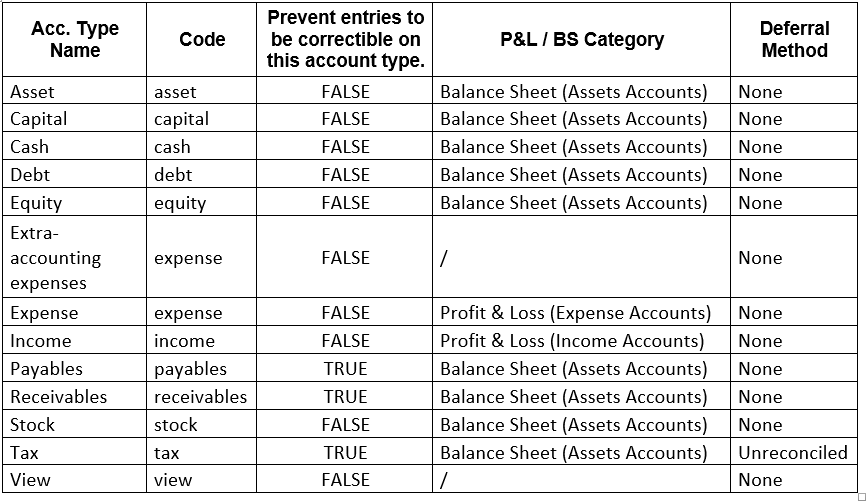
- Asset, Capital, Debt, Equity, Stock are standard account types not used at time of Unifield’s initial deployment;
- Cash applies to treasury accounts;
- Expense and Income define accounts as P&L accounts, being a condition used for reports production;
- “Extra-accounting expenses” is a custom account type used for accounts acting as expense accounts but only as management accounts (i.e. outside the P&L and B/S). This type is used for in-kind donations accounts and extra accounting entries journals;
- Payables and Receivables types are mostly used for partners-related transactions; they are usually used in documents’ headers. This type is also used as a flag in reports such as partner reports;
- Stock: accounts that are used to register all the stock related transactions from an accounting perspective: stock moves IN / OUT, inventory adjustments, inventory depreciation; Those account type can be used in manual Journal Entry but not in registers nor invoices. They are not yet used at time of UF16.0.
- Tax: accounts that are used to register all the tax related transactions; Only tax account type can be attached to products, orders or invoices;
- View accounts are the ones located at any “parent” level meaning they are not at posting level, not possible to select them;
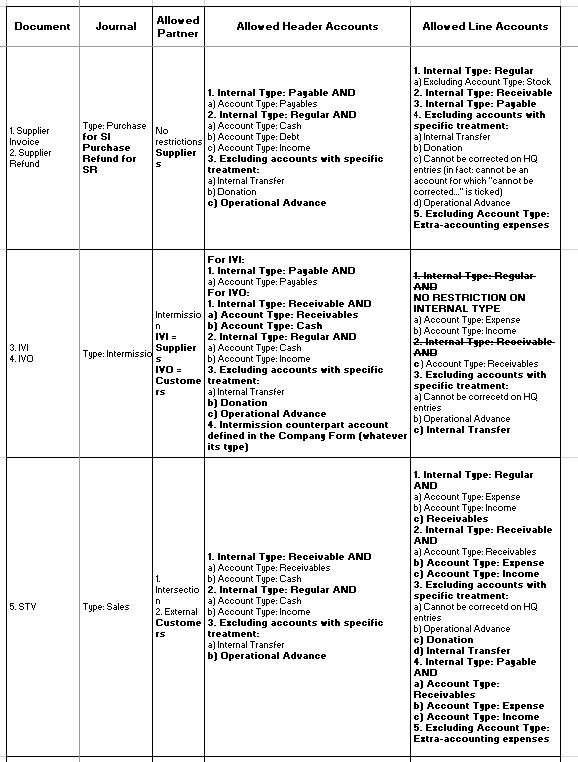
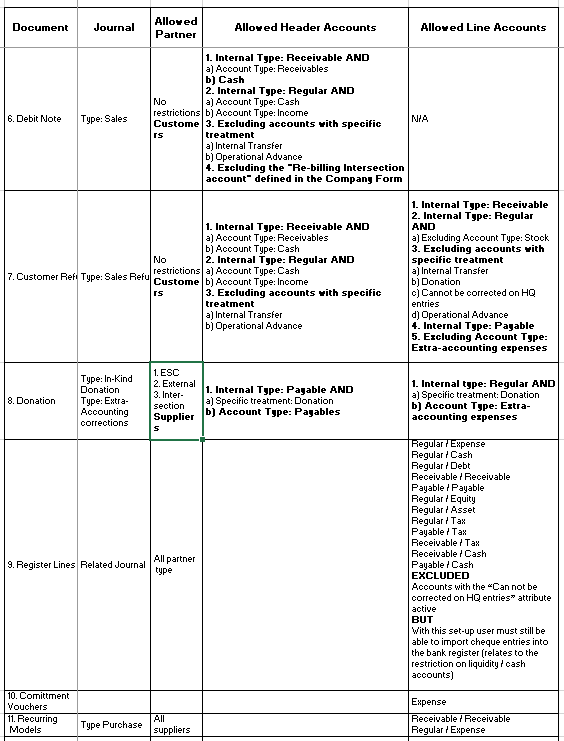
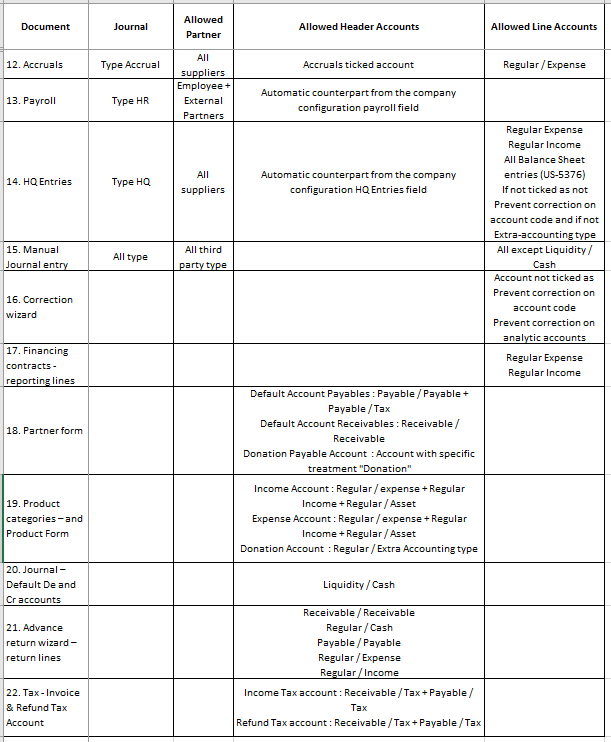
- Account types also define which accounts can be used/selected in the accounts LOV of the different fields / forms where an account can be selected. See Account Restriction that applies in account field in all object forms;
Account restriction (UF-2237, US-2310, US-4018, US-5376…)
In all objects where account code can be selected, a restriction on account code has been set to prevent manual error and focus on accounts that shall be selected.
As an example, it is not possible to select P&L account type in Partner receivable or payable account as it shall be only receivable or payable accounts.
Please find here all account restriction per encoding interface based on the combination of Account type / Internal type.
Type for specific treatment
Some custom “Types for specific treatment” designed in UF to manage specific behaviours not available in the standard OpenERP workframe. Namely these types are:
- None
- Internal Transfer
- Internal Transfer (same currency)
- Operational Advance
- Down Payment
- Third Party Required – Payroll
- Donation
- Reconciliation – Disregard 3rd Party
Internal transfers (same currency)
Entries booked under accounts with this attribute:
- Can only be booked with a Journal as Third Party
- Journal proposed are only journals with the same currencies as the journal where the entry is booked
- Can only be matched with the same account and only if the other entry has been booked in the journal specified in the third party
Internal transfers
Entries booked under accounts with this attribute:
- Can only be booked with a Journal as Third Party
- Journal proposed are all journals
- Can only be matched with the same account and only if the other entry has been booked in the journal specified in the third party
Down payments
Register line entries booked under accounts with this attribute:
- Need to be linked to a confirmed PO
- It cannot be temp-posted until a PO reference with the following characteristics is selected.
- Same currency (register and PO)
- PO amount does not exceed register line amount
- PO Status must be “Confirmed” or “Confirmed (waiting)”
- PO type is “Regular” or “Purchase list” or “Direct purchase order”
- The down payment will then appear in the Supplier invoice created from the PO reception and the amount remaining to be paid will be automatically calculated in the SI.
Operational advances
Entries booked under accounts with this attribute:
- Apply to both Cash and bank register
- Once hard-posted, a cash register line booked on such account displays an icon from which user can open the operational advance return wizard.
- User can then indicate a list of expenses or link invoices in the advance return wizard to justify how the advance was spent.
Third Party Required – Payroll
This force entries booked under this account type to have a third party.
This type was created to flag accounts that need to be tied to a 3rd party when integrating Homere entries into UF. Homere imports are consisting of expenses on one side (total cost by employee) and of B/S entries on the other side to balance the import out. Counterpart lines are booked on B/S accounts available in UF. Validation of the Balance Sheet payroll entries can’t happen if third party are missing (manual input or directly taken from Homere Paye Saga)
Donation
Must be linked with extra accounting account code.
Accounts with this attribute can be selected in the “Accounting” tab of products in the “Donation Account” field. This attribute must be filled in for users to be able to validate orders with donated products. The parameters are set at product level for this functionality.
Reconciliation – Disregard 3rd Party
Amongst other use cases this type remove the 3rd party condition when reconciling entries together. Reconciliations done on this account do not consider the 3rd parties of journal items included in the reconciliation. It allows users to deal with use cases such as VAT reconciliation, when the 3rd party is a supplier on one side and the tax office on the other side.
Other account attributes:
- Reconcile: tick the box to allow reconciliation on the account
- Prevent correction on account codes: when ticked, system:
-
- Prevent to change the account code (Daily and Posting tarif) of an HQ entry before validation when in the HQ entry module
- Restrict the use of this account in all encoding interface (registers, JE, imports…)
-
- Prevent correction on analytic accounts: when ticked, system:
-
- Prevent to correct the AD on those accounts in the HQ entries or via the correction wizard
-
- Default Debit Account for Reconciliation / Default Credit Account for Reconciliation: this enable to define for a specific account, the account to be used for the automatic FX gain and loss entries. It bypasses the account set in the FXA journal. If those fields are empty, the account set in the FXA journal are used
- Allowed Partner Type: this enable to restrict the use of an accounting code linked to a specific partner type. This enable to force partners on certain account / prevent empty partners.
-
- At HQ, in the Chart of Accounts menu, all accounts have by default all partner types selected (no changes compared to the current behaviour).
- If an OC wants to apply the restriction, it can be done by un-ticking the partner type in the account tab “Allowed Partner type” in order to apply the restriction.
- At mission level, note that an error message will be displayed at the time of validation of an object (Register Line, Supplier Invoice, Journal Entry etc.) in case the combination Accounting code / Partner is not according to the settings done at HQ.
-
- Currency Revaluation / Include in revaluation: define if the account is to be included in the B/S yearly revaluation. Account need to be reconciliable
- End Year Closing / Include in Yearly move to 0: define if the account is to be set to 0 balance at yearly closure time (see yearly closure chapter)
Activation/Deactivation:
- Deactivation sync down and only new entries are blocked
- Not run at HQ on entries could happen if while HQ is deactivating an account, a mission use this account in an accounting entry. In between the 2 sync HQ and the mission, HQ will receive entries as not run and the mission will receive the deactivation of the account for the future entries. HQ will have to change the inactivation date, sync and then put back the retroactive date
- Check is based on posting date
- Once inactivation is synced to projects and coordination, draft or temp posted register entries can’t be posted
- Once inactivation is synced to projects and coordination, unposted manual journal entries can’t be posted for inactive account, but can be posted for inactive account
7. Analytic Accounts settings
At time of creation of an instance, a set of predefined analytic accounts are created automatically.
Cost Centers
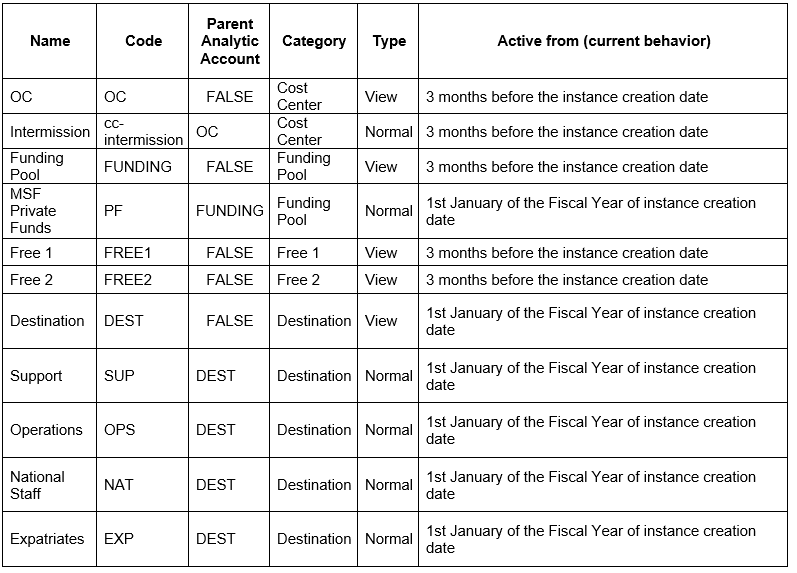
This dimension can be used at different levels according to the OCs and to the level at which the budget is built:
- At project level, bearing in mind that several projects may be managed from the same location / UF instance
- At activity level i.e. at a more detailed level to allocated spending by operational activity
System uses the cost centre allocation to produce all budget-related reporting.
CC are created at HQ and will only sync to a specific mission if it is tied to its respective proprietary instance at the HQ instance. A CC can be tied to several proprietary instance but can only be target to one instance. (see Proprietary Instances and Cost Center mapping).
By standard, a mission cannot directly allocate costs to another mission as one mission only has its own cost centers available. But following US-2380, it is possible to import the same CCs in different prop instances making the possibility for different missions to allocate costs on the same CC. However, CC can only be targeted in one prop instance so the sync of AJI can only work in one mission.
A Cost center must always be target to a prop instance.
Destinations
Was added late in UF development to better accommodate the transition to a pure nature-oriented chart of accounts. The 4 initial destinations agreed upon between OCs are: Operations, Support, National Staff and Expatriates.
There’s a close link between destinations and G/L accounts established from the destination form view.
Following requirements from OC to stop using the regular destination and be able to follow the new dimension for their budget lines, the use of destinations has been extended so additional ones can be created. Destinations are created at HQ and sync to all instances. Destinations can be restricted to account code and to Cost centers. Being tied to Cost centers enable OCs to allow destinations only for certain missions even if by default destinations sync everywhere (US-5771).
Funding Pools
This dimension is used to group expenses together and ease the production of Donor reports. System uses the funding pool allocation to produce reports in the grant management sub-module.
Funding Pool can be created at HQ or at Coordo but must always be tied to a Coordo proprietary instance so it will sync only between the mission and the HQ.
Link Cost Center and Destination (US-5771)
- Destinations for all missions are created at HQ
-
- As currently, destinations are created at HQ and sync down to all missions
- By default, all instances have all destinations
- It will be possible to restrict the use of Destination per mission, by adding a restriction based on the Cost Center: Destination / Cost Center
-
- Link Destination / Cost Center
-
- To enable to restrict the list of destination per mission, destination will be restricted based on the Cost center additionally to the existing restriction on the account code
- A new tab in the “Destination” dimension will allow Destination to be restricted based on Cost center
- By default, each destination will be linked to “NO Cost Center” and will be unticked as “Allow all Cost Center” = No Cost center are allowed (Only for the current Destination NAT/OPS/EXP/SUP, they will be ticked as “Allow all CC” so no changes for OCs that don’t need to change Destination).
- Settings is to be done in Destination – “Destination / Cost center” tab where the list of Cost center is added.
- As soon as one Cost center is added in the Destination / Cost center tab, the restriction is active and only the defined combinations are allowed (the tick box “Allow all Cost Center” is automatically unticked)
- The tick box on “Allow all Cost Center” can be untick even if no Cost center are added in order for this Destination not to be used in any mission
- Settings of the “Destination / Cost center” combination can be done at HQ or Coordo and it will sync up and down. This give the possibility Coordo to apply the settings and restrict the use of the destinations based on their cost center. HQ can always check
- Based on the Cost center selected, it will display allowed Destination based on the combination Destination/Cost center AND Destination/Account code
-
- New encoding sequence
Because of the introduction of the new restriction Destination/Cost Center that restrict the destinations based on the Cost Center additionally to the account code, the order of encoding Analytic Distribution will change.
1. Account code is selected based on the Chart of Account
2. All Cost Center of the mission are available
3. Destination :
- Default destination of the account code will be displayed. Exception if an employee was selected, default destination of the employee will be displayed = current behavior = not to impact OCs that don’t work with budget lines
- Destination available are based on the combination Destination/Cost center AND Destination/Account code. If both restriction are contradictory, AD will be blocked
4. Funding Pool available are based on the combination Account Code / Destination AND the Cost center. If no combination match, by default, FP is always available
- Conflict example
Because Destination are restricted based on both Account code and Cost center, conflict are possible = no destination match both Destination/Cost center AND Destination/Account code combination. In case of conflict, the Analytic Distribution will be blocked
- D1 is allowed with 61000, 62000,65000 and D1 is allowed with CC1
- D2 is allowed with all CC
- D3 is allowed with CC1 and CC2
- 61000 has default destination D1 and allow D1,D2
- CC2 allow D3 only
I.e of conflict
=>User encode Account Code 61000 and Cost center CC2
=>Default destination of 61000 is D1 and is automatically selected
=>Destination D1 don’t match with CC2
=>The Analytic Distribution will be invalid/blocked
- Activation/Deactivation (US-2273)
- Cost Center/Destination:
-
- Deactivation sync down and only new entries are blocked
- Old entries and documents (SI) still have an active AD
- Not run at HQ on entries could happen if while HQ is deactivating an analytic account, a mission use this analytic account in an accounting entry. In between the 2 sync HQ and the mission, HQ will receive entries as not run and the mission will receive the deactivation of the account for the future entries. HQ will have to change the inactivation date, sync and then put back the retroactive date
- Check based on posting date
-
- Funding Pool:
-
- Deactivation sync down and only new entries are blocked
- Old entries and documents (SI) still have an active AD
- Check based on document date
- However, check doesn’t work on the AD correction wizard, you can correct an entry with an inactivate FP (ticket to be created as it is currently in UF3.1)
-
- Once inactivation is synced to projects and coordination, draft or temp posted register entries can’t be posted
- Once inactivation is synced to projects and coordination, unposted manual journal entries can’t be posted for inactive analytic account, but can be posted for inactive account
- Cost Center/Destination:
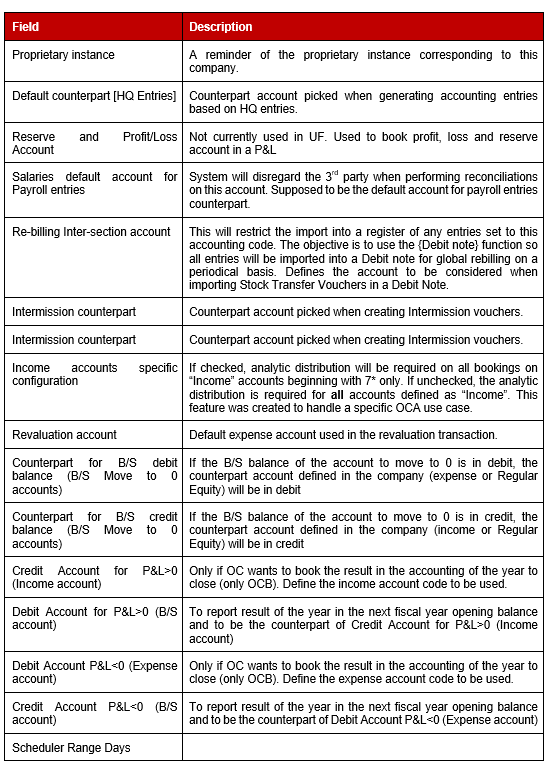
8. Company settings
“Company” object is used to set specific parameters used for different transactions. It is set in each instance at time of creation. It shall be standard within an OC.
9. Reconfigure
-
Reconfigure is another place for settings to be done at each instance creation time. See IT User Manual. It shall be the same within each OC.
It is possible to change the reconfigure settings of an instance with the admin profile.
- Manage commitments corresponding to international order through specific import: if ticked, all POs to ESC Partner (International Orders) will trigger a CV that will be manually managed
- Manage Customer Commitment Vouchers
- Is the system manage Fixed assets: feature not yet developed in Unifield
- Does the system manage Payrolls import from Homere: if ticked, local staff employee and payroll can only be managed via Homere import files. Additional sub menu appears. If not ticked, local staff employee and payroll can be managed manually and via import
- Does the system allow document dates on previous Fiscal Year: if ticked, it is possible to record an entry with a document date belonging to a previous fiscal year from the period the entry is booked
- Electronic validation: you have the choice to use this option or not
10. Proprietary Instances and Cost Center mapping
- Cost Centres are created at HQ level but they do not sync to all instances. They must be tied to a Coordo proprietary instance, which will automatically add them to all “Project” instances of the same mission. This make available all the tied CC in the whole mission (coordo and project will always have the same number of CC).
- Then it must be set as “target” in one and only one instance to
-
- Ensure adequate sync of analytic journal items booked on cost centres. I.e : all AJI from other instances of the same mission booked under a CC will sync to the instance where it is target. This enable an instance to have the full visibility of all the expenses made under its budget/CC.
- Ensure the sync of HQ entries: HQ entries will sync to the coordination of the project where the CC is target.
- All cost centres shall be be defined as “Target” in one instance. A CC can only be targeted in one instance
-
- It is possible import the same Cost center in different missions but:
- It must always be accompanied by its parent
- CC will be targeted in one instance only so:
-
- Only one instance will be able to receive all AJIs of the mission (note that AJI are not synced in between mission so the 2 or several instances where the CC have been tied won’t see AJI from each others)
- Only the coordo prop instance where the CC is target will receive the HQ entries (HQ entries can only be synced to one mission only)
-
- If one CC is removed from a mission (coordo prop instance), the CC remain at mission level but is set as inactive in the mission only
11. Finance user rights
Generic Principles
User rights definition relies on the notion of “Groups”. Groups give some rights and access in the system and groups are then tied to users depending of their role and responsibilities. The more groups you have, the more rights you shall have. Some groups are meant to be only for high profiles, some others will give only access and read only.
User rights are being managed through several regulation files, each of them managed by a file that is imported either at HQ, or at sync server level that then dispatch to all HQ. Synchronization at HQ then dispatch all user rights to all instances.
- User Rights Menus Groups: this file sets the access per group to transactions on the left-hand side menu of the application. A group can give access to a sub menu but doesn’t mean it gives rights on the object below this sub menu
- Access Control Lists (ACL): defines whether a group can Read, Create, Edit or Delete an object
- Record Rules (RR): allows to define differentiated Read, Create, Edit or Delete rights for different types of the same object. As an illustration, an ACL on analytic accounts touches cost centres, funding pools, destinations, Free1 and Free2 accounts altogether. Record Rules allow creating different rights for Funding Pools vs Cost Centres by working on the domain to which the Record Rule applies, always for a given object
- Field Access Rules (FAR): allows defining specific accesses for some of the fields of an object depending of the instance level (HQ, Coordo, Project). In particular this feature is useful to manage access rights for partners or products, as these objects are central and their attributes’ ownership is spread across several user profiles in the organisation (from a pure functional perspective).
- Button Access Rules (BAR): used to restrict access to specific buttons on the interface, outside the “New” or “Duplicate” or “Edit” buttons available on all most of the objects. By default, buttons are accessible to all users, until at least one restriction is defined for a button. Note that the button don’t appear for users that don’t have the group with rights on the button
- Window Actions: used to restrict access to specific action links from the right-hand side panel. Note that the windows action button don’t appear for users that don’t have the group with rights on the windows action
OC’s will need to define generic users and tie them to the appropriate groups in order to adapt to each OC’s (eventually to each mission’s) specific needs in terms of roles and responsibilities.
The “user rights model” concept is to be understood like puzzle pieces: the more pieces you put together (groups tied to a user), the broader the access and rights for users is. Each individual model should not overlap any other model in terms of coverage except:
- For those groups dealing with accesses to another functional domain: some finance models will need to provide at least a “read” right on Pos whereas this access is already dealt within supply profiles.
- For groups setting rights on objects that could be handled from HQ or from the field like analytic accounts (funding pools), taxes and tax codes…
- For generic actions that could be common to several groups (open corrections wizard, reconcile entries…)
Users are created in each instance where they remain. It is however possible to create users from HQ that are meant to sync to all instances like for trainers or mission profiles that have the same groups in all instances (IS Officers….).
Detailed definition
Finance User Rights definition is explained throughout the following documents:
- User rights definition: power BI board that enable to see interaction between groups, access, rights, BARs…
- User Rights system documentation: explains the full behaviour of user rights
