
12. Payroll entries – automated Homere interface
General Principles of the Payroll Function
UF offers the possibility to integrate Homere payroll entries through a dedicated import transaction using the same Homere extract as the one used for Saga. In any instance OCs may optionally decide to use / not use the interface by reconfiguring the instance.
If the interface is not used then national staff employees are created manually and monthly payroll entries are also created manually.
Processing the monthly payroll in UniField starts with importing two separate zip files from Homere: the Per_mois file and the Paye_saga file. The payroll files are imported in the Accounting / Payroll module.
- Per_mois: This zip file contains multiple files, but UniField only uses four of them: staff.csv,staff_l.csv, contrat.csv and envoi.ini files. New employees are created and the list of employees in UniField is updated based on the employee data in the staff.csv file. This file includes the basic information such as the employee name, employee ID, codeterrain, UUID and Homere_staff_ID that are required to create or to update an employee record in UniField.
- Paye_saga: This password protected file contains the lines for the payroll entry to be created. One Journal Entry is created based on the validated payroll entries originating from one Paye_saga file.
The files have to be imported in the correct order: Per_mois file has to be imported before Paye_saga file in order to ensure the employee records are up to date. Paye_saga file can’t be processed if one or more employees don’t exist in UniField.
- To be able to use Homere import files, the payroll feature has to be activated under Administration / Configuration / Reconfigure / Activate the payroll configuration.
- An HR (Human Resources) journal and analytic journal has to be created for each instance.
- It is possible to force having a third party Supplier or Employee in all payroll entries in selected accounts; in this case, the selected payroll payable accounts (e.g. net to pay, social security, payroll taxes) need to be configured with a specific treatment: Third party required – payroll.
- If another type of third party (e.g. employees) shall be used with these accounts, the specific treatment should be left empty (set to “None”) and the applicable partner types should be selected in the “Allowed Partner Types” tab.
- It is possible to bypass the reconciliation rules regarding the same third party by inserting a “Salaries default account” for payroll entries (e.g. net to pay) in the Company Configuration under Administration menu. In the account has been set, all entries under this account will be reconcilable regardless the third party.
Employee update / PERMOIS
The first extract to import is the employee update, the file is usually named “PER_MOIS” and retrieves basic information about the employee: name, employee number. They are mandatory for the payroll lines to be properly imported at a later stage.
There are more detailed employee information contained in the “PER_MOIS” filed, part of it is also imported for information in UF but is not used in other transactions; it is only displayed in the employee form. “PER_MOIS” files are password-protected as they contain personal data.
- PERMOIS file can be imported only if:
- Envoi.ini contains line LISTETERRAIN with only one project code
- Envoi.ini contains line MOIS=xxxxxx
- This is to prevent the import of PER_ALL and PER_MOIS_ALL
- Additionally,to Employee names and ids, information such as Payment Method and Bank Name are imported in Unifield from staff.csv and staff_l.csv files to update employe form. This is used to produce the report “Payment Orders”.
- Payment methods:
- Created at HQ only, currently only 3 standard payment methods in all OCs : CHQ, ESP VIR.
- Sync from HQ to all instances
- Payment Orders report
- In Accounting/Payroll/Payroll entries in the windows action menu
- The report is actually kind of Employee Balance report. The pdf report shows the Employee name, Employee ID, Bank name, Bank ,Net to Pay and Currency. The Net to Pay amount is calculated by employee for the payable and receivable accounts that are used in system for HR entries and where the third party is an employee. Note: the amounts are taken from all unreconciled entries on these accounts, no matter if they originate from HR journal or not
- Payment methods:
- There is a check on employment contracts’ end date in the contrat.csv file when importing the Per_mois file:
- If the contract is on-going, the employee is set as active.
- If the contract has ended, the employee is set as inactive
- If the employee is no longer included in the Per_mois file but does exist in UniField, the employee is left as it is in Unifield
- All employees created in one instance synchronize to other instances of the same mission as inactive. The active/inactive status of an employee can be manually changed in each instance. This change, however, does not synchronize to other instances.
- Note that it is possible to use inactive employees as third parties in payroll related entries! The employee does not have to be active in order to use it in accounting.
- Employees can’t be manually added or edited in UniField (except for active/inactive status and AD). All changes in regards to name, ID numbers etc. have to come directly from Homere via the Per_mois file (when Payroll Homere is activated in the Reconfigure)
- Multiple checks are performed in UniField at the time of importing the Per_mois file:
- 1. Unifield checks in the database that there are no duplicated employees base on the combinaison of codeterrain +UUID+ id_staff + id_unique fields
- 2. Unifield checks in the Per_mois that there is no duplication based on the Identification No or the combination of codeterrain + UUID+id_staff + id_unique fields. If there is duplication, the Per_mois file can’t be processed
- 3. If there is no duplication in the Identification No or the combination, Unifield verifies each employee one by one by taking their Identification No and checks if one of the following fields has changed: codeterrain OR UUID OR id_staff OR id_unique. If there are no changes, the file import is processed normally
- If one of the fields has changed, Unifield checks that the name of the employee is the right one (= the one in UniField database, i.e. the name in the previous Per_mois file):
- If it’s the right name, the file can be imported and the data of the existing employee will be updated in Unifield for codeterrain + UUID+ id_staff + id_unique
- If it’s not the right name, the system considers that it is a new employee and tries to create it. The creation fails because there is duplication on the Identification No. The Per_mois file can’t be processed.
- If the Name field is empty, a clear error message will be listed under error list includes the identification number “There is an employee with empty name in staff.csv file : employee with code_staff :MXXXXXXX” making it easier for users to identify and address the issue.
- If one of the fields has changed, Unifield checks that the name of the employee is the right one (= the one in UniField database, i.e. the name in the previous Per_mois file):
- Unicity fields:
- codeterrain +UUID+ id staff + id unique are considered to be the unicity id. However, each of those field can change for an employee in Homere and this is not explained by Homere
- Unifield will import the permois and update those hidden field for the employee but only if the name of the employee doesn’t change at the same time.
- Unifield will adapt to Homere, anytime an employee fields are updated it will sync and update the other instances that can be followed in the sync.
Payroll Import / PAYE_SAGA
- Payroll entries can only be validated in the same proprietary instance in which the Paye_saga file is imported. Validating the payroll entries creates one Journal Entry that is automatically posted. When the payroll entries have been validated (status changes from “Draft” to “Validated”), the entries are no longer visible in the Payroll module.
- Payroll entries are automatically created in HR (Human Resources) journal. This journal can’t be manually changed.
- The Description is directly derived from the “Description” field in the Paye_saga file. It is a text string for “Salary & Period” and it can’t be manually changed.
- The Reference of the expense lines usually indicates the job position of the employee. However, the Reference is not taken from the “Job” field in the employer master data as this is not always filled in, but it is directly derived from the “Description” field in the Paye_saga file. For payable lines, the reference is directly taken from the “Secondary Description” field. The reference can’t be manually changed.
- The Document and Posting Dates will automatically be set according to the “Date” field in the Paye_saga file. The Period is derived from this date. The period or the dates can’t be manually changed.
- The Accounts are directly taken from the Paye_saga file and they can’t be manually changed.
- Third party: Partner or employee. Both are allowed in payroll. Here is a recap of the behaviour for both P&L and B/S payroll entries:
- First the “Third” column is checked. This column can contain:
- either the exact name of a partner (only the letter case is disregarded) => the partner is then used as a Third Party (if the partner doesn’t exist in UniField or is inactive, the system will then search for a match with an employee code)
- or the EXACT code of an employee (i.e. “MWNP0001” and not “John Smith MWNP0001”) => the employee is then used as a Third Party
- or a fake code/an empty value => in that cases the field Secondary Description is checked
- Second, the field “Secondary Description” is checked and can contain both the employee name and code, e.g. “John Smith MWNP0001” => in that case the system checks what is after the last space, here “MWNP0001”. It must match exactly with the code of an employee, who will then be used as a Third Party.
- Note that in case nothing is provided in the PAYE file, the Third Parties for Balance Sheet lines are to be filled manually because compulsory in the second step of payroll entries validation.
- First the “Third” column is checked. This column can contain:
- The Analytical Distribution is automatically applied from either the Paye_saga file or from the employee master data depending on the OC and if the AD is filled in Homere or not.
- The Paye_saga file may contain Analytical Distribution information depending on the OC’s procedures:
- The cost center is taken from the field “project” (column 7) in the Paye_Saga file. If the field is empty or of wrong format (e.g. cost center in this format does not exist in UniField or it is a view type), no update will be processed in the employee master data. In this case an error message detailing the employee concerned is shown and the cost center will have to be manually updated. Note! Cost center is case insensitive meaning that if your cost center in UniField is 101a and the project in Homere is 101A, the update will still be processed according to the cost center format in UniField.
- The destination is taken from field “Analytic axis SAGA 1” (column 12). If the field is empty or of wrong format, no update will be processed in the employee master data.
- For both Destination and Cost Center, it is based on the number of column and not the column title.
- If the AD information is included but is not correct, the employee specific AD needs to be manually updated in the payroll entry line. If the AD information is not filled in Homere at all, the AD can be manually filled in in UniField employee master data. The AD for payroll entry lines is then directly taken from the master data.
- The funding pool is automatically set to PF for each employee. If a different funding pool needs to be used, it can be manually set up in the employee master data.
- The employee master data for AD prevails in all Journal Entries: if an employee is used as a third party in any Journal Entry, the AD in the database overrides any AD inserted manually / included in the import file (Import Register Lines or Import Entries).
- The entry amounts are directly taken from the Paye_saga file “Expense” field for debit and “Receipt” field for credit and they can’t be manually changed.
- The currency is directly taken from the envoi.ini file in Paye_saga zip file and it can’t be manually changed.
- The Paye_saga files originating from Homere may include rounding differences. At the time of import, UniField checks if the entry is balanced. If the entry is not balanced, a rounding difference line is created if the difference is less than 1.00 EUR. If the difference is higher, the file is rejected and the difference has to be fixed in Homere.
The Cash Difference is automatically booked in cash differences account for the calculated difference in paye_saga file. The entry line can’t be edited except for Analytical Distribution.
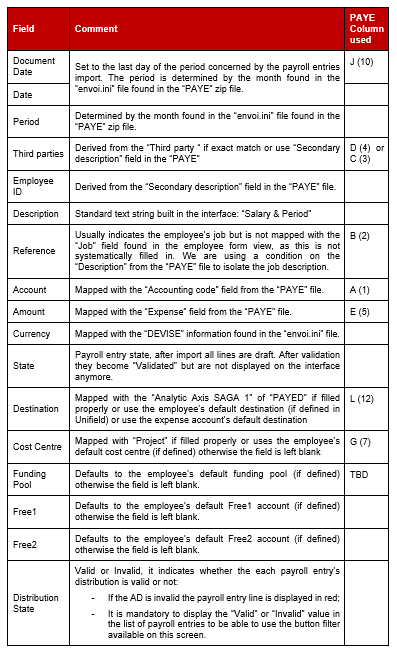
The payroll characteristics are sum up below. Note that Unifield uses PAYE column number to map the import and not the column name.
Common error messages upon file import and special restrictions
- PERMOIS import wizard contains the following fields :
- Processed: is the total of the PerMois
- Created: how many created
- Updated: how many were updated
- Rejected: how many rejected
- Error list: display the error list. For the error list, no need then of a whole error message, there should be as many error messages than we have “rejected”. In the error message, it is added in brackets after each employee name from where it is from. I.e: Several employees have the same unique code: Smith, John (Unifield); Do, John (Permois). This enable to spot where the error comes from (Unifield or the PERMOIS or both)
- Note that in some use case mentioned in US-5184 where same combination key codeterrain/id_staff/(id_unique) “HQ1C1P11 / 222 / (empty)” are present in the import file (x2) or in Unifield (x2), the PERMOIS is imported except the problematic staff, the import can be partial in the case. To see if it will be maintained.
Example of error messages:
- Per_mois import: “Several employees have the same unique code: XXX, YYY”
When you receive this error message detailing two separate employees, it means that you are trying to import a Per_mois file which includes a new employee with the same employee ID that already exists for another employee in UniField. The new employee has to be assigned a new, unique employee ID in Homere before importing the Per_mois file again.
- Per_mois import: “Some employees have the same unique code: XXX, xxx”
When you receive this error message detailing one employee written in two different ways, it indicates that the name of the employee has been changed at the same time with the codeterrain and/or the homere_id_staff codes.
There is a unicity constraint and a check on employee name in combination with the codeterrain and homere_id_staff fields, so it means that only the name OR codeterrain and/or homere_id_staff can be changed at one time.
To overcome this issue, the name change has to be reverted in Homere, a Per_mois file has to be imported into UniField to update the codeterrain and/or homere_staff id and only then can the name be changed in Homere and a new Per_mois file imported.
- Per_mois import: “Import file have more than one employee with the combination key codeterrain/id_staff(/id_unique) of this employee: XXX”
This error message means that the per_mois file includes a new employee which has the same homere_id_staff number as an employee that already exists in UniField. This is due to the fact that an existing employee record in Homere has been replaced with a new employee’s details. A new employee record has to be created for the new employee in Homere before importing the Per_mois file again.
- Per_mois import: “On of this column is missing code_terrain, id_unique or id_staff. This often happens when the line is empty.”
This error message indicates that an employee record is not complete and it is missing important information: code_terrain, employee_id or homere_staff_id is not included in the line. The incomplete record needs to be fixed in Homere.
- Paye_saga import: “No employee found for this code: XXX Debit zzz Credit yyy”
If this error is shown, it means the Paye_saga file contains payroll information for an employee that does not exist in UniField. A fresh Per_mois file needs to be imported first in order to process the payroll import.
- Paye_saga import: “UF Payroll rounding, import aborted, file is balanced with more than 1.00 EUR: XXX”
When this error message is shown, it means that the Paye_saga file has a difference between credit and debit lines of more than 1.00 EUR. The file will not be imported and the payroll has to be re-calculated in Homere.
- Paye_saga import: “You cannot import payroll entries. Please validate first draft payroll entries! “
Once a Paye_saga file is imported, another paye_saga file can’t be imported before:
Payroll entries are validated; all lines need to be validated at once because they are all included in the same journal entry. OR
Payroll entries are deleted while they are still in “Draft” status.
- Paye_saga: “Payroll entries have already been validated for: XXX in this period: “YYY”!”
Only payroll entries from one Paye_saga file can be validated each period for each internal project. It is not possible to import multiple payroll files for the same internal project within the same period. However, each proprietary instance can have multiple internal projects ( = “pays” in envoi.ini file) for salaries.
- Not run sync update: “Reason: Some employees have the same unique code: XXX”
This not run update means that one employee with the same employee ID has been imported from Homere in two different UniField instances at the same time in between synchronizations. The two employees created have a different sd reference and therefore the information cannot synchronize.
The not run update can simply be deleted, but it is important to remember that any updates made for this employee in the instance the not run originates from will not synch in the future either.
- Not run sync update: “Reason: Some employees have the same unique code: XXX, YYY”
This not run update means that the same employee ID has been used for two different employees in two different instances. The mistake has to be fixed in Homere and the wrong employee has to be assigned a new employee ID.
Specificities
- Once a payroll file is imported, user cannot import another “PAYE” file until (those are 2 mutually exclusive possibilities):
- Payroll lines are validated; all lines are validated at once because they must be included in the same entry. There’s no other possibility as the entry validated must be balanced, which implies validating all payroll lines to properly link them to the counterpart lines imported but not visible in the payroll entries file. As a consequence user cannot validate individual payroll lines.
- Payroll lines are deleted while they are still “Draft”.
- Because of payroll plans not being properly set-up in Homere, “PAYE” files may be unbalanced. At import Unifield checks that the to-be-created entry is balanced. If not it proposes the creation of an extra payroll line provided the adjusting amount is below 1.00 EUR. Background information can be found in Jira ticket US-201.
- It is normally only possible to import and validate one payroll per month. Still, system allows multiple import of payroll in the following cases:
- The are several sub projects within one instance so 2 payrolls can be imported (one at a time) in the same period only if the “envoi” file from the different PERMOIS (for the same period) have a different “Country/Pays” which identify the sub projects.
- In the case the Payment of employees is done in different currencies, the PAYE contains 1 envoi file but 2 paye csv file instead of one. In that case, import is possible and both currencies will be mixed in P&L and B/S. Still, once posted, there will be 2 Journal Entries posted
- With the checks on Third party and second description to look for an employee or partner third party in Unifield and populate the payroll entries, Unifield can accommodate payroll where the counterpart B/S entries are split per employee instead of being concatenated in one line. I.e: instead of having one NET to Pay of the global amount with the partner third Party “NAT STAFF”, Homere Paye can be configured with as many lines as there are employees to identify a NET to Pay per employee. Same applies for taxes per employee. Homere just need to be configured that way and Unifield will enable the import and the retrieve of the third party.
- The possibility of partial import for automatic import of international staff (employees) is not possible: ONLY the TOTAL import.
13. HQ entries
“HQ entries” is the functionality designed to integrate field expenses incurred at HQ level into Unifield. It is the vector used to manage downwards financial vertical integration. HQ entries are meant to be imported at HQ; each HQ entry syncs down to a single Coordo instance.
Import files are generated from the HQ accounting application; they can mingle entries aimed at different coordination instances. HQ entries must be imported in the Unifield HQ instance but must be validated at coordination level (after sync). The assumption behind this behaviour is: knowledge about the right analytic allocation lies in coordination, making it the most appropriate place for HQ entries to be validated.
Import files generated from HQ applications cannot be imported several times in UF. Unicity checks have been integrated. At import system checks that the combination of the following HQ entries fields is unique: Description/Reference/Posting Date/Document Date/Amount/Account/Third party/Cost Centre.
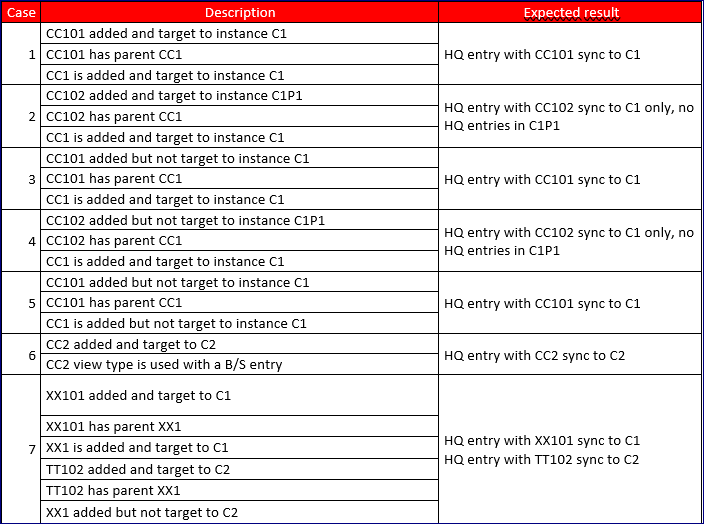
HQ entries behavior
All account types such as Expense, Income and Balance Sheet are allowed in HQ entries (except Donation and Extra-accounting)
- Behaviour of all HQ entries at HQ level
- HQ entries (All P&L and B/S) are not editable at HQ level. (split/unsplit/validated are dealt with user rights).
- It is not possible to import HQ entries without CC = all file is rejected.
- If no Destination is set in P&L HQ entries, default ones from account code are taken into account.
- HQ BS entries shall be imported only with CC, no destination and no FP.
- If wrong AD in P&L accounts (combination Dest vs Account), import is rejected.
- HQ entries (All P&L and B/S) shall not be editable neither split at HQ level, only import file can be editable.
- Behaviour of HQ B/S Entries at HQ level
- CC is compulsory and B/S HQ entry will sync based on the CC target
- Destination and FP are blanked and not editable for HQ B/S Entries
- HQ B/S entries shall be imported only with CC, no destination and no FP because there is a check between Dest and Account code at time of import and file is rejected in case of wrong allocation (valid for P&L) => import is rejected if Dest and FP are fill in the HQ entries file for any B/S HQ Entries. Once imported, those 2 fields must remain empty and PF must not be fill in automatically.
- Allow view type CC in HQ entries import only and only for the B/S entries, and allow the sync. Still, it would not be possible to select a view type CC when editing a HQ entry. Also, validation of an HQ entry with a view type CC shall not be possible for P%L but only HQ BS entries shall allow validation because CC has no impact in the record of the JI.
- Behaviour of HQ B/S Entries at Coordo level after sync
- B/S HQ entry is synced with the CC but is not editable at Coordo level (not possible to edit the whole line, Account and CC)
- Validation of the B/S HQ entry post the B/S Entry in the HQ journal but obviously ignoring the CC
- Accounts that are set as “not correctible account” can’t be corrected on HQ entries
- At validation of HQ entries, there are no checks on allowed type partner, type for specific treatment and “not correctible” as it is possible to validate the HQ entries : apply the checks (still allow to validate HQ entries with a non existing partner in Unifield)
- Check partner of HQ entries vs partner in Unifield
- If partner exists in Unifield : apply all checks
- If partner doesn’t exist in Unifield : don’t apply any checks
- When validating HQ entries at coordination level, the CC of the B/S entries are erased automatically and obviously not recorded in the journal entries.
- SYNC of HQ entries is based on where is target the Cost center
- It searches for the instance for which this Cost Center of the HQ entry is “targeted”
- It sync the HQ entry only to the instance level type Coordo of the corresponding mission (if the CC is targeted to the project, sync the HQ entry to the parent)
- If the CC is not target to any instances, system takes the parent and look which instances it is targeted and sync to the mission instance type coordo
- If the parent has no target too, the import of HQ entries success: check at import time of the HQ entries =it allows the import even in the CC is not targeted to its parent
- An HQ entry that sync to an instance where the CC is deactivated or deleted will be not run
As an illustration, consider the following chart:
HQ entries components
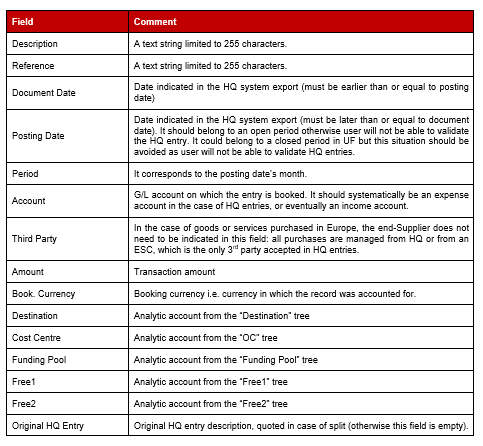
Here’s the list of elements constituting HQ entries:
HQ Entries validation / Master Data
Prior to HQ entries validation, an authorised user must define a counterpart account for the expenses recorded through this feature. This is a company setting that should be populated at instance set-up; the field concerned is “Default counterpart” under the “HQ Entries” section of the “Configuration” tab. OCs generally use account “33010 – Expenses paid by HQ” as a counterpart account.
When validating HQ entries (individually or grouped) system is creating the following booking:
Fig. Fin-19: HQ entries accounting scheme
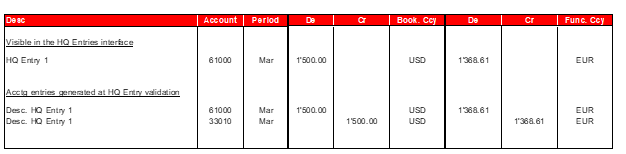
When validating several HQ Entries altogether system is grouping them under a single counterpart based on the following criteria:
- Entries booked in the same currency (generally EUR, USD, CHF or a currency used in all sections employing expatriates)
- Same posting date
The chart below illustrates the grouping condition for the counterpart line created upon validation of several HQ entries:
Fig. Fin-11: HQ entries booking (grouped)
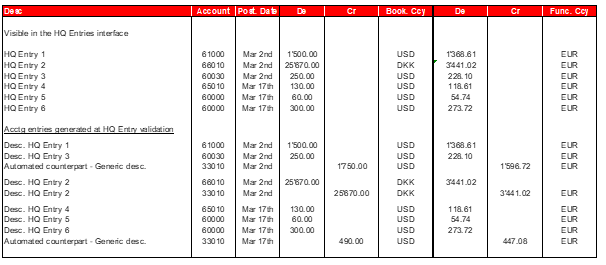
When field-closing a period system is checking if there are outstanding HQ entries to be validated in this period. If it is the case then period field-closing will be denied until all HQ entries attached to this period are validated.
HQ entries reflect bookings managed in the HQ accounting application. They may be incorrect (wrong expense account used) or allocated to the wrong cost centre. Unifield lets users perform modifications on HQ entries.
HQ Entries can be received even if a mission is mission closed. However, it will not be possible to validate the HQ entries without reopening the period.
HQ Entries corrections
Once accounting entries have been validated in HQ journals in Unifield, they will sync back to HQ (as accounting entries) but they are not meant to be imported back in the HQ application through vertical integration. Entries from the Unifield HQ journals are excluded from finance vertical integration exports. However in case HQ entries have been modified prior to their validation then system will generate REV and COR entries in an “OD” journal and they will be integrated in the vertical integration export.
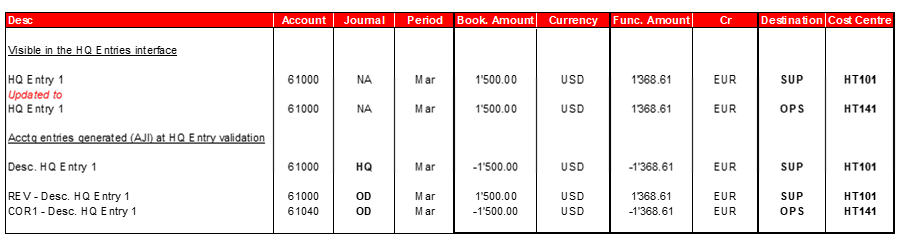
Users can modify the following parameters on HQ entries, triggering different bookings upon HQ entry validation: Reference, G/L account, Destination (as long as it matches the expense account selected), Cost Centre, Funding Pool.
Fig. 12 – HQ entries use case 1: G/L account modification
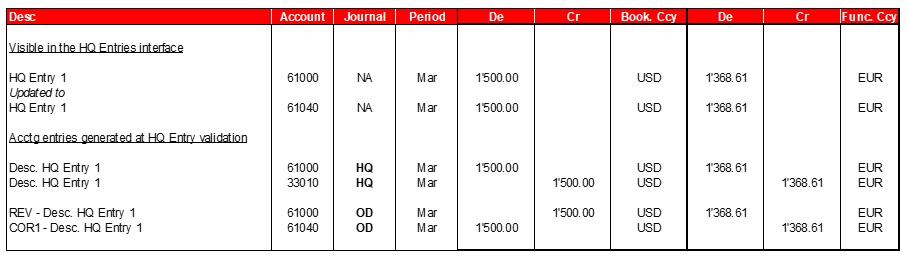
Fig. 13 – HQ entries use case 2: Destination and / or cost centre modification (The modification only impacts Analytic Journal Items)
HQ Entries corrections – Specific use cases
- Reference and / or funding pool modifications
Changing the reference and / or the funding pool of an HQ entry before its validation will not trigger any specific behaviour. Entries created will be booked in the HQ journal (like any regular HQ entry) with an updated reference and / or funding pool. This behaviour does not raise any concern vs. vertical integration as funding pools are not considered in exports to HQ systems.
When correcting an HQ entry before validation, it creates a REV and COR which now has the initial HQ entry sequence in the reference field. This follow the behavior of all automatic corrections via the correction wizard.
- Specific “Prevent correction on account codes ?” attribute
This specific attribute is meant to be activated on expense accounts that are exclusively managed from HQ and that must not be impacted by any direct field booking. It is the case for expats salary accounts for sections expensing expats costs through average costs rather than actual costs. Accounts bearing this attribute can’t be corrected in the HQ entries.
- HQ entries – Behaviour after validation
Validated HQ entries cannot be modified as changes would not be reflected in the accounting. Split, unsplit, change account, analytic reallocation functions can’t be used. Further reallocations or corrections of the accounting entries generated remain possible through the correction wizard or through the mass reallocation interface.
Note that the “validated” status will sync back to HQ, making it possible for central finance teams to check that HQ entries have been validated locally.
HQ Entries Split / Unsplit
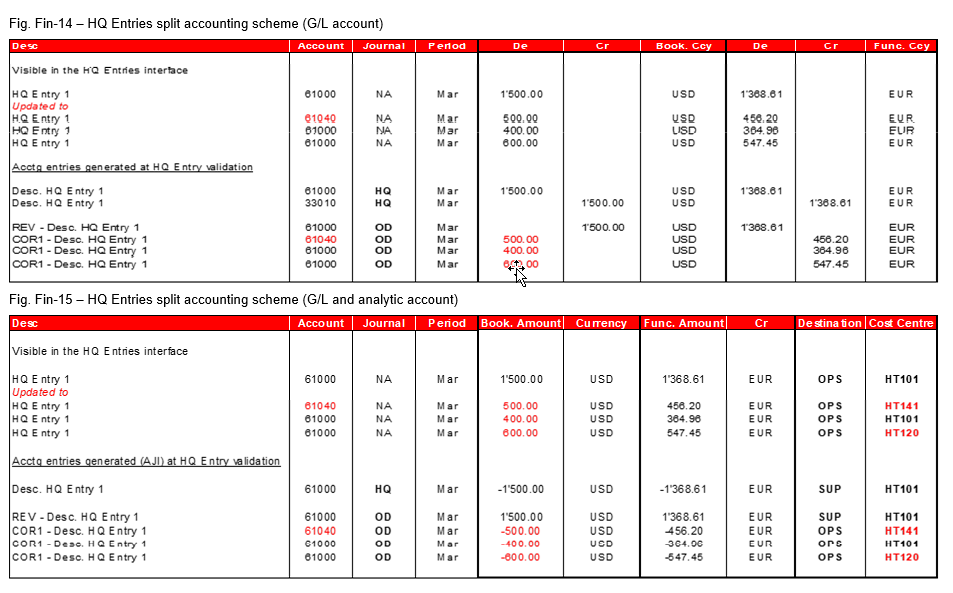
The “Split HQ entries” functionality was designed to serve 2 purposes:
Break expenses down by cost centre: HQ accountants do not have enough information to systematically rightly allocate this type of costs (expat salaries, international orders), especially when the OC is managing cost centres down to activity level. The allocation is done at field level by splitting HQ entries, which is the equivalent of a correction (see below).
Split costs by supplier invoice: it is the case for transport invoices corresponding to international orders. Transport costs are often booked in a single entry and allocated to a cost centre. Those costs might be partly funded by an institutional Donor, making it necessary to break the transport costs down by cost centre and by funding pool.
The split outcome is described in the charts below, first on Journal Items and then on Analytic Journal Items side:
14. International Commitment Vouchers
Commitments are engagements formalised with external partners, typically when a mission confirms a PO it is formalising an agreement with a supplier for a defined list of goods at a price mutually agreed. From a legal standpoint, it represents a commitment that finance users should be able to include in financial projections. From a system perspective, commitments follow-up is based on commitments vouchers which generate analytic lines in the “Engagement” analytic journal.
Draft commitments can be generated in 2 ways:
- Manually, directly in the interface;
- Automatically as defined in the “Integrated flows summary” of the present document.
Commitment lines granularity is down to expense account level: if a PO contains 50 lines with products falling under the same expense account, then the commitment voucher will only bear one line (product details are omitted).
Manual commitments
Manual commitments are used to complete financial projections for purchases not managed by supply users; it should be booked in a future period. When the corresponding expense is booked then users must set the commitment voucher to “Done” so as to delete the corresponding lines: the commitment is replaced by an actual expense. Commitment vouchers do not sync but the analytic lines do, thanks to the “Is target” target attribute of cost centres within prop instances.
Automated commitments
When confirming a PO on the Supply side of the application, system generates a draft commitment; at this stage there’s no analytic line generated. A finance user has to acknowledge the commitment by validating it. He can modify the analytic distribution prior to validating the commitment. Before the PO confirmation, Supply and Finance users can check the budget impact of the order by generating the “Order impact vs. Budget” report from the POs action menu.
Further in the financial flow, the supplier invoice corresponding to the reception tied to the PO will be processed. Validating the invoice automatically sets the commitment voucher to “Done” and the related analytic lines are deleted: from this moment, the commitment is replaced by an actual expense (the invoice’s booking).
In case of split receptions (several goods / services reception for the same order) then the commitment value is automatically decremented line by line.
International commitments
Supply flows concerning ESC partners involve 3 systems and 3 different entities:
- International orders are validated and received in the field => in UF;
- They are sent to ESCs for treatment, shipment and billing to OCs => in the ESC ERP tool;
- OCs process the invoice and send expense bundles (as “HQ Entries”) to coordinations => in the OC ERP, then in UF.
There are 2 settings in Unifield regarding International Orders that can be set in the Reconfigure menu:
- POs to ESC type partners do trigger the creation of international commitment vouchers.
This solution is for OC that can’t get from their Supply center information regarding all back orders remaining to be paid.
UF does not manage the complexity behind commitments automated updates in this case because shipments (and receptions) are often partial, and the billing often takes place before reception (MSF is often dealing with sea shipping for this flow). It leaves only one possibility for users which is a manual commitments update: as soon as HQ entries are validated then the corresponding amounts should be manually decremented in the related commitment voucher. This process is tedious but corresponds to the Saga practice for some OCs.
- POs to ESC type partners do not trigger the creation of international commitment vouchers.
This solution is for OC that can get from their Supply center information regarding all back orders remaining to be paid. In that case, it is possible to import International Engagement lines (AJI) at HQ and it syncs to the appropriate instances based on the Cost Center. Each instance receives their own engagement lines.
Import International commitments
When the “Manage commitments corresponding to international order through specific import ?” feature is ticked in the Reconfigure, no Commitment vouchers for POs to ESC are created but a “Import International Commitments” sub menu transaction appears. Import has to be done at HQ only.
Behaviour:
- Journal ENGI HQ must be created at HQ to sync down to all instances (follow the same sync rules that regular HQ analytic journal). It enables to accommodate those specific AJI (international engagement lines that are imported at HQ). Note that by the past, it was imported at each coordination, so each coordination was creating this journal ENGI at their level. Those journals are not used anymore.
- Entries imported at HQ in this journal sync down to their respective instances based on the CC target. The ENGl AJI that sync to the projects also sync to their related coordo so coordo has the overview
- Reimport of ENGI entries at HQ:
- Delete all AJI at HQ create the new ones
- Deletion of the old AJI sync down to all instances along with the creation of the new AJI
- = Each import erases the previous one: no historical data is kept and only the information from the imported file remains in the DB after import;
15. Export to HQ system
Accounting entries need to be integrated on monthly basis into the HQs Accounting ERP systems. A specific export is developed for each OC based on their requirements.
- Same rules apply to all VerticaI Integration exports:
- B/S entries are taken from the Journal Items
- P/L entries are taken from the Analytical Journal Items
- Some OCs extract entries per entries, other shrink some accounts (like liquidity accounts)
- Some OCs extract reconciliations, partners, employees, balances reports…. additionally to the formatted files related to entries
- Entry sequence data integrity check: the report is in Accounting/Reporting/Generic Reporting/Entries Data Integrity. This report enables to identify all potential issues on entries that would affect the vertical integration:
- Entry sequences where entries are not balanced in Booking Cur
- Entry sequences where entries are not balanced in Functional Cur
- Entry sequences where JI P&L balances doesn’t match AJI balances in Booking currency (exclude FX journal, Rev and IB journal) => This is the one to check before each exports to VI because it will spot all entries where JI P&L balances doesn’t match AJI balances in Booking currency resulting in a VI export file not balanced
- Entry sequences where JI P&L balances doesn’t match AJI balances in Functional currency (only for FX and REV journal)
- Discrepancies in booking and functional currencies for each reconciliation number to identify potential issues link to reconciliation
16. Import-Export
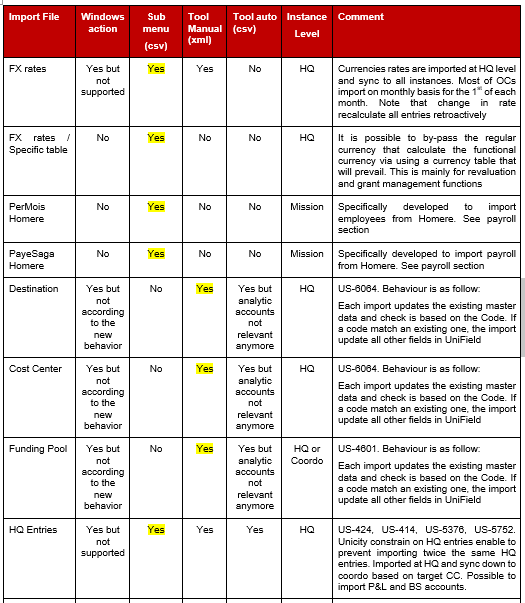
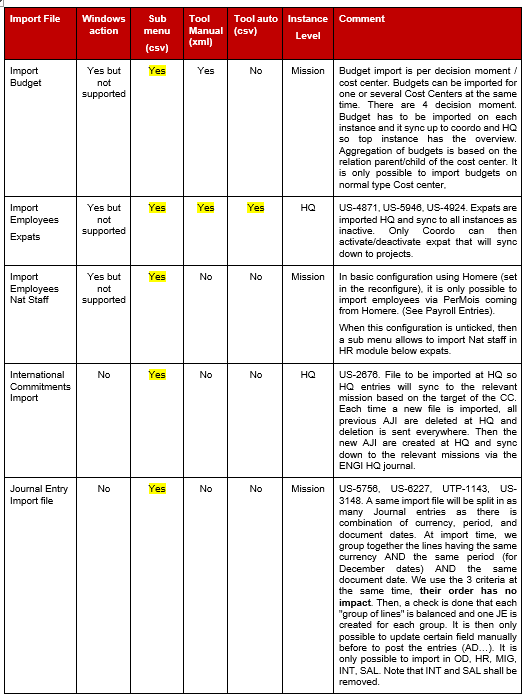
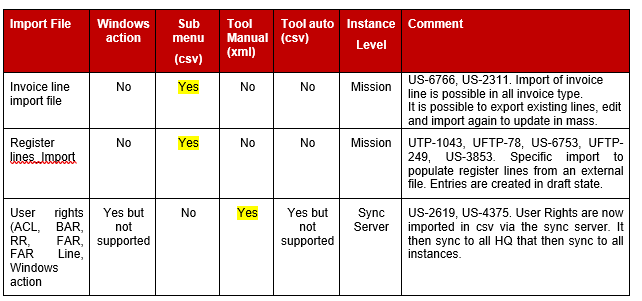
Open ERP implements an import / export function in all windows action in csv type. It is however not possible to import all data via those accesses and most of the import have been developed and made available in a single place in TOOLS/Tools/Import-Export (manual xml import US-2619) or Automated imports (automated csv import via scheduling US-966).
That means that for the same object, it could be possible to import either in csv or in xml format via different access. Some objects are imported in UniField after they are exported from a HQ ERP. Historically, it was in csv and even if now, import in xml is made available, OCs keep importing in csv so they don’t have to change the export from their HQ system. (example of HQ entries imported in csv via the sub menu and not via tools in xml).
Note also that the different import places might not have the same behaviour as not developed at the same time nor with the same format. Some checks might apply better in some format or place than others.
- Windows action: basic open ERP. Note that for some objects, import doesn’t work and is not intended to be supported (i.e Import of prop instances). Many imports still work but have been enhanced in Tools module
- Sub menus: developed in a specific sub menu such as HQ entries, Homere import… mostly in csv but some in xml like Journal entries
- Tools/Import-Export is for manual import in xml. To get the template, user shall export first and can then use the exported template to import
- Tools/Automated imports enable scheduling import for csv files coming from another system: on a defined frequency, external system (usually HQ ERP) drops import files in the server that host the instance so the instance can then import those files in UniField. Scheduling need to be in phase. Example: HQ ERP export and drop every Wednesday at 1pm an Expat file containing all the new expat of the past week in UniField HQ server. Then UniField HQ schedule an import “Expat” every Wednesday at 2pm. Settings is needed in the automated import form view and 3 locations (locally in the server of the instance) need to be configured:
- Source patch: where external system drops the file to be imported. If several files, automatic import takes the oldest file
- Destination patch (success): where the imported file will be put in case import is successful. It won’t appear anymore in source path
- Destination patch (failure): where the imported file will be put in case import fails. It won’t appear anymore in source path. In that case those files need to be imported manually or put back in source path after the error is solved
Below a list of importable objects with the different import possibilities with yellow, the place that the import shall be proceeded and that is supported. Note that more details are described on each object’s respective chapter.
All import templates are available in Teams-GRP-Msf-UniField or in Tools/Import-Export where export will give the template.
The import is just for the creation and not to update the cost centers that exist already in the system. If we import a cost center already in the system the whole file will be rejected and we will get an error message as below:
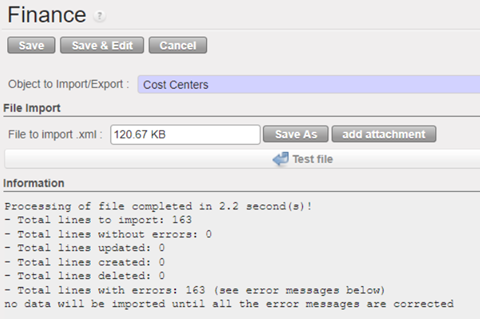
CCs with a “Top prop instance” to be tied with but with no target instance will reject the whole file as target is mandatory for each CC.
All file is accepted or nothing.
The new import file will have 4 new fields :
| Top Proprietary Instance | Only one Top prop instance can be filled in. It has to be a coordo level instance type as if added to the coordo, it will be added to all children instances. Top prop instance shall exists and match. |
| Instance having the CC as Target CC | Top Prop instance: only one Top prop instance can be filled in. It has to be a coordo level instance type as if added to the coordo, it will be added to all children instances. Top prop instance shall exist and match. |
| Instance having the CC as Top CC | Top cost centre for budget consolidation: either empty or shall be the prop instance code |
| Instance having the CC as CC picked for PO/FO ref | Cost centre picked for PO/FO reference: either empty or shall be the prop instance code |
How to do the extract of the new improved file:
Go to Tools > Tools > Import/Export > Finance.
Filter “Object to Import/Export” by “Cost Center”.
Under “File export” click on “Export empty template”, you will get extract with the following headers:
| Code |
| Name |
| Parent Analytic Account / Code |
| Type |
| Active from |
| Inactive from |
| Top Proprietary Instance |
| Instance having the CC as Target CC |
| Instance having the CC as Top CC |
| Instance having the CC as CC picked for PO/FO ref |
Example:
| Code | Name | Parent Analytic Account / Code | Type | Active from | Inactive from | Top Proprietary Instance | Instance having the CC as Target CC | Instance having the CC as Top CC | Instance having the CC as CC picked for PO/FO ref |
| CD511-SUPZZZ | Prise en Charge de Blesses Buna Support Cost | CD51 | Normal | 2022-04-01 | CD1_COO | CD1_COO | |||
| CD510 | RDCongo Urgence Rougeole | CD5 | Normal | 2022-04-01 | CD1_COO | CD1_EM1 | CD1_EM1 | CD1_EM1 |
