
Content 32-40
32. Synchronisation of queries
Finance saved queries such as Selectors and Reports can now be synced from HQ to all mission or from Coordo to all projects (US-3100).
Access is from TOOLS/Tools/Finance Queries with all users having a group Fin_Config_xxx.
From this sub menu:
- User can see and manage all queries from all users of the instance
- User can create any queries from this sub menu (as if it was created from the corresponding menu)
- User can activate the sync on any queries from this sub menu so it will sync down to lower instances
- This is to enable HQ or Coordo to set standard queries to be applied to all lower instances for monthly closure, reconciliations ect….
33. Related entries
This windows action report allow to find all related entries from one or several initial entries.
Only 1 line can be ticked in JIs or AJIs, while several sequences number can be set in the GL Selector or Analytic Selector. US-2895 and US-4426.
- Related entries for JIs: system select
- 1) JIs having the same Entry Sequence as the selected JI (including the selected JI itself)
- 2) JIs having the same reference as one of the JIs found in 1)
- 3) JIs having an Entry Sequence matching exactly with the reference of one of the JIs found in 1)
- 4) JIs being partially or totally reconciled with one of the JIs found in 1)
- 5) JIs whose reference contains EXACTLY the Entry Sequence of the selected JI
- 6) JIs having the same Entry Sequence as one of the JIs found in 2), 3), 4) or 5)
- Related entries for AJIs: system select
- 1) AJIs having the same Entry Sequence as the selected AJI (including the selected AJI itself)
- 2) AJIs having the same reference as one of the AJIs found in 1)
- 3) AJIs having an Entry Sequence matching exactly with the reference of one of the AJIs found in 1)
- 4) AJIs whose reference contains EXACTLY the Entry Sequence of the selected AJI
- 5) AJIs having the same Entry Sequence as one of the JIs found in 2), 3), 4) or 5)
34. Liquidity position and Liquidity balances
US-1649, US-3182, US-5163, US-10653…
Liquidity Balances vs. Liquidity Positions
- Liquidity Balances (from Reports > Legal Reports > Liquidity Balances):
Uses accounting journal entries to calculate balances. - Liquidity Positions (from Registers):
Uses register lines to calculate balances.
Both calculations match except for the functional currency amounts, which differ because:
- In Liquidity Positions (registers), the conversion from register currency to functional currency applies the period exchange rate to the global balance. This is normal since it deals with aggregated balances, not individual lines.
- In Liquidity Balances (reports), the calculation is based on individual lines, each converted using the functional amount of the period when booked.
Conclusion:
Do not use the functional amount from Liquidity Positions (registers). Instead, use the functional amount from the Balance Sheet or Liquidity Balance report.
Note: The Liquidity Balance report currently does not include functional currency amounts (as used by HQ). This could be added if needed.
HQ-Level Reporting
- Navigate to: Accounting > Reporting > Legal Reports > Liquidity Balances.
- You can now select all missions at once (coordination and projects).
- Results are sorted by instance code and journal code.
- When selecting “Top proprietary instance”:
- CH (OCG), BE (OCB), NL (OCA), FR (OCP)
→ Displays liquidity balances for all coordinations and projects.
- CH (OCG), BE (OCB), NL (OCA), FR (OCP)
Recent Improvement (US-13322)
- In Reporting > Legal Reports > Liquidity Balances, when Export type = PDF, both filters are available:
- Currency Table
- Display Currency
35. Budget reporting
The budget functionality is designed to let users have real-time view on budget consumptions per cost centre at any level of the organisation (Project, Coordination or HQ). It is not mandatory for users to import locally the budgets they manage.
- If the OC works with cost centres at project level then budgets should be imported at project level (like YE130)
- If the OC works with cost centres at activity level then budgets should be imported at activity level (like YE130-IPDNUT) depending on the activity typology defined within the OC.
Budget construction remained outside the UF perimeter: all OCs developed their own “Budget matrix”. Although budget assumptions types are similar, the amount of custom developments needed to translate all these assumptions into UF would have been too important. Other features such as linking budget construction with logistic and medical forecast were not studied nor developed for similar reasons.
Budget consolidation
Several cost centres / budgets can be managed from a single location (within a single UF DB). In the “Proprietary Instance” object from the “Administration” menu, in the “Cost Centre” tab users define which cost centre will be the “Top cost centre for budget consolidation”, that is to say the level up to which system will generate automated budget consolidations. Let’s take a concrete illustration for an OC managing 2 projects (YE130 and YE135) from the same location. A “view” cost centre (YE13) also exists and is defined as “Top cost centre for budget consolidation”. Upon import of budgets corresponding to CCs YE130 and YE135 system also generates a consolidation budget corresponding to CC YE13 which will regroup budget and actuals for both CCs on the same budget view. Following the same example, after sync to coordination where a “view” CC exists for the whole mission (YE1) and is defined as “Top cost centre for budget consolidation” in the coordination instance, system generates a consolidation budget corresponding to CC YE1 and grouping the whole mission’s budget and actuals in a single view.
Consolidation budgets take two parameters into consideration:
- The decision moment – System generates 1 consolidation budget per decision moment (by fiscal year)
- The version – Within a given decision moment system picks the budget with the highest version number for consolidation
The mechanism is illustrated in the chart below:
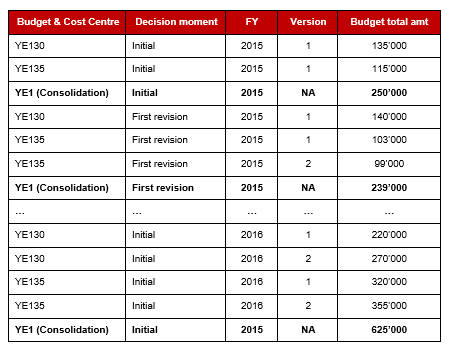
Note that budgets must have the “Validated” status to be considered in the consolidation.
Budget granularity
Budgets are imported with the deepest analytic granularity available in UF which is “by destination”. Technically speaking system creates as many budget lines (or budget positions) as there are [Expense account, Destination] pairs defined in the DB where the budget is imported. In the following situation:
- The budget template imported does not have any line for [60100, EXP]
- [60100, EXP] is defined as a possible combination in the master data
- Then system will automatically generate a budget line for this pair and have it displayed on the interface, with an amount set to 0.00. If not, we could face a situation where a budget line is not defined but users do allocate costs on the corresponding combination: the budget reporting would be incomplete and partial in this case.
Budget reporting
In terms of reporting system is computing actuals from Analytic Journal Items allocated to the cost centre it is standing for. Consolidation budgets are grouping Analytic Journal Items of several CCs. The exports designed are flexible in terms of
- Content – Include / exclude pending commitments from budget follow-up;
- Periods – Reporting is available by month or YTD;
- Granularity – User can choose from 3 levels of granularity i.e. by destination, by account or by parent account, the latest being the most aggregated view available;
- Format – From csv to xls and PDF with some variations according to the report considered.
Drill-down capabilities on budgets can be improved along with performance on this module. JIRA ticket US-431 is tackling this issue to let users work directly in the tool to identify gaps between budget and actuals in an easier way.
-
- Budget lines
Note that in this current version, budget is not much used by OCs that don’t follow budget in UniField anymore but in their own tools. It is now quite clear that UniField won’t be fully used for budget follow up anymore so no major developments shall/will be required in the tool.
As an example, US-5771 was developed to enhance the use of the destinations in order to introduce the notion of budget lines. Specifications can be found in US-5771.
36. Grant management reporting
The Unifield Grant Management module is 100% custom. There are Donor reporting tools available on the market but in almost all cases they are dedicated applications not coupled to a global system. The module is based on 3 main objects:
- Funding Pools – a specific analytic account type that can be created and modified either from coordination or from HQ.
- Donors – a kind of template to be customized from HQ; it is designed to evolve alongside donors requirements.
- Financing Contracts – they are the placeholder to set all reporting parameters and run standard reports. They can be created either from coordination or from HQ.
In order for the output reports to be produced properly these 3 elements must be set-up with consistency. Some use cases regarding funding pools set-ups can be found in the user manual, chapter 6; they are not detailed in the present document.
In contexts where projects are institutionally funded, funding pools should be set-up first, consistently with the types of expenses that the Donor agrees to fund. The Donor’s reporting template should be translated in the “Donor” form that links accounting codes with reporting lines. If the Donor does not impose any reporting format then the MSF account families are likely to be used in the reporting. When creating a financing contract for a Donor, system automatically retrieves the default reporting template prepared in the “Donor”. It can be amended in the Financing Contract to reflect potential specificities of the agreement signed. In the financing contract system will use the reporting lines and funding pools to compute the expenses possibly funded and present them in the expected reporting template.
Funding Pools
From a functional perspective, funding pools are merely groups of expenses used for reporting purposes; it’s a mandatory analytic dimension to fill in for all P&L entries. They follow specific behaviours regarding the following aspects:
- “MSF Private Funds” or “PF” is systematically used as a fall-back value for incomplete analytic distributions (during imports or automatic entries generation)
- Corrections involving only the funding pool dimension:
- Do not trigger Reversal and Correction analytic entries
- Can’t be performed as soon as the funding pool concerned is tied to at least one soft- or hard- closed financing contract using this funding pool
- The allocation condition checking the funding pool validity is based on the entry’s document date (vs. posting date in all other cases). This is because Donors all require that reporting is based on supporting documents’ date i.e. the document date in Unifield.
From the moment it is known that a mission could eventually be funded through institutional donors, a “Cofinancing” or “COFI” funding pool should be created so as to start allocating expenses to this funding pool (rather than exclusively using “PF”). The “COFI” FP should be tied to a large number of expense accounts, those generally accepted by most of the Donors. Setting-up the “COFI” funding pool will avoid having to re-allocate analytic lines at a later stage. Even if it turns out that the mission is not funded by external partners, there will be no consequence on the analytic accounting. Finally, a mission being funded by external Donors will still allocate costs to “PF”: those are the expenses that MSF does not want to be funded (by internal policy or by choice).
For multi-donors contexts, contracts end dates may influence the funding pools created. Although the financing contract does filter expenses by date, funding pool and cost centre, the funding pool allocation must become frozen at some point (when the first contract is closed) to avoid later reallocation of expenses already presented to a Donor. New funding pools must be created after the first cut-off date if there are other contracts on-going.
Donors
Donors are template designed to be used in financing contracts. They can be edited to follow donors’ requirements evolution but the maintenance should only be performed from HQ. Creating Donors implies knowing its basic requirements so as to replicate them in Unifield:
- Types of expenses funded
- Reporting structure
In the long run Donors’ requirements, reporting structures… may evolve. Users can either maintain the Donor up-to-date in the system (no historic data kept) or create a new Donor by duplicating the existing one (and giving the new Donor a different name like DONOR/2016).
In the Donor template, reporting lines are associated with [Expense accounts, Destinations] couples and it’s not possible to link the same couple with multiple reporting lines. This can only be achieved in financing contracts through adequate parameters.
There are several reporting lines types:
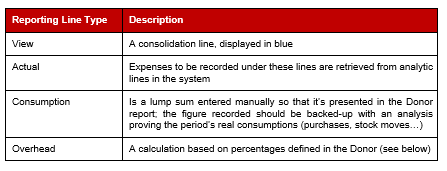
Depending on Donors requirements the Overhead calculation can be done in 2 different ways:
- % of Grant
OH = Total grant amount * OH % defined in the Financing contract
In this case OH costs are calculated as a percentage of the total grant amount.
- % of Direct costs
OH = Total grant amount / (1 + OH % defined in the Financing contract)
Here the OH costs are calculated so to represent a defined % of direct costs (all expenses covered by the contract through “actual” or “consumption” reporting lines).
Financing Contracts
When creating a new contract user is prompted to select a Donor. Once this is done, upon saving the financing contract system derives the reporting structure from the Donor and replicates it in the “reporting lines”. This copy is not dynamic: future changes in the Donor template will not affect the Financing contract created.
In this object user has any liability to adapt the template to potential specific requirements for this contract by adding, editing or removing reporting lines. Another possibility consists in changing the set of expense accounts tied to each reporting line.
Amongst all Donors with whom MSF is working we identified 3 main reporting types:
- Total Project only – Donor agrees on a global contribution to the project costs (% or lump sum); it requires reporting on all project costs, except those allocated to “PF”
- Earmarked only – Donor is funding a defined portion of a project but does not wish to get a broader picture; it is only interested in the funded costs.
- Earmarked and total project – Donor is funding a defined portion of a project and requires all project costs to be presented as well so as to get an idea of what proportion of costs are funded.
Basically the reporting type is setting the columns that will be displayed in the final Donor report.
Unifield allows combining diverse Donor requirements together: in some cases projects can be funded by multiple donors. An expense presented in a Donor report working with global contributions can also be included in another report corresponding to an earmarked grant. It allows MSF not to earmark all expenses and provides additional possibilities to combine different sources of funding.
In case an OC would rather tie one expense to one and only one contract, this can easily be achieved by linking funding pools with one and only one contract.
Depending on the reporting type selected in the contract, some key elements need to be remembered:
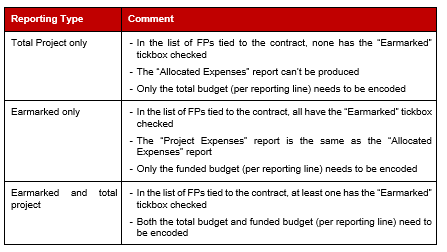
When producing Donor reports system is following these steps:
- Identify those analytic lines that should be included in the report by defining a domain. To do so system checks the analytic distributions of analytic lines present in the DB as well are their document dates to check it against the financing contract parameters:
- Eligibility dates
- Cost centres
- Funding pools
- [Expense accounts, Destinations] from the reporting lines
- Sort lines by reporting line thanks to each reporting line’s parameters. We ensured that a single analytic line cannot be retrieved in two different reporting lines to guarantee reporting consistency;
- Apply calculation for subtotals or calculated amounts like overheads;
Once a financing contract is soft- or hard- closed it cannot be modified anymore to make sure users will be able to create the same report over time.
Advanced use cases and corresponding requirements
In case Donors require the reporting to be based on activities, we may have to link the same expense account to multiple reporting lines. To manage this constraint we are introducing the notion of “Quadruple”: instead of linking reporting lines with [Expense accounts, Destinations] couples, we are linking them with [Expense accounts, Destinations, Funding Pool, Cost Centre] quadruples by checking the tickbox shown below in the “Actual” reporting lines:
Fig. Fin-20: Reporting line setting – Quadruple mode activated
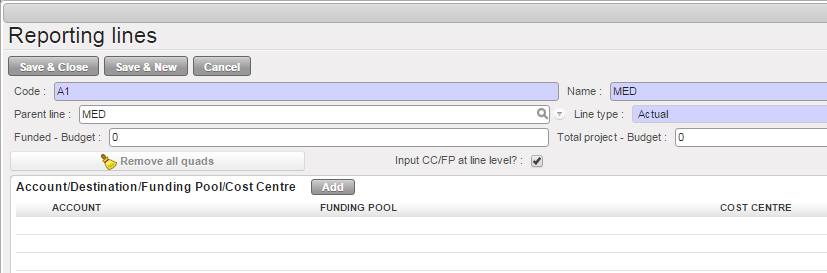
Using quadruples implies creating additional funding pools so as to be able to select different combinations in reporting lines.
Advanced use cases and corresponding requirements
The available reports within the grant management module are presented in the user manual (chap 6) and not detailed here.
Donor management in UF – Potential pitfalls
- Over funding
By allowing the same expenses to be presented in different reports one could argue there’s a risk of over-funding projects. This is true but the real risk is limited because:
-
- We have very few examples of projects that would be funded over 50% of total expenses, which is still far from total project costs;
- At HQ level a control is performed a posteriori on total project costs vs. funded amounts to make sure that projects are not over funded;
- Even at the stage of proposals, finance departments already take this risk into consideration and never target 100% of project costs to be funded externally.
- Intermission / Intersection flows
Goods or services supplied through intermission flows should not be included in Donor reports to avoid potential double-funding of expenses. System does not remove analytic journal items booked on the intermission / intersections journals. Corresponding entries could be allocated to “PF” to solve this issue. This limitation is to be decided within each OC.
Note that it does not concern missions acting as regional supply centres: they are not funded by external Donors therefore it would be easy for MSF to prove that purchases are not double-funded.
37. Synchronisation of queries
Finance saved queries such as Selectors and Reports can now be synced from HQ to all mission or from Coordo to all projects (US-3100).
Access is from TOOLS/Tools/Finance Queries with all users having a group Fin_Config_xxx.
From this sub menu:
- User can see and manage all queries from all users of the instance
- User can create any queries from this sub menu (as if it was created from the corresponding menu)
- User can activate the sync on any queries from this sub menu so it will sync down to lower instances
- This is to enable HQ or Coordo to set standard queries to be applied to all lower instances for monthly closure, reconciliations ect….
38. Related entries
This windows action report allow to find all related entries from one or several initial entries.
Only 1 line can be ticked in JIs or AJIs, while several sequences number can be set in the GL Selector or Analytic Selector. US-2895 and US-4426.
- Related entries for JIs: system select
- 1) JIs having the same Entry Sequence as the selected JI (including the selected JI itself)
- 2) JIs having the same reference as one of the JIs found in 1)
- 3) JIs having an Entry Sequence matching exactly with the reference of one of the JIs found in 1)
- 4) JIs being partially or totally reconciled with one of the JIs found in 1)
- 5) JIs whose reference contains EXACTLY the Entry Sequence of the selected JI
- 6) JIs having the same Entry Sequence as one of the JIs found in 2), 3), 4) or 5)
- Related entries for AJIs: system select
- 1) AJIs having the same Entry Sequence as the selected AJI (including the selected AJI itself)
- 2) AJIs having the same reference as one of the AJIs found in 1)
- 3) AJIs having an Entry Sequence matching exactly with the reference of one of the AJIs found in 1)
- 4) AJIs whose reference contains EXACTLY the Entry Sequence of the selected AJI
- 5) AJIs having the same Entry Sequence as one of the JIs found in 2), 3), 4) or 5)
39. Budget reporting
The budget functionality is designed to let users have real-time view on budget consumptions per cost centre at any level of the organisation (Project, Coordination or HQ). It is not mandatory for users to import locally the budgets they manage.
- If the OC works with cost centres at project level then budgets should be imported at project level (like YE130)
- If the OC works with cost centres at activity level then budgets should be imported at activity level (like YE130-IPDNUT) depending on the activity typology defined within the OC.
Budget construction remained outside the UF perimeter: all OCs developed their own “Budget matrix”. Although budget assumptions types are similar, the amount of custom developments needed to translate all these assumptions into UF would have been too important. Other features such as linking budget construction with logistic and medical forecast were not studied nor developed for similar reasons.
Budget consolidation
Several cost centres / budgets can be managed from a single location (within a single UF DB). In the “Proprietary Instance” object from the “Administration” menu, in the “Cost Centre” tab users define which cost centre will be the “Top cost centre for budget consolidation”, that is to say the level up to which system will generate automated budget consolidations. Let’s take a concrete illustration for an OC managing 2 projects (YE130 and YE135) from the same location. A “view” cost centre (YE13) also exists and is defined as “Top cost centre for budget consolidation”. Upon import of budgets corresponding to CCs YE130 and YE135 system also generates a consolidation budget corresponding to CC YE13 which will regroup budget and actuals for both CCs on the same budget view. Following the same example, after sync to coordination where a “view” CC exists for the whole mission (YE1) and is defined as “Top cost centre for budget consolidation” in the coordination instance, system generates a consolidation budget corresponding to CC YE1 and grouping the whole mission’s budget and actuals in a single view.
Consolidation budgets take two parameters into consideration:
- The decision moment – System generates 1 consolidation budget per decision moment (by fiscal year)
- The version – Within a given decision moment system picks the budget with the highest version number for consolidation
The mechanism is illustrated in the chart below:
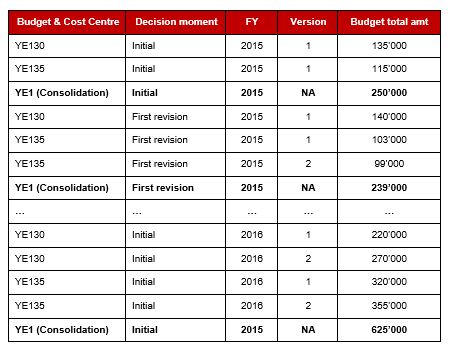
Note that budgets must have the “Validated” status to be considered in the consolidation.
Budget granularity
Budgets are imported with the deepest analytic granularity available in UF which is “by destination”. Technically speaking system creates as many budget lines (or budget positions) as there are [Expense account, Destination] pairs defined in the DB where the budget is imported. In the following situation:
- The budget template imported does not have any line for [60100, EXP]
- [60100, EXP] is defined as a possible combination in the master data
- Then system will automatically generate a budget line for this pair and have it displayed on the interface, with an amount set to 0.00. If not, we could face a situation where a budget line is not defined but users do allocate costs on the corresponding combination: the budget reporting would be incomplete and partial in this case.
Budget reporting
In terms of reporting system is computing actuals from Analytic Journal Items allocated to the cost centre it is standing for. Consolidation budgets are grouping Analytic Journal Items of several CCs. The exports designed are flexible in terms of
- Content – Include / exclude pending commitments from budget follow-up;
- Periods – Reporting is available by month or YTD;
- Granularity – User can choose from 3 levels of granularity i.e. by destination, by account or by parent account, the latest being the most aggregated view available;
- Format – From csv to xls and PDF with some variations according to the report considered.
Drill-down capabilities on budgets can be improved along with performance on this module. JIRA ticket US-431 is tackling this issue to let users work directly in the tool to identify gaps between budget and actuals in an easier way.
-
- Budget lines
Note that in this current version, budget is not much used by OCs that don’t follow budget in UniField anymore but in their own tools. It is now quite clear that UniField won’t be fully used for budget follow up anymore so no major developments shall/will be required in the tool.
As an example, US-5771 was developed to enhance the use of the destinations in order to introduce the notion of budget lines. Specifications can be found in US-5771.
40. Grant management reporting
The Unifield Grant Management module is 100% custom. There are Donor reporting tools available on the market but in almost all cases they are dedicated applications not coupled to a global system. The module is based on 3 main objects:
- Funding Pools – a specific analytic account type that can be created and modified either from coordination or from HQ.
- Donors – a kind of template to be customized from HQ; it is designed to evolve alongside donors requirements.
- Financing Contracts – they are the placeholder to set all reporting parameters and run standard reports. They can be created either from coordination or from HQ.
In order for the output reports to be produced properly these 3 elements must be set-up with consistency. Some use cases regarding funding pools set-ups can be found in the user manual, chapter 6; they are not detailed in the present document.
In contexts where projects are institutionally funded, funding pools should be set-up first, consistently with the types of expenses that the Donor agrees to fund. The Donor’s reporting template should be translated in the “Donor” form that links accounting codes with reporting lines. If the Donor does not impose any reporting format then the MSF account families are likely to be used in the reporting. When creating a financing contract for a Donor, system automatically retrieves the default reporting template prepared in the “Donor”. It can be amended in the Financing Contract to reflect potential specificities of the agreement signed. In the financing contract system will use the reporting lines and funding pools to compute the expenses possibly funded and present them in the expected reporting template.
Funding Pools
From a functional perspective, funding pools are merely groups of expenses used for reporting purposes; it’s a mandatory analytic dimension to fill in for all P&L entries. They follow specific behaviours regarding the following aspects:
- “MSF Private Funds” or “PF” is systematically used as a fall-back value for incomplete analytic distributions (during imports or automatic entries generation)
- Corrections involving only the funding pool dimension:
- Do not trigger Reversal and Correction analytic entries
- Can’t be performed as soon as the funding pool concerned is tied to at least one soft- or hard- closed financing contract using this funding pool
- The allocation condition checking the funding pool validity is based on the entry’s document date (vs. posting date in all other cases). This is because Donors all require that reporting is based on supporting documents’ date i.e. the document date in Unifield.
From the moment it is known that a mission could eventually be funded through institutional donors, a “Cofinancing” or “COFI” funding pool should be created so as to start allocating expenses to this funding pool (rather than exclusively using “PF”). The “COFI” FP should be tied to a large number of expense accounts, those generally accepted by most of the Donors. Setting-up the “COFI” funding pool will avoid having to re-allocate analytic lines at a later stage. Even if it turns out that the mission is not funded by external partners, there will be no consequence on the analytic accounting. Finally, a mission being funded by external Donors will still allocate costs to “PF”: those are the expenses that MSF does not want to be funded (by internal policy or by choice).
For multi-donors contexts, contracts end dates may influence the funding pools created. Although the financing contract does filter expenses by date, funding pool and cost centre, the funding pool allocation must become frozen at some point (when the first contract is closed) to avoid later reallocation of expenses already presented to a Donor. New funding pools must be created after the first cut-off date if there are other contracts on-going.
Donors
Donors are template designed to be used in financing contracts. They can be edited to follow donors’ requirements evolution but the maintenance should only be performed from HQ. Creating Donors implies knowing its basic requirements so as to replicate them in Unifield:
- Types of expenses funded
- Reporting structure
In the long run Donors’ requirements, reporting structures… may evolve. Users can either maintain the Donor up-to-date in the system (no historic data kept) or create a new Donor by duplicating the existing one (and giving the new Donor a different name like DONOR/2016).
In the Donor template, reporting lines are associated with [Expense accounts, Destinations] couples and it’s not possible to link the same couple with multiple reporting lines. This can only be achieved in financing contracts through adequate parameters.
There are several reporting lines types:
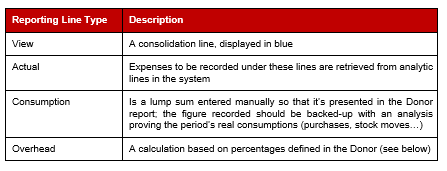
Depending on Donors requirements the Overhead calculation can be done in 2 different ways:
- % of Grant
OH = Total grant amount * OH % defined in the Financing contract
In this case OH costs are calculated as a percentage of the total grant amount.
- % of Direct costs
OH = Total grant amount / (1 + OH % defined in the Financing contract)
Here the OH costs are calculated so to represent a defined % of direct costs (all expenses covered by the contract through “actual” or “consumption” reporting lines).
Financing Contracts
When creating a new contract user is prompted to select a Donor. Once this is done, upon saving the financing contract system derives the reporting structure from the Donor and replicates it in the “reporting lines”. This copy is not dynamic: future changes in the Donor template will not affect the Financing contract created.
In this object user has any liability to adapt the template to potential specific requirements for this contract by adding, editing or removing reporting lines. Another possibility consists in changing the set of expense accounts tied to each reporting line.
Amongst all Donors with whom MSF is working we identified 3 main reporting types:
- Total Project only – Donor agrees on a global contribution to the project costs (% or lump sum); it requires reporting on all project costs, except those allocated to “PF”
- Earmarked only – Donor is funding a defined portion of a project but does not wish to get a broader picture; it is only interested in the funded costs.
- Earmarked and total project – Donor is funding a defined portion of a project and requires all project costs to be presented as well so as to get an idea of what proportion of costs are funded.
Basically the reporting type is setting the columns that will be displayed in the final Donor report.
Unifield allows combining diverse Donor requirements together: in some cases projects can be funded by multiple donors. An expense presented in a Donor report working with global contributions can also be included in another report corresponding to an earmarked grant. It allows MSF not to earmark all expenses and provides additional possibilities to combine different sources of funding.
In case an OC would rather tie one expense to one and only one contract, this can easily be achieved by linking funding pools with one and only one contract.
Depending on the reporting type selected in the contract, some key elements need to be remembered:
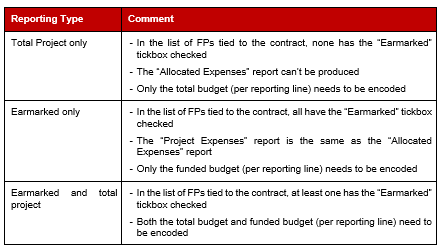
When producing Donor reports system is following these steps:
- Identify those analytic lines that should be included in the report by defining a domain. To do so system checks the analytic distributions of analytic lines present in the DB as well are their document dates to check it against the financing contract parameters:
- Eligibility dates
- Cost centres
- Funding pools
- [Expense accounts, Destinations] from the reporting lines
- Sort lines by reporting line thanks to each reporting line’s parameters. We ensured that a single analytic line cannot be retrieved in two different reporting lines to guarantee reporting consistency;
- Apply calculation for subtotals or calculated amounts like overheads;
Once a financing contract is soft- or hard- closed it cannot be modified anymore to make sure users will be able to create the same report over time.
Advanced use cases and corresponding requirements
In case Donors require the reporting to be based on activities, we may have to link the same expense account to multiple reporting lines. To manage this constraint we are introducing the notion of “Quadruple”: instead of linking reporting lines with [Expense accounts, Destinations] couples, we are linking them with [Expense accounts, Destinations, Funding Pool, Cost Centre] quadruples by checking the tickbox shown below in the “Actual” reporting lines:
Fig. Fin-20: Reporting line setting – Quadruple mode activated
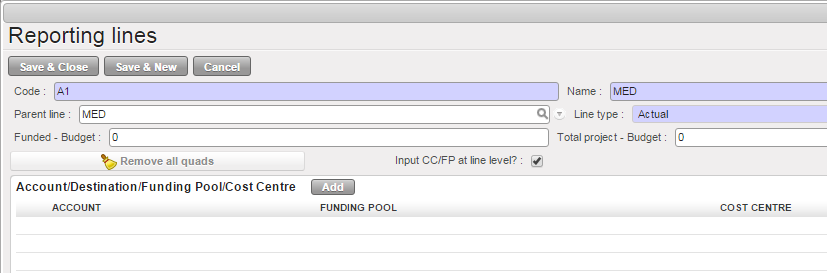
Using quadruples implies creating additional funding pools so as to be able to select different combinations in reporting lines.
Advanced use cases and corresponding requirements
The available reports within the grant management module are presented in the user manual (chap 6) and not detailed here.
Donor management in UF – Potential pitfalls
- Over funding
By allowing the same expenses to be presented in different reports one could argue there’s a risk of over-funding projects. This is true but the real risk is limited because:
-
- We have very few examples of projects that would be funded over 50% of total expenses, which is still far from total project costs;
- At HQ level a control is performed a posteriori on total project costs vs. funded amounts to make sure that projects are not over funded;
- Even at the stage of proposals, finance departments already take this risk into consideration and never target 100% of project costs to be funded externally.
- Intermission / Intersection flows
Goods or services supplied through intermission flows should not be included in Donor reports to avoid potential double-funding of expenses. System does not remove analytic journal items booked on the intermission / intersections journals. Corresponding entries could be allocated to “PF” to solve this issue. This limitation is to be decided within each OC.
Note that it does not concern missions acting as regional supply centres: they are not funded by external Donors therefore it would be easy for MSF to prove that purchases are not double-funded.
- 42. Field Balance specification report:
Field Balance specification report is to track liquidity balances and B/S line’s history.
Main features of the report:
- It shows the booking rate for the line to compare with the rates of the extracted report.
- It displays currency amount to compare functional amount with current period rate
- It displays “Reconcile No” for line reconciled later to compare with month of the report.
How to extract the report:
- Go to Accounting > Reporting > Legal reports > Accounting Reports
- Click on ” Field Balance Specification Report ” it will open popup with “Field Balance Specification Report ” .
- The filters as below:
- “Top proprietary instance” it shows only instance code where you are if from project instance, and all mission’s instances if from coordo.
- “Period” >> in project shows only regular periods (closed + open only), in coordo display more extra accounting periods
- “Select” with 2 options either “Total of entries reconciled in later period” or “Details of entries reconciled in later period”.
- “End of Year” box, this box can be ticked if we have an active currency table.
