
Supply User Manual ENG -> 4. Procurement -> 4.4 LU-SU3103: Field Orders (FOs) – General -> G. How to export a Field Order.
G. How to export a Field Order.
Go to: Orders / Orders / Field Orders
- Click on the check box on the left part of the screen of the line of the Field Order to export.
- The action menu is displayed on the right of the screen.
- Click on the “Field Order Excel Export” option.
- The FO will be exported with the following format (XML Spreadheet 2003):
 |
| Export from FO to Excel |
You can also print an FO in PDF for validation purpose by selecting the “Field Order” option in the action menu.
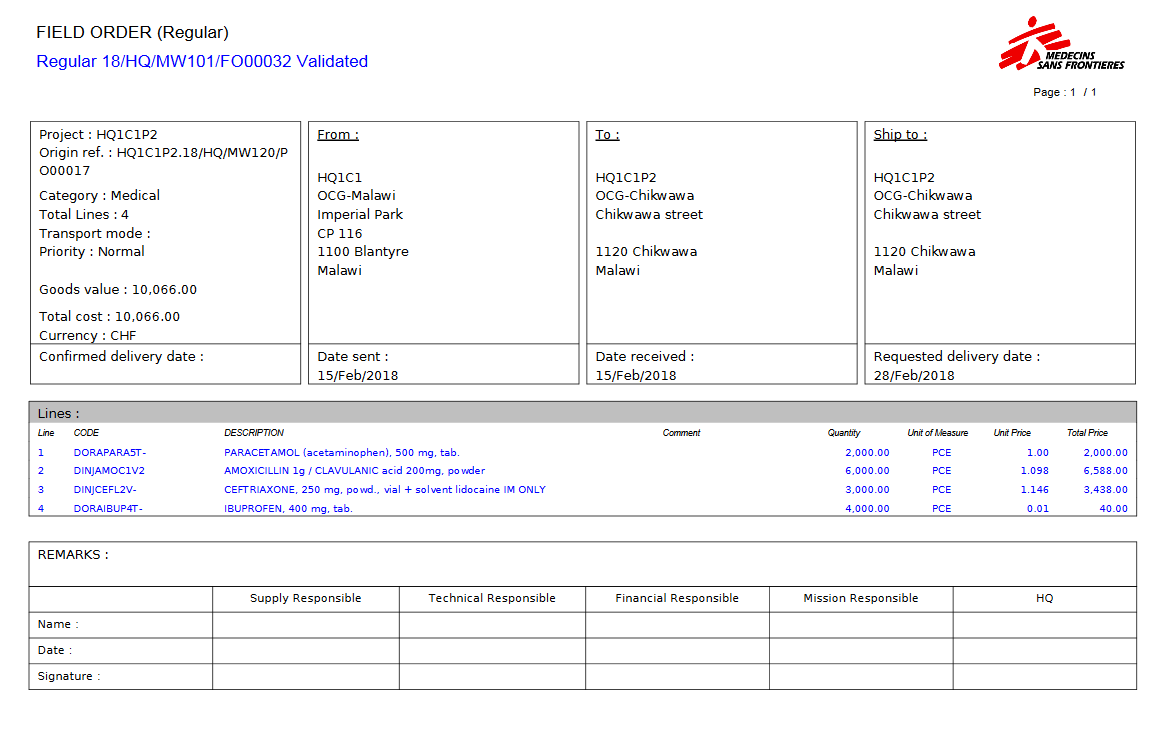 |
| Export from FO to PDF |
Note 1: It is possible to select several FOs at the same time on the “Search: Field Orders” screen (using several check boxes) and export them in one click to Excel. In Excel, you will get one FO per sheet. Note that this option is not possible for export to PDF (which is possible with IRs).
Note 2: The export to excel and PDF can also be done from within the FO as the “Field Order Excel Export” and the “Field Order” options are also available in the action menu (under “Reports”).
Note 3: If you export to Excel, the comment included in the “Comment” column of the FO will appear in the column “Comment” of the Excel. Note that the notes included in the “Notes” tab of the FO-line are not exported to excel.
Note 4: If you export to PDF, at header level, the notes inserted on the “Notes” tab of the FO will appear (at the bottom of the PDF, behind “REMARKS”). At line level, the comment included on the “Nomenclature Selection” tab of the FO-lines will appear (in the column “Comment” of the PDF) but the notes included on the “Notes” tab of the FO-lines won’t appear.
Note 5: Cancelled lines are not displayed in the PDF export.
