
Supply User Manual ENG -> 5. Warehouse -> 5.12 LU-SU4205 Replenishment Rules -> G. HOW TO GENERATE THE INVENTORY REVIEW
G. HOW TO GENERATE THE INVENTORY REVIEW
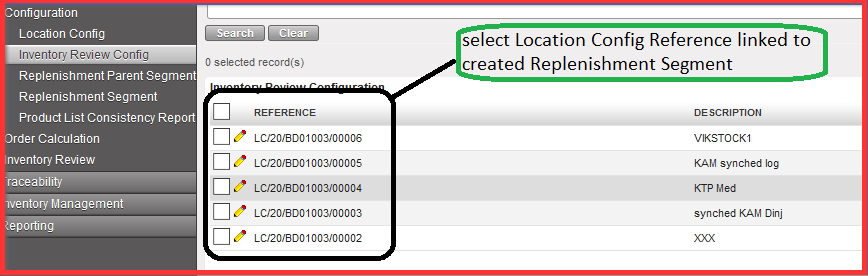
Go to: Warehouse / Replenishment Rules / Configuration / Inventory Review Config
- Select Location Config Reference linked to your previously created Replenishment Segment.
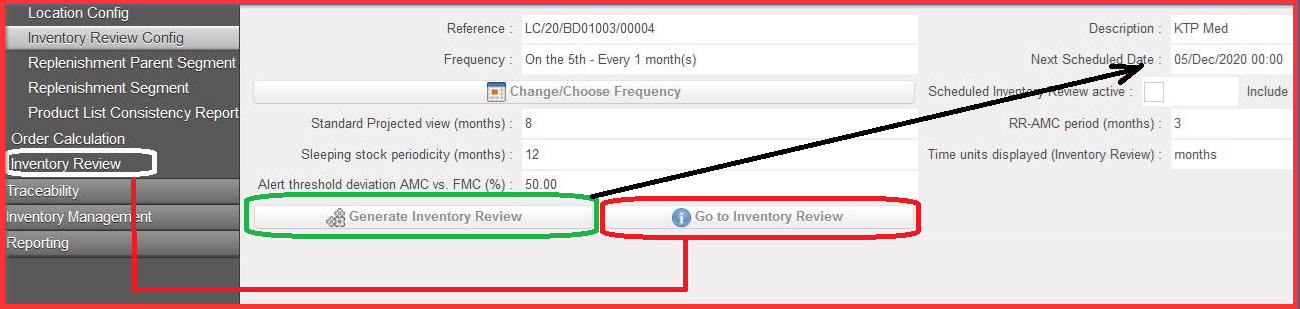
2. Click on “Generate Inventory Review”.
Please note that it is the manual version of generating the report but that you can actually wait for configured/ automated “Next Scheduled Date”.
3. Click on the button “Go to inventory Review” or click on Inventory Review in the sub menu on the left-hand side.
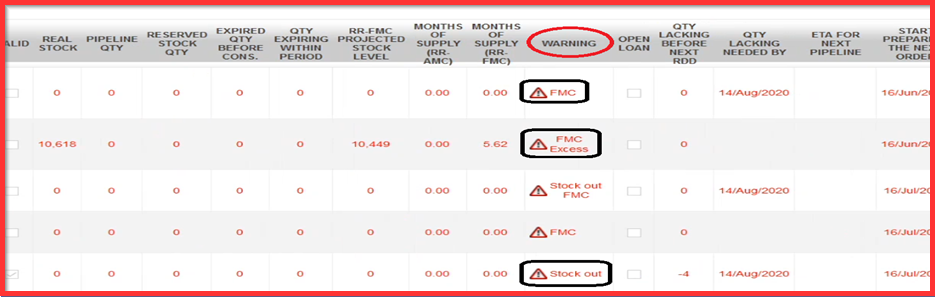
4. Check the value in column “WARNING”:
a) “Product is not in any related segment, only in stock / pipeline of location”
b) “FMC”: linked to Inventory Config review where you set up how many projected months cover the period. FMC alert here means that in the segment does not cover the period.
c) “Excess”: excess stock is linked to the order cycle which is put in. What is calculated beyond that period is considered as extra stock (excess). Excess stock calculation considers “Inventory on hand”, “pipeline arriving” and “expiries arriving before the end of upcoming (next) OC period”, i.e. Projected Available Stock.
d) “Stock Out”: considered before next RDD (Requested Delivery Date) which is the issue. Basically, there are no items available to fill the expected stock need.
e) “Pipeline in the Past“: where a pipeline delivery has its confirmed delivery date in the past
Please note that the Inventory Review can be exported via Excel by clicking on the icon “Inventory Review xls” on the right side of the panel menu.
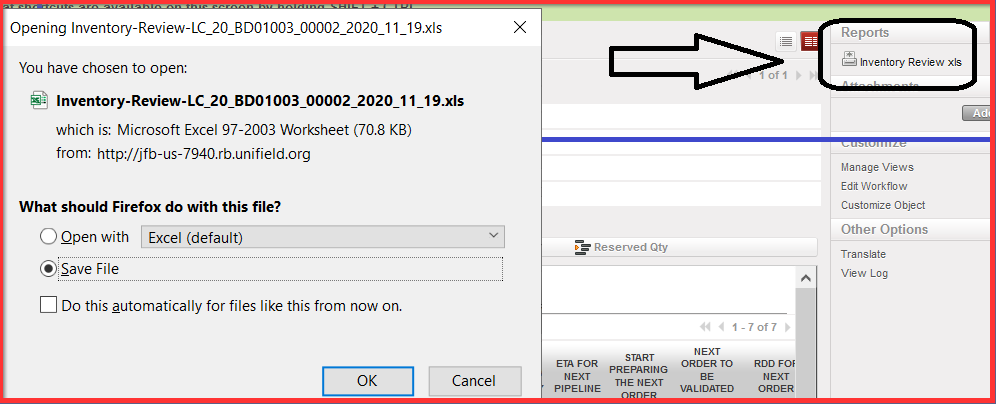
Note: in this export the values in the months of supply (RR-AMC), months of supply (RR-FMC) & Projected MX (month) are rounded to 2 decimals.
