
Supply User Manual ENG -> 5. Warehouse -> 5.3 LU-SU4102: Picking -> G. HOW TO PRINT A PICKING TICKET
G. HOW TO PRINT A PICKING TICKET
Picking Tickets can be exported to PDF and printed. As picking is actually done using sub PICKS, most of the time sub PICKS are printed to instruct the storekeeper what he/she should pick, but main PICKS are not often printed.
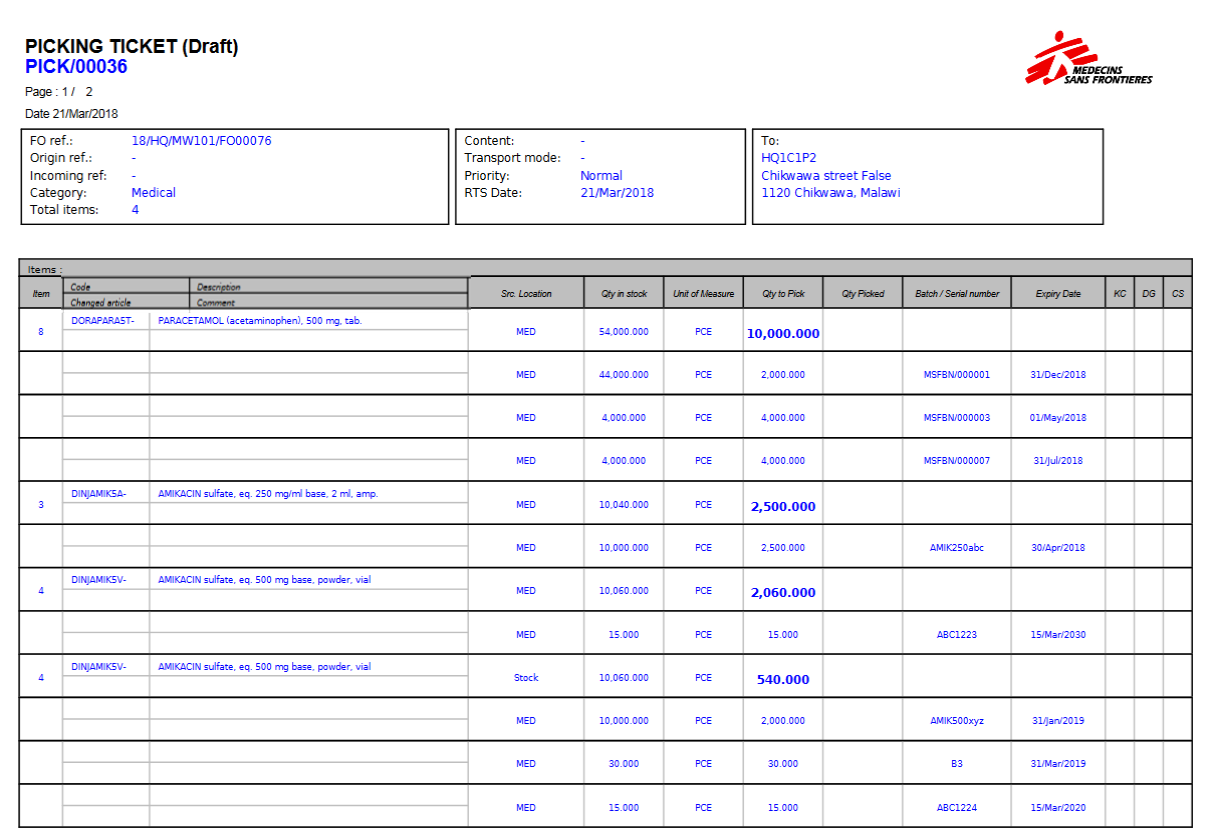
The storekeeper will need a printed document with all products and quantities (including any product specifics such as batch numbers and/or expiry dates to pick) that s/he has to pick, marking whether or not s/he can pick them as requested or if changes need to be made (more/less quantities and according to the full packaging units, stock shortages,…).
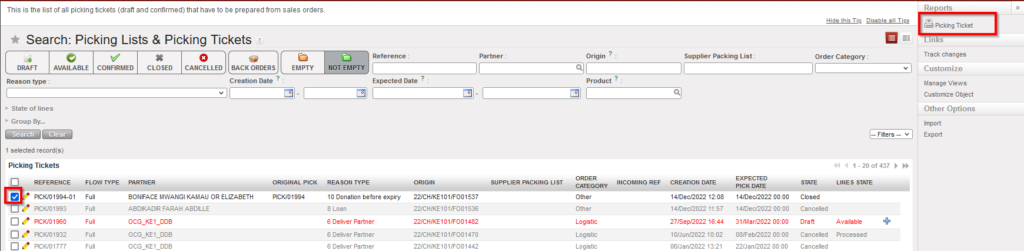
Go to: Warehouse / Warehouse Management / Deliveries / Picking
- Tick the checkbox located in front of the Picking Ticket that you wish to print
- In the action menu, select the option “Picking Ticket”
|
|
|
Exporting a Picking Ticket to PDF |
3. A PDF version of the Picking Ticket is open. You may save, print or send it as needed.
|
|
|
Picking Ticket exported in PDF |
Note that the option “Picking Ticket” is also available from the action menu within the Picking Ticket (if you open it).
