
Supply User Manual ENG -> 4. Procurement -> 4.6 LU-SU3201: Purchase Orders (POs) - Generals -> G. How to update a Purchase Order.
G. How to update a Purchase Order.
A Purchase Order may need to be updated, if the products, quantities, prices, supplier or any other information has changed after the PO has been created. Please note, if a PO-line has been validated and then synchronized to a supplier instance, it should not be changed after this at the point of origin. Similarly, once a PO-line has been confirmed by the supplier, any change on products, quantity, price,… should be made at the point of reception, not on a confirmed PO-line.
Purchase orders which have been addressed to an internal partner will usually be updated automatically via synchronization, when the supplier (internal partner) will update the corresponding FO.
You will often update manually Purchase Orders addressed to external partners (or ESC). After validation, the PO will be sent to the supplier. The supplier should then send you his order confirmation which should include correct prices, correct product codes, correct quantities, confirmed delivery date,… The PO should then be updated with this information before confirmation in the system.
If details of what needs to be ordered change significantly after confirmation, a new PO should be created, and the original PO should be cancelled (after communication with the supplier and when agreement has been reached on these cancellation terms).
PO sent to ESC can be updated (after validation, upon reception of the order confirmation from the ESC) via vertical integration. See specific paragraph on vertical integration in PO specifics.
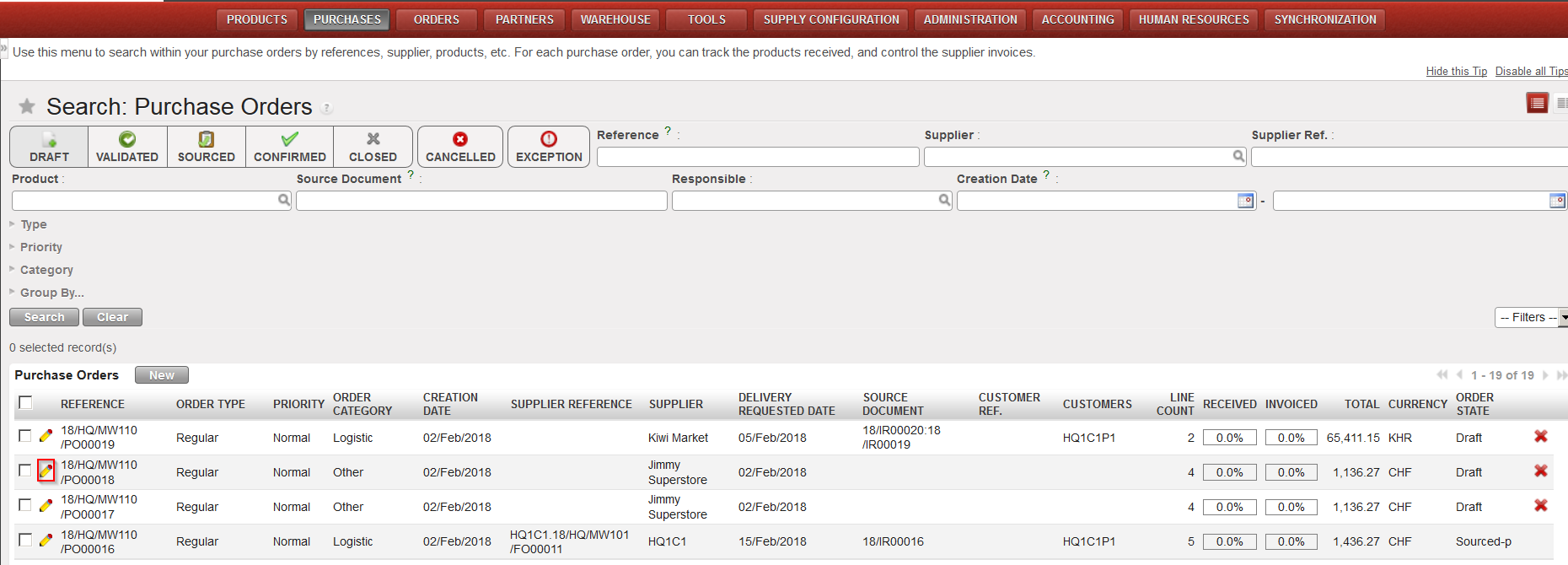
Go to: Purchases / Purchase Management / Purchase Orders
- Select the Purchase Order to be updated by clicking on the pencil
 at the left of the appropriate row
 - Make the appropriate changes
- Change the supplier, enter the confirmed delivery date or update any information in the header of the order if needed.
- Change a product, a quantity or a unit price if needed. (note that a change of quantity can impact a price change when in Draft and product is linked to a supplier catalogue)
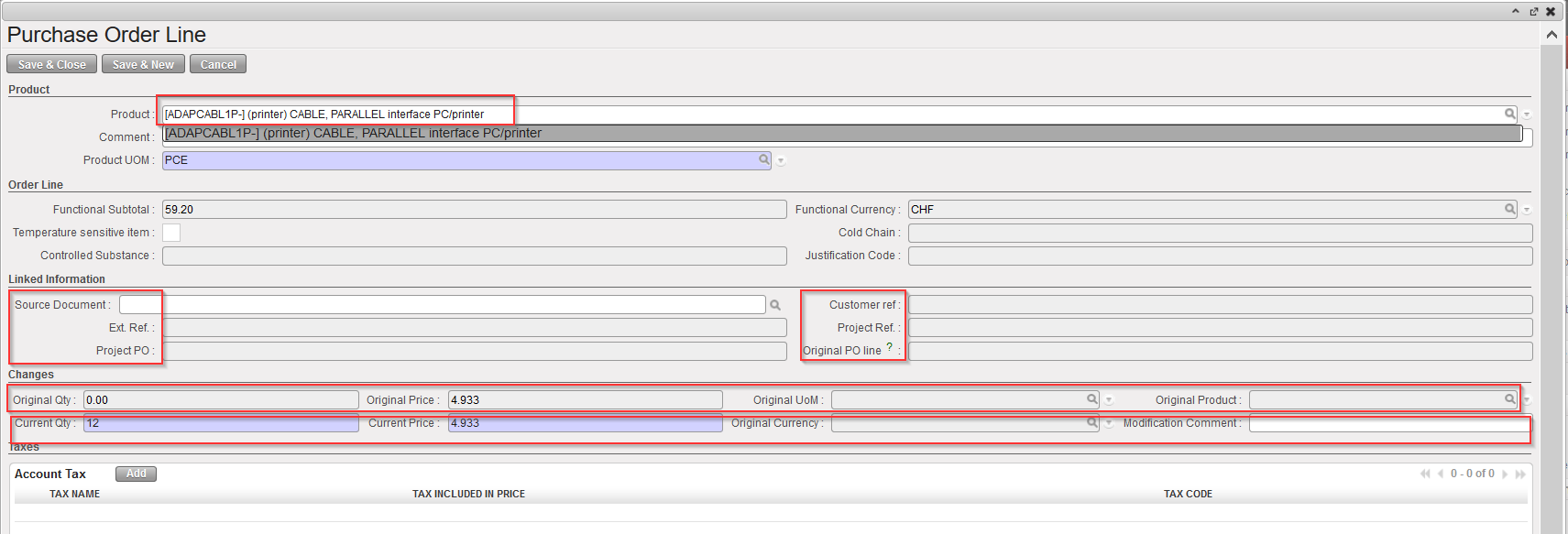
Please note that there are now 2 options to “Edit” a PO product line: user can either click the pencil  icon to update product directly on line or use the sheet
  icon which will open a product line pop up with a bit more information.
 |
| Updating a Purchase Order |
Among the additional information that can be found on the pop up are the one regarding the change, “CHG”, checkbox. This feature enables to track any change done on the PO line by comparing “current value” vs “original value” (Qty,Price,UoM or Product).
Optional to update currency if needed as below:
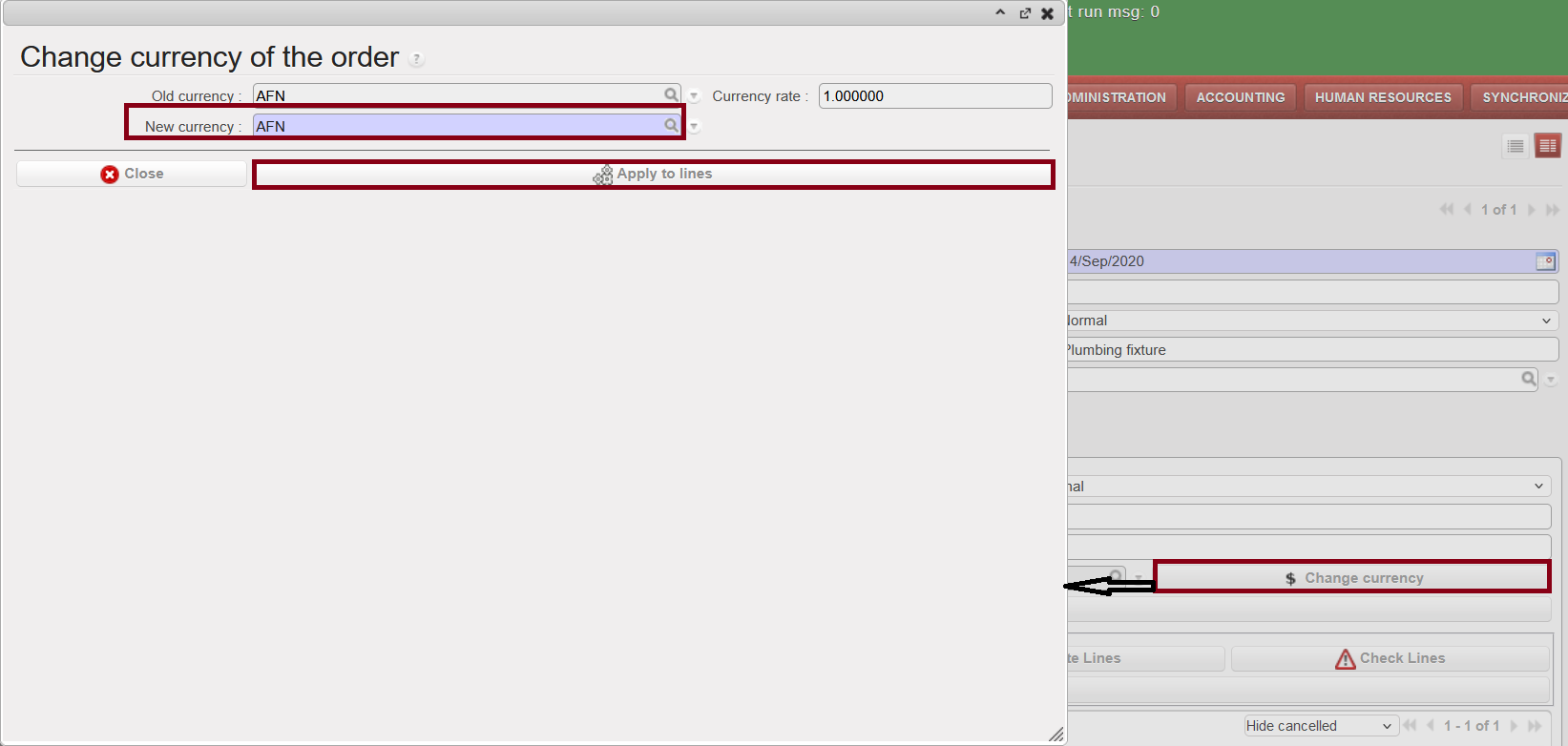
 |
| Updating a Purchase Order |
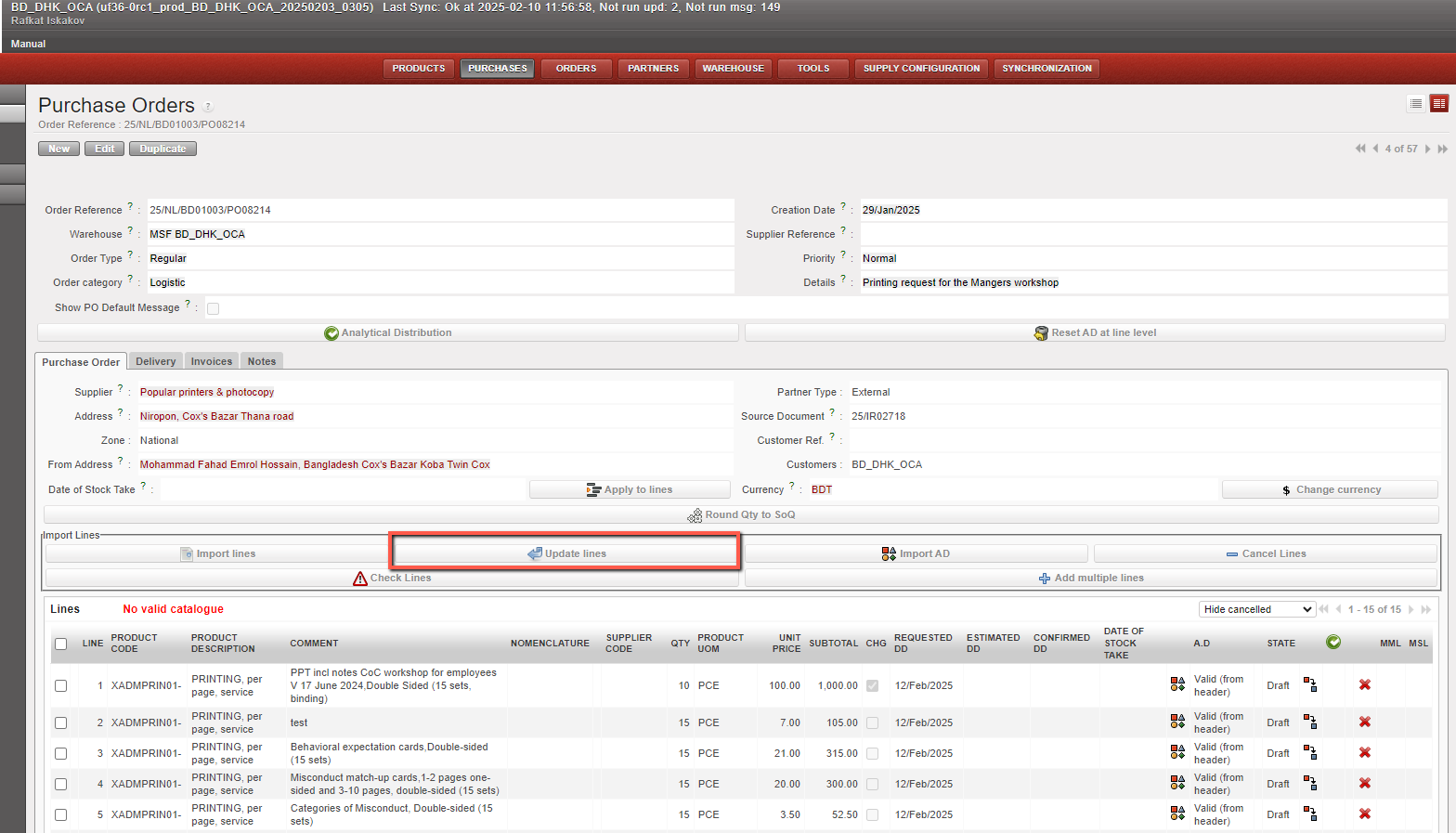
PO can be updated by Using Import functionality.
Button, “Update Line,” allows users to update the price, quantity, and comments of a line via import. The “Update Line” functionality is available in Draft (-p) status for all supplier types (Internal, External, ESC, IM, and IS). Import can also be performed in Validated (-p) status, but only if the supplier is External. Lines updated via import must correspond to respective statuses.
If a line item is Confirmed, Canceled, Closed, or Validated (for ESC, Internal, IS, and IM partners), the import will ignore that line. If any lines are ignored, UniField provides a clear message explaining which lines were not updated and why.
A user can use the “Update Line” function multiple times while the PO is in Draft (-p) status (or, in specific cases, in Validated (-p) status for external suppliers).
It is also possible to track the changes of Pos by using the report under “Purchases> Purchase Management > PO Track Changes“
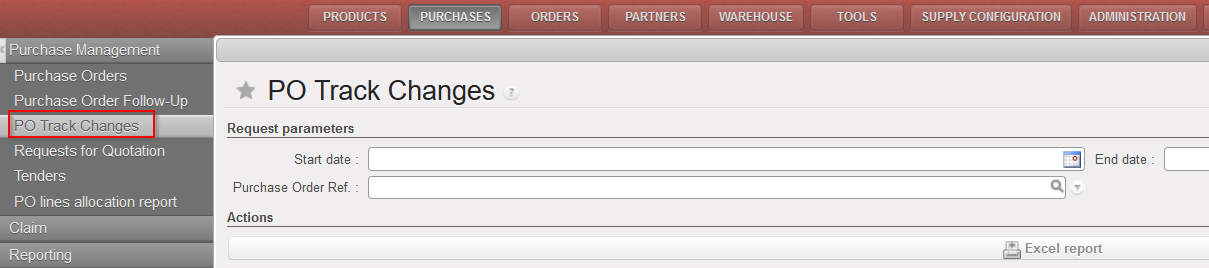 |
| PO Track changes |
 |
| PO Track changes -Excel export |
- Cancel a whole order line if needed by clicking on the red cross on the right side of the appropriate order line.
- Adding a new line (only for “Draft” or “Validated” PO): addition of a new line to a sourced PO will require to fill the “Source document” field at line level with a non-Confirmed, non-Closed nor Cancelled IR/FO (of regular Order Type). If the Source document reference is different from the one existing at PO header, then the new reference will be added as well a the “Source document” header level.
3. Click the “Save” button on the top of the screen.
 |
| Updating a Purchase Order |

Please note:
- It is important that the most recent (updated) version of your PO is printed and signed before it is validated in the system – please refer to your OC guidelines.
- It is not possible to add lines in requesting instance once a synchronized PO is validated, any change must be in the supplier instance.
