Supply User Manual ENG -> 4. Procurement -> 4.2 LU-SU3101: Internal Requests (IRs) -> G. How to update an Internal Request.
G. How to update an Internal Request.
Internal Request updates can be done manually in the IR in “Draft” , “Draft-p“, “Validated” or “Validated-p” status.
Go to: Orders / Orders / Internal Requests
- Enter the necessary information in the filters to find your IR and click on Search, then click on the pencil icon
 next to the IR you wish to update to open it in edit mode.
 - Update some information on the header of the IR if needed (some header fields can only be updated when in Draft/Draft-p).
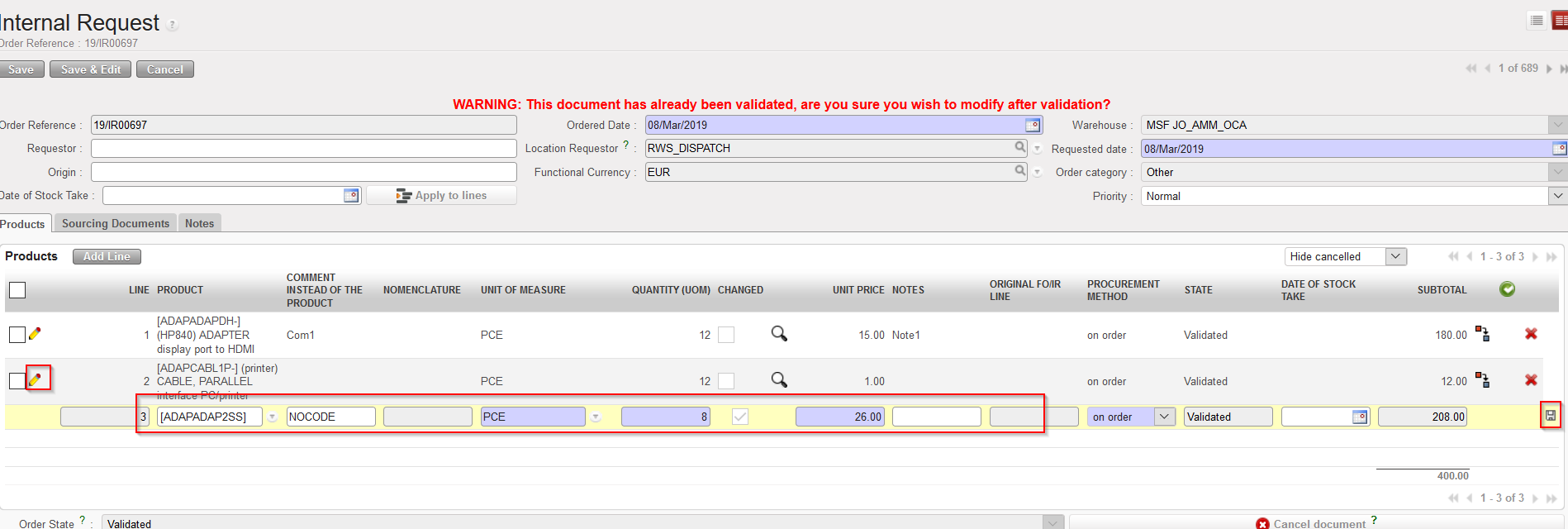
- To update a specific line, click on the pencil icon
 at the left of the line you wish to update.
 - Update the line as needed (UoM, quantity, unit price, notes,…).
- Save the line by clicking on the floppy disk
 at the right of the line or via a click on “Enter“.
 |
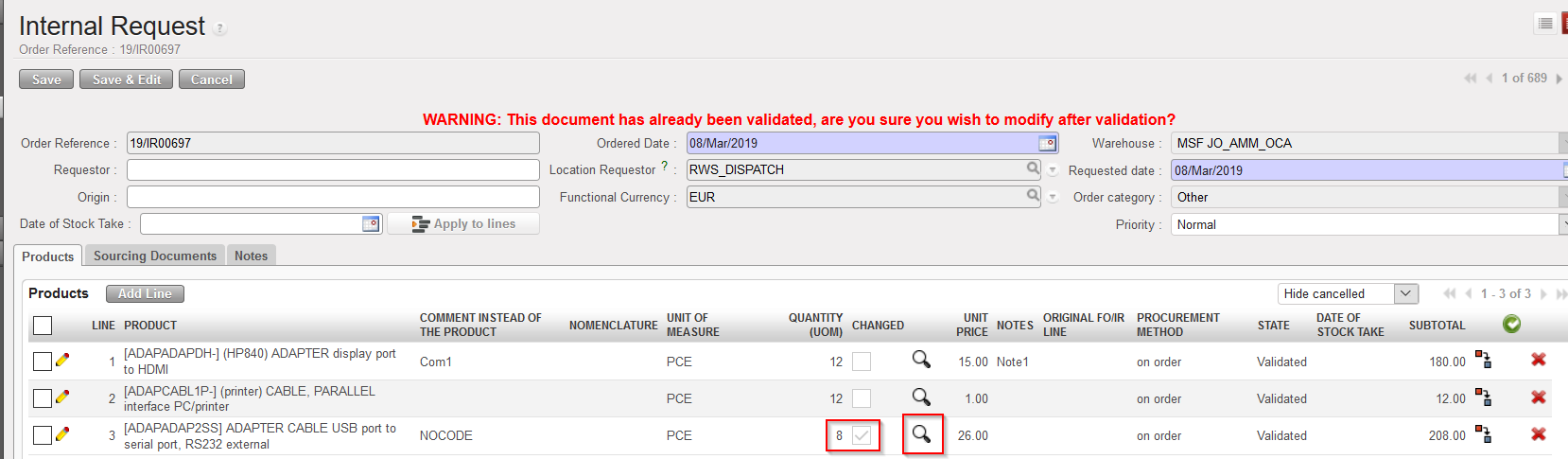
Please note that any change on “Product”, “Quantity”, “Price” and “UoM” to a “Validated” line will trigger the ticking of the “Changed” checkbox. Changes can be seen by clicking on the “Magnifier” icon; once clicked , a pop up will display the changes on the specific product line with “current value” vs “original value”.

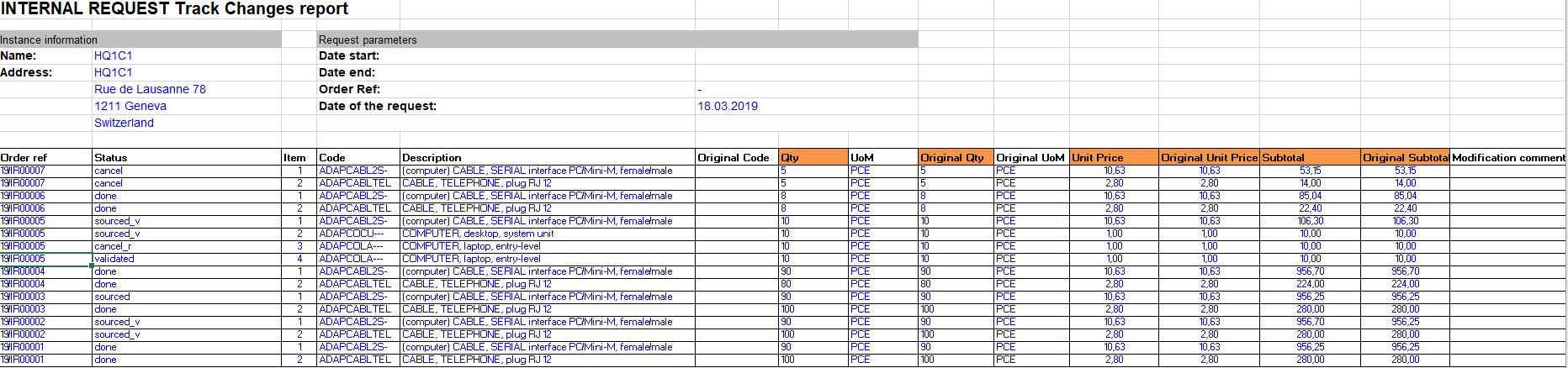
Please note that there is as well a new report that enables to see all these “track changes” which can be find under “Order> Orders” IR Track Changes”
As long as the IR is in “Validated” status, it is still possible to add new line to the order however this will trigger the “Changed” checkbox.
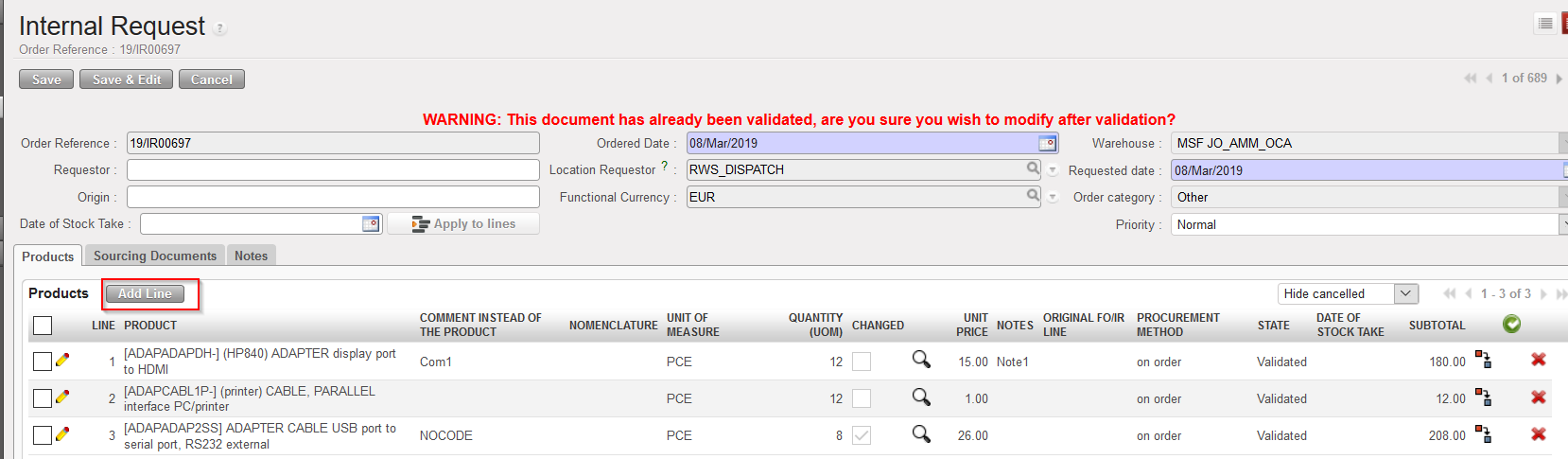
The addition of new lines to a “Validated” IR is conditioned by User rights. A new button named “Add line” will replace the “New” button which is only used for Draft IR. New lines added at “Validated” state will still be created as “Draft” and will need validation from authorized user.