
H. a) How to validate a PO at header level
According to OC procedures, before validating a Purchase Order, the document should be printed and signed (validated) by the content responsible (and the validator should also check the Analytical Distribution before validating).
To print the PO, select the check box corresponding to the PO to be printed and click on the “Purchase Order” option in the action menu. A PDF file ready to be printed will open.
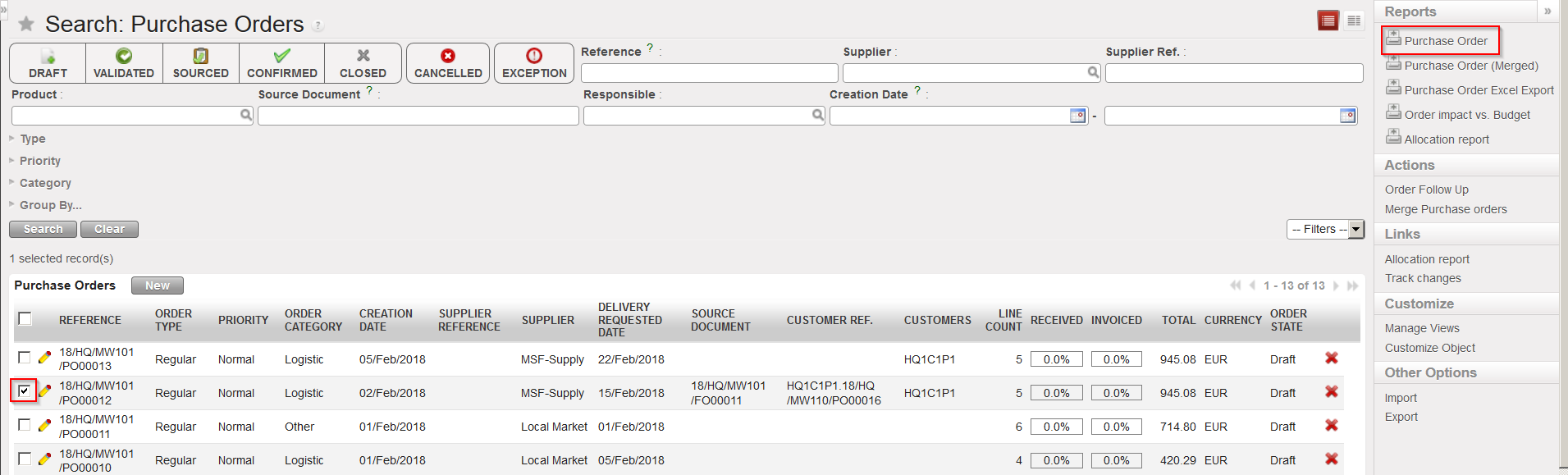 |
| PO print out |
Once the PO has been validated (on paper) it can be validated in the system.
Go to: Purchases / Purchase Management / Purchase Orders
- Open the PO that you wish to validate (in edit or display mode). This PO should not yet be validated but still draft (or draft-p).
- Click on the “Validate document” button at the bottom of the screen.
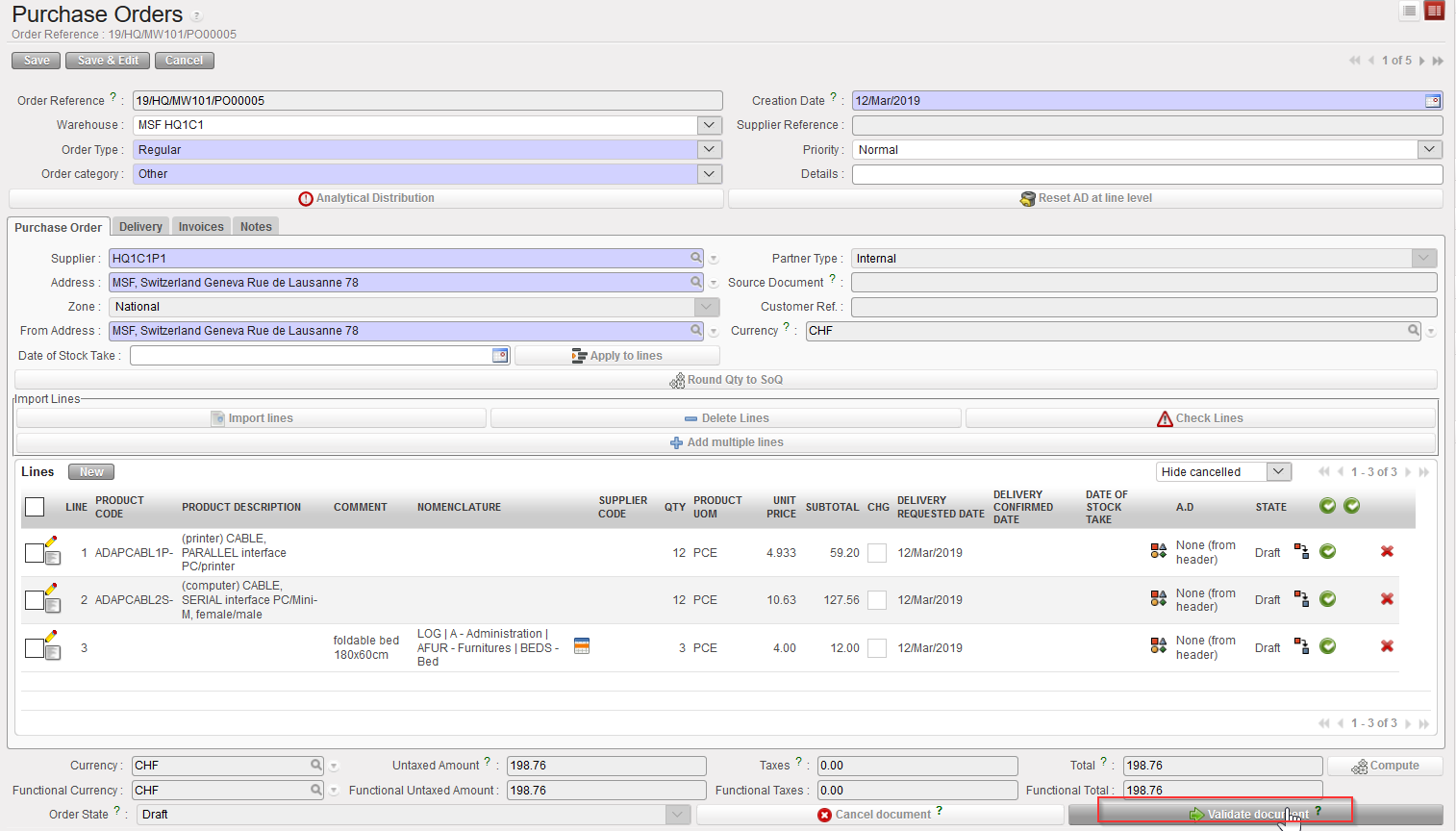 |
| Purchase Order validation at header level |
All the lines of the PO are validated. The PO state changed to “Validated“.
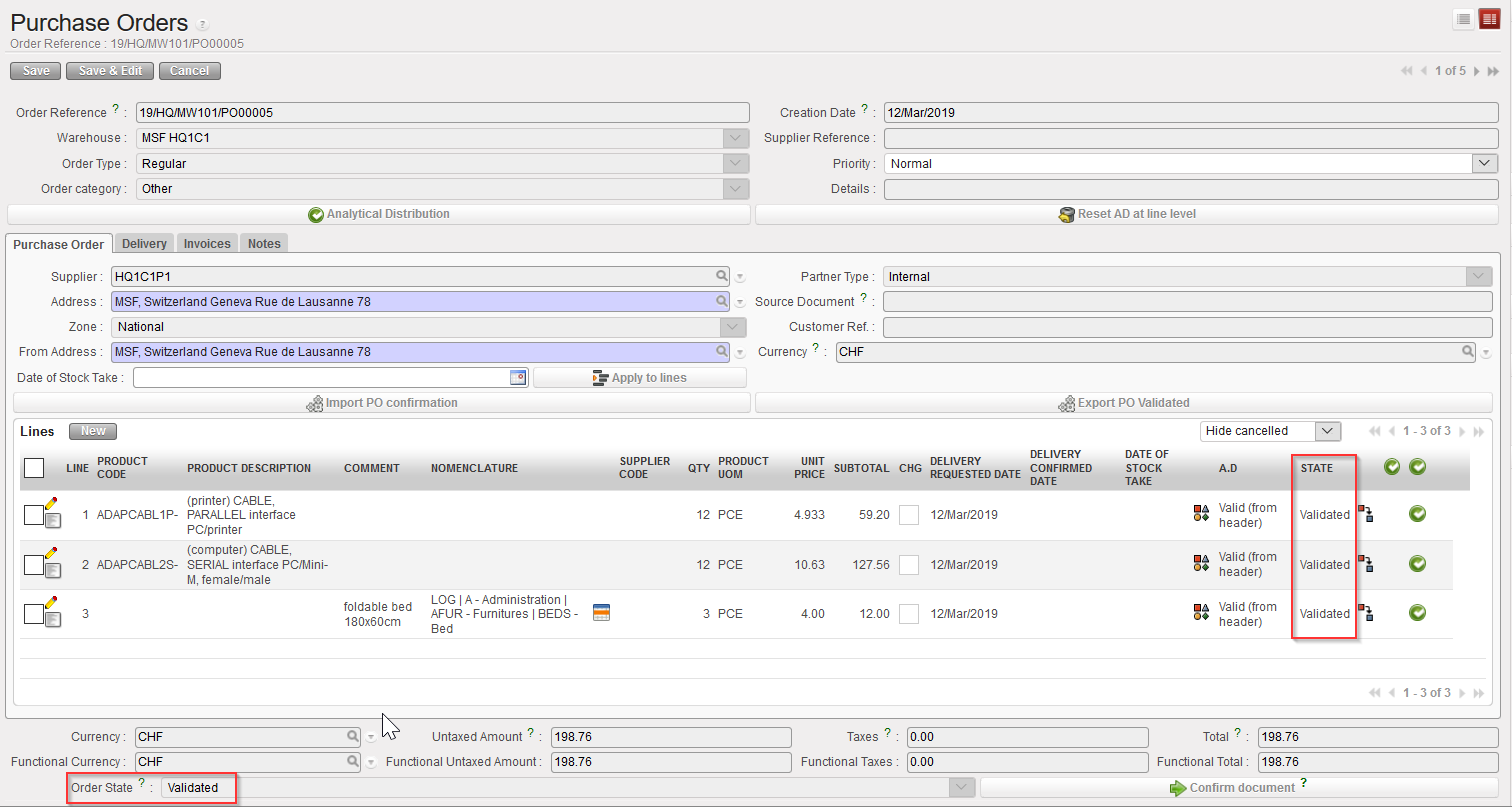 |
| Purchase Order validated at header level |
Note that for validated POs addressed to internal partners (i.e. POs which trigger the creation of FOs via synchronization), the system will show a warning message if they are opened (in edit or display mode) to inform the users that modification won’t be considered (as they should be done on the supplier instance). These PO can now be in local currency (if necessary) if all internal partners of the mission have been set accordingly.
 |
| Warning message on validated PO sent to internal partner |
