
Supply User Manual ENG -> 4. Procurement -> 4.4 LU-SU3103: Field Orders (FOs) – General -> H. How to validate a Field Order.
H. How to validate a Field Order.
Go to: Orders / Orders / Field Orders
- Select the Field Order to validate by clicking on the appropriate order line.
- Click on the button “Analytical Distribution”

to add the analytical distribution if not yet done (the AD process is described in LU-SU3201 PO Generals).
a) if all products have the same analytical distribution, add this in the header.
b) if all products have not the same analytical distribution, add the analytical distribution per order line by clicking on the icon  and entering destination, cost center and percentage if needed. Click on the floppy disk icon to save the AD-line, then click on the “Save” button to save the AD.
3. If your user has the appropriate user rights, you may either validate the FO at header level, either validate it at line level.
a) To validate an FO at header level, click on the “Validate Document” button at the bottom of the screen.
b) To validate a specific line of an FO, click on the green button at the left of the line you wish to validate.
c) To validate several (but not all) lines of an FO, select the lines you wish to validate using the check box on the left of the lines and click on the green button on the top of the “Field Order Lines” table (next to “STATE“).
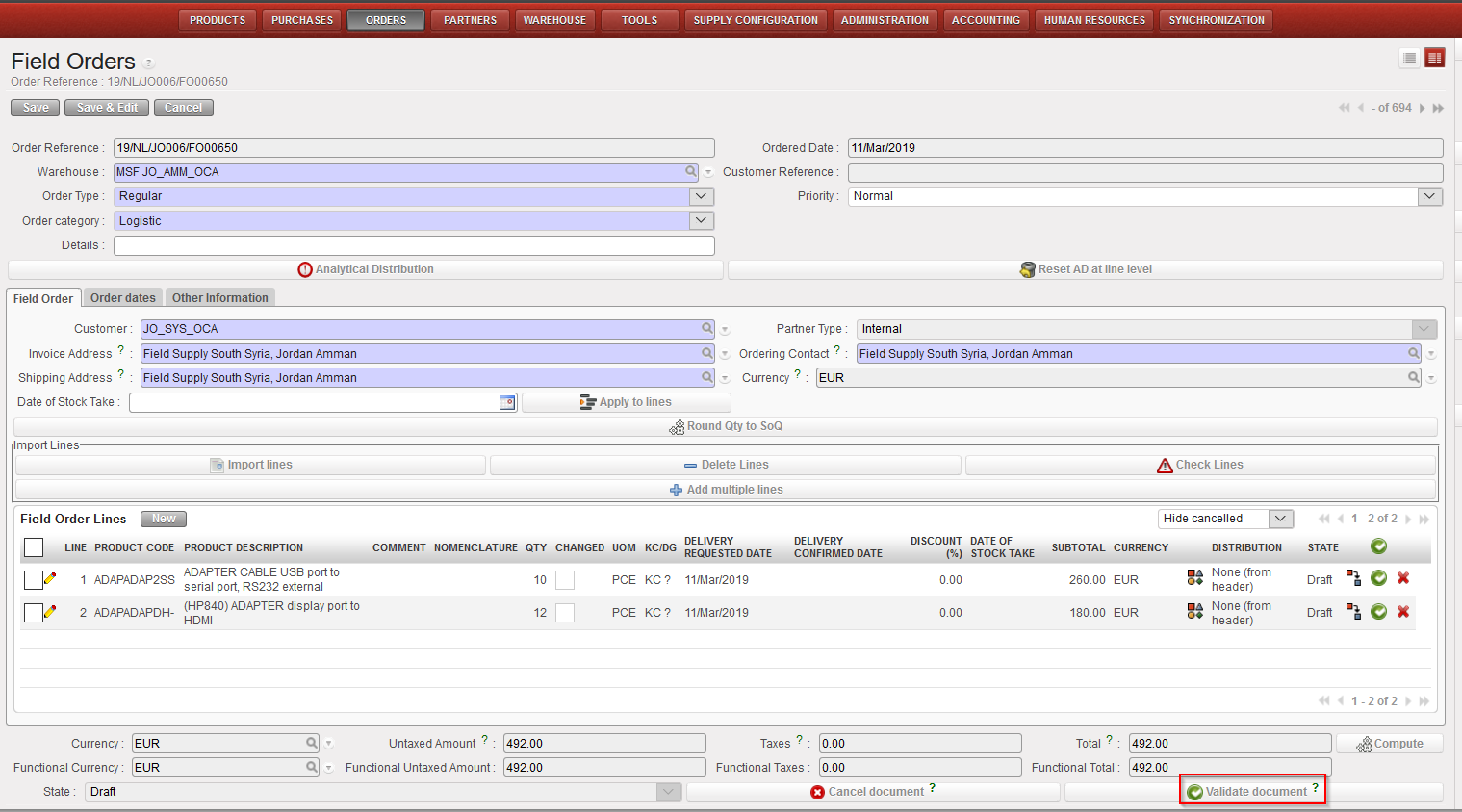 |
| FO validation at header level |
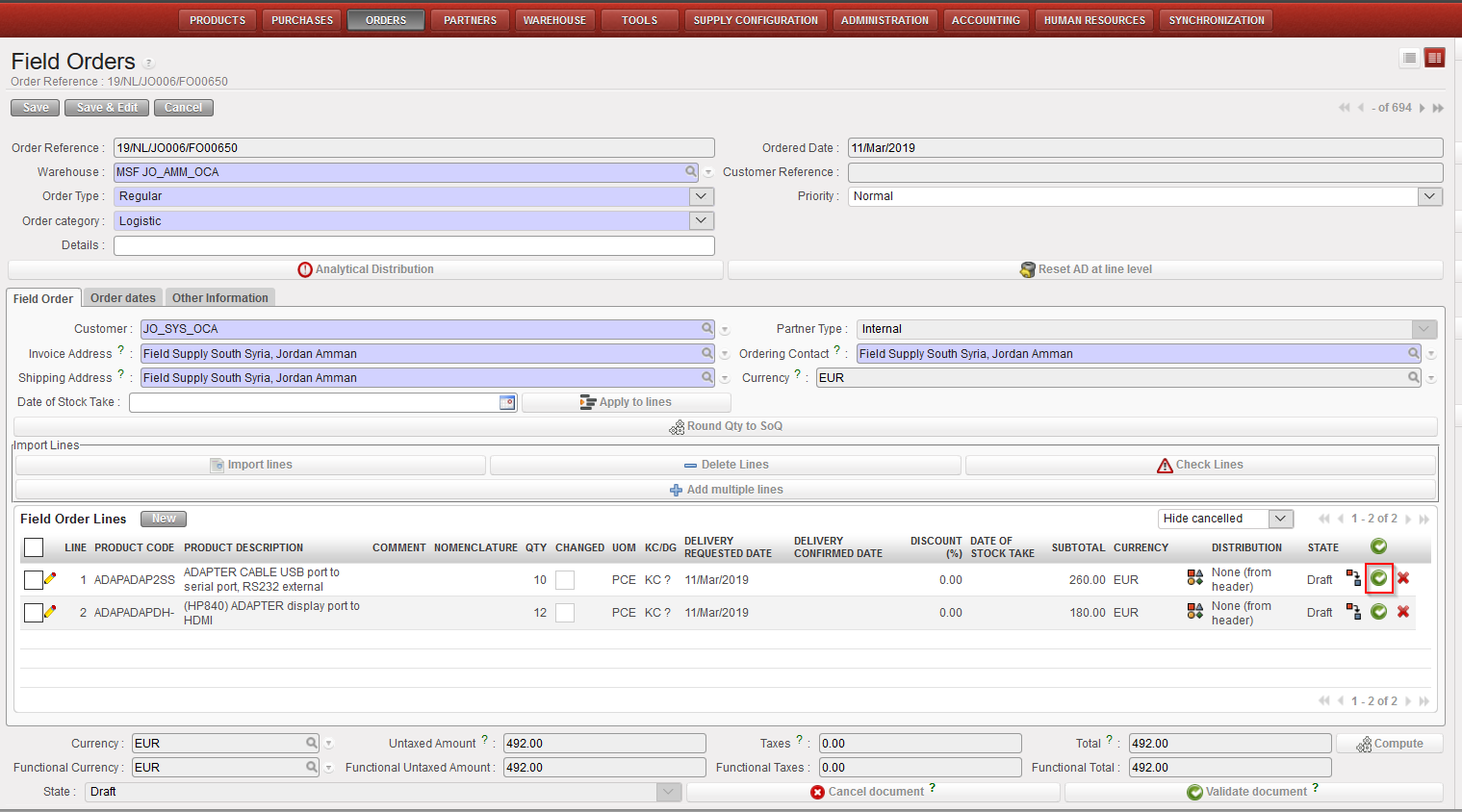 |
| FO validation at single line level |
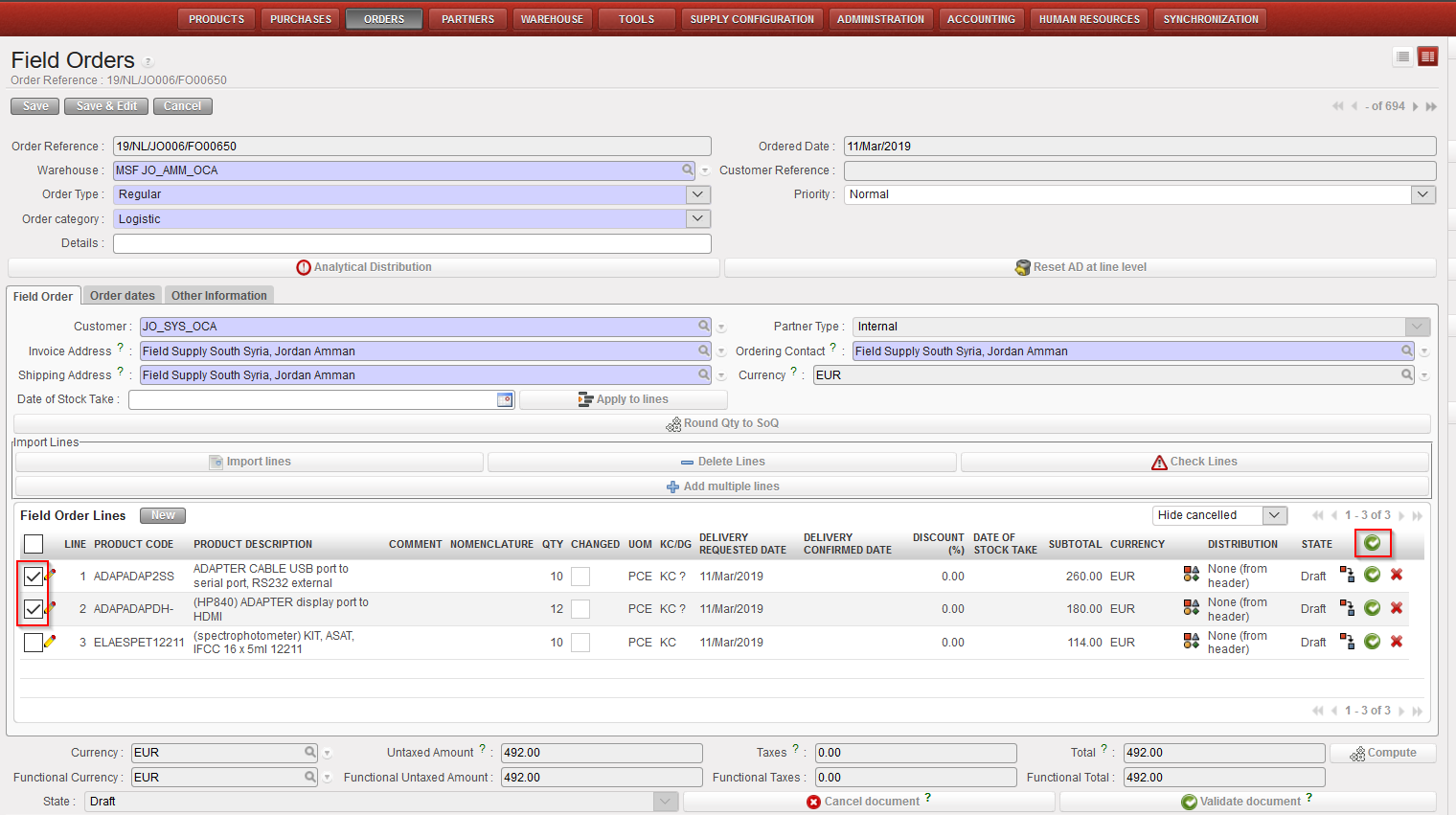 |
| FO validation at multiple lines level |
Note: An FO-line cannot be validated if its unit price is at 0 (except for donations and loans).
