
Supply User Manual ENG -> 4. Procurement -> 4.4 LU-SU3103: Field Orders (FOs) – General -> J. How to cancel a whole Field Order
J. How to cancel a whole Field Order
In case the Coordination does not agree on the whole order, or if they are unable to meet the demand, the complete order will have to be cancelled. The PO at project level will be cancelled too after synchronization.
Go to: Orders / Orders / Field Orders
- Select the Field Order to be cancelled by clicking on the appropriate Field Order line to open the FO. The FO should be in Draft or Validated. Click on the “Cancel Document” button at the bottom of the screen. The system will warn you that you are about to cancel, confirm if you want to proceed.
|
|
|
Draft Field Order cancellation |

2. The FO will switch to the state “Cancelled”. You will see that the FO lines do not appear anymore. That’s because they are also in the state “Cancelled”. You may see them if you use the drop-down filter at the top of the “Field Order Lines” table which allow you to show the cancelled order lines.
|
|
|
The Draft Field Order state becomes Cancelled |
|
|
|
Cancelled FO-lines can be shown if you use the appropriate filter |


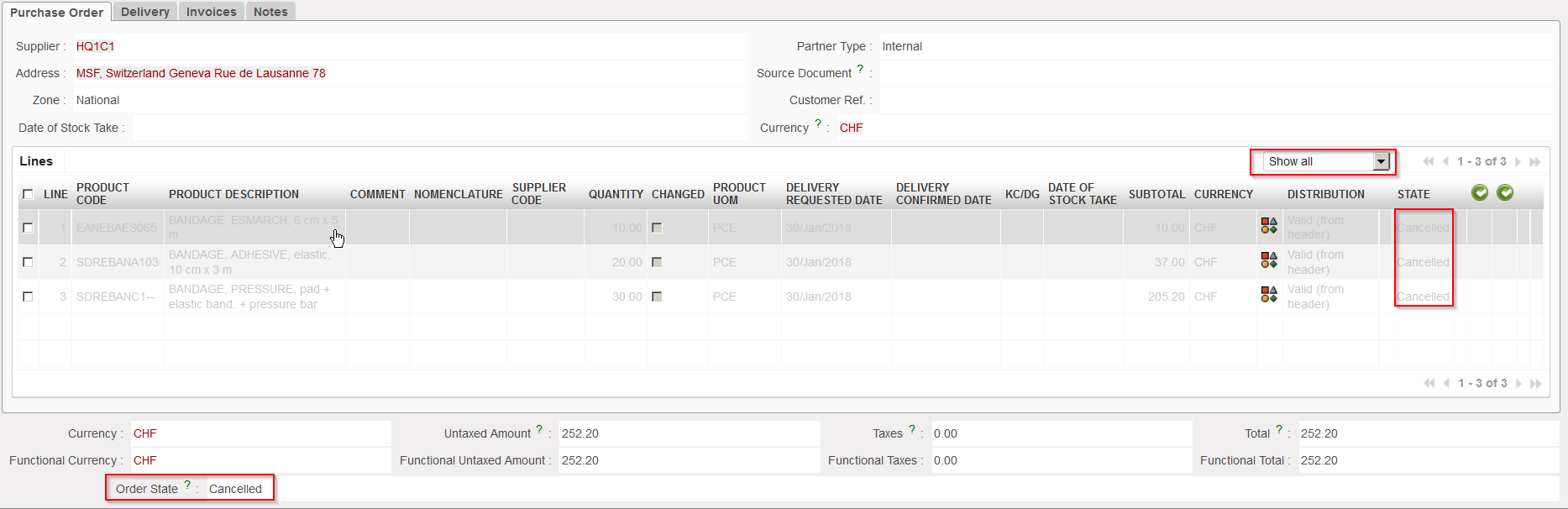
3. If the FO has an internal partner as customer, after synchronization of both instances, the corresponding PO on the customer instance will also switch to the state “Cancelled” with the corresponding PO-lines in state “Cancelled“.
|
|
|
Cancelled PO on the customer instance |
Note that “Draft” and “Validated” FOs can be cancelled but an FO which has already been sourced cannot. At this stage you will have to do the cancellation on the next document (e.g. PO or PICK). Please note that when Cancellation is done at OUT/PICK level, the FO will be “Closed” if FO has been sourced to a PO whereas it will be “Cancelled” should the FO be sourced from Stock.
