
Supply User Manual ENG -> 4. Procurement -> 4.6 LU-SU3201: Purchase Orders (POs) - Generals -> K. How to check the impact of a Purchase Order on the budget.
K. How to check the impact of a Purchase Order on the budget.
Once a PO is validated, before confirming a PO, you may want to check its impact on the budget.
Go to: Purchases / Purchase Management / Purchase Orders
- Click on the pencil
 on the left part of the screen of the line of the relevant Purchase Order.
 - Open the action menu if needed (right part of the screen via the double arrow).
- Select the option “Order impact vs. Budget” in the action menu (under “Reports“).
- A PDF document is opened. If a budget was entered for the corresponding AD, you may see the impact of your PO on the budget.
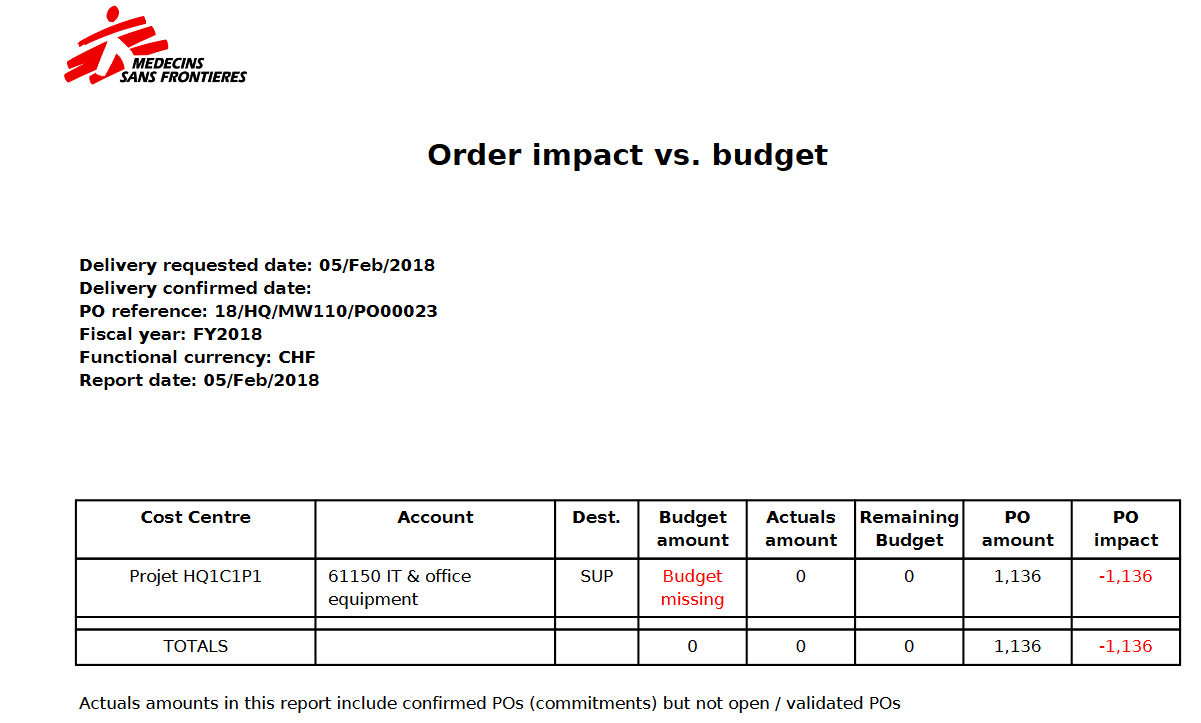 |
| Impact of the PO on the budget |
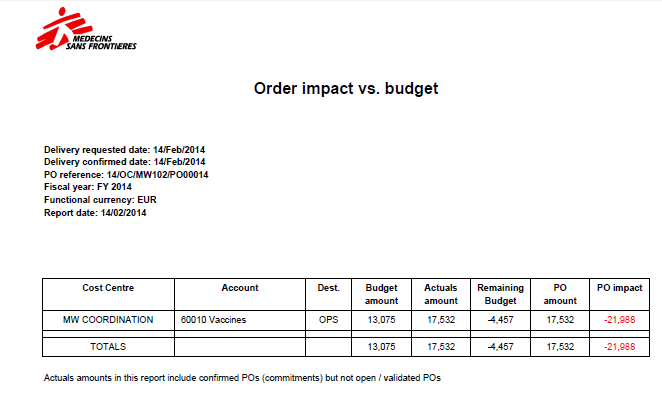
In the above example the PO is worth 17532 EUR and is allocated to one cost center MW COORDINATION.
All amounts presented are in functional currency (HQ consolidation currency vs booking currency used in the field).
- {Budget amount} is retrieved from the budget uploaded in the system and corresponding to the cost center the PO was assigned to. If several versions of a budget have been uploaded, the report will pick the latest version that is not Draft.
- {Actuals amount} are expenses already recorded; this column also includes pending commitments which are confirmed but not validated POs.
- {Remaining budget} is a calculated column equal to “Budget amount – Actuals amount“.
- {PO amount} is a subtotal by cost centers, expenses accounts and destination. To retrieve these figures the system takes the analytic distributions defined at header/line level of the PO as well as expense accounts linked to each product/product category and destination.
- {PO impact} is a calculated column equal to Remaining budget – PO amount.
