
Supply User Manual ENG -> 5. Warehouse -> 5.12 LU-SU4205 Replenishment Rules -> K. HOW TO GENERATE ORDER CALCULATION REPORTS - Exports and on screen
K. HOW TO GENERATE ORDER CALCULATION REPORTS – Exports and on screen
From list view of Order Calculations, it is possible using the check-boxes to select multiple Order calcs and then, using some other options in the Action Menu in order to generate reports in excel files.
These exported reports can still be used as import file in order to update the Order Calc (when not Closed yet).
Go to: Warehouse / Replenishment Rules / Order Calculation

- Export files from right end side Action menu
a) Order Calc Excel Export :
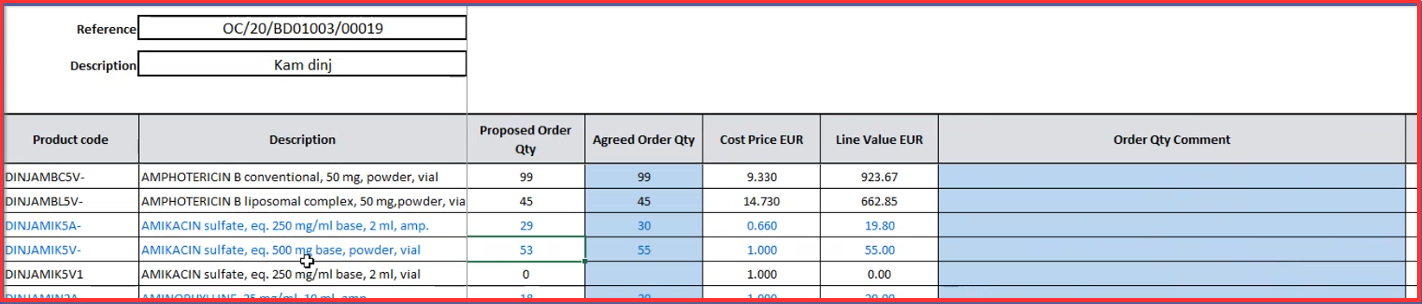
This report enables to have a visibility on what is present in our order calc. There is an option to export either a report with all lines or a report with Warning lines. If you export the excel spreadsheet file there are two columns visible (colored in blue) “Agreed Order Qty” and “Order Qty Comment”. These blue highlighted columns can be edited/updated and are accepted by the system when you import the excel spreadsheet back to Unifield system. It is possible to export all lines for selected Order Calcs into one excel file for order calcs which are in Draft Status.
The only check made by system before exporting is that the Order Calcs are in Draft status (the order calcs can have differing OC, LTs, RDDs). The export would have the same format at line level as the current Order Calc export, with 5 additional columns: Order Calc Ref, Time Unit, Total lead time, Order Coverage and Safety Stock.
b) Draft Consolidated OC Lines :
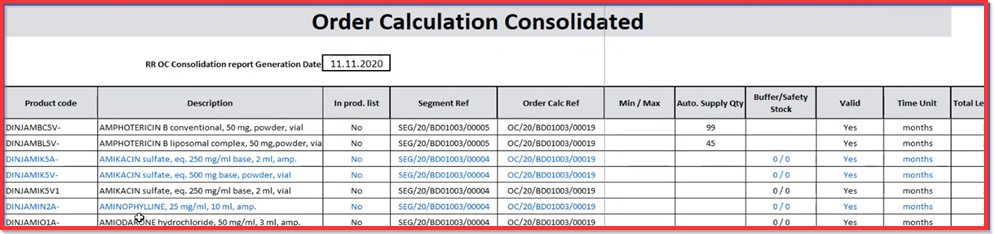
This file (Draft consolidated) can be imported via the Action menu, with the exact same format, and like the existing singular import, this would update the 2 fields “Agreed Order Qty”, and “Order Qty Comment”, for all lines on all Order Calcs. It can be used for as many DRAFT Order Calc as you want without any limitation.
There is a column with reference of the selected Order calc (“Order Calc Ref”).
i) Select the Draft Order Calcs to consolidate

ii) Click on “Draft Consolidated OC Lines” from the right end action menu
c) Consolidated OC Lines – All Statuses:
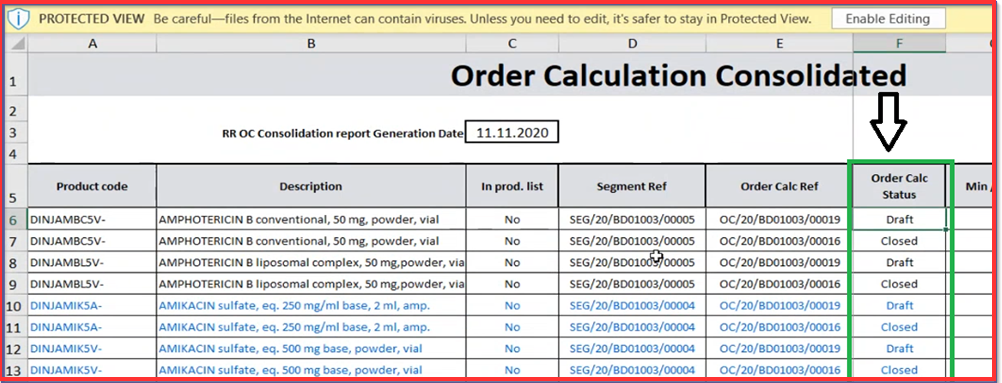
Export all lines for selected Order calc into one excel file and Order calcs can be any status (including Closed) this does not need to be importable, same format as above but with extra column for OC status. “Consolidated OC Lines – All Statuses” gives you a better overview from pharma point of view. The report layout is the same, additional column of “Order Calc Status” is visible as depicted on the picture below.
i) Select the Order Calc (any status) to consolidate

ii) Click on “Consolidated OC Lines – All Statuses” from the right end action menu
2. On screen reports available via button on main Order Calc screen

a) “Pipeline (stock moves)”/ “Pipeline (PO)”
The reason why we have two types of Pipeline is that there is an historic pipeline based on Stock moves and created at PO confirmation (i.e.: there is a new stock move with an “IN” already available); this is the “Pipeline (stock moves)”.
The second recently developed Pipeline calculation starts at PO line Validation which gives more visibility and flexibility as regard of ESC PO management processes; this is “Pipeline (PO)”.
b) “Stock by Location”
The ”Stock by Location” button is directly linked to report available in menu: Products> Product in right end action menu. It is a top-level overview which is used in Order Calculation product detailed view. Stock by Location is linked to the product.
c) “Reserved Qty”
Reserved Qty is linked to reserved stock. Basically, as soon as the product line is “Available” in the PICK, it is considered as reserved. The first PICK is reserving the stock as “available” meaning that it is available also for next location/ doc.
Generally, there are two options of Reserved Qty definition as we are sending the goods from stock to the project based on RR cycle needs (consumption wise) or second option that stock is reserved and goods are sent out to someone else (not in charge of RR).
In order to use these buttons, Order Calc view should be in Edit mode in order to be able to select the desired products. Next step is selecting of buttons (as depicted on the pictures below).

