
Fixed Asset Definition
Fixed assets, also known as long-lived assets, or property, plant, and equipment, are items in physical form that:
– are held for use in service of organizational activities, or for administrative purposes; and
– are expected to be used more than once (not consumable); and
– are expected to be used during more than one year period; and
– can uniquely be tracked and monitored; and
– are with value greater than a defined materiality amount.
HQ Configuration:
Fixed assets must be activated from HQ. To activate the function, the following must be done:
- Go to ADMINISTRATION > Configuration > Parameters > Reconfigure.
- Follow the ‘Next’ button until you find “Activate the Fixed asset configuration.”
- Tick the box with “Does the system manage Fixed assets ? ” then click on “Finish”
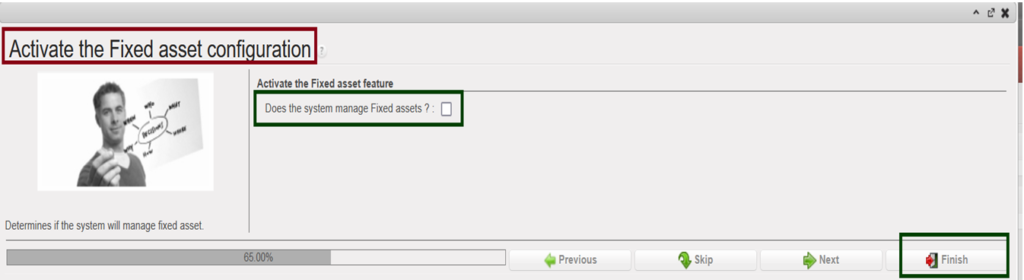
How to reconfigure fixed assets
Then go to Accounting > Periodic processing, you will find “Assets” is active with 3 sub-menus: 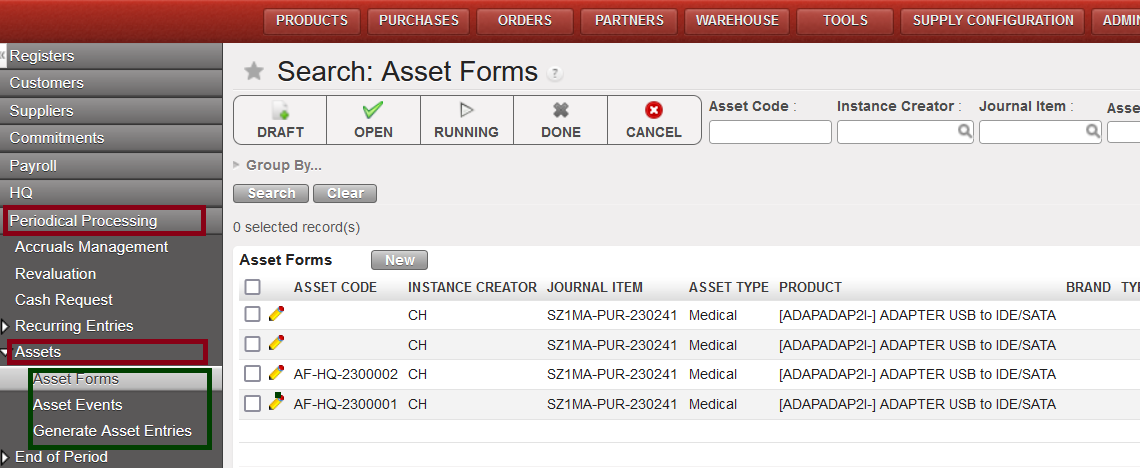
How to access assets in search view
>> Asset Forms: Assets data shall be recorded in an asset form to enable fixed asset events monitoring.
>> Asset Events: Assets form will have a specific tab that follows Asset Events
>> Generate Asset Entries: Automatically generate entries based on what has been entered in the system until a specific period.
Asset accounts:
Asset accounts configured as below:
>> Internal type as Regular
>> Account type as an Asset for B/S , Expense for P&L
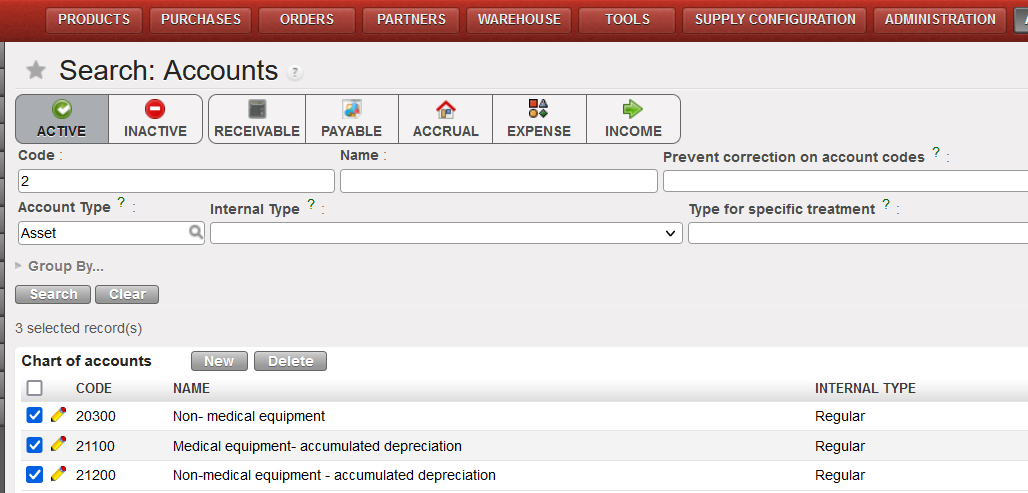
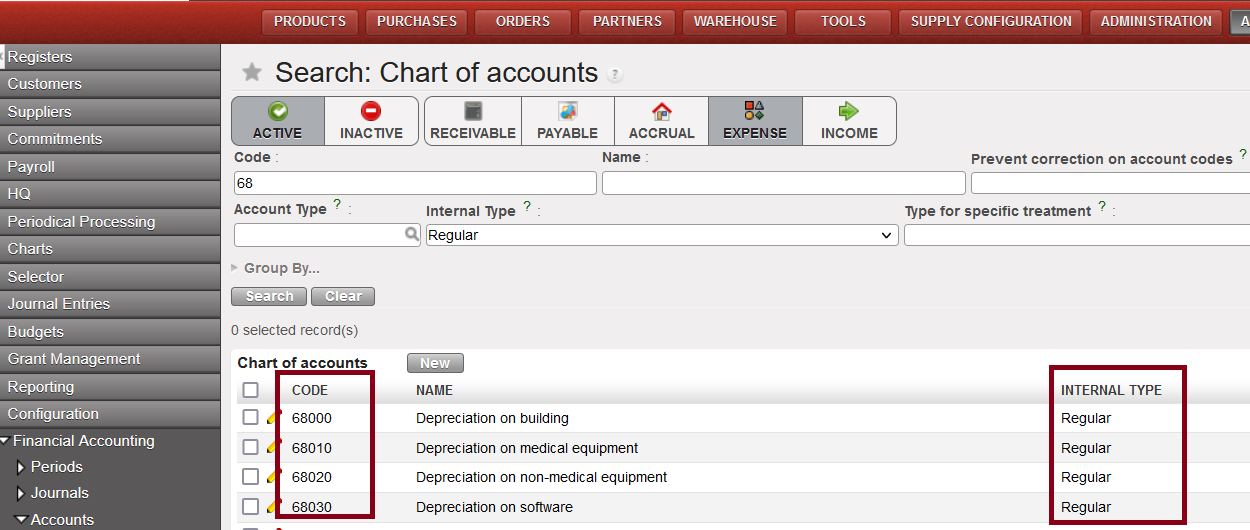
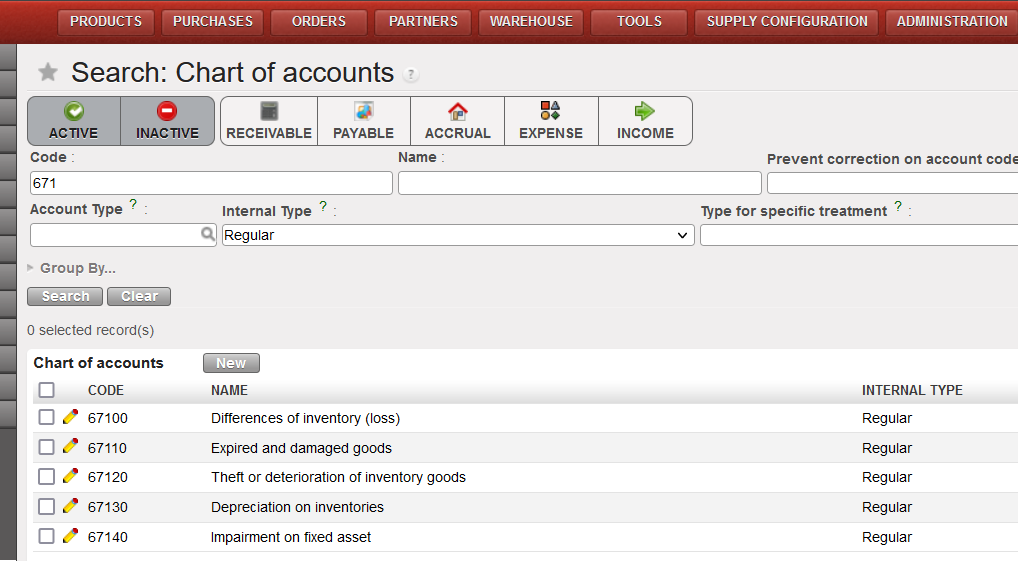
View of accounts to be used in events
Product categories configuration:
At HQ level, product categories linked to assets must be defined with asset accounts as follows:
>> Asset Balance Sheet Account
>> Asset B/S Depreciation Account
>> Asset P&L Depreciation Account
Here an example configuration product “TOYOTA VEHICLES”:
Go to Accounting > Configuration > Miscellaneous > Product Categories > Product categories.
Search in “Name” by “TOYOTA VEHICLES”
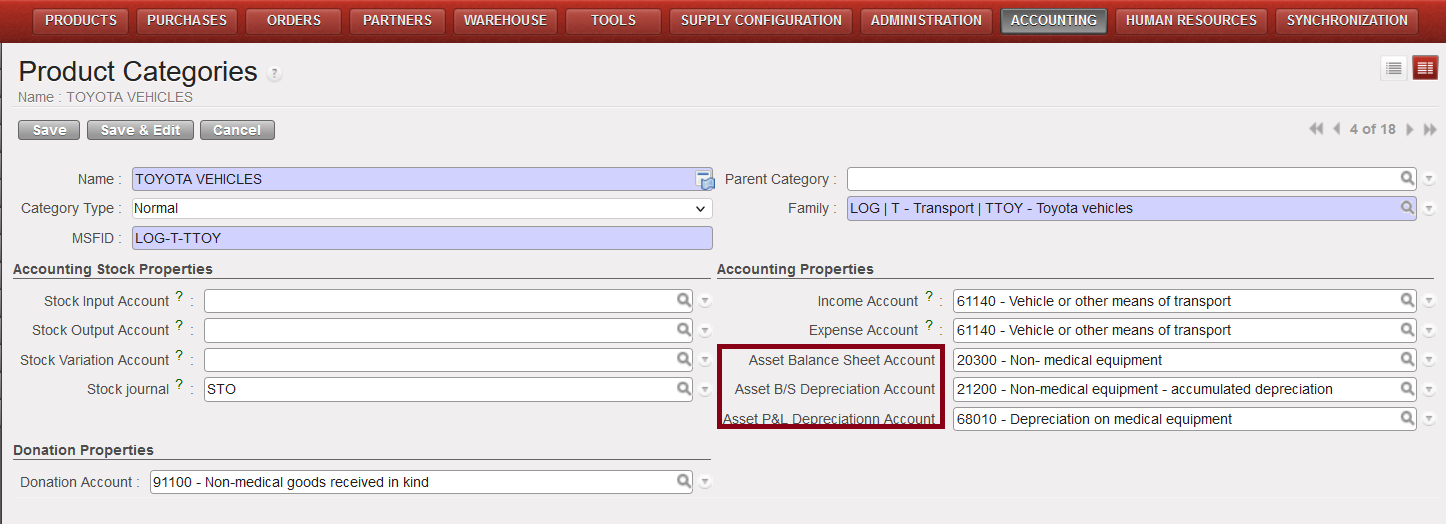
View of product categories with accounting properties
Assets Configuration:
To configure assets, proceed as follows:
Go to Accounting > Configuration, there are two sub-menus, ‘Asset Type’ and ‘Asset Event Types’ .
>> To create a new asset type:
- In “Search: Asset Types” click on “New”
- Update fields “Name” and “Description”
- To update “Useful Life (years)” click on “New” to update with numbers.
- Click on “Save”
- Below samples of asset types:
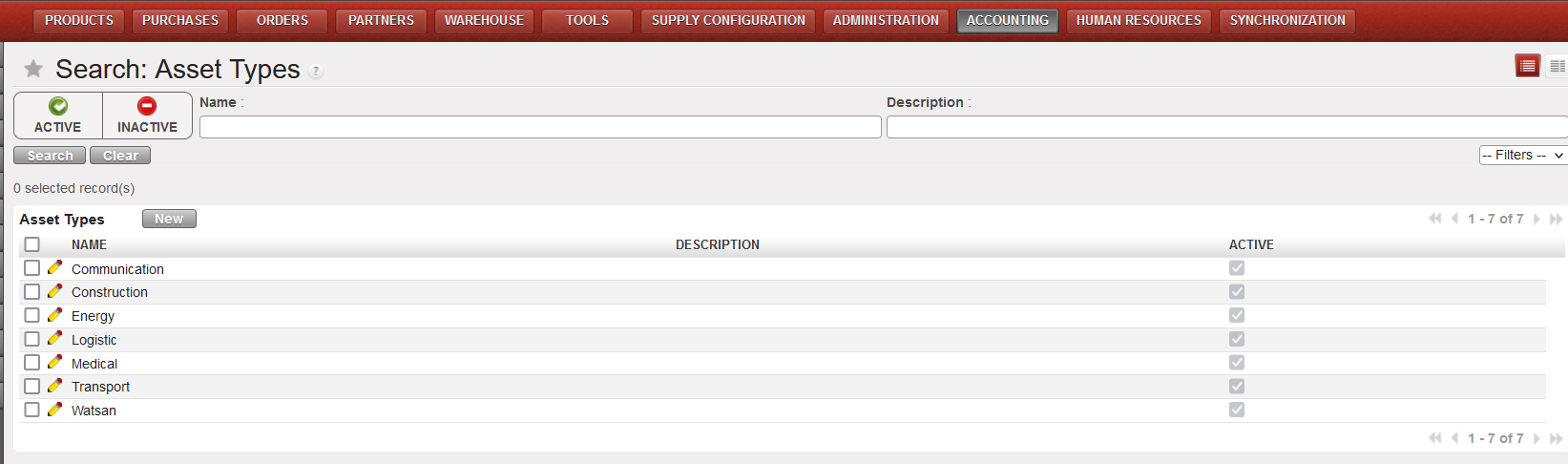
View of asset types
>> To create a new Asset Event Types to use for example for disposal:
- In “Search: Asset Event Types” click on “ New ”
- Update fields “Name” & “P&L account”
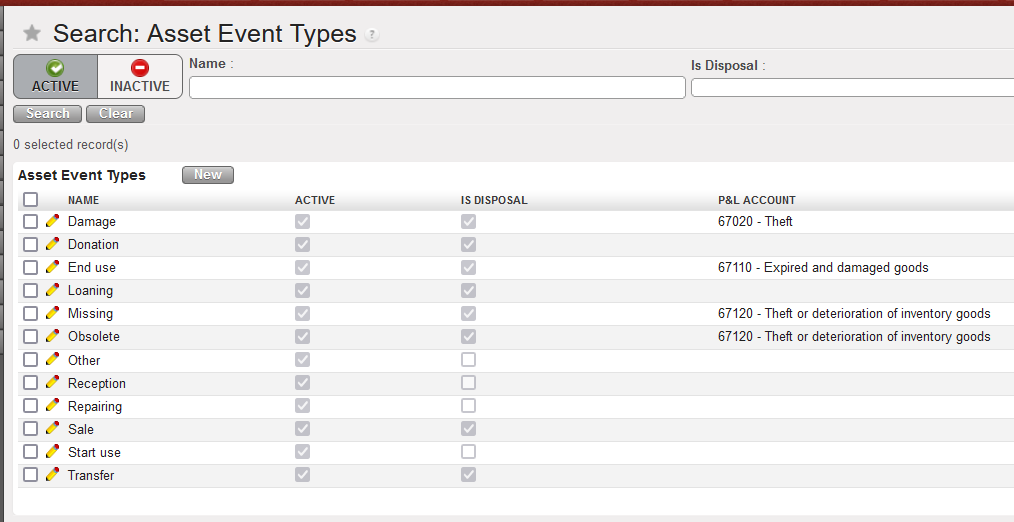
Asset Event Types view
Fixed assets management in the mission:
Each mission’s coordination office is responsible for asset management.
How to create asset form:
- Go to Accounting > Suppliers > Supplier invoices.
- Click on “New” to create new SI
- In “invoice lines” create new line
- Update “PRODUCT” and “UNIT PRICE”
- Tick the box in the “ASSET” column (Once ticked “ACCOUNT” will change from 6xxxx to 2xxxx)
- Click on “save record”
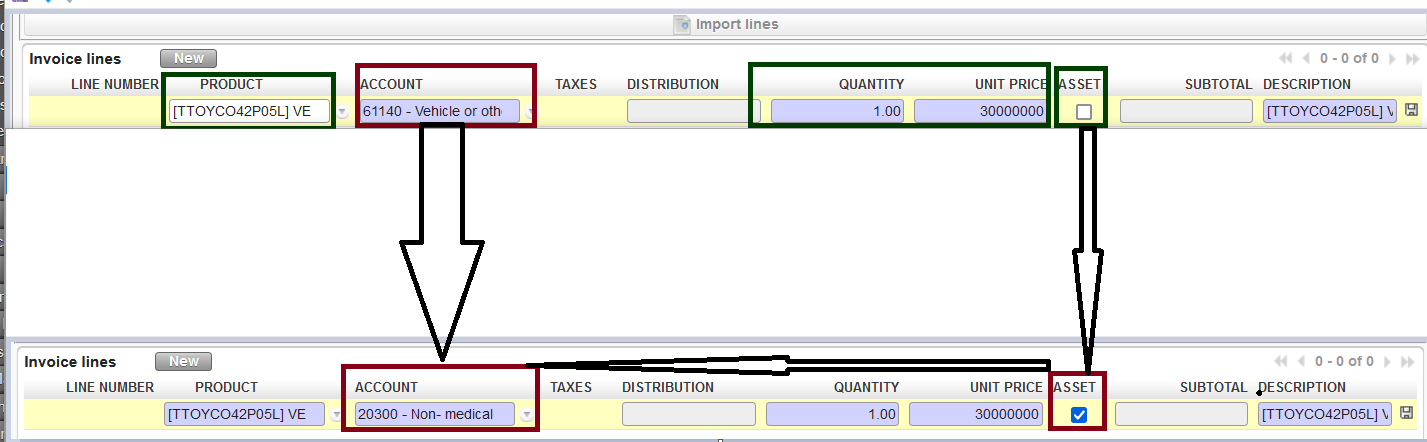
Creation asset form through supplier invoice
- When you click in “Validate” you will receive “The following lines will generate asset forms”
- After approval of SI will create asset form as draft
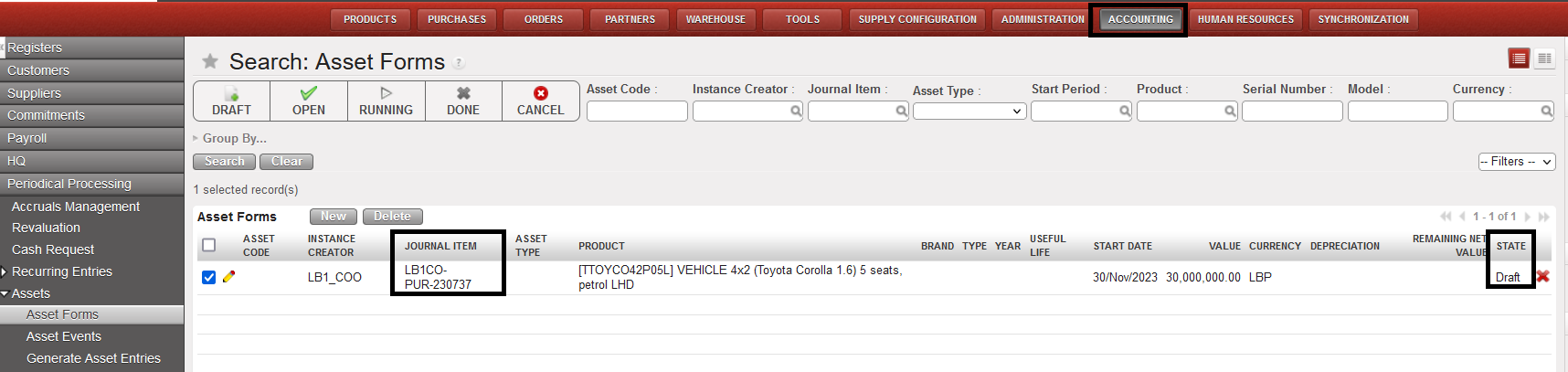
Asset Forms view
- Update “Asset type” and “useful life” manually
- It is mandatory for an asset form to have a valid analytical distribution (AD) before it can be set to “OPEN” status. If the analytical distribution is not valid, the asset cannot be moved to “OPEN” status.
- If the analytical distribution is incorrect, you will receive an error message, and the asset cannot be moved to “OPEN” status.
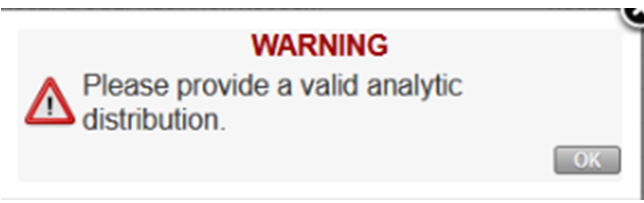
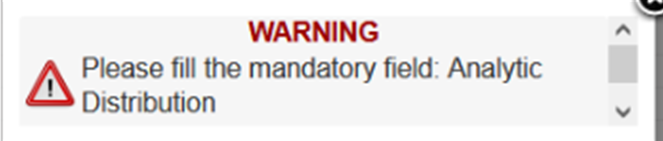
- Click on “Open”
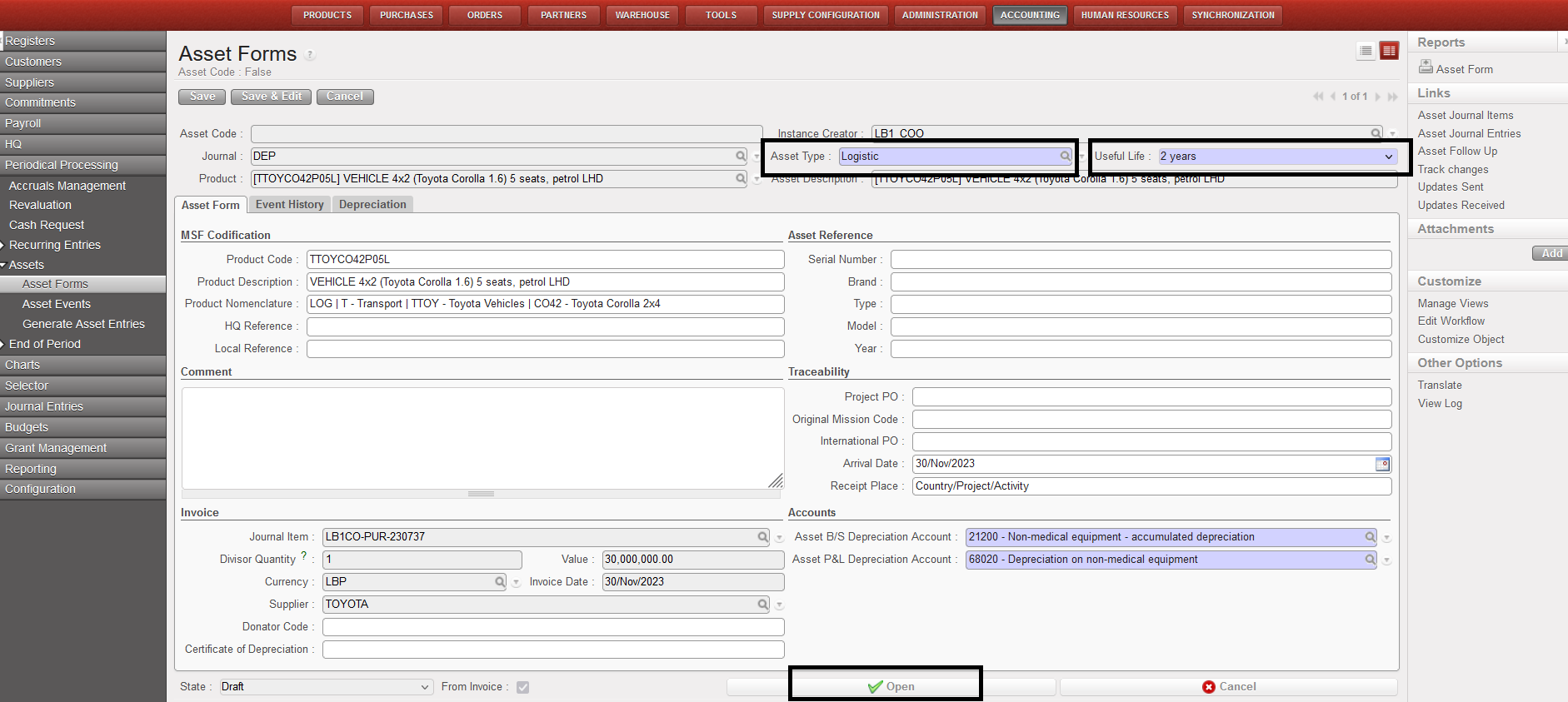
- It will create “Asset Code” and change the state to “Open”

- To create monthly depreciation entries, click on “Generate asset entries “select the oldest month then click on “Generate entries” ,the entry generated is “unposted”
– To post the generated entry, click on the “Checkbox” of the line, then click on “Asset Journal Items” on the right-side menu.
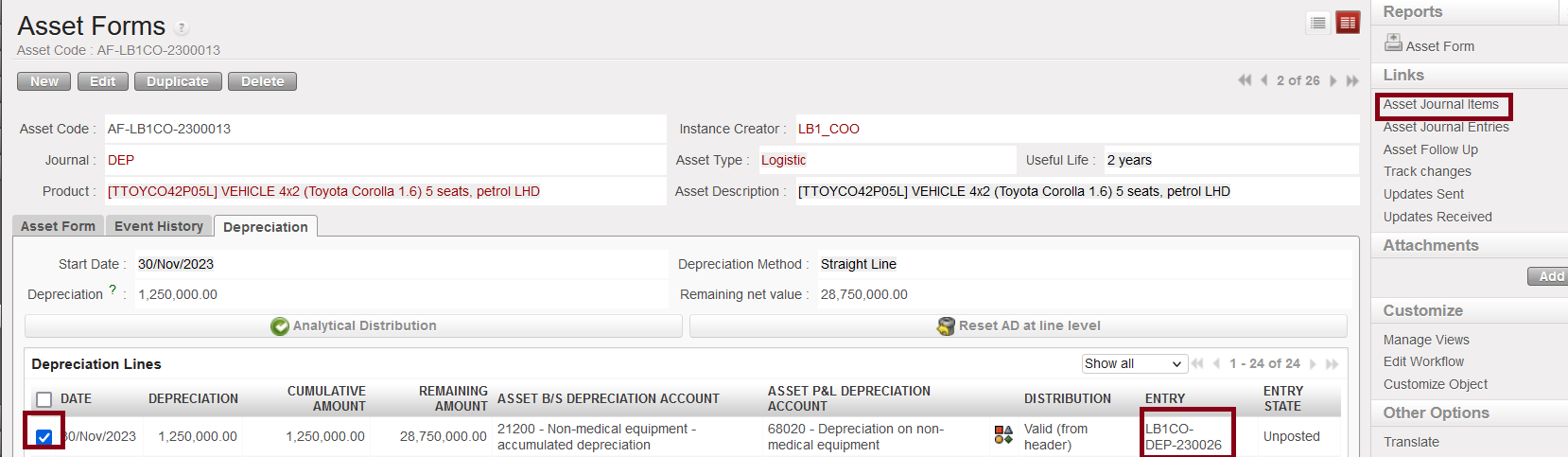
How to view asset journal items
– It will open a new window, tab “Search Asset Rows”, select both rows and click on “Post Journal Entries”.
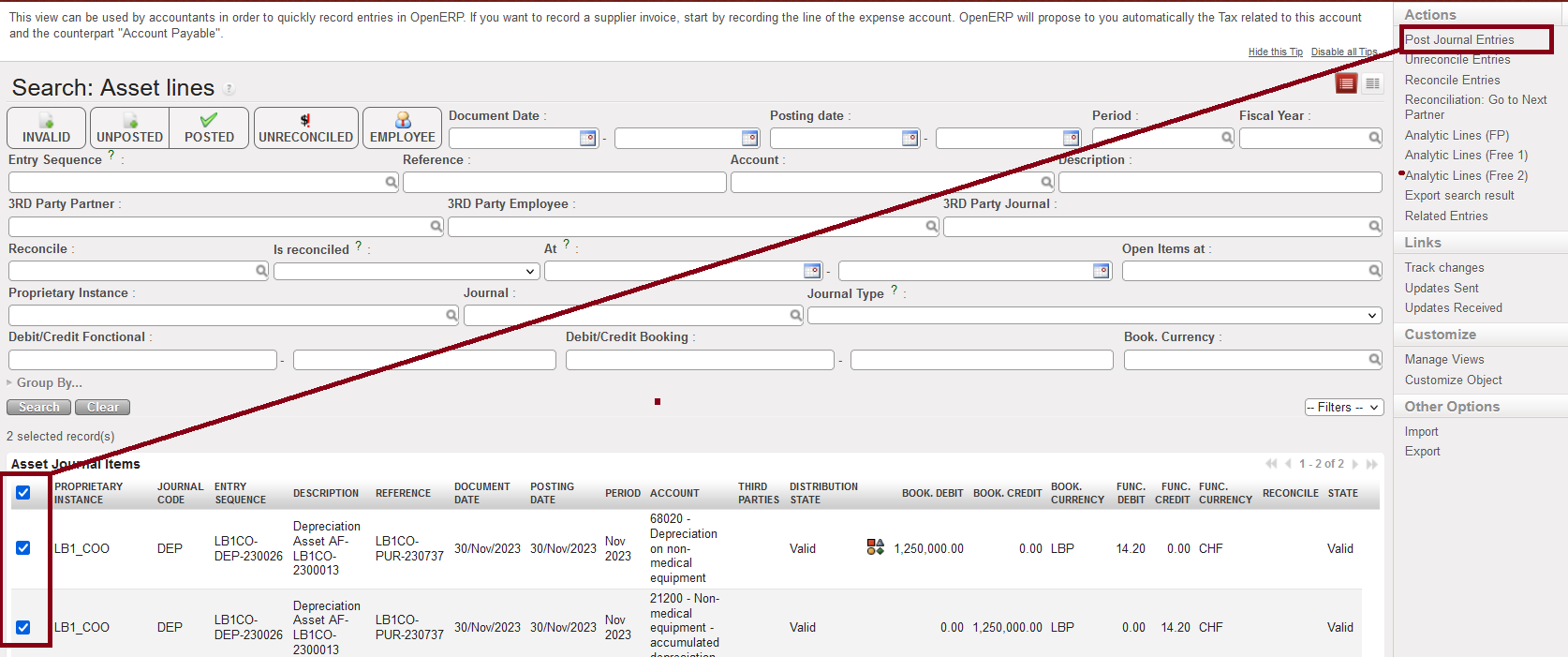
How to post asset journal items
Disposal:
It is possible to lose the assets in different ways (damage, theft, donation etc.), so in this case it is possible to use “Dispose” to end the use of the life.
To do “Dispose” as blow:
- In “Asset form” form view clicks on “Asset form”
- Click on “Dispose” it will open popup “Disposal”
- Update mandatory blue fields as below, to create an even you must tick on “Register an Even” :
- Click on button “Dispose” :
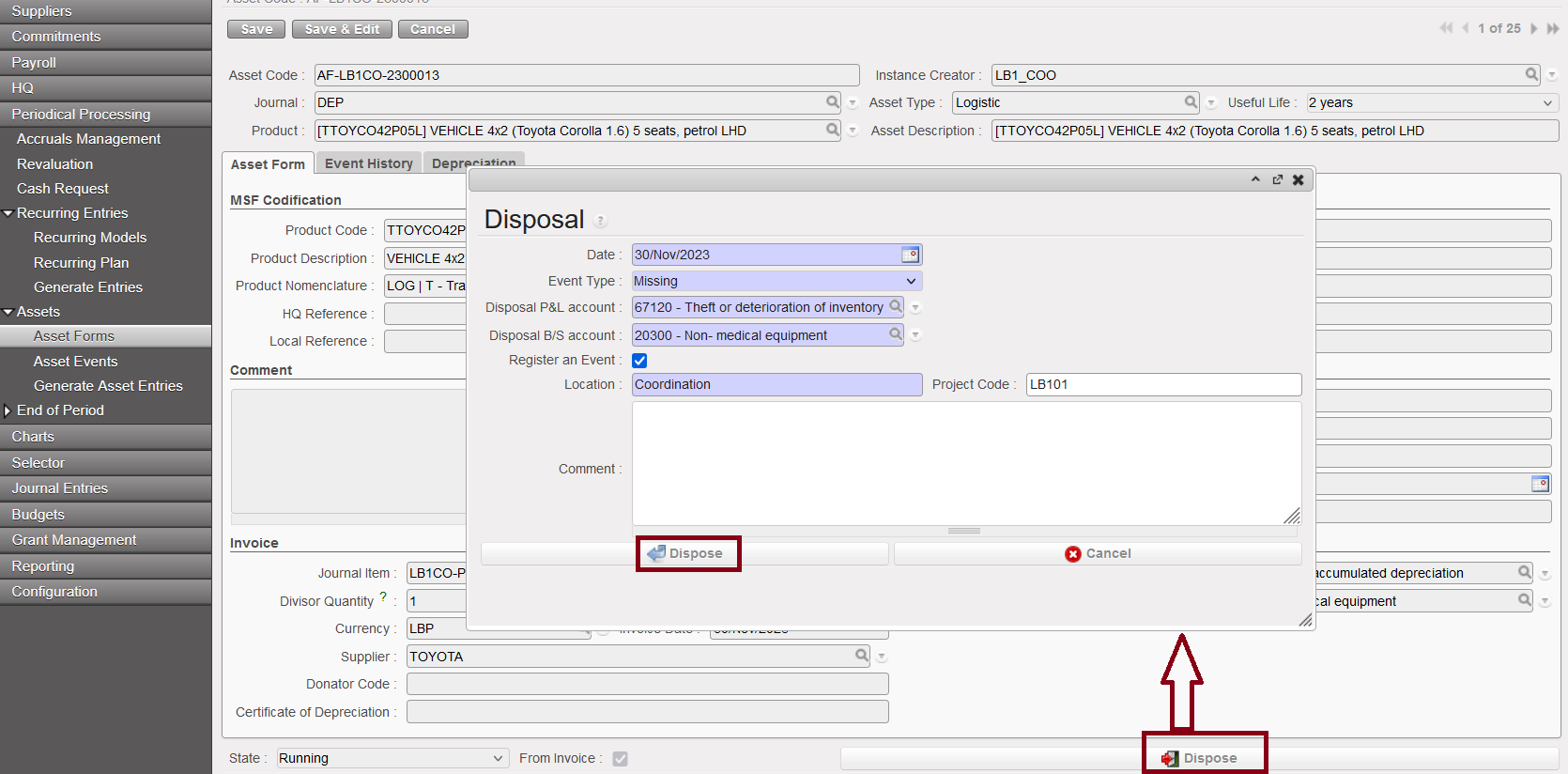
How to dispose of assets
- Disposal will reverse all amount into Acc 67xxxx
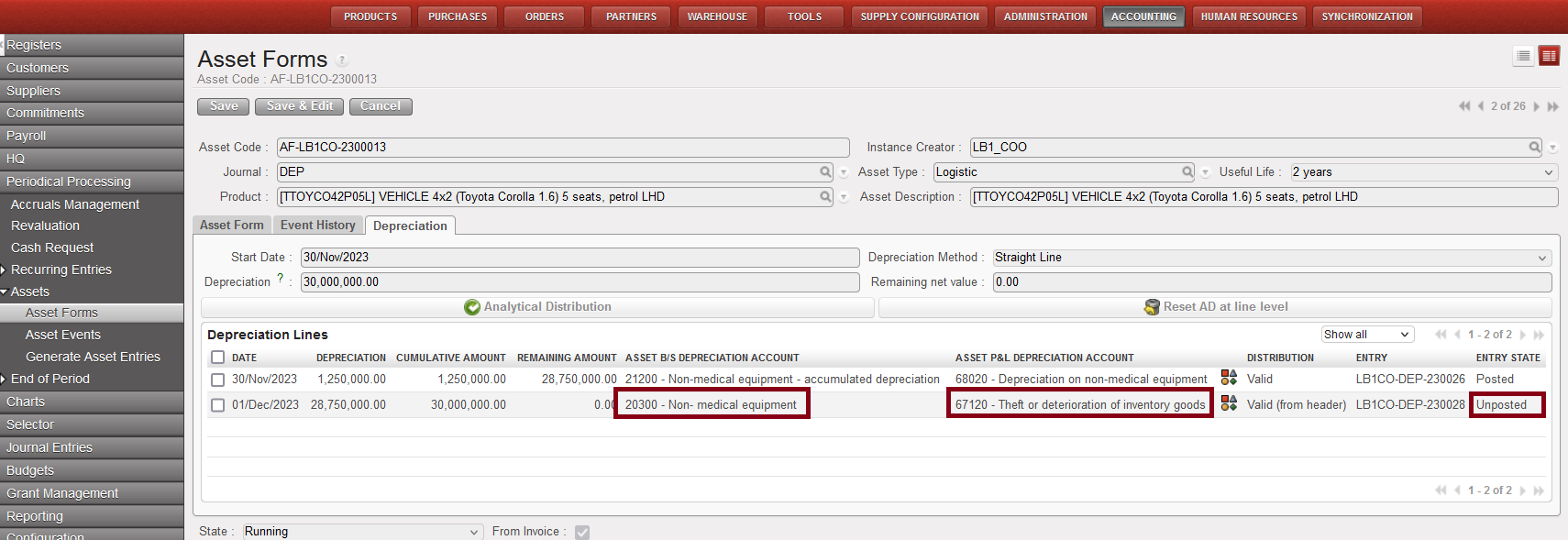
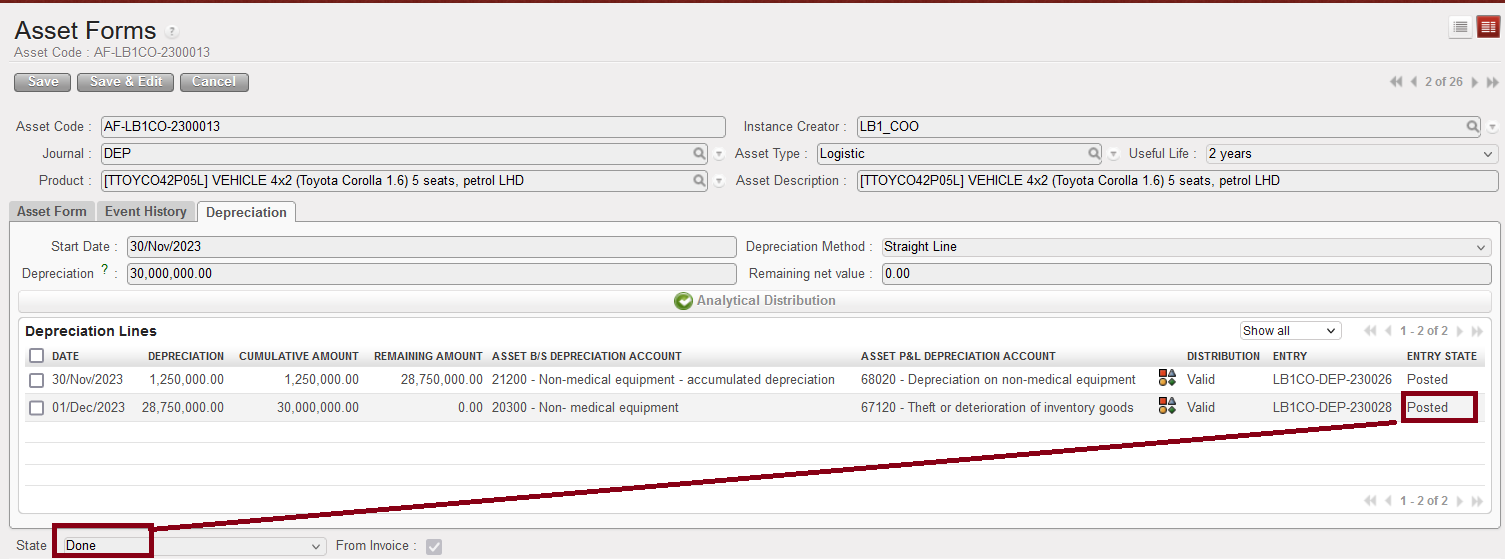
- Posting the disposed line changes the status of the asset form from Running to Done.
To see the event created, go to accounting > Periodic processing > Assets > Asset events:
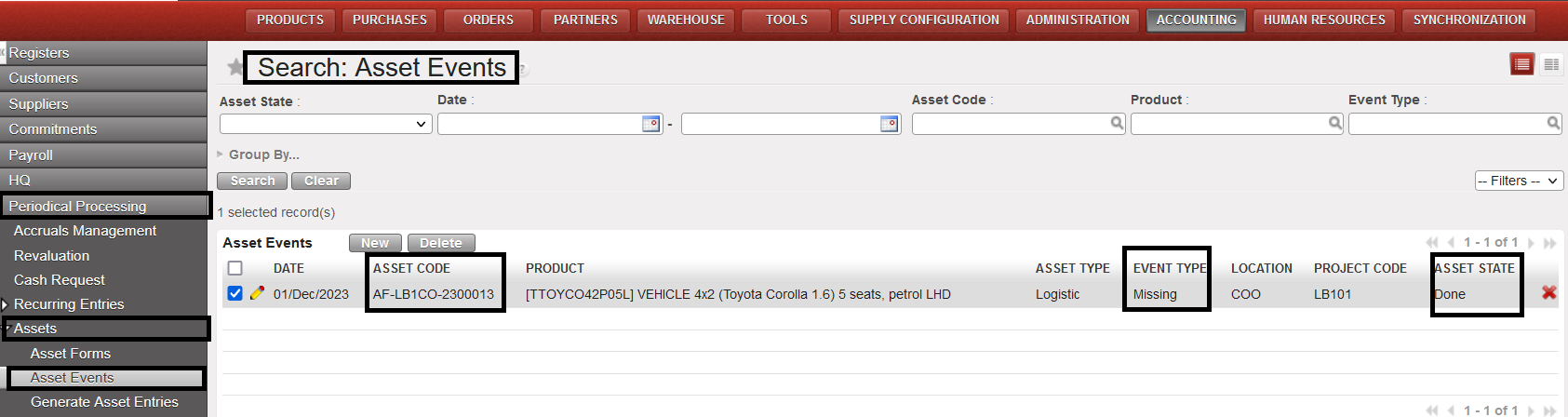
Asset Events View
