
Supply User Manual ENG -> Products -> 3.2 LU-SU2101: General Product Management -> M. How to merge 2 UniData products (HQ only)
M. How to merge 2 UniData products (HQ only)
In the HQ instance, it is possible to merge 2 UniData products (Products with Product creator “UniData”). This is possible for any 2 UniData type products, even if they are in stock or in open transactions in any instances. The selected product is de-activated and when synched, all previous stock / closed transactions with this product are transferred so that they now show the Active (kept) product in its place.
UniData is then able to update the sole “Active” product and this product can be used as normal for all missions / instances. The merge of UniData products can only be performed at HQ, and both products must be “Active” at point of merging.
If user tries to de-activate a single product (not via this merge functionality) which has open transactions / stock, this is (still) blocked.
Once the merge action has been performed for the 2 UniData products, the selected product will be de-activated in HQ. After synch, this product will be de-activated in all Coordo & Project instances, and any quantities in stock or open or closed transactions will be updated so that the “kept” product will appear in its place. For any case where there is a conflict at a lower instance after product has been merged and synched, a Not Run message will appear in receiving instance.
The merge functionality will be available on the product data sheet at HQ level as a button that will be displayed only for UniData type products. The display of this button will also be conditioned by User Rights.
To merge a Unidata product, go to: Products/ Products:
1- Use the search tools to filter values to find the product you want to merge/deactivate.
2- Click on the product line to open it
3- Click on the “HQ Merge product” button
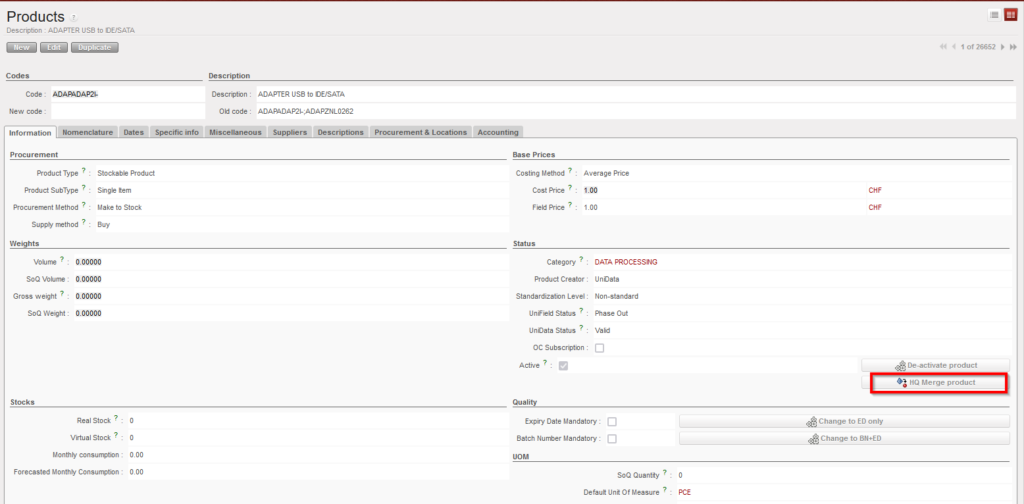
4- Select the “Kept product” (the product that will remain active) from the list of all the Active UniData type products of the instance. When clicking on the magnifying glass, you can search using filter fields “Code”, “Description”, “Old code”, “New code”, and the 4 main nomenclature types.
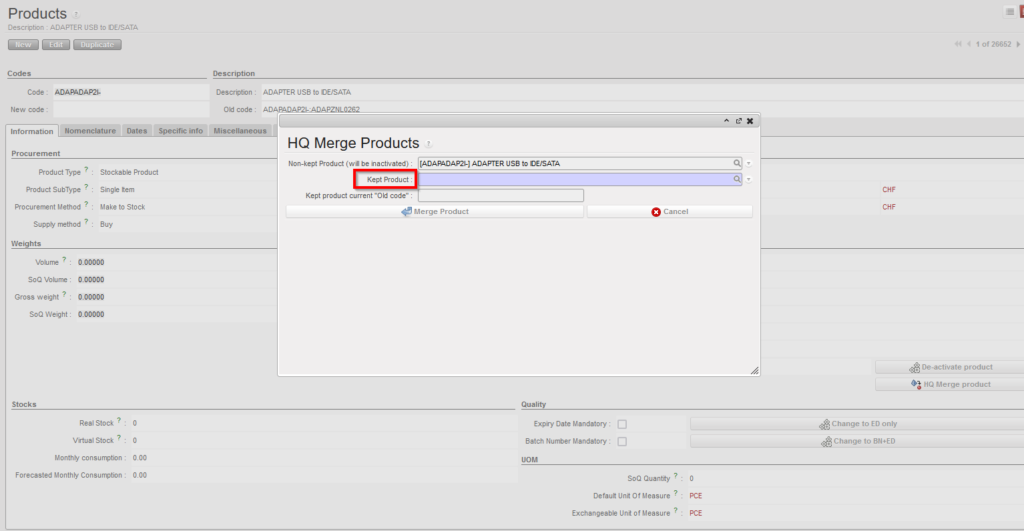
5-Click on “Merge Product” on the pop up.
The de-activated UniData product will be replaced by the “kept” UniData product on all open or closed documents (including Stock locations and movements) containing the product (similar to the original Local products merge functionality where Activated product replaces Deactivated product).
The “HQ Merge Product” button will still be active on the “Kept” product after merge. This means the kept product can be merged again with another UniData product. However the limit to the number of times the same product can be merged is supported for up to 2 merge actions (up to 3 products merged to one).
After merge, the deactivated product cannot be reactivated and the merging cannot be undone.
When merging, there are several checks performed on compatibility of attributes of both UniData products to ensure consistency after merge. In case of a discrepancy, a message (in certain cases blocking) should be displayed urging the user to align the inconsistent attributes before merging can be done.
- The warning blocking message for the above attributes should be: “Warning: There is an inconsistency between the selected products: <attributename> need to be the same. Please update (one of) your UniData product’s <attributename> and then proceed with the merge.” (applied to Main Type, Product Type, Expiry Date Mandatory, Batch Number Mandatory, Default Unit of Measure,)
- The non-blocking warning message should be: “Warning: There is an inconsistency between the selected products’ <attributename> . Do you still want to proceed with the merge?” (applied to Nomenclatures: Group, Family & Root and Temperature sensitive)
In general, attributes of the “kept” product will prevail over those of the de-activated product.
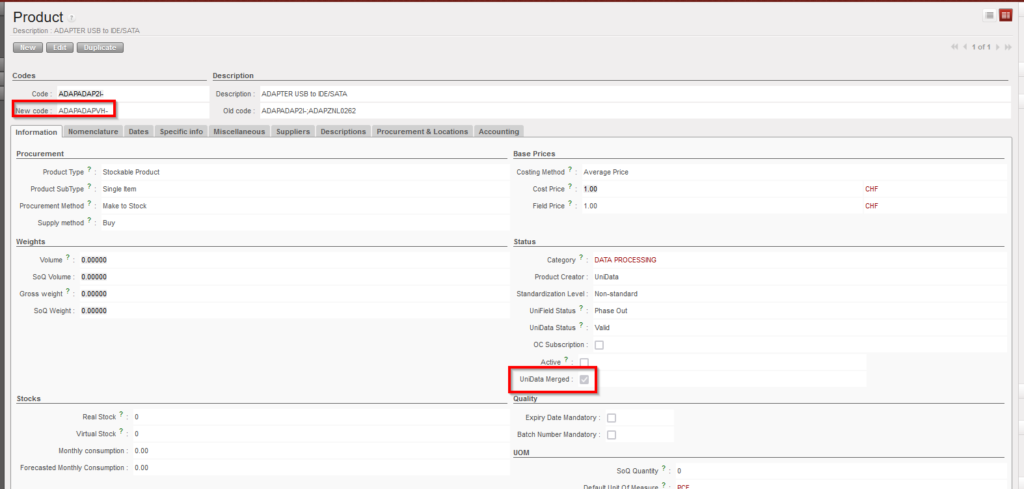
The deactivated UniData products will have a checkbox named “UniData merged” which will be ticked automatically once it is deactivated via merging process.
The reference of the de-activated product will be populated in the “Old code” field of the newly merged UniData product data sheet. In the non-kept product’s data sheet, the “New code” will be filled with kept product’s code.
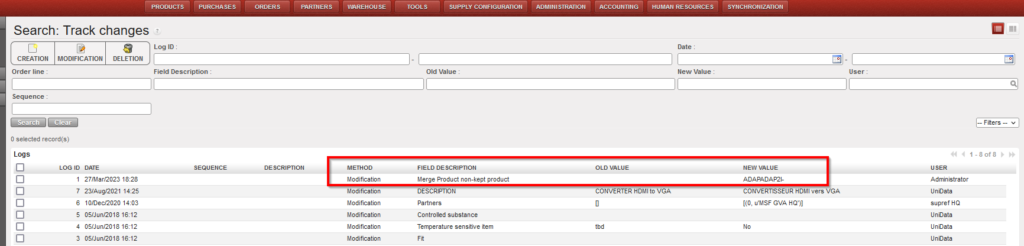
In the Track Changes of both products, there will be an indication of the other product code/product ID with which it was merged.
N.B. It is recognized that the sync rules for Non-Standard and Standard products differ from those for Non-standard Local products. The decision to merge any product should be in agreement and in line with processes of HQ & UniData
*N.B.: The recalculation of average cost price done in the case that both kept and non-kept products stock should result in a accurate result based on current working of weight average cost price mechanism.
