
Supply User Manual ENG -> 5. Warehouse -> 5.2 LU-SU4101: Incoming Shipments -> N. HOW TO RECEIVE A PRODUCT MANAGED BY BATCH NUMBER
N. HOW TO RECEIVE A PRODUCT MANAGED BY BATCH NUMBER
Some products are even more sensitive than those managed by expiry date and need to be managed with a batch number. Batch number management is more accurate than the expiry date management and allows you to track the moves of specific batches and to manage batch recalls in case of quality issues.
Please refer to the introduction of the previous section and to the Products chapter if you want more information on the BN/ED settings of products and their consequences.
Remember that a product can be followed by BN and ED or by ED only (but not by BN only). A batch number always goes with an expiry date.
Go to: Warehouse / Warehouse Management / Incoming Shipments
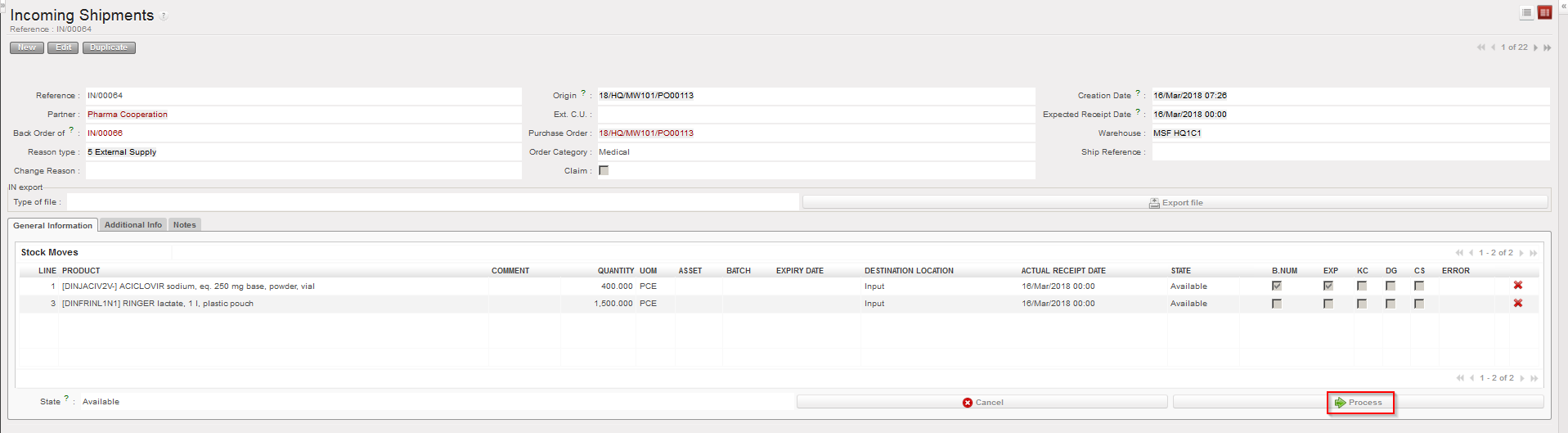
- Open the Incoming Shipment you wish to receive.
- Click on the “Process” button.
|
|
|
Processing an Incoming Shipment |
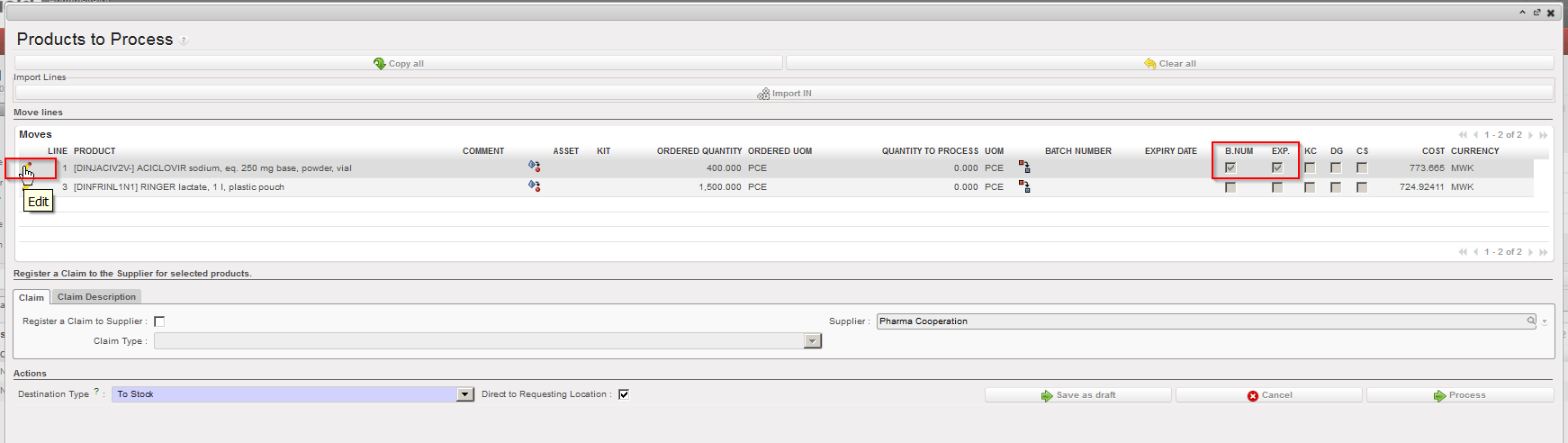
3. On the “Product to Process” screen, select the line you wish to receive via the pencil  located on its left. Note that in this case we are receiving a product which is managed by BN and ED.
|
|
|
Editing a line of an Incoming Shipment |
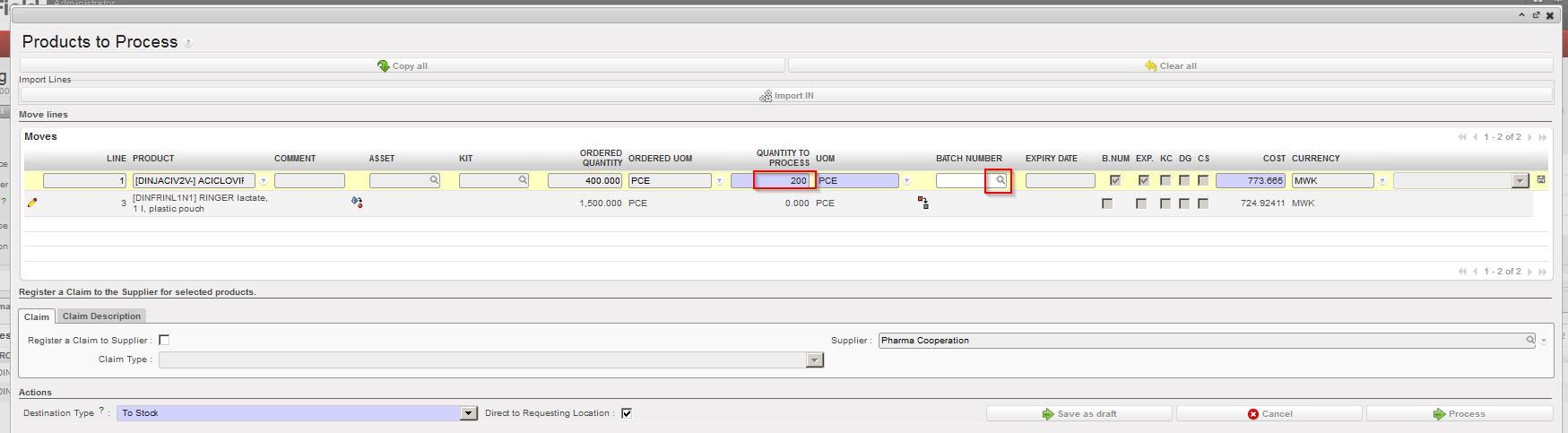
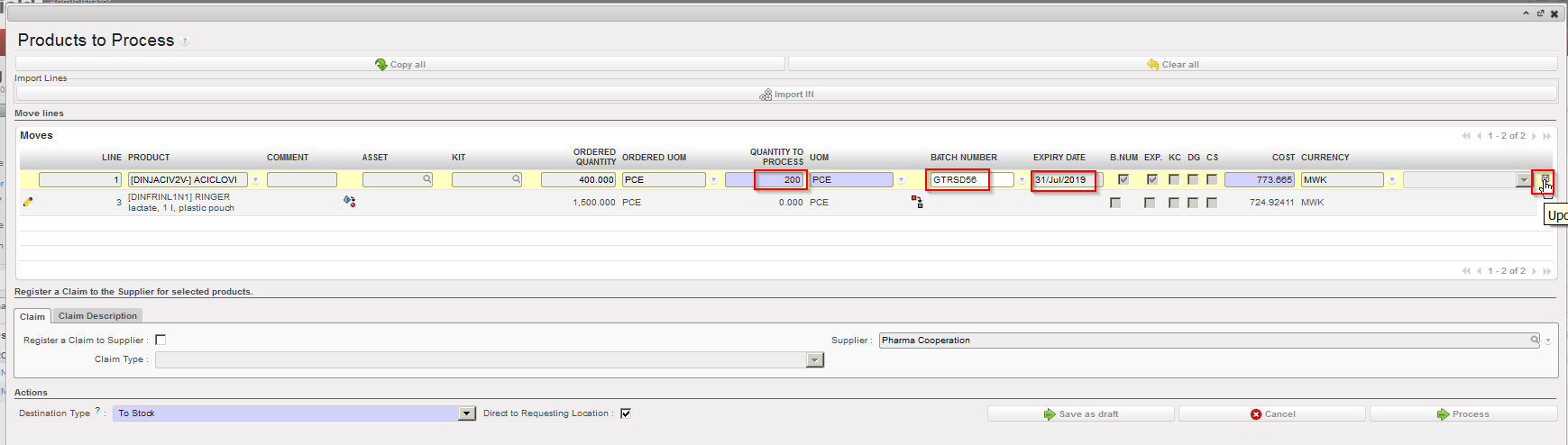
4. Enter in the field “Quantity to process“, the quantity that you are receiving.
5. Click on the magnifying glass  on the right side of the “Batch Number” field.
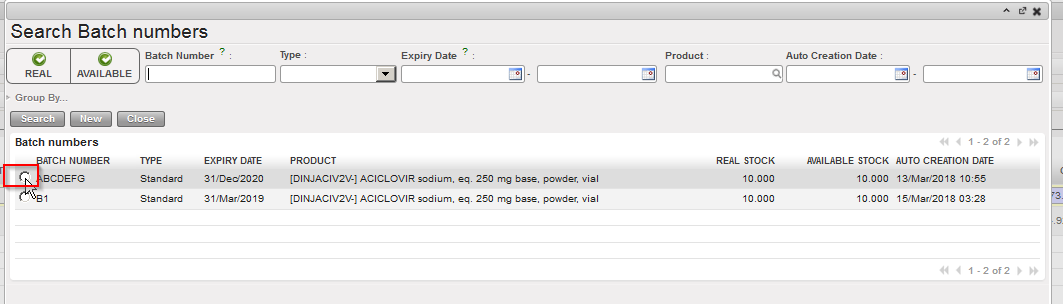
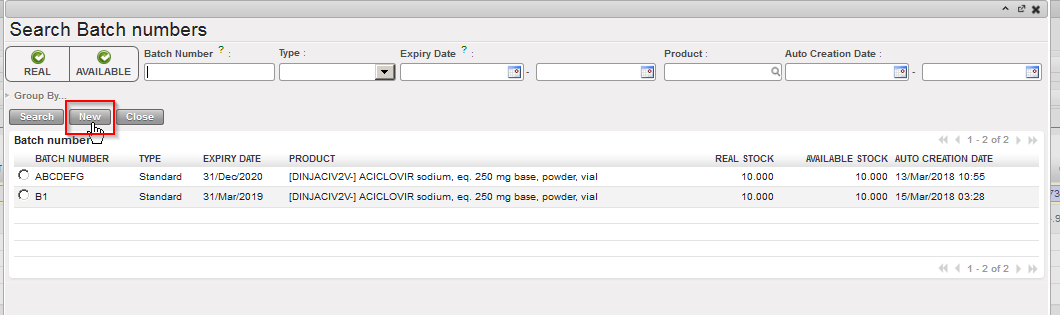
- If the batch master data already exists on your instance, select it in the “Search Batch numbers” screen.
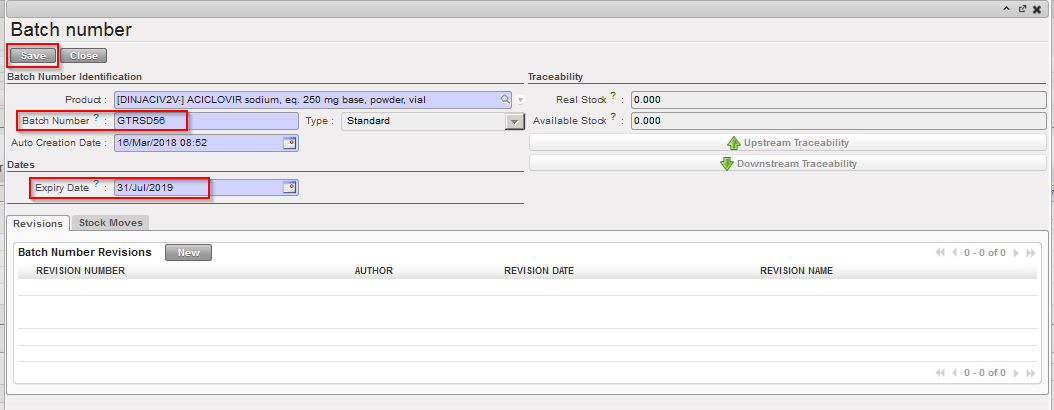
- Otherwise create the batch master data by clicking on the “New” button. Fill in the “Batch Number” and the “Expiry Date” fields on the “Batch number” window and save your changes by clicking on the “Save” button.
|
|
|
Entering quantity and BN of a product upon reception |
|
|
|
Selecting a batch master data already existing |
|
|
|
Creating a new batch master data (step 1) |
|
|
|
Creating a new batch master data (step 2) |
6. Save the line by clicking on the floppy disk icon  located on the right of the line (sometimes hidden).
|
|
|
Saving the received line after entering quantity and BN/ED |
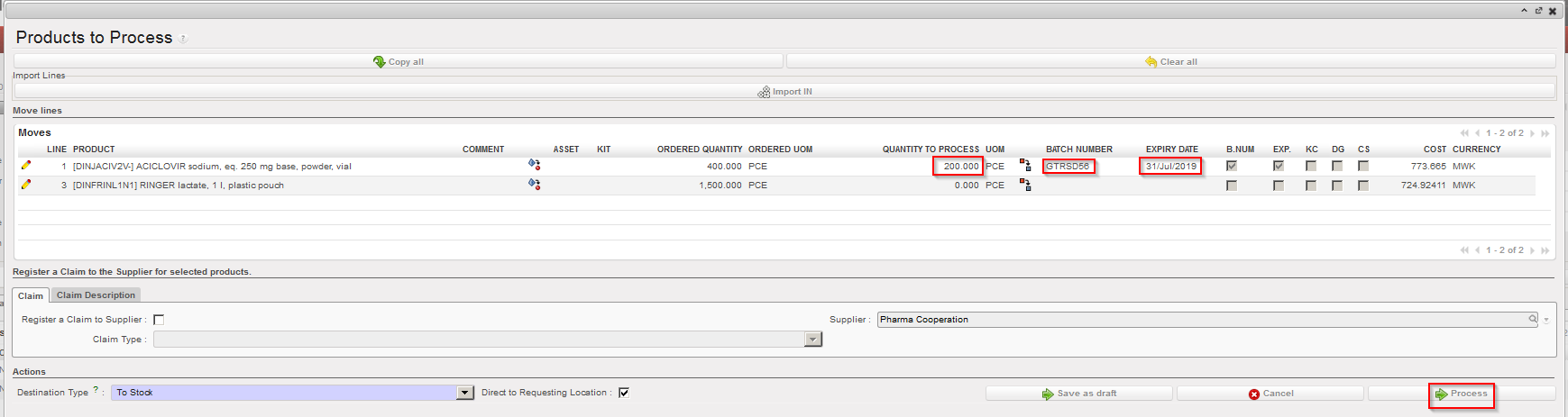
7. If you wish to receive additional products, complete additional lines and save them. Otherwise you may click on the “Process” button.
|
|
|
Processing the Incoming Shipment |
The product(s) reception has now been registered and product(s) are now in the specified location (MED in this example).
The batch master data can be seen through Warehouse / Traceability / Batch numbers.
|
|
|
Batch master data |

In some situations you may receive a same product with 2 different batch numbers in a single freight sent by the supplier. In this case, you need to split the line in the “Product to Process” screen by clicking on the Split icon  . Specify the quantity to be split and click “OK” on the “Split quantity” window. You can then receive the products and set the appropriate BN/ED. Refer to the previous sections for more details on the split functionality.
