
This document will guide you on the process to follow when creating new production instance for its validation. The aim is to have a proper 4 eyes follow up and validation during the instances creation process and avoid unexpected behavior in production due to manual errors.
All the following steps need to be performed in Jira. A ‘Request’ type ticket will be created for each steps.
Please select the correspondent step under the “Purpose of the request” field.
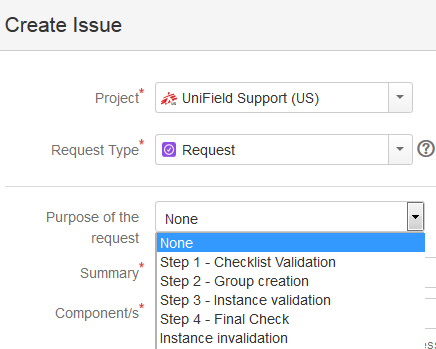
- Step 1 :
- OCs to create a request for the checklist validation (attaching the checklist validation Excel file in SharePoint here).
- Support Team (Finance) to validate the checklist
- OC Finance referent to create prop instance in draft, Cost Centers (when not yet done) and do the mapping Cost Centers / Instances (add CC in the coordo prop instance and set the targets)
- Support Team Finance to check prop instance mapping + close the request
- Step 2 :
- Support team IT to create a request for the groups creation
- Support Team (IT) to create the groups in the SYNC_SERVER
- For each new mission, create the 2 following groups
- OCX_HQ_MISSION_XXX and add the instance HQ
- OCX_MISSION_XXX
- Close the request
- Step 3 :
- Support team IT to create a request for the instance creation in the Support Team server VM3
- Support Team IT to create the “ocxxxxxxx_sync-user” in Keepass and in the SYNC_SERVER
- Support Team IT to create the auto install file
- Support team Finance to validate the auto install file (codifications, CC for fx/gain…)
- To update UFautoinstall file into C:\Program Files (x86)\msf\Unifield
- Support Team IT to launch auto instance creation and Validate the instance in the SYNC_SERVER + launch the initial sync. It will take a while. See automated instances creation procedure: https://doc.unifield.org/12-5automated-instances-creation/
- When initial sync is finished, close the request and proceed to step 4
- Step 4 : Support team IT to create a request ticket for the final checks of the instance.
- Support Team Finance to check :
- Products master data
- Partners: Internal (check it is in Functional Currency and add its country) + Intermission (Check it is created at HQ and synced to the instance)
- Prop instances + target CC
- Company
- Users/Groups
- User Rights
- Finance Master data
- Periods/FY
- GL Journals
- CoA
- Analytic Journals
- CC
- CC target FX gain/loss
- Currencies + rate
- Expats Employees
- Support Team Finance to check :
- Check there is no “Hidden Menu“
Sometimes when creating instances, the module (menu option) “Hidden menu” appears. This menu should not be visible for users, so it is necessary to remove it . To remove this module, follow the internal procedure (as done in ticket US-13588).
-
-
- Not runs
- Support Team IT to disconnect connection manager, do a back up and share it with OC IT ref in OneDrive Backups Temp folder
- Support Team IT to then untick silent upgrade, set auto sync to false, set auto back up to false. Only when the instance is restored in production and linked with the sync server, the instance can be dropped from VM3
- Support team IT to generate the SSH Key
- Support Team to send to the IT referent:
- The SSH key with the Continuous back up procedure link https://doc.unifield.org/continuous-backup/
- The sync user login/password to the IT referent. IT referent will then use it when restoring the back up in the dedicated server when setting up the XML-RPC connection on the connection manager
- Support Team to ask the IT referent to create a new ticket for the hardware id update
-
END
