5. Supply Object flows
There are several points of initiation for order flows, all of which culminate in one or multiple Purchase Orders (POs) or, for goods sourced “from stock”, in picking/transport documents (INT, OUT, PICK). An order flow may be initiated with any one of the following objects: an Internal Request, a Tender, a Request for Quotation, a Field Order or a Purchase Order. A flow may be composed of a variety of these documents. These documents are composed tables with product lines. Each of the objects will pass through several statuses according to the validation and sourcing and stock availability stages. Following a major development integrated in UF7.0, Status at Line Level (SLL), document status and product line status can be different since product line can be managed/ progressed individually. The overall document status will always be based on the lowest product line status. Once progressed into the succeeding status, it is not possible to return to the preceding status. For the documents Internal Request and Field Order, these should be processed via the Order Sourcing Tool.

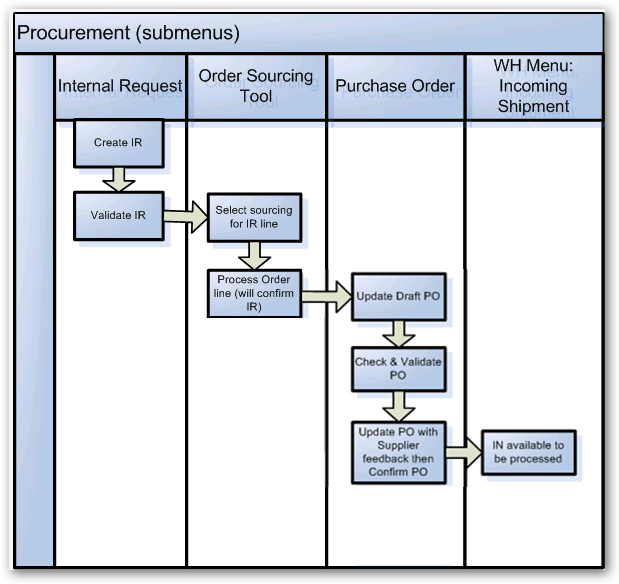
Example of simplified flow of Internal Request (IR-internal location), sourced via Order Sourcing tool to Request for Quotation (RFQ), then Purchase Order (PO). Product is received in Incoming Shipment (IN) and then is sent to requesting location via Internal movement (INT). For more detail on each stage, and status for each document, please see section on relevant document and process flow diagrams.
Also, below you can find the different Statuses that can be found in the system at document and at Line Level:
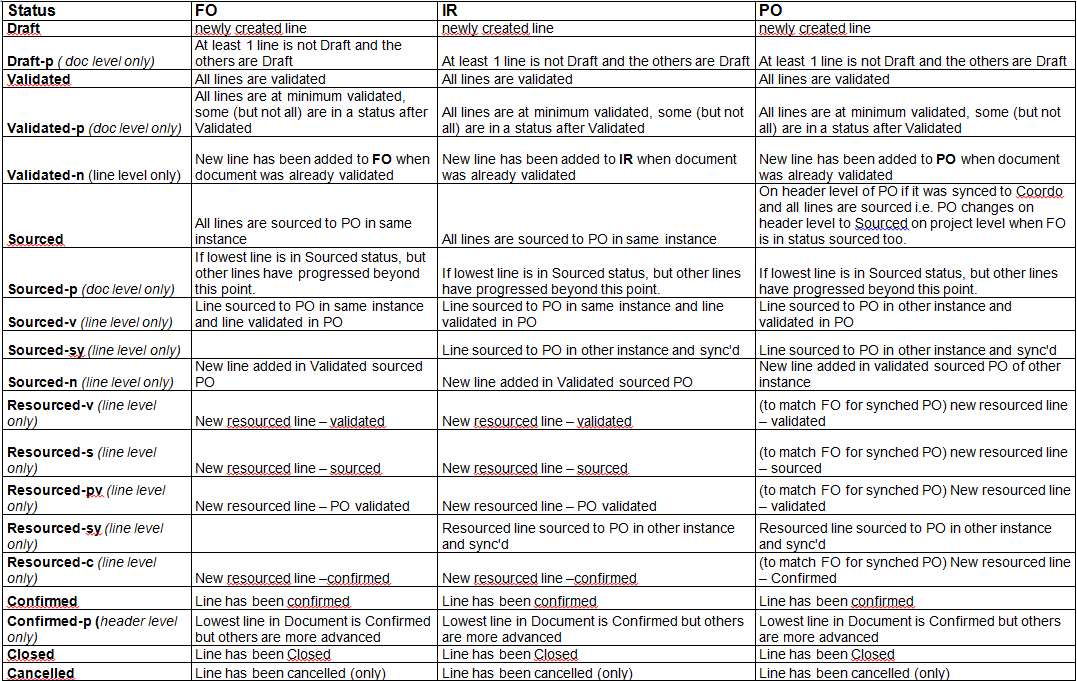
Table of document and product line status
5.1. Internal Requests
Menu Mapping: Orders > Orders > Internal Requests
Preceding documents
There is no document which can precede an Internal Request. Internal Requests can only be created manually or triggered by a Replenishment Rule (see Replenishment Rule chapter) to initiate a new order flow.
Successive documents
Internal Requests must always be sourced via the Order Sourcing Tool, and can be used to generate any of the following purchase documents: RFQ, Tender, or Purchase Order (PO and DPO). If the IR line(s) is sourced from stock then it will create the stock movement document directly.
Stock movement/transport documents will be automatically generated by the Internal Request; Depending on the Requesting location, either a Delivery Order (OUT) (for an external location,) or an Internal move (INT) stock movement (for an Internal location) document will be generated.
Fields common to all Internal Requests are listed in Field by Field document:
To add products – New and Add multiple lines, Import lines, Import from IR Excel Template. To delete multiple products delete lines – etc
5.1.1 Types of Internal Requests
The two main types of Internal Requests are “Internal” and “external”.
Internal: IRs which have an Internal location selected for the Location Requestor, can be considered as internal. An internal IR will generate an Internal movement (INT) document to move products from one internal location to another,
External: an IR will have an external flow if the Location Requestor is an external location. An external IR will generate a Delivery Order (OUT), which will move products out of the UF instance.
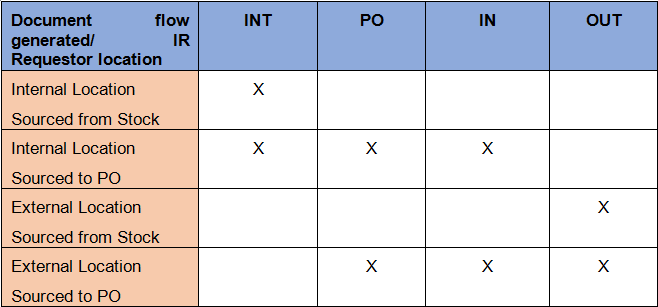
IR document flow depending on IR location and sourcing
5.1.2 Statuses of Internal Requests (see also process flow document + Table of document and product line status)
Draft – Initial status all modifications can be made, can be cancelled.
Draft-p – status when at least on product line is still in Draft while the others have a higher status
Validated – status after “Validate document” button has been clicked (manually). At this point, lines from IR will appear automatically in the OST, as they are ready for sourcing. Lines in validated IR can still be modified, and this will update lines in OST (although not recommended process flow). Lines can still be cancelled.
Validated-p – status when at least one product line is still in Validated status while the others have a higher status
Sourced – status after all IR lines have been sourced to Draft PO
Sourced-p – status when PO sourced from IR is in Validated state or at least one product line is still in Sourced while the other lines have a higher status
Confirmed – status is changed automatically to Confirmed when all lines of document have been sourced “on order” and PO has been confirmed. If all lines have been sourced from Stock then IR will be confirmed directly at this point of sourcing.
Confirmed-p – status when at least one product line is still in Confirmed while the others have a higher status
Closed – For Internal Requests with internal requestor, the status is changed automatically to Closed if all lines have been sourced “from stock” and INT is Closed or if all lines have been sourced “on order” then IR will change to this status when the PO is closed, which is triggered when Incoming shipment (IN) is closed.
For Internal Requests with external requestor, the IR will only change to Closed status when the related Delivery Order has been processed and Closed.
IR status will also be Closed if all lines from OUT, following PO sourcing with IN received, have been Cancelled (the rationale behind this status is that new product has been received in the instance; even if not delivered to the initial requestor).
Cancelled – IR can be Cancelled directly in IR when in status Draft/-p or Validated/-p.
Once in Status Sourced/-p IR can only be Cancelled or C&R’d from a Draft or Validated PO.
Once in status Confirmed IR can only be Cancelled or C&R’d if IN, OUT (sourced from Stock) or INT are Cancelled or C&R’d.
Note that Cancelled lines will not be displayed by default on IR form list (user will have to use the drop down list and select either “Show all” or “Show cancelled only” to see them).
All the statuses above are the one that can be found at PO document level, for further detail of statuses at PO product line level, please refer to the “Table of document and product line status” at the beginning of this chapter 5.
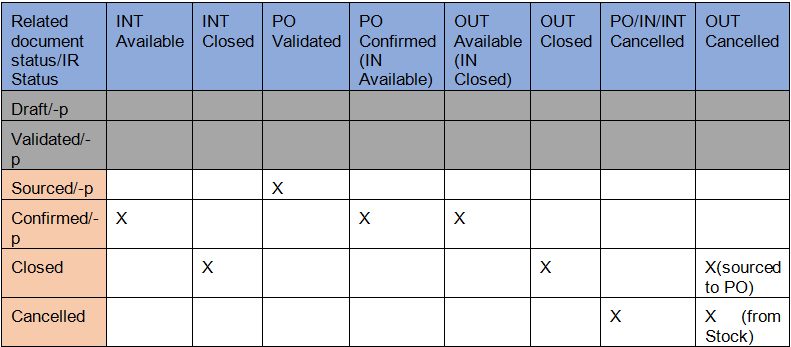
IR document status depending on other documents from flow
Direct Reports / Exports
Internal Request (PDF)
Internal Request excel export (XML) – lines only
Export to IR Excel template
Product exceptions / specifics
Internal Requests will behave in the same way for all types of products, with the exception that for Service and non-stockable products, no transport document (OUT/INT) will be produced. This is due to the agreed rationale that once received into an instance, non-stockable / service products are not stocked and so there are no further stock moves.
It is possible to add products by nomenclature in IRs, the nomenclature must be selected and then comment added.
Note that in addition to the track changes, there is a more user friendly interface to check changes on a product line. Indeed, if the “Changed” checkbox is ticket, user can now that a change has been done for this line and can click on product line magnifier  to check the details of the changes on screen on the “Changes” section.
5.2 Purchase Orders
Menu Mapping: Purchases > Purchase Management > Purchase Orders
Preceding documents
A Purchase Order can be preceded by an IR or FO (via the OST) or RFQ or Tender. POs can be the initial document of a chain (PO from scratch/ stand alone).
Successive documents
A stock movement/transport document of an IN (Incoming Shipment) will be automatically generated by a PO line when it is status Confirmed (except for DPO type PO). At confirmation of POs line type standard, purchase list, and DPO, a finance document Commitment Voucher will be created, depending on Supplier type and configuration. For POs to internal type suppliers, no commitment is created. For POs to ESC type Suppliers, Commitment will be created optionally (according to configuration of instance – please see Finance documentation for more information). For POs to external Suppliers, commitment voucher is created.
Fields common to all Purchase Orders are listed in Field by Field document:
5.2.1 Types of Purchase Orders
Regular Purchase Order
For the Standard flow. This PO is as per previous general function description.
Direct Purchase Order (sync US-7617)
Different flow and documents generated. DPO can only be created via OST from an FO (cannot be created from scratch). No Incoming Shipment is generated in the DPO instance after PO confirmation. After synchronization of confirmed DPO, an “Available shipped” IN will be created in final destination (other instance). Following reception of this final IN (other instance) and a new synchronization, the DPO and FO will be Closed on main instance. A Supplier Invoice (Finance document) will be created. Related IN and PICK documents will be automatically created and Closed straight forward ( IN will use “Other Supplier” location by default while PICK will use “Stock” by default).
Loan
Loan type PO can be created from scratch or by synch triggered by a Loan type FO.
Synchronisation will create a mirror FO in the lending instance. Flow should be:
Instance A PO > Instance B FO, then (to return product automatic flow) Instance B, PO > Instance A FO.
Initial PO type loan will create FO type loan in other instance following synchronization. After sourcing “from Stock” (only sourcing option for FO Loan) the FO will be confirmed and will trigger creation of a counterpart PO type loan with Requested Delivery Date corresponding to loan duration. After Validation and synchronization of the counterpart PO, then the last FO loan will be created in initial instance. No analytical distribution needed for Validation. Loan type PO has extra field Duration in months, this decides Requested Delivery Date of counter Loan PO.
PO Loan can also be done to External partner; flow will be:
FO Loan to external partner => Confirmed => Autocreation of Counter part PO in same instance
In Kind Donation (IKD)
Supplier added for this type of Purchase Order must have Donation Account for relevant goods (MED / Non-MED). Incoming Shipment linked to this IN will request Donation certificate. This should be created from scratch (not from IR/FO). No analytical distribution needed for Validation
Purchase List
Default supplier added is local market but can be changed. To Confirm, value of Delivery Confirmed Date is not needed.
Standard Donation
Can be to internal supplier and external supplier also, and process started via FO / PO (except for intersectional supplier; as have to be from FO). No analytical distribution needed for Validation. FO sourcing only “from stock” only.
Donation before Expiry
Can be to internal or external supplier, and process started via FO / PO (except for intersectional supplier; as have to be created from FO only). No analytical distribution needed for Validation. FO sourcing “from Stock” only.
5.2.2 Statuses of Purchase Orders (see also process flow document + Table of document and product line status)
Draft – Initial status most modifications can be made; However if PO created via OST the supplier cannot be changed. Can be cancelled or cancelled & resourced. For POs from FOs, Requested delivery date may be in the past, in which case a message will be displayed (see Order dates mechanism for more details). Similar behaviour is expected with “Stock Take date”, which is only mandatory for ESC suppliers (“Stock Take Date” cannot be later than Order creation date).
Draft-p: same as Draft except that at least one product line is still in Drafts status while the other are at a “higher” status level (new added line at later stage, Validated, will have line status Validated-n – rather than Draft to avoid any inconsistency with general document status)
Validated – modification can still be made, but only to limited header information (Supplier cannot be modified) but if PO has already been synched, these changes may be redundant and not used by synch. In validated status, 2 buttons “Export validated PO” and “Import Confirmed PO” for Vertical Integration purposes are displayed – please see section on vertical integration. In order to be validated, PO lines must have Analytical Distribution for PO types Regular and Purchase List to be Validated.
PO to ESC supplier can only be Validated if there is a valid “Stock Take Date”.
In order to be Validated or Confirmed, POs must have subtotal for each line >0.00, or unit price must be more than 0.00. POs can be cancelled or cancelled & resourced.
Validated-p -: same as Validated except that at least one line needs to be in status Validated while the others are at a “higher” status.
VI import will only update Validated lines or create new Validated-n lines.
Sourced – PO cannot be modified, (currently, PO cannot be progressed, except via synchro Jira ticket outstanding for this US-152). Cannot be cancelled or cancelled & resourced (only as a consequence of a sync)
This status will only be possible for sync’d POs from a requesting instance.
Sourced-p -: same as Sourced except that at least one product line needs to be Sourced while the others are at a “higher” level.
Confirmed – no modification possible except for fields International transport, amount and CDD via VI, confirmation can be performed manually or via synch. In order to be confirmed, Delivery Confirmed date must be filled. Cannot be cancelled or cancelled & resourced (will have to be done at IN level).
Confirmed-p: same as Confirmed except that at least one line needs to be Confirmed while the others are Closed or Cancelled –.
Closed – No modification possible*
Cancelled – no modification possible
*If Po has a partner which is International, transport fields (Transport mode, amount & currency) will appear in PO and these can be modified in any state. This is so that for international orders for which transport is not clear at confirmation of order, a value can be added at a later stage when fees are known. These values can be viewed in the International Transport costs report.
All the statuses above are the one that can be found at PO document level, for further detail of statuses at PO product line level, please refer to the “Table of document and product line status” at the beginning of this chapter 5.
PO Category
Category of PO can be Medical, Logistics, Service, Transport, Other. If there is a previous order document with a category (FO) this will affect the category of the PO, and also according to the settings of the supplier. System will perform cross check that category corresponds to products lines and display message but this can be overruled and there is no block. PO categories are linked to following types of products:
Medical – Medical products
Logistics – Logistic products
Service – products with type Service with Reception
Transport – products with type Service with reception and Transport checkbox ticked
Other – all types of products, no check
Lines specificities
Products by nomenclature can be added to a draft PO, but PO cannot be confirmed unless product is replaced with existing product code. Order lines (from IRs and FOs) with products by nomenclature can be sourced to a PO, whether for an Internal Partner (including intermission and intersection) or external partner. If a PO includes a line which is a Service and transport (transport check box is ticked), then this will be taken into account in the report Local Transport costs (and as such can be viewed in the Local transport costs report).
Split lines with same product have to have different price or CDD or from different source doc.
New product lines added when PO is Validated/-p will have “Validated-n” status and if the PO comes from a sourcing process (IR or FO) the line will have to be linked to a “Source document” (that can be different from the initial IR/FO as long as it is not Confirmed nor Closed). In case the PO has been synched, the new added line might also have to be linked to the other instance source document (IR/FO – “Order in Sync. Instance”). Additionally the “Analytical Distribution”(AD) information might also need to be added. The line will be in red in case this information is missing.
Also while AD can usually only be added at Draft stage, there is one exception that needs to be kept in mind. For intersectional (IS) flow when AD are different between section, in case a new line is added on the FO then confirmed and sync’d , a NR will be created on the other section and related PO line AD will have to be updated manually while the line will remain in “Sourced” status. Once AD added to the new line, the NR can be run and line will be confirmed as well.
Note that in addition to the track changes, there is a more user friendly interface to check changes on a product line. Indeed, if the “CHG” checkbox is ticket, user can now that a change has been done for this line and can click the  “notepad” icon to check the details of the changes on screen on the “Changes” section.
Updates from successive documents
PO document is only updated automatically if supplier is internal instance, in which case these changes will come via the synch from the relevant FO. PO will be split according to FO split, depending on how it has been sourced and subsequent document updates (see FO section).
Successive documents
Upon confirmation, PO document is succeeded by Incoming Shipment, and depending on Supplier type, a Commitment Voucher may be created. In the case of a DPO, synchronization will create Finance document Supplier invoice.
Direct Reports / Exports
Purchase Order
Purchase Order merged: 2 POs with same supplier can be merged when both in Draft and the further RDD will be taken by default.
Purchase Order Excel export
Product exceptions
Service product from FO cannot be sourced onto a PO, only to RFQ, Tender or Direct Purchase Order.
5.3 Tender
Menu Mapping: Purchases > Purchase Management > Tenders
Preceding documents
From scratch, or via Order Sourcing Tool (from IR/FO)
Successive documents
RFQs are produced by Tender as part of Tendering process, and succeeding document will be PO, DPO or just update of product data file with supplier.
Statuses of Tender (see also process flow document)
Draft – initial stage, all modifications possible, to change to next status (via button generate RFQs) at least 1 supplier must be added. Tender can be cancelled or cancelled & resourced at this stage
Comparison – As document changes to this stage, an RFQ document is generated for each supplier in Tender. Each RFQ must be processed (see RFQs below) and be in status updated or cancelled in order for button “Compare RFQs” to be active. If a product in an RFQ has “0” indicated as price, this supplier cannot be selected for the product. When supplier has been selected for each line, or line has been deleted, button “Continue sourcing” can be clicked which will create relevant POs. At this point, each product’s data sheet will be updated with selected supplier ranked as “-99”, to denote a preferred supplier. Clicking the “Update product” will only update the product data sheet and no PO will be created.
Tender can be cancelled or cancelled and re-sourced at this stage, however RFQs must be in updated or cancelled status for this to be possible. A warning message will inform that RFQ line will be Cancelled as well.
When Tender is in comparison status, it is possible to select a currency for the comparison.
(either local currency, functional currency or a secondary local currency (like USD in DRC), limited to currencies already active in the instance.
At this stage it is also still possible to add a supplier if needed.
Closed – no further changes can be made to document.
Cancelled – no further changes can be made to document.
Lines/Products specificities
Where an extra product has been added to an RFQ, this new product can have a supplier selected and be taken through to PO stage. An added product does not need to have a supplier selected, in this case it will not be added to any PO. For any product added to an RFQ after sent stage, when the Tender is at comparison stage, the box “Created by RFQ” will be ticked. If a PO is created for this new product, a new line will be created on original FO sourced by the tender at tender PO creation step.
(See RFQs section for more details on RFQs)
Service products which originated from an FO can be sourced via Tender, but when Tender has been sourced, the resulting document will be a Direct Purchase Order, not a regular one
Updates from successive documents N/A
Direct Reports / Exports
Comparison RFQ
Tender Excel Export
5.4 Request for Quotation
Menu Mapping: Purchases > Purchase Management > Requests for Quotation
Preceding documents
From scratch, from Tender (part of tender process) or from Order Sourcing Tool
Successive documents
PO (or DPO)
Statuses of RFQs (see also process flow document)
Draft – initial stage, all can be modified, except for if RFQ generated from Tender, products cannot be removed only added. Can be cancelled at this stage. If unrelated to Tender but sourced form IR/FO then it can be cancelled & resourced.
Sent – As soon as “Send RFQ” button is clicked on, system automatically opens new tab on PDF of RFQ, and RFQ is in Sent status. In Sent status. RFQ can be updated with product information (price etc), and new products can be added. “Valid till” date field should be filled in order for status to be progressed to Updated. Can be cancelled at this stage. If unrelated to Tender, can be cancelled & resourced.
Updated – no further updates can be made except for RFQs which are not related to Tenders, which will have the active button “Continue Sourcing” to create a PO/DPO.
Closed– cannot be modified
Cancelled – cannot be modified
Lines/Products specificities
New products/lines can be added to RFQ when in Draft stage (if RFQ is from scratch) or at Sent stage. Products added at Sent stage will have checkbox “Created by RFQ” ticked.
Product lines can be added with an import file.
Any product line which does not have a value added before RFQ is processed to Updated status, cannot have supplier selected or consequently be sourced to a PO. For RFQs not linked to Tenders, if the line has 0 price value, line must be deleted before other lines can be sourced to PO. Modification of Quantity value is possible but this will not be taken into account for quantity shown on PO, as this PO will keep quantity as per original order (IR/FO).
Service type products originating from FO can be sourced via RFQ, but when updated and processed, the resulting document generated will be a Direct Purchase Order, not a regular one.
Updates from successive documents
Direct Reports / Exports
Request for Quotation (PDF)
Request for Quotation excel export
5.5 Field Orders
Menu Mapping: Orders > Orders > Field Orders
Preceding documents
From scratch, from PO via synchro, or (only for Loan type flows) from loan PO
Successive documents
All via sourcing tool: PO, DPO, RFQ, Tender, PICK
Field Orders represent the mirror image of Purchase Orders for the case of UniField flows. The flow of Purchase Orders and Field Orders between instances is one of the main ways in which Supply flows rely on the synchronisation engine. The “Pull” flow is the more regularly envisaged flow and is reflected by the case of Project creating PO and synching to Coordo. After PO is validated and synched, FO is automatically created at Coordo showing same details. The “Push flow” is that where Coordo (or other instance) creates FO in order to trigger the flow, and after synch this will create a Purchase Order at the project (or other instance) side.
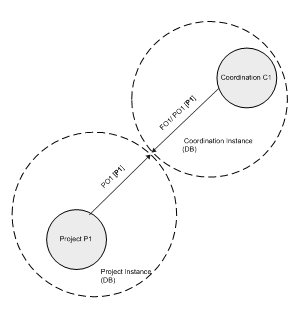
It is not possible to create a push flow FO for intersection demand, for this, the request (validated PO) must come from the actual requesting instance. The AD will not be synchronized to the intersection FO and in order to be validate the FO , the AD must be added manually.
The Partner of an FO can be either internal (in which case it will be either via Push or Pull flow) or it can be an external partner, in which case no mirror PO will be created.
The currency of the FO where the partner is internal used to be by default the Functional Currency of the instance and used to be enforced by the system but it can now be a local currency provided that it is the same on the overall mission. For FOs with other partners, the currency can be changed as well.
For all FOs created in draft status, the initial price displayed will be that of the product according to the product data sheet of the instance. The price of any preceding PO (from synch) is not kept.
5.5.1 Types of Field Orders
Loan
Loan type FO can be created from scratch, by synch triggered by a Loan type PO, or by a PO type Loan in the same instance.
If FO is created from scratch, Synchronisation will create a mirror PO in the lending instance. Flow should be:
Instance A PO > Instance B FO then (to return product automatic flow) Instance B, PO > Instance A FO.
Initial FO type loan will create counterpart PO type loan. When confirmed, FO type loan will create PO type loan with Requested Delivery Date corresponding to loan duration. No analytical distribution needed for Validation of FO/PO. Loan type PO/FO has extra field Duration in months, this decides Requested Delivery Date of counter Loan PO.
Standard Donation
Can be to internal or external supplier, and process can be triggered via FO / PO. No analytical distribution needed for Validation: Linked to this Free Gift certificate PDF is available in shipment and Delivery Order transactions.
Can only be sourced from Stock.
Donation before Expiry
Currently only to internal partner, and process started via FO / PO. No analytical distribution needed for Validation. Linked to this Free Gift certificate PDF is available in shipment and Delivery Order transactions.
Can only be sourced from Stock.
5.5.2 Statuses of Field Orders (see also process flow document + Table of document and product line status)
Draft – initial status, created by synch (from PO) or from scratch. Line information can be modified & changed. Can be cancelled. (however if sourced to PO, change of price will not be carried on to PO but PMD price will be taken)
Draft-p – same as Draft with at least 1 line is Draft status while other lines are at a “higher” status
Validated – lines can still be modified, lines from validated FO appear in Order Sourcing Tool. In order for FO to be validated, all lines must have an Analytical Distribution except for FOs of type Loan or Donation. The subtotal for lines must be more than 0.01 in order to validate (and confirm) except for FO types Loan or Donation. For FOs created by the synch, any AD added to the original PO will also pull through into the FO. Validation of FO and synch will cause any linked PO to be updated with modifications, or in the case of push flow, for a PO to be created in the other instance with Validated status.
At validation of PO/FO, System will check the products, and raise a non-blocking warning message if for Intermission PO/FO any Local products are included, and for POs/FOs to Intersectional partner the system will raise a non-blocking warning message if any Local, ESC or ITC products are included.
Validated-p – lines can still be modified, lines from validated FO appear in Order Sourcing Tool. In order for FO to be validated, all lines must have an Analytical Distribution except for FOs of type Loan or Donation.
Sourced – lines have been sourced on order, cannot be modified manually but updates on products/lines from successive documents are made. Cannot be cancelled and resourced.
Sourced-p – lines have been sourced on order, cannot be modified manually but updates on products/lines
Confirmed – lines have either been sourced from stock, or on order and PO has been confirmed. Cannot be modified manually, but updates on products/lines from successive documents are made. Cannot be cancelled and resourced.
Confirmed-p – lines have either been sourced from stock, or on order and PO has been confirmed.
Closed – all lines shipped (OUT/SHIP closed status) no modifications of any kind can be made. Cannot be cancelled & resourced.
Cancelled – no further changes can be made to document.
All the statuses above are the one that can be found at PO document level, for further detail of statuses at PO product line level, please refer to the “Table of document and product line status” at the beginning of this chapter 5.
Lines/Products specificities
Service type product on FO cannot be sourced on order onto PO, only DPO and RFQ & Tender.
FO containing product by nomenclature cannot be sourced either from stock. Product with existing code should replace product by nomenclature. This can be done in Draft or Validated FO.
New added line to a sync’d FO can also be directly linked to the source document from related instance (IR/FO). The field “Order in sync. instance” that can be found at line level will enable to keep the link between these documents and make the updates automatically (see US-5037)
Note that in addition to the track changes, there is a more user friendly interface to check changes on a product line. Indeed, if the “Changed” checkbox is ticket, user can now that a change has been done for this line and can click on product line to check the details of the changes on screen on the “Changes” section.
5.8 Updates from successive documents
FO will be updated from the following documents: PO Validated and Confirmed (product, price, qty) and Closed Expedition documents like SHIP and OUT (See process flows for more details)
Direct Reports / Exports
Field Order Excel export
Field Order (PDF)
5.6 Incoming Shipment
Menu Mapping: Warehouse > Warehouse management > Incoming Shipments
Preceding documents
From scratch, Purchase Order, Incoming Shipment (if partial reception then back order), Claim with Replacement
Successive documents
Internal move is created after IN has been processed for order originating from POs or from Internal Requests with Internal Requesting locations. IN back order process will create new IN for partial receptions. Supplier Invoice may be created (see Finance for more details of this). Delivery Order is updated by IN, Pick is also updated by IN, and sub pick will be created specifically for goods received, and will reflect the quantity received and any changes in products etc.
5.6.1 Statuses of Incoming Shipment (see also process flow document)
Draft- status only available if Incoming Shipment is created from scratch and not from Purchase Order, Can be cancelled.
Available – results from PO being Confirmed. Products will be the same as those in Purchase order, or in the case of partial reception, the balance of those still unreceived based on purchase order. It is possible to modify product lines – products, qtys received, product unit price), and to add relevant information where appropriate (see product exceptions for batch mandatory etc products). Possible to save as Draft any changes made before IN is processed (see section below).
Document can be Cancelled or Cancelled & Resourced.
Available Shipped – results from purchase order (sourced to internal supplier) being confirmed and supplier instance having shipped goods & synched. This status can only be triggered by synchronisation. Goods in this document status will reflect actual goods (products, quantities, batch numbers & expiry dates) which were sent (and synched) in Supplier instance’s Shipment/Delivery Order. Product lines can still be modified.
Available updated – results from automated Vertical Integration import IN (from ESC) file (see VI auto import chapter). No manual update can be done (except on quantity).
Closed – No further modifications possible, for INs where kit type products have been received, an icon will be visible linking possibility to create Kit Composition List. Closed status of IN where relating to synched flow will cause Shipment to pass to “Delivered” status.
For Closed IN related to a DPO sync flow, the related DPO on other instance will be Closed and will generate a Supplier Invoice (FO will be Closed as well).
Cancelled – No further modifications possible.
5.6.2 Functionalities for Incoming Shipment and other transport documents
Back order mechanism
In the case that only a partial qty of the initial qty (on PO or from scratch) is processed, the processed IN will take the next IN reference number available, and the outstanding unreceived qty will stay with the original IN reference, and the “Back Order of” field will be filled with the reference of the processed (Closed) IN. There is no limit to the number of partial receptions which can be processed, and each will have a unique IN reference number. The same mechanism is in place for Internal moves and Delivery Orders.
With the introduction of the Status at Line Level (SLL), there can be several INs created for the same PO (regardless of the partial reception). Indeed, an Available IN is created as soon as a line is Confirmed in a PO. If several lines are confirmed at the same time they will of course be in the same IN. Also if later a new line from the same PO is Confirmed and there is still an IN in Available Status, then this new line will be added to this Available IN. However, if the previous INs have been processed (Closed), then a new IN will be created for this newly confirmed line.
IN link to Picking ticket/ Transport document
For INs which are coming from POs created via FOs, as soon as an FO line is confirmed (= related PO line confirmed), a Picking document will be generated as Draft Not available. When the IN is processed, the corresponding lines on the Pick will become available with the received quantity (i.e.: for partial reception, only the partial quantities will be made Available).
As long as the Pick is Draft, any new Confirmed or received lines will update this PICK. However, in case the PICK has been processed (Closed), the new Confirmed or Available lines will be create a new PICK. Finally, in case the initial PICK has been Converted to an OUT, that is still Draft/Confirmed or Available status, the new Confirmed or received lines will be added to this OUT.
From the IN processing screen, it is now possible to import a VI file to PICK/PACK and SHIP product lines directly to draft ship (see chapter on Vertical Integration)
IN link to Internal move
It was deemed necessary in the original specification for the reception of goods to be a 2 step process. Therefore, the Incoming Shipment is the 1st step, and will send goods bound for the internal instance to the Input location. Then for the 2nd step, via an Internal move, goods are moved from the Input location to the relative internal stock location (LOG/MED/configured internal location). Incoming shipments for internal locations are directly linked to the Internal movement, which is generated with exactly the same product lines. Originally this was a 2 step process where the user would first process the IN, then the system would automatically create the Internal move for the products which the user would also need to manually process. Upon request from OCs, it is no longer necessary to process the documents separately, and in the IN (Products to process window) there is now the checkbox “Direct to Requesting location” which is by default ticked. If user does not manually untick/change this, then as soon as the Incoming Shipment is processed, the corresponding Internal move will also be processed and closed. Otherwise, IN will be Closed and a new Available INT will be created to be processed later by the user ( as per previous behaviour).
For goods which are bound externally, this will not be a two-step move, so they will be directed into the Cross-docking Location directly in the Incoming Shipment.
Saving Draft
There is the recent possibility to save changes made to the ”Products to process” screen for Incoming Shipment. This means any changes (product, quantity, batch no / Expiry date, split line etc) will be saved, and user will again see these changes when re-opening and processing the IN. The IN in list and form view in available / available Shipped status will appear as per pre-modification stage, so it is only when the “Products to process” screen is displayed that the changes can be viewed. There is the possibility to make further changes and save these, or to process the IN (to Closed status) or to re-set the changes already made so that the original information is displayed.
Destination type
In the Incoming Shipment, this field is in the “Products to process” screen, the default setting will be either “To Cross-Docking”, for goods linked to an FO or external IR or “To Stock” for goods from a scratch PO or an Internal Request linked to internal location. The 3rd Option “Other Types” is for lines which originate from a variety of the above mentioned type of flows. It is possible to change the default selection, and, if one of the first 2 options is chosen, then the destination of the products will be the newly chosen location, with the relevant accompanying documents (INT) created.
Display in red
If the expected receipt date of the Incoming Shipment has already passed, in list view, the IN will be displayed in red. This is true also for Delivery Orders and Picking documents.
Product price change
In an Available Incoming Shipment. the price of product line(s) can be changed. This can be done in the “Products to process” Window of the Incoming Shipment. Originally this was requested for the case where one product is exchanged/replaced for another at the stage of processing the IN, and consequently a new unit price is relevant. However, it can also be used where the same product has changed price after PO has been confirmed. The changing of the product price in the IN will only impact the value of the stock for Supply, the new price will be considered in the recalculation of the average cost price of the product, and will affect the value of stock, but it will not impact Finance transactions in any way – Supplier Invoice will remain with unit price of confirmed PO. This was of importance to Finance that no change to Supplier invoice price should be possible in Warehouse transactions. Where a product price has been changed at reception, a symbol  will be displayed next to that product line in the Closed IN.
Replace product
It is possible when processing the Incoming Shipment to change the product being received using the  icon. A pop up will show original product with field to select new product. The PO will remain unchanged, but any linked / successive document (Internal move / Pick / OUT / FO-) will be updated with new product.
Claim with replacement
When an Claim with replacement is raised related to an existing closed IN, a new IN type “IN- replacement” will be automatically create to receive the goods replacing the damaged ones (which will be sent back via an OUT-return/ PICK-return) .
Split lines
It is possible to split a product line into two or more lines. The icon  will mean a pop up window is displayed to enter the split qty of the line. A second line will appear in original document. The only limit to the number of times a line can be split is the total number of the quantity. This was originally designed for the purpose of receiving several batches / expiry dates for the same product, but it is possible for all types of products. It can be used for asset type products in order to split the quantity into one line per product in order to be able to add an asset reference for each asset product.
Forced Reception lines
Even though it is not especially recommended, option has been left for users to Force reception on Available IN coming from an MSF Supplier. That is to say that users can receive products before these goods have actually been sent by the system from the customer instance. Practically, IN in status “Available” is received before the IN is updated to “Available shipped” as per recommended process. A non-blocking message will remind the user that this IN is part of a synchronized flow and that s-he should wait that the IN is updated to “Available shipped”. Thanks to this message user is perfectly aware of his/her action.
In that case, when afterward, the products lines are actually sent on the system, a non-blocking Not Run will be created, informing user that the product line has already been processed. Note that this Not Run can be run without execution since it is purely informative.
Regarding forced reception of a product line which is later sent in the same shipment but in different PPL as another product line of the same IN, then no NR will be created for this forced line because the message needs to be executed to update the other line to Available Shipped.
The case of forced partial reception for now enable to receive more than the initial quantity since no NR is generated for these cases. This is partly enabled by the fact that it has been arbitrated so far that IN can receive higher quantity than the initial one (see US-8175). Related to this issue forced cancellation is also enabling some debatable behaviour (US-8175).
Lines/Products specificities
Non-stockable products – these products are received via a normal Incoming Shipment and will be sent by default to Virtual location Non Stockable. The exception is if they have been ordered for an FO, in which case they will be directed towards cross-docking location to be dispatched to other instance.
Service products – these products are received via a normal Incoming Shipment, and they will be sent by default to Virtual location Service products.
Batch Number mandatory – where products have this attribute, the batch number field must be filled (mandatory). This can be with an existing Batch number or user can open window to create new batch number record directly from Incoming Shipment transaction.
Expiry date mandatory – where products have this attribute, the Expiry date field must be filled (mandatory). This can be with an existing Internal batch number or user can select a date directly on the product line to create new internal batch number with this date as Expiry date
CC/DG/CS – For products which have these attributes activated (Cold Chain, Dangerous Goods, Controlled Substances) the system will display alert when processing (and on PDF reports) indicating nature of goods being received and sent.
Asset – Products with this attribute must have this field filled with Asset Form master data. Where multiple asset type products are being received, line can be split and then asset Form added per line (but this is not mandatory). Asset Form can be created via pop up window from IN document, or existing Asset Form reference can be chosen. (A Jira ticket is open to add a pop up window to select multiple asset forms (UTP-280)
Kit – Products with this attribute can be received as per standard product. When IN is in closed status, icon will appear which will open window to create Kit Composition list, but this is not mandatory.
Updates from successive documents
The Incoming shipment is not updated by any other documents which follow. See description on Back Orders for more details on mechanism for partial receptions. Updates are made by preceding documents only, POs and shipments. (see statuses section above)
Direct Reports / Exports
Reception (PDF)
XML export (see entry for Real Consumption report for more on this)
(see section on vertical integration for reports linked to this)
NB: additional information on IN are described on the Vertical Integration chapter below in this document
5.7 Internal movement
Menu Mapping: Warehouse > Warehouse Management > Internal moves
Preceding documents
From scratch, Incoming Shipment, via OST from Internal Request, following PICK Cancellation, Manage expired Stock function.
Successive documents
No successive documents but has same back order mechanism as for Incoming Shipments.
Types of Internal moves
Internal move – the standard Reason type for an Internal move will by default be “Internal move” if created from scratch or “Internal Supply” if coming from an IN from FO linked PO
Internal move can be created from scratch also for Destruction of goods – for this virtual location “Destruction” should be selected as destination location. Reason type will automatically change to 14.Other.
Claim – Internal move when “Register a Claim to Supplier” checkbox has been ticked takes the Reason type “Internal move” and Claim form and event is created. (see claim for more information), location where products will be moved depends on type of claim.
Following request to have a closer follow up of the pipeline, an additional “technical” type of INT has been developed: SYS-INT (US-2709). This SYS-INT is generated when PO with Destination = Input are confirmed (therefore it is created at the same time as the Available IN instead of when IN is Closed which enables to update the pipeline a bit sooner). This document is by default hidden to the user but can be displayed just by activating a filter. It should not be updated by the user and will be automatically Closed/ Cancelled at reception of the related IN (while the other standard INT will still be Created an Closed).
Internal move transaction has button to change destination location of all product lines.
US-8389 will prevent selection of Virtual locations (selection of External location has already been removed)
5.7.1 Statuses of Internal Moves (see also process flow document)
Draft – status when created from scratch. Document can be changed or cancelled
Confirmed – status when if created from scratch, document has been manually confirmed, or if created from an IR and sourced from stock, this means lines/products not available (or at SYS-INT creation). Document can be changed, cancelled or cancelled & resourced (except for SYS-INT).
Available – IR has been sourced from stock or sourced on order and products/lines are available in source location (or force availability has been used). Line can be changed, and document can be cancelled or cancel & resourced.
Closed – movement has been made, products/lines now in destination location. No modification possible
INT specificities
As per Incoming Shipment for Batch Mandatory and Expiry Date mandatory products, these fields must be filled in for products with these attributes.
For products which are Assets / Kits no further information is required or can be entered.
Internal moves are not and cannot be created for Service type or non-stockable products.
A Claim can be raised from an INT document (see detail on the Claim chapter)
Updates from successive documents
The Internal move is not updated by any other document, but the lines contained may change availability due to stock arriving (e.g. via an Incoming Shipment) into source location.
Direct Reports / Exports
Internal Move (PDF)
Internal Move Excel Export
Traceability>Destruction report)
5.8 Delivery order
Menu Mapping: Warehouse > Warehouse Management > Deliveries>Delivery Orders
Preceding documents
From scratch, Internal Request (external location), converted Picking ticket (from FO), Real Consumption Report
Successive documents
N/A
Types of Delivery Orders
Standard – created for all documents except for OUT triggered by Real Consumption Report
Type “Conso” – created and processed automatically when a Real Consumption report has been processed.
5.8.1 Statuses of Delivery Orders (see also process flow document)
Draft – Initial status for created from scratch, or for IR/ FO, confirmed status (sourced on order)
Available – at least some lines/products are available (or Force availability has been used). Can be modified, can be cancelled or cancelled & resourced.
Confirmed – no lines/products available yet
Dispatched – stock movement processed, products no longer in stock of instance. This is the automatic state OUTs created by Real Consumption reports.
Received – This status is triggered either by the synchro (if receiving internal instance has processed Incoming Shipment) or can be achieved manually by clicking “Confirm Delivery” button.
OUT functionalities
There are two different functionalities available for expediting goods from the instance to either an external partner or to another internal instance. These are: Delivery Order/OUT which is a one step simple process, and Pick/Pack/SHIP which offers several stages and the chance to reverse the flow (see section on PICK etc for more detail on this).
The decision as to the default shipping process used by the instance for FOs is taken during configuration.
Standard configuration is as follows: Delivery Order/ OUT is by default created by the flow starting with IR (external location). For the flow triggered by an FO, a Pick is created by default.
Converting OUT to PICK and PICK to OUT
The OUT can be converted into the Pick using the “Convert to picking ticket” button (and vice versa) while the OUT is in Draft status. This can be for a complete OUT, or for a back order out. All lines in the document will be converted into the new document.
OUT Back orders
As per Incoming Shipments, if only some or partial lines are processed, the Back order (outstanding) OUT will keep the original reference, and the newly created closed OUT will take the next sequential reference. The “Back Order of” field of the outstanding open document will be filled with the reference of the OUT which has been processed.
Lines/Products specificities
Service products – it is not possible to create any stock movement for these products (they will be received in the “Service” stock location)
Non-Stockable products – it is not possible to create any stock movement for these products (they will be received in the “Non Stockable” stock location)
Batch mandatory and Expiry date mandatory products – for products with one or both of these attributes, the relevant fields must be filled. The system will fill automatically using the FEFO principal, splitting lines automatically if necessary. System will only choose expired batches if no others are available. It is possible to manually change the batches which the system has automatically assigned. For batches which have expired, line will show as available, but batch will not be displayed, therefore user must manually search for and add for any expired batch/ED. Expired Batches/Expiry date lines will be displayed in red.
Assets – for products with this attribute, Asset Form reference must be added (mandatory). Line can be split manually if qty is more than one.
Updates from successive documents
The OUT document is not updated by successive documents, however the product lines will change their availability status depending on products available (e.g following processing of an Incoming Shipment), and in turn this may affect the overall status of the OUT, (e.g. some or all lines become available, therefore the status of the OUT will change from Confirmed to Available)
Direct Reports / Exports
Delivery Order (PDF)
5.9 Pick / Pack / SHIP process (last update with US-5859)
5.9.1 Picking List/ ticket
Menu Mapping: Warehouse > Warehouse Management > Deliveries >Picking
Preceding documents
Field Order, Internal Request, Delivery Order
Successive documents
Packing, Delivery Order
The Picking process is a 2 stage process where products are first automatically added to a PICKING List (or main Pick) after confirmation of the product line from Source document; then after selection of the requested products to Pick, a Picking Ticket (or sub-Pick) is created and will be have to be Validated to move to the packing stage. This 2 steps process enables to add an extra validation control between the Warehouse manager and the storekeeper and ensure that what is requested in the system does match the real stock.
PICK reference type
- PICK/XXXXX is used for the references of the Picking List/main PICK
- PICK/XXXXX-YY is used for the references of the Picking ticket/ sub-PICK
- PICK-return, PICK-surplus,… which are created by claims (see specific Chapter on Claims)
5.9.1 Statuses of Picking (see also process flow document)
Draft – Initial status of Picking List after confirmation of FO, or conversion from OUT of IR. If “Create Picking” button is clicked on, available products or partial quantities of available products can be processed directly to the Picking ticket.
At this stage, document can be converted into simple out Delivery Order.
Also in Draft stage, the flow can be changed from a “Full flow” (Picking list> Picking ticket > PPL> SHIP) to a “Quick flow” (Picking List> Picking Ticket >Draft Ship – PPL will still be created but in the background and Closed automatically)
If products have been returned from a Draft SHIP, then these will be re-added to the original parent Picking List. Can be cancelled or cancelled & resourced.
Note that the main PICK has 2 status fields displayed at the bottom of the document: Status of the PICK = Draft (as long as all lines haven’t been Shipped or Cancelled) and status of the Picking lines: Available (all lines are Available in the Source Location after Reception of the IN or if already in Stock); Partially Available (some lines are Available in the Source Location after Reception of the IN or if already in Stock); Not Available (none of the lines are Available yet in the Source Location)
Available –Picking ticket has been created, so document will be a “child” of the main Pick, (which remains in Draft status until all lines closed/processed). At validation of Available Picking ticket, lines can have total available quantity or part of the available quantity processed. In case of validation of partial quantity of available Picking ticket lines, the remaining quantities will be added back to the Parent Picking List.
If the Available Picking ticket is cancelled, the lines will be re-added to the Parent Picking, so can be processed later.
Closed – When available Picking ticket has been validated, lines will have passed to the pre-packing list and Sub picking will be Closed.
Parent Picking List is Closed when all lines have been shipped (or cancelled). No further modification can be made to this document in Closed status.
Cancelled – When available Picking ticket is Cancelled all lines are sent back to the Main Picking list.
When Picking list is Cancelled, user have the option to simply Cancel the document with all its lines or to Cancel the document and its lines and create a INTernal Move to Send the goods from Cross Docking to Stock ( this option will be available for FO sourced to PO). The lines will then be Cancelled at FO level.
In case Cancellation of Picking list is done on a Pick related to an FO sourced from Stock then the related FO lines will be Cancelled.
PICK specificities
Products with Batch Number, Expiry Date or Asset attributes must have these values filled in order for Draft pick to be progressed to Available pick.
As per with the Delivery Order mechanism, if there are several different batches or expiry dates, the system will use the FEFO principal, splitting the line if necessary. User can still deselect batch/Expiry date and manually choose another one. If a line is showing as available but no Batch number is shown, this indicates the batch has expired. User must manually search for and select this batch in order to send it.
It is always recommended to use the “Check Availability” button to ensure that the saved information is still up to date.
It is possible to “Force Availability” at line or document level, however, the Picking ticket could only be processed for non BN/ED otherwise the system will display a blocking message informing that products cannot be processed since they have 0 Stock.
Updates from successive documents
The Parent PICK will have its lines updated if any packs are returned at a later stage (e.g. from the Shipment or from PPL). Picking list or related lines will be Closed when SHIP or related lines are Dispatched.
The lines of the Pick may also be updated according to availability of the stock.
Direct Reports / Exports
Picking Ticket PDF
5.9.2 Packing (PPL)
Menu Mapping: Warehouse > Warehouse Management > Deliveries >Packing
Preceding documents
Picking.
Successive documents
Shipment
Statuses of Packing (see also process flow document)
Available – initial stage of Packing after Pick has been validated and is in closed status.
At this stage there is still the option to return product to Stock, i.e.: to the previous main Picking list that will be updated consequently.
Closed – When PPL has been validated and lines have been passed to Shipment transaction.
Lines/Products specificities
As per with picking, all BN and ED products should have relevant information.
Lines will be added to a Pack, by default all lines in the PPL will be added to one pack “P1”.
However lines can also be assigned to different packs.
Split lines functionality can be used to create further lines.
Where there are multiple packs for the same line, the system will assume that the quantity of the line is split equally between the packs. For example, if a line has a qty of 30 and it is assigned from packs 1-3 then each of these packs will contain Qty 10 of the product. Packs on the same line will always contain exactly the same goods.
In this example, 10 is an integer but it can happen that quantities are split to non-integer number (decimals); in that case, the PPL can still be processed forward. However, a warning message will inform user that these pack range(with decimal quantity) cannot be processed separately at a later stage. Meaning that all the boxes from the same pack range cannot be shipped separately or sent be to stock separately (nor from PPL neither from SHIP).
Multiple lines can be added to the same packs, as long as the contents of the range of packs on the same line are an exact match. For example,
product/line A assigned to packs 1-3
product/line B assigned to packs 1-3
product/line C assigned to packs 1-2
This is not possible as it means packs 1 & 2 will have different contents to pack 3 (because pack 3 does not include Product C)
Product/line C must either also be assigned to packs 1-3 or it should be assigned to a new pack – e.g. product/ line C assigned to packs 4-4 or 4-5 etc
Updates from successive documents
N/A
Direct Reports / Exports
Packing List available directly from Ship transaction
5.9.3 Shipment
Menu Mapping: Warehouse > Warehouse Management > Deliveries >Shipment
Preceding documents
Packing
Successive documents
N/A (Finance Document – IVO/STV)
As per the Picking, the Shipment is a 2 stages process: the initial document created in Draft after the PPL is the Shipment List (or main Ship) which will be followed by the creation of the Shipment (or sub Ship in “Ready to Ship” status) after the Shipment List validation
5.9.3.1 Statuses of Shipment (see also process flow document)
Draft – initial status of Shipment. Each line represents a line of packs (PPL) as defined in the Packing (see previous entry). Each PPL line can represent the products of an FO, or a partial delivery of an FO. There can be multiple PPL lines in a Shipment and they can be from differing FOs, or from the same FO.
For a Draft Shipment to exist it must contain at least 1 PPL. If other Packings are progressed and have the same exact destination address, their lines will be added to this existing Draft Ship.
If there is no such existing Draft Shipment List, then a new one will be created and the PPL line(s) added. “Create Shipment” button will progress lines to the sub Shipment document in “Ready to ship” status. “Return packs to stock” button will offer option to send PPL lines back to original Pick. The smallest unit which can be returned to stock is one pack.
Packs to be processed forward can be selected individually to move forward for delivery or sent back to stock. Along with the Description, Weight and Volume, this is the only update that can be done at this stage (apart from the Transport and Document information)
As stated above for the PPL, in case the packs to return are partial pack from a PPL range with decimal quantities, then a blocking message will prevent to send the packs back to Stock. It will indicate user that all packs from the PPL pack range have to be sent back to Stock (or all processed forward).
Ready to ship – status of created Shipment. Lines will be displayed for each PPL line (see previous explanation). Lines can be returned from ship, and selected lines will be added to Draft SHIPment List. Any returned packs will still have line displayed in “Ready to Ship” Shipment in red with Closed status and the checkbox “returned” will be ticked.
At this status, changes that still can be made are about Volume and Weight, if not added previously at PPL stage. Also, other possible change is that items and/or PPL can still be added to this Shipment.
In order to process non-closed lines and complete Shipment, “Validate” button should be clicked, and this will set Shipment to “Dispatched”.
Dispatched – When Ship is in this status, no further changes can be made except for progression of status to Delivered. When Ship is in “Dispatched” status, all details of delivery are ready for synchronisation to consignee, if internal instance. If consignee is external partner, the button “Validate Delivery” can be manually clicked to progress Ship to Delivered status.
“Dispatched” Shipment will update the related source Documents FO/IR and will trigger synchronisation messages to be sent (for MSF Customer flow). It can also trigger some financial documents such as Intermission Voucher Out or Stock Voucher Out.
Delivered – This status reached usually via an update from synchronisation and indicates that the consignee has received the goods (and processed the Incoming Shipment). However, it is also possible to manually progress a Closed Ship to this statement via the “Validate Delivery” button (see entry above). No further changes or updates can be made.
Cancelled – This status did appear on few occasions but resulted from bugs, that have been corrected. There should be no Shipment “Cancelled”(this status remained in the code for previous technical constraints)
Updates from successive documents
Draft Shipment will be updated with any lines returned from Ship in Shipped status.
Dispatched Shipment will be updated to Delivered status via Synchro if internal consignee has processed Incoming Shipment.
Direct Reports / Exports
Freight Manifest
Packing List – PDF
Packing list XML
Free Gift Certificate
5.10 Analytical Distribution
This functionality was developed specifically for MSF. Please see Finance documentation for more detailed information. For Supply, the Analytical Distribution (AD) is a set of codes which can be applied to Purchase Orders and Field Orders. According to PO/FO ADs, they are used in Finance transactions to trace activity / usage of products, and revenue and expense per project. Analytical Distribution is mandatory in the system to validate most PO and FOs, with the exception of PO/FO types Loan, IKD, Standard Donation and Donation before Expiry. For these exceptions, AD can still be added but it is not mandatory.
The Analytical Distribution codes need to be allocated for these categories:
Destination (operations, support, national staff, expatriate staff)
Cost Centre (OC / Mission / Project / Activities)
AD Destination is created at the point when an Instance is configured, then the destinations must be linked to accounts. Cost centres need to be imported at configuration of HQ, as it must be determined at this point, which cost centres are relevant for each project/instance and which are preferred for POs/FOs. For Supply, these account master data should already exist when instance is operational.
For Intermission flows, there is a particular Intermission cost centre which will need to be added in the PO’s Analytical Distribution.
Regarding Inter section flow, after synchronization of the PO, the FO at supplying instance will have to be updated with valid AD of the other section. The AD is not automatically populated after sync as it is usually for other flows.
Each product is linked to a specific Destination according to its family/category (from nomenclature). Where the AD is added at line level, the specific Destination will appear by default, and can be modified to other destinations valid for that product. Where AD is added at header level, both fields are blank, so AD must be manually chosen. If AD Destination is not consistent with product(s) category, which is possible if AD added at header level, system will display AD symbol with “invalid from header” at line level. When document is validated, the system will automatically change to valid ADs for the lines where the Destination did not correspond.
5.11 Order Sourcing Tool (OST)
The OST was a functionality built specifically for MSF’s needs and so is not native to OpenERP. The Order Sourcing tool allows incoming orders (IRs, FOs) to be sourced on a line by line basis. Lines will appear in the sourcing tool as soon as the order lines (IR/FO) are in validated status. Lines in the OST can be updated individually or several lines together. In order to be sourced, each line should have sourcing details filled: procurement method, PO/CFT- type of procurement document (PO, DPO, RFQ, Tender), Location, Supplier. If procurement method “On order” is chosen, one of the procurement documents must be selected. If any procurement method is selected with the exception of Tender, then a Supplier must be selected. When “On order” has been selected, the location field will not be active. If the procurement method “from stock” is selected, then all fields relating to “on order” (PO/CFT and Supplier) will not be active, but a location must be selected in order to source line (or default “Stock” will be selected).
Lines in the OST can be grouped by 2 statuses:
- Needs sourcing: line is from a validated IR or FO, not yet sourced,
- Sourced: line has been sourced and relevant document is available. Procurement documents will only be created for orders whose Requested delivery date falls within the planning horizon determined by the scheduler range for that instance, which by default is 80 days at configuration, but can be changed.
Lines which have been sourced on order in the OST but for which not all the lines of the IR/FO have been sourced, will create the successive document in Draft. As long as this successive document is still in Draft (or Available for OUT, INT), the next lines of the IR/FO which will be sourced the same way (same supplier, same Requested Delivery date, Supplier’s Order Creation mode) will be added to the same successive Draft document. However, if the successive document is no longer in Draft (or Available for OUT, INT), then a new successive document will be created over sourcing of the remaining IR/FO lines.
General default behaviour of the OST is that it will gather IR/FO line with same RDD and same Supplier in the same PO draft document. However, this behaviour will have exceptions in case the “Order creation mode” linked to the Partner is different from “All requirements”. All the other mode related to Project, Category, Category and Order or Order will limit automatic merging of PO even if the product line has the same Supplier and same RDD (i.e.: it will have to have same Project, same Category, Same Order as well).
Sourcing group
There is also the possibility to source the lines of the same source document to 2 different POs with the same supplier and RDD but with a different “Sourcing group”. This “Sourcing group” option is not mandatory and can be defined for ESC suppliers. User will be able to create different groups depending on different taxes for example to have separate POs created for the same order for the same supplier (see US-1160)
Order state
If the “Procurement Method” is “from Stock”, then the state of the FO/IR line will pass from “Validated” to “Confirmed”.
If the “Procurement Method” is “on order/ tender” the state of the FO/IR line will pass from “Validated” to “Sourced”. The FO line will pass to the “Confirmed” state only once the related PO line is “confirmed
While FO and IR are in validated status, these documents can have product line information (e.g. qty, alternative product etc) modified, and these modifications will be displayed in the OST.
The OST will suggest suppliers for products, if products have Suppliers in their data sheet. If no Suppliers in product data sheet, OST may suggest Supplier that the product has previously been procured from. A product may have one or more suppliers in its data sheet because: i) Suppliers have been added manually in datasheet, ii) product is in Supplier Catalogue, iii) Supplier has previously been chosen for this product via a Tender. The ranking of the Supplier given in the product datasheet will determine, if there is more than one supplier, which Supplier will be recommended for the product in the OST. The lower the value of the ranking, the more highly the Supplier is prioritised. -99 is the best ranking (assigned automatically via Tender), 0 is lower (assigned for catalogues). Any other manually assigned number (1,2 etc) would be assigned manually). OST will suggest Supplier with -99 ranking first, if this does not exist then the next highest number (0, then 1 etc) will be chosen.
For POs generated, if Supplier with -99 ranking due to Tender is selected, the PO generated will display prices based on the average cost price in the product data sheet, prices will not be based on the prices in the Tender. This is as Tender may have been for a bulk order etc therefore prices may not be valid for other orders.
For POs generated for Supplier with catalogue, the price will automatically correspond to prices in Catalogue.
For all other POs generated, the price in the PO will be the ave. cost price of the product data sheet.
Lines / Products specificities:
Service products cannot be sourced from stock, and if on an FO, cannot be sourced via a normal PO, only via DPO, or RFQ or Tender which will create DPO.
Non-Stockable products cannot be sourced from stock, only on order.
Internal Requests with internal Location Requester cannot be sourced from stock from the same location.
Sourcing restrictions will be applied according to Status of product (Active, Phase Out etc)
Products by nomenclature cannot be sourced from stock.
Products from FO type loans can only be sourced from Stock and cannot be purchased
Stock Quantities displayed (OST).
Real stock is the real quantity in stock (in MED or LOG by default and will be updated if other selected location), so this figure in the system should reflect the quantity of products physically present in the warehouse. Therefore, it is the balance of what has been received minus what has left the location. It does not take account if some of the qty is already earmarked for a shipment etc… and considers this as still in the location.
Available stock reflects the real stock quantity less the quantity which is already earmarked for a stock movement. When a picking / transport document exists (e.g.: a Picking ticket, OUT or INT) in status “Available” then these products in the stated location will no longer be considered as available there.
Virtual stock is the quantity of the product which is Available (so not earmarked / available in a transaction) plus any quantity of the product which is due to enter into the location according to existing open documents. E.g. if an Incoming Shipment has “Available” as its status, the quantity of the products will be considered as due to enter, and therefore included in the Virtual stock calculation for the location where they will be received.
Improvement ticket US-7927, will change this behaviour by assimilating the “Virtual stock” notion to the “Pipeline” notion and include the product lines starting from PO Validated.
Sourcing & synchronisation/ re-synchronisation (US-8089- UF20.0).
While initial state of the OST only enabled to source an IR to a PO with supplier MSF Customer, the last developments now enable to source an FO to another internal MSF partner Instance, whether it is an InterMission or an InterSection one. This process is called re-synchronisation. The initial scope of these first re-synchronisation developments has been limited to regular PO flow (no Loans, no Donation…) and can only involve a maximum of 3 instances (meaning that only 1 FO in the flow can be sourced to an Internal partner).
This first scope also includes the possibility to source the FO from the last instance to an External Partner from Direct Purchase Order (DPO).
Once this first scope is entirely covered, some new development should be expected for other non-regular PO type flows.
Example of sourcing flow from IR to Purchase Order and IN