Supply User Manual ENG -> 4. Procurement -> 4.6 LU-SU3201: Purchase Orders (POs) - Generals -> T. How to use the Purchase Order lines allocation report.
T. How to use the Purchase Order lines allocation report.
This report can be used to check the cost centers and expense accounting codes allocated to PO lines. It can be generated on the instance and exported.
Filters allow restricting the analysis to one or several POs. The selection can be exported to PDF or Excel. Use the check boxes to decide what you want to export to PDF. If you export the data to Excel, select which columns you want to in the export.
To generate a PO lines allocation report in Excel
Go to: Purchases / Purchase management / PO lines allocation report
- Use the filters to restrict the orders selected if needed.
- By default, only the first 20 lines appear on the screen. Use the filter located on the top of the “Purchase order line allocation” table if you want to show more rows. Note that the check boxes on the left are only useful for export to PDF.
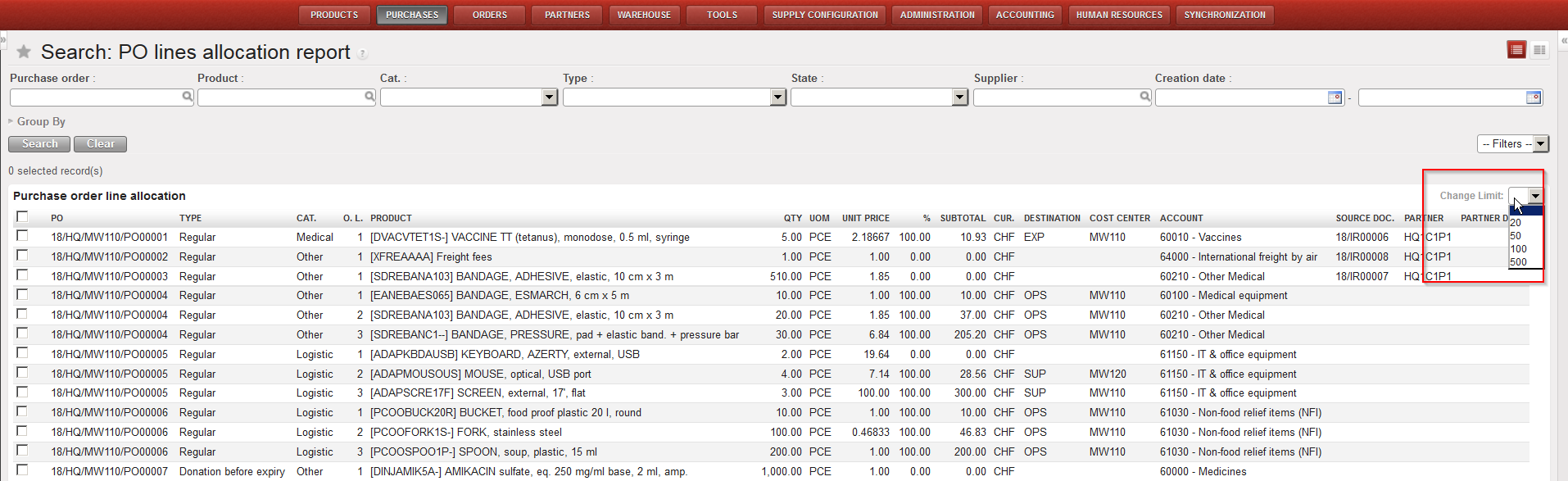 |
| PO lines allocation report |
3. Click “Export” in the action menu and select what should be exported. Make sure the “Export all query results” is ticked.
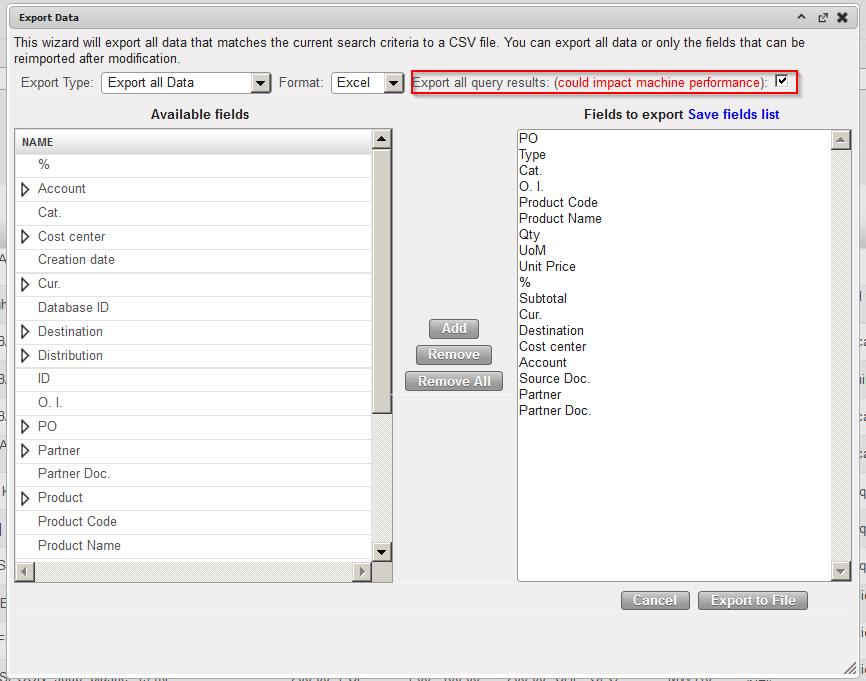 |
| PO lines allocation report – Export to Excel |
4. Click “Export to file” to generate the file.
 |
| PO lines allocation report – Excel export |
To generate a PO lines allocation report in PDF
Go to: Purchases / Purchase management / Purchase Orders
- Use the filters to restrict the orders selected if needed.
- Click the check boxes located in front of the PO-lines you want to export in the PDF.
- In the action menu on the right hand side, click on “Allocation report” (under Reports) to generate the file.
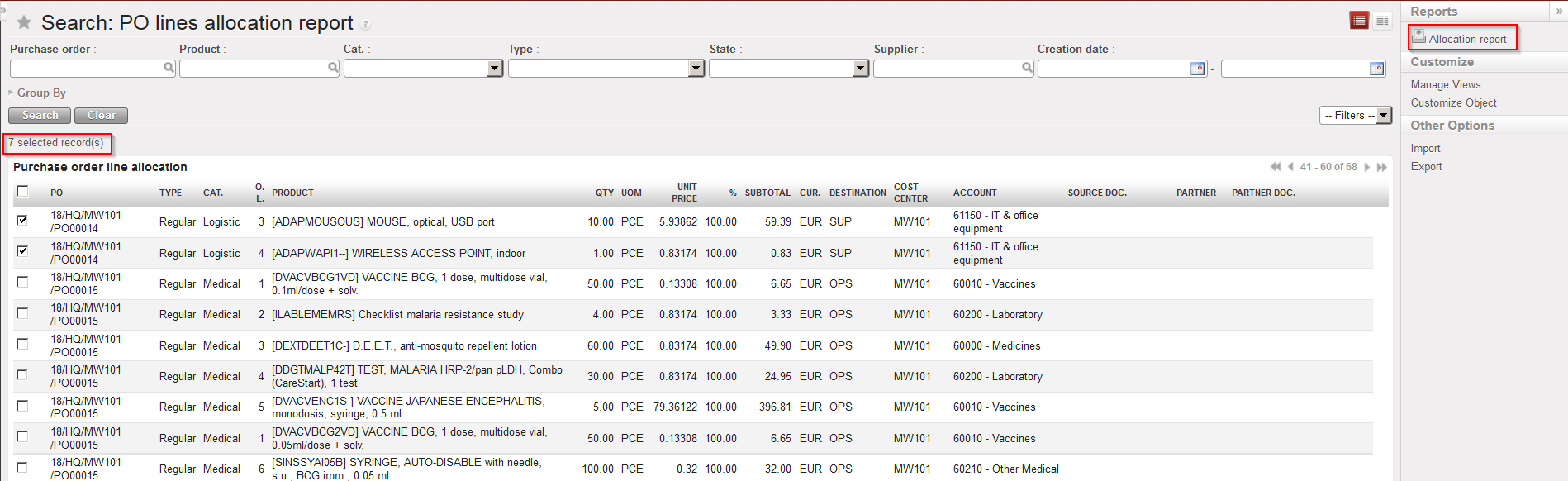 |
| PO lines allocation report – Export to PDF |
 |
| PO lines allocation report – PDF export |
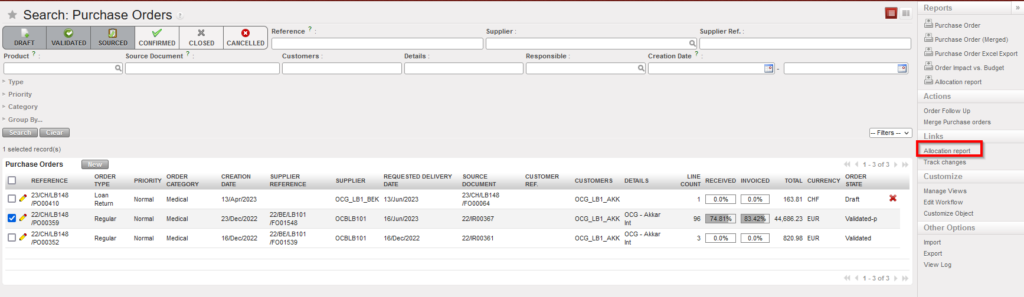
To see the global view of data of a purchase order lines allocation report:
Go to: Purchases / Purchase management / Purchase Orders
- Click the check box located in front of the PO you want to see the Allocation report of its lines .
- In the action menu on the right hand side, click on “Allocation report” (under Links) to view the data.