
7. Vertical Integration
Vertical Integration to link UniField and field instances to HQ and European Supply Centres (ESCs) was deemed a necessary functionality to build in order to realise the benefits of UniField, and to at minimum replace the functionality of the previous heritage system.
For Supply there are two documents relevant to vertical integration; Purchase Orders and Incoming Shipments. For both, it is possible to manually export the current document in flat excel or XML file and then manually import updated file with changes, with a simulation screen to show the changes from the import. For Supply, given the request for simulation screen and different formats of files, to contain the scope and limit complexity, OCs were expected to agree on one single template for import and export of files.
The resulting files include fields that should be displayed on the export and should be mandatory or included in the document updates for the import.
This file is only available in English.
The expected order flow for Supply Vertical Integration is the following:
At Coordo, the Purchase Order must be in Validated status. The Purchase Order can either be for an order for the Coordo, or it can have been generated from one or several FOs representing project orders. The validated PO will have two buttons, one to export the PO and lines into excel or XML formats, and the second button to import files to update the PO, to reflect what the Supplier has confirmed. When a line has been confirmed with a Confirmed Delivery Date from the export file, a checkbox “ESC Confirmed” will be ticket, however, user will still have to confirm manually the line/document to process forward.
As per with the normal flow, the Incoming Shipment will be available. The user can then import the e-packing list supplied by the supplier to update the Unifield IN transaction. This is the complete flow for Vertical Integration for Supply. Details for both are described below.
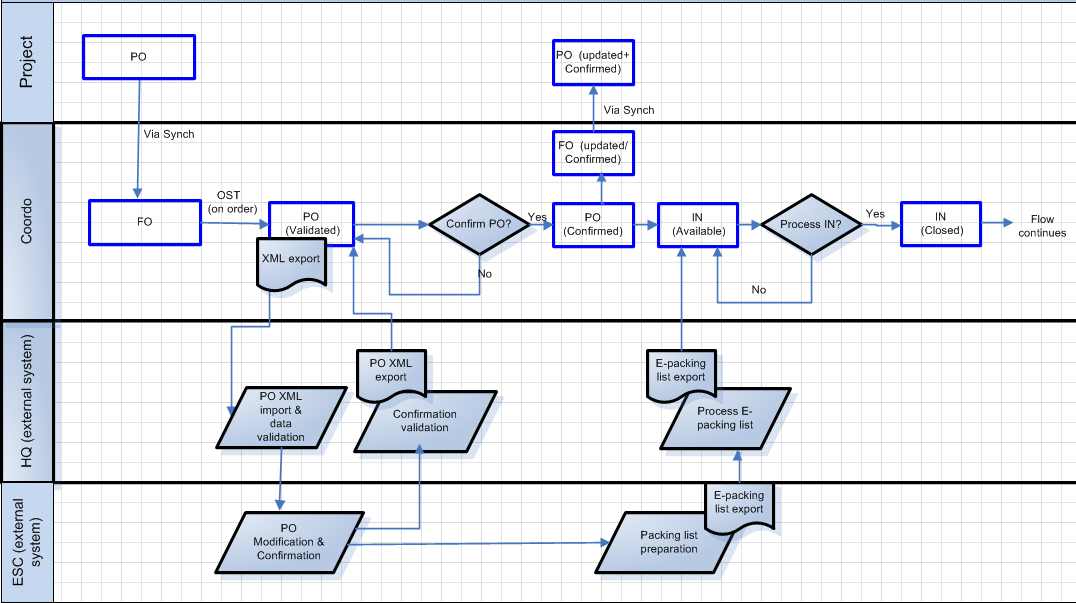
Following stabilisation of this feature, OCA requested an automated Vertical Integration option which is linked to their ESC system (APU). Exchange of files is done through an intermediate FTP server. This automated VI is only used by OCA for now but could be adapted to fit other OCs upon request.(US-3487)
7.1 Vertical Integration – Purchase Order
The buttons for exporting and importing VI files appear in the PO of Validated status.
Changes which can be made in the PO import file include adding lines/products, splitting lines, changing qty, unit price, deleting lines. A newly added line should have an external reference “Ext Ref” added, however different check will be done to ensure that the “Ext ref” does not exist yet and whether it is already associated to an existing line number (in which case the line number in import should be the same in order for the line to be updated). If the Ext ref is not associated to any line number (and empty in import PO) then a new line will be created. A new line will also be created in case the Ext ref associated to a line number does not match another existing line with same line number and different Ext ref (meaning that lien will be split and have a new “Ext ref.”. For more details on the different use cases see Jira ticket US-5122.
Multiple different files can be imported into the validated/-p PO. Each successful import will update the PO, and the PO and its lines will stay in Validated/-p status until product lines or Po document are manually progressed to Confirmed. Names of all imported files can be found in “Notes” tab of PO.
At point of import of a PO confirmation file, a simulation screen will display changes to header information, and on the “details” tab, the lines of the original order are displayed to the left, and to the right, the resulting lines if the import is performed. The column “CHG” will indicate if line is missing/should be deleted – “ignore/del”, has been split – “split” or is a new line – “new”. The column “discrepancy” will indicate any price discrepancy.
Report can be generated at simulation stage where all changes to lines are highlighted in red.
User can decide at this point to import or to return to original (pre-import) PO.
If import file option is selected, as per simulation screen, changes will be made for price change, quantity change etc.
Lines can be deleted/cancelled by the import to PO by filling the “Comment” field with “[DELETE], the simulation screen will show “Del.” to indicate that line will be deleted. A line missing in the import file will show as “Ignore” in the simulation details tab and will stay as it was in original validated PO.
Already confirmed or Cancelled line cannot be updated after new import; with one exception being that the CDD can still be updated for Confirmed lines ( and will update the related IN).
Analytical Distribution (AD) can be added by VI file for new lines (otherwise it will be asked by the system after import – line will be “Validated-n” in red meaning that line need to be updated). Checks will be done upon import on Validity/existence of the Cost Centre and Destination. However, this is a non-mandatory field and the AD update will be ignored in case the product line already has a Valid AD. Warning message will not be blocking regarding the AD import (see US-5405 and US-1168).
Also, in the “Origin” field, the Source document (FO/IR) can be populated for new lines (if not imported it will be asked anyway after import in the original document). This way, any new line will be directly added to the related source document as well. In addition to the source document from the same instance, an additional source document from the other instance can be added. This other document can be an IR or since the re-sync it can be another FO. Checks on these fields will force user to update them so that all documents from the same flow are updated and synchronized as expected.
7.2 Vertical Integration – Incoming Shipment (E-Packing)
The template of the current Incoming Shipment (available status) can be generated either in XML or excel. The VI file to update Incoming Shipment can be imported into the IN after the process products screen is displayed (Process button must be clicked on for this). An import file can be uploaded and simulation screen will display changes to header and line level information on Information and Details tabs. As per PO simulation screen for line information, original lines are displayed to left and those simulating the import are to the right. CHG indicates change in a line, and Discrepancy where there is a discrepancy in the price. The modifications can be on products, Qtys, split of lines, price, added batch numbers and expiry dates. Unlike for Purchase Order, a new line cannot be added. Unlike for PO VI, if file is imported, transaction must be processed or imported data will be lost. It is not possible to import several files into the same document and then process. If import does not include information on all lines, unfilled lines will remain unprocessed and will remain as a back order. For any lines which are missing and need to be deleted this is an action which must be performed manually, as they will be created as a back order.
One additional field that has been developed to be updated is the CDD (aka: Expected receipt Date). This field can now be updated for Available INs and will consequently update the related SYS-INT or trigger preparation of a synchronisation message to update the related IN at project ( request emerged from the need to have a more accurate pipeline calculation when RR have been upgraded , see US-6490). However, the confirmed PO CDD can’t be automatically updated as well.
Using the same IN import file (also named E-Packing), Packing information can be directly uploaded as well (see US-1457). Information that can be imported are: Qty of parcels, Parcel ranking number, Weight, Volume, Height, Length, Width, Packing list name and ESC comments. This information will not need to be filled in case user presses the “Import IN” button; however in case the “Import IN, process IN &pick and pack” button is pressed, the packing information will have to be filled (mandatory ones are form parcel, to parcel, parcel quantity and weight) and will be directly imported. As a consequence, the IN will be processed and Closed like the PICK and the PPL. The related SHIP will be created as Draft to be processed further manually.
This E-packing button will have checks that will not enable to Pick and Pack directly Back Order INs which related PICK have actually been previously converted to an OUT (see US-6374).
Report can be generated at simulation stage where all changes to lines are highlighted in red.
7.3 Automated Vertical Integration (US-3487)
In addition to the manual Vertical Integration import/export, OCA requested an automated system of VI for POs and IN. This automated VI being able to automatically exchange file between UniField and the ESC system (i.e.: APU for OCA).
This exchange of file is done through an intermediate server, FTP server. Predefined trigger point will generate the export and expedition of document from UF to FTP (which will be recovered by APU) and the other way around for import. Parametrization in UF will have to be done/ activated from menu Tools> Automated imports and Automated exports.
Files that will be processed are:
- Export of Validated PO from ESC supplier (which has not been exported yet – if already exported they will be flagged).
- Import Validated PO form ESC (new lines can be imported). A simulation report is generated after import and is saved for monitoring/ traceability.
- Import of Confirmed PO from ESC supplier (new lines can still be imported). Checks are done on CDD and DST so that PO/ PO line can be confirmed automatically as opposed to the manual VI where confirmation has to be done manually). A simulation report is generated after import and is saved for monitoring/ traceability.
- Import of IN from ESC supplier: upon import checks are done on Origin field linked to the PO reference on Available INs. Several import can be done as long as there are back order IN related to the PO. Once import is successful, the IN will have status “Available updated”. Packing information can be imported as well.
Following import of new PO lines confirmation, an extra check is done to avoid that new confirmed lines are added to an existing “Available updated” IN. Request for this case is that a new IN Available is created instead (if no other Available IN already exists) (US-5954).
For further technical details on this functionality, detailed functional specifications are enclosed to Jira ticket US-3487.
8. Cancel & Resource / Re-sourcing documents
Because of a demand for the system to provide more flexibility in sourcing and changing/reversing the sourcing of goods after a sourcing method has been chosen this functionality has been developed. In the Order Sourcing Tool, decisions are taken as to whether the order (IR /FO) will be sourced from stock (leading to a PICK, OUT or INT) or on order (leading to Tender, RFQ or Purchase Order) and for some documents (PO, DPO, RFQ) the Supplier will be also chosen at this stage. However, it can be necessary to change this decision based on the circumstances, eg. Supplier chosen can no longer provide goods, or Storekeeper finds actually there are no goods in stock, so cannot fulfill the PICK created. In these situations, it is necessary to change the sourcing channel chosen (e.g. order should be sourced to a different supplier, or order cannot be sourced from Stock so it should be re-sourced to a Tender / PO etc). With this need in mind, the following functionality has been developed in order to be able to re-source key documents.
It is possible to Cancel and Resource (C&R), or only Cancel the following documents:
PO, FO, IN, PICK (Cancel only if sourced from PO and C&R or Cancel only if from Stock), INT, OUT, Tender, RFQ
It is only possible to Cancel and Resource Documents which have a preceding document flow. E.g. a PO created from scratch cannot be cancelled and resourced, but a PO created from an FO can be.
The document/ line can only be cancelled if it has not been completed, and if the next document/ line in the chain has not been created. E.g. a PO can be C&R’d if it is in Draft or Validated status, but not if it has been confirmed, as at this point there will be an IN available. If PO has been confirmed then user should C&R the Incoming Shipment.
Results of Cancelling and Resourcing:
When the User C&R a document/line, the document/ line will be cancelled (with status Cancelled/ Cancelled-r) and all preceding documents will have status “Cancelled” ( or “Closed” for FO related to PICK sourced from PO). After synch any related documents in another instance will also be Cancelled. FO/IR will keep the same last document status while all product lines of initial document (FO/ IR) will be “Cancelled-r” and new “Resourced-v” line will be created and present in the OST . E.g if an IN is C&R’d, the IN will be Cancelled, the PO Cancelled, the FO remains Confirmed (because status cannot go backwards) with “Resourced-v” product lines (nb: PICK created at PO confirmation is also Cancelled).
Traceability
On the product line details (after clicking the pencil), the reference of the “Original FO/IR line” can be seen. It will display the number of the original line which has been Cancelled – this line still be can be seen when removing the default filter “Hide Cancelled”. The new “Resourced-v” line will have new line number. These new lines have the same behavior as Validated lines.
Once sourced, these lines will have status “Resourced-s” on the source document; then “Resourced-pv” once “Validated” on a related PO and finally “Resourced-c” once Confirmed.
In case these resourced lines have been synchronized, the related PO and IR lines can be in “Resourced-sy” status in other instance.
Document specificities
PICK cannot be C&R if sourced from PO; the only options will be to Cancel only or to Cancel and create an INT move to send the goods to Internal Stock rather than Cross docking (this will avoid stock allocation issue later on).
Pick of type “LOAN” cannot be C&R because Loan type can only be sourced from Stock. It will still be possible for user to change the Stock location at Pick level if needed.
Quantities Cancelled at PICK level will have to be Cancelled on the Counterpart PO which is automatically created at FO confirmation. This development has been made to avoid discrepancies between original FO state and the counter part PO (see US-6630).
RFQ created from a Tender coming form an FO/IR can only be Cancelled. They will be C&R from the Tender but not directly from the RFQ if coming from a FO/IR source document (see US-6114). They can also be C&R if directly sourced from FO/IR (i.e.: with no intermediate Tender).
9. Documents in Progress
Menu mapping: Tools / Documents “in Progress”
This functionality allows a document in progress to be closed and its other related documents to be cancelled. UniField offers this tool to close IRs, FOs and POs, and cancel their associated documents.
However, this feature should be used very cautiously and is actually not recommended. It should only be used in case of technical inconsistencies or issues in the flow. User right should be set accordingly so that access to this function is strictly limited to advanced user.
When Initial document has been selected, checkbox “Associated Doc” will be ticked if there are other open related documents. If clicked, this icon will produce screen will all documents relating to selected order document, along with their statuses. Then the “Cancel associated documents and close the document” button can be used to close original document and cancel related documents. The default filter is set on “Creator” = “Administrator”, therefore, in order to see all the open document, this filter should be set to blank.
