
1.9 Secure passwords between browser and server with TLS
The best practice for web applications like UniField is to encrypt usernames and passwords on the network. It is strongly recommended to enable HTTPS security, doing so via a progressive rollout in coordination with the UniField Support team. In a future version, HTTPS will be recommended for all sites, and will be the default. Enabling HTTPS has no impact on how the end users will open UniField in their browsers as UniField will automatically redirect users arriving on HTTP to HTTPS.
Each HTTPS server needs a certificate, which shows that a third party guarantees the connection between the server’s public key and the DNS name it is using. There are three choices for how to get a certificate:
Option 1:
Allow UniField to get a certificate via the Certomat system operated by the UniField Support team, which fetches certificates from LetsEncrypt on behalf of your server. This is the recommended configuration.
- Pros: Simple, free and automatic, works with servers that are not on the public Internet.
- Cons: The name must be of the form “prod.unifield.org”. You must use local DNS or the hosts file to point the name at your server’s local IP address.
You need to choose one word and put it before “prod.unifield.org”. If your server has one instance inside of it, then you should use the instance name, so for example in Osh Kyrgyzstan, it would be “OCG_KG1_OSH.prod.unifield.org”.
edit also :
c:\Program Files (x86)\msf\Unifield\Web\conf\openerp-web-oc.conf
C:\Windows\System32\drivers\etc
If your server will have several instances inside of it, make a name for it starting with your OC and ending with a description of what the server is for. For example, a training server in OCG might be called “ocg-training.prod.unifield.org”.
Check with your site network administrator that your local DNS (or the hosts file on all client machines if local DNS is not available) maps the name of your server to its local IP address.
Option 2:
Tell UniField to fetch and renew certificates directly from the LetsEncrypt CA automatically. This option is not recommended, but supported.
- Pros: You can choose any name for your UniField server, as long as you control the DNS for that name. Simple to configure. Free.
- Cons: Your server must be continually available on the public Internet so that during renewals LetsEncrypt can connect and confirm that you still control the DNS name.
You must use the public DNS name for the public interface of your server (ask your network/server admin to help you find it and/or set it).
Option 3:
Generate a Certificate Signing Request (CSR) and submit it to a certificate authority. Complete whatever checks they require and pay them a fee. Install the certificate on the Unifield server. Remember to pay the fee again in a year or two years when the certificate expires. This option is not recommended, but supported on a case by case basis.
- Pros: You can choose any name for your UniField server, as long as you control the DNS for that name.
- Cons: cost and operational complexity.
You may choose any name that you can buy a certificate for (check with your certificate provider for their rules). When using a certificate from a certificate authority, the private key and certificate must be placed into c:\Program Files (x86)\msf\Unifield\Web as $server_name.key and $server_name.cer. They must be in PEM format.
1.9.1 Procedure
Prerequisite: AIO version 4.0 or later is installed in your server/machine.
- If your UniField version is running on 4.0 or after skip the next unistall/install of the AIO first steps below.
- If your UniField version is running on 3.1 or before you would need to install the latest AIO version (minimum v4.0)
| Make a backup of your instance | Refer to your backup procedure/configuration |
| Uninstall UniField | Section 1.11 Un-installation |
| Install the latest AIO version (minimum v4.0) | Section 1.3 Installation |
| Once your UniField version is in 4.0 or later you can follow with the below steps | |
| Choose an HTTPS server name, which is the name that will be in the certificate, and shown in the URL bar of the web browser. The way that you choose the server name depends on which option you have chosen for how to get the certificates (see above). | |
Click on Start 1 and search for cmdRight click on cmd.exe 2 and Run as an administrator 3 | 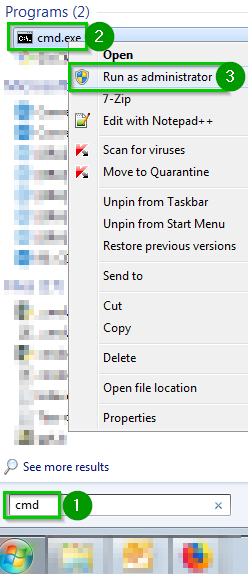 |
| The terminal opens, launch notepad by typing notepad++.exe 1 |  |
Open the following file on Notepad: File > Open…: c:\Program Files (x86)\msf\Unifield\Web\conf\openerp-web-oc.conf.Uncomment 1 the line server.https_nameSet the name 2 as previously selected: e.g. instancename.prod.unifield.orgSave the file | 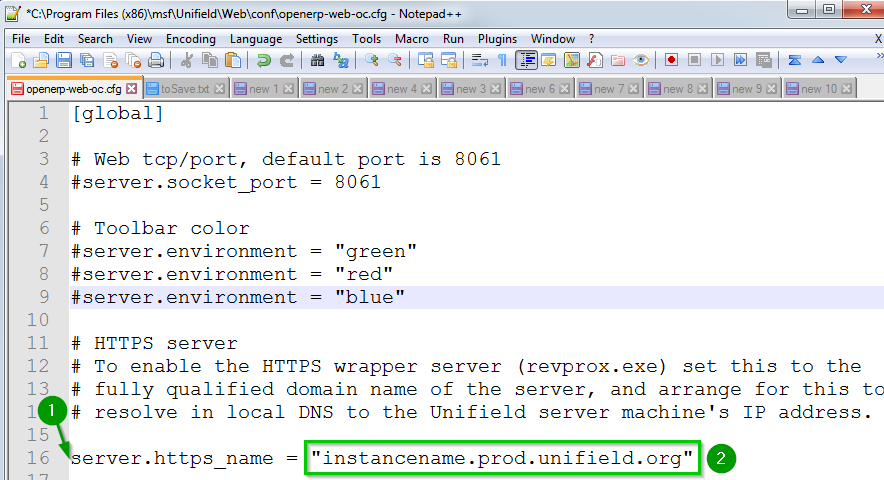 |
Depending the option you choose do: Option 1:Edit the Option 2:No other configuration is needed you can continue the procedure. Option 3:Place the key and Certificate file in |
Option 1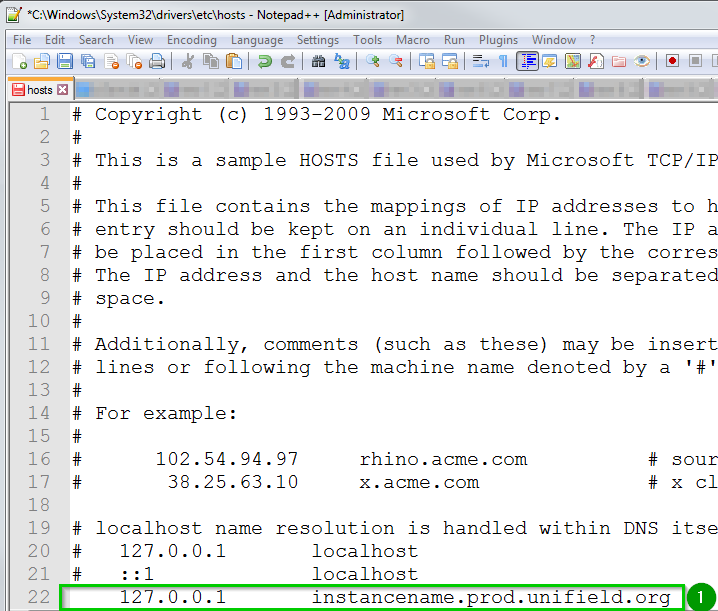 |
Verify that the UF web firewall rule includes Port 443. See section 1.6 Allow the UniField web port on Windows 7 Pro Firewall.It is not necessary to allow inbound access for the public internet | |
| Restart OpenERP-Web service 1 by right clicking on the service. | 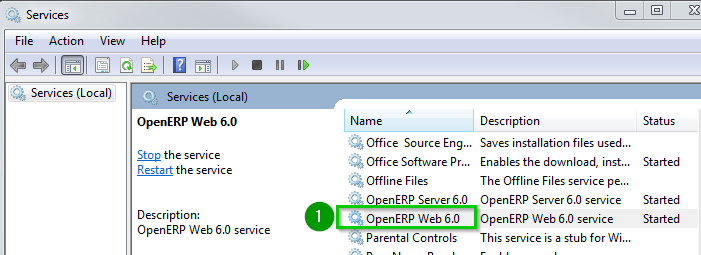 |
| Wait a few seconds and then go to http://localhost:8061 You should be redirected to the HTTPS site. | 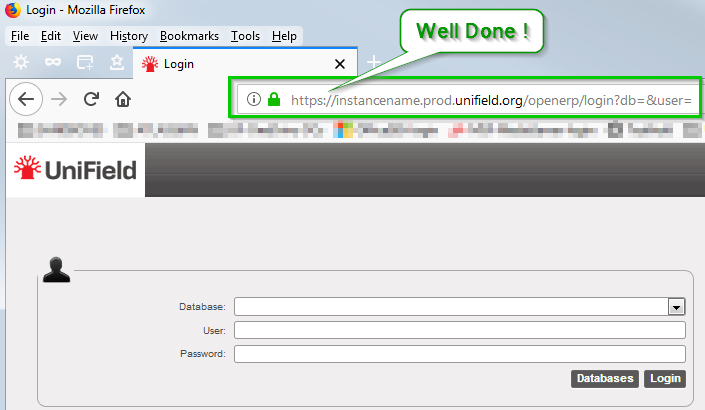 |
| In addition please find here an internal OCB procedure complementing the manual on how configure the DNS. |
1.9.2 Troubleshooting
Below few troubleshooting tips for known issues:
| If going to http://localhost:8061 does not result in redirect to HTTPS Read the openerp-web.logLook for A server is already running on Port 443. Is it Skype?If you are running Skype, do the following: a. tools > options > advanced > connections b. uncheck “listen on port 80 and 443“c. save and close d. restart skype |
| Bad Certificate: If you are using Windows and Chrome or IE, and you get a certificate trust error, it might be because root certificate auto-update is disabled. You can use regedit.exe to check this key: HKEY_LOCAL_MACHINE\SOFTWARE\Policies\Microsoft\SystemCertificates\AuthRoot\DisableRootAutoUpdateIf it is 1, then the CA certificate that LetsEncrypt depends on is not getting loaded automatically. You need to set it to 0. If you are using Firefox (the supported UniField browser) this problem does not occur. |
