
9.2 Restore Backups
Depending on the kind of backup you have the procedure to restore can be slightly different. There are three kinds of backups:
- Backups extracted from the UniField web interface – see Section 8.4. The file extension is
.dump
Such backups have a naming convention which includes the database name, date/time and the UniField version required to run this backup: e.gHQ1-20181009-113216-UF10.0.dump - Backups extracted from pgAdmin. The file extension is
.backup. These files are exactly the same as above. However, there is no naming convention. As a result, you cannot restore them via the web interface you have to use pgAdmin. - SQL backups. The file extension is
.lzma. These backups have a different structure. They take up less disk space than the two previous kinds of backup. This kind of backup is used to take snapshots of the SYNC_SERVER.
The next three sections describe how to restore them. The last section explains what can happen when you log into a restored instance.
Restore a dump via the web interface
Please refer to Section Restoring a database.
Restore a dump via pgAdmin
| The procedure is the same if you use pgAdmin III or pgAdmin 4 Open pgAdmin (blue elephant icon).
| 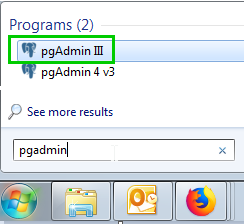 |
| Double click on the server icon. Type in the password you chose when installing UniField | 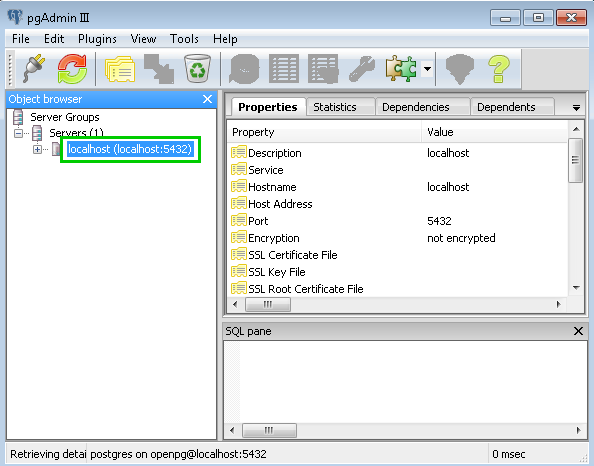 |
| Right click on Databases 1 Click on New Databases… 2 | 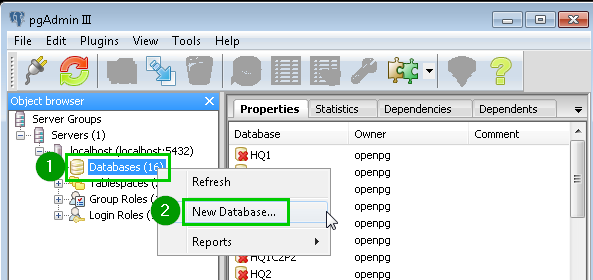 |
| Type in the database Name 1 you want to restore. Click OK 2 | 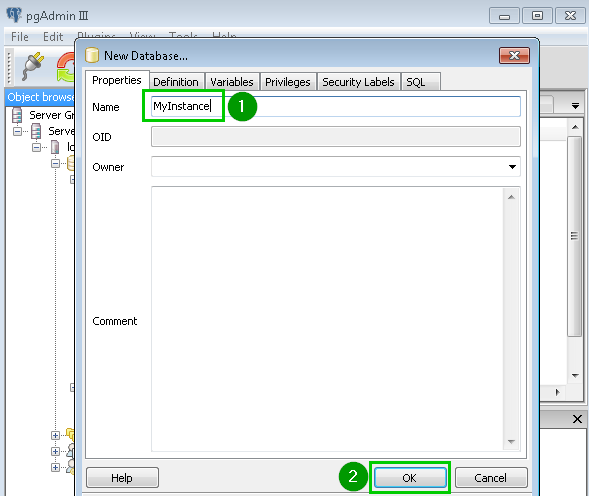 |
| Right click 1 on the database you have just created. A popup menu opens. Click on Restore…2 | 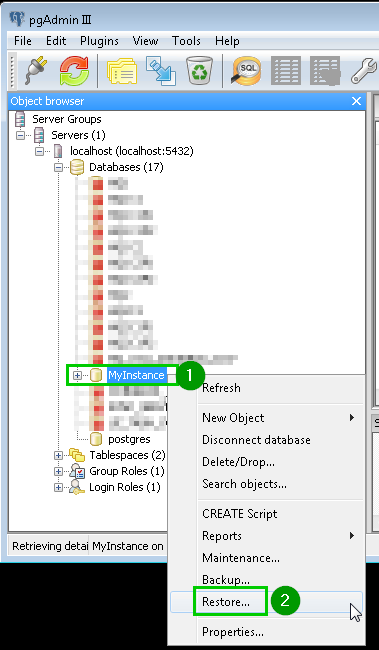 |
| A new window opens. Select your backup file 1 Tip: only files with .backup extension are displayed. You can change it to display all the files. This is especially important if you look for a .dump file extracted from the UniField web interface.Click Restore 2 | 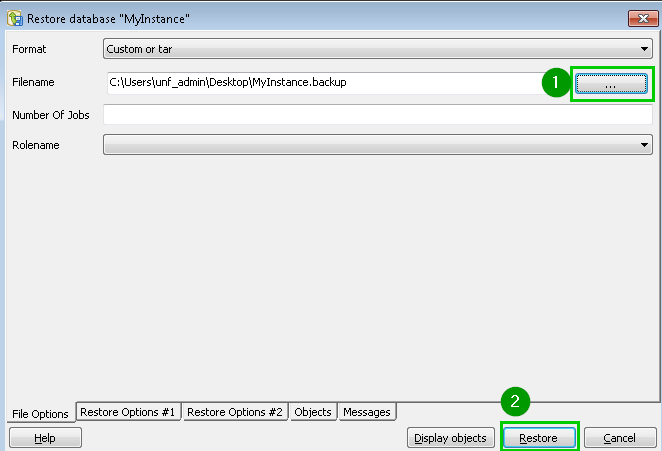 |
| It can take up to a few minutes to import a backup. This time depends on its size. When the restore is completed, you will see a “Process returned exit code 0”. The Done button will be enabled.Click on Done.Your database is ready to be used. You can log in using the credentials saved in the database when you backed it up.If you need to modify the password of the database the next two slides will show you how to do it. | 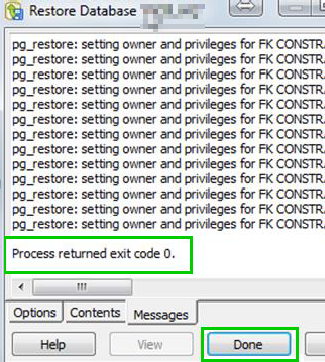 |
Restore a dump via psql
Uncompress the archive. The most frequent compression algorithm for this kind of backup is .lzma.We suggest you to use 7zip to uncompress the archive.Open a cmd prompt | 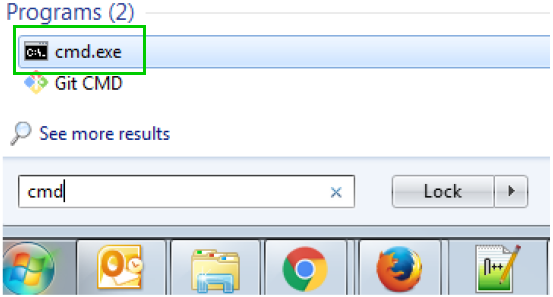 |
Open a new file explorer window and browse to the bin directory of PostgreSQL. The default location is: C:\Program Files (x86)\pgAdmin III\1.22.Drag & drop psql.exe to the command prompt you have just opened.If it doesn’t work, you can type the full path of this executable file in the console. If the path contains spaces you will have to surround it with double quotes.The absolute path of the executable appears in the command prompt. Alternatively, if you don’t want to write the absolute path of every time, you can add its directory to your PATH as described here. It is better not to change it in production. | 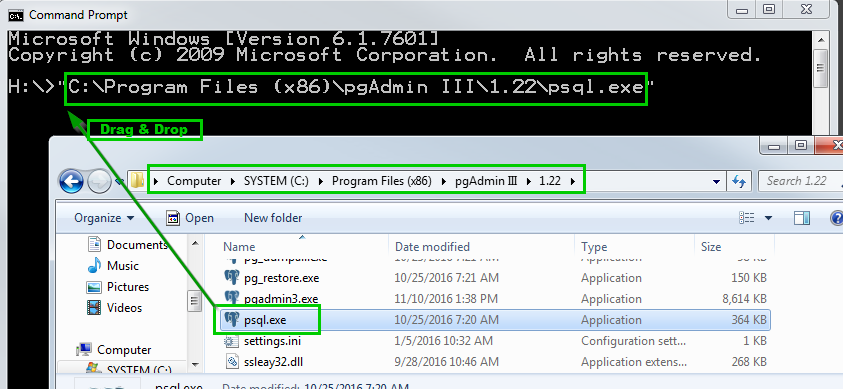 |
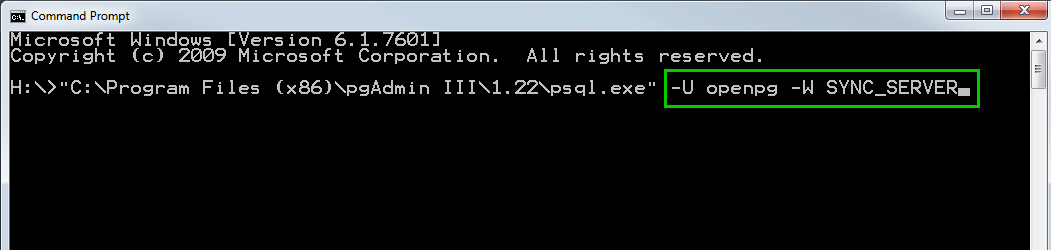
Type the following arguments: –U openpg –W SYNC_SERVERWhere:
|  |
Drag & drop your .sql file to the command promptPress the enter key If it doesn’t work, you can type the full path of this file in the console. If the path contains spaces you will have to surround it with double quotes. | 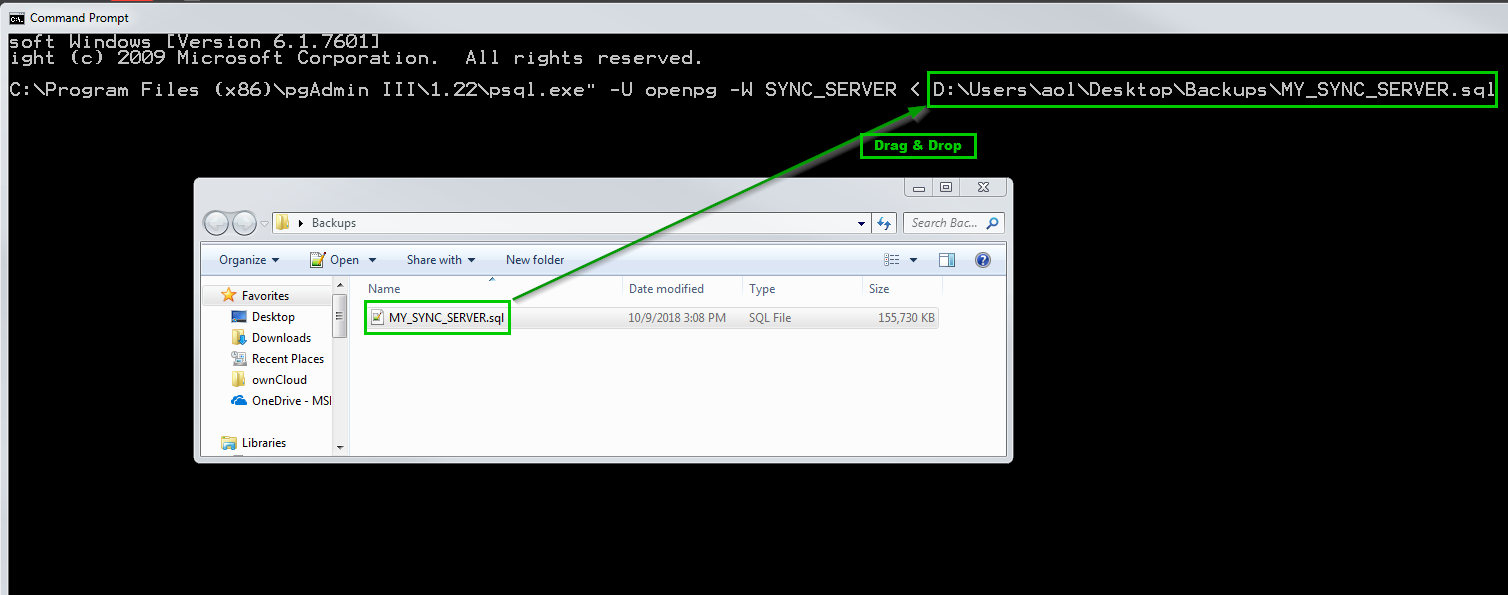 |
| Type in the PostgreSQL administrator password as defined in the installation wizard of UniField and press the enter key. | 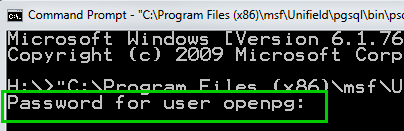 |
After a few minutes, psql.exe returns and you get another command line.The backup is restored. You can start using it.
Scenarios when log in into a restored database
- If the database comes from an older instance (the source code was older), it will be upgraded the first time you log in.
- If the database comes from a newer instance (the source code is newer than the instance you restored the dump in), you will get a
Database Newer than UniField versionerror message and you won’t be able to login. The only way to use this dump is to install a AIO at the same version of the database or higher.
