Finance User Manual ENG -> 4. Imports -> 4.2 Human Resource Management.
HUMAN RESOURCE MANAGEMENT
LUFI-40101 National Staff Database Management for Missions Using Homere
LU Introduction
HR transactions performed in the field cover national staff salaries, salary advances, social security charges, taxes, etc. Within MSF, HR management is generally performed through the Homere software.
UniField integrates with Homere:
- The Homere Sending File (Per_mois) with all employees’ basic information can be imported into UniField.
- The Homere Payee_SAGA Payroll file can be imported to create payroll entries per employee each month.
With UniField, national staff payroll and salary advances continue to be booked in Homere. Every month the Homere Saga payroll file and the Homere sending file (per_mois) with all employees are imported into UniField to create payroll entries and update the national staff database. The import of these files is performed in the {Payroll} module in the {Accounting} business application.
Before creating payroll entries, all employees existing in Homere must also exist in UniField. When the user imports the file with all employees, the first movement will be a check based on the employee identification number:
- If this number already exists in UniField, no action.
- If this number does not exist in UniField, a new record is created in the employee list by combining the first and last name as well as the identification number. The employee {Active} flag is also checked.
- If this number exists in UniField with the employee set to {Inactive} and it is included in the data to import then the employee is automatically set back to {Active}.
- Once in UniField, you cannot delete or edit employee data that comes from Homere. The only exceptions are the analytical information and active/inactive status. If an error is spotted, it must be changed directly in Homere and re-imported in UniField.
If any information regarding the employee has been changed in Homere since the last import (name, function etc.), this information is updated in UniField when importing the Per_mois file.
If an employee is moved to another project, the procedure regarding changing the employee ID depends on each OC. By default, all imported employees synchronize within the mission + HQ as inactive, meaning that if the same employee ID is used across projects, an existing record in UniField is used also in the new project. Importing the per_mois file will set the employee as active in the new project. If the employee ID is changed and a new employee record in Homere is created every time an employee is moved from one project to another, a new record is created for each new employee ID in UniField, too.
The analytical allocation for employees is set either automatically or manually depending on the analytical account type and each OCs procedures:
- Destination: The default destination for each employee is NAT. This destination is automatically applied to all employees loaded into UniField. However, if NAT is not used by an OC, the destination is automatically updated when importing the Payee_SAGA file for payroll. This means that if the destination information is filled in Homere and included in the Payee_SAGA file, the employee master data for destination will be automatically updated.
- Cost Center: The cost center field is by default empty. Cost center will be automatically updated when importing the Payee_SAGA file for payroll. This means that if the cost center information is correctly filled in Homere and included in the Payee_SAGA file, the employee master data for cost center will be automatically updated. If cost center information is not included in Payee_SAGA file or is of incorrect format, the cost center has to be manually updated for each employee.
- Funding Pool: The funding pool can only be updated manually. If no default funding pool exists, the payroll entries will be created with a default funding pool “PF”.
Special note for OCG*:
Automatic updates of the analytical allocation do not concern OCG instances who continue to manually update all employee analytical allocation.
Mass re-allocation of employee analytic distribution:
If a group of employees has the same analytical information, UniField provides the option to change their analytical distribution in mass.
You assign (individually or by group) an allocation by choosing the action {Employee Analytic reallocation}. This action opens a new window called {Employee Analytic reallocation}.
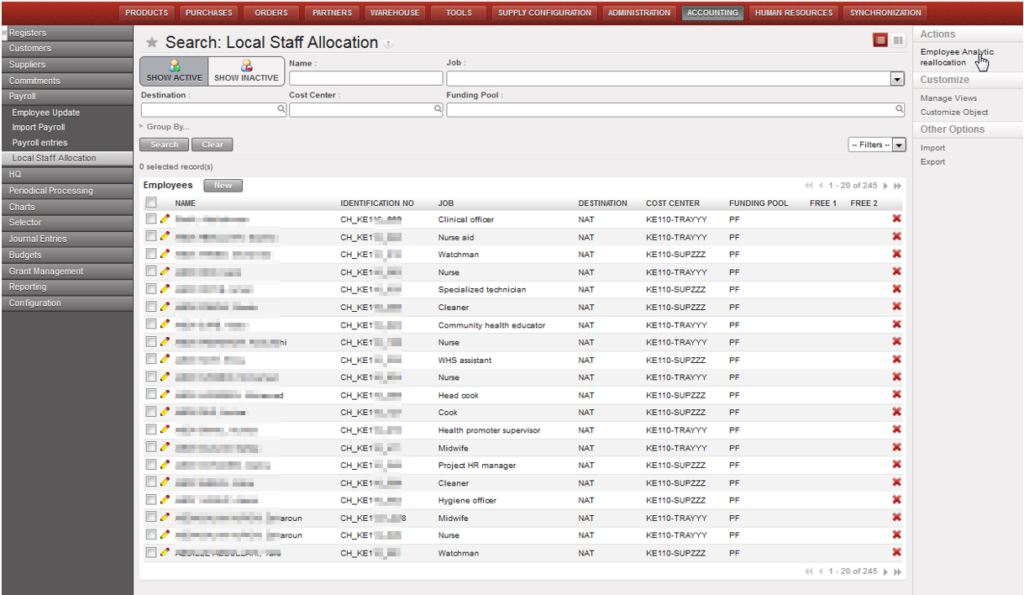
List of Active national staff not reallocated yet

{Employee Analytic reallocation} wizard
At each payroll import, UniField retrieves the employees’ default analytical distribution and applies it to the appropriate payroll entry. This allows you to avoid allocating all payroll lines every time the payroll is imported (each month). The allocation may become obsolete at some point e.g. when the funding pool eligibility date is over. In this case the employee’s allocation and payroll entry will become red. The user will need to modify it and set a new valid analytical distribution.
Local Staff employees synchronize across the mission to all projects, coordination and HQ. The employees synchronize by default as inactive.
The employees are activated once a per_mois file containing the employee is imported into a new instance. All accounting entries can be assigned also to inactive employees (e.g. coordination instance can create entries for an inactive project employee).

How are National Staff employees used in UniField Registers?
There are various financial transactions which involve National Staff employees.
- Per diem for training/travel
- Security money for training/travel
- Operational advances
- Salary advances
In UniField, there is a field called {THIRD PARTIES} which allows the user to select the type {Employee} and then select the employee name. This allows tracing and reconciling advances better.

Assigning a register entry to a Third Party type {Employee} and selecting the Employee
In a situation where there is a need to select a former employee as third party, you can click on the magnifying class and uncheck the filter {Show Active} in the {Search Employees} window to display both, active and inactive staff.
How to check “Employees” balances?
We can see the reports here: go to accounting > Reporting > Legal Reports > Accounting Reports. We have a new menu called “Employees” with two sub-menus “Employee Ledger” & “Employee Balance”:
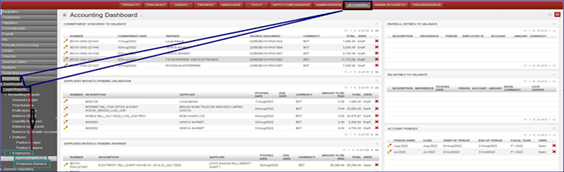
Employee Ledger:
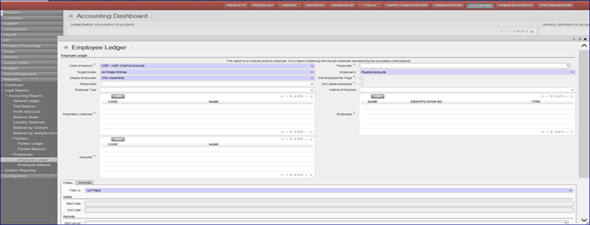
This report is an analysis done by employee. It is a report containing one line per employee representing the cumulative credit balance.
Go to Accounting > Reporting > Legal Reports > Accounting Reports > Employees > Employee Ledger:
We will have several possibilities to do our selections using the filters.
Employee Balance:
To see this new report, we go to Accounting > Reporting > Legal Reports > Accounting Reports > Employees > Employee Balance:
We will have several possibilities to do our selections using the filters. It’s optional to tick on “Only active employees”.