
File | Version | LU | Date | Modifications | Comments |
1. General Finance_EN | 42.0 | 1.5 Track Changes in UniField | 16.09.2026 | AJI : to add track changes |
|
03.Payment | 42.0 | LUFI-30409 Journal Entries | 16.09.2026 | To add the template of the manual “Journal entry import” into the form |
|
2. Finance Configurations. | 42.0 | 2.8 Suppliers and Customers. | 16.09.2026 | To add 2 new fields in the Partner’s form: TIN – Tax Identification Number and RCCM – business registration number |
|
2. Finance Configurations. | 42.0 | LUFI-20702 Register Creation | 16.09.2026 | Mobile money – creation of an specific type journal for “Other financial institutions” |
|
3. Payments. | 41.0 | LUFI 30202 cash registers | 22.06.2026 | For December registers only, the system prevents the closing of a cash register if the amounts in “Unrecorded Advances” and “Unrecorded Expenses” are not equal. |
|
5. Searching, Correcting and Closing | 41.0 | LUFI 50202 Supplier invoices | 22.06.2026 | We have added a tab in the supplier invoice (SI) the field name “Details” from the purchase order (PO) |
|
2.Finance Configurations | 41.0 | 2.3 Multi-Currency Management. | 22.06.2026 | Do not allow new rates on closed currency tables |
|
5. Searching, Correcting and Closing | 40.0 | LUFI-50302 Month End Period Closing | 11.03.2026 | To add a “not blocking” notification message for closing period with “not validated IVI” – Intermission voucher IN – |
|
2.Finance Configurations | 40.0 | 2.3 Multi-Currency Management. | 11.03.2026 | Currency tables: button filters, filtering fields and default filtering |
|
2.Finance Configurations | 39.0 | LUFI-21101 Manual Synchronization | 21.11.2025 | We have developed and implemented the requested enhancement in the “Companies” menu under the “Configuration” tab*.*A new mandatory dropdown field named “Extra Accounting Behavior” has been added. |
|
5. Searching, Correcting and Closing | 39.0 | LUFI-50301 Month End Register Closing | 21.11.2025 | We have modified the error message when the cash register freezes. It is now larger |
|
2.Finance Configurations | 38.0 |
| 17.09.2025 | Partner’s form: to add in the track changes the deactivation and activation of partners |
|
2.Finance Configurations | 38.0 |
| 17.09.2025 | Partners/ suppliers setting: deactivation (phase-out status) |
|
| 37.0 |
| 11.06.2025 | Not to be able to select an inactive staff when booking an entry in the cash registers |
|
| 37.0 |
LUFI-50104 General Ledger (G/L) Selector
| 11.06.2025 | In the Selector/analytic selector/combine report: to increase the number of digits of the field sequence number to 365 digits |
|
| 37.0 |
| 11.06.2025 | Internal transfers: to add a new constraint to prevent to change the account code on a counterpart line |
|
2. Finance Configurations | 36.0 | 2.8 Suppliers and Customers. | 12.03.2025 | To be mandatory for partners to have at least one of the role customer/supplier ticked at create/edit action |
|
2. Finance Configurations | 36.0 |
| 12.03.2025 | Inactivation of bank journal conditioned to the inactivation of the related cheques journal |
|
2. Finance Configurations | 36.0 | 2.8 Suppliers and Customers. | 12.03.2025 | Partners creation: we can modify a partners form and we can have 2 external partners with the same name and the same city within the same instance |
|
5. Searching, Correcting and Closing | 35.0 | LUFI-50104 The General Ledger (G/L) Selector | 11.Dec.2024 | G/L selector PDF export: Improve the header by adding 2 fields: “currency table” and “output currency” |
|
4. Imports | 34.0 | LUFI-40105 H: How to Validate National Staff Payroll Entries. | 16.09.2024 | PAYE SAGA: Import of payroll entries: to improve the error message when there are already draft payroll entries |
|
03.Payment | 34.0 | LUFI-30301 Register Entries Statuses | 16.09.2024 | To be able to delete draft entries in mass in the liquidity registers |
|
5. Searching, Correcting and Closing | 34.0 | LUFI-50306 Fixed Assets | 16.09.2024 | Fixed assets : mandatory to have analytical distribution AD before the status OPEN (and just after status Draft) |
|
5. Searching, Correcting and Closing | 34.0 | LUFI-50401 Fiscal Year Closing | 16.09.2024 | FY closing check – check if all active project instances have reported Mission closed status for all periods of the FY |
|
5. Searching, Correcting and Closing | 33.0 | LUFI-50301 Month End Register Closing | 12.Jun.2024 | Freezing register balance during the month: add additional check box with a warning message |
|
03.Payment | 32.0 | LUFI-30301 Register Entries Statuses | 7.May.2024 | Draft entries must always show up on the top of the register |
|
5. Searching, Correcting and Closing | 32.0 | 50306-fixed-assets | 7.May.2024 | Fixed assets renaming: To correct the reconfig activation question “Does the system manage Fixed assets ? |
|
2. Finance Configurations | 32.0 |
| 7.May.2024 | To be able to change the status of a period from open to draft (when there is no JI) |
|
2. Finance Configurations | 32.0 | LUFI-20705 Register Deactivation | 7.May.2024 | To be able to close the month only if the registers corresponding to all active journals are created |
|
5. Searching, Correcting and Closing | 31.0 |
| 14.Dec.2023 | Fixed Asset Management |
|
2. Finance Configurations | 31.0 |
| 14.Dec.2023 | To implement a filter in the journals list: journals manually created and journals automatically created (at instance creation) |
|
03.Payment | 31.0 |
| 14.Dec.2023 | Importing Multiple Analytical Distribution Lines in Unifield on draft invoices (SI) in line with US-11369 |
|
03.Payment | 30.0 | Under LUFI-30501 Auto Rebilling (inter-mission / inter-sectional) | 30.Aug.2023 | For IVO and for IVI: to put in the list all accounts with type regular, expenses, payables and receivables (as in the SI) |
|
2. Finance Configurations | 30.0 |
| 30.Aug.2023 | Bank and Cash registers created in a special period: to prevent! |
|
5. Searching, Correcting and Closing | 30.0 | LUFI-50101 Searching Filters | 30.Aug.2023 | Search : Supplier and customers screens: to remove the field “Journal” and to replace it with “booking currency” field filter |
|
5. Searching, Correcting and Closing | 30.0 |
1.LUFI-50103 Journal Search
| 30.Aug.2023 | OCBHQ to have in the Combined report and JI and AJI exports the accounts mapped : “HQ system accounts” at project level |
|
2. Finance Configurations | 30.0 | LUFI-20502 Cost Centers and Proprietary Instances | 30.Aug.2023 | Proprietary instance, filter active CC on the list + red color lines with inactive cost centers |
|
5. Searching, Correcting and Closing | 30.0 | LUFI-50101 Searching Filters | 30.Aug.2023 | To add a line with the “Total” when selecting invoice object/CV from list (same as in the Journal Entries) |
|
03.Payment | 30.0 |
| 30.Aug.2023 | Improvement Internal transfer: auto booking of counterpart (in the same instance) |
|
03.Payment | 29.0 | LUFI-30409 Journal Entries | 13.Jun.2023 | Manual journal entry: available journals: to remove the not used journal with code REV |
|
2. Finance Configurations | 29.0 | LUFI-20502 Cost Centers and Proprietary Instances | 13.Jun.2023 | To prevent FO / PO creation if “Cost center picked for PO/FO reference” is empty |
|
03.Payment | 29.0 |
| 13.Jun.2023 | IVI / IVO / STV / ISI: to add the Counterpart Invoice Number search field |
|
5. Searching, Correcting and Closing | 29.0 | LUFI-50101 Searching Filters | 13.Jun.2023 | Final status of in kind donation: from OPEN status to new status DONE/TERMINE (it is not a renaming) |
|
2. Finance Configurations | 29.0 | LUFI-20505 Analytic Account Inactivation | 13.Jun.2023 | OCB: Sub-cost center validity date greater than parent cost center validity date, no import in CODA: to add an error message |
|
5. Searching, Correcting and Closing | 29.0 | LUFI-50109 Synchronisation of Queries | 13.Jun.2023 | Selector saved queries/templates: to be able to delete them at once (to do with the user right ticket US-11328) |
|
2.8 Suppliers and Customers. | 29.0 | LUFI-20801 Partner Creation | 13.Jun.2023 | Partners form: purchase default currency and field order default currency |
|
2. Finance Configurations | 28.0 | 2.8 Suppliers and Customers. | 15.Mar.2023 | Improvement of the Supplier list (Search: Suppliers): to add 3 additional filters |
|
5. Searching, Correcting and Closing | 28.0 |
1. LUFI-50104 General Ledger (G/L) Selector
| 15.Mar.2023 | Selector (GL and combined): to add a new checkbox “Exclude inactive journals” with also the filter journal inactive date. |
|
5. Searching, Correcting and Closing | 20.0 | LUFI-50302 Month End Period Closing | 15-December-2022 | To add a filter button named “ACTIVE INSTANCES” in the “Search: Period States” interface |
|
03.Payment | 27.0 |
| 15-December-2022 | Extend to AD the Export/Import invoice lines |
|
5. Searching, Correcting and Closing | 27.0 | LUFI-50103 Journal Search | 15-December-2022 | The filtering for the periods 13, 14, 15 and 16 (extra accounting) is not correct in AJI on ENGI (international commitments). |
|
03.Payment | 27.0 | LUFI-30202 Commitment Vouchers: Step Two in the Purchase Process | 15-December-2022 | Commitment Voucher CV: to set up “export CV lines “and “import CV lines” like for the supplier invoices |
|
5. Searching, Correcting and Closing | 27.0 | LUFI-50101 Searching Filters | 15-December-2022 | Donation’s improvements miscellaneous: filters, journals, fields |
|
5. Searching, Correcting and Closing | 27.0 | LUFI-50301 Month End Register Closing | 15-December-2022 | Full report: add the correction lines when using Wizard of correction on return of advance expenses. |
|
5. Searching, Correcting and Closing | 27.0 |
LUFI-50104 General Ledger (G/L) Selector.
| 15-December-2022 | Add in Interface the total of Output Amount/Output Credit and Debit when Output Currency is selected in Selector. |
|
03.Payment | 27.0 | LUFI-30501 Auto Rebilling (inter-mission / inter-sectional) | 15-December-2022 | Intermission / intersection flow: Counterpart invoice status filter on IVO/IVI/STV/ISI. |
|
2. Finance Configurations | 26.0 | LUFI-20603 Monthly Register Creation | 14.Sep.2022 | Get an additional column with the register codes in the list of the Register creation wizard |
|
03.Payment | 26.0 | LUFI-30306 Recurring Entries | 14.Sep.2022 | OCB proposal: quick update in Recurring Entries module for management of Fixed Assets |
|
4. Imports | 26.0 | 4.2 Human Resource Management. | 14.Sep.2022 | OCP Employee Ledger and Balance |
|
5. Searching, Correcting and Closing | 25.0 | LUFI-50303 Accruals Management | 15.Jun.2022 | Accruals Management improvements release |
|
03.Payment | 25.0 | 1.LUFI-30101 Purchase Order: Step One in the Purchase Process
| 15.Jun.2022 | VAT corner for the PO – like VAT corner for SI |
|
5. Searching, Correcting and Closing | 25.0 | LUFI-50103 Journal Search | 15.Jun.2022 | Button filters on AJI: Engagements and ENGI journals |
|
03.Payment | 25.0 | LUFI-30304 Operational Advance Management | 15.Jun.2022 | To allow to settle one advance in cash or bank register, even it has been originally booked in a cheque register. |
|
5. Searching, Correcting and Closing | 25.0 | LUFI-50303 Accruals Management | 15.Jun.2022 | In the analytic journal items please add the journal ACC (accruals) in the “Journal type” filter TO DO WITH US-5722 |
|
2. Finance Configurations | 25.0 | 2.8 Suppliers and Customers. | 15.Jun.2022 | Do not allow to activate the intermission partner when an internal partner already exists with the same name |
|
2. Finance Configurations | 25.0 |
2.4 Financial Accounts.
| 15.Jun.2022 | Set the first day of the current month at [active from field] when creating a new analytic account or a new GL/account |
|
5. Searching, Correcting and Closing | 25.0 | LUFI-50301 Month End Register Closing | 15.Jun.2022 | Changes in the “Open Invoices” Report (suppliers right action menu) – to add draft invoices and other |
|
03.Payment | 24.1 | LUFI-30210 INACTIVATION LIQUIDITY JOURNALS AND THEIR CORRESPONDING REGISTERS | 27.April.2022 | Possibility to inactivate GL journals |
|
2. Finance Configurations | 24.0 | 2.8 Suppliers and Customers. | 16.March.2022 | Intersection: To be able to identify where the partner has been originally created “instance creator” |
|
03.Payment | 24.0 | 3.5 AUTO REBILLING (INTER-MISSION / INTER-SECTIONAL) | 16.March.2022 | Intersection: To add the legal entity names in the STV PDF print out form |
|
03.Payment | 24.0 | 3.5 AUTO REBILLING (INTER-MISSION / INTER-SECTIONAL) | 16.March.2022 | Add a filter button named “OPEN FY” on STV/IVO/ISI/IVI |
|
03.Payment | 24.0 | 3.5 AUTO REBILLING (INTER-MISSION / INTER-SECTIONAL) | 16.March.2022 | manual STV/IVO synch check box and (US-9331) Synch check box of manual STV/IVO when created from duplicate |
|
03.Payment | 24.0 | 3.5 AUTO REBILLING (INTER-MISSION / INTER-SECTIONAL) | 16.March.2022 | Intermission/Intersection: synch rule when the account code on STV/IVO is not available/active at client level | Also apply in >Accounting Features>20. Intermission and Intersection flows |
03.Payment | 24.0 | LUFI-30104 Supplier Invoices: Step Four in the Purchase Process | 16.March.2022 | To remove the “merge lines by account” functionality from invoice objects where it is available (SI and ISI) |
Also applied in the following chapters:
|
03.Payment | 23.0 | LUFI-30401 Auto Rebilling (inter-mission / inter-sectional) | 08.Dec.2021 | STV’s invoice Excel Export – Equivalent of IVO’s Invoice Excel Export (intermission/intersection) |
|
2. Finance Configurations | 23.0 | 2.6 Financial Journals | 08.Dec.2021 | Intersection: create a specific journal and new name for SI from intersection flow. |
|
4.Imports | 23.0 | LUFI-40201 C-F: Commitment Vouchers | 08.Dec.2021 | Customer Commitment Vouchers from Field Order – Intermission/intersection |
|
03.Payment | 22.0 | LUFI-30102 Commitment Vouchers: Step Two in the Purchase Process | 15.Sep.21 | Request to have Commitment vouchers linked to the PO with Inter-section / intermission partner types |
|
03.Payment | 22.0 | LUFI-30102 Commitment Vouchers: Step Two in the Purchase Process | 15.Sep.21 | The AD of the CV and SI lines will be the one of the PO |
|
03.Payment | 21.0 | LUFI-30101 Purchase Order: Step One in the Purchase Process) | 16.Jun.2021 | Improvement In Kind Donation functionality |
|
4.Imports | 21.0 | LUFI-40202 F: How to Validate HQ Entries | 16.Jun.2021 | Track Changes in HQ Entries |
|
5. Searching, Correcting and Closing | 21.0 | LUFI-50206 OD Journals | 16.Jun.2021 | CODE FIX: Don’t generate REV and COR when correction on FP on HQ entries using the correction wizard |
|
2. Finance Configurations | 21.0 | MULTI-CURRENCY MANAGEMENT | 16.Jun.2021 | Track changes on currencies and currency tables |
|
2. Finance Configurations | 21.0 | LUFI-20401 Destinations | 16.Jun.2021 | Deactivation date of Cost Center/Destination combination in UF |
|
03.Payment | 20.0 | LUFI-30401 Auto Rebilling (inter-mission / inter-sectional) | 5.May.2021 | Intermission/intersection: new STV/IVO Follow-up per client Finance reportt |
|
03.Payment | 20.0 | LUFI-30401 Auto Rebilling (inter-mission / inter-sectional) | 5.May.2021 | Intermission improvement: Add a payment tab on IVO and STV similar to the SI |
|
03.Payment | 20.0 | LUFI-30104 Supplier Invoices: Step Four in the Purchase Process | 5.May.2021 | Improvement in the split fonction for all type of invoices: delete from the split selection several invoice lines at once |
|
03.Payment | 20.0 | LUFI-30104 Supplier Invoices: Step Four in the Purchase Process | 5.May.2021 | “Split invoice” function – show the left of the invoice after click on [process] in place of the removed lines |
|
LUFI-6.6 Funding Pool Illustrations.
Finance User Manual ENG -> 6. Donor Management -> LUFI-6.6 Funding Pool Illustrations.
DONOR MANAGEMENT ILLUSTRATIONS
LUFI-6.5 Funding Pool Illustrations
LU Introduction
In this LU we will explain what the types of funding pools to create are in order to reflect three funding scenarios. You will find below three use cases:
- Earmarked + Total project costs same cost centers and funding duration dates
- Total project costs same cost centers and funding duration dates
- Earmarked + Total project costs different cost centers and funding duration dates
Example Case #1: Earmarked + Total Project Costs
Let’s assume that we have signed two financing contracts: Grant A and B corresponding to Donors requiring ear-marked AND total project costs reporting, for the same cost center and with the same start/end (eligibility) dates.
To produce all relevant reporting to all Donors, the user needs to create three funding pools to allocate expenses:
- Pool A – GRANT type: Expenses earmarked specifically to GRANT A
- Pool B – GRANT type: Expenses earmarked specifically to GRANT B
- Pool Z – COFI type: Expenses declarable to both Donors A & B (but not specifically earmarked)
- Pool PF – PF type: Expenses paid by private funds (not declared to any Donors) already exists in the system.
The actual total cost of the project for MSF is the sum of the 4 funding pools, for the same dates & cost centers, and in MSF functional currency.
Note that expenses allocated to funding pool PF will not be included in the reports to institutional Donors.
To produce reports for Donor A, the user will pick all expenses included in the following funding pools (converted in the Donor relevant currency, and as per its relevant reporting format / financing lines):
– Grant use: Funding pool A
– Total project costs: Funding pools A+B+Z
And to produce reports for Donor B, the user will pick all expenses included in the following funding pools:
– Grant use: Funding pool B
– Total project costs: Funding pools A+B+Z (same as for Donor A)
Example Case #2: Two Donors with Total Project Costs
For the second illustration we will start over from a case where we expect to sign contracts with 2 Donors, for same cost center and the same dates (1st January to 31st December). Both Donors are global contributors.
In this case, we need only to create 1 funding pool in addition to PF:
- Pool Z – COFI type : Expenses declarable to both Donors A & B
No need for any specific {GRANT} type funding pool, as neither of the 2 Donors require a specific reporting on earmarked expenses paid by its grant.
Reporting to Donor A – from 01/Jan to 31/Dec:
– Total project costs: Funding pool Z
Reporting to Donor B – from 01/Jan to 31/Dec:
– Total project costs: Funding pool Z
Example Case #3: Two Donors with different Cost Centers
After having played with grant types and eligible dates we will now add 2 other factors which may influence the funding pools structure: coverage in terms of cost centers (in use cases 1 and 2 all grants were covering the same set of cost centers) and eligible expenses (some Donors may accept a few specific natures of expenses while others do not consider them as eligible).
Let’s imagine we have 2 fundings confirmed:
- One from Donor A, a global contribution type, for 6 months until end of June, and only for cost center AA
- And a second grant from Donor B, which requires mixed reporting on grant + total project costs valid for the whole year and for both cost centres AA + BB
In this case, we would need to create 4 funding pools:
- 2 of GRANT type for both cost centers, for the earmarked expenses allocated to Donor B (with cut-off at the end of grant A = 30/06, because it is really in the middle of the year and as this is probably a major institutional Donor for a large grant amount, there are high chances that there may be freight expenses which were earmarked to this grant but may be charged late by HQ). Now of course if the earmarked expenses were only for very few expenses which have no risk to be delayed there would not be need to split in 2 the GRANT pool– it is up to the user to asses this.
- The 2 other pools of COFI type are absolutely necessary, as cut-off is compulsory when a contract ends on a Donor who required reporting on total project costs (because there are very high chances of having to include such late-charge expenses!).
NB: It is not necessary to create separate COFI pools for the various cost centers. Indeed, cost centers can be managed via the selection associated to the financing contract.
In the case of the 2 COFI type pools we can simply link the 2 cost centers AA+BB (and not only AA), because even though we don’t need BB for reporting to Donor A, we will however need those COFI pools for the reporting of total project costs to Donor B (which covers cost center BB).
=> As we have restricted the cost centers on the specifications of each financing contract (just as for eligibility dates), in addition to the specifications of the funding pool only expenses allocated to pool Z1 AND on cost center AA will be selected for the reporting to Donor A (not the expenses allocated to Z1 & cost center BB).
LUFI-6.5 Donor Reports.
Finance User Manual ENG -> 6. Donor Management -> LUFI-6.5 Donor Reports.
LUFI-6.5 Donor Reports.
UniField offers various report formats in order to meet the needs of Donors and also to provide internal control tools to make sure financing contract parameters are set correctly. The system allows an accurate follow-up of actual costs vs. budgets submitted to Donors according to their reporting guidelines. You will find an explanation on which data is showed per report type and how to produce them. All the reports are available in printable version.
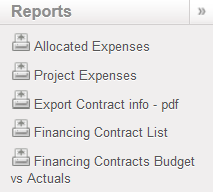
Financing Contract Reports
Analytic Account Report
How to Produce an Allocated Expense Donor Report
The {Allocated expense} report is a list of analytical journal items allocated to an earmarked grant (in other words a list of actual earmarked expenses) included in a selected financing contract. It will select all the expenses allocated to the funding pool set as {earmarked} in the financing contract and included in the reporting lines of the financing contract. As a consequence this report is useless for financing contracts defined as {Total project only}.
Go to Accounting/Grant management/Financing Contracts
- In the {Search Financing Contracts} view, tick the checkbox of the contract you want to open
⮡ The Reports menu displays on the right hand side of the screen
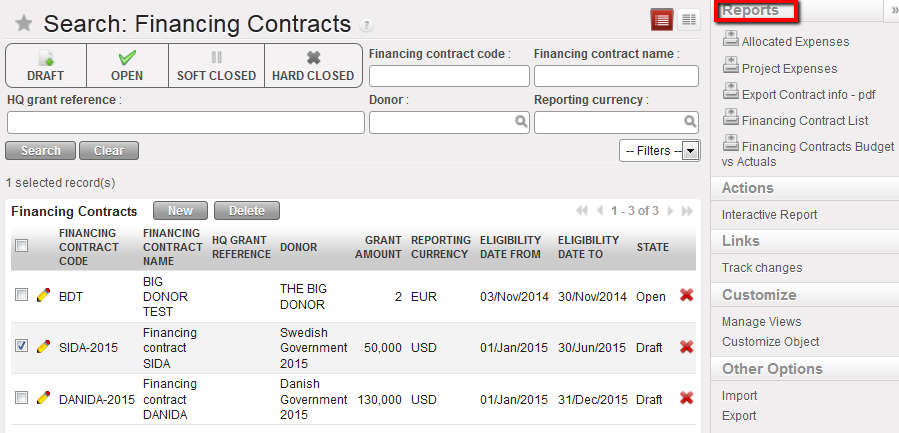
Reports menu displays as soon as a financing contract in selected in the Search Financing Contracts view
2. Select {Allocated expenses} and select {OK} in the Allocated Expenses window
⮡ The contract displays in xls format in both booking and reporting currency
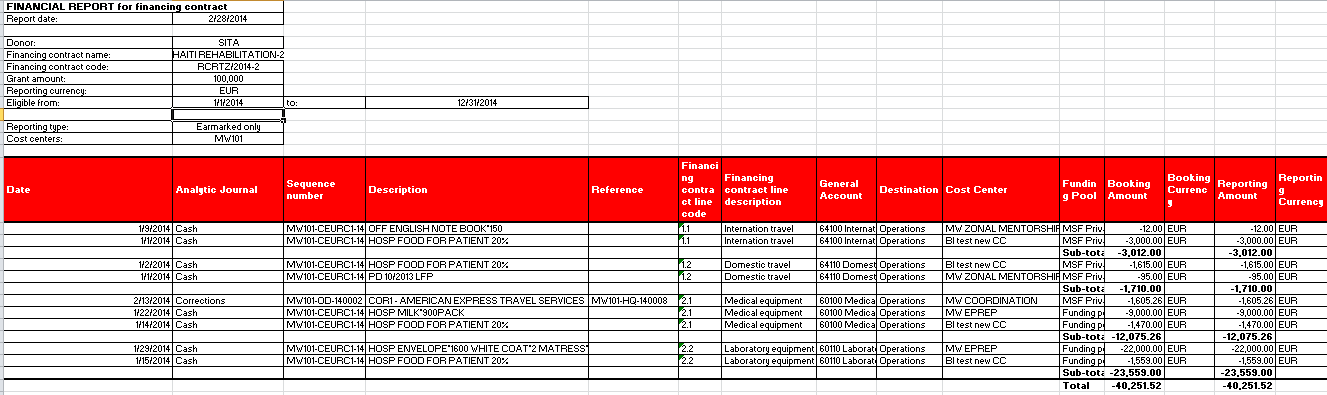
Allocated expense report
How to Produce a Project Expense Donor Report
The {Project Expense report} is a list of analytical journal items allocated to one of the cost centers selected in the financing contract (in other words, a list of all actual project expenses included in the financing contract). It will select all the expenses allocated to the Funding pool set as {Total Project} in the Financing contract and included in the reporting lines of the Financing Contract. As a consequence this report will not need to be issued for financing contracts defined as {Earmarked only}.
Go to Accounting/Grant management/Financing Contracts
- In the {Search Financing Contracts} view, tick the checkbox of the contract you want to open
⮡ The Reports menu displays on the right hand side of the screen
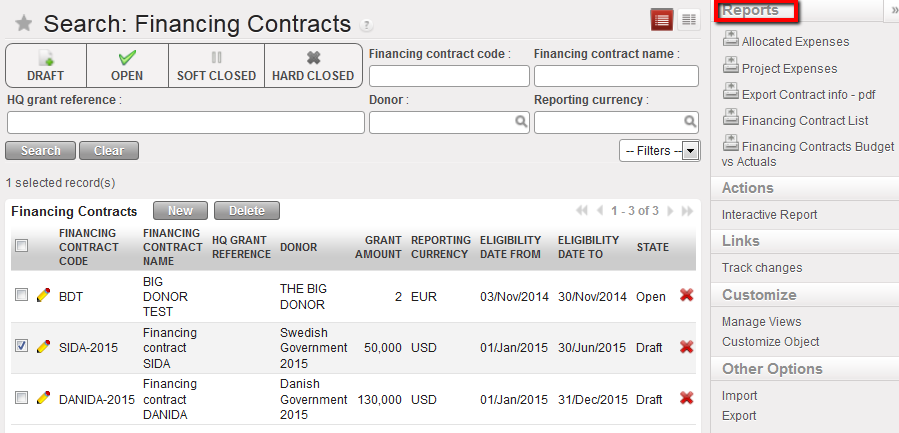
Reports menu displays as soon as a financing contract in selected in the Search Financing Contracts view
2. Select {Project Expenses} and select {OK} in the opening Project Expenses window
⮡ The contract displays in xls format in both booking and reporting currency
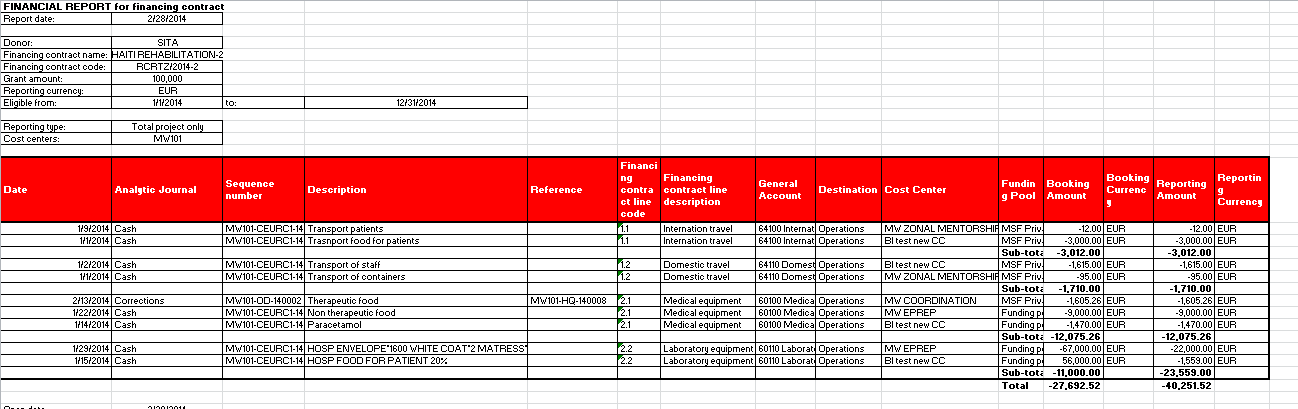
Total project only expense report
How to Produce an Export Contract Report
The {Export Contract} is a PDF internal report with a summary of the financing contract set-up. You can use it to check the overall set-up or more detailed information i.e. expenses accounts and associated destinations linked to a financing contract.
Go to Accounting/Grant management/Financing Contracts
- In the {Search Financing Contracts} view, tick the checkbox of the contract you want to open
⮡ The Reports menu displays on the right hand side of the screen
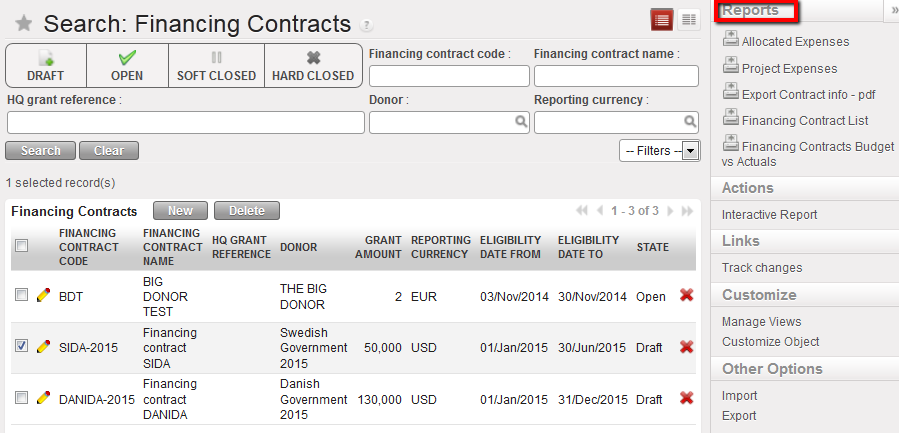
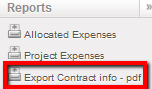
Reports menu displays as soon as a financing contract in selected in the Search Financing Contracts view
2. Select {Export Contract info – pdf} and select {OK} in the opening Allocated Expenses window
- A PDF displays showing general contract information as well as the reporting lines set up
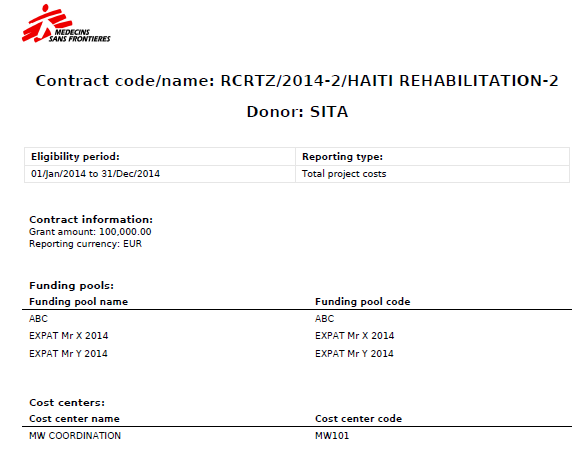
Export contract information (p1) report
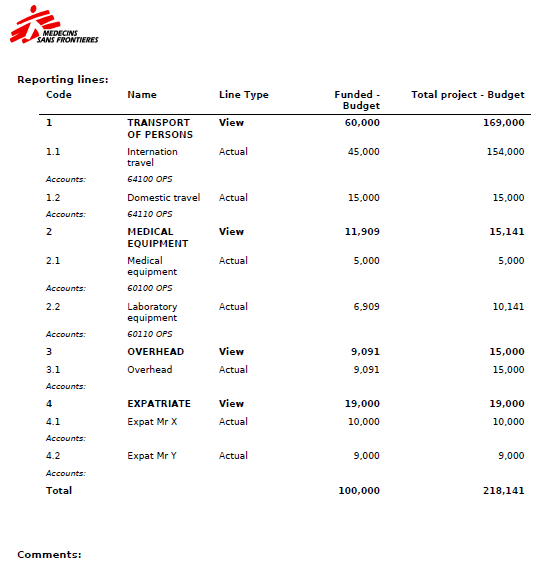
Export contract information (p2) report
How to Produce a Financing Contract List Report
The {Financing Contract list} is an internal report in pdf or excel format used to review the contract parameters (excluding reporting lines). This will help you to get a quick overview of the contract set-up.
Go to Accounting/Grant management/Financing Contracts
- Open the {Reports} menu
- Select {Financing Contract List – pdf}
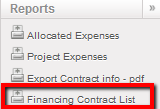
- Select OK in the opening Financing Contract List window
⮡ A PDF displays showing a detailed list of financing contracts set in your instance. You can select 3 reports out of 5 listed if need be.
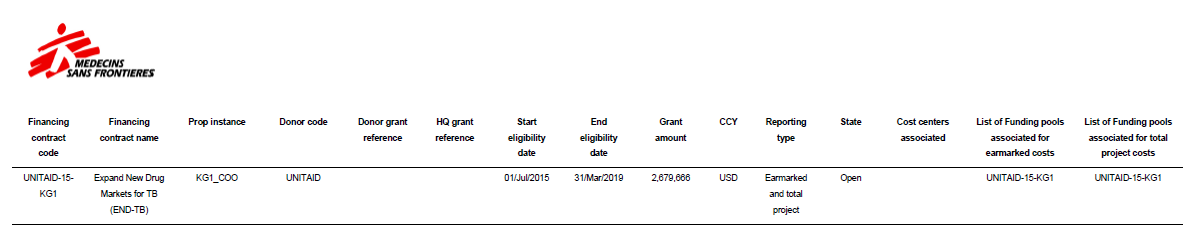
Financing contracts list report
How to Produce a Financing Contracts Budget vs. Actuals Report
This report displays actuals vs budget follow up allocated per reporting lines by earmarked or by total project or both depending on the reporting type set. This report is designed to follow-up on funding consumption: it helps user identify if the budget agreed with a Donor within a particular financing contract is consumed.
Go to Accounting/Grant management/Financing Contracts
- In the {Search Financing Contracts} view, tick the checkbox of the contract you want to open
- In the {Reports} section, select {Financing Contracts Budget vs Actuals}
- Select the desired output currency and click {Create Report}
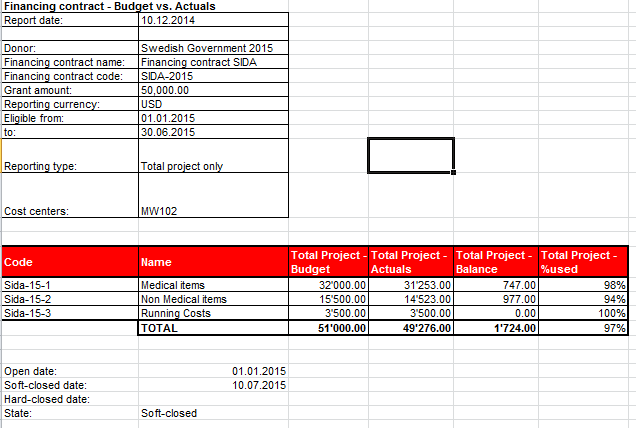
Financing Contracts Budget vs Actuals
How to Produce an Interactive Report
This report is a display on the screen of the financing contract budget vs actuals report.
Go to Accounting/Grant management/Financing Contracts
- In the {Search Financing Contracts} view, tick the checkbox of the contract you want to open
- In the {Reports} section, select {Interactive report}
- Select the desired output currency and click {Create Report}

Interactive report displayed on the screen. No budgetted and actaul expenses were recorded yet.
How to Produce a Funding Pool Export
The {Funding Pool export} is an internal PDF report used to review all the Funding Pool parameters (Cost Centers and Couple Account/Destination).
Go to Accounting/Grant management/Analytic Accounts
⮡ A list of funding pool appears.
- Select one of the funding pools.
⮡ A report menu displays in the right-hand side menu
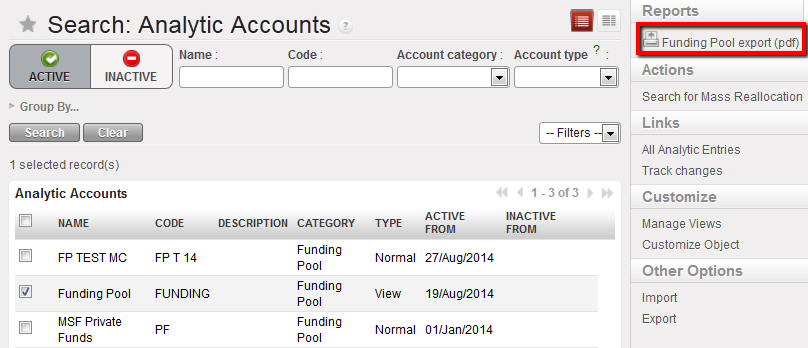
- Select the report type {Funding Pool Export (pdf)}
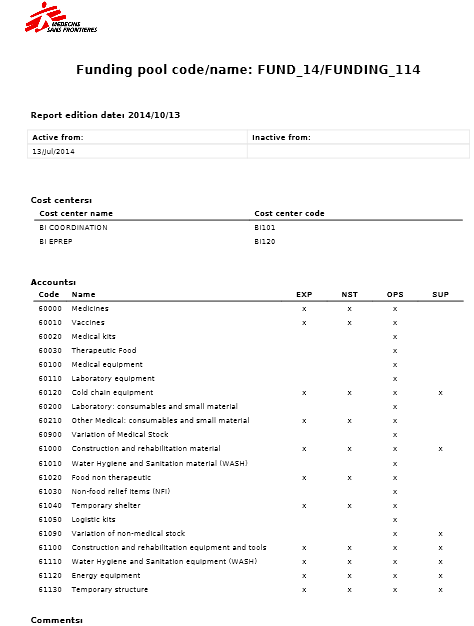
Summary of funding pool
LUFI-6.4 Financing Contract Principles
Finance User Manual ENG -> 6. Donor Management -> LUFI-6.4 Financing Contract Principles.
FINANCING CONTRACT PRINCIPLES
LU Introduction
In UniField, the financing contracts are the key grant management tool as all reports are produced from there; they link the funding pools and the Donors to provide the ability to issue adequate reporting to institutional Donors.
By linking financing contracts to a Donor, the following information from the Donor form is carried over in the financing contracts:
- Reporting type
- Overhead percentage
- Reporting lines
The financing contract form includes the following fields and tabs:
- {Financing Contract Code & Name}: Manually input a recognizable code and name.
- {Donor Name}: Select a Donor from the list created via the {Donor} sub module. By associating a Donor to a contract the system will pick-up the reporting lines associated with the Donor form. This template remains editable to adapt to specific contexts or reporting requirements.
- {Reporting type}: Is an essential parameter defining what type of costs the user needs to report on. The three options are: earmarked, total project costs, or earmarked and total project costs. By selecting a Donor, this information will be carried over from the Donor form but remains editable.
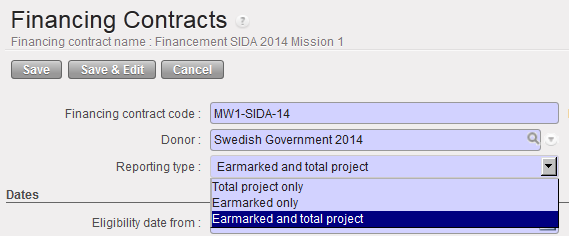 Reporting types of a financing contract
4. {Proprietary instance}: Select an instance from the list of instances available in your database. It should be the proprietary instance of the coordination of the mission. It determines the coordination to which the financing contract will sync and avoids synching all financing contracts to all missions.
5. {Eligibility Dates}: reflect the financing contract duration. It determines if a specific expense should be included in the Donor report based on the expense’s {document date}.
6. {Contract information}: The reports are issued in the Donor currency as manually selected by the user. When the Donor requires specific exchange rates to value expenses included in the report, UniField offers the possibility to link a specific currency table to a contract; as a result the expenses presented in the contract will be valued at the Donor exchange rates table rather than system rates.
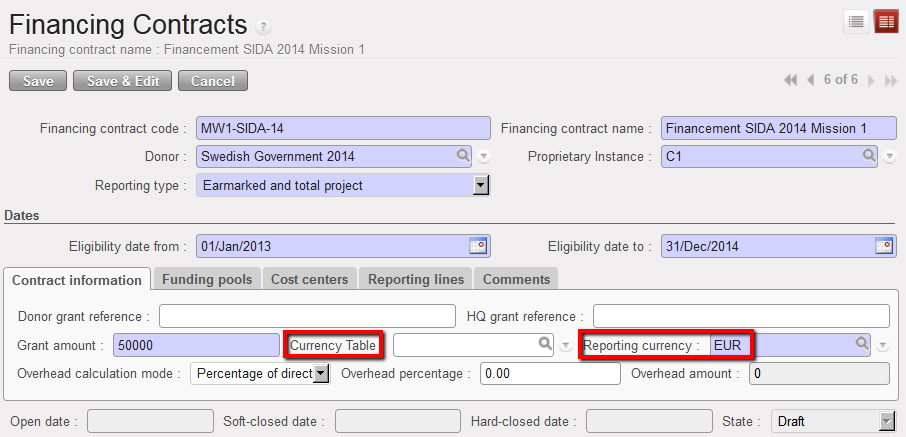 Reporting currency
The overhead amount will display if the Donor is funding overhead and if this option was set in the Donor form.
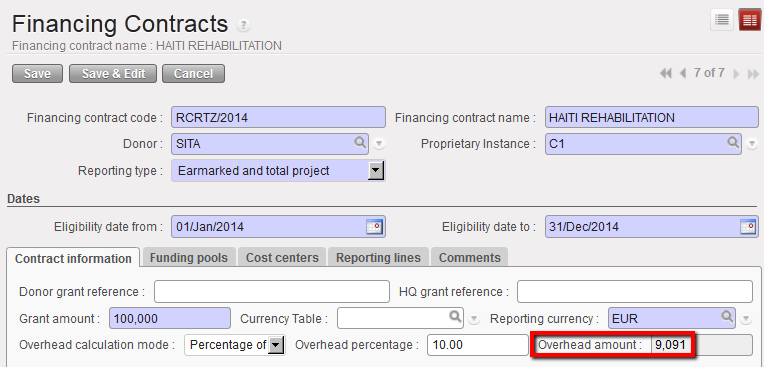 Overhead Donor contribution calculated
In the above example, overhead amounts 9,091 EUR. The chart below shows how the system calculated the direct costs and from there the overhead amount:
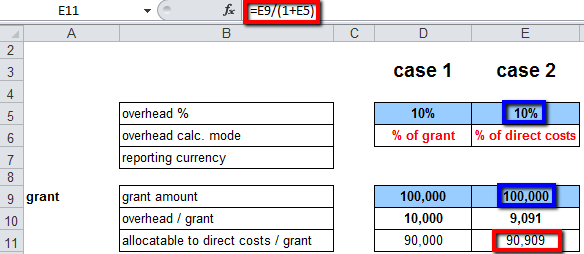 Direct cost and Overhead calculation explanation when overhead calculation is based on direct costs
If the overhead calculation was out of the total grant, we would have the following calculation:
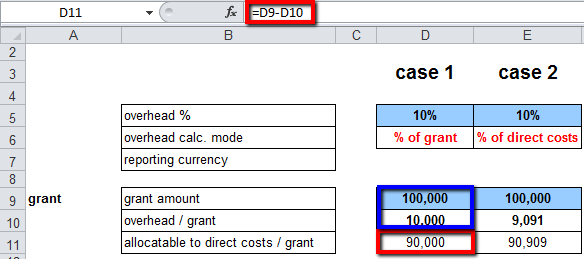 Direct cost and Overhead calcualtion explanation when overhead calculation is based on total grant
7. {Funding Pools}: Defines which funding pools should be included in the report, both for earmarked (grant) and total project costs. By default, UniField selects the report type listed in the Donor form. However, it can be edited.
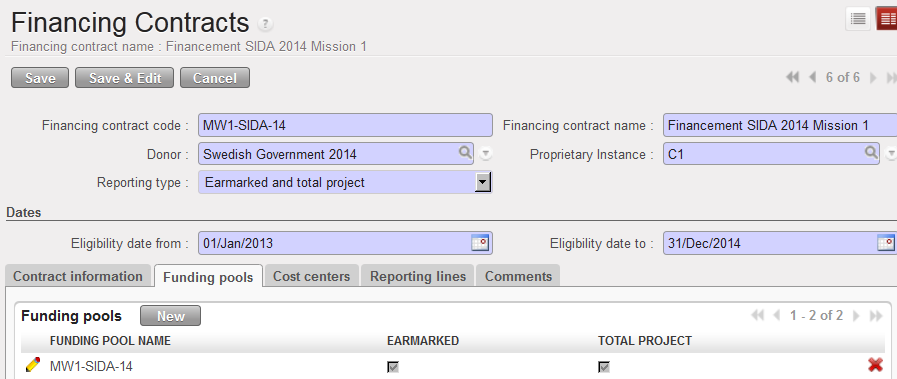 Funding pools tab displaying FP linked to a financing contract
8. {Cost Centers}: Selects the analytical cost centers (projects) the Donor has agreed to provide funds to. The cost center selected here should also be selected on the matching funding pool.
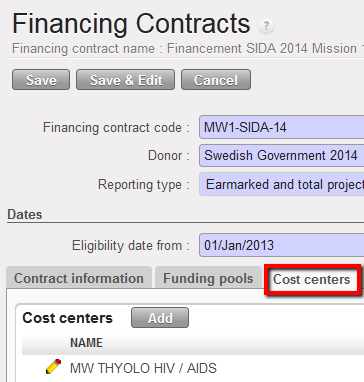 Cost centers associated to a financing contract
9. {Reporting Lines}: Are a given MSF expense account/destination code & cost center which are mapped to the Donors reporting requirements. By selecting the Donor, UniField automatically selects the reporting lines as defined in the Donor’s form.
These lines will be standard: they will be retrieved every time you create a financing contract with this particular Donor, provided the reporting guidelines remain unchanged.
You can edit, add and remove reporting lines to adapt to specific reporting guidelines valid for a particular financing contract. In case the changes performed are meant to be generic and valid across all grants, they should be executed in the Donor form.
The expense codes/destinations associated to the contract’s reporting lines should also be selected in the funding pools used in the contract.
In the reporting lines tab, you enter a budget per reporting line, both for earmarked costs {Funded – Budget} and for total project costs {Total Project – Budget}. The total budget (including overhead) will have to match the budget included in the proposal submitted to and signed with the Donor. The {Funded – Budget} is the amount the Donor has agreed to pay. The {Total Project – Budget} is the amount for these expense codes for the entire project (excluding expenses allocated to {MSF private funds}.
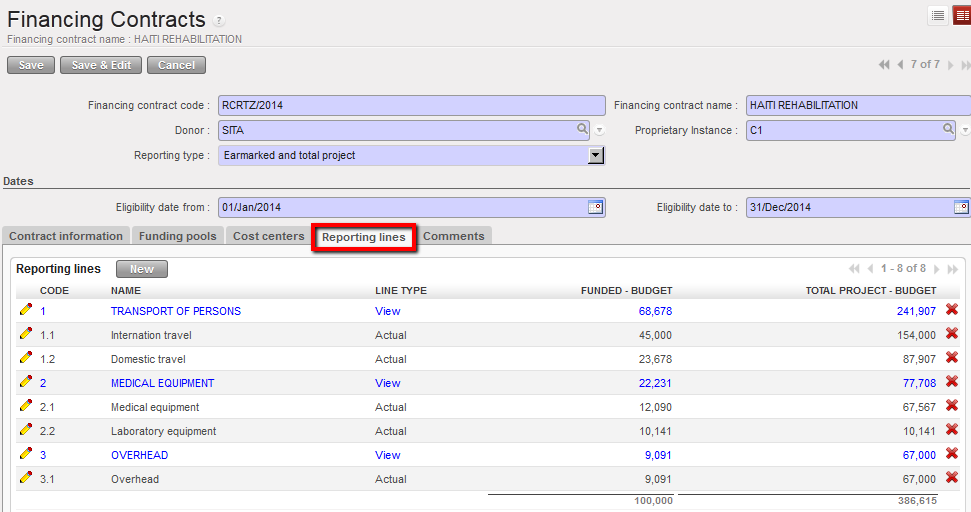 Reporting lines
In the example below, the Donor has agreed to pay the full budget for Laboratory equipment cost.
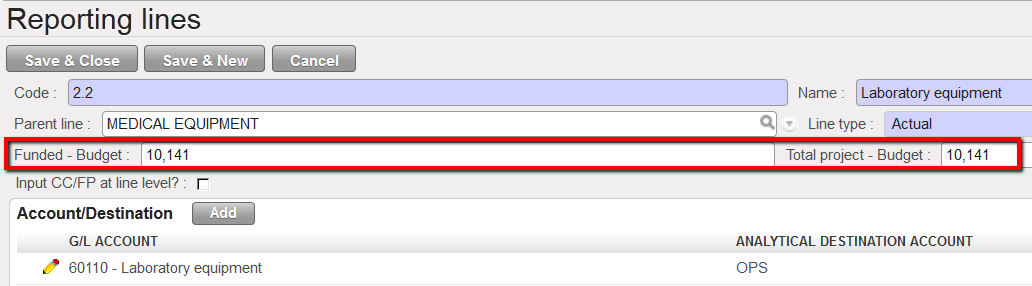 Reporting line and associated budget (earmarked and total)

Suppose now the Donor wants a more detail of the expense report, for example per expat. To be able to select twice the same accounting code, it is possible to use quadruplets made of {expense account, destination, cost center, funding pool} instead of couples made of {expense account, destination}. Such feature allows the user to pick the same expense account in different reporting lines and provides the ability to report on the related expenses under different reporting lines so that nature of expenses funded is similar.
For example, DANIDA requests a reporting displaying expense per Danish expat.
- In order to comply with this requirement you need to isolate expenses on account {66220 – per diem} for Mr X and for Mr Y by creating 2 reporting lines. You will also need to create a funding pool for Mr X and a funding pool for Mr Y and tie them to the appropriate reporting lines created.
- For the Expat, you will create 2 funding pools associated to the account code {66220 – per diem} as showed below:
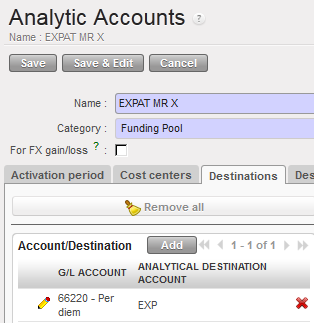
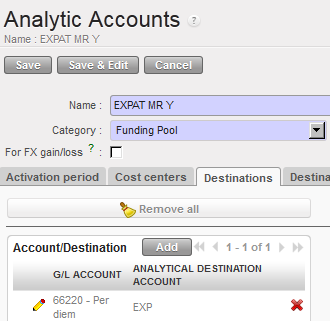 Funding Pools to use when setting reporting line
In the financing contract, you will assign the reporting line Mr X to the funding pool EXPAT MR X and the reporting line Mr Y to the funding pool EXPAT MR Y. To do so, you will need to use the functionality {Input CC/FP at line level} available on the reporting line window:
Option 1:
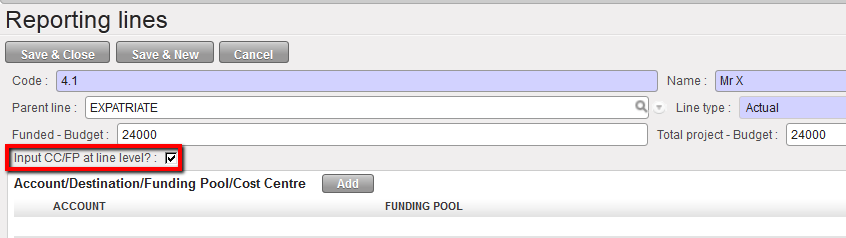 Ticking the checkbox Input CC/FP at line level
Or option 2:

Then link the line to the funding pool EXPAT Mr X
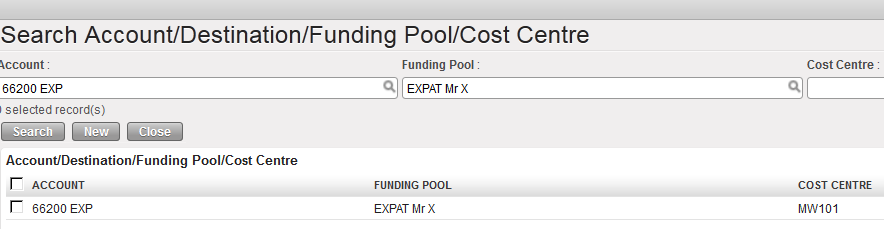 Linking the reporting line Mr X to the funding pool EXPAT Mr X in the Search Account/Destination/Funding Pool/Cost Center
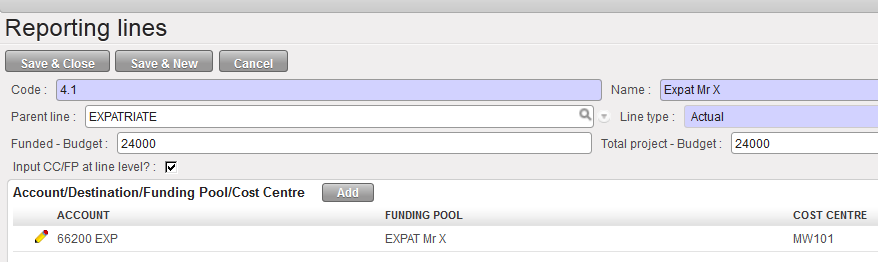 Reporting line associated to the funding pool EXPAT Mr X
Remember, you must first assign the cost centers and funding pools to the financing contract in the tabs {Cost Centers} and {Funding Pools}, then save the contract, prior to linking quadruplets to reporting lines otherwise they will not display in the {Search Account/Destination/Funding Pool/Cost Center} window.
10. {Comments}: Any type of relevant comment you want to add in the financing contract (text format).

Financing contracts have four status types:
- {Draft}: The proposal was submitted to the Donor and is likely to be accepted. Contract info can therefore be integrated in the system and the appropriate funding pools can already be created.
- {Open}: MSF reached an agreement with the Donor and received a formal approval on the submitted proposal.
- {Soft-closed}: A draft report was finalized and sent to the Donor. From the moment a contract is soft-closed in the system, the corresponding expenses cannot be modified / corrected (Expense account, Destination, Cost Centre, Funding Pool). However an authorized user can re-open this contract, making allocation on the funding dimension open to modification again.
- {Hard-closed}: The final report was finalised and sent to the Donor; a hard-closed contract cannot be set back to ‘soft-closed’ ever again
How to Create a Financing Contract
Go to: Accounting/Configuration/Grant Management/Financing Contracts
⮡ A list of active financing contracts appears
Click on {New} to create a new contract.
⮡ A new contract form appears
- Enter the contract code and financing contract name.
- Select the Donor form by clicking on the magnifying glass

- The type of reporting is automatically populated by the one set up in the Donor form but remains editable.
- The proprietary instance is not editable (it is the user’s one)
- Enter the eligibility date {From and To}.
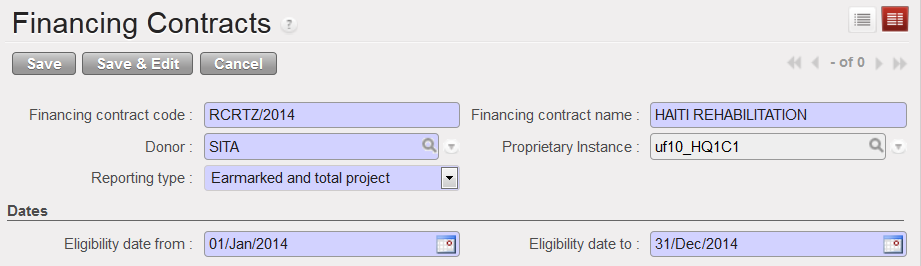 Financing contract creation
- {Contract information} tab: complete the {Donor grant reference} and {HQ grant reference} fields. They are optional but provide additional information on the report for better follow-up.
- Enter the grant / global contribution amount (the funded amount).
- If required by the Donor, select a currency table to produce the report at the requested exchange rates. If not required, simply enter a reporting currency.
- The overhead amount is automatically calculated based on the Grant amount.
 Contract information tab
5. In the {Funding pools} tab, click on {New} and in the field {Funding pool name} click on the magnifying glass  to select the funding pools you want to link to this contract. Save the line
Tick the checkbox {Earmarked} if the Donor requested a specific report on its funding. If you want to link a funding pool to a reporting line, remember to add it here.
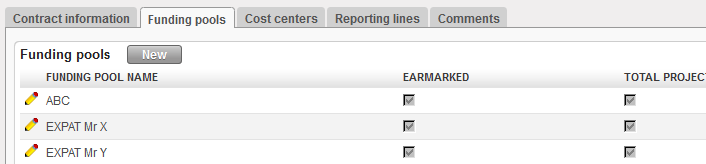 Funding Pools tab and pools added
6. In the {Cost centers} tab, click on {Add}. The Search Analytic account view display.
Select the cost centers you want to add to this contract.
 Cost centers tab and adding data
7. In the {Reporting lines} tab, the lines default to the lines mapped to the Donor form.
8. Open each reporting line type {Actual} by selecting the  edit button of the line to enter the funded and budgeted amount. Funded budget is the amount the Donor has agreed to fund for these expense accounts/destinations. The total budget – project is the total budget for only these expense accounts/destinations.
Option 1:
 Budgeted amount for the reporting line {Personnel}
Option2:

- If you need to allocate a quadruplet account/destination/cost center/funding pool to a reporting line, open the relevant reporting line

- Tick the check box of the statement {Input CC/FP at line level} for the first option
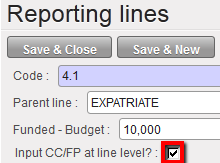 Ticking the checkbox to input CC/FP at line level
3. Or tick the check box Select Accunts Only for the second option:
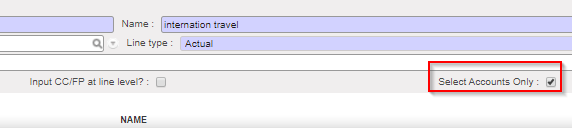
4. In the box {Account/Destination/Funding Pool/Cost Center}, select to insert a quadruplet account/destination/cost center/funding pool

 Linking cost centers and funding pools at line level

5. In the {Search Account/Destination/Funding Pool/Cost Center} view, select the relevant quadruplet
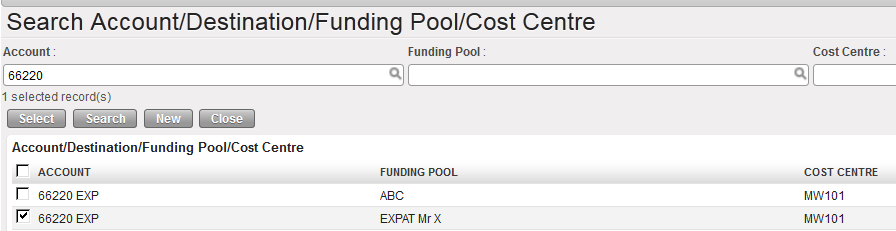 Choosing a quadruplet to link it to a reporting line
6. Save & Close. The window closes.
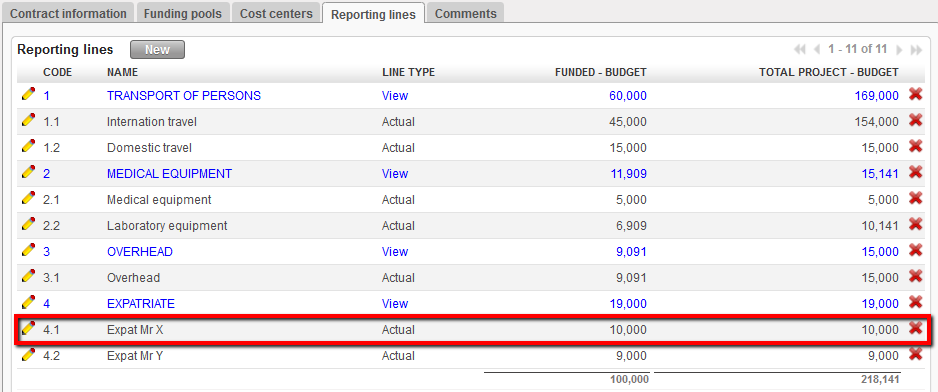
The reporting line Expat Mr X was associated to the quadruplet 66220/EXP/EXPAT Mr X/MW101. The quadruplet does not display in the reporting line tab
Please note that if you ticked the “Input Account Only” check box, the current display selection is removed (like when you tick on “Input CC/FP at line level”). The new display: only one column “G/L Accounts” is displayed.
When clicking in “Add”, it brings to “Search Account”, filter is still “G/L Account” and only one column remains “GL Account”.
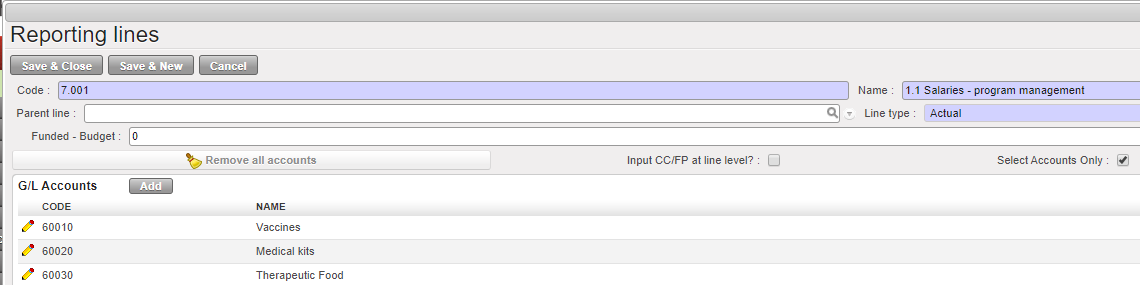

Regarding “Input Account Only” checkbox, please note the following:
|
In the {Comments} tab, you can insert any relevant comment related to the financing contract.
- Finally, save the contract
⮡ The contract is saved in {Draft}. If the grant is approved formally, you will need to set the contract to {Open}
At the end of the funding period, you will be able to retrieve following report:
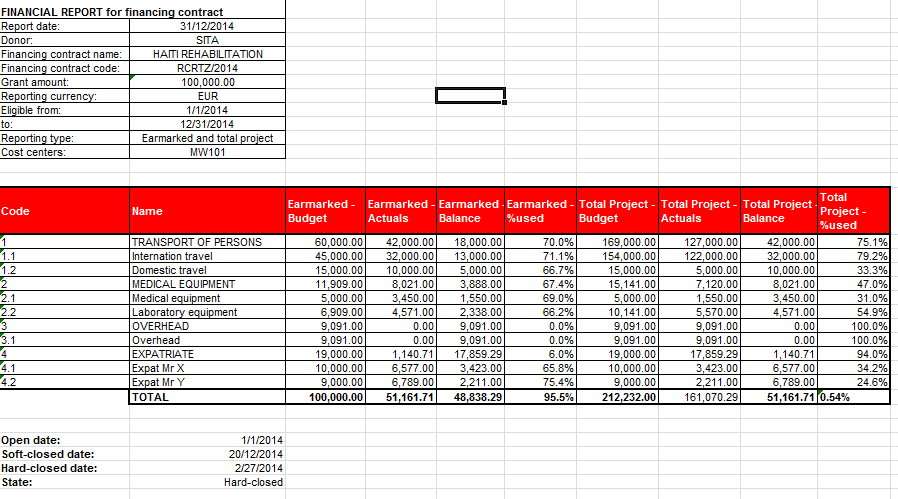 Interactive report showing expenses incurred in 2014 and splitting EXPATRIATE cost in two reporting lines
How to Create a Currency Rate Table for a Donor
The reports are issued in the Donor currency. When the Donor requires specific exchange rates, UniField offers the possibility to link a specific currency table to a contract; as a result the expenses presented in the contract will be valued at the Donor exchange rates table, rather than system rates.
You will create a currency table by importing a file containing the currency rate and the functional currency with value equal to 1 (EUR = 1 or CHF = 1).
The table will be created in UniField once the green light from the Donor for the funding proposal is received and it should be provided by the Donor and converted to UF format for import if many currencies are involved. If not, rates can be manually inserted in the specific Donor table created.
It will then be linked to an {Open} financing contract.
Go to Accounting/Configuration /Currency Management/CurrencyTables
- Click on {New} button.
⮡ A currency table form is displayed
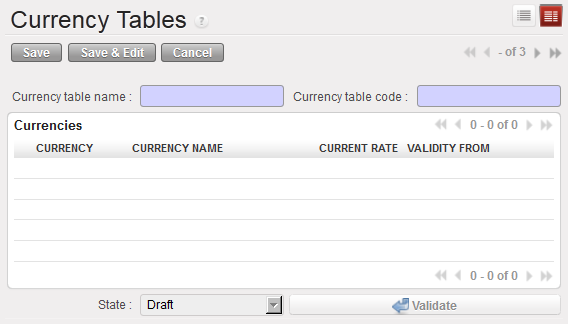 Currency table form
2. Enter the {Currency table name} and {Currency table code}
| Title of field | Currency table: entry protocol | Source for Information |
| Currency table name | Name FREE | HQ |
| Currency table code | Code FREE | HQ |
| Currencies | See above | See above |
3. Click {Save} button. The table is saved in {Draft} status.
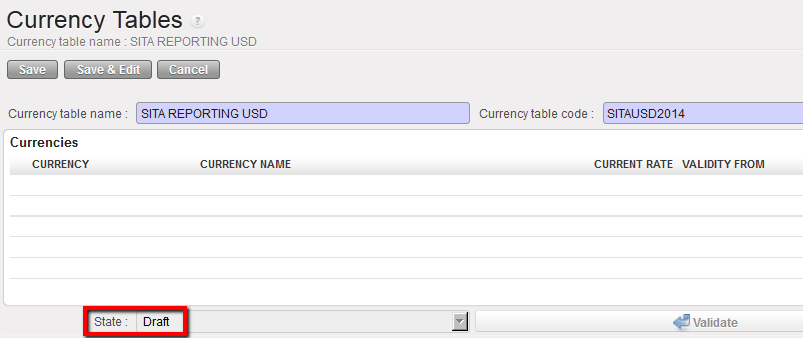 Currency table in Draft state
4. In the {Actions} menu on the top right side of the screen, select {Import Currencies},
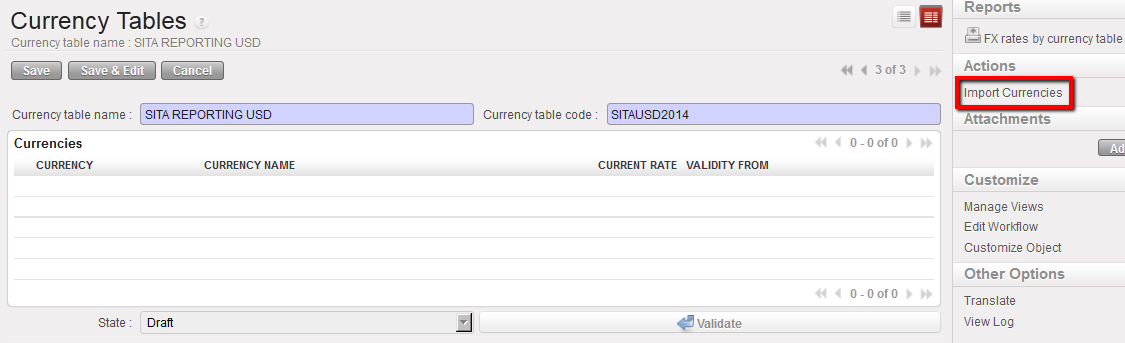 Import currency action
⮡ The {Import Currencies} Wizard appears
5. Select the uploaded rates date and {add attachment} to import the csv file containing the currencies and associated exchange rates.
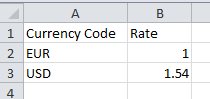 Example of currency rate import file
6. Click on {Import} button and {OK},
 Import Currencies window
⮡ The currency table rate is imported in the section {Currencies}
7. Click on the {Save}, and followed by clicking the {Validate} button. Validate the table to be able to use it when you create a financing contract and produce a financing or budget report
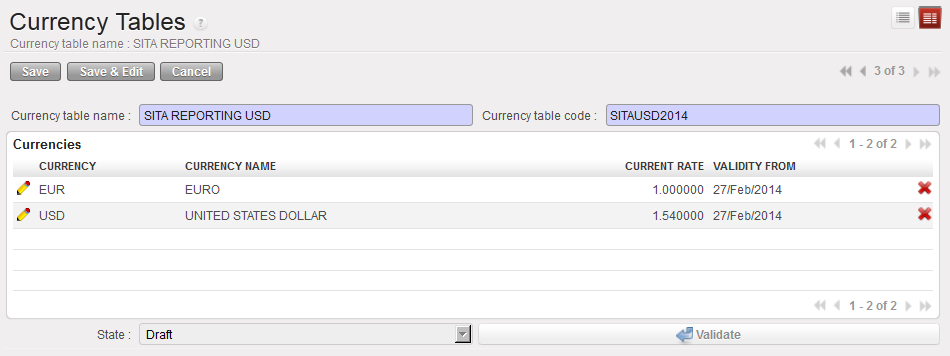 The currency table rate is imported in the section {Currencies}
8. Click button  , to close the table when you do not use it anymore.
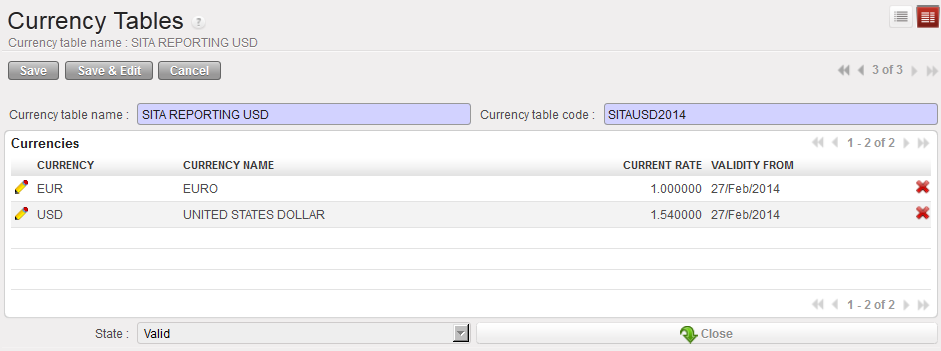 Valid currency table

How to Set a Contract to Open, Soft-Closed and Hard-Closed
To set the contract from draft to open
Go to: Accounting/Configuration/Grant Management/Financing Contracts
⮡ A list of active financing contracts appears
- Select your desired contract from the lists of {Draft} contracts
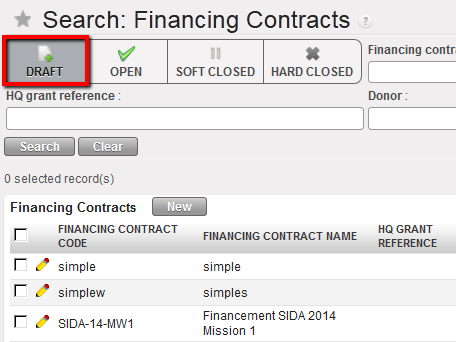 List of Draft contracts
⮡ The list of draft contract form appears.
2. Select the button.

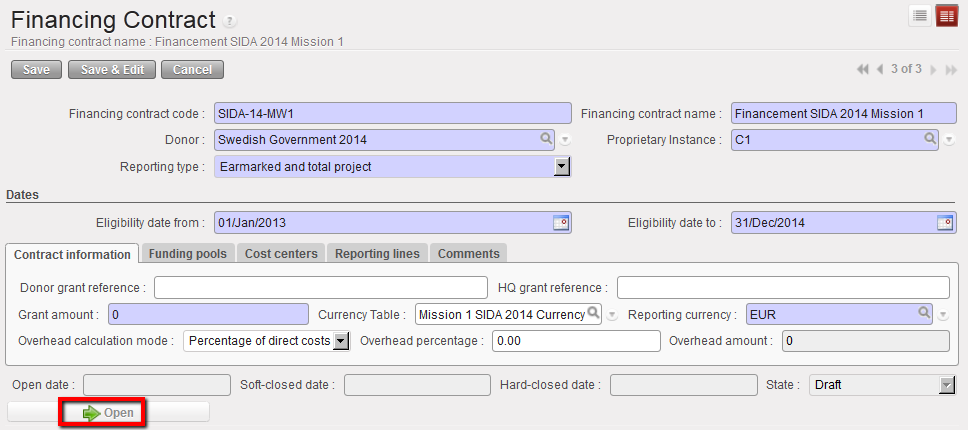 Opening a financing contract for Draft state contract
3. The contract becomes {Open}.
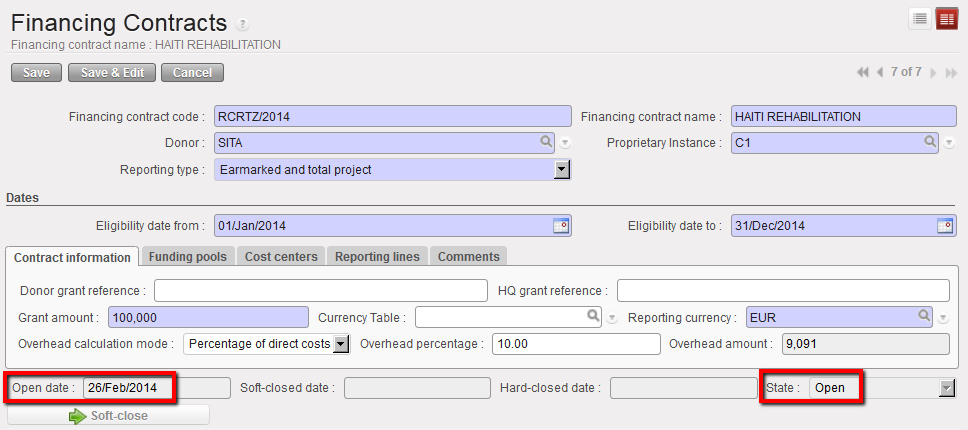 Contract in Open state from 26/Feb/2014
To set the contract from open to soft closed
Go to: Accounting/Configuration/Grant Management/Financing Contracts
⮡ A list of active financing contracts appears
- Select your desired contract from the lists of {Open} contracts.
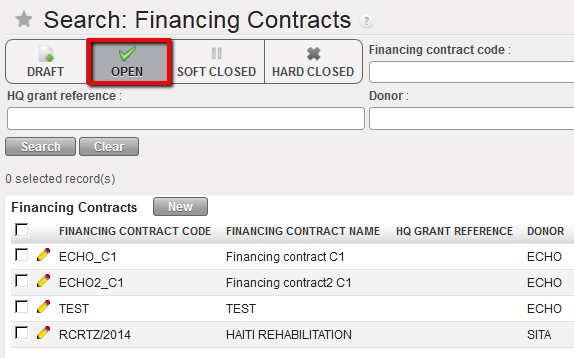
⮡ The contract form appears
2. Select the button.

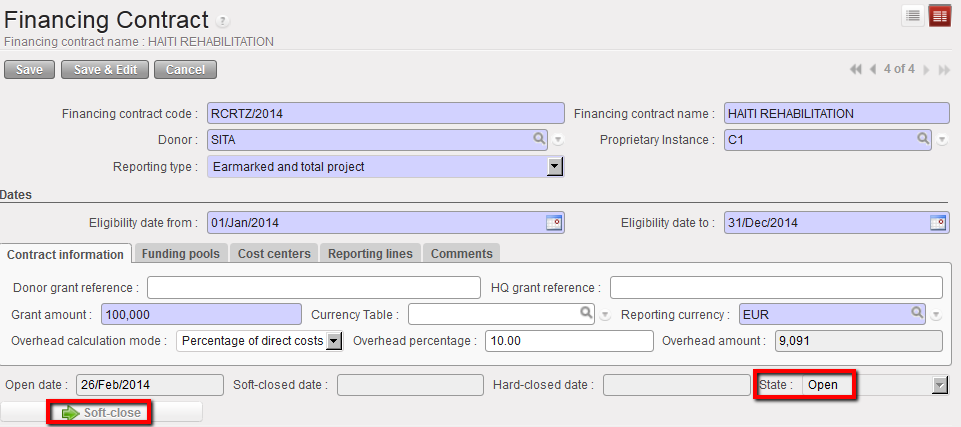 Soft Close Screen for Open state contract
3. The contract becomes {Soft-closed}.
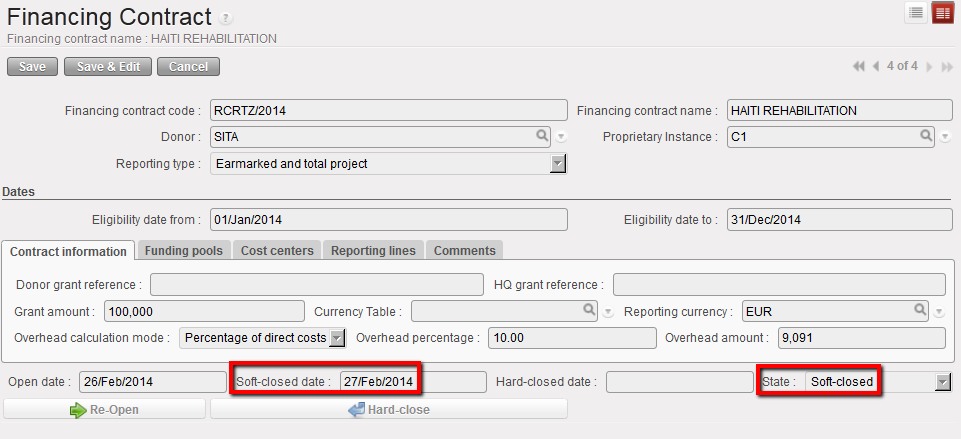 Contract in Soft-closed state from 27/Feb/2014

To set the contract from soft closed to hard closed
Go to: Accounting/Configuration/Grant Management/Financing Contracts
⮡ A list of active financing contracts appears
- Select your desired contract from the lists of {SOFT CLOSED} contracts.
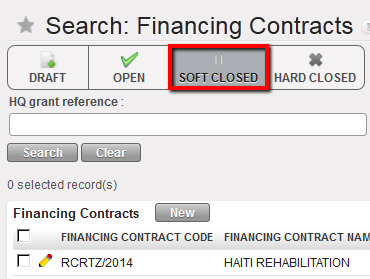 List of Soft-Closed contracts
-
-
-
- The contract form appears
-
-
2. Select the  button or the
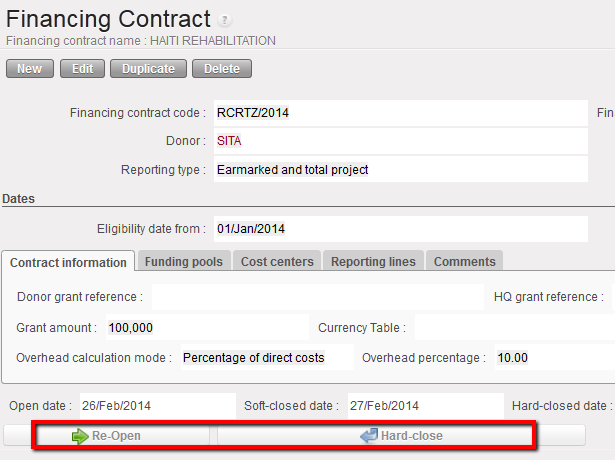 Reopen or Hard-Close Screen
3. The contract becomes {Hard-Closed}
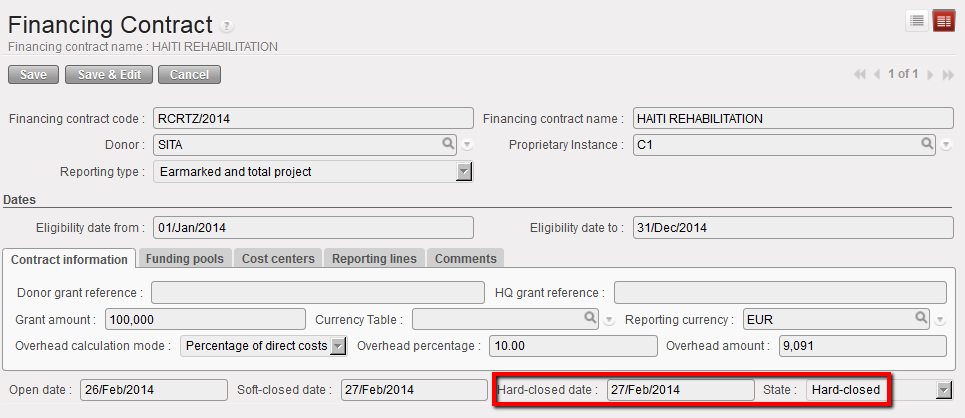 Contract in Hard-closed state from 27/Feb/2014

LUFI-6.3 Funding Pool Principles
Finance User Manual ENG -> 6. Donor Management -> LUFI-6.3 Funding Pool Principles
LUFI-6.3 Funding Pool Principles
LUFI-6.2 Donor Principles
Finance User Manual ENG -> 6. Donor Management -> LUFI-6.2 DONOR PRINCIPLES
LUFI-6.2 Donor Principles
LU Introduction
In the {Donors} module, the user links Donor reporting requirements with the MSF Chart of Accounts and Destinations. The user defines which expense accounts / destinations need to be selected to create reporting lines according to the expenses the Donor agreed to finance and its reporting requirements.
The Donor form includes the following fields:
- Donor code and name
- Reporting type
- Overhead calculation mode
- Overhead percentage
- Reporting Lines
- The {Donor code} and {Name} input type depends on your section’s guidelines. Please refer to them.
- The {Reporting type} reflects the type of report requested by the Donor. There are 3 types of reports available in UniField:
 Drop down menu to choose Donor Reporting Type
{Total project only} reporting shows the costs of the entire project, excluding expenses allocated to the {Private Funds} funding pool which are considered non eligible for any Donor. In this case:
- The Donor does not fund a budget line in particular. He is only interested in the total project costs. The amount of money budgeted with the Donor is used to fund a portion of the total project costs.
- The grant has a defined amount which may be a % of the total project costs or a fixed amount
- Expenses included in this kind of report should be allocated to generic funding pools called Co-funding (COFI); they may be co-funded by several Donors. This leaves MSF with greater flexibility in terms of allocations (no cost type restriction: expats vs. drugs etc.)
- Reporting is done on total project costs only and would display only one {Total project costs} column with budget and actual amounts.
{Earmarked only} reporting shows only the expenses allocated to a specific grant.
- Expenses must be allocated to a specific funding pool. This funding pool is dedicated to report on this earmarked grant, though it may also be used in a global contribution to report on “Total project costs” as well.
- Costs paid directly by the Donor can be easily audited down to the document level
- Reports exclude the total project cost. The report would include only one {Earmarked costs} column in the Donor report with budget and actual amounts funded.
{Ear-marked and total project} reporting is for Donors requiring reporting both on the specific use of their grant and on total project costs
- The Donor funds a specific reporting line but would also expect to see reporting on the total project costs in order to assess the project efficiency and potentially to avoid cost funding duplication.
- Reports on the earmarked and total project costs expenses would include two columns: one for the earmarked costs and one for total project costs, both presenting budget and actual costs.
The {Overhead calculation mode} allows you to record a Donor’s contribution for overhead cost funding. In the Donor form, you need to specify the calculation mode that the Donor is working with as far as overheads costs are concerned.
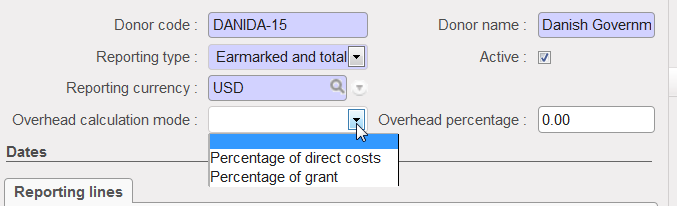 Overhead calculation mode
{Percentage of Direct costs}
- An (eligible) direct cost is a cost necessary to carry out the actions, complying with the principles of sound financial management in particular value for money. For instance it could be cost of travels and subsistence, equipment, goods or service purchase, field living cost. As opposed to Direct cost, Indirect costs or Overhead are used for overall administration expenses and do not need to be justified.
- If you select the option {Percentage of direct costs}, the Donor funds a percentage of direct costs as far as Overheads are concerned.
- In this case you set up a reporting line of overhead type called {Overhead} for overhead costs. Then only a percentage of these costs are linked to the Donor. You do not need to link the reporting line to accounting codes to report on actuals for this reporting line.
- For example, if the Donor agrees to fund 5% of direct cost for overhead, and the total grant was 30,000 Euro and direct costs were 28,571 Euro the Donor would provide 1,429 Euro for overhead.
{Percentage of Grant}
- A second possibility for Donors is to finance Overhead based on a percent of the total grant. In UniField, you will select the overhead calculation type {Percentage of Grant}.
- For example, if the Donor agrees to fund 5% of the total grant for overheads, and the total grant was 50,000 Euro the Donor would finance 2,500 Euro.
The {Reporting lines} represent the Donors standard reporting format with the type of expenses funded identified through the link to expense accounts.
Reporting lines can bear different types:
- {View}: the total of all associated Actual Reporting Lines.
- {Actual}: total of all posted entries done on the account linked to this reporting Line.
- {Consumptions}: a raw figure based on consumption reports (for instance on stocks) over a defined period. The related expenses must be justified through an inventory or a consumption report built outside UniField.
- {Overhead}: administrative costs calculated either on the total cost of the project or only on direct costs.
For example, if the Donor agrees to pay for transport cost which includes both international and domestic travel, a user should create 3 reporting lines:
– One {View} reporting line TRANSPORT OF PERSONS
– Two {Actual} reporting lines: Domestic travels cost with all 64110 expenses and International travel with all 64100 expenses. The {Transport of persons} lines are based on the Donor requirements and are linked to the MSF chart of accounts’ domestic and international travel expense codes.
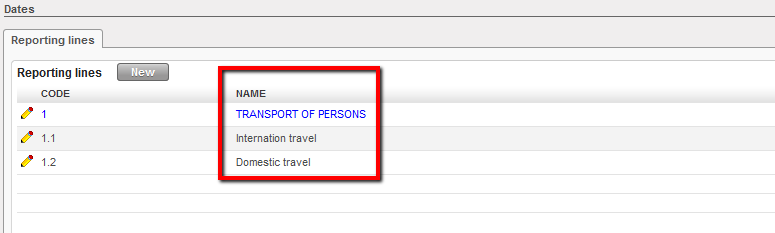 Example of View and Actual reporting lines
These reporting lines remain editable to match any reporting changes submitted by the Donor.
Go to: Accounting/Grant Management/Donors
- Click on {New} button to open a new form.
- Enter the {Donor Code}, {Donor Name} and choose the type of reporting according to the Donor’s reporting requirement. It could be {Total Project Only}, {Earmarked only}, {Earmarked and Total project}.
- Select a {Reporting Currency}
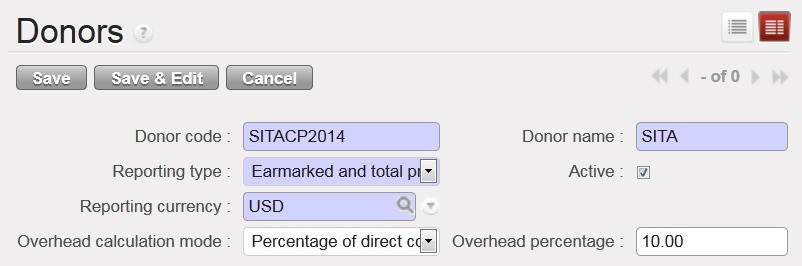
- If the Donor contributes to overhead cost, select the overhead calculation mode {percentage of direct costs} or {percentage of grant} and enter a value in the {overhead percentage} field. For instance, 10% of direct cost:
Donor form creation –SITA
 1. In the {Reporting Lines} field, click on {New}
—->>>A reporting lines wizard appears
2. You need to create the {View} reporting lines first. Enter the reporting line code, name, type {View} and click {Save & New} button. For this example, let’s create a view reporting line with a name “Medical Equipment” and code “2”.
{View} reporting line created

3. Once you have created the {View} reporting lines, you can associate the {Actual} reporting lines. For this example, let’s create “2.1 Medical Equipment” and “2.2 Laboratory Equipment” actual reporting lines.
4. In the {Parent Line} field, click on the magnifying glass  to link the line you are creating to a {View} parent line. Select the {MEDICAL EQUIPMENT} line.
5. Enter the line code “2.1” and name the actual line “Medical Equipment”.
6. Select {Account/destination} to link the reporting line to a {expense account/destination} couple. For this example, select account code 60100 which defaults to OPS destination.
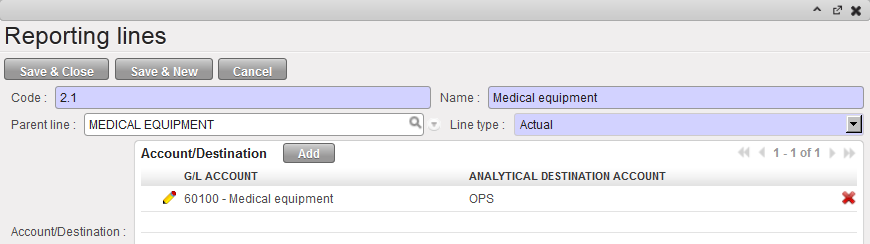 Reporting lines configuration
Click {Save & New} button to continue mapping the reporting lines. When associating the reporting lines to {expense account/destination} couples, user will not be able to use the couples already associated to a different reporting line (they will be in grey in the display).
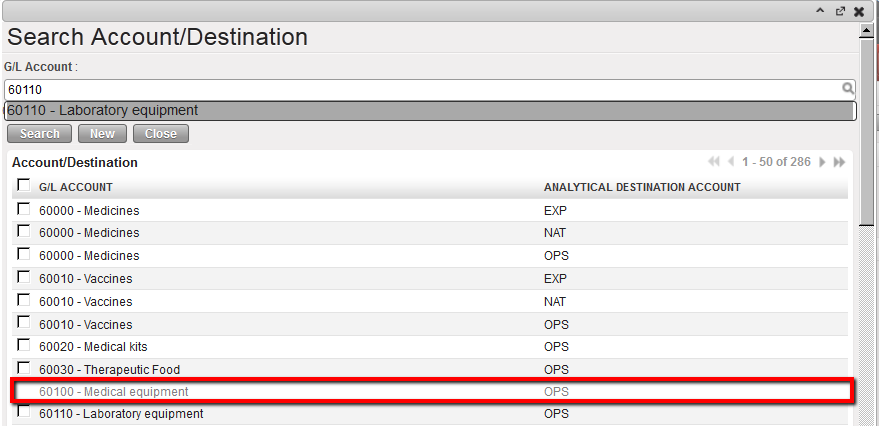 System shows account/destination unavailable (in grey) when mapping the reporting lines
7. Once you created the second actual reporting line, save the form. 
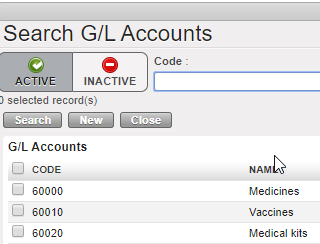
Please note that if If this tick box “Selects Accounts Only” is ticked, the current display selection is removed.
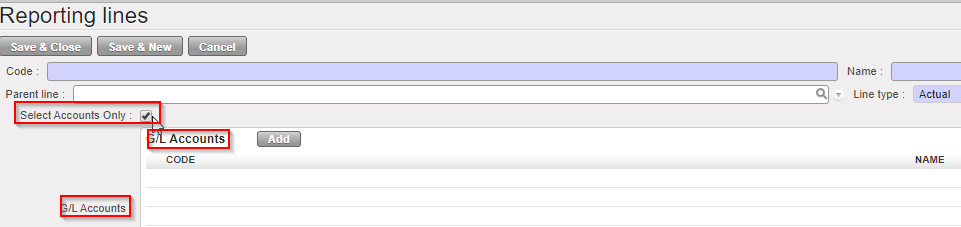
- When clicking in “Add”, it brings to “Search G/L Accounts” and only one column remain “GL Accounts” (account code + account code name).
How to Set Up Overhead Costs Reporting Lines
Go to: Accounting/Grant Management/Donors
Select the appropriate Donor.
- Under reporting line select the {New} button.
- Create a code, code name and select {Overhead} for the line type.
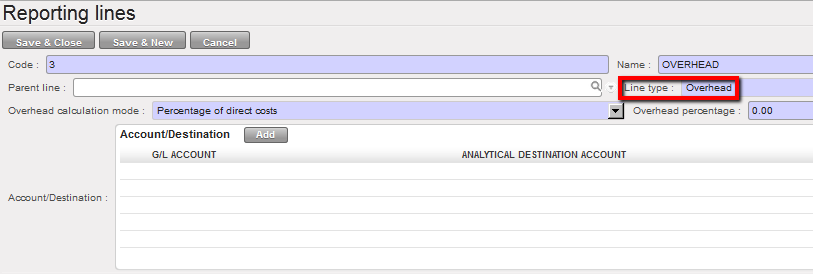 Select the Line Type
3. Choose the overhead calculation mode {Percentage of direct costs} if overhead was calculated on direct cost of the project or % of grant. Insert the overhead percentage.
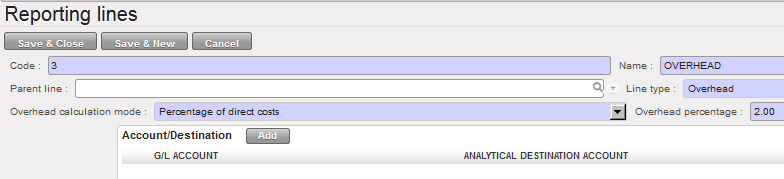 Overhead calculation mode setting
4. Click {Save} button.
6.1 CHAPTER OVERVIEW: Donor Management
Finance User Manual ENG -> 6. Donor Management -> Chapter overview: Donor Management.
6.1 CHAPTER OVERVIEW: Donor Management
Donor reporting is a custom-made module in UniField that enables users to handle both simple and complex reporting requirements, enabling the production of reports once the funding period is over.
When MSF starts negotiating a grant with a Donor, a project proposal is submitted together with a budget; until this proposal is accepted (or well under way) this information will not translate into UniField. Once the proposal is accepted, users will start encoding the related information in the software, from specific analytic accounts and Donor templates to financing contracts object.
Once analytical accounts are set and linked to a specific financing contract, the system recognizes how costs should be distributed when the allocation (in mass or individually) is performed. (See section Analytical accounts, Analytic Allocation execution, Chapter 1 Configurations). In Chapter 1 Configurations, we have extensively explained the purpose and setting of cost centers, destinations and Free Axis 1 and 2. This chapter addresses specifically the principles and configuration of funding pools.
{Funding pools} are specific types of analytic accounts that will allow the system to build direct links between expenses and reports issued from the Grant management module; they are accessed from the {Configuration} module.
Specific reporting requirements are first managed through the {Donors} sub-module which enables the creation of templates that could be used in different grants.
{Funding Pools} and {Donors} are linked together within a central object in terms of grant management: the {Financing contract}. It is the foundation on which all Donor reports are built in UniField.
More specifically, the Funding Pool is a specific type of analytic account to which users allocate expense entries with a specific funding source. The funding pool is defined by cost centers and expense account/ destination couples. When allocating a given expense, a user can pick a determined funding pool if and only if the expense account, destination and cost centers selected have been linked to this funding pool and if the expense document date belongs to the funding pool eligibility date range.
In the financing contract sub-module, funding pools are linked to one or more financing contracts. This allows expenses to be co-funded by several Donors. There are three types of Funding Pools: “Private funds (PF)” for expense paid only by MSF, “Co-funded (CoFI)” for groups of expenses included in several Donor reports and “Grant” for earmarked expenses.
The Donor sub-module allows users to set the parameters of reporting according to the Donor’s requirements. In the Donor form, a user defines which MSF expense accounts and destinations shall be selected and grouped to create reporting lines according matching the template imposed by the Donor.
It translates the type of expenses funded (Donor policy) into the system. End users may choose from three reporting formats: total project only, earmarked only, or earmarked and total project; they determine the reporting format to be used for a particular Donor.
Overhead costs can also be defined on the Donor form.
A Donor form can be used for several financing contracts in case an institutional Donors funds different projects in distinct missions.
A Financing Contract is created for each individual grant or global contribution agreed with an institutional Donor. By setting up a financing contract the user identifies which cost centers (projects / activities) and which funding pools (groups of expenses) are included in the funding perimeter, as well as the funding periods through eligibility dates.
By linking the financing contracts to a Donor, the system will by default retrieve the reporting lines set in the Donor template and import them in the financing contract, where the user will be able to customise it. Here the user will enter the agreed budget per reporting line.
Financing contracts are linked to at least one funding pool in order for the system to compute actual amounts included in Donor reporting in the appropriate reporting lines.
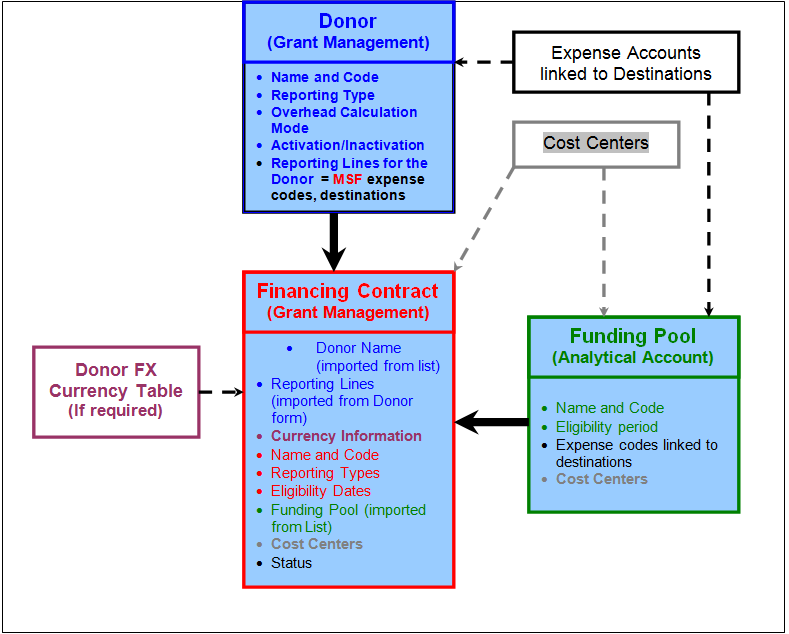
Donor, financing contract and funding pool
After completing the reading of this chapter you will be able to:
- Create a Donor form
- Understand the concept of funding pools
- Create a funding pool
- Understand the composition of a financing contract
- Create a financing contract
- Produce reports requested by institutional Donors.
5.5 Reports
Finance User Manual ENG -> 5. Searching, Correcting and Closing -> 5.5 Reports.
LUFI-50501 Registers / Bank Registers
The Liquidity Position report (PDF or XLS) This report is showing the capability of the project/coordo to pay its short-term due debts using all its liquid assets, cash, bank, cheque.
Shows us an overview of the liquidity position of the project/Coordination at a specific point in time (given period).
We can see the state of the registers, Starting Balance, Calculated Balance and Bank Statement
Balance Additional note: Please note that when you export the Liquidity Position, UniField will display the entire status of Bank, Cash, and Pending Cheque..
The Bank reconciliation report (PDF) PDF report; displays starting balance, calculated balance and bank register balance w/gap. Note that the Comments field displays in the report; it can be used to explain any cash discrepancy. Separate field for the Bank Account Number. Additional note: Paper evidence to be signed-off and acknowledge bank reconciliation was properly done..
The Open Advances report (XLS) Excel output of all the internal open advances, including 13000; 13010, not yet settled
The Full report report (XLS) Excel output showing all entries in a register, including breakdown of invoice lines for imported invoices and analytical allocation. This report provides full detail to cross reference paper receipts and invoices. Additional note: It includes also record of deleted entries and all manual journal entries on corresponding liquidity journal..
The Full report PDF report (PDF) PDF output showing all entries in a register, including breakdown of invoice lines for imported invoices and analytical allocation. This report provides full detail to cross reference paper receipts and invoices. The full report in PDF format can be considered an accounting or financial document because it has validation fields. Additional note: It includes also record of deleted entries and all manual journal entries on corresponding liquidity journal..
LUFI-50502 Registers / Cheque Registers
The Cheque Inventory report (XLS) Excel output displaying all outstanding cheques of the current period:
The Pending Cheque report (XLS) Excel output showing outstanding cheques without any period limitation:
The Full report report (XLS) Excel output showing all entries in a register, including breakdown of invoice lines for imported invoices and analytical allocation. This report provides full detail to cross reference paper receipts and invoices. Additional note: It includes also record of deleted entries and all manual journal entries on corresponding liquidity journal..
The Full report PDF report (PDF) PDF output showing all entries in a register, including breakdown of invoice lines for imported invoices and analytical allocation. This report provides full detail to cross reference paper receipts and invoices. The full report in PDF format can be considered an accounting or financial document because it has validation fields. Additional note: It includes also record of deleted entries and all manual journal entries on corresponding liquidity journal..
LUFI-50503 Registers / Cash Registers
The Cash Reconciliation report (PDF) PDF cash count report; displays opening balance, calculated balance and cash count balance w/gap Additional note: Paper evidence to be signed-off and aknowledge cash reconciliation was properly done, with potential gaps explained.
The Liquidity Position report (PDF or XLS) Shows us an overview of the liquidity position of the project/Coordination at a specific point in time (given perid).
We can see the state of the registers, Starting Balance, Calculated Balance and Bank Cash Box Balance Additional note: Please note that when you export the Liquidity Position, UniField will display the entire status of Bank, Cash, and Pending Cheque..
The Open Advances report (XLS) Excel output of all the internal open advances, including 13000; 13010, not yet settled
The Full report report (XLS) Excel output showing all entries in a register, including breakdown of invoice lines for imported invoices and analytical allocation. This report provides full detail to cross reference paper receipts and invoices. Additional note: It includes also record of deleted entries and all manual journal entries on corresponding liquidity journal..
The Full report PDF report (PDF) PDF output showing all entries in a register, including breakdown of invoice lines for imported invoices and analytical allocation. This report provides full detail to cross reference paper receipts and invoices. The full report in PDF format can be considered an accounting or financial document because it has validation fields. Additional note: It includes also record of deleted entries and all manual journal entries on corresponding liquidity journal..
LUFI-50504 Suppliers reports
The Pending invoices report (XLS) A list of open supplier invoices, supplier refunds, customer refunds and stock transfer vouchers in open state, showing outstanding amounts. If the invoice has been imported or partially imported you can also see the related register sequence numbers. Additional note: Reports shows invoices in open status: imported, not imported and partially imported..
The Paid Invoices report (XLS) A list of paid supplier invoices, supplier refunds, customer refunds and stock transfer vouchers in paid state, for the dates selected. Shows the sequence number of the invoice as well as the register sequence number where the invoice was imported.
The Allocation Synthesis report (XLS) Shows split of the invoice amount per accounting code and cost centre.
The Invoice Allocations report (PDF) Shows invoice lines allocation: analytical distribution (Destination, Cost centre, Funding Pool), Accounting code, quantity, unit price etc per invoice line. Additional note: To avoid certain corrections after validation of a Supplier Invoice, it is best to check the analytical allocations using this report, which gives a brief overview of all the important fields in the Supplier Invoice..
The Print report report (PDF) Invoice hard-copy, available for all kinds of invoices / refunds, donations and inter-mission vouchers. It can be used for filing or internal communication purposes.
LUFI-50505 Selector reports and journals view
The G/L Selector report (List view in the system or PDF) List of journal items that is produced after user entered a series of criteria Additional note: The G/L Selector is a tool to search Journal items when you need to use multiple or complex criteria that cannot be easily done in Journal Items..
The Analytic Selector report (List view in the system or PDF) List of journal items that is produced after user entered a series of criteria Additional note: The Analytic Selector is a tool to search Journal items and their corresponding analytic allocation when you need to use multiple or complex criteria that cannot be easily done in Analytic Journal Items..
The Combined Journals Report report (PDF or XLS) List of journal items that is produced after user entered a series of criteria Additional note: Combined Journals Report is a tool to search Journal items when you need to use multiple or complex criteria that cannot be easily done in Journal Items and Analytic Journal Items..
LUFI-50506 Journal Entries Reports
The Journal Items report (List view in the system) Raw list of journal items that can be refined thanks to a series of filters Additional note: All accounting lines of the journal accounting,.
The Journal Entries report (List view in the system) Raw list of journal entries (consisting of 2 to n journal items) that can be refined thanks to a series of filters Additional note: All journal accounting entries (debits and credits)..
The Analytic Journal Items report (List view in the system) Raw list of analytic journal items that can be refined thanks to a series of filters Additional note: All analytical lines of journal accounting entries.
LUFI-50507 Reporting / Legal reports / Accounting Reports
The General Ledger report (PDF or XLS) PDF or Excel report, a complete record of financial transactions on all G/L accounts. The ledger holds accounting information that is needed to prepare financial statements. This report can be used e.g. to verify the amounts on reconciled and unreconciled balance accounts. Additional note: The General Ledger report is a complete record of all financial transactions on G/L accounts. The ledger holds account information that is needed to prepare financial statements, and it includes accounts for assets, liabilities, equity, revenues and expenses..
The Trial Balance report (PDF or XLS) PDF or Excel report, lists the balance on all accounts. Additional note: The Trial Balance shows the balance on all accounts at a selected point of time..
The Profit & Loss report (PDF or XLS) PDF or Excel report, lists expense and income account balances. Additional note: The Profit & Loss reports expense and income per accounting code and potential under spending (net profit) or overspending (net loss)..
The Balance Sheet report (PDF or XLS) PDF or Excel report, lists Balance Sheet account balances, reflects the assets and liabilities. Additional note: The Balance Sheet is a reflection of your assets and liabilities at any given point of time..
The Liquidity Balances report (PDF or XLS) PDF or Excel report of the Liquidity Position – starting and closing balances of all the register – for the selected period.
The Balance by account report (XLS or list view) Excel report or viewed in UniField, lists the balance on all accounts. This report can be used e.g. to verify the amounts on reconciled and unreconciled balance accounts. Additional note: The Balance by account is a reflection of the G/L accounts balance per account.
The Balance by analytic account report (XLS or list view) Excel report or viewed in UniField, lists the balance on all analytic accounts (Cost center, Destination, Funding Pool, Free 1 and Free 2). Additional note: The Balance by analytical account is a reflection of the analytical accounts balance per account.
LUFI-50508 Reporting / Generic reporting
The Local Expenses report (XLS) Excel report of all expenses purchased or settled locally, in order to get a better overview of cash flow needs or to meet specific requirements from local auditors asking MSF to report on local expenses.
The Export to HQ system (OCB) report (ZIP) Used in UniField HQ instance to export field data into HQ system (OCB compatibility)
The OCB matching export report (ZIP) To check if all entries reconciled in UniField are reconciled in CODA
LUFI-50509 Configuration / Currency Management
The Currency Tables report (XLS) Shows the FX rate per month, per currency (all currencies)
The Currencies report (XLS) Shows the FX rate per currency (all currencies)
The FX rates by currency report (XLS) In some cases, you might want to use the same FX rate for a defined currency over several periods. The “FX rate by currency” function will produce a report in xls showing the rates used for given periods. Additional note: Go to chapter 02 Configuration / LUFU – 20204 Applied FX Rate over multiple periods for more details.
LUFI-50510 Reporting / Legal reports / Employees
The Employee Ledger report (PDF or XLS) PDF or Excel report, a complete record of all financial transactions on all employees. It is important to note that an individual employee cannot be selected for the report; all employees will be listed.
The Employee Balance report (PDF or XLS) PDF or Excel report, a complete record of all financial transactions on all employees. It is important to note that an individual employee cannot be selected for the report; all partners will be listed.
Two new reports have been created for employees following the partner ledger and balance model.
Employee Ledger:
This report is an analysis done by employee. It is a report showing all B/S entries linked to a staff depending on your selection (periods, reconciled or not, etc..).
Go to Accounting > Reporting > Legal Reports > Accounting Reports > Employees > Employee Ledger:
You will have several possibilities to do our selections using the filters.
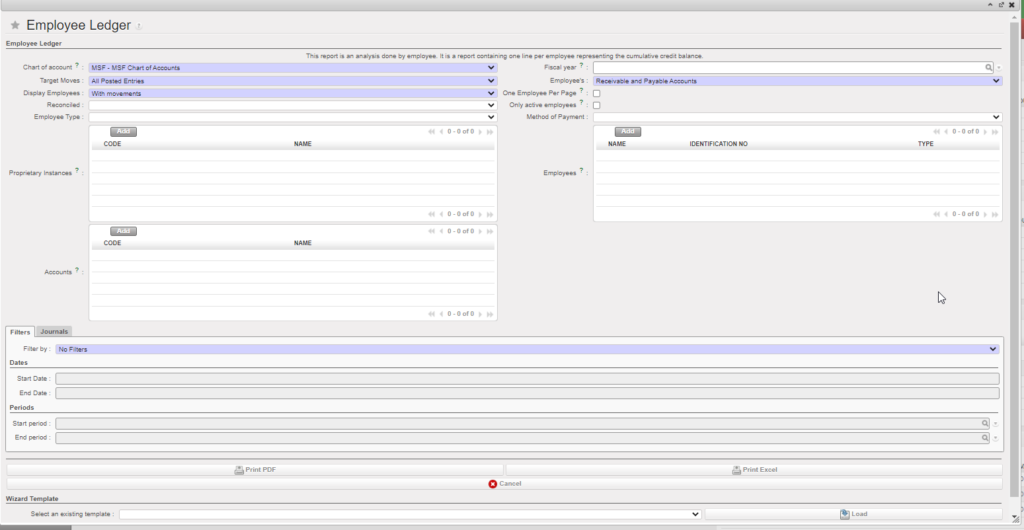
Employee Balance:
This report will give you for each staff the balance by B/S account code + currency. This one can be reported either in the interface or exported in excel file.
Go to Accounting > Reporting > Legal Reports > Accounting Reports > Employees > Employee Balance:
You will have several possibilities to do our selections using the filters and the option to tick on “Only active employees”.
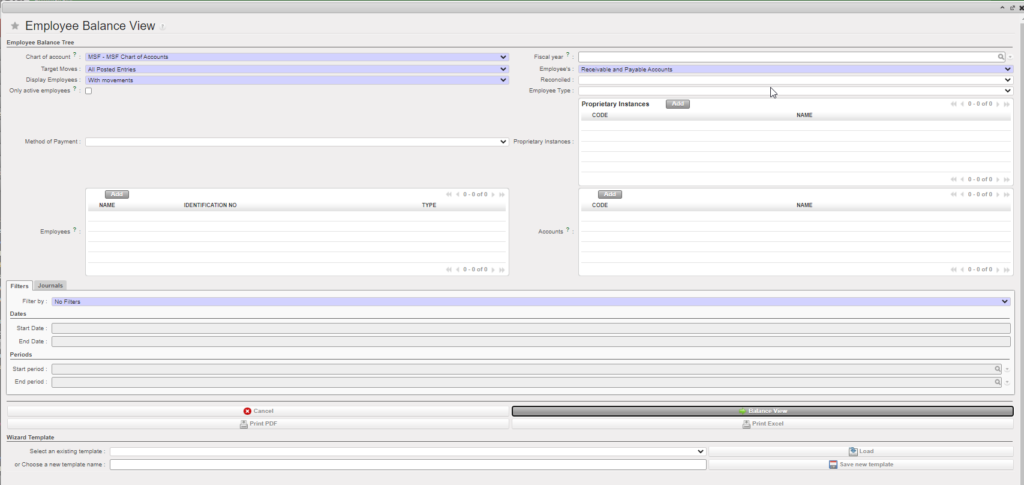
LUFI-50511 Reporting / Legal reports / Field Balance Specification Report
The Field Balance Specification Report report (XLS) Excel, provides a detailed overview of all transactions or operations carried out during a given period.
Field Balance specification report is to track liquidity balances and B/S line’s history.
Main features of the report:
- It shows the booking rate for the line to compare with the rates of the extracted report.
- It displays currency amount to compare functional amount with current period rate
- It displays “Reconcile No” for line reconciled later to compare with month of the report.
How to extract the report:
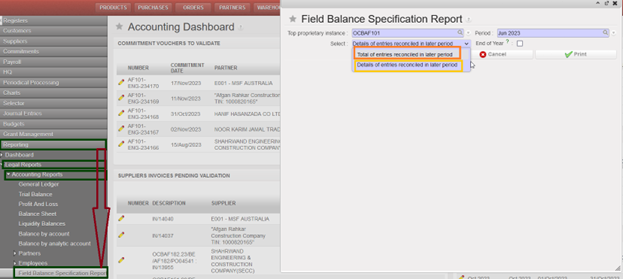
- Go to Accounting > Reporting > Legal reports > Accounting Reports
- Click on ” Field Balance Specification Report ” it will open popup with “Field Balance Specification Report ” .
- The filters as below:
- “Top proprietary instance” it shows only instance code where you are if from project instance, and all mission’s instances if from coordo.
- “Period” >> in project shows only regular periods (closed + open only), in coordo display more extra accounting periods
- “Select” with 2 options either “Total of entries reconciled in later period” or “Details of entries reconciled in later period”.
- “End of Year” box, this box can be ticked if we have an active currency table.
5.4 Year-End Closing.
Finance User Manual ENG -> 5. Searching, Correcting and Closing -> 5.4 Year-End Closing.
Year-End Closing
LUFI-50401 Fiscal Year Closing
LU Introduction
Closing a Fiscal Year is a hierarchical process in UniField and it follows the principles of period closing: closing is done in cascading steps. Fiscal Year is only closed at coordination and HQ level, not directly at a project level. The hierarchical flow means that all coordinations must close their fiscal year before HQ can close it.
Closing a Fiscal Year at coordination level will automatically close the fiscal year at project level through the synchronization mechanism. The same applies for re-opening a fiscal year at coordination level, it will re-open the fiscal year at all projects, too.
Once the Fiscal Year is closed at the coordination and the fiscal year state has changed to {Mission-closed}, the fiscal year state at project level is updated through synchronization and becomes {Mission-closed} as well.
It is possible to re-open the Fiscal Year at coordination level only with the Administrator profile and only if HQ didn’t HQ-close the Fiscal Year yet. Yearly closure will become frozen without the possibility to re-open it or to reverse related actions when it’s done at HQ level – therefore HQ-closing is the last step after all coordinations have mission-closed their Fiscal Year.
Three functions of which two optional are available to proceed with when the Yearly Closure button is launched at Coordination level:
Action 1 “Move regular B/S accounts to 0”
- This function is optional (box to tick depending of your OCs procedure)
- Objective is to set the balances to 0 for all B/S regular type accounts that are not reconcilable at mission level (HQ, Intermission and Intersection accounts)
- The B/S accounts to set to 0 will have to be preliminary activated in the Chart of Accounts at HQ level
- The counterpart accounts to the move to 0 will have to be recorded in the company settings of the coordination in case of a debit or credit move will be recorded
- Entries will be booked in period 16 and will be visible in the G/L journals but no analytical entries will be created (no impact on the budget)
- Entries booked in these accounts throughout the fiscal year are automatically reconciled with the year-end entry. In order to allow automatic reconciliation, the accounts have to be set as non-reconcilable (tickbox for reconciliation needs to remain unticked) in the account master data.
Action 2 “Book the P&L result in the fiscal year to close”
- This function is optional (box to tick depending of your OCs procedure)
- The accounts to be used have to be set in the company settings of the coordination
- P&L entries result will be booked in period 16 and will be visible in the G/L journals but no analytical entries will be created (no impact on the budget)
Action 3 “Carry over all B/S account balances in the next fiscal year” (All OCs)
- This function is not optional and is the final aim of the Year end Closure
- Initial Balances will be booked in period 0 of the next fiscal year
- These entries are not visible in the journals, and it is not possible to edit or delete them
- Entries are only visible in reports like Balance Sheet, General ledger and Trial Balance
Note that the company configuration of each instance must be done before launching the yearly closure. For more details, see Chapter 2 – Configurations and IT User manual guideline.
How to Close a Fiscal Year at Coordination Level
Go to Accounting/Periodical Processing/End of Period/Yearly Closure/Close the fiscal year
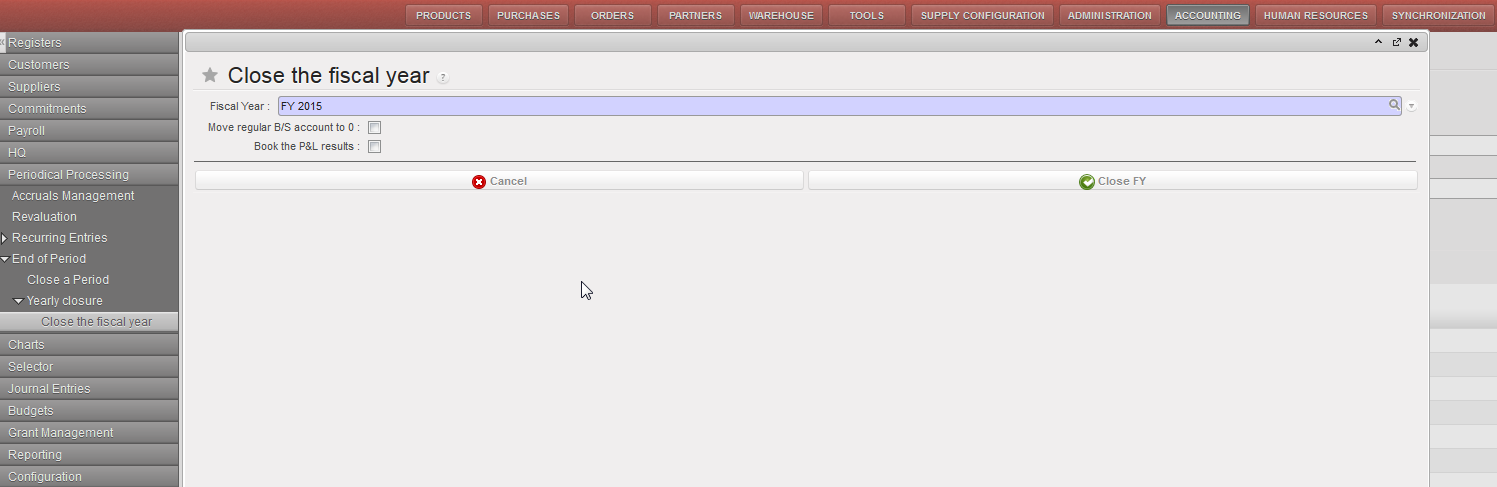
- Choose the FY to close.
- Tick checkbox “Move regular B/S account to 0” depending of your OC procedure
- Tick checkbox “Book the P&L results” depending of your OC procedure
- Click on {Close FY}
- Go to Accounting/Configuration/Financial Accounting/Periods/Fiscal Years/ to see that the status changed from {Open} to {Mission-Closed}

Fiscal Year Status is mission-closed
Conditions for mission-closing the Fiscal Year:
Two conditions prevail for mission-closing the Fiscal Year at coordination level:
- Previous fiscal year must be {Mission-closed}
- All coordination periods 1 to 15 of the Fiscal Year to close must be {Mission-closed}
- All active projects received state “Mission-closed” by sync , if the project not received the state you will receive warning message ( Periods are not at least mission-closed on the following projects: XE1_ZZZ )
If these conditions are not met, Fiscal Year cannot be mission-closed
Impact and behaviour of mission-closing the Fiscal Year
- Entries are booked as {Unposted} in the {End Of Year} journal in period 16 of the fiscal year to close (Action 1 and 2)
- Entries are booked as {Unposted} in the {Initial Balance} journal in period 0 of the next fiscal year (Action 3)
- Only Journal Items are created, no Analytical Journal Items
- Period 16 and 0 become {Mission-closed}
- Fiscal Year becomes {Mission-closed}
Note that it is not possible to edit the fiscal year entries, journals or the periods.
How to Close a Fiscal Year at HQ Level
Go to Accounting/Periodical Processing/End of Period/Yearly Closure/Close the fiscal year
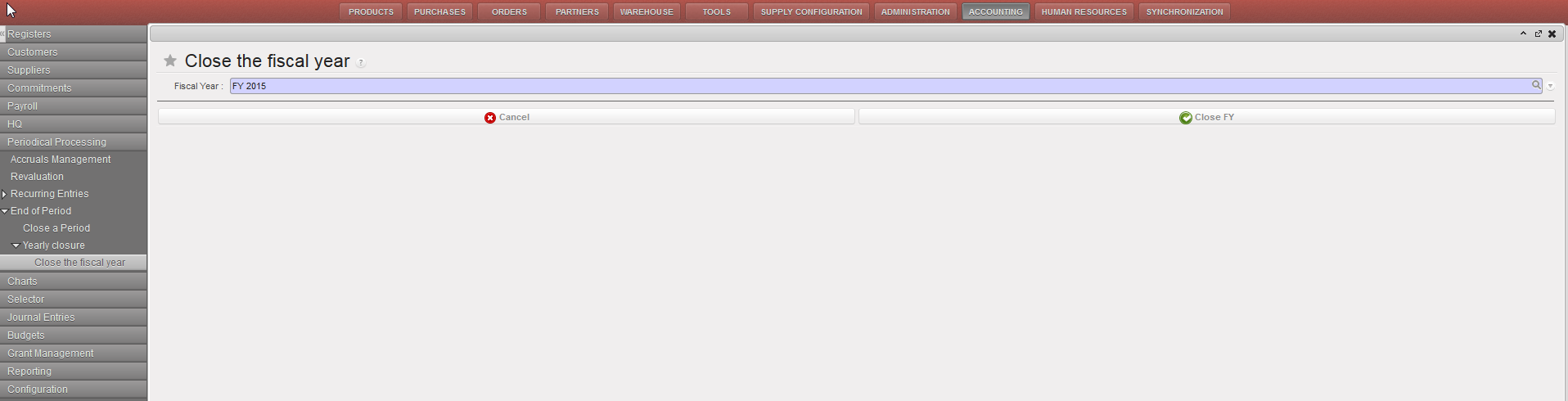
- Choose the FY to close.
- Click on {Close FY}
- Go to Accounting/Configuration/Financial Accounting/Periods/Fiscal Years/ to see that the status changed from Open to HQ-Closed
Conditions for a HQ-closing the Fiscal Year
Three conditions prevail for HQ-closing the Fiscal Year at HQ level :
- Previous fiscal year must be {HQ-closed}
- All HQ periods 1 to 15 of the Fiscal Year to close must be {HQ-closed}
- All missions must have mission-closed their Fiscal Year
If these conditions are not met, Fiscal Year cannot be HQ-closed.
Impact and behaviour of the HQ-closing the Fiscal Year
- Entries booked in period 16 and 0 becomes {Posted}
- Period 16 and 0 becomes {HQ-closed}
- Fiscal Year becomes {HQ-closed}
- All status updates synchronize down to all missions
HQ-closing the Fiscal Year is the final step of Year End closing process after all coordinations have mission-closed the Fiscal Year.
HQ-closing the Fiscal Year is not reversible: it is not possible anymore to re-open the fiscal year neither at HQ nor at Coordination level.
How to Produce a Fiscal Year States Report
As for the period status, it is possible at a parent instance level to have an overview of the fiscal year states of the children instance. For example, at HQ level, it is possible to see the status of the periods of all its missions.
The Fiscal Year states report is an overview of the fiscal year status of all children instances.
Go to Accounting/Configuration/Financial Accounting/Periods/Fiscal Years/
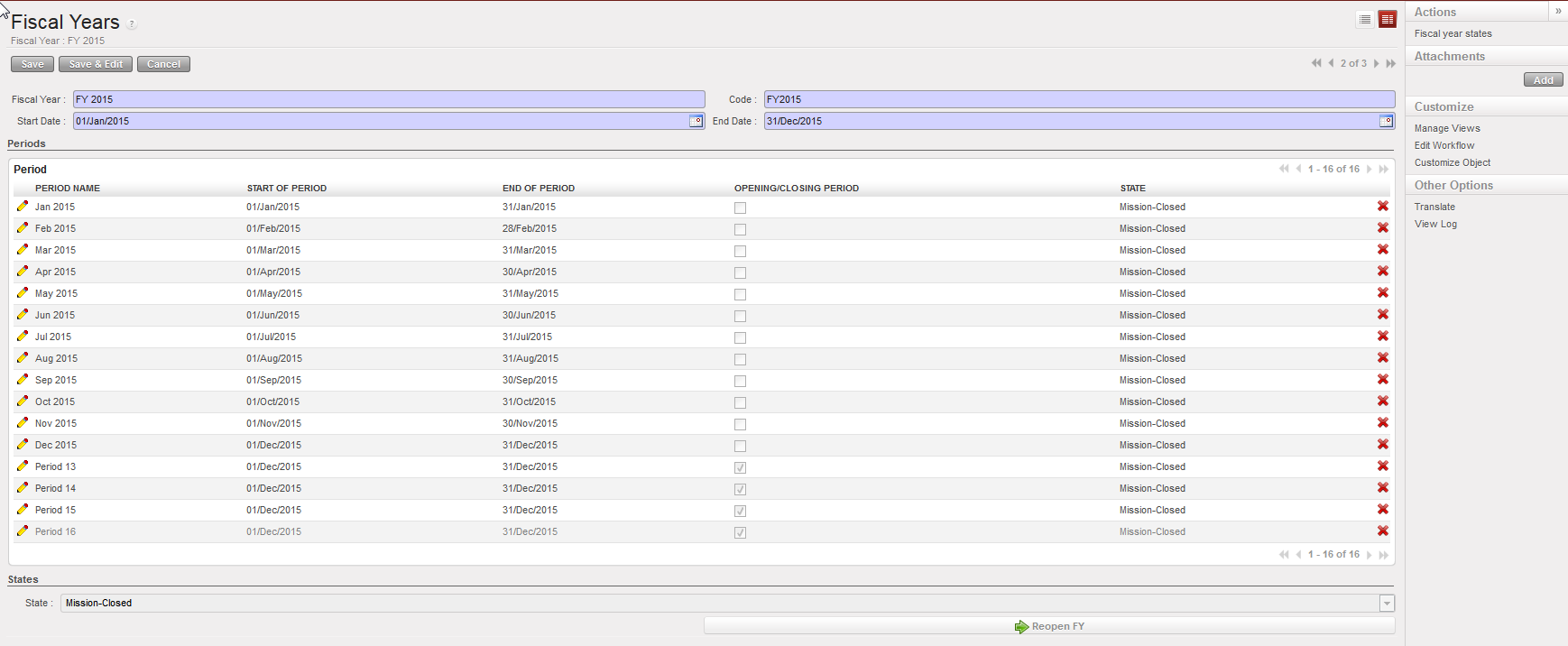
In action menu, click on {Fiscal year states}
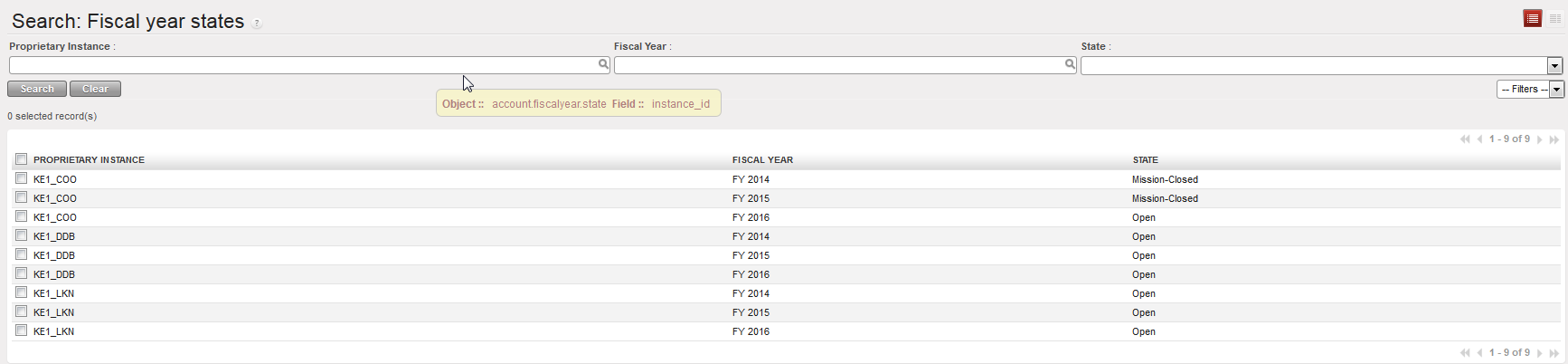
The {Fiscal year states} overview opens