
Finance User Manual ENG -> 3. Payments -> 3.3 Finance Payments and Registers -> LUFI-30302 Cash Registers
LUFI-30302 Cash Registers
LU Introduction
Now that you understand the concept of a register, let’s take a look at the various fields and buttons of the cash register form. In the {Cash Registers} search view, click on the pencil  of the register to open the form. The header fields are displayed as follows:
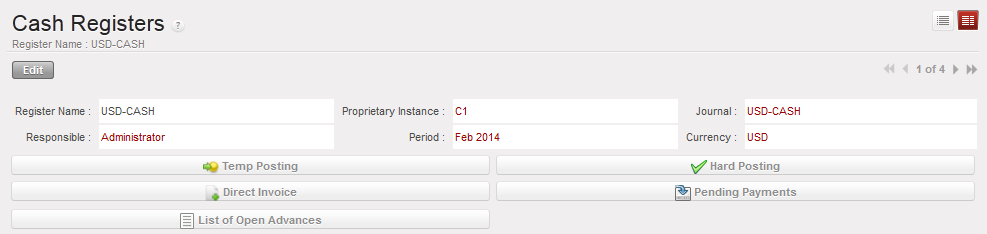 Header fields of a {cash register} form
| Button | Description |
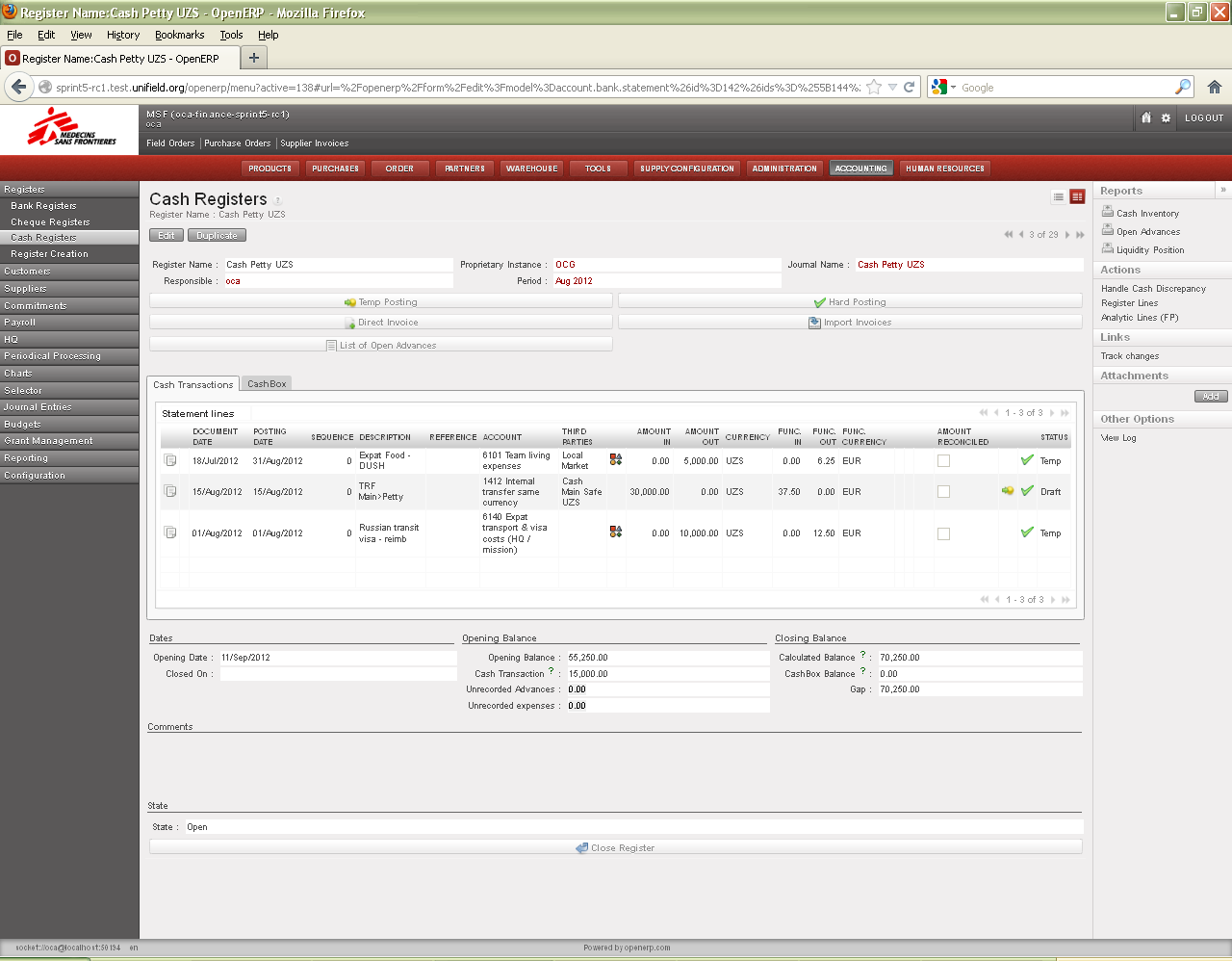 | Automatically retrieves Draft or Temp-Posted Entries in a separate window to be Hard-posted |
 | Opens a window to retrieve and import invoices (in the register’s currency) created by Supply or Finance, then automatically creates a payment in the register booked to payables/receivables and cash account |
 | Automatically retrieves Draft Entries in a separate window to be Temp-posted |
 | Opens a window to create a Direct Invoice for immediate payment and booking of multiple items to multiple expense codes. Direct invoices are not generated by Supply. One register entry is booked to payables/receivables and cash/expense accounts |
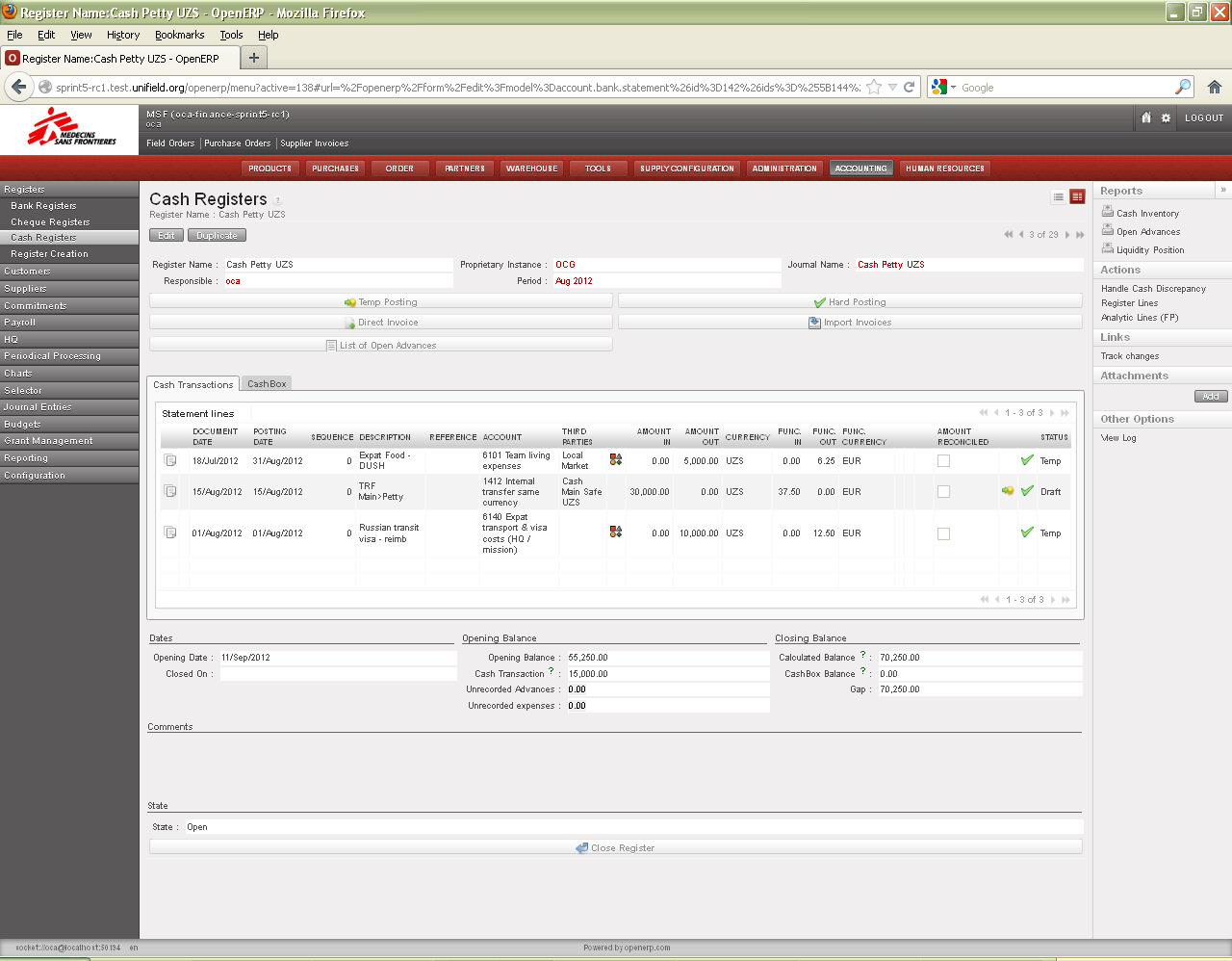 | Opens a window to list operational advances taken by the staff |
Please note all of these topics will be covered in more detail in the specific sections related to their usage.
Three (3) tabs are located on the middle of the form. They are called the {Cash transactions}, the {CashBox} and the {Responsible}.
In the cash transactions, you will record manually or by importing register lines reflecting Cash In and Cash Out.

In the {CashBox} tab you will periodically carry out cash counts to confirm the cash balance in UniField is the same as the balance of your physical cash box.
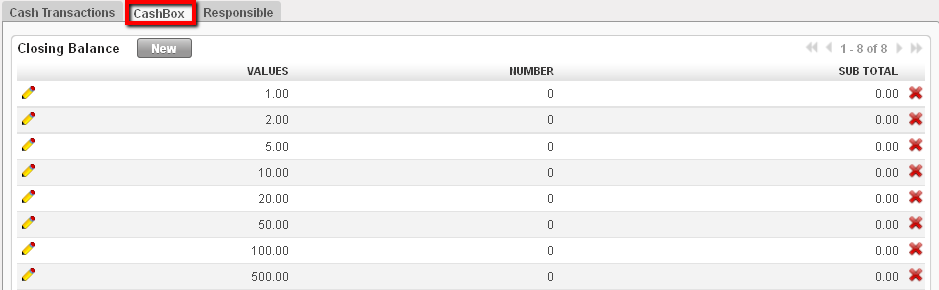 {CashBox} tab
The {Responsible} tab reflects the list of authorized users to access the register.
 {Responsible} tab
Finally, the lower half of the form shows the following fields:
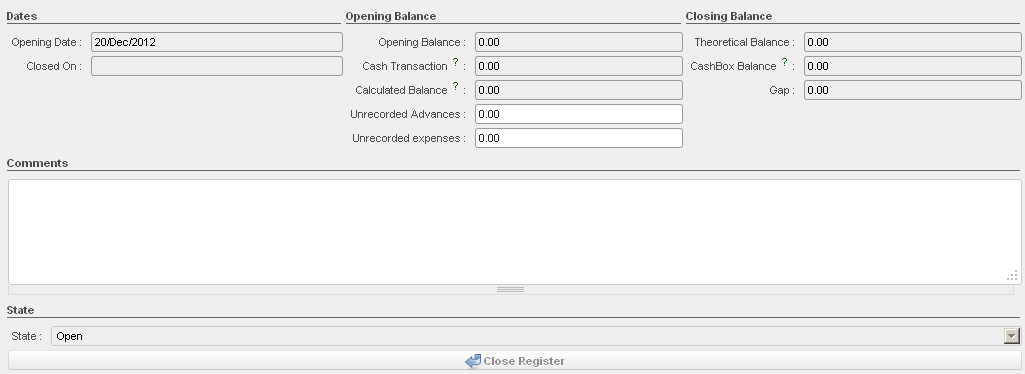 Fields on lower half of a {cash register} form
| Title of field | Entry protocol: cash register form |
|---|---|
| Opening Date | Automatic input. System default to the date the register was opened |
| Closed On | Automatic input. System default to the date the register was closed |
| Opening Balance | Automatic input. Zero if it is a new register created from a journal or the closing balance of the previous period |
| Cash Transaction | Automatic input. The sum of the amounts in and out for all register transactions during the period |
| Calculated Balance | Automatic input. Opening balance + sum of cash transactions |
| Unrecorded Advances | Manual input. For some sections not recording advances in UniField and tracked on a separate spreadsheet, the total amount of outstanding advances is manually entered here when performing cashbox inventory. |
| Unrecorded expenses | Manual input. The total amount of unrecorded entries is manually entered here when performing cashbox inventory |
| Theoretical Balance | Automatic input. Calculated Balance – sum of unrecorded advances and expenses |
| CashBox Balance | Automatic input. The physical cash balance in your cash box reported in the cashbox tab when closing the cashbox |
| Gap | Automatic input. Theoretical Balance – CashBox Balance |
| Comments | Enter relevant remarks, e.g. reasons for gap |
| State | Automatic input. Draft, Open or Closed |
 CASH REGISTER REPORTS
The Reports menu on the right side bar contains reports that can be run in Cash Registers.
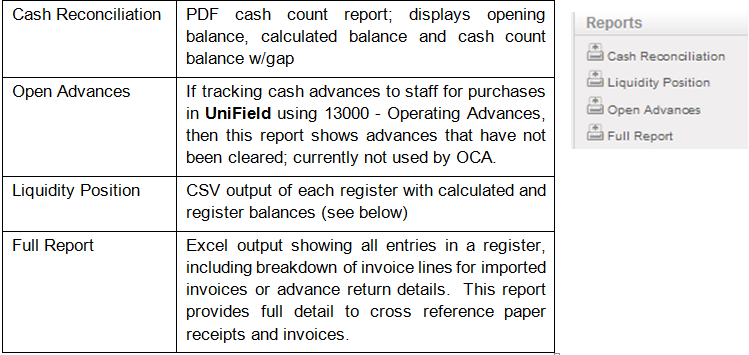
For further information on reports, see UniField Chapter 5 – Searching, Correcting and Closing.
For December registers only, the system prevents the closing of a cash register if the amounts in “Unrecorded Advances” and “Unrecorded Expenses” are not equal.
