
Finance User Manual ENG -> 3. Payments -> 3.3 Finance Payments and Registers -> LUFI-30308 Register Entries and Journal Posting
LUFI-30308 Register Entries and Journal Posting
LU Introduction
When a register line is created, the state is draft. You can review and post it temporarily in the journals, pending for final approval. The register line becomes {Temp} in the register and the corresponding journal entries created unposted in the journals. Hard-posting the {Temp} register line will change the register line state to {Hard} and post the journal entries.
How to Temp-Post Register Entries
UniField allows you to temp post a register entry individually using the  button located on the entry line, but you can also temp post entries by grouping several entries. The below task description explains how to temp post a group of draft entries.Go to: Accounting/Registers
- Select the register where you want to temp post entries.
- Click on the
 button to retrieve draft entries booked in your register. A list of {Draft} entries appears
 - Check the entry box to select it.
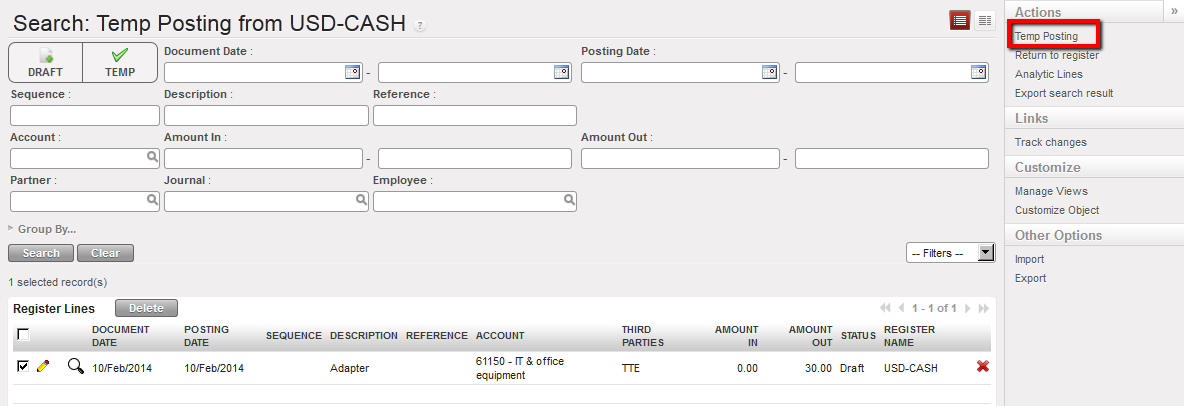 Temp-posting entries search wizard
Selecting the action of {Temp Posting} will only temp post the entries you can see directly from the list. For instance, if you have 29 lines to be temp posted, you will only see 20 lines of 29 and if you clicked on {Temp Posting} you will only temp post the 20 visible lines unless you extend the list if you wanted to temp post the 29 lines.
 Extending the list in order to temp post all draft entries
If you have many lines to be temp posted and you are sure you want to temp post all of them, you can select the option of {Temp Post All the Entries} from the right side menu and all the draft entries will be temp posted without the need to extend the list of lines.
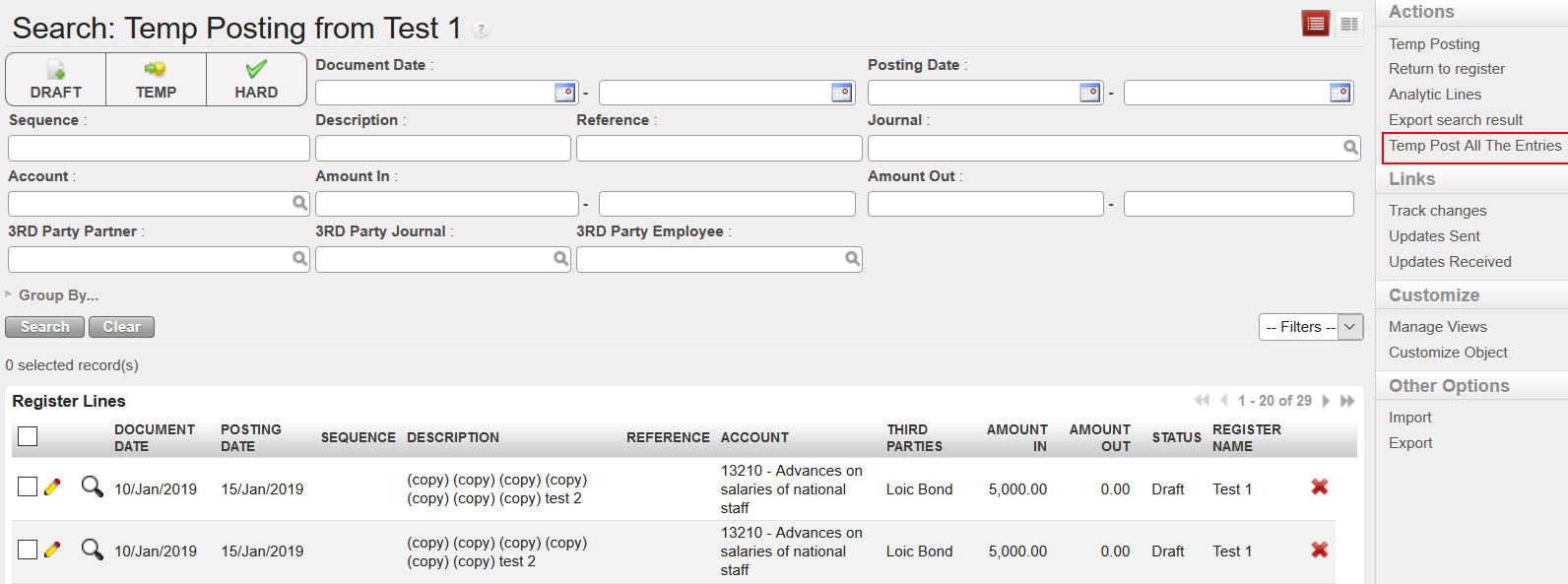 Temp post all the entries with the need to extend the list
4. Go to the Action menu on the right side of the screen and select the action {Temp Posting}.
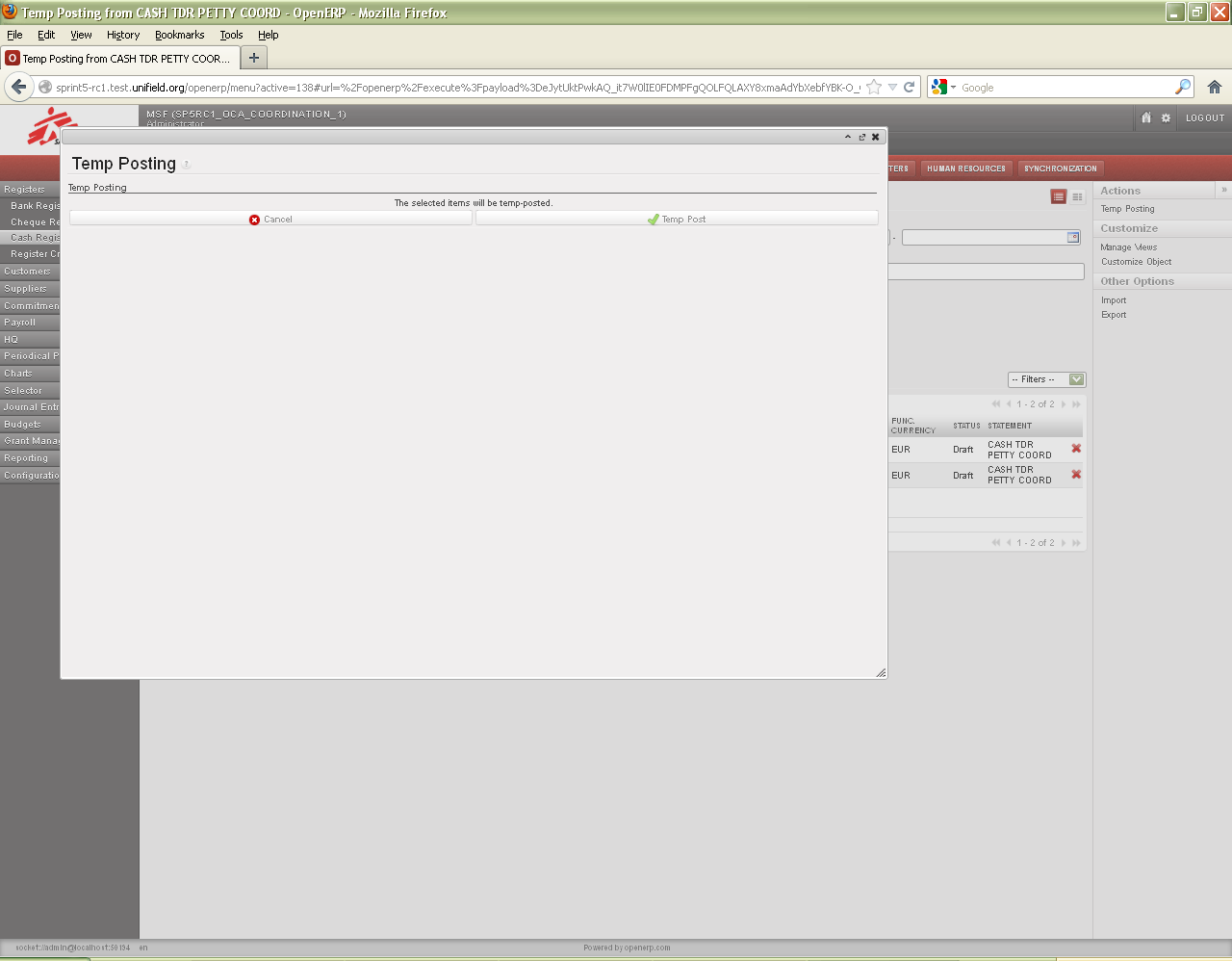 Temp-posting confirmation
5. Confirm the action selecting {Temp Post}.
The window closes. The entries are now in {Temp} state. An authorized user can still edit and delete them in the register. The entries became accounting entries and are reflected in the {Journal items} as valid but unposted.
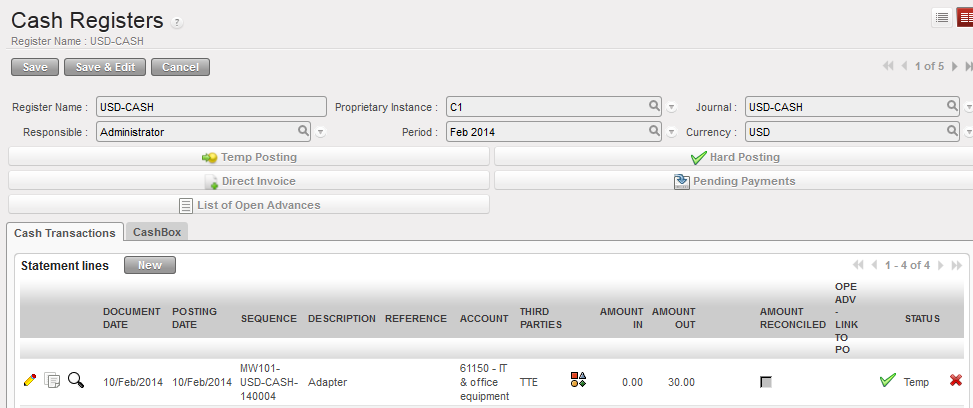 Temp posted register entries
To look at the entries created in the {Journal Items}:
In the {Journal Entries} module, you select {Journal Items} and the {Journal Items} Search view appears. You will see unposted and valid double entry accounting per transaction in booking and functional currencies.
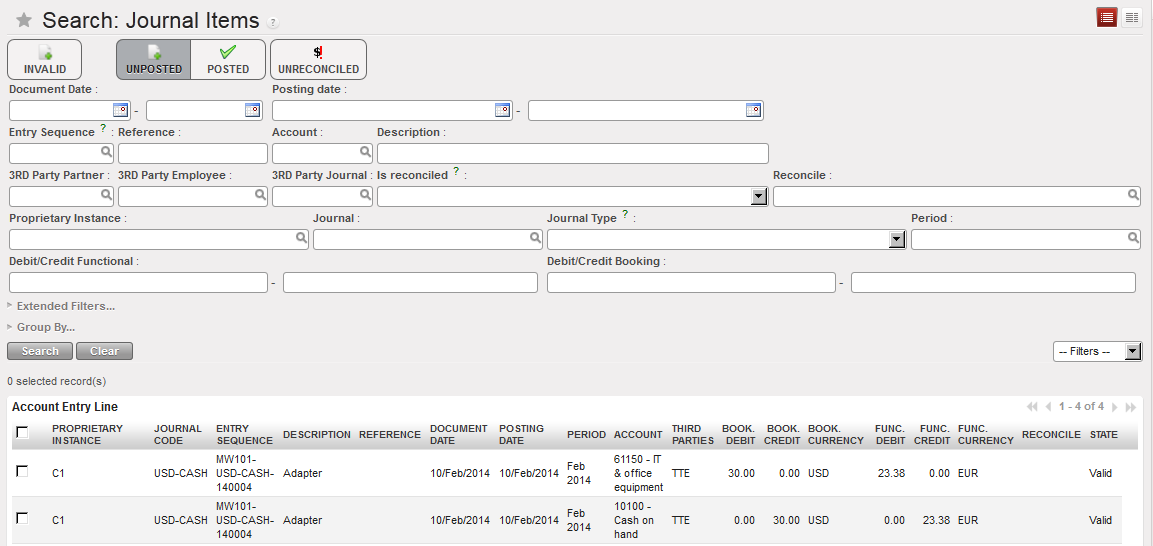 {Journal item} view displayed unposted journal items corresponding to the register line which was temp posted
How to Hard-Post Register Entries
UniField allows you to hard post a register individually using the  button located on the entry line, but you can also hard post entries by grouping several entries. The below task description explains how to hard post a group of temp posted entries.
Go to: Accounting/Registers
- Select the register where you want to hard post entries.
- Click on the
 button to retrieve temp and draft entries booked in your register. A list of {Temp} and {Draft} entries appears
 - Check the entries boxes.
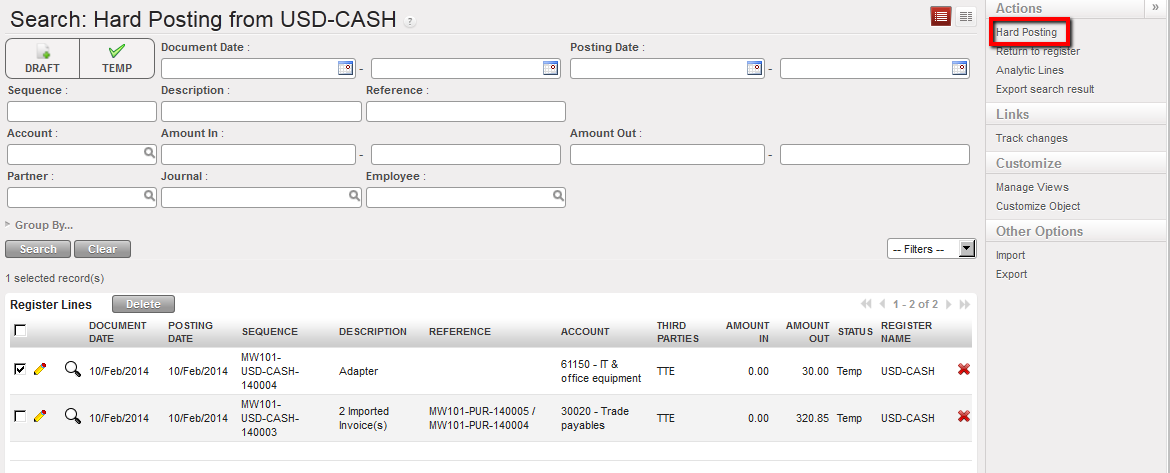 {Hard-posting entries search} wizard
4. Go to the Action menu on the right side of the screen and select the action {Hard posting}.
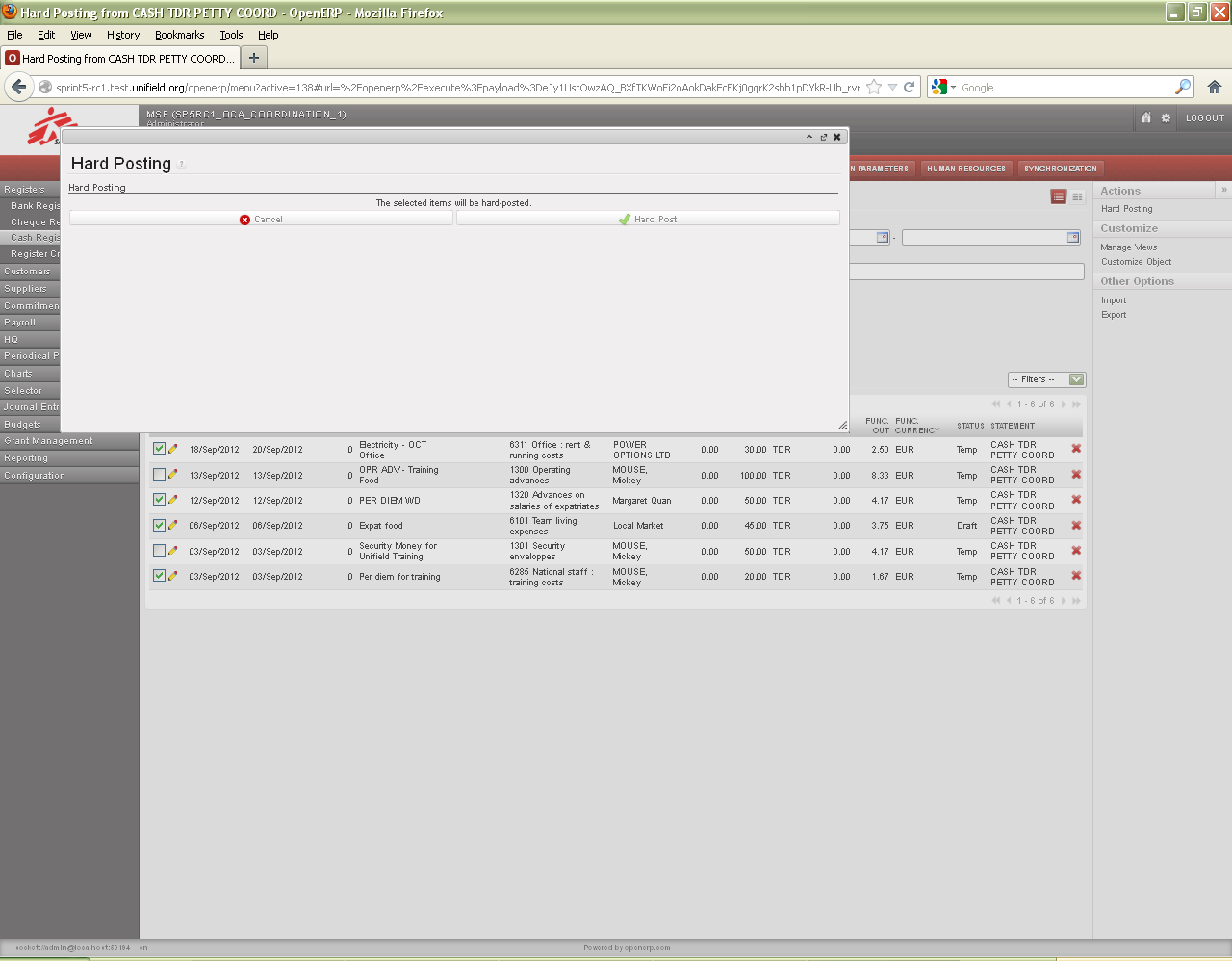 Hard-posting confirmation
5. Confirm the action selecting {Hard Post}.
The window closes. The entries are now in {Hard} state. The entries are reflected in the {Journal items} as valid AND posted.
Selecting the action of {Hard Posting} will only hard post the entries you can see directly from the list. For instance, if you have 42 lines to be hard posted, you will only see 20 lines of 42 and if you clicked on {Hard Posting} you will only hard post the 20 visible lines unless you extend the list if you wanted to hard post the 42 lines.
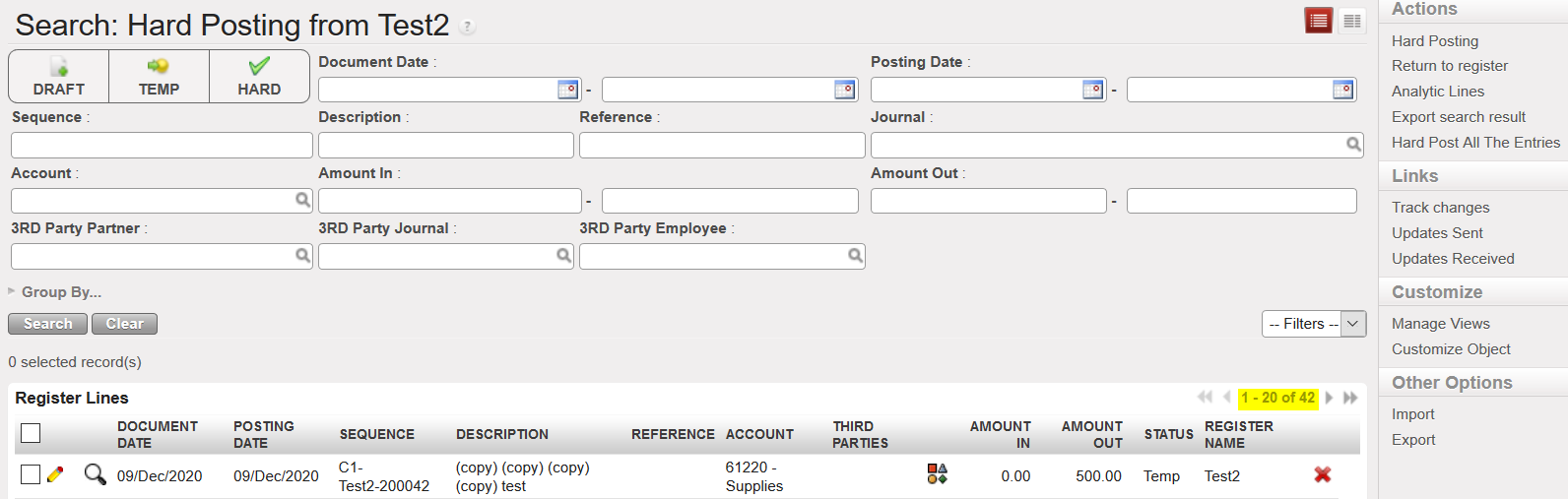 Extending the list in order to hard post all draft entries
If you have many lines to be hard posted and you are sure you want to hard post all of them, you can select the option of {Hard Post All the Entries} from the right side menu and all the Temp posted entries will be hard posted without the need to extend the list of lines.
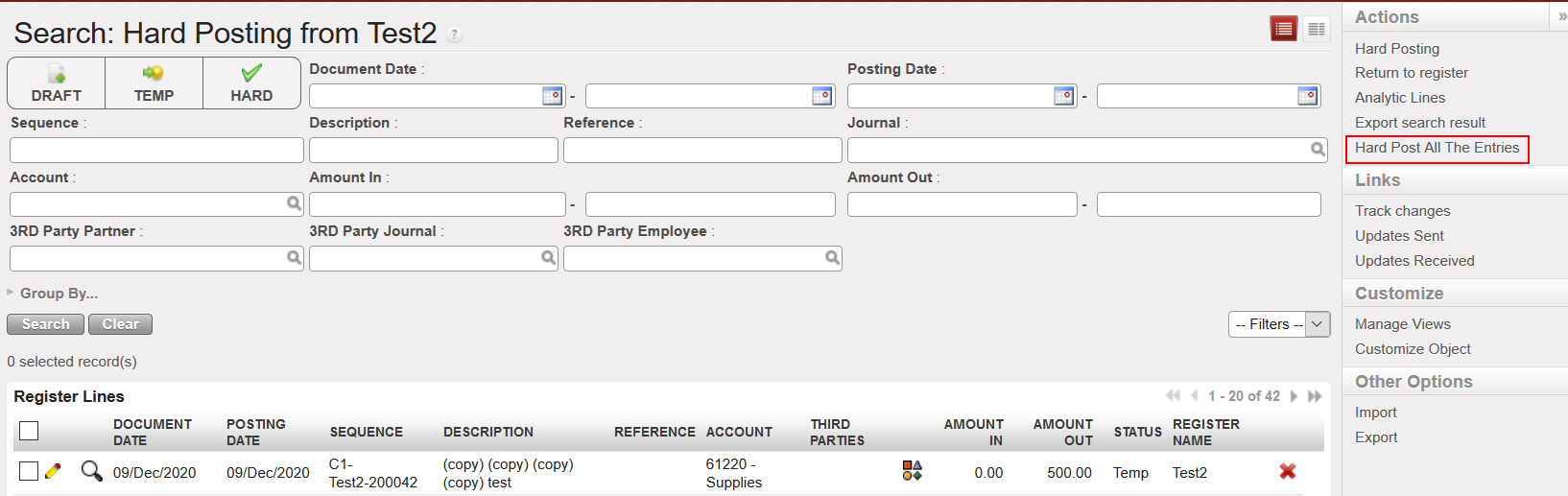 Hard Post all the Entries
 Hard posted register entries
In the {Journal Entries} module, you select {Journal Items} and the {Journal Items} Search view appears. You will see valid AND posted double entry accounting per transaction in booking and functional currency.
 Posted journal items corresponding to the register line which was hard posted. A/P was reconciled

