
Finance User Manual ENG -> 6. Donor Management -> LUFI-6.2 DONOR PRINCIPLES
LUFI-6.2 Donor Principles
LU Introduction
In the {Donors} module, the user links Donor reporting requirements with the MSF Chart of Accounts and Destinations. The user defines which expense accounts / destinations need to be selected to create reporting lines according to the expenses the Donor agreed to finance and its reporting requirements.
The Donor form includes the following fields:
- Donor code and name
- Reporting type
- Overhead calculation mode
- Overhead percentage
- Reporting Lines
- The {Donor code} and {Name} input type depends on your section’s guidelines. Please refer to them.
- The {Reporting type} reflects the type of report requested by the Donor. There are 3 types of reports available in UniField:
 Drop down menu to choose Donor Reporting Type
{Total project only} reporting shows the costs of the entire project, excluding expenses allocated to the {Private Funds} funding pool which are considered non eligible for any Donor. In this case:
- The Donor does not fund a budget line in particular. He is only interested in the total project costs. The amount of money budgeted with the Donor is used to fund a portion of the total project costs.
- The grant has a defined amount which may be a % of the total project costs or a fixed amount
- Expenses included in this kind of report should be allocated to generic funding pools called Co-funding (COFI); they may be co-funded by several Donors. This leaves MSF with greater flexibility in terms of allocations (no cost type restriction: expats vs. drugs etc.)
- Reporting is done on total project costs only and would display only one {Total project costs} column with budget and actual amounts.
{Earmarked only} reporting shows only the expenses allocated to a specific grant.
- Expenses must be allocated to a specific funding pool. This funding pool is dedicated to report on this earmarked grant, though it may also be used in a global contribution to report on “Total project costs” as well.
- Costs paid directly by the Donor can be easily audited down to the document level
- Reports exclude the total project cost. The report would include only one {Earmarked costs} column in the Donor report with budget and actual amounts funded.
{Ear-marked and total project} reporting is for Donors requiring reporting both on the specific use of their grant and on total project costs
- The Donor funds a specific reporting line but would also expect to see reporting on the total project costs in order to assess the project efficiency and potentially to avoid cost funding duplication.
- Reports on the earmarked and total project costs expenses would include two columns: one for the earmarked costs and one for total project costs, both presenting budget and actual costs.
The {Overhead calculation mode} allows you to record a Donor’s contribution for overhead cost funding. In the Donor form, you need to specify the calculation mode that the Donor is working with as far as overheads costs are concerned.
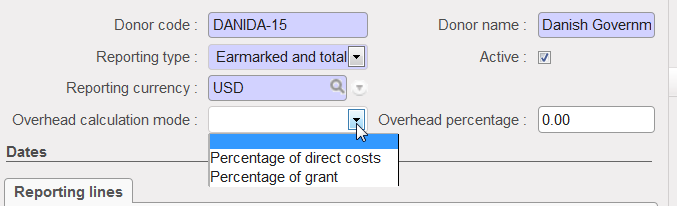 Overhead calculation mode
{Percentage of Direct costs}
- An (eligible) direct cost is a cost necessary to carry out the actions, complying with the principles of sound financial management in particular value for money. For instance it could be cost of travels and subsistence, equipment, goods or service purchase, field living cost. As opposed to Direct cost, Indirect costs or Overhead are used for overall administration expenses and do not need to be justified.
- If you select the option {Percentage of direct costs}, the Donor funds a percentage of direct costs as far as Overheads are concerned.
- In this case you set up a reporting line of overhead type called {Overhead} for overhead costs. Then only a percentage of these costs are linked to the Donor. You do not need to link the reporting line to accounting codes to report on actuals for this reporting line.
- For example, if the Donor agrees to fund 5% of direct cost for overhead, and the total grant was 30,000 Euro and direct costs were 28,571 Euro the Donor would provide 1,429 Euro for overhead.
{Percentage of Grant}
- A second possibility for Donors is to finance Overhead based on a percent of the total grant. In UniField, you will select the overhead calculation type {Percentage of Grant}.
- For example, if the Donor agrees to fund 5% of the total grant for overheads, and the total grant was 50,000 Euro the Donor would finance 2,500 Euro.
The {Reporting lines} represent the Donors standard reporting format with the type of expenses funded identified through the link to expense accounts.
Reporting lines can bear different types:
- {View}: the total of all associated Actual Reporting Lines.
- {Actual}: total of all posted entries done on the account linked to this reporting Line.
- {Consumptions}: a raw figure based on consumption reports (for instance on stocks) over a defined period. The related expenses must be justified through an inventory or a consumption report built outside UniField.
- {Overhead}: administrative costs calculated either on the total cost of the project or only on direct costs.
For example, if the Donor agrees to pay for transport cost which includes both international and domestic travel, a user should create 3 reporting lines:
– One {View} reporting line TRANSPORT OF PERSONS
– Two {Actual} reporting lines: Domestic travels cost with all 64110 expenses and International travel with all 64100 expenses. The {Transport of persons} lines are based on the Donor requirements and are linked to the MSF chart of accounts’ domestic and international travel expense codes.
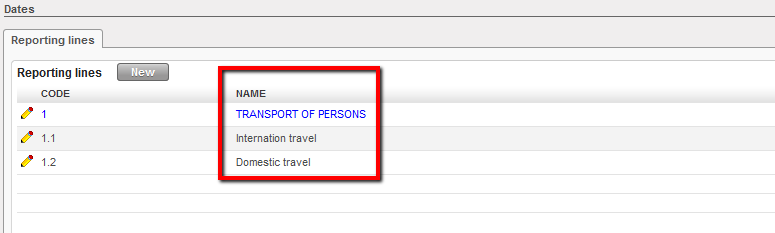 Example of View and Actual reporting lines
These reporting lines remain editable to match any reporting changes submitted by the Donor.
Go to: Accounting/Grant Management/Donors
- Click on {New} button to open a new form.
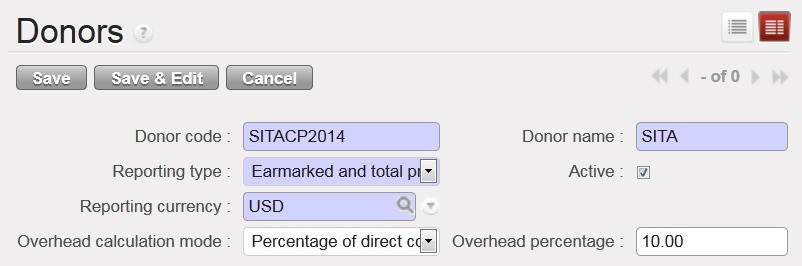
- Enter the {Donor Code}, {Donor Name} and choose the type of reporting according to the Donor’s reporting requirement. It could be {Total Project Only}, {Earmarked only}, {Earmarked and Total project}.
- Select a {Reporting Currency}
- If the Donor contributes to overhead cost, select the overhead calculation mode {percentage of direct costs} or {percentage of grant} and enter a value in the {overhead percentage} field. For instance, 10% of direct cost:
Donor form creation –SITA
 1. In the {Reporting Lines} field, click on {New}
—->>>A reporting lines wizard appears
2. You need to create the {View} reporting lines first. Enter the reporting line code, name, type {View} and click {Save & New} button. For this example, let’s create a view reporting line with a name “Medical Equipment” and code “2”.
{View} reporting line created

3. Once you have created the {View} reporting lines, you can associate the {Actual} reporting lines. For this example, let’s create “2.1 Medical Equipment” and “2.2 Laboratory Equipment” actual reporting lines.
4. In the {Parent Line} field, click on the magnifying glass  to link the line you are creating to a {View} parent line. Select the {MEDICAL EQUIPMENT} line.
5. Enter the line code “2.1” and name the actual line “Medical Equipment”.
6. Select {Account/destination} to link the reporting line to a {expense account/destination} couple. For this example, select account code 60100 which defaults to OPS destination.
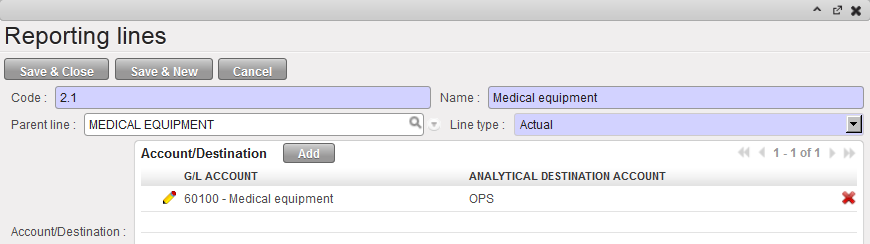 Reporting lines configuration
Click {Save & New} button to continue mapping the reporting lines. When associating the reporting lines to {expense account/destination} couples, user will not be able to use the couples already associated to a different reporting line (they will be in grey in the display).
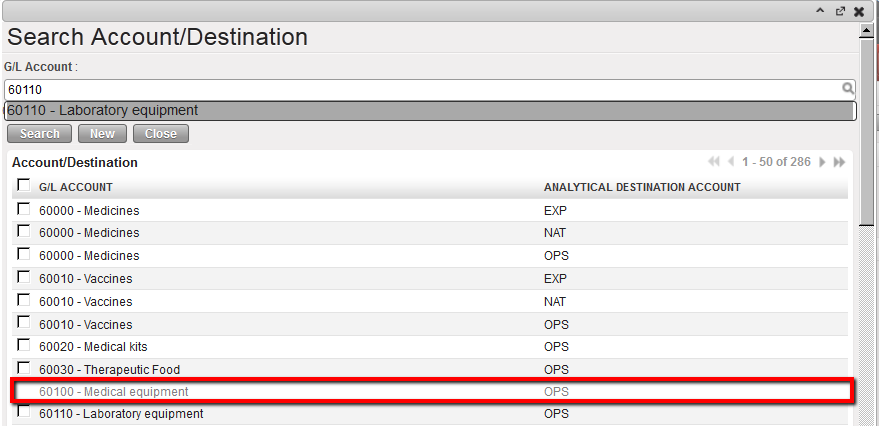 System shows account/destination unavailable (in grey) when mapping the reporting lines
7. Once you created the second actual reporting line, save the form. 
Please note that if If this tick box “Selects Accounts Only” is ticked, the current display selection is removed.
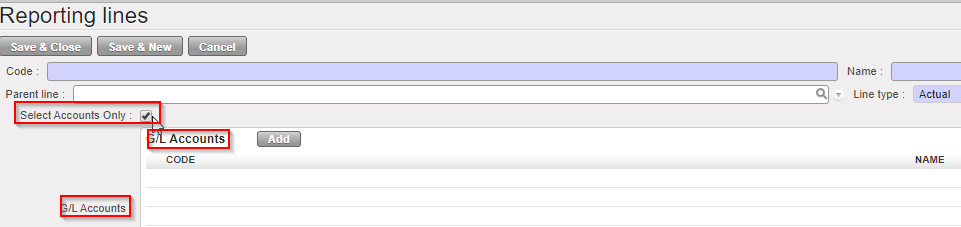
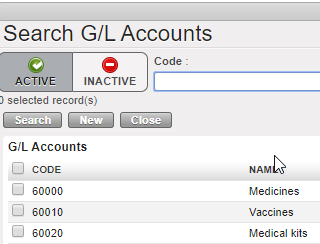
- When clicking in “Add”, it brings to “Search G/L Accounts” and only one column remain “GL Accounts” (account code + account code name).
How to Set Up Overhead Costs Reporting Lines
Go to: Accounting/Grant Management/Donors
Select the appropriate Donor.
- Under reporting line select the {New} button.
- Create a code, code name and select {Overhead} for the line type.
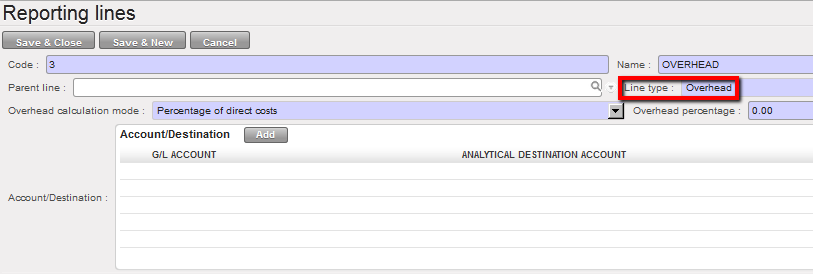 Select the Line Type
3. Choose the overhead calculation mode {Percentage of direct costs} if overhead was calculated on direct cost of the project or % of grant. Insert the overhead percentage.
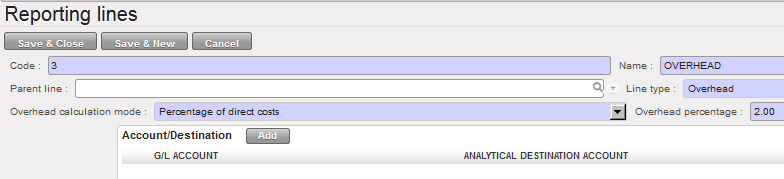 Overhead calculation mode setting
4. Click {Save} button.
