
Finance User Manual ENG -> 4. Imports -> 4.3 Budgets.
BUDGETS
LUFI-40301 Budget Imports
LU Introduction
Within UniField, budget management consists of following actual expenses against expected expenses. Budgets are built outside UniField and imported in the system through a csv file. Each instance (coordination and project) must import its own budgets. Once imported, the budget is created in {Draft} state. An authorised user must review the {Draft} version and validate it. From that moment on, the budget lines cannot be modified and the will synchronize to other instances.

Budgets are imported and validated in each project location and synchronized upwards to Coordination and HQ.
When the period covered by the budget is over or when a new revised budget version is issued, a new budget can be loaded. It is possible to load a new budget while the first budget is still open.
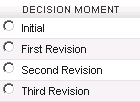
The user can upload up to 4 versions of the same budget at different decisions moments. Default decision moments available in UniField are: Initial, First Revision, Second Revision, Third Revision (as presented below); they can be modified from the HQ instance to match each OC’s terminology. They represent a re-forecast and the number of revisions depends on your OC policy. The budget decision name on the file should be the same as on the excel file otherwise the system will not let import it.
Once the project’s budgets are validated at project level, they are synchronized to the coordination.
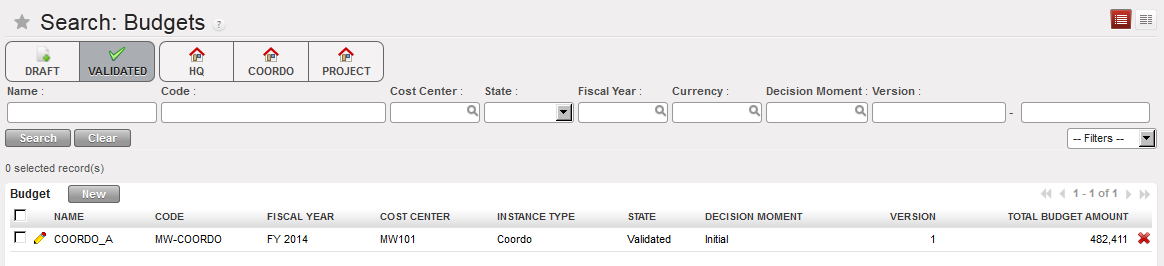
{Budge} Search view. You can retrieve your budget through different filters, including budget states
(Draft, validated or Done)
Once uploaded, in {Form} view, you can choose a display type to view the budget in various ways:
In the Budget display – Parent accounts only, the consolidated budget lines are displayed; it shows a summary of the totals at the Parent accounts level, e.g. 60 Purchase of Medical Items, 61 Purchase of Non-Medical Items etc.
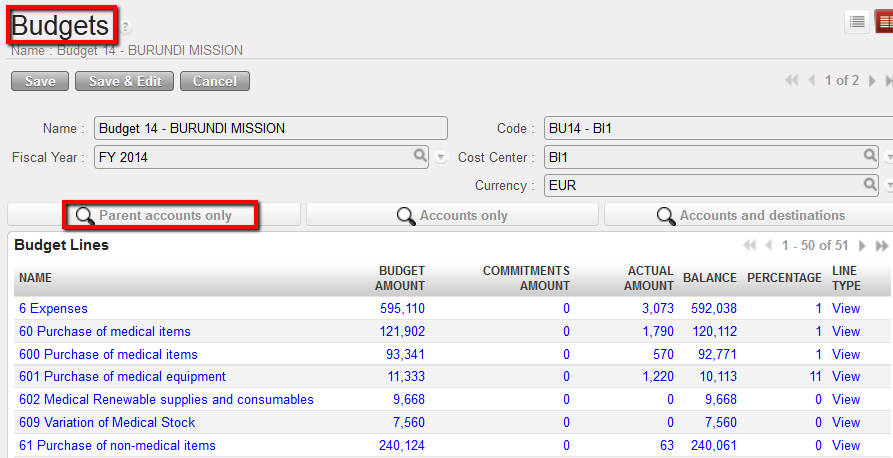
Budget display – Parent accounts only
In the Budget display – Accounts only, the summary of the totals at the Parent level budget lines along with the subtotals for each expense account are displayed.
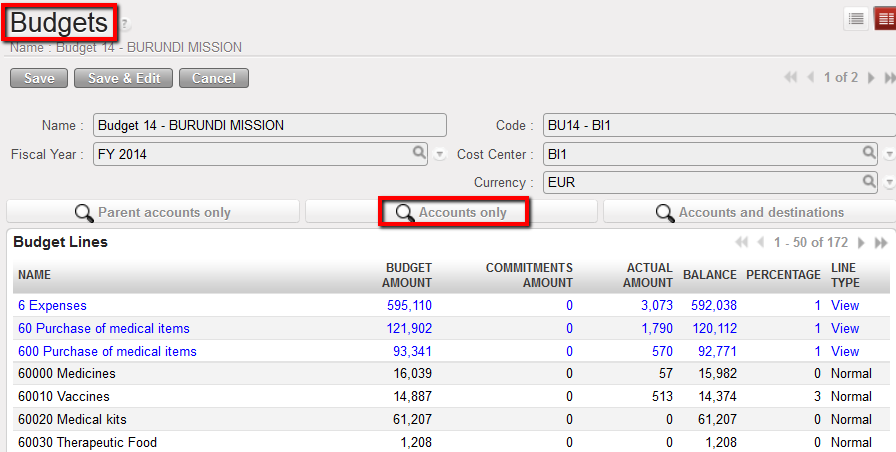
Budget display – Accounts only
In the Budget display – Accounts and destinations expense codes are listed for each expense/destination pair that exists in the system.
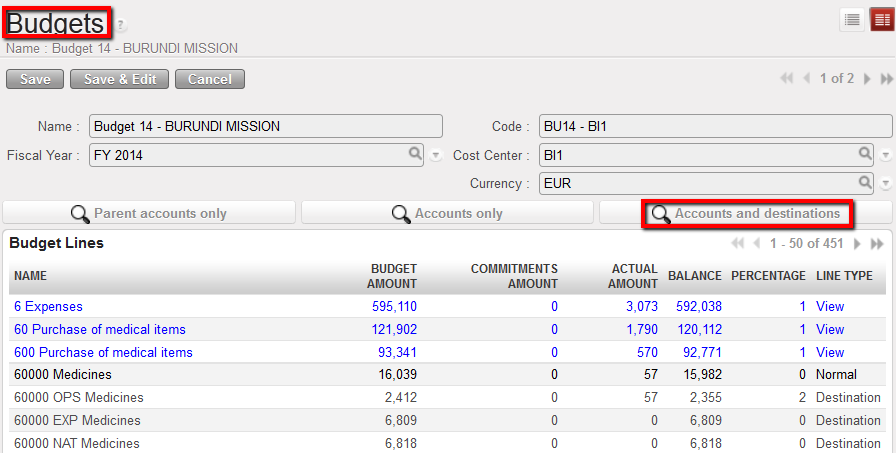
Budget display – Accounts and destinations
Go to: Budgets/Import Budget
- Click on {add attachment}.
- Browse to the file you want to upload. Each section will manage how to create the budget file differently. Please follow your mission’s financial procedures.

One budget import file could contain several budgets to be imported in one instance in the following cases:
- OCs managing activities in their cost center tree (OCBA, OCG)
- For locations managing several projects from the same UniField instance
3. Click on {Import Budget} button.

Import Budget wizard
-
- The system indicates that the budget has been properly uploaded
4. Click {OK} button.
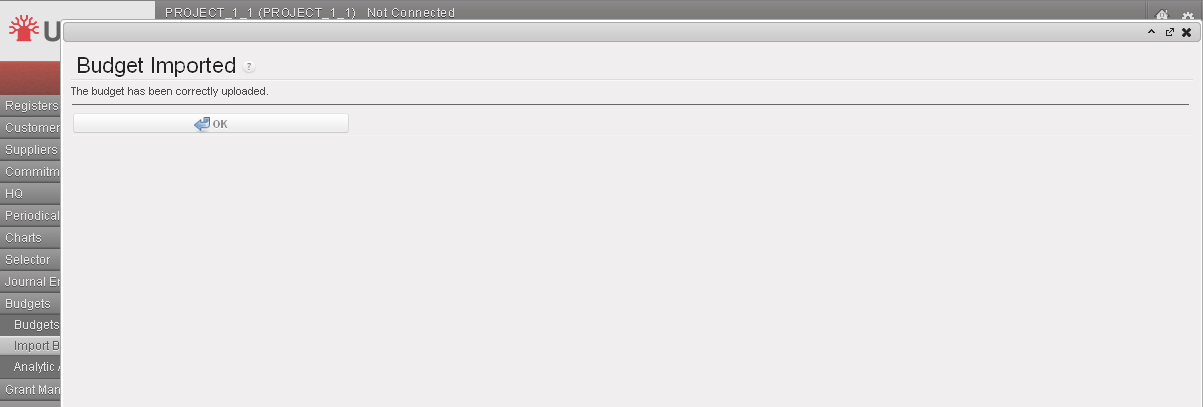
Budget import confirmation
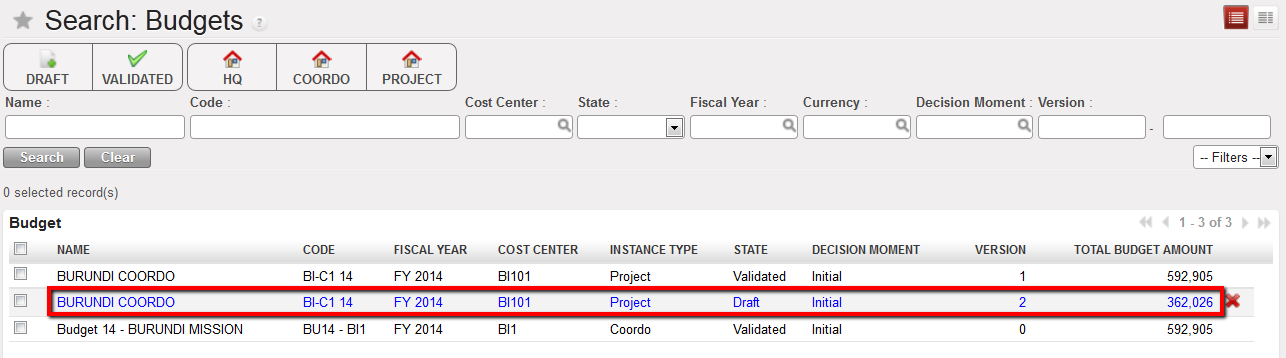
The budget displays in the Search Budgets view
How to Delete a Draft Budget
Go to: Budgets/Budgets
- Select the {Draft} filter. DRAFT budgets display
- In the Budget section, identify the budget you would like to delete.
- Click on the red cross.
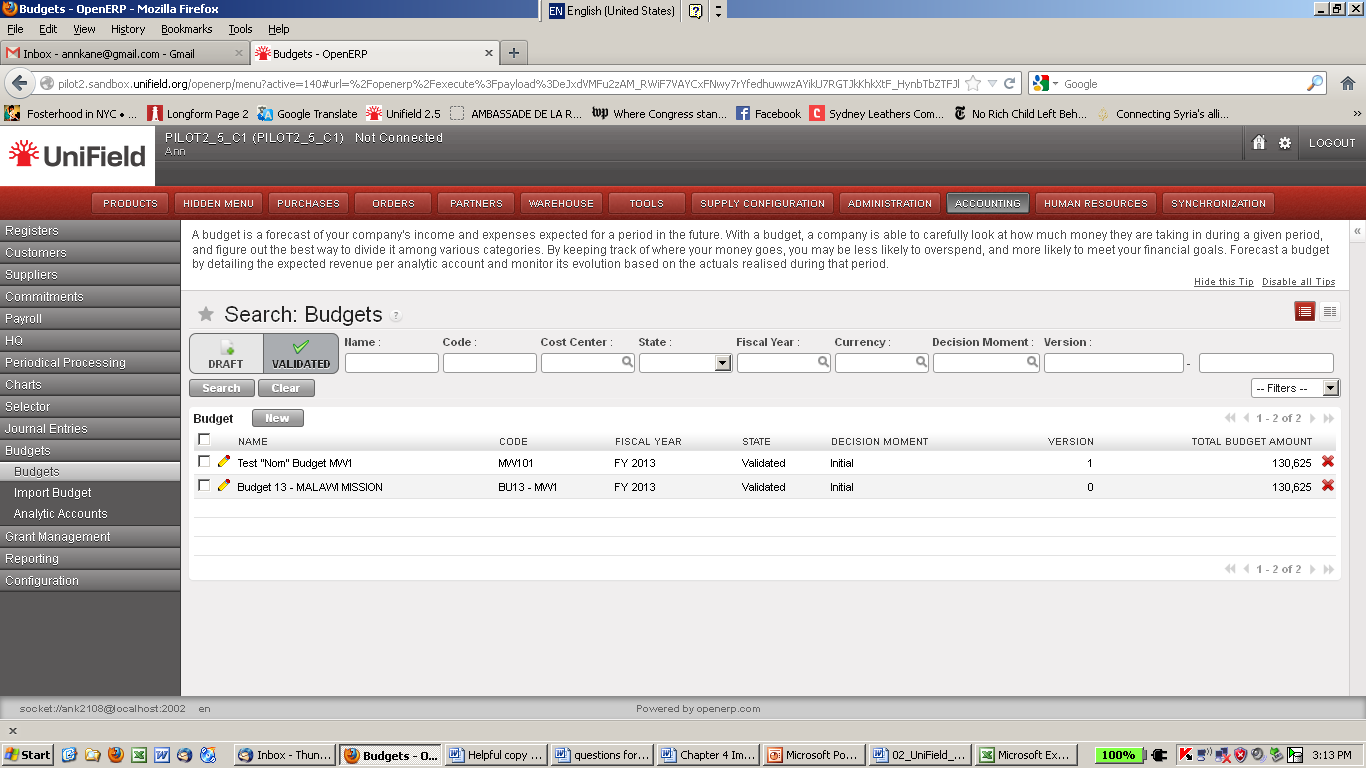
The budget is deleted
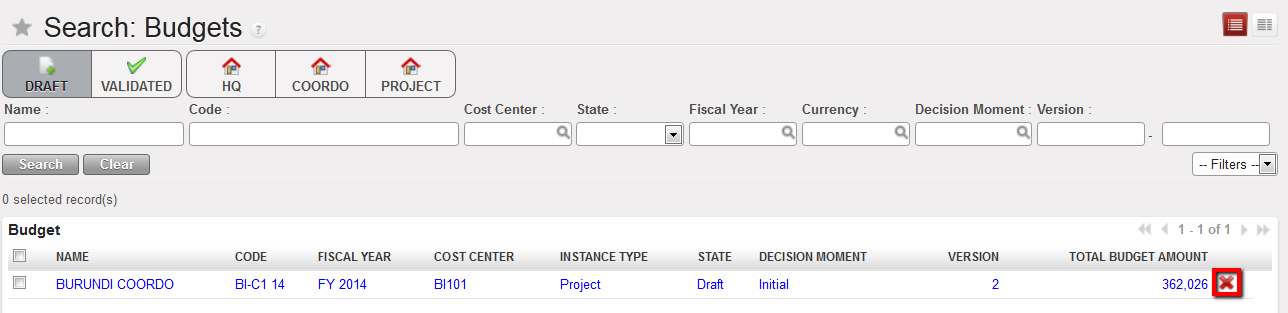
Deletion icon in the Budgets Search view
–>See the task {How to import a budget} to load the right budget and check it before validation
How to Validate a Draft Budget
Remember, you must validate a budget to display budgeted amounts.
Go to: Budgets/Budgets
- Select the {Draft} filter
DRAFT budgets display
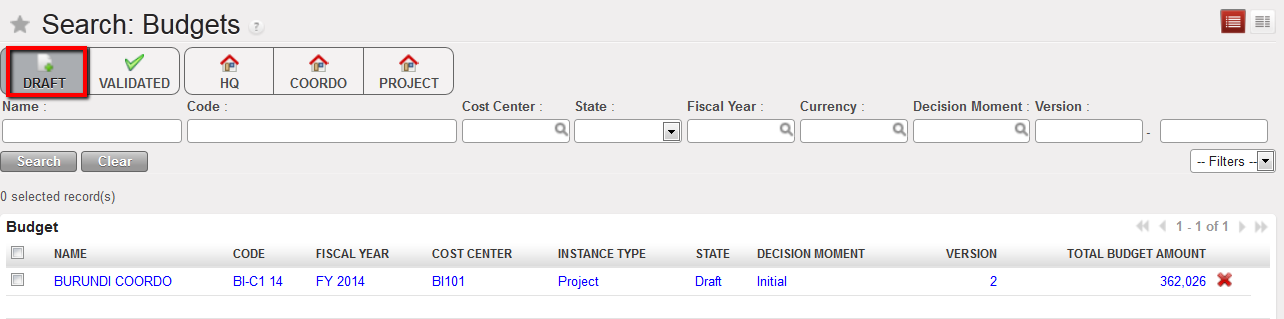
Draft budget displayed
Identify the budget to validate and click on it.
-
- The budget Form view appears
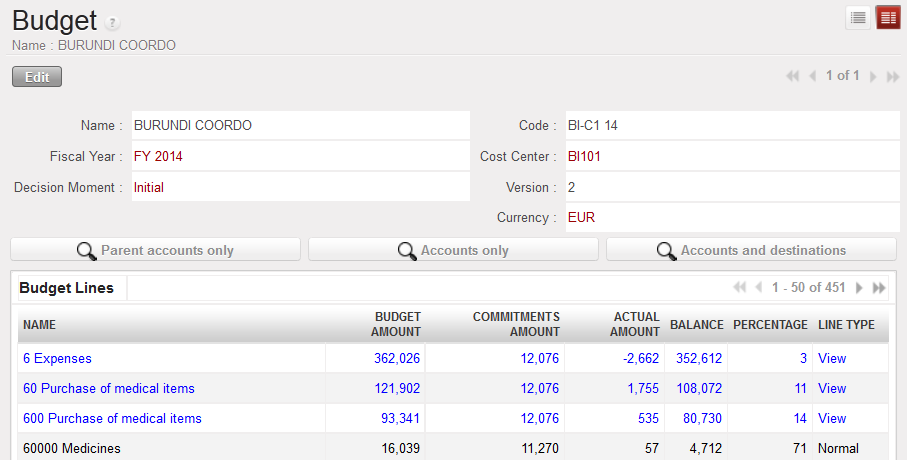
Budget Form view
Change the budget display type to help you reviewing the budget before approval

Click on the button at the bottom of the form.

-
- The budget status has changed to validated

How to Close a Validated Budget
Once a budget period or a decision moment is over, a budget can be closed in the instance where it belongs to, e.g. a project budget can be closed in project level. The status change will then synchronize upwards to coordination and HQ.
Go to: Budgets/Budgets
- Select the {Validated} filter. Select the budget you would like to close
- Review the budget. If there are no problem click on the {Done} button at the bottom of the page.

