
Finance User Manual ENG -> 5. Searching, Correcting and Closing -> 5.3 Month End Closing.
LUFI-50301 Month End Register Closing
LUFI-50302 Month End Period Closing
LUFI-50303 Accruals Management
LUFI-50304 Revaluation
LUFI-50305 Cash Request
MONTH END CLOSING
LUFI-50301 Month End Register Closing
LU Introduction
At the end of each month all registers will have to be checked, validated and closed before closing the entire period and sending documents to Coordination/HQ. Cash, cheque and bank registers all require confirmation that the information on the paper copies matches what is in UniField and the physical amount of money matches the information in UniField.
Before closing any register you must:
- Enter all remaining receipts/expenses paid in this period
- Enter all open advances and close all justified advances
- Confirm all information in UniField matches the information on the hard copy receipt/invoice
- Confirm all register entries have been hard-posted
- Confirm salary payments and all salary advances have been booked in UniField
- Confirm your physical cash balance matches your register closing balance
Please note, procedures vary from one OC to another, so please refer to your own Section’s procedures. For example, you may not need to record open advances.
Cash Register Closing
After all transactions have been completed for the month and hard-posted, an authorized user needs to confirm the month-end cash count and close the cash register. Only if the balance in UniField matches with the actual physical cash count can the cash register be fully closed.
If the cash register balance does not match the actual physical balance then the cash register can only be partially closed. Partially closed registers can be re-opened in order to book additional entries.
If the user cannot identify and resolve the issue which caused the cash difference, the user must create an entry for the amount of the cash difference (the account to use depend of each OC procedures, e.g. 67000 – Cash difference). The balance in UniField will be updated to eliminate the gap. After that, the register can be fully closed.
Once the register is fully closed, only a user with an Administrator profile can re-open the register and the related cash count.
From the cash register you can print the Cash Reconciliation report. This report is the paper evidence to sign-off and acknowledge the cash reconciliation was properly recorded.
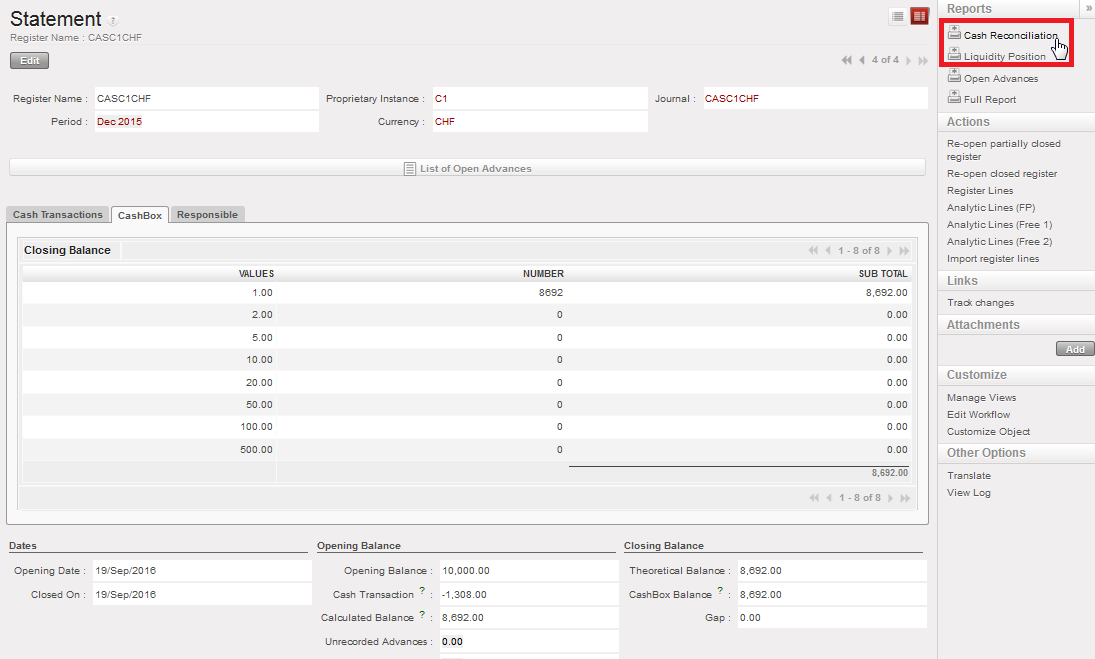 Cashbox view where the physical cash balance is reported and the location of Cash Reconciliation button
N.B. Remember if your section does not record operational advances in UniField, you can report the total amount of open advances in the cash box inventory before confirming the cash box closing balance and closing the cash register.
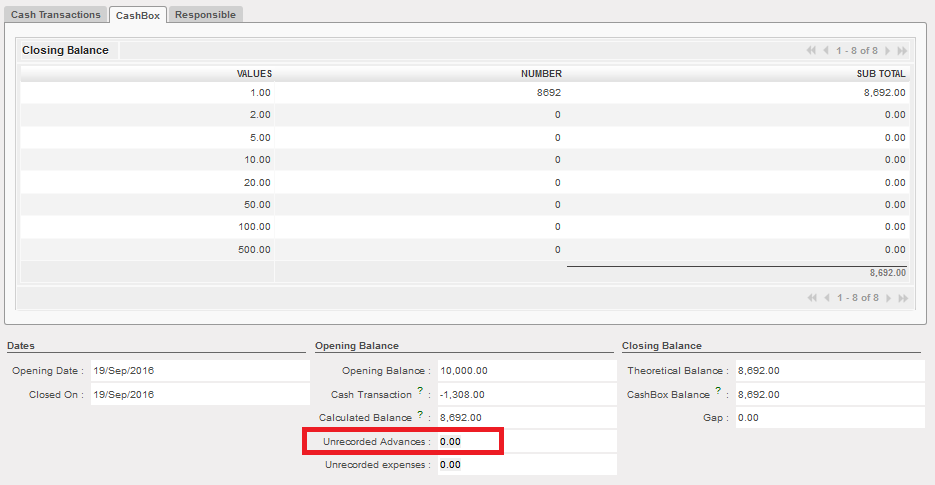 Field used to report {Unrecorded Advances} in the cashbox
How to Conduct a Cash Count
At the end of each month, your cash count can be entered into UniField in order to confirm the balance in UniField is the same as the physical amount in the cash box. Frequency of cash counts depends on the policy of each section.
Go to: Accounting/ Registers/Cash Register
- Open the cash register that you want to check in {Edit} mode
The cash register Form view appears
- Open the {Cashbox} tab
The {Cashbox} tab appears
- Click on the pencil to edit the corresponding {Number} of the cash denomination lines {Values}

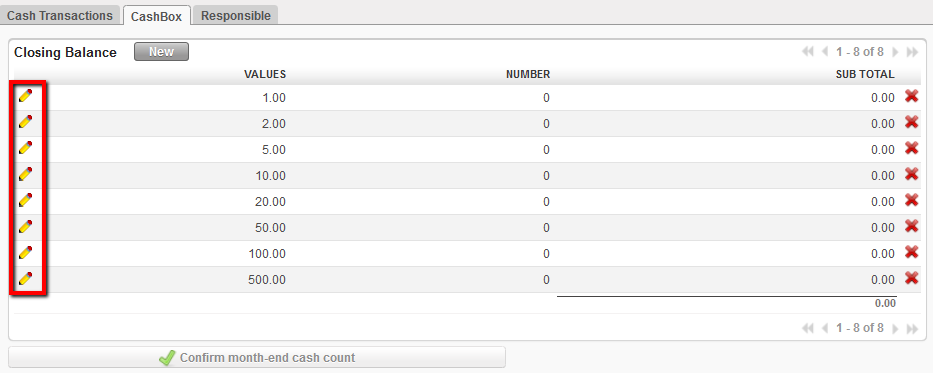 Use pencil icon to edit denomination lines
- Enter the quantity of each denomination in {Number}
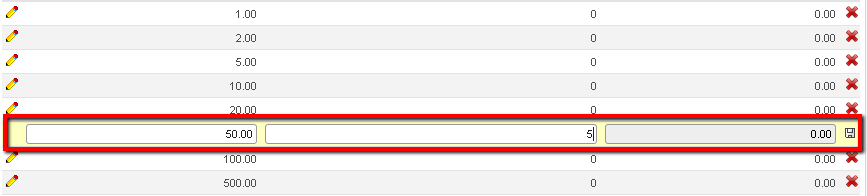 Enter cash count quantities
- Save (
 ) each denomination line. Click {Save} at the top of the register form
The CashBox values in UniField are updated. The CashBox balances as well as the Gap field are updated.
- 2. Depending on your OC’s policies, enter open advances in {Unrecorded Advances} and any outstanding receipt in {Unrecorded Expenses}. For a detail definition and use of Unrecorded Advances and Expenses, see LU30201 of Chapter 3 – Payments. Click {Save} at the top of the register form to update the Theoretical Balance.
How to Close a Cash Register without a Cash Discrepancy:
Go to: Accounting/ Registers/Cash Registers
- Open the cash register you want to close
- Open the {CashBox} tab and enter the value of your physical CashBox in the {CashBox} tab
- Click {Confirm month-end cash count}
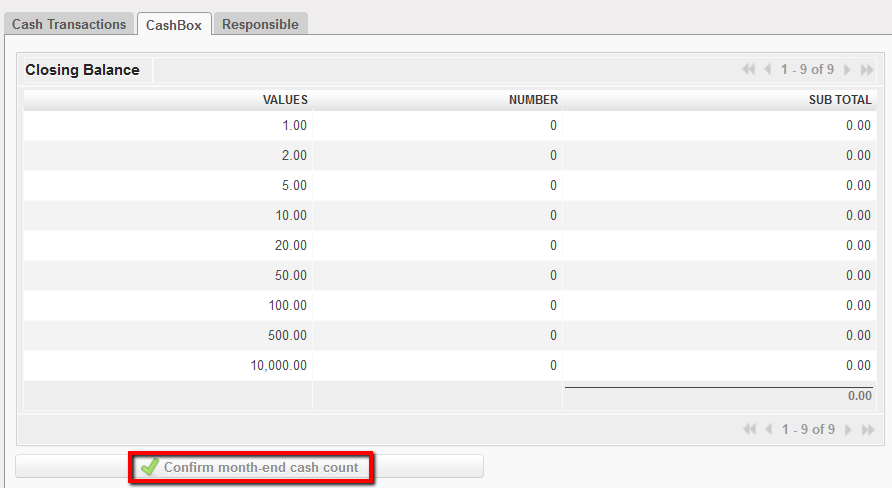
{Confirm Month-end cash count} button
- Confirm the action if you want to freeze the month-end balance
- A pop-up window “Closing balance freezing warning!” will appear with the message “Are you sure you want to freeze the closing balance?” or “are you sure you want to freeze closing balance while the previous period is still open? , Check the box and click the “Confirm” button.
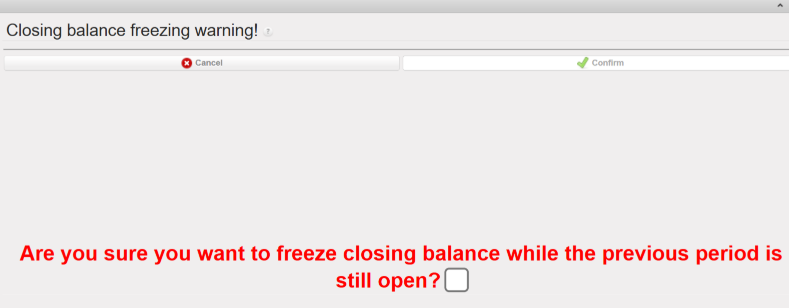
Confirmation month-end cash count wizard

- 2. At the bottom of the screen, select {Close Register}

A wizard asks you if you want to close the CashBox

{Closing CashBox} wizard
- Check the box of the field {Are you sure?} and {Confirm}
The register state has changed from {Open} to {Closed} if there is no gap between the UniField cash balance and your physical cash balance.
- Once the register is fully closed, only a user with an Administrator profile can re-open the register and the related cash count.
How to Unfreeze a confirmed cash-box balance:
In case the balance was confirmed wrongly, the confirmed end of month balance can be un-freeze by the option of {Re-open month-end cash count}. This option is only available for an Admin user at HQ level only.
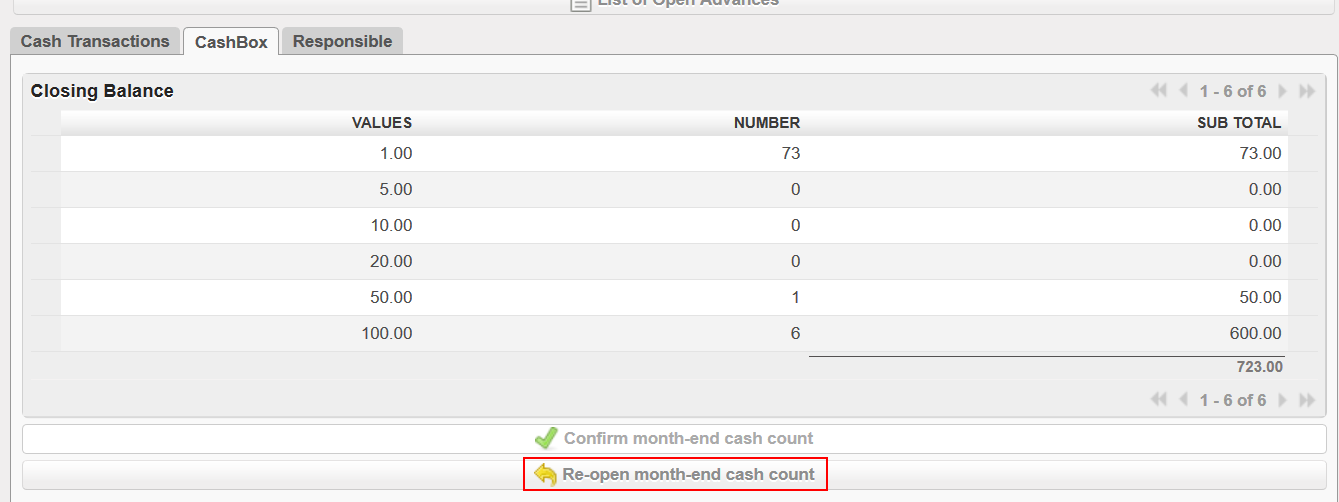

How to Produce a Cash Reconciliation Report:
Go to Accounting/Registers/Cash Registers
- In the Search Cash Registers view, select the filter and tick the checkbox of the register you want to run the {Cash Reconciliation}

- Go to Reports on the right side of the screen, and select {Cash Reconciliation}
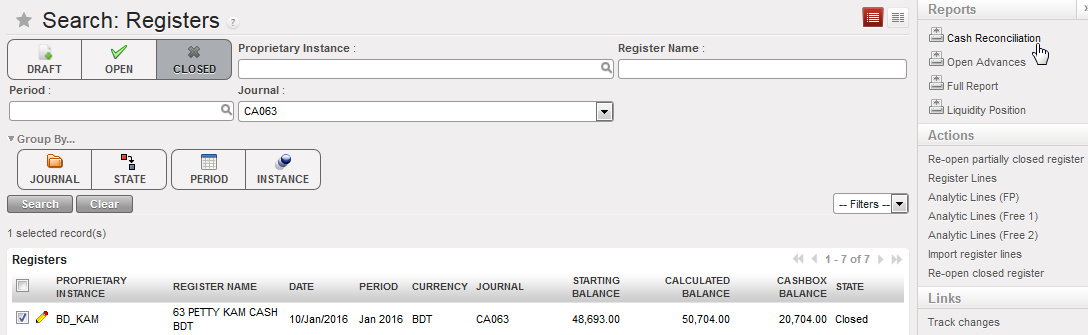 Cash Reconciliation Report Action
A cash reconciliation report is generated in PDF as below:
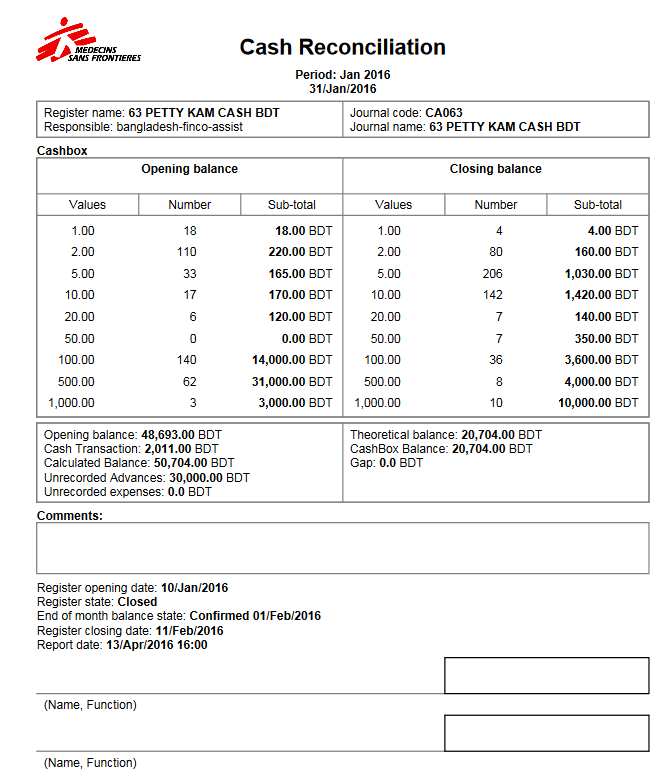
Cash Reconciliation Report
N.B.: In some cases, you may run the report right after you have closed the register so you would not go back again to the Cash Registers Search view. From the Cash Register Form view, you would simply click on the report link.
Cash Reconciliation
PDF output by register with closing balance, opening balance and a placeholder for signatures. This report is the paper evidence to sign-off and acknowledge the cash reconciliation was properly performed.
How to Produce an Open Advances Report
If your section manages operational advances in the system, you will be able to generate an Open Advances report.
Go to Accounting/Registers/Cash Registers
- In the Search Cash Registers view, tick the checkbox of the register for which you want to run the {Open Advances report}
- Go to Reports on the right-hand side of the screen, and select {Open Advances}
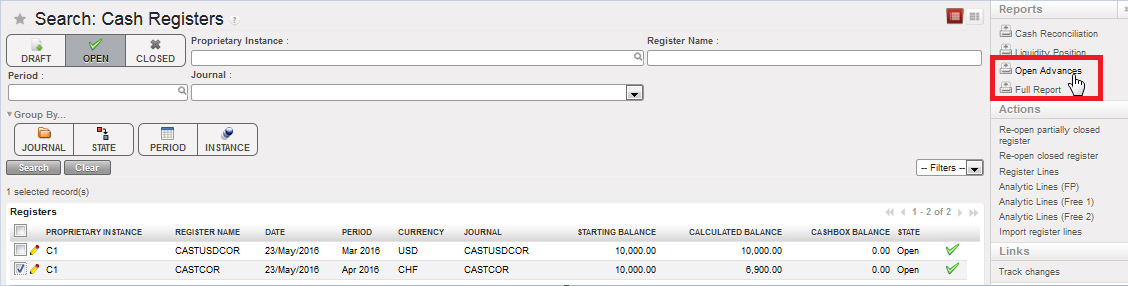
Open Advances report action
A window {Open Advances} displays
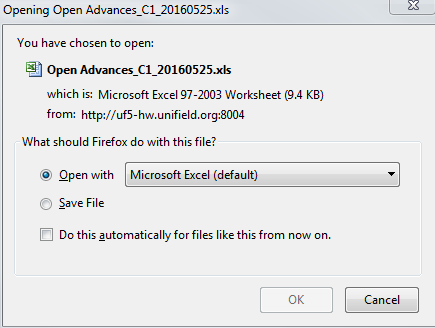
3. Select {OK}
An Open Advances report is generated in Excel.

Open Advances report

Open Advances
Excel output showing all open advances booked to date and that have not been cleared.
| Open Advances | Excel output showing all open advances booked to date and that have not been cleared. |
Cheque Register Closing
Before closing a cheque register, all entries must be hard-posted and all cheques which have been cashed into the bank register must have been imported to the related bank register (for the cheque import process, refer to LUFI-30206 of Chapter 3 – Payments). Cheques imported into the bank register are then reconciled.
Cheque payments are usually processed by the bank during the same month of the booking. However, if the bank cashes the cheque during the next month, the user should NOT import the cheque in the current month’s bank register. At the end of the month cheques not reconciled may remain open – even after the register is closed. This means they are available to be imported into the next month’s bank register. In the Cheque Register, the Cheque Inventory report displays the open cheques in booking and functional currencies.
How to Close a Cheque Register
Go to Accounting/Registers/Cheque Registers
- Select the cheque register you want to close
- Select at the bottom of the form. The cheque confirmation wizard window opens. Click {Yes}.
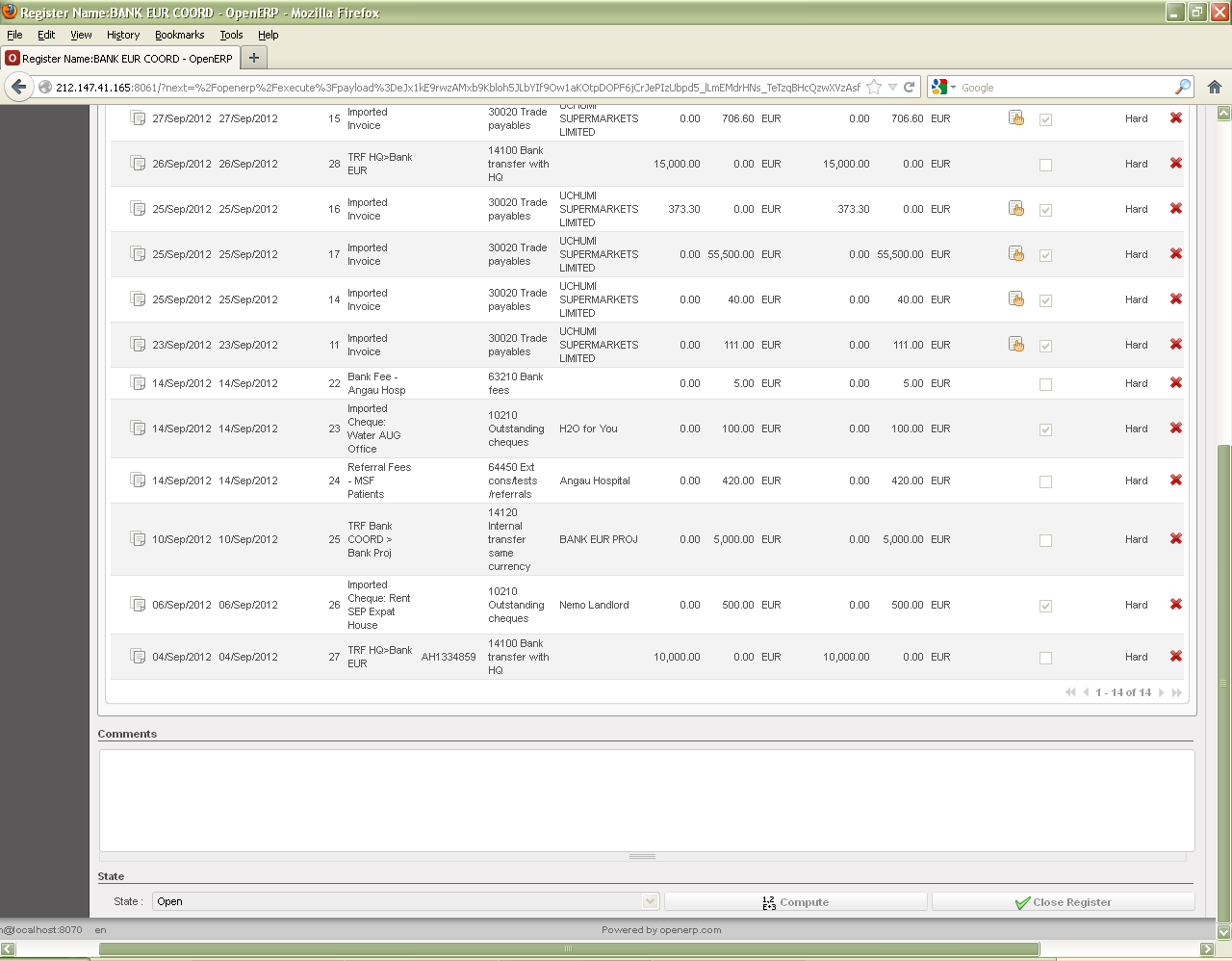

Confirming reconciliation process was done
The {Closed on} date field is automatically populated. The status changes from {Open} to {Closed}.
The Calculated balance is the total sum amount of Open cheques.
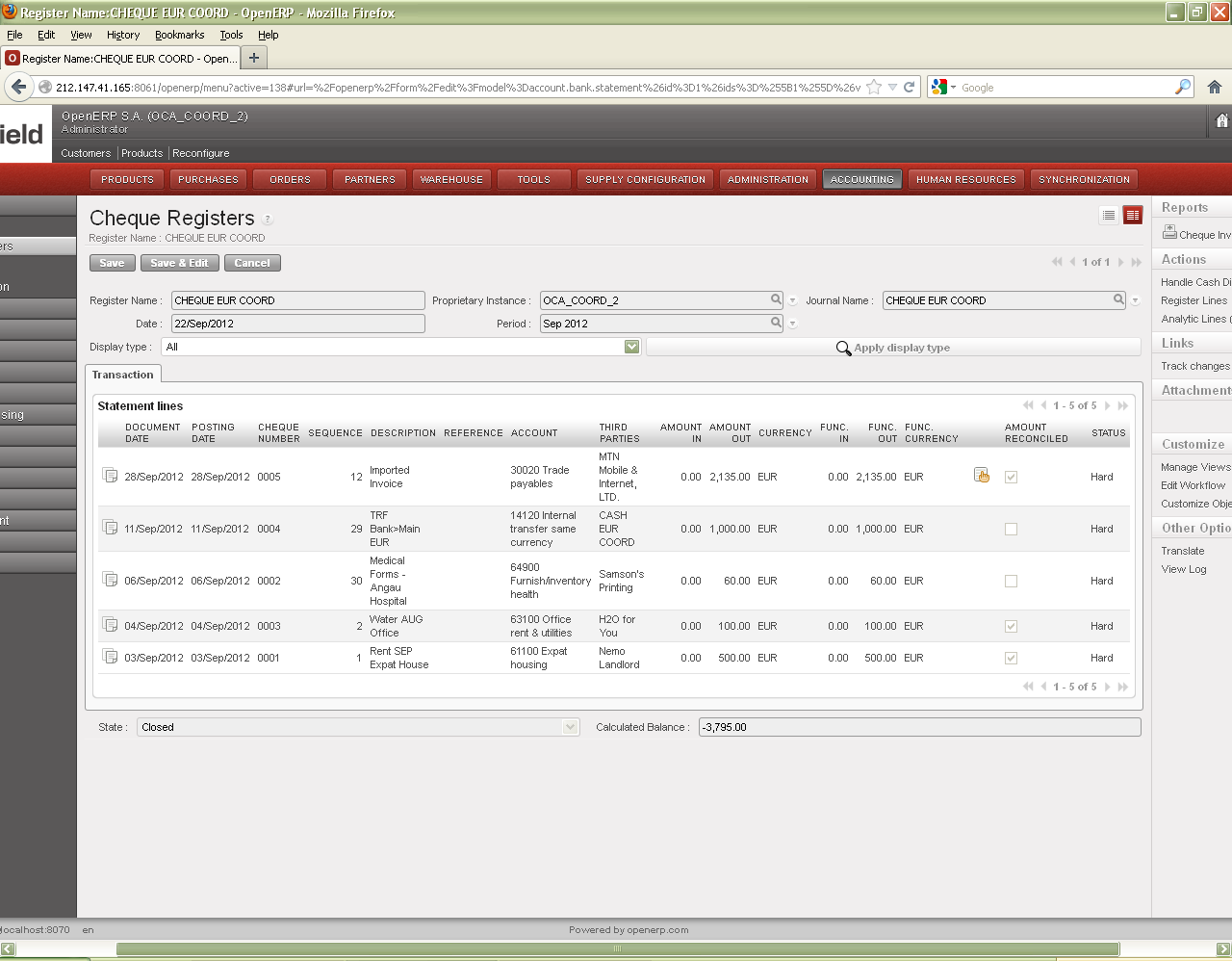
The field State gets updated when Register is closed
How to Produce a Cheque Inventory Report:
Go to Accounting/Registers/Cheque Registers
- In the Search Cheque Registers view, select the filter and tick the checkbox of the register for which you want to run the {Cheque Inventory}

- Go to {Reports} on the right side of the screen, and select {Cheque Inventory}
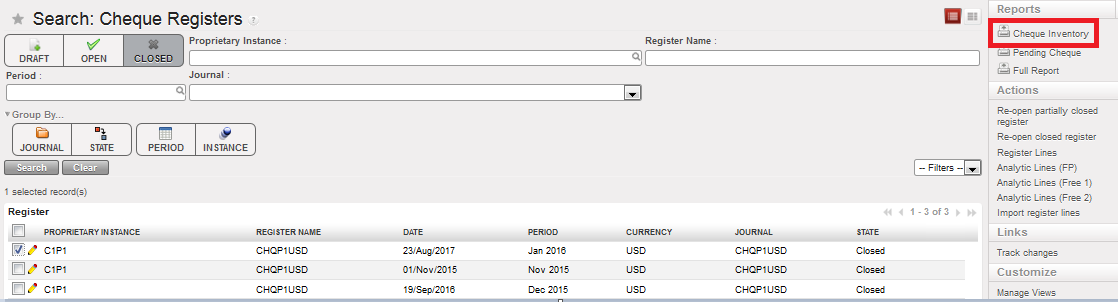 Cheque inventory report action
A window {Cheque Inventory} displays
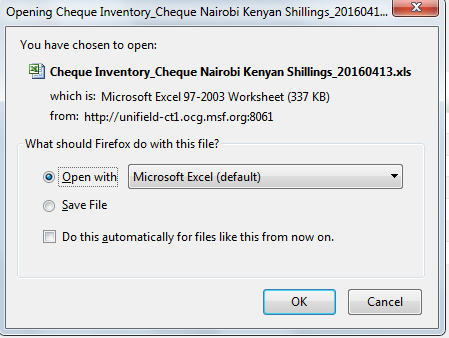
- Select {OK}
A cheque inventory report is generated
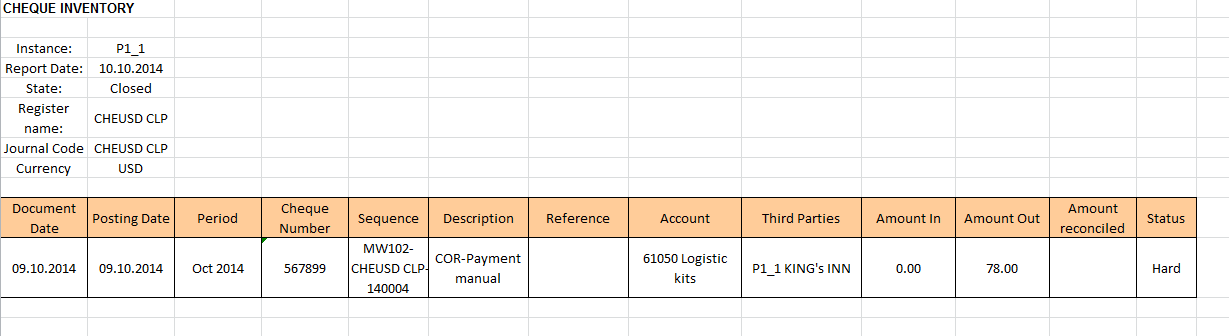
Cheque inventory report shows the cheque 567899 has not been reconciled yet
Cheque Inventory
Excel output displaying all outstanding cheques of the current and previous period:
– Open cheques not imported
– Open cheques imported in Temp state
– Draft cheques
N.B.: In some cases, you may run the report right after you have closed the register so you would not go back again to the Cheque Registers Search view. From the Cheque Register Form view, you would simply click on the report link.
How to Produce a Pending Cheque Report:
- In the Search Cheque Registers view, select the filter and tick the checkbox of the register for which you want to run the {Pending Cheque}

- Go to Reports on the right-hand side of the screen, and select {Pending Cheque}
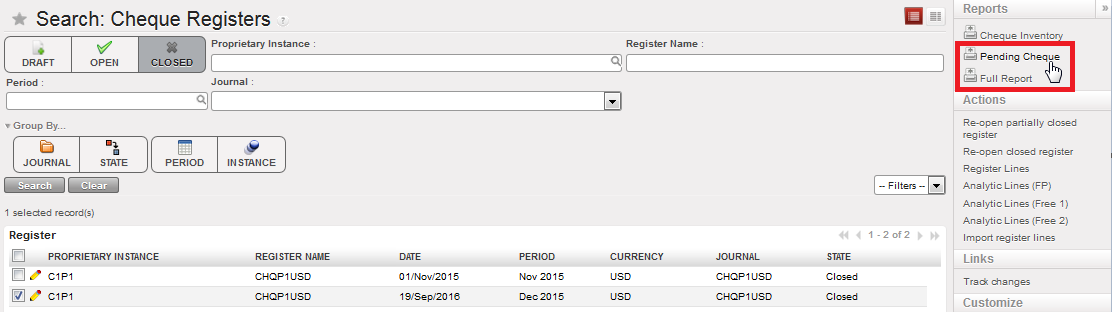 Pending Cheque report action
A window {Pending Cheque} displays
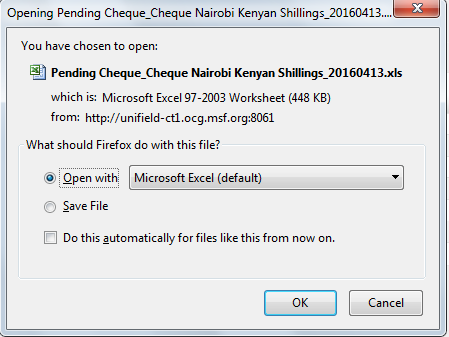
- Select {OK}
A pending cheque report is generated
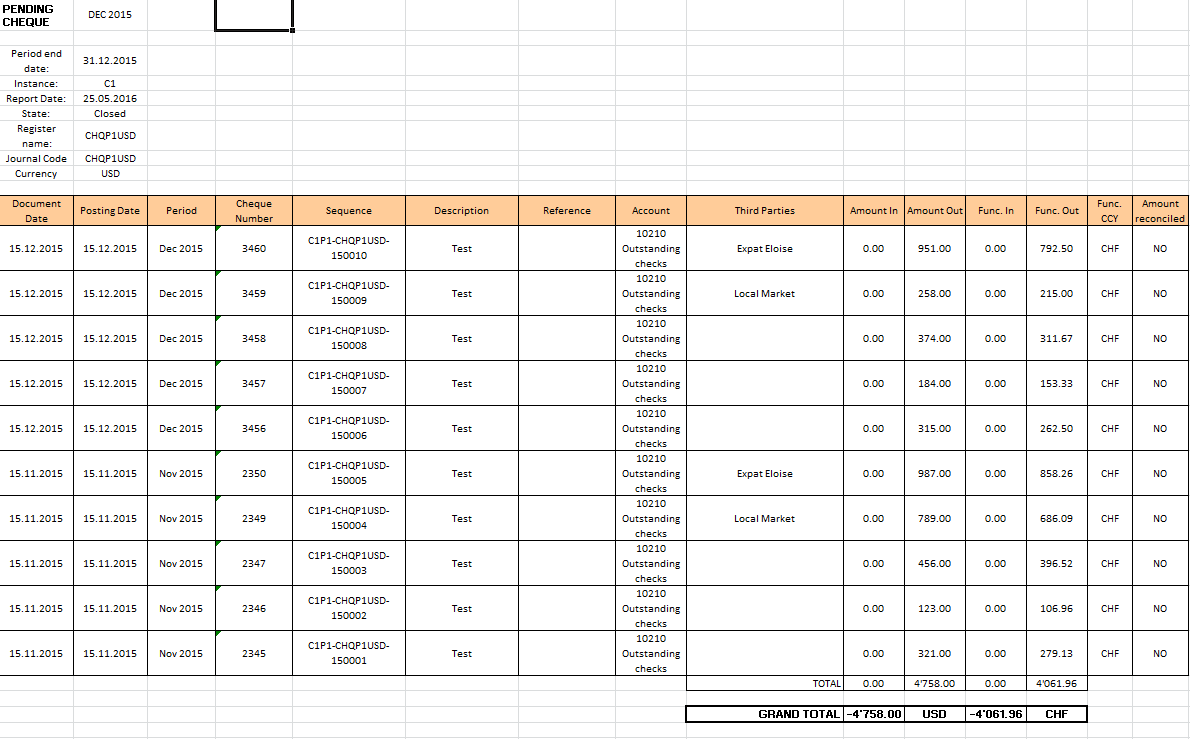
Pending cheque report showing outstanding cheques for Nov and Dec periods
The Full report production is explained further down.
Pending Cheque Report
Excel output showing outstanding cheques without any period limitation:
– Open cheques not imported
– Open cheques imported in Temp state
Bank Register Closing
Bank reconciliation is the process of matching your actual bank statement entries with the bank register entries in UniField.
In UniField, the user imports all cashed cheques in the bank register to adjust the bank account balance. If bank transfers are performed, they should be entered in the bank register. Bank fees should also be booked directly in the bank registers.
Cheque payments are usually processed by the bank during the same month of the booking. However if the bank cashes the cheque during the next month then the user should NOT import the cheque in the current month’s bank register.
When you have imported only the cashed cheques into the bank register (for the cheque import process, refer to LU30304 of Chapter 3 – Payments) and hard-posted all entries, you can close the bank register. The bank register balance should always reflect the bank statement balance and the difference between them should be zero.
You can then generate a bank reconciliation report showing starting, calculated and bank register balances. This report is the paper evidence to sign-off and acknowledge the bank reconciliation was properly performed.
How to Close a Bank Register
Go to Accounting/Registers/Bank Registers
- Open the bank register you want to close
- Enter the bank statement balance in the field {Bank Statement Balance}

Bank statement balance reported
3. Save  and the calculated balance as well as the Gap field is updated
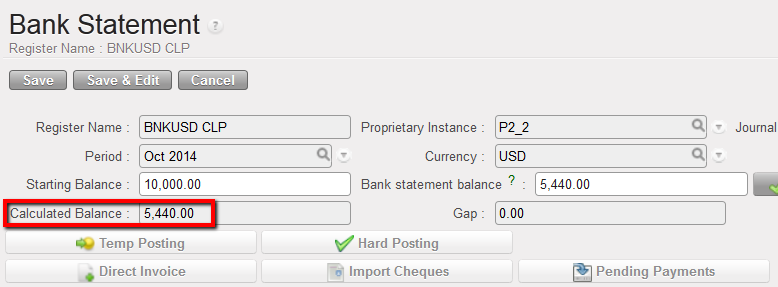
Calculated Balance and Gap updated
- Click on {Confirm End-of-the Month Balance}. A warning message displays. Select {OK} to freeze the bank register balance, which cannot be edited anymore.
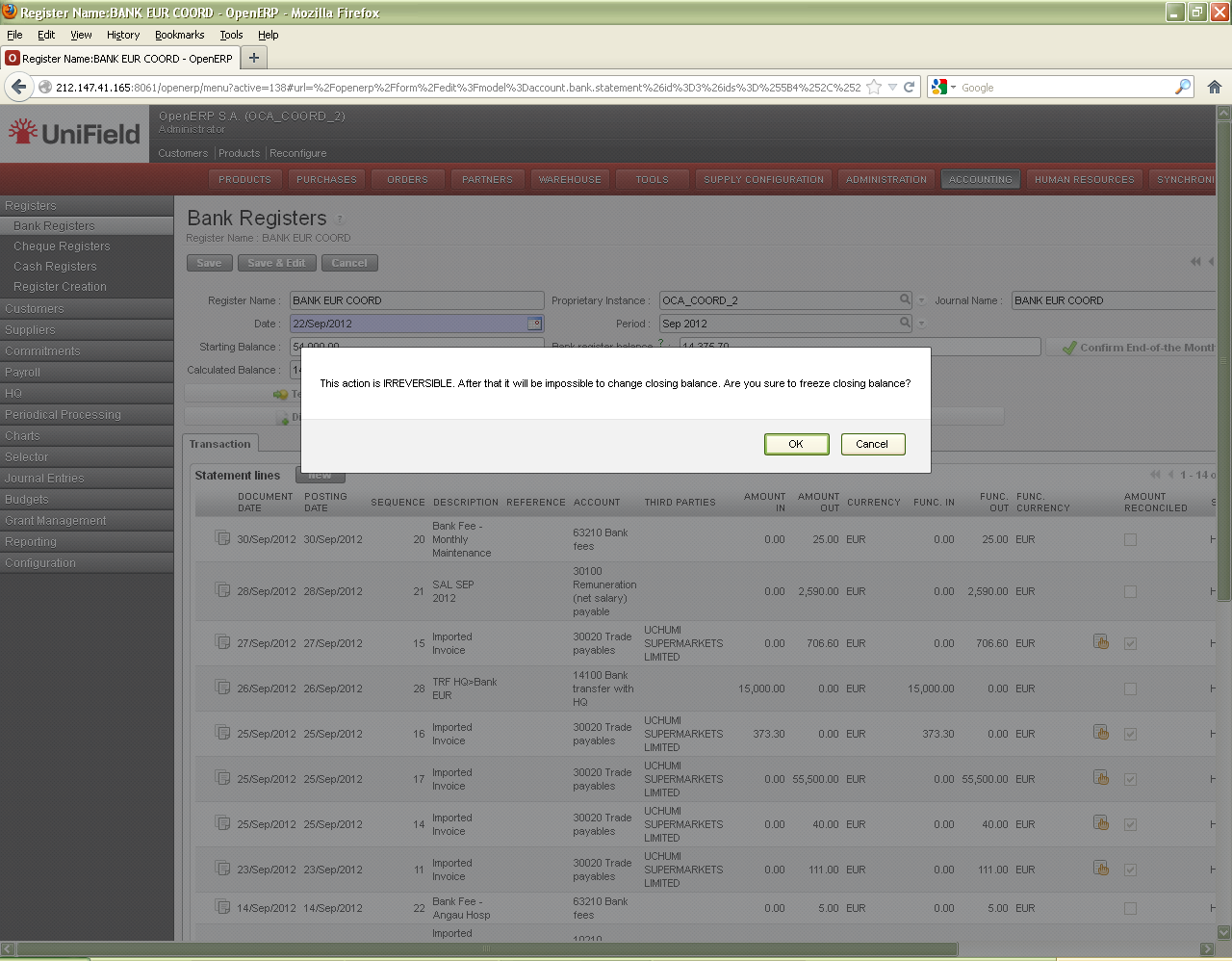
Warning message when closing balance
5. Select at the bottom of the form. The bank confirmation wizard window opens. Click {Yes}.
- The closing date is automatically generated and the register status changes from {Open} to {Closed}.
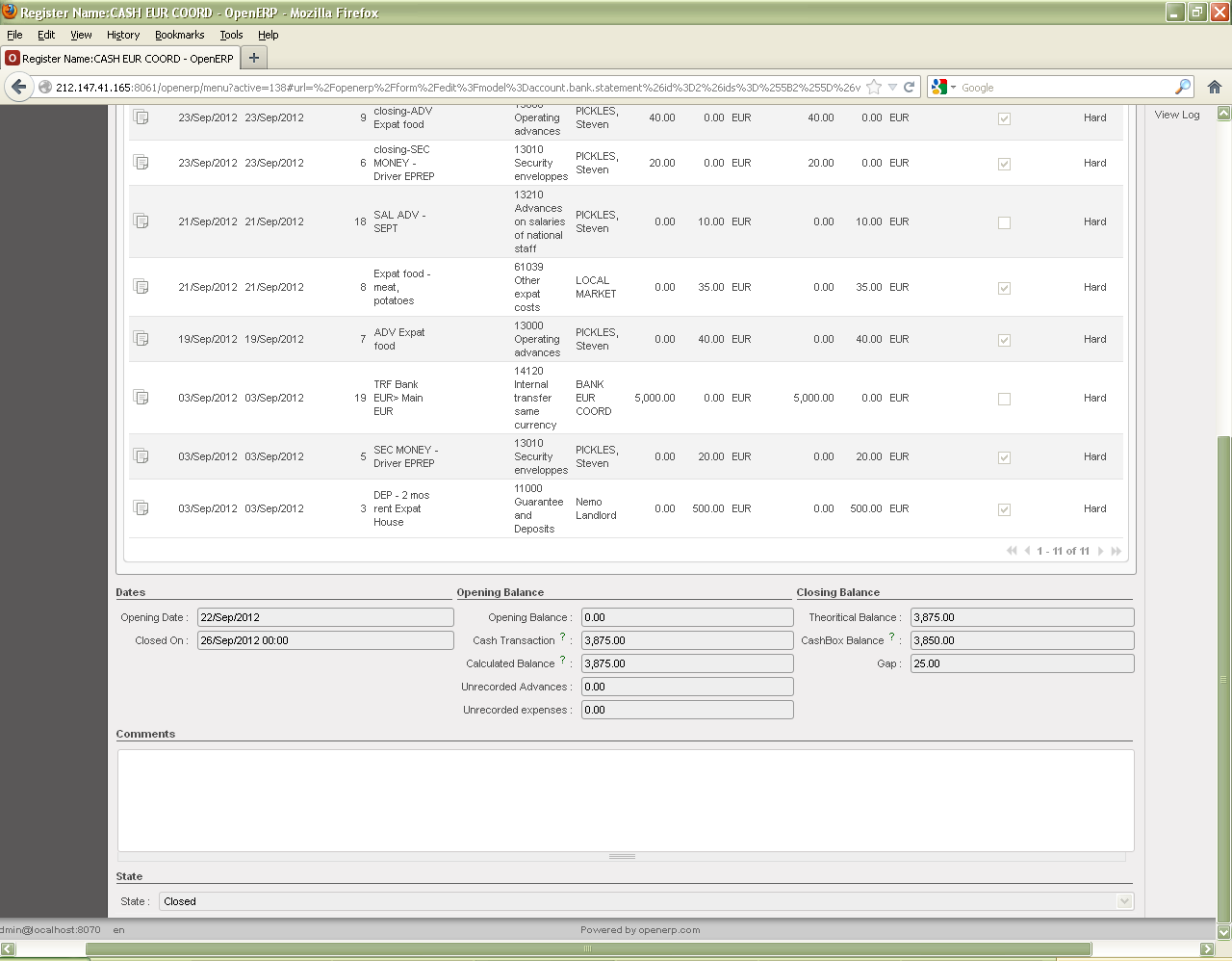
Status changes to Closed 
How to Produce a Bank Reconciliation Report
Go to Accounting/Registers/Bank Registers
- In the Search Bank Registers view, select and tick the checkbox of the register for which you want to run the {Bank Reconciliation}
- Go to {Reports} on the right-hand side of the screen, and select {Bank Reconciliation}
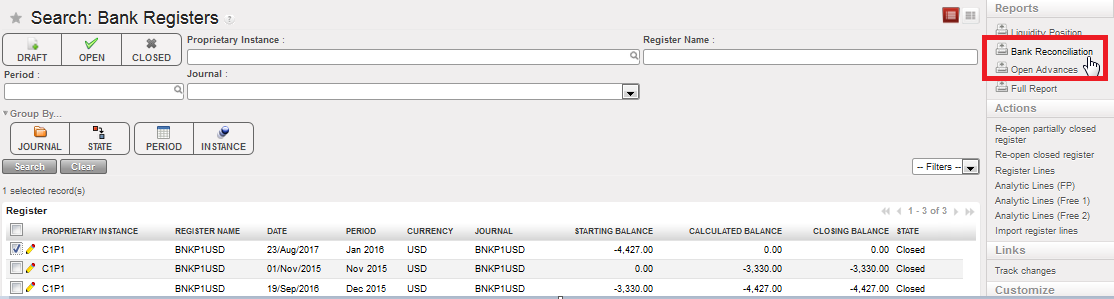 Bank reconciliation action
A window {Bank reconciliation} displays
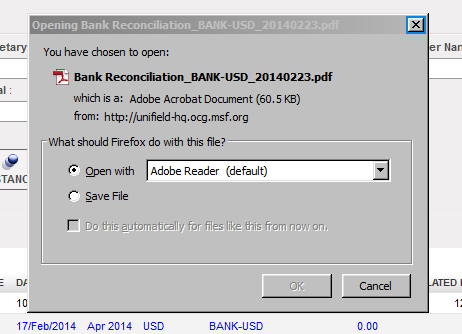
- Select {OK}
A bank reconciliation report is generated in PDF as below:
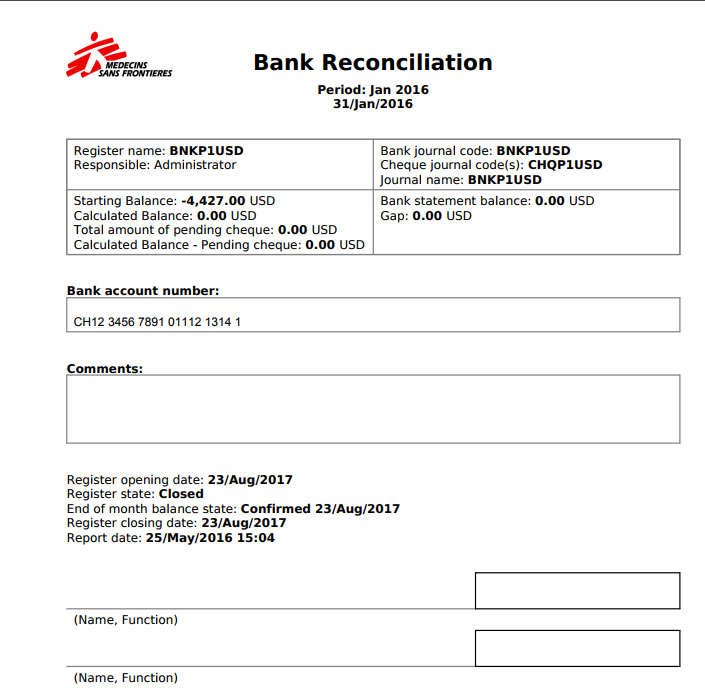
Bank Reconciliation Report
| Bank Reconciliation | PDF report showing starting, calculated and bank register balances. This report is the paper evidence to sign-off and acknowledge the bank reconciliation was properly performed. |
N.B.: In some cases, you may run the report right after you have closed the register so you would not go back again to the Bank Registers Search view. From the Bank Register Form view, you would simply click on the report link.
How to Produce a Liquidity Position Report:
Go to Accounting/Registers/Bank Registers
- In the Search Bank Registers view, on the right side of the screen, expand the {Reports} menu and select {Liquidity position} report.
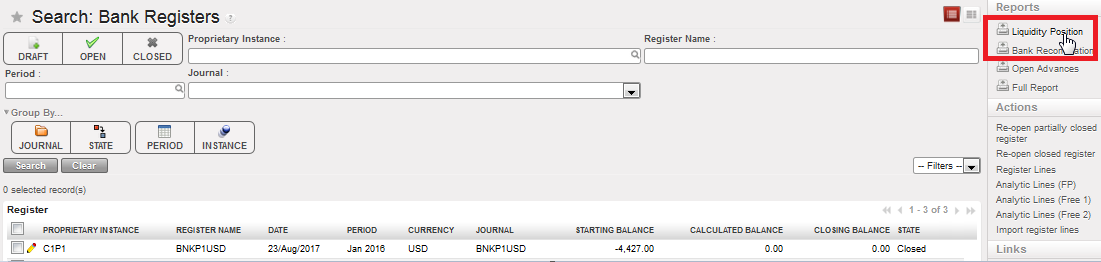 Selecting Liquidity position report when the report menu is expanded
A window {Liquidity Position} displays
- Select the period for which the report should be generated and select the export format

- Select {Export}
A {Liquidity Position} report is generated
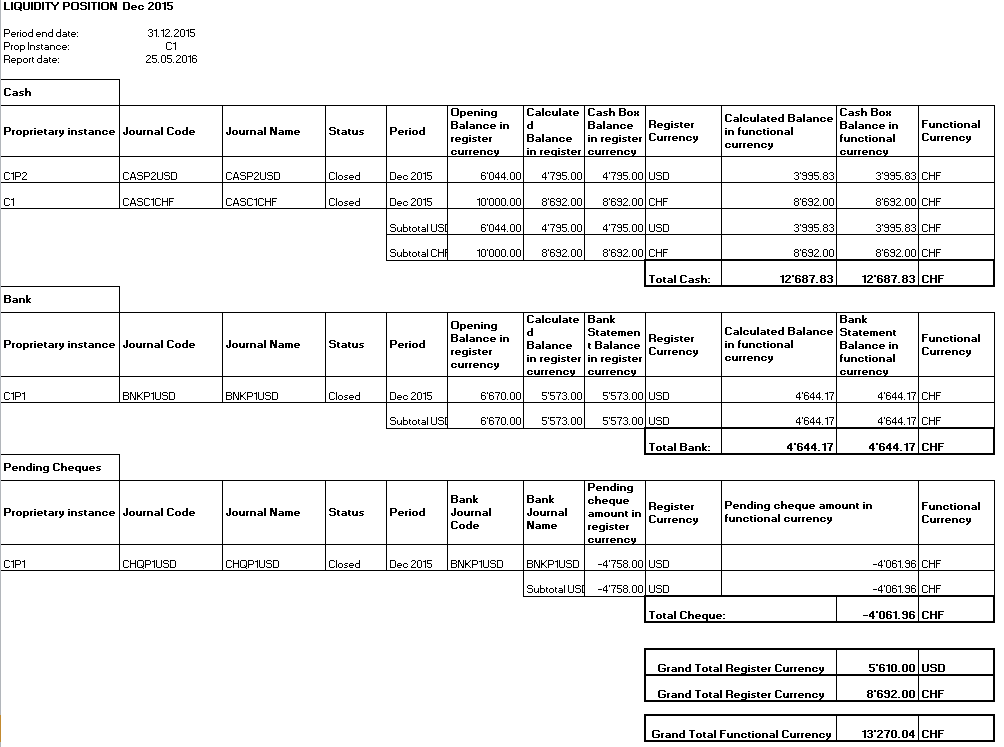
Liquidity Position report displaying a calculated balance and a register balance. The calculated balance is the difference between the opening balance and the sum of transactions. The register balance is the physical liquidity balance in the cash box or at the bank.
| Liquidity Position | Output of each bank, cash and cheque register of the instance (at project level) or the mission (at coordination level) with opening, calculated and closing balances (cashbox balance / bank statement balance / pending cheque amounts). |
How to Produce a Full Report:
Go to Accounting/Registers/Cash Registers
- In the Search Cash Registers view, on the right-hand side of the screen, expand the {Reports} menu and select {Full Report}.
A window {Full Report} displays
 Selecting Full Report
- Select {OK}
A {Full report} report is generated
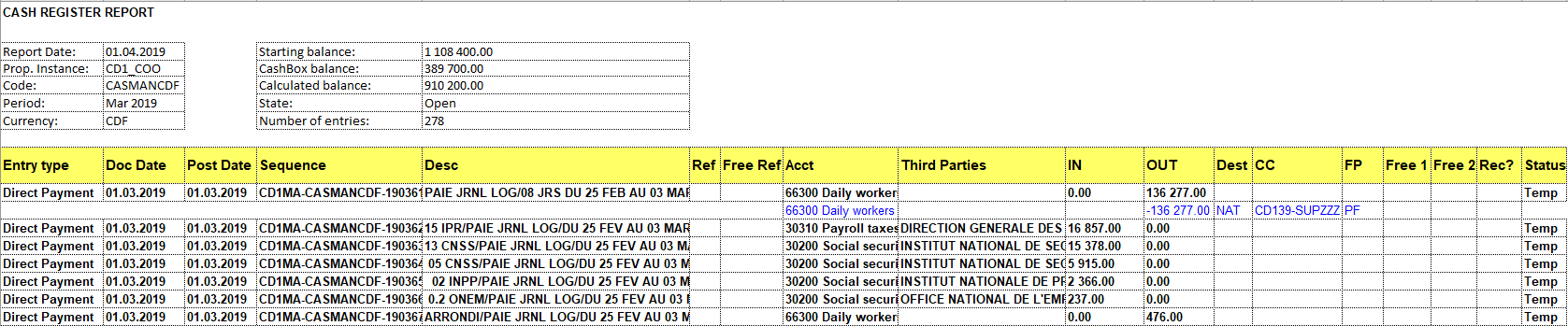
Full Report
In the full report we have the corrections of the advance expense’s entries.
This is already the case for the direct entries that are corrected via the correction wizard.
The color codes are corrected (original entry) and reversal and correction = new entry

Full Report
Excel output showing all entries in a register, including breakdown of invoice lines for imported invoices, direct invoices and justified advances. Subsequent corrections on these elements are also reflected in this report.
In additon, entry sequences with no liquidity account lines (deleted entries, automatic down payment reversal entries and trade payable entries originating from direct entries) are shown in this report for reference.
How to produce the Pending Invoices Report
The pending Invoices report will help you identifying which invoices are in draft or in open status.
Go to Accounting > Suppliers: Under Suppliers there are seven sub-menus creating different documents as below:
- Supplier Invoices
- Supplier Direct Invoices
- Supplier Refunds
- Intersection Supplier Invoices
- Intersection Supplier Refunds
- Donation
- Intermission Voucher IN
When you open one of the above sub-menus, go to the right-side menu called “Reports”:
- Under “Reports” there are five reports to produce, the first one is the report named “Pending Invoices “:
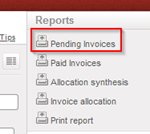
- Click in “Pending invoices”:
You will have this window:
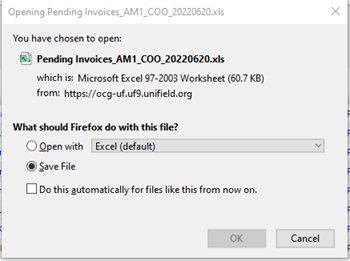
- then you will get the downloaded file “Pending Invoices_Instance code_YYYYMMDD” which includes the following columns:
1. Number
2. Document Date
3. Posting Date
4. Supplier
5. Description
6. Source Document
7. Due Date
8. Residual amt booking ccy
9. Total amt booking ccy
10. Booking Currency
11. Residual amt func. ccy
12. Total amt func. ccy
13. Func. Ccy
14. State
15. Reconcile
16. Payment Sequence Number
17. Down Payment Sequence Number

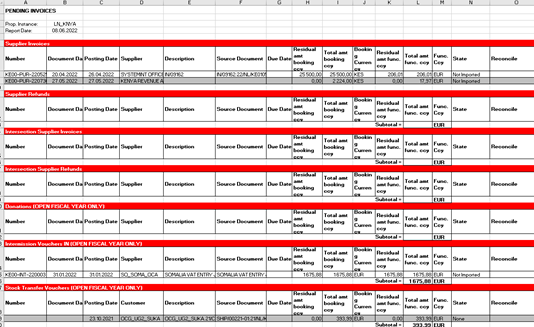
- For the Supplier invoices: we will have the open invoices before and the draft invoices after (drafts in light grey in order to distinguish Draft from Open).
- For the Donations: we will have the open and draft donations of the Open fiscal year + the donations in draft.
- For the Intermission Vouchers IN: we will have the Intermission Vouchers IN of the Open fiscal year + the IVI in draft.
- For the Stock Transfer Vouchers: we will have the Stock Transfer Vouchers of the Open fiscal year + the STV in draft.
