LUFI-40105_H: How to Validate National Staff Payroll Entries.
Once the payroll entries have been reviewed, you can validate them. The expense lines are validated first, and then a new window is displayed to validate payroll B/S lines. Depending on the account settings, some B/S lines will need to be assigned a Third party if it is not yet automatically filled in by Homere. You can only validate all payroll entry lines at once, because all the lines will for one Journal Entry that needs to be balanced in debit and credit.
Avant d’importer le fichier PAYE SAGA, assurez-vous que toutes les lignes de paie précédemment importées sont validées et ne sont pas en brouillon, car les lignes en brouillon bloqueront l’importation d’autres fichiers PAYE SAGA avec un message d’avertissement :
“Vous ne pouvez pas importer les écritures de paie car il y a XX lignes de dépenses en brouillon et YYY lignes de bilan en brouillon. Veuillez valider les écritures en brouillon ou cliquez sur ‘Supprimer les écritures en brouillon’ pour continuer.”
Go to Accounting/Payroll/Payroll entries
A list of payroll entries booked on expense accounts displays
Go to Actions menu on your right hand side and select {Validate Payroll Expenses and move to Payroll B/S Lines } button. All expense lines are automatically included in the selection.
{Validate draft entries} window displays
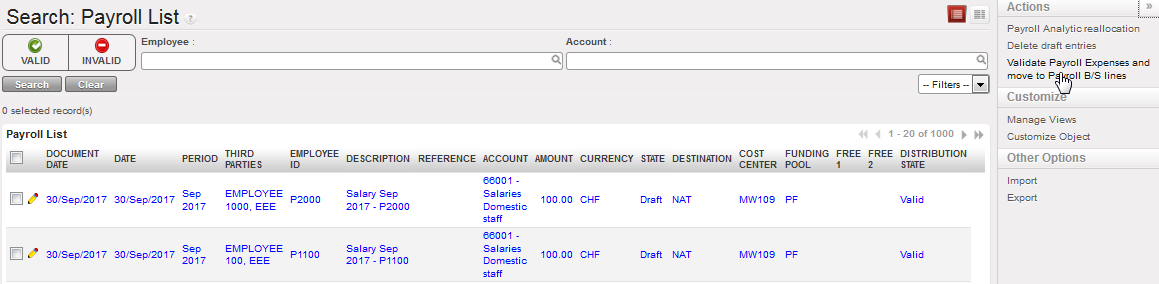
{Validate Payroll Expenses and move to Payroll B/S Lines} button
A new window with all the B/S lines opens. The lines without a Third Party are automatically shown first.
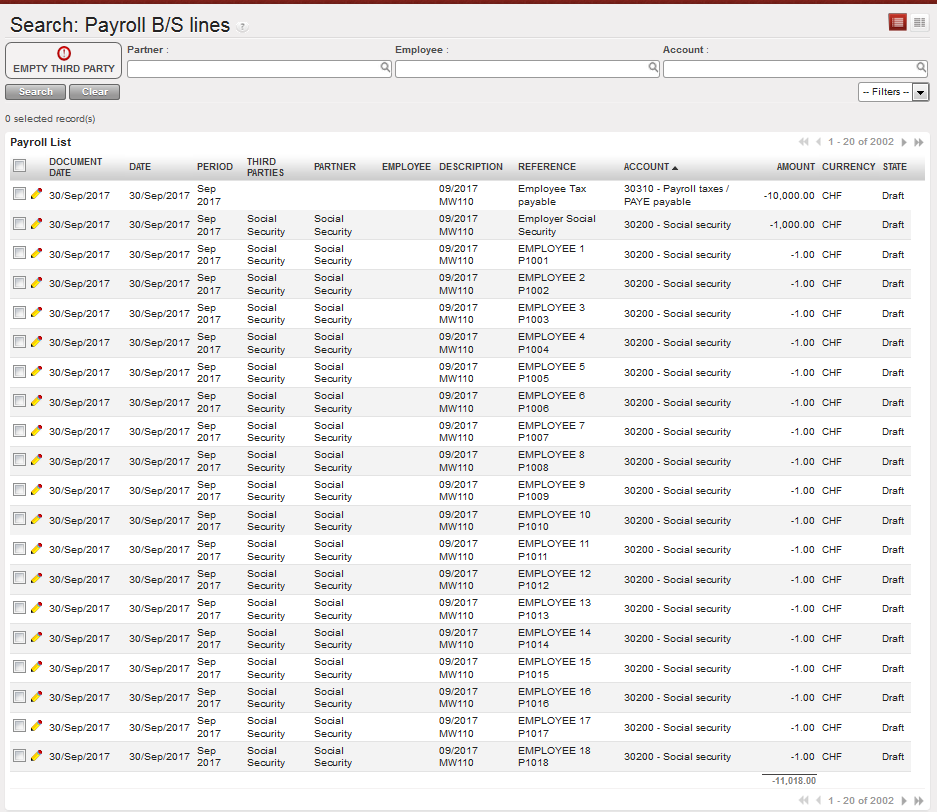
Payroll B/S lines to validate and to allocate third Party
Allocate Third Party to missing B/S lines.
B/S line edited to add Third Party

Click on {Validate draft entries} button in the Action Menu
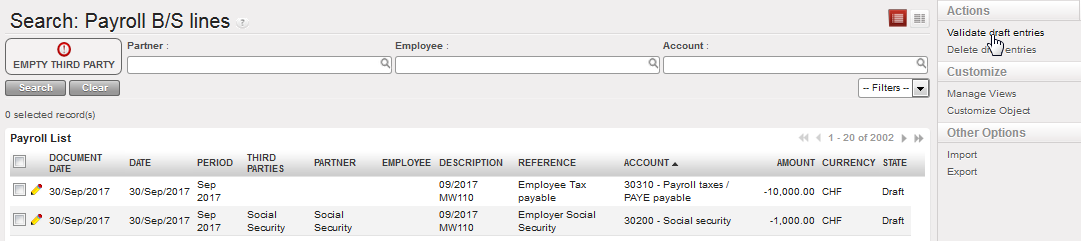
{Validate draft entries} button
{Payroll Validation Confirmation} window displays
Payroll validation wizard

Click on {Validate} and wait for the payroll entries to be posted.
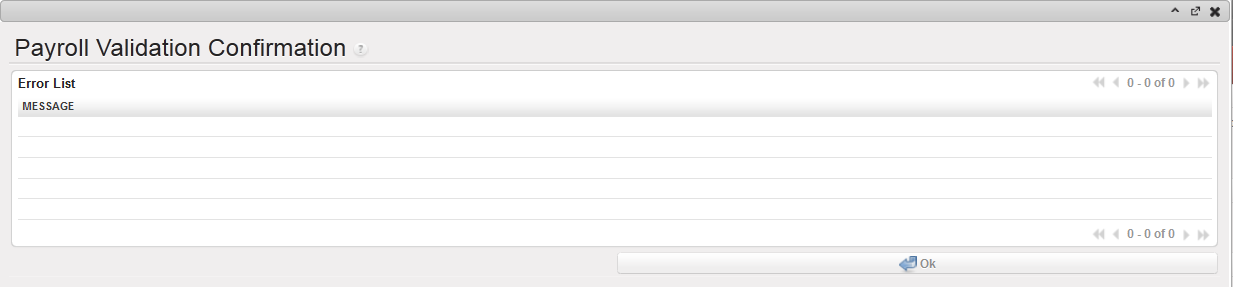
Confirming the validation of payroll entries
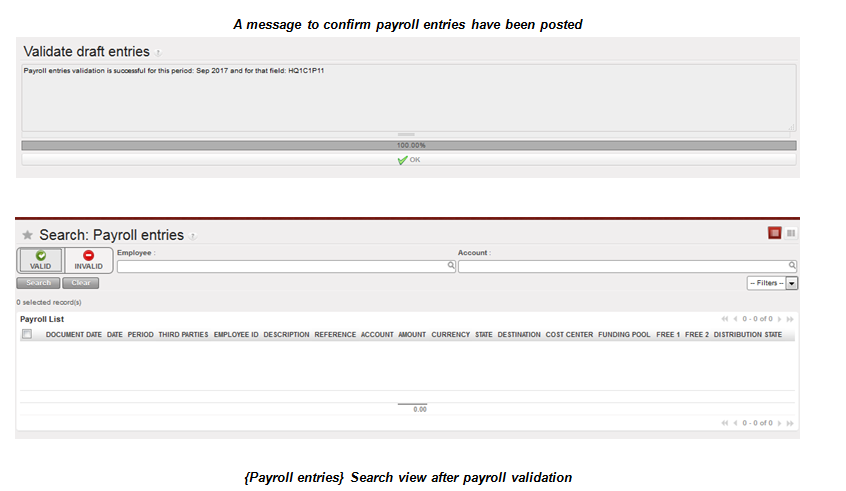
The validate payroll entries are now displayed in the {HR} journal.
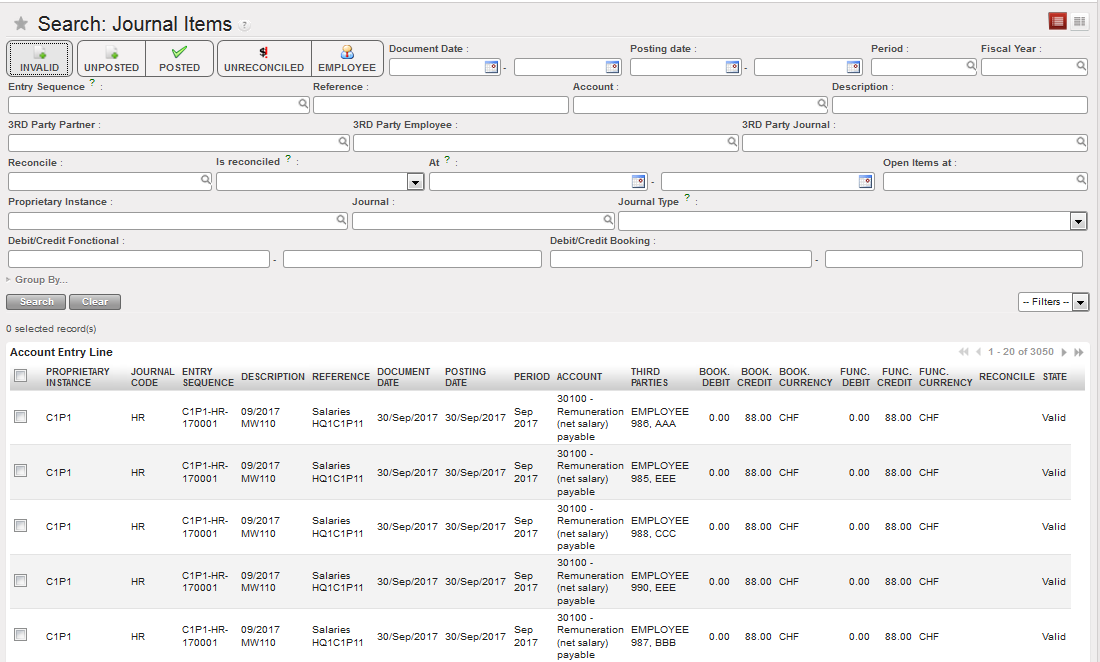
Posted payroll entries in the HR Journal
From an accounting perspective, the entries booked in journal on the debit side are composed of:
- A breakdown of total cost for MSF by employee, to be booked on a regular national staff expense account {66001, 66002 etc.}. The employee name is displayed in the {Third party} field and the employee function in the {Reference} field.
On the credit side, the entries booked in journal are composed of:
- Consolidated or split by employee net salary booked on account {Remuneration (net salary) payable}.
- Consolidated or split by employee salary advances for national staff {Salary Advance for national staff}. Advances were entered mid-month in Homere and recorded manually in UniField at time of payment. Salary advances are included in the export. They are therefore not included in the net salary and matched manually at salary payment at the end of the month.
- Consolidated or split by employee Social security employee / employer recorded under a dedicated payable account {Social security}.
- Consolidated or split by employee income taxes recorded under a dedicated payable account {Payroll taxes / PAYE Payable}.
- Any other tax or contribution recorded in the Homere payroll plan.
The validation of payroll entries recognizes expenses and payable amounts. Mid-month salary advances have already been paid via the registers. The end of month net to pay salary amount is still to pay and has not physically impacted your cash or bank balance until you record the payment directly in your registers.

- Just to mention that whether when importing register lines, Journal entries or Homere payee saga, the Analytic distribution information will be taken from the file imported and not from Employee master data.
- Before importing of payee saga make sure that all previously imported payroll lines are validated and not in draft state, as draft lines will block importing other payee saga files with a warning message >>”You cannot import payroll entries because there are XX draft expense lines and YYY draft balance sheet lines. Please validate the draft entries or click on ‘Delete draft entries’ to proceed.“